

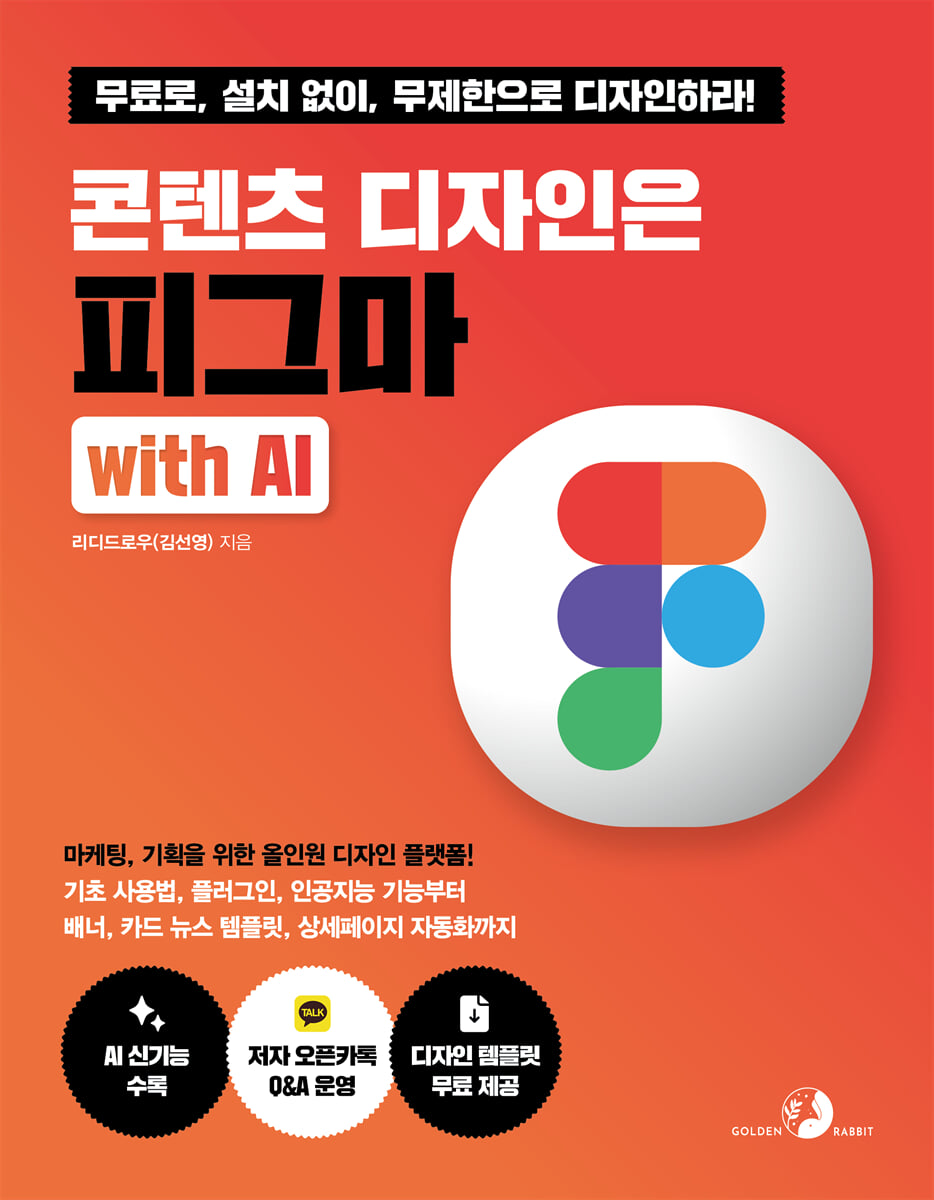
Content design with Figma with AI
 |
Description
Book Introduction
★ Design is difficult? Figma is there for you whenever you need it.
★ Reflects the latest updates such as Figma Buzz, Draw, and AI functions.
★ Complete Figma content design from basic to advanced in just one book.
Design still feels overwhelming? Whether you're a beginner or a planner or marketer weary of complex design tools, anyone can become a designer with Figma.
Because it's web-based, you can get started right away without installation, and all core features are available for free.
Plus, it includes all the elements that significantly lower the barrier to entry for design, including real-time collaboration, templates, plugins, and AI.
Figma can feel unfamiliar to beginners.
Frames? Vectors? Auto Layout? If you've ever felt overwhelmed by unfamiliar terms and menus, this book will be your guide.
"Content Design with Figma with AI" is designed so that even beginners can learn through hands-on practice on their own.
By learning the basic Figma menu, drawing shapes, utilizing images and text, components and variables, plugins, and AI functions, you will soon be able to create your own results.
Figma Buzz, Draw, and other recent update features were quickly implemented.
After learning the basic concepts, practice and real-world examples follow, so you can learn the fundamentals and applications of design by creating card news, detailed pages, banners, and even printed materials.
It also contains a wealth of practical know-how that can save time in today's busy society, from automation linked to Google Sheets to template design using Buzz.
This book will be your reliable tool whenever you need design.
Overcome the seemingly complex and difficult barrier of design and experience the joy of creating something yourself.
Now is the best time to start Figma.
- You can preview some of the book's contents.
Preview
index
[PART 00] Anyone Can Do It: Getting Started with Figma
Chapter 01 Welcome to the world of Figma
_ [Basic] What can you do with Figma?
_ [Basic] Figma, this is what I like about it
_ [Basic] Basic is free, paid if needed, take a look at Figma payment types
_ [Basic] Creating, loading, and saving new files
Chapter 02: A Look at the Figma Screen
_ [Basic] A look at the Figma home screen
_ [Basic] Taking a look at the Figma work screen
_ [Basic] Right Design Panel
_ [Basic] A look at the simple and easy Figma toolbar
_ [Basic] Workspace
Chapter 03: The Beginning of Design, Creating a Frame
_ [Basic] Starting the design, creating a frame
_ [Basic] Understanding the relationship between frames and objects within frames
[PART 01] Mastering the Essential Figma Basics
Chapter 04 Learning Figma's Core Features While Drawing
_ [Basic] Drawing basic shapes with Figma
_ [Basic] Drawing free shapes with the pen tool
_ [Practice] Drawing various shapes for use in design
_ [Basic] Applying color to shapes
_ [Practice] Practicing colors with a circle graph
_ [Basic] Applying lines to shapes
_ [Practice] Making a heart with lines
Chapter 05 Freely modifying and aligning shapes
_ [Basic] Learn about editing modes for creating and modifying shapes
_ [Basic] How to merge and pierce shapes as you like, using Pathfinder
_ [Basic] Learn how to align to create a clean design
Chapter 06 Various ways to fill shapes
_ [Basic] Using Gradients
_ [Basic] Loading images and videos
_ [AI] Filling images into shapes with Figma AI
_ [Basic] Resizing and editing images
Chapter 07 Learning how to use characters
_ [Basic] Learn the basic properties and usage of the text tool
_ [Practice] Decorating text with gradients and images
Chapter 08 Extracting Images
_ [Basic] Extracting images created with Figma
_ [Basic] Select and extract only the desired part
_ [Basic] Batch Extract to PDF
_ [Practice 01] Mastering the Basics of Figma with Coupon Design
[PART 02] Get the most out of Figma with its core features
Chapter 09 Effects and Blend Modes that Enrich Your Design
_ [Basic] Learn about 6 effects, from shadows to noise.
_ [Basic] Learn how to blend layers using blend modes
_ [Practice 02] Creating a Glassmorphism Style Banner
Chapter 10: Figma's Flower! Using Auto-Alignment and Styles
_ [Basic] Automatically align content and text with Auto Layout
_ [Practice] Creating a collage image with the Auto Layout grid
_ [Basic] Set frequently used colors and format styles
Chapter 11: Modifying Scattered Designs with Components at Once
_ [Basic] Understanding Components and Instances
_ [Basic] Creating different versions of a design with variants
_ [Practice] Creating a Card News Design That's Easy to Edit
Chapter 12: Finishing Your Design Like a Pro
_ [Basic] Organizing layers with shortcut keys
_ [Practice] Combining complex layers into a single image
_ [Basic] Applying file cover
[PART 03] Improving Design Quality with Plugins
Chapter 13: First Figma Plugins
_ [Basic] Using the plugin
_ [Basic] Exploring plugins in the community
Chapter 14: Creating Cute Advertising Banners with Plugins
_ [Practice 03] Plugin to create 3D letters with one click
_ [Practice 04] Perfect for event banners! A plugin for creating firecracker patterns.
_ [Practice 05] Super-simple mockup creation plugin
Chapter 15: Creating Stylish Advertising Banners with Plugins
_ [Practice 06] Plugin to remove the background of an image
_ [AI] Removing the background with Figma AI
_ [Practice 07] Creating Graphics that Make Products Stand Out
_ [Practice 08] Making composite images look more natural with the shadow plugin
Chapter 16: Correcting Images with Plugins
_ [Practice] Starting the Photopia plugin
_ [Practice] Erasing unnecessary parts of an image
_ [Practice] Increasing the length of the model's legs
_ [Practice] Removing facial blemishes
[PART 04] Improving Design Efficiency with Automation and Templates
Chapter 17: Automating Design with Google Sheets
_ [Practice] Automatically entering content into card news with Google Sheets
_ [Practice 09] Automatically setting text and color on advertising banners
_ [Practice 10] Inserting images for each option on the detail page at once
Chapter 18: Designing Content with Figma Buzz
_ [Basic] Viewing the Buzz Work Screen
_ [Practice 11] Creating Card News Using Templates
_ [Basic] Posting a template I created
_ [Practice 12] Applying in bulk with Buzz and Google Sheets
Chapter 19: Designing with Figma AI
_ [AI] One-click background removal and effect application
_ [AI] Create design drafts with prompts
_ [AI] Creating and Editing Images
_ [AI] Structuring content with AI
[PART 05] Design by type to choose from according to your needs
Chapter 20 Creating Various Banners for Real-World Use
_ [Practice 13] Creating a Letter Envelope Coupon Banner
_ [Practice 14] Creating a typography design banner
_ [Practice 15] Creating an Efficiency Upgrade Banner
_ [Practice 16] Creating a Smart Store Promotion Banner
Chapter 21: Learn the secrets of creating a well-made detail page
_ [Practice] Appropriate font size for detail pages
_ [Practice] Detailed page layout considering readability
_ [Practice] Creating a detailed page that is easy to add, delete, and reuse
_ [AI] Change only the main image with AI while maintaining the style
_ [Practice 17] Quickly Create Detailed Pages with Google Sheets
Chapter 22 Creating an Animated GIF Image
_ [Practice 18] Creating a Title Emphasis Animation
_ [Practical 19] Creating Light Animation at Official Retailer
_ [Practice 20] Creating GIFs using Figma Prototypes
Chapter 23: Designing for Print with Figma
_ [Practice] Creating a Printable Leaflet
_ [Practice 21] Creating My Product Tags
Detailed image

Publisher's Review
★ Create card news in just 1 minute, even if you're not a designer!
★ With over 600,000 cumulative views, the author of Reed Draw reveals all-in-one design secrets for marketers, planners, and sellers!
★ From recommended plugins to AI automation, we've got you covered for almost everything you can do with Figma!
Need a design but feel overwhelmed? Photoshop is difficult, and PowerPoint is inconvenient? Now, try Figma.
It's a powerful design tool that works right on the web without installation, is free to get started, and features real-time collaboration and AI capabilities.
This book, which contains the know-how of a Figma content design expert with 20 years of experience as a designer and online seller, who has created over 300 detail pages, goes beyond simple tool explanations and provides numerous design secrets that are especially essential for marketers, individual sellers, and online entrepreneurs through a hands-on approach.
Follow along with 16 practical examples, including card news, detail pages, and promotional banners, and put your designs into practice right away! You too can create stunning results like a professional designer!
★ The Complete Figma Guide! Here's How It's Organized
_PART 00 Anyone Can Do It, Getting Started with Figma
We'll introduce what Figma is and learn about installation, pricing, and essential menus.
_PART 01 Learning the Figma Basics You Must Know
You will learn how to use basic Figma functions such as extracting text, colors, and images, and practice drawing various shapes, as well as creating simple coupons.
_PART 02 Get the most out of Figma with core features
Learn how to easily and effectively utilize Figma's core features, including various effects like shadows and lights, and automatic alignment using Auto Layout.
_PART 03 Improving Design Quality with Plugins
We introduce plugins that expand the use of Figma infinitely and demonstrate their practical application.
Check out the honey plugins recommended by the author!
_PART 04: 3 Keys to Efficiency Improvement! Leveraging Automation, Templates, and AI
Learn how to automate your workflows with Figma and Google Sheets, create templates with Buzz, and use Figma's AI capabilities to reduce design time and improve quality.
_PART 05 Design by type to choose from according to your needs
Practice design templates that are ready to use, including promotional banners, detail pages, GIF images, and even print designs.
★ From practice files to Q&A! A reliable learning companion.
_One, we provide practice files and templates.
We've prepared practice example files for you to download and follow along with, or for easy application.
_Let's study together on Open KakaoTalk
If you have any questions, please feel free to ask them in the open chatroom with the author.
▶ Figma Open KakaoTalk: open.kakao.com/o/gemDO6Hh
_Set, learn through videos on the author's YouTube channel.
Over 600,000 views! Discover a variety of design tips, from Figma basics to top tips, for free.
▶ Author's YouTube: youtube.com/@rddraw
_Net, Upgrade your practical skills with detailed page lectures.
If you want to learn more about creating product detail pages, please also refer to the author's paid lectures.
▶ Lecture on creating an author detail page: bit.ly/45cwMWo
★ What can you do by reading this book?
- You can learn the basic functions of Figma while creating shopping mall coupon images.
- You can freely edit shapes to draw typography banners or logo shapes yourself.
- You can create sensational banners by utilizing Figma's various effects.
- You can create content such as card news and detailed pages in an organized format using auto layout.
- You can automatically generate images for each product option or create multiple banners at once by connecting Google Sheets and Figma.
- AI features can automatically handle image creation, background removal, and design drafting.
★ Who should read this book?
- A 'marketer' who is not a designer but must create content themselves
- A 'one-person seller' who directly manages smart stores and social media.
- A 'planner' who wants to create plans, proposals, and presentation materials with a sense of style.
- A non-designer who finds design tools difficult but wants to try Figma.
Aspiring "job-seekers" who want to improve work efficiency by leveraging the latest AI and automation capabilities.
Author's Note
As a designer, I have worked on numerous projects, including brand design, websites, mobile UI, and detail pages.
But while working as a seller, I encountered a completely different world.
The people who know the product best are the people who sell and market it, and I found that they are always at a loss when it comes to design.
'The tools are unfamiliar, outsourcing is expensive, and editing is slow... If only I could just make it myself.' I've heard this story so many times.
So I started creating YouTube content that would help even people who knew nothing about design or were new to design tools to create their own, and the tool at the center of that was Figma.
A free design tool that's lighter than Photoshop, doesn't rely on your computer's specs, and even features plugins and AI features for collaboration! It's easy for anyone to get started, even without design experience. We've become convinced that it's an essential tool for sellers and marketers.
And recently, with the introduction of Figma Buzz, design and content creation have become much easier and more flexible, with the freedom to use brushes with the Draw function, various automation features such as AI image generation, translation, and background removal.
This book is not simply a manual listing Figma features.
This book provides the essential "design sense" and "design tool structure" essential for practical use, helping you find the starting point where you may be at a loss as to "where and how to begin."
Figma can create virtually any image you need for your work, from detail pages and banner designs to marketing content! We hope this book will be the easiest first step to getting started with Figma, even if you don't have any design experience.
Summer 2025, Riddraw (Kim Seon-young)
GOODS SPECIFICS
- Date of issue: August 15, 2025
- Page count, weight, size: 328 pages | 183*235*15mm
- ISBN13: 9791194383390
You may also like
카테고리
korean


korean


