

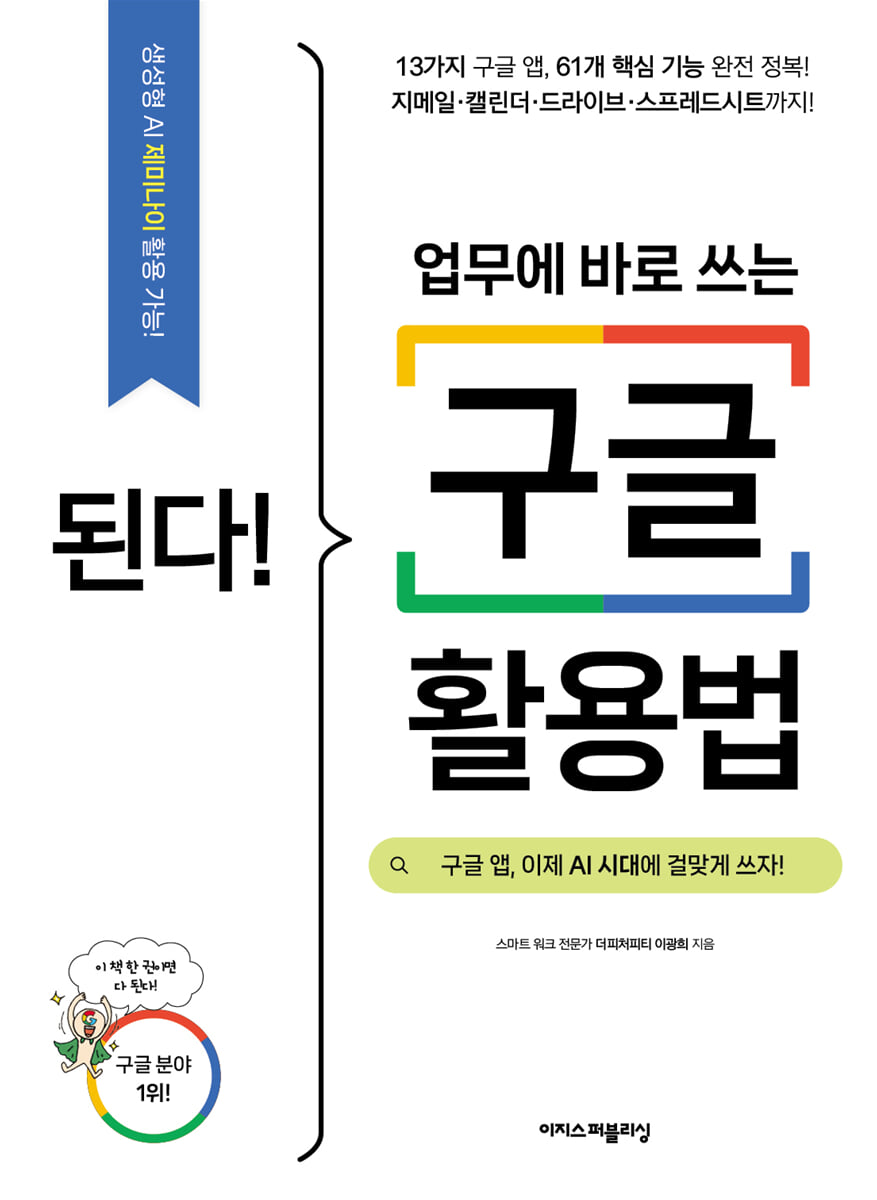
It works! How to use Google right away at work
 |
Description
Book Introduction
A one-volume introduction to using Google for office workers!
Gmail, Google Calendar, Google Drive, Google Spreadsheets, and Sites! Master 13 Google apps.
Updated to reflect the latest updates for 2025! Learn only the most practical Google features!
"It Works! How to Use Google Right Away at Work" is the perfect introductory guide to using Google apps in the digital transformation era.
It covers everything from how to set up Chrome to how to work and share online in real time simultaneously using 13 free collaboration tools, including Gmail, Google Docs, Sheets, Presentations, and Drive, how to check team members' schedules with Google Calendar, how to conduct remote meetings with Google Meet, and how to strengthen Chrome browser security.
It features 61 frequently used functions on Google that are explained in a friendly manner so that anyone can easily follow along.
Additionally, CEO Lee Gwang-hee of 'The Feature PT', an office program expert instructor and smart work consultant, explains key points to improve work skills based on his experience lecturing office workers.
This 2025 revised edition reflects the latest Google Workspace updates and introduces more efficient, smarter work methods.
We've detailed newly added features and practical application methods to suit the changing work environment, so if you're looking to learn how to work smarter, get started now!
Gmail, Google Calendar, Google Drive, Google Spreadsheets, and Sites! Master 13 Google apps.
Updated to reflect the latest updates for 2025! Learn only the most practical Google features!
"It Works! How to Use Google Right Away at Work" is the perfect introductory guide to using Google apps in the digital transformation era.
It covers everything from how to set up Chrome to how to work and share online in real time simultaneously using 13 free collaboration tools, including Gmail, Google Docs, Sheets, Presentations, and Drive, how to check team members' schedules with Google Calendar, how to conduct remote meetings with Google Meet, and how to strengthen Chrome browser security.
It features 61 frequently used functions on Google that are explained in a friendly manner so that anyone can easily follow along.
Additionally, CEO Lee Gwang-hee of 'The Feature PT', an office program expert instructor and smart work consultant, explains key points to improve work skills based on his experience lecturing office workers.
This 2025 revised edition reflects the latest Google Workspace updates and introduces more efficient, smarter work methods.
We've detailed newly added features and practical application methods to suit the changing work environment, so if you're looking to learn how to work smarter, get started now!
- You can preview some of the book's contents.
Preview
index
Smart Work with Google
Chapter 1: A New Way of Working: Smart Work
01-1 Where is the company server located?
From an era of buying and using to an era of borrowing and using
Are you still working the same way as yesterday?
01-2 The concept and key elements of smart work
Misconceptions and Truths about Smart Work
Five Key Elements of Smart Work
01-3 Google, your smart work companion
Just do it! } Check out Google services
Chapter 2: Installing Google Chrome and Setting Up an Account
02-1 Getting Started with Google: Installing the Chrome Browser and Creating an Account
Chrome instead of Edge, the default Windows browser!
Just do it! } Install Chrome and set up the environment
Install the app so you can work from anywhere on your smartphone.
02-2 Syncing your account with Chrome
Why Synchronization Is Important
Just do it! } Set up Chrome to your liking and sync it
3 Google Account Settings You Should Know
Use secret mode on other people's PCs or public PCs.
02-3 Using Chrome and Google Search Engines Properly
Use search operators to quickly and accurately Google.
Just do it! } Search directly with search engines other than Google from Chrome's search bar
Just do it! } Quickly access Google's main services
[Capable Interview 1] Social Distancing: Smart Work is the Key! ― Lee Ki-song
Second Yard: The Basics of Smart Work - Mail, Memo, and Photo Management
Chapter 3: Gmail, the hub of all Google services
03-1 Why do so many people around the world use Gmail?
03-2 Know-how for sorting and processing accumulated emails
Just do it! } Sort and archive emails with labels
Just do it! } Automatically categorize advertisements and informational emails that you don't need to see right away.
Just do it! } Don't miss important emails
03-3 Finding the desired email among numerous emails, search operators
Quickly find the email you need right now with Gmail's search function.
Just do it! } Find emails with attachments
Find emails using search operators
03-4 Be sure to add a signature to your business emails!
Just do it! } Register an email signature
03-5 Gmail Default Settings, Change Them Like This for Your Convenience
Increase the number of emails displayed per page
Change the settings to 'Reply to All' when replying
I don't recommend listing exchanged emails in conversation format.
When you are away, use automatic response!
Save frequently used descriptions or repetitive replies as templates.
03-6 Oops! Increase the email cancellation time to 20-30 seconds.
03-7 Late-night email notifications are rude! Send a reservation email.
Just do it! } Send a reservation email
03-8 Increase security by specifying a viewing period and password in your email, Secret Mode
Just do it! } Set the viewing period and password for emails in secret mode
03-9 Customize your Gmail screen to your liking
Adjusting the spacing of your mailing list
Change to black theme
[Capable Interview 2] My first smart work was sending a reservation text message in middle school - Jeon Si-jin
Chapter 4 Collaborate and share anywhere, at work or at home, with Google Keep.
04-1 Is there a difference between the Notes app on my smartphone and Google Keep notes?
A cloud memo app that lets you record and check notes anytime, anywhere.
Just do it!} Try using notes by type in Google Keep
Extracting text from an image
Know the other icons in the memo input window
Learn about the main menu on the Google Keep screen.
Just do it! } Assign labels to each note
04-2 Scraping articles or information from websites as is
Just do it! } Scraping web pages on your PC
Just do it! } Scraping web pages on mobile
04-3 Tell me what to check when I go to a specific location, location notification
Just do it! } Set a time and location for a note in Google Keep
04-4 Collaborating with Others Using Google Keep
Just do it! } Add collaborators
[Capable Interview 3] Smart Work: Transforming the Way Users Work - Kim Ki-dong
Chapter 5: Google Photos, the leader in photo and video management services
05-1 Basic usage of Google Photos
What You Can Do with Google Photos
Just do it! } Install the Google Photos app and set the storage method.
Just do it! } Import photos and videos from your PC and upload them to Google Photos
Understanding Google Photos' sync and storage policies
Free up device storage space
05-2 Photo Management, Easy This Way
Just do it! } Find photos quickly with the search function
People and pets that Google automatically groups
Live shared albums with photos updated in real time
Just do it! } Create a Live Share Album
05-3 Share photos and videos without expiration, unlimited link sharing
Just do it! } Share photos and videos with links
05-4 Gather photos in one place, collaboration function
Just do it! } Collect photos with collaborators using Google Photos
[Capable Interview 4] Try it step-by-step, starting with a small team! ― Yang Jin-ho
Third Yard: The Flower of Smart Work - Google Collaboration Tools
Chapter 6: Features of Google Collaboration Tools
06-1 How to Use Google Collaboration Tools
What's the difference between MS Office and Google collaboration tools?
Explore examples of how Google collaboration tools can be used.
06-2 Advantages and Limitations of Google Collaboration Tools
You can work anytime, anywhere!
You can collaborate in real time without running any programs!
File management stress, 'automatic version history' solves it!
Don't overuse Google collaboration tools!
Chapter 7: Write reports anywhere, Google Docs
07-1 Reviewing the Basic Features of Google Docs
No more inconvenient tasks of going and waiting!
Just do it! } Start Google Docs
Just do it! } Simultaneously on one screen, shortening work time!
07-2 Three Special Features of Google Docs - Special Characters, Voice Input, and Document Translation
Enter Chinese characters, foreign languages, and special characters
Voice input
Translate a document
07-3 Real-time collaboration with Google Docs
Just do it! } Share the document
You can do it! } Work with commenter rights
We do not recommend giving collaborators editor rights to directly edit documents.
Distributing the completed document
Chapter 8: Present Anywhere, Google Presentations
08-1 Reviewing the Basic Features of Google Presentations
PowerPoint and Google Presentations
Limitations of Google Presentations
Just do it! } Embed YouTube videos in Google Presentations
08-2 Real-time collaboration with Google Presentations
Leave a comment
Gathering real-time collective intelligence
Save as PPTX and PDF files
08-3 Anonymous real-time Q&A, audience Q&A
Just do it! } Ask and display questions with audience Q&A
[Capable Interview 5] To practice smart working, you must first establish rules! ― Yu Won-il
Chapter 9: Excel and Google Spreadsheets for Real-Time Management
09-1 A Look at the Basic Features of Google Spreadsheets
Excel and Google Spreadsheets
Limitations of Google Spreadsheets
Just do it! } Using the checkbox function
09-2 Automatically importing data using the IMPORT function
Just do it! } Automatically import table data from web pages
Just do it! } Collect news articles with specific keywords in real time
09-3 Various features of collaboration tools that are good to know
Add free fonts that can be used for commercial purposes
Just do it! } Adding fonts
Create a new document in 1 second, service name: new
Where is this document stored?
All working files are automatically version controlled.
View shortcuts for Google services
[Capable Interview 6] Several companies have adopted smart working! ― Kim Shin-myeong
Chapter 10 All files are in the cloud space, Google Drive
10-1 Setting up Google Drive for me
Why I Don't Use USB Anymore
Just do it! } Change your Google Drive settings to make work easier and get started.
Just do it!} Learn how to upload and download files
Just do it! } Share files and folders on Google Drive
10-2 Collaborating on Files from Other Services with Google Drive
Just do it! } Working with MS Office files in Google Drive
Just do it! } Working with PDF files in Google Drive
Extract text from image files into Google Docs!
Just do it! } Add comments to images and Korean files
Using Advanced Search Operators in Google Drive
Sync Google Drive or automatically connect it as a virtual network drive
Just do it! } Scan with the Google Drive app
Chapter 11: Google's Generative AI, Gemini, and Google Workspace for Enterprise Users
11-1 Google's generative AI Gemini
What is generative AI?
Gemini is a generative AI service operated by Google.
Gemini Usage Conditions
Just do it! } Connect to Google Gemini and use it
Just add the extension and get Gemini results!
Just do it! } Using Gemini within Google Collaboration Tools
11-2 Security and systematic management with Google Workspace!
The biggest difference between a personal account and a corporate workspace is security!
What you can do in Google Workspace
Understanding Google Services and Work Processes
Check out Google Workspace pricing
Google Workspace implementation process
Fourth Yard: Smart Work Anywhere - Schedule Management and Communication
Chapter 12: Cloud Calendar: Separate and Shared Use
12-1 Why You Should Manage Your Schedule with a Cloud Calendar
You can check your Google Calendar anytime, anywhere.
No time wasted on scheduling meetings or conferences
You can further increase your productivity by integrating with other Google services.
12-2 Unfamiliar Google Calendar, It's Not Difficult
Understanding the Google Calendar Screen
Just do it! } Categorize and organize calendar types
Add a schedule
Add attendees to your schedule
Add a meeting or meeting location
Just do it! } Register a schedule that repeats every week
12-3 Share calendars and subscribe to shared calendars
You can manage your schedule by subscribing to your team members' work calendars.
It would also be useful to create a calendar to check the shared space (company assets)
Just do it! } Share and subscribe to the calendar
Just do it! } What if the other person doesn't have a Google account? Share your calendar via a web link.
Chapter 13: Video Conferencing for Remote Work and Remote Work: Google Meet
13-1 Preparing for a Video Conference
The era of remote work! Don't be afraid of video conferencing.
Be sure to check this before starting your meeting!
13-2 Learning the Basics of Google Meet
Start a video conference in Google Meet
Start a video conference from Google Calendar
Just do it! } A look at Google Meet's basic features and settings
Just do it! } Record the entire meeting video
13-3 Three Useful Tips for Video Conferencing with Google Meet
Turn off your camera and microphone depending on the situation.
Try increasing the camera quality (resolution)
Try applying visual effects
Chapter 14: Real-time surveys and results management, Google Forms
14-1 Google Forms that increases participation and automatically organizes survey results
The old ways of conducting surveys are now a thing of the past!
Anyone can complete the survey in just one minute using their smartphone! Participation rates will increase!
No need to struggle with organizing survey results!
Google Form Preview
14-2 An online questionnaire that anyone can easily create
Just do it! } Create an online questionnaire
14-3 Receive survey results in a spreadsheet
Just do it! } Organize your survey results into a Google Spreadsheet
14-4 Importing questions from other questionnaires
Just do it! } Import other questionnaire questions
[Capable Interview 7] Smart Work at American IT Companies: This is How They Do It! ― Na Won-taek
[Special] Smarter Personal Life! 11 Useful Google Services You Should Know
Fifth Yard: Completing Smart Work - Site and Security
Chapter 15: Building Websites with Google: Site Tools
15-1 Create a website in just a few clicks!
Can't I create and manage a simple website or page myself?
15-2 Creating an Event Web Page
Just do it! } Configuring the 'Customer Invitation Seminar' web page content
Just do it! } Create a web address for the completed web page and publish it.
15-3 Change the site address to 'companyname.com'
Method 1: Change to a short address
Method 2: Using a Korean domain
Chapter 16 Security and Troubleshooting
16-1 View your Google security status at a glance
16-2 Finding the location of my lost device
16-3 Remote Logout
Just do it! } Log out of all devices logged in to my account
16-4 Back up regularly! Takeout
Just do it! } Backing up Google data
16-5 Google Service Outage, Check on the Dashboard
16-6 Check out more information at Google Customer Center
16-7 Resetting the Chrome browser
16-8 Deleting Chrome browsing history and Google activity information
Just do it! } Clear your browsing history in Chrome
Just do it! } Delete my activity from your Google Account
[Special] Smarter Learning! 6 Useful Google Services to Know
Search
Chapter 1: A New Way of Working: Smart Work
01-1 Where is the company server located?
From an era of buying and using to an era of borrowing and using
Are you still working the same way as yesterday?
01-2 The concept and key elements of smart work
Misconceptions and Truths about Smart Work
Five Key Elements of Smart Work
01-3 Google, your smart work companion
Just do it! } Check out Google services
Chapter 2: Installing Google Chrome and Setting Up an Account
02-1 Getting Started with Google: Installing the Chrome Browser and Creating an Account
Chrome instead of Edge, the default Windows browser!
Just do it! } Install Chrome and set up the environment
Install the app so you can work from anywhere on your smartphone.
02-2 Syncing your account with Chrome
Why Synchronization Is Important
Just do it! } Set up Chrome to your liking and sync it
3 Google Account Settings You Should Know
Use secret mode on other people's PCs or public PCs.
02-3 Using Chrome and Google Search Engines Properly
Use search operators to quickly and accurately Google.
Just do it! } Search directly with search engines other than Google from Chrome's search bar
Just do it! } Quickly access Google's main services
[Capable Interview 1] Social Distancing: Smart Work is the Key! ― Lee Ki-song
Second Yard: The Basics of Smart Work - Mail, Memo, and Photo Management
Chapter 3: Gmail, the hub of all Google services
03-1 Why do so many people around the world use Gmail?
03-2 Know-how for sorting and processing accumulated emails
Just do it! } Sort and archive emails with labels
Just do it! } Automatically categorize advertisements and informational emails that you don't need to see right away.
Just do it! } Don't miss important emails
03-3 Finding the desired email among numerous emails, search operators
Quickly find the email you need right now with Gmail's search function.
Just do it! } Find emails with attachments
Find emails using search operators
03-4 Be sure to add a signature to your business emails!
Just do it! } Register an email signature
03-5 Gmail Default Settings, Change Them Like This for Your Convenience
Increase the number of emails displayed per page
Change the settings to 'Reply to All' when replying
I don't recommend listing exchanged emails in conversation format.
When you are away, use automatic response!
Save frequently used descriptions or repetitive replies as templates.
03-6 Oops! Increase the email cancellation time to 20-30 seconds.
03-7 Late-night email notifications are rude! Send a reservation email.
Just do it! } Send a reservation email
03-8 Increase security by specifying a viewing period and password in your email, Secret Mode
Just do it! } Set the viewing period and password for emails in secret mode
03-9 Customize your Gmail screen to your liking
Adjusting the spacing of your mailing list
Change to black theme
[Capable Interview 2] My first smart work was sending a reservation text message in middle school - Jeon Si-jin
Chapter 4 Collaborate and share anywhere, at work or at home, with Google Keep.
04-1 Is there a difference between the Notes app on my smartphone and Google Keep notes?
A cloud memo app that lets you record and check notes anytime, anywhere.
Just do it!} Try using notes by type in Google Keep
Extracting text from an image
Know the other icons in the memo input window
Learn about the main menu on the Google Keep screen.
Just do it! } Assign labels to each note
04-2 Scraping articles or information from websites as is
Just do it! } Scraping web pages on your PC
Just do it! } Scraping web pages on mobile
04-3 Tell me what to check when I go to a specific location, location notification
Just do it! } Set a time and location for a note in Google Keep
04-4 Collaborating with Others Using Google Keep
Just do it! } Add collaborators
[Capable Interview 3] Smart Work: Transforming the Way Users Work - Kim Ki-dong
Chapter 5: Google Photos, the leader in photo and video management services
05-1 Basic usage of Google Photos
What You Can Do with Google Photos
Just do it! } Install the Google Photos app and set the storage method.
Just do it! } Import photos and videos from your PC and upload them to Google Photos
Understanding Google Photos' sync and storage policies
Free up device storage space
05-2 Photo Management, Easy This Way
Just do it! } Find photos quickly with the search function
People and pets that Google automatically groups
Live shared albums with photos updated in real time
Just do it! } Create a Live Share Album
05-3 Share photos and videos without expiration, unlimited link sharing
Just do it! } Share photos and videos with links
05-4 Gather photos in one place, collaboration function
Just do it! } Collect photos with collaborators using Google Photos
[Capable Interview 4] Try it step-by-step, starting with a small team! ― Yang Jin-ho
Third Yard: The Flower of Smart Work - Google Collaboration Tools
Chapter 6: Features of Google Collaboration Tools
06-1 How to Use Google Collaboration Tools
What's the difference between MS Office and Google collaboration tools?
Explore examples of how Google collaboration tools can be used.
06-2 Advantages and Limitations of Google Collaboration Tools
You can work anytime, anywhere!
You can collaborate in real time without running any programs!
File management stress, 'automatic version history' solves it!
Don't overuse Google collaboration tools!
Chapter 7: Write reports anywhere, Google Docs
07-1 Reviewing the Basic Features of Google Docs
No more inconvenient tasks of going and waiting!
Just do it! } Start Google Docs
Just do it! } Simultaneously on one screen, shortening work time!
07-2 Three Special Features of Google Docs - Special Characters, Voice Input, and Document Translation
Enter Chinese characters, foreign languages, and special characters
Voice input
Translate a document
07-3 Real-time collaboration with Google Docs
Just do it! } Share the document
You can do it! } Work with commenter rights
We do not recommend giving collaborators editor rights to directly edit documents.
Distributing the completed document
Chapter 8: Present Anywhere, Google Presentations
08-1 Reviewing the Basic Features of Google Presentations
PowerPoint and Google Presentations
Limitations of Google Presentations
Just do it! } Embed YouTube videos in Google Presentations
08-2 Real-time collaboration with Google Presentations
Leave a comment
Gathering real-time collective intelligence
Save as PPTX and PDF files
08-3 Anonymous real-time Q&A, audience Q&A
Just do it! } Ask and display questions with audience Q&A
[Capable Interview 5] To practice smart working, you must first establish rules! ― Yu Won-il
Chapter 9: Excel and Google Spreadsheets for Real-Time Management
09-1 A Look at the Basic Features of Google Spreadsheets
Excel and Google Spreadsheets
Limitations of Google Spreadsheets
Just do it! } Using the checkbox function
09-2 Automatically importing data using the IMPORT function
Just do it! } Automatically import table data from web pages
Just do it! } Collect news articles with specific keywords in real time
09-3 Various features of collaboration tools that are good to know
Add free fonts that can be used for commercial purposes
Just do it! } Adding fonts
Create a new document in 1 second, service name: new
Where is this document stored?
All working files are automatically version controlled.
View shortcuts for Google services
[Capable Interview 6] Several companies have adopted smart working! ― Kim Shin-myeong
Chapter 10 All files are in the cloud space, Google Drive
10-1 Setting up Google Drive for me
Why I Don't Use USB Anymore
Just do it! } Change your Google Drive settings to make work easier and get started.
Just do it!} Learn how to upload and download files
Just do it! } Share files and folders on Google Drive
10-2 Collaborating on Files from Other Services with Google Drive
Just do it! } Working with MS Office files in Google Drive
Just do it! } Working with PDF files in Google Drive
Extract text from image files into Google Docs!
Just do it! } Add comments to images and Korean files
Using Advanced Search Operators in Google Drive
Sync Google Drive or automatically connect it as a virtual network drive
Just do it! } Scan with the Google Drive app
Chapter 11: Google's Generative AI, Gemini, and Google Workspace for Enterprise Users
11-1 Google's generative AI Gemini
What is generative AI?
Gemini is a generative AI service operated by Google.
Gemini Usage Conditions
Just do it! } Connect to Google Gemini and use it
Just add the extension and get Gemini results!
Just do it! } Using Gemini within Google Collaboration Tools
11-2 Security and systematic management with Google Workspace!
The biggest difference between a personal account and a corporate workspace is security!
What you can do in Google Workspace
Understanding Google Services and Work Processes
Check out Google Workspace pricing
Google Workspace implementation process
Fourth Yard: Smart Work Anywhere - Schedule Management and Communication
Chapter 12: Cloud Calendar: Separate and Shared Use
12-1 Why You Should Manage Your Schedule with a Cloud Calendar
You can check your Google Calendar anytime, anywhere.
No time wasted on scheduling meetings or conferences
You can further increase your productivity by integrating with other Google services.
12-2 Unfamiliar Google Calendar, It's Not Difficult
Understanding the Google Calendar Screen
Just do it! } Categorize and organize calendar types
Add a schedule
Add attendees to your schedule
Add a meeting or meeting location
Just do it! } Register a schedule that repeats every week
12-3 Share calendars and subscribe to shared calendars
You can manage your schedule by subscribing to your team members' work calendars.
It would also be useful to create a calendar to check the shared space (company assets)
Just do it! } Share and subscribe to the calendar
Just do it! } What if the other person doesn't have a Google account? Share your calendar via a web link.
Chapter 13: Video Conferencing for Remote Work and Remote Work: Google Meet
13-1 Preparing for a Video Conference
The era of remote work! Don't be afraid of video conferencing.
Be sure to check this before starting your meeting!
13-2 Learning the Basics of Google Meet
Start a video conference in Google Meet
Start a video conference from Google Calendar
Just do it! } A look at Google Meet's basic features and settings
Just do it! } Record the entire meeting video
13-3 Three Useful Tips for Video Conferencing with Google Meet
Turn off your camera and microphone depending on the situation.
Try increasing the camera quality (resolution)
Try applying visual effects
Chapter 14: Real-time surveys and results management, Google Forms
14-1 Google Forms that increases participation and automatically organizes survey results
The old ways of conducting surveys are now a thing of the past!
Anyone can complete the survey in just one minute using their smartphone! Participation rates will increase!
No need to struggle with organizing survey results!
Google Form Preview
14-2 An online questionnaire that anyone can easily create
Just do it! } Create an online questionnaire
14-3 Receive survey results in a spreadsheet
Just do it! } Organize your survey results into a Google Spreadsheet
14-4 Importing questions from other questionnaires
Just do it! } Import other questionnaire questions
[Capable Interview 7] Smart Work at American IT Companies: This is How They Do It! ― Na Won-taek
[Special] Smarter Personal Life! 11 Useful Google Services You Should Know
Fifth Yard: Completing Smart Work - Site and Security
Chapter 15: Building Websites with Google: Site Tools
15-1 Create a website in just a few clicks!
Can't I create and manage a simple website or page myself?
15-2 Creating an Event Web Page
Just do it! } Configuring the 'Customer Invitation Seminar' web page content
Just do it! } Create a web address for the completed web page and publish it.
15-3 Change the site address to 'companyname.com'
Method 1: Change to a short address
Method 2: Using a Korean domain
Chapter 16 Security and Troubleshooting
16-1 View your Google security status at a glance
16-2 Finding the location of my lost device
16-3 Remote Logout
Just do it! } Log out of all devices logged in to my account
16-4 Back up regularly! Takeout
Just do it! } Backing up Google data
16-5 Google Service Outage, Check on the Dashboard
16-6 Check out more information at Google Customer Center
16-7 Resetting the Chrome browser
16-8 Deleting Chrome browsing history and Google activity information
Just do it! } Clear your browsing history in Chrome
Just do it! } Delete my activity from your Google Account
[Special] Smarter Learning! 6 Useful Google Services to Know
Search
Detailed image

Publisher's Review
A new way to work brought to you by Google Workspace!
Reduce unnecessary time and increase performance!
How do high-performing people work? While previously, they would have contacted each person individually via email or messenger to obtain permission, high-performing people use Google Calendar to set meeting dates, times, and locations in real time.
After confirming whether or not the participant will attend the meeting, the participant can mark the meeting on their calendar.
Likewise, people who are good at their jobs differ in the way they convene and conduct meetings.
Now, improve your work skills by 200% with this book.
“What is the most efficient way to report work online?”
- Experience the power of collective intelligence with Google Collaboration Tools: Docs, Spreadsheets, and Presentations.
Since the pandemic, the number of people working from home or remotely has increased.
Google Docs, Presentations, and Spreadsheets allow you to freely share and collaborate with your team members.
This book covers the various features that enable you to use three collaboration tools effectively.
Learn how to grant editing permissions in Google Docs so others can edit in real time, or limit them to comments only.
In 'Google Docs', you can grant editing permission to allow users to create documents directly, or you can set it to allow users to leave comments or suggestions.
If you have a lot to present, try using Google Presentations.
As long as you have an internet connection, you can easily access your presentation materials anytime, anywhere. There's no need to carry a USB drive, worry about fonts being installed, or whether videos will play properly.
Additionally, while Google Spreadsheets is similar to Excel, it also offers features that Excel doesn't.
For example, there is a function to directly import Internet materials.
By entering a simple function, you can retrieve and collate Internet data in real time, and use it in various ways, such as creating presentation materials.
"Where are the old files stored? Should I stop by the office and get them?"
Google Drive: The Secret of the Man Who Never Fumbles
All materials you work on in Google are automatically uploaded to 'Google Drive' and saved automatically without you having to press a separate save button.
Each time you make a modification, a version is recorded and you can revert to a previous version, so you can work anytime, anywhere as long as you have an internet connection.
And it's free to use too!
We need a new way of working that fits the mobile age.
Learn how to work smarter with this book!
"No more heavy diaries! There's Cloud Memo!"
- If you have an idea, use Google Keep.
Do you still write down ideas or notes in a diary when they suddenly strike you or you're in a meeting? From now on, try using Google Keep on your smartphone, which you always carry with you.
It offers convenient features that are incomparable to paper diaries, allowing you to immediately save text, images, and even internet news.
This book introduces a method for taking notes in one place, regardless of the environment, such as a smartphone, tablet PC, or office PC.
From free 'Google Surveys' to 'Google Photos'!
13 Google Apps and 61 Ways to Use Them at Work Revealed!
In addition to the apps introduced so far, we will cover everything from how to use Gmail, which is the foundation of work, to Google Forms for creating questionnaires, Site Tools for easily creating web pages, Google Photos for organizing photo data, and even Chrome account management and security.
This book contains 61 ways to use 13 Google apps for work.
From the basics to practical application, learn everything in this one book!
Anyone can get started with this book, ‘Smart Work That Even Our Moms Can Do.’
No prior knowledge is required to read this book.
It's okay if you're not familiar with computers.
The author says he worked hard to create a book called “Smart Work That Even Our Moms Can Do.”
In fact, even beta testers were able to practice easily.
As you read the book, you can naturally access Google, follow along step by step, and apply it to your work.
In addition, the author has compiled questions and problem-solving methods received while attending various lectures into the “I Have a Question” and “It Can Be Done! 1-Minute Tips” sections.
Discover practical know-how that can be applied immediately in practice!
Highly recommended for startups and small and medium-sized businesses looking to implement smart work!
Get the know-how to implement the enterprise platform 'Google Workspace'!
Many companies are using Google Workspace instead of operating and managing their own servers.
Even small businesses can easily get started with smart work and Google Workspace through this book.
First, experience smart work using free personal Google apps, and then purchase a Workspace account to use it more systematically as needed.
If you're a company looking to improve work efficiency, start with this book!
From small businesses to large corporations at home and abroad,
We also included vivid interviews with 7 smart work experts!
To help you easily adopt Google Workspace, a corporate platform, we've also included interviews with seven smart workers, including marketers, business managers, and company representatives.
These are people who have successfully established smart work practices by actively utilizing Google apps in their actual work.
You can get a glimpse into the specific work methods and know-how of successful smart workers, so if you're interested, be sure to check it out.
You'll gain insights you can apply immediately in your practice!
On the website 'Smart Work' and Naver Cafe 'Do it! Study Room' run by the author
Study with the readers of this book and receive a free book!
The author runs the website 'Smart Work', which compiles information about Google.
If you have any questions while reading this book or want to know the latest updates on smart work, you can ask the author directly.
Also, visit Naver Cafe 'Do it! Study Room' where you can study and grow together.
You can communicate with readers studying the same book and also get help from editors.
There are also various events available, such as the "Do it! Study Group," where you can receive a book as a gift by creating your own study plan and sharing your study records, and "Do it! (Let's all study together!)," where you can read a book together within a set period of time.
If you want fun and systematic learning, definitely join us!
- The Feature PT's 'Smart Work' site: bit.ly/googleworkutilization
- Do it! Study Room Cafe: cafe.naver.com/doitstudyroom
[Recommended for these people!]
- Freelancers whose biggest goal is to increase productivity
- Office workers who want to experience Google apps
- Job seekers who want to learn Google in advance so they can immediately apply it to their work.
- A fresh graduate who wants to challenge himself with a new way of working.
- Operation teams of startups and small and medium-sized enterprises that want to introduce smart work to their companies
Reduce unnecessary time and increase performance!
How do high-performing people work? While previously, they would have contacted each person individually via email or messenger to obtain permission, high-performing people use Google Calendar to set meeting dates, times, and locations in real time.
After confirming whether or not the participant will attend the meeting, the participant can mark the meeting on their calendar.
Likewise, people who are good at their jobs differ in the way they convene and conduct meetings.
Now, improve your work skills by 200% with this book.
“What is the most efficient way to report work online?”
- Experience the power of collective intelligence with Google Collaboration Tools: Docs, Spreadsheets, and Presentations.
Since the pandemic, the number of people working from home or remotely has increased.
Google Docs, Presentations, and Spreadsheets allow you to freely share and collaborate with your team members.
This book covers the various features that enable you to use three collaboration tools effectively.
Learn how to grant editing permissions in Google Docs so others can edit in real time, or limit them to comments only.
In 'Google Docs', you can grant editing permission to allow users to create documents directly, or you can set it to allow users to leave comments or suggestions.
If you have a lot to present, try using Google Presentations.
As long as you have an internet connection, you can easily access your presentation materials anytime, anywhere. There's no need to carry a USB drive, worry about fonts being installed, or whether videos will play properly.
Additionally, while Google Spreadsheets is similar to Excel, it also offers features that Excel doesn't.
For example, there is a function to directly import Internet materials.
By entering a simple function, you can retrieve and collate Internet data in real time, and use it in various ways, such as creating presentation materials.
"Where are the old files stored? Should I stop by the office and get them?"
Google Drive: The Secret of the Man Who Never Fumbles
All materials you work on in Google are automatically uploaded to 'Google Drive' and saved automatically without you having to press a separate save button.
Each time you make a modification, a version is recorded and you can revert to a previous version, so you can work anytime, anywhere as long as you have an internet connection.
And it's free to use too!
We need a new way of working that fits the mobile age.
Learn how to work smarter with this book!
"No more heavy diaries! There's Cloud Memo!"
- If you have an idea, use Google Keep.
Do you still write down ideas or notes in a diary when they suddenly strike you or you're in a meeting? From now on, try using Google Keep on your smartphone, which you always carry with you.
It offers convenient features that are incomparable to paper diaries, allowing you to immediately save text, images, and even internet news.
This book introduces a method for taking notes in one place, regardless of the environment, such as a smartphone, tablet PC, or office PC.
From free 'Google Surveys' to 'Google Photos'!
13 Google Apps and 61 Ways to Use Them at Work Revealed!
In addition to the apps introduced so far, we will cover everything from how to use Gmail, which is the foundation of work, to Google Forms for creating questionnaires, Site Tools for easily creating web pages, Google Photos for organizing photo data, and even Chrome account management and security.
This book contains 61 ways to use 13 Google apps for work.
From the basics to practical application, learn everything in this one book!
Anyone can get started with this book, ‘Smart Work That Even Our Moms Can Do.’
No prior knowledge is required to read this book.
It's okay if you're not familiar with computers.
The author says he worked hard to create a book called “Smart Work That Even Our Moms Can Do.”
In fact, even beta testers were able to practice easily.
As you read the book, you can naturally access Google, follow along step by step, and apply it to your work.
In addition, the author has compiled questions and problem-solving methods received while attending various lectures into the “I Have a Question” and “It Can Be Done! 1-Minute Tips” sections.
Discover practical know-how that can be applied immediately in practice!
Highly recommended for startups and small and medium-sized businesses looking to implement smart work!
Get the know-how to implement the enterprise platform 'Google Workspace'!
Many companies are using Google Workspace instead of operating and managing their own servers.
Even small businesses can easily get started with smart work and Google Workspace through this book.
First, experience smart work using free personal Google apps, and then purchase a Workspace account to use it more systematically as needed.
If you're a company looking to improve work efficiency, start with this book!
From small businesses to large corporations at home and abroad,
We also included vivid interviews with 7 smart work experts!
To help you easily adopt Google Workspace, a corporate platform, we've also included interviews with seven smart workers, including marketers, business managers, and company representatives.
These are people who have successfully established smart work practices by actively utilizing Google apps in their actual work.
You can get a glimpse into the specific work methods and know-how of successful smart workers, so if you're interested, be sure to check it out.
You'll gain insights you can apply immediately in your practice!
On the website 'Smart Work' and Naver Cafe 'Do it! Study Room' run by the author
Study with the readers of this book and receive a free book!
The author runs the website 'Smart Work', which compiles information about Google.
If you have any questions while reading this book or want to know the latest updates on smart work, you can ask the author directly.
Also, visit Naver Cafe 'Do it! Study Room' where you can study and grow together.
You can communicate with readers studying the same book and also get help from editors.
There are also various events available, such as the "Do it! Study Group," where you can receive a book as a gift by creating your own study plan and sharing your study records, and "Do it! (Let's all study together!)," where you can read a book together within a set period of time.
If you want fun and systematic learning, definitely join us!
- The Feature PT's 'Smart Work' site: bit.ly/googleworkutilization
- Do it! Study Room Cafe: cafe.naver.com/doitstudyroom
[Recommended for these people!]
- Freelancers whose biggest goal is to increase productivity
- Office workers who want to experience Google apps
- Job seekers who want to learn Google in advance so they can immediately apply it to their work.
- A fresh graduate who wants to challenge himself with a new way of working.
- Operation teams of startups and small and medium-sized enterprises that want to introduce smart work to their companies
GOODS SPECIFICS
- Date of issue: April 10, 2025
- Page count, weight, size: 344 pages | 724g | 190*257*15mm
- ISBN13: 9791163036975
You may also like
카테고리
korean


korean

![GQ KOREA Mark (Monthly): December [2025]](http://librairie.coreenne.fr/cdn/shop/files/8ef265dbbfbf186523ed75ba7319009d.jpg?v=1765340328&width=3840)


