

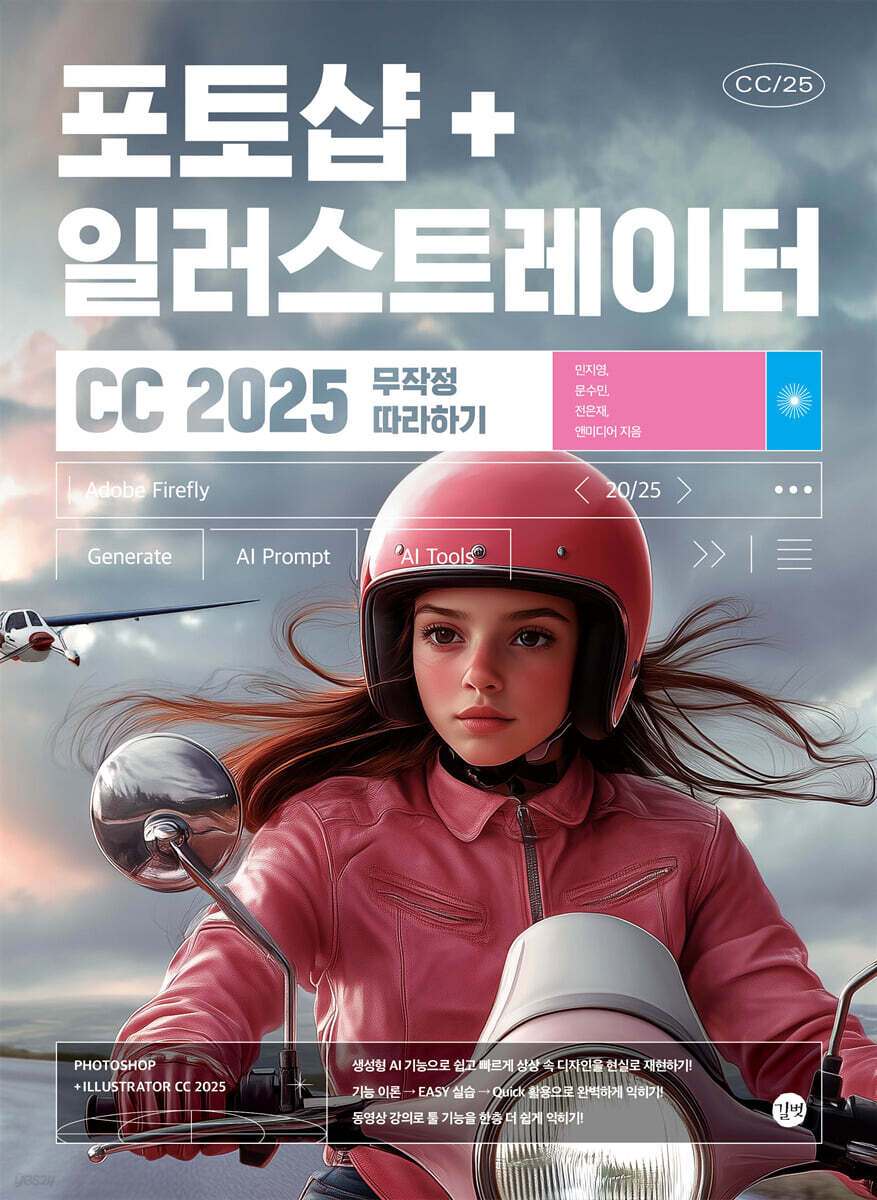
Photoshop + Illustrator CC 2025: Just Follow
 |
Description
Book Introduction
“Shoot away” all your work time at once
Amazing New AI Features in CC 2025
Still searching for or purchasing templates or images for your design work? With the new AI features in CC 2025, you can quickly and easily create the high-quality work you want.
Now you can create stunning results without any hand drawing skills or difficult compositing editing.
Create images with Korean prompts in Photoshop and collaborate on design processes quickly with AI tools.
"Photoshop + Illustrator CC 2025: Just Follow" introduces AI features in a fun and easy-to-learn way, tailored to beginners. It also provides basic examples and video tutorials to help you utilize the features. The AI era, the beginning of a new Photoshop! Now, create your own new Photoshop and Illustrator work patterns, and with the AI features of Photoshop + Illustrator CC 2025, let's bring your imagination to life with AI design features.
- You can preview some of the book's contents.
Preview
index
Volume 1 Photoshop Edition
Part 01.
Getting Started with Photoshop CC 2025 OnePoint
LESSON 01 | New Features in Photoshop CC 2025: Create, Edit, and Composite with AI
Creating images from text, not tools (Text to Image)
From image deletion to area filling, all in one! (Generative Fill)
Generative Expand, optimized for social media
Eliminate distractions at once with AI capabilities
Generate background with text
Generate image options that control the image, Generate image dialog box
Create content types, from artistic illustrations to photorealistic photographs.
Generating similar images using reference images (Reference Image)
AI-generated effects that eliminate the need for traditional filter synthesis
Just drag and drop for perfect results! The new brush tool
[EASY PRACTICE] Creating 3D Characters with Korean Prompts
LESSON 02 | Creative Imagination: The Beginning of Photoshop
Photoshop, what kind of work can I use it for?
Shallow but important Photoshop basics for work
Smooth or rough! The selection area determines the level of perfection.
For screen or print? Confused about image quality?
Is accurate color correct? Image correction and the concept of color.
Understand image and canvas transformations to see your designs!
Quiet, sometimes shouty text! 3 principles for using fonts
Copyright cannot be overemphasized
Part 02.
Check out the basic tools and panels in Photoshop CC 2025.
LESSON 03 | Get Ready for Basic Work!
Configure a custom panel for convenient use of AI features
What does the Photoshop work screen look like?
Contextual Task Bar, a versatile image creation command tool
This is a must! Learn the essential Photoshop tools in advance.
Detailed options are here! Learn about the panel.
[EASY PRACTICE] Adjusting the Brightness of Your Work Screen
Part 03.
Faster, Easier! The Essential Basics You Need to Know in Photoshop
LESSON 04 | Get Ready! Build Your Design Board with One Setup
Create a new document
[EASY PRACTICE] Creating a Canvas
[EASY PRACTICE] Opening a File
[EASY PRACTICE] Importing Files with the Place Embedded Feature
Save files to your PC or cloud space
Zoom in, out, and move the work screen
Using rulers and guides
Resize the image
[EASY PRACTICE] Reduce image size by half
Resize the canvas
[Quick Use] Expanding the Canvas to Create an Image
Record your work process and resolve repetitive tasks
Reduce work time
[EASY PRACTICE] Applying Actions and Batch Features to Multiple Images
[Quick Use] Saving Multiple Images as a Single PDF File
LESSON 05 | Half the Work is Done: Selecting the Selection Area
Learn about tools for selecting fixed areas
Moving and duplicating selections
Choose from a variety of image types
[EASY PRACTICE] Complete the bulletin board border with the polygon tool.
Selecting an image with the Object Selection Tool
Automatic image selection in the Contextual Task Bar
Selecting an image creation area with the Selection Brush tool
Edit selection
[EASY PRACTICE] Quickly and Easily Select Colorful Images
[EASY PRACTICE] Selecting a Person Separated from a Complex Background
[EASY PRACTICE] Skin Rejuvenation with the Selection Brush Tool
[Quick Use] Change the background by looking directly at the subject and distinguishing it.
Transform the selection area
Select a similar color range
Selecting an area based on focus
Part 04.
Amazingly Beautiful Images! AI Image Creation and Transformation
LESSON 06 | Design? Now anyone can create images with Photoshop AI!
9 Principles for Creating Desired Images in Photoshop
[EASY PRACTICE] Creating Realistic Human Images Using Korean Sentences
[EASY PRACTICE] Creating a Text Balloon Image with a Prompt
[EASY PRACTICE] Creating Art Images with Keyword Keywords
[EASY PRACTICE] Editing Images with Prompt Input
[Quick Use] Create Mockup Labels by Generating Similar Images
[Quick Usage] Composite Backgrounds and Characters Created with Prompts
[EASY PRACTICE] Changing the style with gallery images
[EASY PRACTICE] Creating Similar Characters with External Reference Images
[EASY PRACTICE] Automatically Removing Backgrounds and Creating Images
[EASY PRACTICE] Changing Textures by Content Type
[EASY PRACTICE] Creating Illustrations with Style and Effects
LESSON 07 | Cutting and transforming without hesitation is also a skill!
Select and cut only the necessary parts
[EASY PRACTICE] Crop a horizontal image into a vertical image
[EASY PRACTICE] Crop a Crooked Photo Correctly
[EASY PRACTICE] Freely expand an image by dragging it.
Transform images freely
[EASY PRACTICE] Applying a Shadow Effect to an Image
[EASY PRACTICE] Expressing Perspective
[Quick Use] Create Emotional Photos by Transforming Images
[EASY PRACTICE] Transforming Yoga Pose Figures
Neural Filters for Natural Image Transformation
[Quick Use] Correcting Character Expressions and Skin
[Quick Use] Create a Landscape Photo from Summer to Winter
[EASY PRACTICE] Smooth Skin Correction Like an Advertisement
EASY PRACTICE] Removing noise and maintaining clarity even when enlarging an image
[Quick Usage] Creating a Horizontal Banner While Preventing Image Distortion
[Quick Use] Creating a Panoramic Photo from Multiple Photos
Learn about filter types and how to use them
[Quick Use] Creating a Wave Shape from a Rectangle
[Quick Use] Using a Path Blur for a Natural and Dynamic Feel
Part 05.
Color correction for exceptional clarity, brightness, and rich color
LESSON 08 | Choosing a Color to Suit Your Taste
Specifying foreground and background colors
Using the Paint Bucket Tool
Fill a selection with color, image, or pattern
[Quick Use] Coloring Webtoons Without Damaging the Outlines
[EASY PRACTICE] Deleting elements using the Fill function by specifying a selection area
[EASY PRACTICE] Erasing a Tattoo with Contents-Aware Fill
Using smart gradients
[EASY PRACTICE] Customizing Gradient Effects
Register and apply patterns
[EASY PRACTICE] Filling an Image with a Butterfly Pattern
[Quick Use] Creating a Perfect Pattern Image Even When Cut
LESSON 09 | The Easy, Amazing Basics of Color Correction
[EASY PRACTICE] Automatic Color Correction
[EASY PRACTICE] Correcting an Image While Viewing with the Adjustment Brush Tool
Adjusting the brightness and contrast of a specific tone
[Quick Use] Correcting the Highlights, Mids, and Shadows of an Image
Add intensity to your photos by adjusting brightness and contrast
[EASY PRACTICE] Create Vivid Photos by Adjusting Saturation
[EASY PRACTICE] Adjusting Color and Saturation at Your Own
LESSON 10 | Detailed or Creative Color Correction
Adjusting color balance
Convert to black and white image
Adjusting saturation and exposure
[EASY PRACTICE] Color Correction While Checking the Correction Style
[EASY PRACTICE] Keep the original intact! Edit and correct as desired.
Part 06.
Design custom text to visually convey your message.
LESSON 11 | From Super-Easy Input to Custom Text Input
Learn about the different types of text tools
Using the panel and options bar for input
Handling paragraphs
Entering and editing text
Enter text and change properties
[EASY PRACTICE: Using Fonts Provided by Photoshop
LESSON 12 | The Inevitable Connection with Images, Type Styles
[EASY PRACTICE] Practice: Import and input long sentences
[EASY PRACTICE] Entering Path Characters That Flow Along the Shape
Transforming text
[Quick Use] Creating a Flyer with Text Style
[Quick Use] Creating Various Types of Logo Letters
[Quick Use] Create SNS Promotional Images with Text Frames
Part 07.
Drawing Challenge! Draw with brushes, pens, and shapes.
LESSON 13 | DRAWING WITH BRUSHES, PEN, AND PEN LINES
Learn about the Brush and Pencil tools
[Quick Use] Easily Draw a Puppy Character with Your Mouse!
Learn about tools for drawing paths
[EASY PRACTICE] Selecting Curves and Straight Lines
[Quick Use] Creating a Teddy Bear Character with the Pen Tool
[EASY PRACTICE] Extracting Paths from Text Format
Learn about tools for drawing lines and shapes
[Quick Use] Creating a Silhouette Image
[Quick Use] Creating a Night Sky Image
LESSON 14 | Using Brushes with Special Features
Erase just the part you want by dragging it
Using the Art History Tool
Duplicate the image
[EASY PRACTICE] Arranging Toy Duplicates
Skin retouching and image restoration
[EASY PRACTICE] Removing Complex Images in the Shape of Thin Lines
[EASY PRACTICE] Recognize and erase multiple people at once.
Part 08.
Layers, masks, and channels for image compositing
LESSON 15 | Amazing Image Composition: Layers
Learn about layers
Layer Usage Tips You Must Know
[Creating a Quick Collage Image]
[EASY PRACTICE: Composing YouTube Thumbnail Images with Group Layers]
Composite overlapping layers
[Create a business card by synthesizing images using Quick Utilization
[Quick Usage] Easily Design Beverage Mockups with Blending Mode
Applying gradient and pattern layer styles
[Creating a business card using Quick Utilize Layer Styles]
[Quick Use] Creating Transparent 3D Text with Various Layer Styles
Compositing images with layer masks
[Quick Usage] Configuring the Instagram Screen
[Quick Use] Creating a Pop-up Ad with an Object Layer Mask
Composite pattern images into text
[EASY PRACTICE] Synthesize a cloud image into the desired shape.
Using Smart Objects
[EASY PRACTICE] Managing Images Without Damage to the Original
LESSON 16 | Using Channels for Color Information and Masks
Learn about color modes
Explore Channels
[EASY PRACTICE] Create a channel, save the selection area, and use it.
[EASY PRACTICE] Extracting Complex Areas
Learn about masks
Extracting specific images using masks
[EASY PRACTICE] Editing Complex Selections with Layer Masks
[EASY PRACTICE] Selecting and compositing hairy images
Video lectures
Creating Product Advertisement Images with AI
Create a design business card using image transformation
Creating music labels using saturation and color
Creating a poster using the layer compositing function
Designing Product Packages Using Channel Features
Creating coupons using text messages
Designing a Product Promotion Poster Using AI
Volume 2 Illustrator Edition
Part 01.
Getting Started with Illustrator CC 2025 One Point
LESSON 1 | Turn your imagination into reality with generative AI! New features in Illustrator CC 2025
Create vector images with improved prompts
Enhanced mockup capabilities for commercial design
Filling shapes with vector graphics
Density intensity adjustment to further fine-tune the spacing or complexity of the pattern
Applying blur effect to vector shapes as well
AI Auto Layout creates the optimal layout using AI features.
Image tracing feature creates clean, editable vector files
Retype feature that automatically identifies and edits the font of the text
[Quick Bow] Create Perfect Illustrations Even with Rough Drawings
[Quick Usage] Create Realistic Mockups with One Click
[Quick Usage] Create a vector image to preview your mockup.
[EASY PRACTICE] Filling in Detailed Patterns to Fit Mockup Form
[EASY PRACTICE] Aligning Objects on a Path
[EASY PRACTICE] Checking and Editing Fonts in Images
LESSON 02 | The Beginning of Creative Design as an Illustrator
Manual or digital work: which should you choose?
Illustrator Basics for Work
Photoshop and Illustrator, more convenient together!
Various ways to use images! How to upload files
Things to keep in mind when printing
Image file formats that are visible as much as you know
LESSON 03 | Illustrator CC 2025: AI Features Stand Out
What does the Illustrator work screen look like?
Contextual Task Bar, a versatile illustration creation command tool
Learn about tools that run with a click
Options settings are here! Explore the main panels.
Part 02.
Be More Creative! Essential Drawing Basics You Need to Know
LESSON 04 | Get Ready! Create a Canvas Quickly and Easily
Create a new document
[EASY PRACTICE] Creating a New Document
[EASY PRACTICE] Creating a New Document with a Custom Size
Specifying multiple artboards
[EASY PRACTICE] Creating Multiple Artboards
[EASY PRACTICE] Opening a file and loading an image
Save file
Export file
[EASY PRACTICE] Exporting only some graphics or icons
Select the object you want
[EASY PRACTICE] Selecting Characters with the Same Attributes at Once
LESSON 05 | Turning Imagination into Reality! Illustration Drawing
Understanding Pass
[EASY PRACTICE] Drawing Paths Any Way You Want
Adjust line thickness and shape
[Quick Use] Complete a Sign Using Lines
[Quick Use] Easily complete illustrations with shape tools
Drawing line illustrations with a hand-drawn feel
[Quick Use] Drawing Line Illustrations Using the Path Tool
Learn different brushes with different feels
[Quick Use] Free Illustration Drawing
[EASY PRACTICE] Drawing Background Illustrations with the Water Drop Brush Tool
Part 03.
Color matching and coloring, layers for easy management
LESSON 06 | Color matching to suit your taste
Explore the coloring tools
[EASY PRACTICE] Adjusting Color Mode
Specify colors and patterns with one click
[Quick Use] Applying Colors and Patterns in the Swatches Panel
[EASY PRACTICE] Create your desired pattern by simply entering keywords.
[EASY PRACTICE] Easily Edit Complex Patterns
[EASY PRACTICE] Coloring Quickly and Easily
Quickly apply your desired color theme
Applying three-dimensional colors and gradients
[EASY PRACTICE] Expressing Three-Dimensional Effects with Gradients
[EASY PRACTICE] Applying Gradients with Points and Lines
[EASY PRACTICE] Applying Natural Gradients
LESSON 07 | Convenient Features for Easy Illustration Work
Learn about the work screen settings feature
[EASY PRACTICE] Working Precisely with Rulers and Guidelines
Setting up groups and launching edit mode
[EASY PRACTICE] Setting up a group and editing in edit mode
Learn about layers for object management
[EASY PRACTICE] Managing Layers in the Layers Panel
Change object array
[EASY PRACTICE] Freely rearrange object arrangements
Aligning objects
[EASY PRACTICE] Aligning Objects Using the Align Panel
Transforming objects
[Quick Use] Create a character using the rotation, duplication, and movement functions.
[EASY PRACTICE] Adjusting the size by number
[EASY PRACTICE] Tilting an Object
Part 04.
Technique upgrades to improve text input and completion
LESSON 08 | Intuitive Typography Design
[EASY PRACTICE] Entering Text
[EASY PRACTICE] Entering Text in Object Form
[EASY PRACTICE] Entering Characters Flowing Along a Path
[EASY PRACTICE] Freely Scatter Letters
[EASY PRACTICE] Converting text into objects and editing them
Setting the character style
[Quick Usage] Designing a Menu with Text
[EASY PRACTICE] Aligning Objects and Text Accurately
[Quick Use] Complete the Icon by Adding Characters with Variable Fonts
Transforming text
[EASY PRACTICE] Distorting Text with the Make with Warp Feature
LESSON 09 | Reconstructing Illustrations to Enhance Completeness
Add and divide objects
[EASY PRACTICE] Reconstructing an Illustration Using the Pathfinder Panel
Reconfigure objects with just a click and drag
[EASY PRACTICE] Reconstructing Objects Using Shape Composition Tools
Creating an intermediate object
[Quick Use] Creating a Character with the Blend Function
Mix colors or show only a part of them
[EASY PRACTICE] Adding transparency to objects using blending modes
Show only the necessary parts
[Quick Usage] Designing CI Using Clipping Masks
Turn photos into illustrations
[Quick Use] Converting Images into Illustrations to Design Ads
Applying symbols
[EASY PRACTICE] Registering and Editing Symbols
[EASY PRACTICE] Distorting Objects in Various Ways
[Quick Use] Move your character however you want
[Quick Usage] Designing Graphs for Infographics
Video lectures
Designing a character illustration eco-bag using shape tools
Designing a Typography Phone Case with Blend
Detailed image

Publisher's Review
Easy! Fast! Perfect!
CC 2025: Designing Imagination into Reality
The hottest keyword these days is AI.
Just give the command and it will create it like a magic wand.
This CC 2025 has upgraded AI features.
This allows you to quickly and easily design your imagination into reality.
No more searching and purchasing templates or images for your design work. Create your desired designs quickly and easily with CC 2025, enhanced by AI features.
For more detailed work, you should use the tool function as before.
Photoshop + Illustrator CC 2025 is designed to go through the steps of [Theory]->[EASY Practice]-[Quick Usage], so you can learn the tool functions with just one follow-up.
Try out in-depth, practical examples with videos.
To help you learn at a level that suits your abilities, we've divided the learning plan into three stages: for those who are learning Photoshop for the first time, those who have experience using previous versions of Photoshop, and those who are proficient in Photoshop. Please refer to this and use the book.
GOODS SPECIFICS
- Date of issue: January 20, 2025
- Page count, weight, size: 508 pages | 1,202g | 188*257*21mm
- ISBN13: 9791140712137
You may also like
카테고리
korean


korean


