

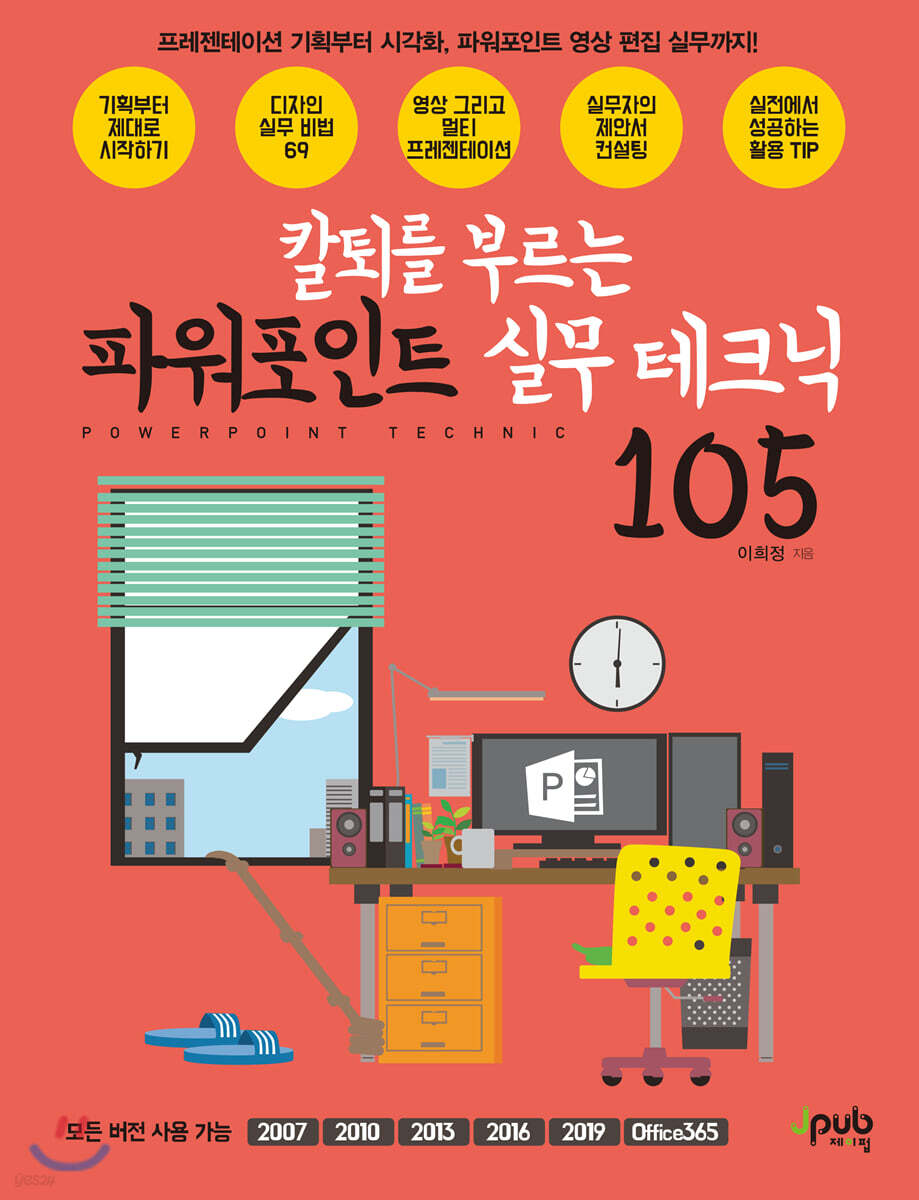
105 Practical PowerPoint Techniques for a Faster Workday
 |
Description
Book Introduction
From presentation planning to visualization for practitioners,
Practical application of multi-presentation using PowerPoint and video
"PowerPoint Practical Techniques 105: A Powerpoint Experience That Will Make You Want to Leave Work on Time" is a book written by an expert who has worked exclusively in presentation-related work for a long time, and teaches you the proper methods for producing the results you want.
This book isn't just about how to use the tools; it also contains know-how and techniques to create more persuasive materials and work more efficiently.
Practical application of multi-presentation using PowerPoint and video
"PowerPoint Practical Techniques 105: A Powerpoint Experience That Will Make You Want to Leave Work on Time" is a book written by an expert who has worked exclusively in presentation-related work for a long time, and teaches you the proper methods for producing the results you want.
This book isn't just about how to use the tools; it also contains know-how and techniques to create more persuasive materials and work more efficiently.
- You can preview some of the book's contents.
Preview
index
Preface 10
Structure of this book 12
[CHAPTER 1: Practical Tips for Presentation Planning]
--Preview of presentation planning and design practice
001 Text Visualization Techniques for Presentation Preparation 16
002 Design Upgrades to Enhance Transmission Power 19
003 Detailed work for the slide presentation of the proposal 21
004 Improving Readability in Text-heavy Slides 25
005 Using PowerPoint Diagrams for Efficient Work 27
006 Gain practical experience with various diagrammatic examples 30
007 Using Appropriate Shapes for Visual Presentations 34
008 Design Completion: Applying Colors in the Right Place 38
009 Understanding Frequently Used Shortcuts in Practice 43
010 Using Gradients for Richly Colored Slides 45
[CHAPTER 2: 69 Design Tips for Presentations]
--50% of slide design, text design practice
011 Designing Text with Various Formatting Features 50
012 Adjusting line spacing to improve readability 54
013 Adjusting character spacing to maintain layout 58
014 Dense and Delicious Text Arrangement 60
015 Effective outline function 63 for further emphasizing the title
016 Using a neon effect to clearly distinguish the background and text 65
017 Shading to emphasize key phrases 67
018 Quickly import text formats with Format Copy 71
--Expressing key content with shapes
019 Ctrl, Shift, Alt combination keys to improve work efficiency 76
020 Creating a luxurious feel with patterns on basic shapes 78
021 Aligning shapes to the desired location with the snap function 82
022 Adjusting transparency to create a shape that blends naturally with the background 85
023 Expressing a step gradient using overlapping shapes 87
024 Breaking the Monotony of Parallel Objects with Color Changes 90
025 Quickly apply colors used in the surrounding area with the eyedropper function 95
026 Expressing three-dimensional shapes sufficiently with basic functions 98
027 Expressing Perfect Three-Dimensional Shapes with 3D Rotation Effects 100
028 Expressing relationships between objects using lines 103
029 Relationships, Smart Use of Arrows to Effectively Convey Flow 107
030 Creating a flexible curved arrow shape using the point editing function 110
031 Improving Design Quality with Simple Gradient Expressions 114
032 Gradient with clear borders 117
033 Transparent gradient that blends naturally into the background 119
034 Outline gradient that can be expressed as if emphasized with multiple borders 122
035 Creating a new shape by merging shapes 124
036 Creating a useful half-arrow to indicate a reciprocal structure 127
037 Effective shape merging when you need to make quick changes during the design process 128
038 Cut out only the desired part of the image by merging shapes 130
039 Freely arrange the text in the shape you want 132
--Use images to enhance presentation delivery
040 Image file formats used in practice 134
041 How to Choose Images to Enhance Your Presentation's Power 137
042 Ctrl+Y to remember repetitive tasks smartly 142
043 Transforming a rectangular image to blend naturally with other objects 143
044 Inserting auxiliary images to enhance the delivery of content 146
045 When maintaining the basic form of the real thing, arrange it by dividing it with a border or frame 150
046 Remove background and adjust saturation with one click 154
047 Select the area to keep and the area to remove and process the background 156
048 Pictogram chart for quick understanding of content 158
049 wmf and eps files that can be disassembled when needed 161
050 Converting a decomposed object back into an image 164
051 Freely Available PowerPoint Basic Icon Images 167
052 Changing a multi-colored bitmap icon to a single color tone 169
053 Create frequently used icons and save them as images 172
054 Cleanly cut out only the necessary parts from the image 178
055 Applying a soft edge effect to only one side 181
056 Crop the image to the desired shape 184
057 Resizing for Parallel Layout of Multiple Images 188
058 Placing images of different sizes in the same size 190
--Using SmartArt, tables, and charts to effectively convey content
059 SmartArt 193 for creating diagrams quickly and easily
060 Learning the Basics of SmartArt with a Circular Structure 195
061 Quickly Transform a Text List into SmartArt 198
062 Complete a SmartArt Diagram Using Images 202
063 Designing a Basic Table Using Excel Data 206
064 Creating a Transparent Table That Blends Naturally with the Background 211
065 Choosing the Right Chart for Your Data 213
066 Auxiliary axis used when there is a large difference in data values 219
067 Applying chart formats to other charts 225
068 Creating a pictogram chart that effectively uses images to convey content 228
069 A good pie chart to highlight only certain items in a series 231
070 Creating a pie chart with shapes that allow for a variety of presentations 236
--Animations, transitions, and themes to liven up your presentations
071 Animation is a powerful tool to help convey presentation content. 240
072 Appropriate presentation animation for title slides 243
073 Using animations with spectacular effects 247
074 Animations that emphasize specific content in sequence 251
075 Rotating Animation to Create Clock Hands 254
076 Expressing Complex Animation 256
077 Slide screen transition effects with example images 260
078 Understanding the Theme-Master-Layout Relationship Correctly 264
079 Create your own theme by applying themes and changing the master 267
[CHAPTER 3: Unlimited Uses of PowerPoint: Multi-Presentation and Print Design]
--Practical multi-presentation using video
080 The power of video to convey information and PowerPoint 274
081 Multi-Presentation Techniques: A Look at the Process 278
082 Multi-presentation Practice with Edited Video 281
083 Slide Planning and Design for Multi-Presentation 287
084 How to resolve errors that occur when creating a multi-presentation presentation 293
085 Finding Audio and Image Sources 294
--Various applications of PowerPoint
086 Creating Various Printed Materials with PowerPoint 296
087 Designing a Practical Poster 300
[CHAPTER 4: Proposal Presentation Consulting for Practitioners]
--Proposal presentation design practice consulting
088 Effective placement of text slides with schedules 304
089 Building the Layout of Text Slides 306
Slide 308: Visually Enhanced Presentation of Numerical Data
091 Organizing a messy design and creating a balanced layout 310
092 Representing Numerical Data Using Charts 312
093 Slide Visualization Planning at a Glance 314
094 Visualization using Pie Charts 316
095 Organizing Complex Content into Charts 318
096 Maximizing Communication Power with Reminiscent Images and Icons 320
097 Stable placement of multiple images 322
Presentation Practice by Type
098 University Business Plan 324
099 Event Speech Presentation 329
100 Company Profiles 334
--A Practical Guide for Presenters
101 Preparing a Successful Presentation 338
102 Practicing Practical Presentations 342
103 Common Errors That May Occur During Presentations and Their Solutions 344
104 Successful Presentations Using Verbal and Nonverbal Abilities 347
105 Things to Keep in Mind When Conducting a Face-to-Face Examination Presentation 349
353 shortcut keys to help you run faster
Search 355
Structure of this book 12
[CHAPTER 1: Practical Tips for Presentation Planning]
--Preview of presentation planning and design practice
001 Text Visualization Techniques for Presentation Preparation 16
002 Design Upgrades to Enhance Transmission Power 19
003 Detailed work for the slide presentation of the proposal 21
004 Improving Readability in Text-heavy Slides 25
005 Using PowerPoint Diagrams for Efficient Work 27
006 Gain practical experience with various diagrammatic examples 30
007 Using Appropriate Shapes for Visual Presentations 34
008 Design Completion: Applying Colors in the Right Place 38
009 Understanding Frequently Used Shortcuts in Practice 43
010 Using Gradients for Richly Colored Slides 45
[CHAPTER 2: 69 Design Tips for Presentations]
--50% of slide design, text design practice
011 Designing Text with Various Formatting Features 50
012 Adjusting line spacing to improve readability 54
013 Adjusting character spacing to maintain layout 58
014 Dense and Delicious Text Arrangement 60
015 Effective outline function 63 for further emphasizing the title
016 Using a neon effect to clearly distinguish the background and text 65
017 Shading to emphasize key phrases 67
018 Quickly import text formats with Format Copy 71
--Expressing key content with shapes
019 Ctrl, Shift, Alt combination keys to improve work efficiency 76
020 Creating a luxurious feel with patterns on basic shapes 78
021 Aligning shapes to the desired location with the snap function 82
022 Adjusting transparency to create a shape that blends naturally with the background 85
023 Expressing a step gradient using overlapping shapes 87
024 Breaking the Monotony of Parallel Objects with Color Changes 90
025 Quickly apply colors used in the surrounding area with the eyedropper function 95
026 Expressing three-dimensional shapes sufficiently with basic functions 98
027 Expressing Perfect Three-Dimensional Shapes with 3D Rotation Effects 100
028 Expressing relationships between objects using lines 103
029 Relationships, Smart Use of Arrows to Effectively Convey Flow 107
030 Creating a flexible curved arrow shape using the point editing function 110
031 Improving Design Quality with Simple Gradient Expressions 114
032 Gradient with clear borders 117
033 Transparent gradient that blends naturally into the background 119
034 Outline gradient that can be expressed as if emphasized with multiple borders 122
035 Creating a new shape by merging shapes 124
036 Creating a useful half-arrow to indicate a reciprocal structure 127
037 Effective shape merging when you need to make quick changes during the design process 128
038 Cut out only the desired part of the image by merging shapes 130
039 Freely arrange the text in the shape you want 132
--Use images to enhance presentation delivery
040 Image file formats used in practice 134
041 How to Choose Images to Enhance Your Presentation's Power 137
042 Ctrl+Y to remember repetitive tasks smartly 142
043 Transforming a rectangular image to blend naturally with other objects 143
044 Inserting auxiliary images to enhance the delivery of content 146
045 When maintaining the basic form of the real thing, arrange it by dividing it with a border or frame 150
046 Remove background and adjust saturation with one click 154
047 Select the area to keep and the area to remove and process the background 156
048 Pictogram chart for quick understanding of content 158
049 wmf and eps files that can be disassembled when needed 161
050 Converting a decomposed object back into an image 164
051 Freely Available PowerPoint Basic Icon Images 167
052 Changing a multi-colored bitmap icon to a single color tone 169
053 Create frequently used icons and save them as images 172
054 Cleanly cut out only the necessary parts from the image 178
055 Applying a soft edge effect to only one side 181
056 Crop the image to the desired shape 184
057 Resizing for Parallel Layout of Multiple Images 188
058 Placing images of different sizes in the same size 190
--Using SmartArt, tables, and charts to effectively convey content
059 SmartArt 193 for creating diagrams quickly and easily
060 Learning the Basics of SmartArt with a Circular Structure 195
061 Quickly Transform a Text List into SmartArt 198
062 Complete a SmartArt Diagram Using Images 202
063 Designing a Basic Table Using Excel Data 206
064 Creating a Transparent Table That Blends Naturally with the Background 211
065 Choosing the Right Chart for Your Data 213
066 Auxiliary axis used when there is a large difference in data values 219
067 Applying chart formats to other charts 225
068 Creating a pictogram chart that effectively uses images to convey content 228
069 A good pie chart to highlight only certain items in a series 231
070 Creating a pie chart with shapes that allow for a variety of presentations 236
--Animations, transitions, and themes to liven up your presentations
071 Animation is a powerful tool to help convey presentation content. 240
072 Appropriate presentation animation for title slides 243
073 Using animations with spectacular effects 247
074 Animations that emphasize specific content in sequence 251
075 Rotating Animation to Create Clock Hands 254
076 Expressing Complex Animation 256
077 Slide screen transition effects with example images 260
078 Understanding the Theme-Master-Layout Relationship Correctly 264
079 Create your own theme by applying themes and changing the master 267
[CHAPTER 3: Unlimited Uses of PowerPoint: Multi-Presentation and Print Design]
--Practical multi-presentation using video
080 The power of video to convey information and PowerPoint 274
081 Multi-Presentation Techniques: A Look at the Process 278
082 Multi-presentation Practice with Edited Video 281
083 Slide Planning and Design for Multi-Presentation 287
084 How to resolve errors that occur when creating a multi-presentation presentation 293
085 Finding Audio and Image Sources 294
--Various applications of PowerPoint
086 Creating Various Printed Materials with PowerPoint 296
087 Designing a Practical Poster 300
[CHAPTER 4: Proposal Presentation Consulting for Practitioners]
--Proposal presentation design practice consulting
088 Effective placement of text slides with schedules 304
089 Building the Layout of Text Slides 306
Slide 308: Visually Enhanced Presentation of Numerical Data
091 Organizing a messy design and creating a balanced layout 310
092 Representing Numerical Data Using Charts 312
093 Slide Visualization Planning at a Glance 314
094 Visualization using Pie Charts 316
095 Organizing Complex Content into Charts 318
096 Maximizing Communication Power with Reminiscent Images and Icons 320
097 Stable placement of multiple images 322
Presentation Practice by Type
098 University Business Plan 324
099 Event Speech Presentation 329
100 Company Profiles 334
--A Practical Guide for Presenters
101 Preparing a Successful Presentation 338
102 Practicing Practical Presentations 342
103 Common Errors That May Occur During Presentations and Their Solutions 344
104 Successful Presentations Using Verbal and Nonverbal Abilities 347
105 Things to Keep in Mind When Conducting a Face-to-Face Examination Presentation 349
353 shortcut keys to help you run faster
Search 355
Detailed image

Publisher's Review
I have been working exclusively in presentation-related work for over 10 years.
Techniques and know-how from a 'real' presentation expert!
Discover vivid, on-site know-how and techniques you can immediately apply in practice!
1.
Techniques for better presentations!
This is not a simple explanation of the features for using PowerPoint.
It contains tips on how to make better presentations using PowerPoint.
Rather than explaining things like, "Use this feature to complete your task," we explain why you should use this feature and how it will make your work more efficient.
Utilizing various components such as friendly practice and [Practitioner Talk], you can easily learn and apply the author's know-how and techniques directly to your work.
2.
You can feel the vivid presence through various examples!
Even delivering a single presentation requires thorough planning, visual design, and ample practice.
This entire process cannot be explained simply by following it.
You can learn visualization techniques that incorporate the author's practical know-how, along with various case studies.
You can also learn as if you were receiving presentation consulting by looking at various proposals in which the author participated.
3.
If you know PowerPoint, creating videos isn't difficult!
Many people think that PowerPoint is simply used to create presentation aids.
But its uses are endless.
You can create and use everything from simple print designs to educational brochures.
But even more powerful than that is video production.
Don't miss out on learning the know-how of creating videos using PowerPoint, also known as multi-presentation.
Target audience for this book
- Office workers who use PowerPoint a lot
- Students or the general public who frequently prepare presentations
- Those preparing for face-to-face evaluation (PPT presentation) in various competitions/auditions, etc.
- People who know the basics but are at a loss when it comes to creating practical presentations
- Those who have difficulty planning stories/visualizations, etc. in proposal production
- Those who feel that the completed proposal is lacking in some way
Techniques and know-how from a 'real' presentation expert!
Discover vivid, on-site know-how and techniques you can immediately apply in practice!
1.
Techniques for better presentations!
This is not a simple explanation of the features for using PowerPoint.
It contains tips on how to make better presentations using PowerPoint.
Rather than explaining things like, "Use this feature to complete your task," we explain why you should use this feature and how it will make your work more efficient.
Utilizing various components such as friendly practice and [Practitioner Talk], you can easily learn and apply the author's know-how and techniques directly to your work.
2.
You can feel the vivid presence through various examples!
Even delivering a single presentation requires thorough planning, visual design, and ample practice.
This entire process cannot be explained simply by following it.
You can learn visualization techniques that incorporate the author's practical know-how, along with various case studies.
You can also learn as if you were receiving presentation consulting by looking at various proposals in which the author participated.
3.
If you know PowerPoint, creating videos isn't difficult!
Many people think that PowerPoint is simply used to create presentation aids.
But its uses are endless.
You can create and use everything from simple print designs to educational brochures.
But even more powerful than that is video production.
Don't miss out on learning the know-how of creating videos using PowerPoint, also known as multi-presentation.
Target audience for this book
- Office workers who use PowerPoint a lot
- Students or the general public who frequently prepare presentations
- Those preparing for face-to-face evaluation (PPT presentation) in various competitions/auditions, etc.
- People who know the basics but are at a loss when it comes to creating practical presentations
- Those who have difficulty planning stories/visualizations, etc. in proposal production
- Those who feel that the completed proposal is lacking in some way
GOODS SPECIFICS
- Date of publication: August 29, 2019
- Page count, weight, size: 356 pages | 188*245*15mm
- ISBN13: 9791188621736
- ISBN10: 1188621734
You may also like
카테고리
korean


korean

![GQ KOREA Mark (Monthly): December [2025]](http://librairie.coreenne.fr/cdn/shop/files/8ef265dbbfbf186523ed75ba7319009d.jpg?v=1765340328&width=3840)


