

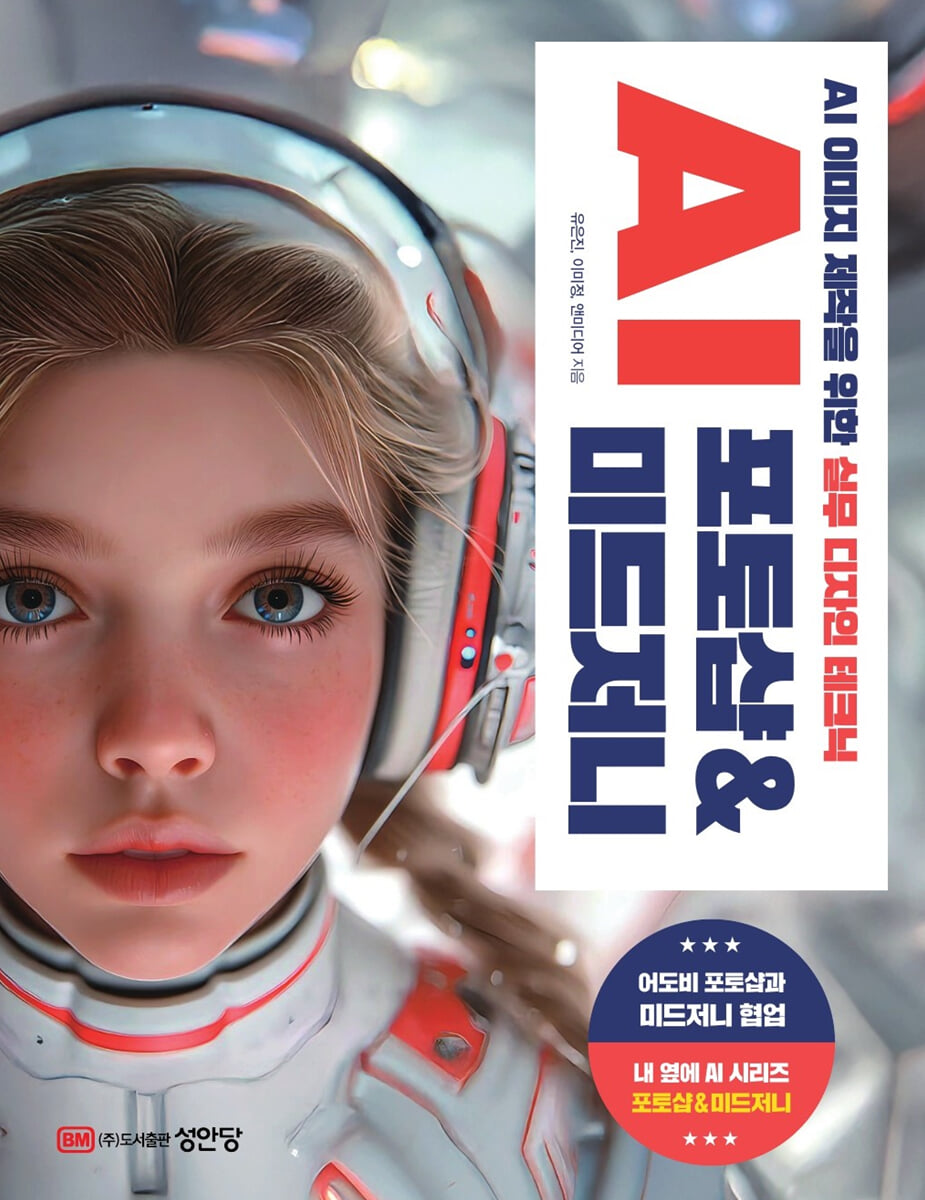
AI Photoshop & Midjourney
 |
Description
Book Introduction
“Can you use Photoshop like ChatGPT?”
Even if you can't draw with Illustrator! And you don't have to buy design elements!
You can achieve the best results by collaborating with AI Photoshop and Midjourney.
Photoshop has developed an AI function called Adobe Sensei artificial intelligence to provide a prompt input window similar to ChatGPT.
You can instantly create images needed for design work by simply entering a sentence or word, and from the moment you open the image in Photoshop, it recognizes the direction of light, color, and shape, and presents composite images in various forms.
AI capabilities also require changes to traditional approaches in the design process.
Illustration work, which previously relied on the designer's hand-drawn skills, can now be improved through collaboration with Midjourney, an AI image generation tool, to increase work efficiency and produce outstanding design results.
The role of designers, who must produce high-quality results through AI collaboration along with creative design concepts, has become increasingly important.
In this book, we will learn about a new way of working in design: AI Photoshop & Midjourney collaboration.
Even if you can't draw with Illustrator! And you don't have to buy design elements!
You can achieve the best results by collaborating with AI Photoshop and Midjourney.
Photoshop has developed an AI function called Adobe Sensei artificial intelligence to provide a prompt input window similar to ChatGPT.
You can instantly create images needed for design work by simply entering a sentence or word, and from the moment you open the image in Photoshop, it recognizes the direction of light, color, and shape, and presents composite images in various forms.
AI capabilities also require changes to traditional approaches in the design process.
Illustration work, which previously relied on the designer's hand-drawn skills, can now be improved through collaboration with Midjourney, an AI image generation tool, to increase work efficiency and produce outstanding design results.
The role of designers, who must produce high-quality results through AI collaboration along with creative design concepts, has become increasingly important.
In this book, we will learn about a new way of working in design: AI Photoshop & Midjourney collaboration.
- You can preview some of the book's contents.
Preview
index
preface
Preview examples from this book
Structure of this book
PART 1.
Photoshop, akin to ChatGPT! Learn Photoshop AI quickly and easily.
01.
Photoshop AI that can create and synthesize images with prompt input
__Changes in the traditional Photoshop workflow
02.
Creating an image from the prompt window
Creating an image using the __prompt input method
03.
Tips for concise prompt input!
__Use the tool suggested by predicting the work process
04. Installing Photoshop for AI Image Creation
__Install Photoshop for free
__Installing the Photoshop Beta App for Existing Photoshop Users
__Run Photoshop
05.
A look at the Photoshop interface
06.
Learn about Photoshop tools that turn commands into icons.
07.
Learn about the 〔Contextual Task Bar〕 that creates images from text.
08.
Learn about the prompt input window for creating detailed images.
PART 2.
Master Photoshop's AI features for working with text!
01.
How to create a character using the prompt input box?
02.
How to create the same style image with an external reference image?
03.
How to create text and logos to fit your design style?
04.
How to change a character's clothes to fit a pose?
__Specify the area of clothing you want to change
__Change to ballet outfit in the prompt window
__Sentence to delicately change clothes
05.
New! Want to use the removal tool that completely removes it?
__Erase the character and surfboard
__Restore the surfboard by deleting only the character
06.
How to change the background image excluding the person?
__Selecting and inverting the selection area
__Synthesizing a background image
07.
How to naturally fill in space with unnecessary elements?
__Compositing a cloud image into the sky area
__Fill in unnecessary areas
__Fill the area with a lakeside image
08.
Equip the item you want! How to create an image component?
__Create a puppy on the deck
__Create a boat on the lake
__Create a lit streetlight
09.
How to correct an image while viewing the correction style?
__Choose a correction style
__User Calibration
10.
How to change the subject that overlaps the person?
__Change subject
11.
How to create an image to expand the background image?
__Expand image
__Create a connection image
12.
How to apply gradient effect in one go without repeating?
__Specifying the gradient range with guide lines
__Change the gradient effect
13.
How to change skin tone and facial expression at the same time?
__Skin Correction
__Change your expression
PART 3.
Learn with essential examples! Practical training in Photoshop AI used in the field.
01.
New! Leaflet Design Using Gradients
__Making a 3-stage folded leaflet format
__Applying textures to plain animal images
__Creating gradients and laying them out with images
__Designing animal names and body text
__Generate and design a QR code
__Designing a leaflet cover
Creating honey pot and flower images using __prompt
__Designing the inside of the leaflet
02.
Wall calendar design created with image extension
__Generative filling by expanding the image
__Drawing a collage-style surface with the pen tool
Applying color to a surface using __pass
__Create and register point and line patterns
__Creating a collage technique using dot and line patterns
Create a shadow by adding a __shape
__Designing a Wall Calendar Number Pad
03.
Combining design elements and typography, book cover design
__Layout to fit the book cover format
__Designing Korean and English Typography Using Layer Masks
__Compositing flower images into English typography
Creating flowers and butterflies using the __prompt
__Laying out the book title and publisher symbol
__Creating patterns and applying them to typography
04. Package design using artistic illustrations created with AI
__Get the structure and AI-generated images
__Generative filling by expanding the image
__Designing the front of the package
__Designing the back of the package
__Designing the package side
__Designing the top and bottom of the package
PART 4.
Illustrator? Now draw with AI! Practical design with Photoshop and Midjourney.
01.
The magic of drawing with text, image-generating AI Midjourney
__Using Midjourney, drawn in one sentence
__Midjourney's First Step: Writing a Prompt
02.
Installing Midjourney
__Join Midjourney
__Subscribe to Midjourney
__Create your own server and work on it
03.
A look at the Midjourney interface
04.
Must-Know Midjourney Commands
__The command 'V' develops the same atmosphere in a different form.
__Enlarge the selected image, command 'U'
__Midjourney Bot Channel Commands
05.
Creating Fantastic Commercial Poster Ads
__Creating unrealistic advertising image drafts in Midjourney
Insert a prompt and modify it into a simple image.
__Provide reference images to capture the intended shape
__Modify the prompt to emphasize the fantastic atmosphere
__Create an unrealistic image and emphasize it as the main visual
__Change the style to a surrealist feel
__Increase the canvas size and fill it with an image in Photoshop
__Insert an image of a bird flying away through clouds
__Adjust the overall color scheme after inserting the brand logo
06.
3D brand symbol design with a sense of depth
__Creating a symbol combining a donut and a clock
Extracting a 3D symbol image by modifying the __prompt
__Removing the background in Photoshop
__Insert brand logo type
__Insert brand slogan
Applying a sense of motion to the __logo type
__Change the color and size of the slogan
__Complete a mug mockup with a donut image inserted
07.
Creating an animation storyboard using characters
__Creating a draft image of the protagonist in Midjourney
__Expressing the image of the main character, including hair color and style, eye color, and facial expressions
__Create the first scene where you dream of a secret space adventure every night.
__Match the main character's appearance to the first scene
__Setting the ratio according to the purpose of use
__Create a second scene where you travel to a star in a spaceship
__Create a third scene where you encounter a mysterious environment on a beautiful planet where you crash-landed.
__Create a fourth scene where the protagonist is sleeping
__Import each scene into storyboard format in Photoshop
__Insert each scene script description
08.
Creating an eco-friendly cosmetics web design
__Creating an eco-friendly cosmetics web page design in Midjourney
Modify the __prompt to create a 16:9 aspect ratio web page.
__Create a vertical web page by providing a reference image
__Removing Unnecessary Text in Photoshop
__Fill the space by inserting soap and stone images
__Inserting a label image into an empty glass bottle
__Create a frame and insert key product cuts and logos
__Insert a navigation menu at the top of a web page
Search
Preview examples from this book
Structure of this book
PART 1.
Photoshop, akin to ChatGPT! Learn Photoshop AI quickly and easily.
01.
Photoshop AI that can create and synthesize images with prompt input
__Changes in the traditional Photoshop workflow
02.
Creating an image from the prompt window
Creating an image using the __prompt input method
03.
Tips for concise prompt input!
__Use the tool suggested by predicting the work process
04. Installing Photoshop for AI Image Creation
__Install Photoshop for free
__Installing the Photoshop Beta App for Existing Photoshop Users
__Run Photoshop
05.
A look at the Photoshop interface
06.
Learn about Photoshop tools that turn commands into icons.
07.
Learn about the 〔Contextual Task Bar〕 that creates images from text.
08.
Learn about the prompt input window for creating detailed images.
PART 2.
Master Photoshop's AI features for working with text!
01.
How to create a character using the prompt input box?
02.
How to create the same style image with an external reference image?
03.
How to create text and logos to fit your design style?
04.
How to change a character's clothes to fit a pose?
__Specify the area of clothing you want to change
__Change to ballet outfit in the prompt window
__Sentence to delicately change clothes
05.
New! Want to use the removal tool that completely removes it?
__Erase the character and surfboard
__Restore the surfboard by deleting only the character
06.
How to change the background image excluding the person?
__Selecting and inverting the selection area
__Synthesizing a background image
07.
How to naturally fill in space with unnecessary elements?
__Compositing a cloud image into the sky area
__Fill in unnecessary areas
__Fill the area with a lakeside image
08.
Equip the item you want! How to create an image component?
__Create a puppy on the deck
__Create a boat on the lake
__Create a lit streetlight
09.
How to correct an image while viewing the correction style?
__Choose a correction style
__User Calibration
10.
How to change the subject that overlaps the person?
__Change subject
11.
How to create an image to expand the background image?
__Expand image
__Create a connection image
12.
How to apply gradient effect in one go without repeating?
__Specifying the gradient range with guide lines
__Change the gradient effect
13.
How to change skin tone and facial expression at the same time?
__Skin Correction
__Change your expression
PART 3.
Learn with essential examples! Practical training in Photoshop AI used in the field.
01.
New! Leaflet Design Using Gradients
__Making a 3-stage folded leaflet format
__Applying textures to plain animal images
__Creating gradients and laying them out with images
__Designing animal names and body text
__Generate and design a QR code
__Designing a leaflet cover
Creating honey pot and flower images using __prompt
__Designing the inside of the leaflet
02.
Wall calendar design created with image extension
__Generative filling by expanding the image
__Drawing a collage-style surface with the pen tool
Applying color to a surface using __pass
__Create and register point and line patterns
__Creating a collage technique using dot and line patterns
Create a shadow by adding a __shape
__Designing a Wall Calendar Number Pad
03.
Combining design elements and typography, book cover design
__Layout to fit the book cover format
__Designing Korean and English Typography Using Layer Masks
__Compositing flower images into English typography
Creating flowers and butterflies using the __prompt
__Laying out the book title and publisher symbol
__Creating patterns and applying them to typography
04. Package design using artistic illustrations created with AI
__Get the structure and AI-generated images
__Generative filling by expanding the image
__Designing the front of the package
__Designing the back of the package
__Designing the package side
__Designing the top and bottom of the package
PART 4.
Illustrator? Now draw with AI! Practical design with Photoshop and Midjourney.
01.
The magic of drawing with text, image-generating AI Midjourney
__Using Midjourney, drawn in one sentence
__Midjourney's First Step: Writing a Prompt
02.
Installing Midjourney
__Join Midjourney
__Subscribe to Midjourney
__Create your own server and work on it
03.
A look at the Midjourney interface
04.
Must-Know Midjourney Commands
__The command 'V' develops the same atmosphere in a different form.
__Enlarge the selected image, command 'U'
__Midjourney Bot Channel Commands
05.
Creating Fantastic Commercial Poster Ads
__Creating unrealistic advertising image drafts in Midjourney
Insert a prompt and modify it into a simple image.
__Provide reference images to capture the intended shape
__Modify the prompt to emphasize the fantastic atmosphere
__Create an unrealistic image and emphasize it as the main visual
__Change the style to a surrealist feel
__Increase the canvas size and fill it with an image in Photoshop
__Insert an image of a bird flying away through clouds
__Adjust the overall color scheme after inserting the brand logo
06.
3D brand symbol design with a sense of depth
__Creating a symbol combining a donut and a clock
Extracting a 3D symbol image by modifying the __prompt
__Removing the background in Photoshop
__Insert brand logo type
__Insert brand slogan
Applying a sense of motion to the __logo type
__Change the color and size of the slogan
__Complete a mug mockup with a donut image inserted
07.
Creating an animation storyboard using characters
__Creating a draft image of the protagonist in Midjourney
__Expressing the image of the main character, including hair color and style, eye color, and facial expressions
__Create the first scene where you dream of a secret space adventure every night.
__Match the main character's appearance to the first scene
__Setting the ratio according to the purpose of use
__Create a second scene where you travel to a star in a spaceship
__Create a third scene where you encounter a mysterious environment on a beautiful planet where you crash-landed.
__Create a fourth scene where the protagonist is sleeping
__Import each scene into storyboard format in Photoshop
__Insert each scene script description
08.
Creating an eco-friendly cosmetics web design
__Creating an eco-friendly cosmetics web page design in Midjourney
Modify the __prompt to create a 16:9 aspect ratio web page.
__Create a vertical web page by providing a reference image
__Removing Unnecessary Text in Photoshop
__Fill the space by inserting soap and stone images
__Inserting a label image into an empty glass bottle
__Create a frame and insert key product cuts and logos
__Insert a navigation menu at the top of a web page
Search
Detailed image

Publisher's Review
Draw with AI even if you don't have any illustration skills!
Advances in Photoshop's AI capabilities mean every user has an environment where they can easily unleash their creativity.
Users can use Photoshop to implement and experiment with various ideas, and can freely combine and transform images.
Nowadays, the creativity and selectiveness of the person using Photoshop have become important factors in determining the outcome of the image work.
Users can showcase their unique work to others through their own unique ideas and discerning eye for choice.
AI is used as a tool to support and complement users' ideas, working together to produce richer and more creative results.
In particular, Photoshop's generative AI is one of the AI technologies that can produce amazing results with just simple words or descriptions.
While there's currently a lot of interest in AI image and art generation, its potential uses extend far beyond simply generating images from text prompts.
It is also useful for creating 'creative components' that serve as the foundation of content, such as brushes, vectors, and textures.
Like other types of AI, this Photoshop-generative AI uses machine learning models and large data sets to deliver the desired results. It will learn from countless images, learn patterns, and create natural, new images based on the data.
Additionally, Photoshop features and techniques are no longer exclusive to designers.
Even those who aren't good at drawing or don't know complex compositing techniques can easily use Photoshop. AI capabilities will increasingly take over the user's role, calculating and handling complex tasks.
If there is a Photoshop function you don't know, you can use Photoshop's Learn feature to download the example source, load it into Photoshop, play the video, and follow along.
You can learn the functions more easily than with a Photoshop manual book.
▶ If you're an ordinary person, try creating an image by entering the desired word in the Photoshop prompt window.
▶ If you're a working professional, create the design elements and source photos you need for your work.
▶ Are you a designer? Create high-quality design work with Photoshop's AI features and Midjourney collaboration.
Advances in Photoshop's AI capabilities mean every user has an environment where they can easily unleash their creativity.
Users can use Photoshop to implement and experiment with various ideas, and can freely combine and transform images.
Nowadays, the creativity and selectiveness of the person using Photoshop have become important factors in determining the outcome of the image work.
Users can showcase their unique work to others through their own unique ideas and discerning eye for choice.
AI is used as a tool to support and complement users' ideas, working together to produce richer and more creative results.
In particular, Photoshop's generative AI is one of the AI technologies that can produce amazing results with just simple words or descriptions.
While there's currently a lot of interest in AI image and art generation, its potential uses extend far beyond simply generating images from text prompts.
It is also useful for creating 'creative components' that serve as the foundation of content, such as brushes, vectors, and textures.
Like other types of AI, this Photoshop-generative AI uses machine learning models and large data sets to deliver the desired results. It will learn from countless images, learn patterns, and create natural, new images based on the data.
Additionally, Photoshop features and techniques are no longer exclusive to designers.
Even those who aren't good at drawing or don't know complex compositing techniques can easily use Photoshop. AI capabilities will increasingly take over the user's role, calculating and handling complex tasks.
If there is a Photoshop function you don't know, you can use Photoshop's Learn feature to download the example source, load it into Photoshop, play the video, and follow along.
You can learn the functions more easily than with a Photoshop manual book.
▶ If you're an ordinary person, try creating an image by entering the desired word in the Photoshop prompt window.
▶ If you're a working professional, create the design elements and source photos you need for your work.
▶ Are you a designer? Create high-quality design work with Photoshop's AI features and Midjourney collaboration.
GOODS SPECIFICS
- Date of issue: August 6, 2025
- Page count, weight, size: 392 pages | 892g | 181*235*20mm
- ISBN13: 9788931512038
- ISBN10: 8931512031
You may also like
카테고리
korean


korean

![GQ KOREA Mark (Monthly): December [2025]](http://librairie.coreenne.fr/cdn/shop/files/8ef265dbbfbf186523ed75ba7319009d.jpg?v=1765340328&width=3840)


