

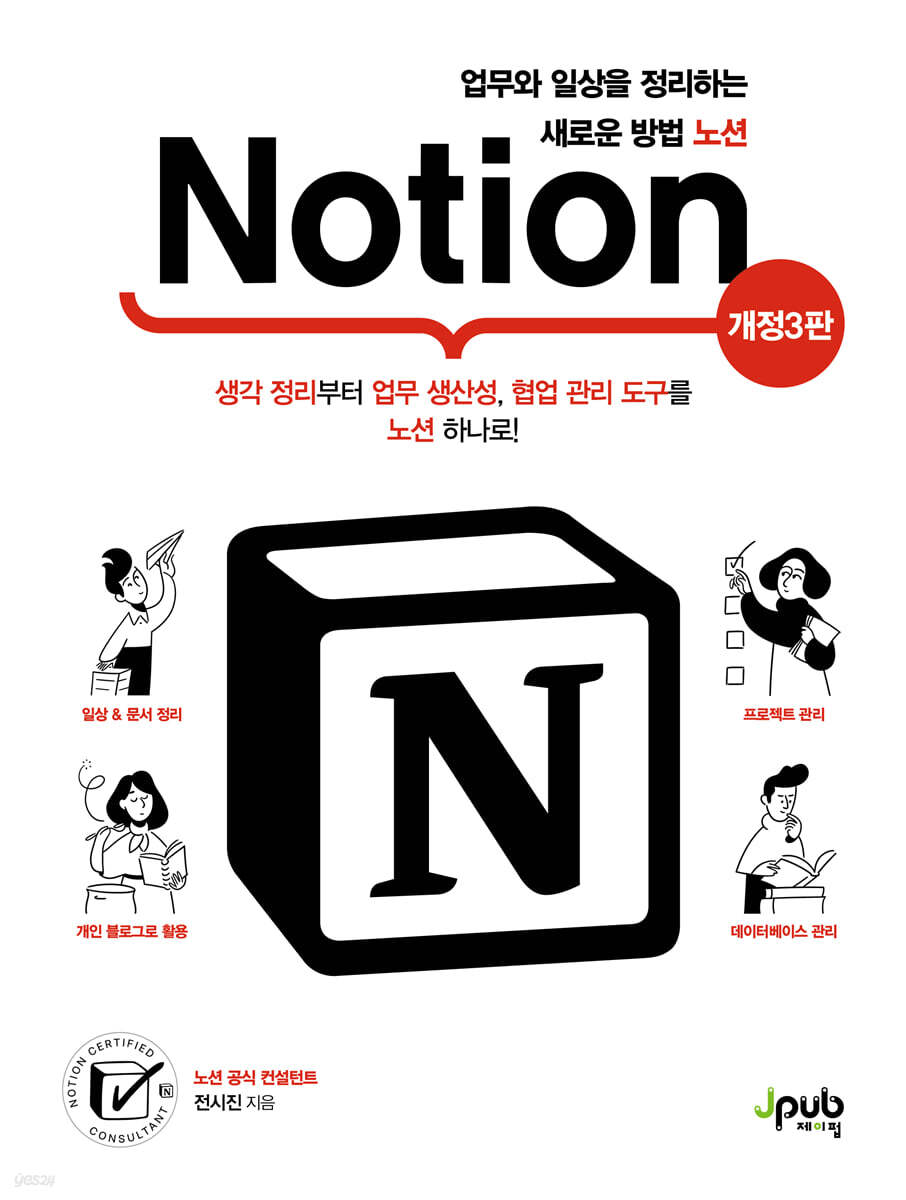
Notion: A New Way to Organize Your Work and Life
 |
Description
Book Introduction
Let's get started with the latest revised edition of Notion, the No. 1 collaboration tool with 100 million users worldwide.
A more robust structure, 80 pages expanded and revised! The ultimate practical guide that captures the essence of Notion.
In South Korea, Notion has become such a popular collaboration tool that it no longer needs any explanation.
First introduced in 2018, Notion is used by major corporations such as GS Group and Hyosung, as well as various tech companies and numerous startups.
Since 2020, it has firmly established itself in the productivity tool market and now has a wide user base, including freelancers, college students, office workers, and individuals.
Meanwhile, 『Notion: A New Way to Organize Work and Daily Life』, published in 2019, has established itself as Korea's first and only structure-focused practical book that teaches 'how to use it well' to everyone from beginners who have just encountered Notion to intermediate users with some experience.
"Notion: A New Way to Organize Your Work and Daily Life," which has continued to evolve over the past six years thanks to the support of its readers since its first publication, has now been published in its revised third edition.
This revised third edition is not simply an information update, but rather a complete reorganization. Not only does it faithfully reflect Notion's latest features and UI changes, but it also refining the content flow, examples, and practical structure based on actual user feedback.
Compared to the first edition, the total number of pages has increased by 22%, with approximately 80 pages of new content added.
Although this book deals with a tool called Notion, what it ultimately wants to convey is 'a way to organize work and life.'
Beyond simple information management, this book aims to serve as a solid introductory guide to Notion for readers, guiding them on how to consistently structure their daily routines, thought processes, and even long-term goal management.
- You can preview some of the book's contents.
Preview
index
This book's structure 004 | Preface 015 | Notion's basic structure and layout 016 |
Notion Template Gallery 018 | Notion Update Guide 019 | Reader Support 020
[Chapter 01: Getting Started with Notion to Boost Work Efficiency]
Notion 01: Bringing Disparate Tools Together Notion 023
_ From personal notes to corporate collaboration tools 023
_ Notion's Key Features 024
Notion 02 Installing the Notion program for convenient use 026
_ Download the installation file for PC 027
_ Install on your smartphone 028
Notion 03 Creating a Notion Account 029
_ Create with Google Account 029
_ Create with another email account 032
_ Sign up with an Apple account 033
_ Overview of basic procedures after setting up a profile and creating an account 035
_ Change Profile 040
Notion 04 Notion Plans and Paid Payments 042
_ Check out our rate plans 043
_ Pay with a paid plan 044
_ Use the education plan for free 046
_ Get $1,000 in credit for startup certification 048
_ Get a discount with non-profit certification 048
[Chapter 02: Building a Solid Foundation for Integrating Various Tools]
Notion 01 Understanding Notion's Basic Structure 051
_ Section 052 Separating areas in a workspace
Page 053 with 200% autonomy
_ Notion Block 055 like Lego Block
Notion 02: Creating and Managing Pages that Bring Your Productivity Tools Together 056
_ Create a new page and create a subpage 056
_ Creating a new page in the Notion smartphone application 059
_ Organizing pages in the directory structure 060
_ Decorate with page style 062
_ Deleting unnecessary pages 067
_ Page within block, inline subpage 070
_ Quickly create pages with text-related blocks 071
Notion 03: Building Basics with Text-Related Basic Blocks 072
_ Add blocks with one click 072
_ Examining various text-related blocks 074
_ Decorate text by applying styles 083
_ Freely change block types 086
_ Quickly edit with block reuse 088
_ Delete or move unnecessary blocks 089
_ Divide by block movement 090
Notion 04: Practice! Creating a Dashboard Page 091
Notion 05 Media Block 096 for inserting everything from images to videos
_ Image, Video, Audio, File Block 096
_ Bookmark block 099 to manage favorite websites
_ What if the bookmarks are too big and not easy to read? Mention 100
_ Programming in Notion, Code Blocks 101
Notion 06: Is this even possible? Advanced Block 102
_ Table of Contents Block 102 that automatically generates a table of contents
_ To write mathematical symbols, use Mathematical Formula Block 103
_ Button Block 105 that automates repetitive tasks
_ Breadcrumb block 106 that acts as a page navigator
_ Synchronization block 106 that changes the connected contents at once
_ Title toggle block 1 08 that allows you to put content inside the title block
_ n columns 109
_ Mermaid Code 110
_ AI Block 111
Notion 07 Inline Block 113
_ Mention User 113
_ Mention Page 114
_ Date or Reminder 114
_ Emoji 116
_ Inline Math Formula 119
Notion 08 Embed Block 120 for inserting almost any service
_ Utilizing Embed Blocks to Power Notion 121
_ 122 Google Maps Blocks That Are Effective for Travel Planning
_ Import Google Spreadsheets 126
_ Check PDF file contents directly in Notion 127
Notion 09 Importing Data from Other Tools 129
_ Using the Import Function 129
_ Import from Evernote 130
_ Import from Trello 133
_ Import from Asana 135
_ Import Google Docs 138
_ Importing various other files 139
[Chapter 03: Knowing the Database is a True Notion User]
Notion 01: Getting to Know Notion's Flower, the Database 149
_ Database block division by page location 150
_ Managing multiple views simultaneously 163
Notion 02 Specifying properties for each column in the database 168
_ Differences between Notion databases and spreadsheets 168
_ 170 data properties that can be specified for each column
Notion 03: Types and Uses of Basic Properties 174
_ Enter only letters or numbers 174
_ Select a tag and enter a value 177
_ Enter progress status 180
_ Entering date format 185
_ Enter the user you are collaborating with 188
_ Attaching files and adding images and videos 189
_ Checkbox & URL & Email & Phone Number 190
_ Formula properties different from Excel functions 192
_ Relational properties that connect different databases 192
_ Rollup property 193 that retrieves column information, a close friend of relational
_ Creation date and creator properties 194
_ Last edited date and last editor attribute 195
_ Button Properties 196
_ ID 197 that generates the document number
_ Connect to Google Drive 197
_ Calculation summarizing the database 200
Using Notion 04 Databases 203
_ Database template 203 that creates the same page within the database
_ Database filter 206 to quickly check only the information you need
_ Sorting data to view it in the order you want 213
_ Composite Sorting of Databases 214
_ Layout 216 that allows you to change database properties as you wish
_ Database-based survey form function 223
_Custom 229 to increase usability with database
_ Bulk database changes to change specific values at once 237
[Chapter 04 Formulas, Relational Databases, and Rollups]
Notion 01 Basics of Formula Writing, Column Selection or Built-in 241
_ Attribute: Column 241 in the database
_ Built-in 242
Notion 02 Operators for Arithmetic Operations and Comparing Results 243
_ if, ifs: Functions that distinguish between true and false conditions 244
_ and, or: Both conditions must be met, or only one must be met 245
_ not: A function that produces the opposite result 248
_ test, empty: Function to find specified text or blank space 248
_ contains: Function to check whether a specific value is included in a text or list 249
_ equal, unequal: Functions that check whether two values are equal or not 250
Notion 03 Text 251
_ length: Function that outputs the length of a text or list 252
_ substring: Function to extract a specific part of text 253
_ replace, replaceAll: Functions that replace specific patterns in text 254
_ lower, upper: Functions that convert the case of text 256
_ repeat: Function that repeats text a specified number of times 257
_ padStart, padEnd: Functions that pad text to a specified length with a specific string 257
_ link: Function to add a hyperlink to text 259
_ style, unstyle: Functions to add or remove formatting from text 259
_ format, toNumber: Functions that convert the format of a value 261
_ name: Function to extract name from Person attribute 263
_ email: Function to extract email address from Person attribute 264
Notion 04 Number 265
_ add: Function to add or concatenate numbers or text 265
_ subtract: A function that calculates the difference between two numbers 266
_ multiply, divide: Functions that perform multiplication and division between numbers 267
_ pow, mod: Functions for calculating powers and remainders 268
_ abs: Function that outputs the absolute value of a number 269
_ ceil, floor, round: Functions to round numbers up, down, or up 269
_ sqrt: Function to calculate the square root of a number 271
_ cbrt: Function that outputs the cube root of a number 271
_ exp: Function that calculates the power of the natural constant e 272
_ ln, log10, log2: Functions that calculate the logarithm of a number using the logarithm function 272
_ sign: Function to determine whether a number is positive or negative 274
_ pi, e: Function that outputs the mathematical constants π and e 274
Notion 05 Date 276
_ minute, hour, day, date, month, year: Functions to extract date and time components 276
_ now, today: Functions that print the current date and time 278
_ formatDate: Function to convert a date to text in a specified format 279
_ dateAdd, dateSubtract: Functions that add or subtract a specific time unit to a date 2 80
_ dateBetween: Function to calculate the difference between two dates 282
_ dateRange: Function that outputs the start and end dates of the period attribute 283
_ dateStart, dateEnd: Functions that extract the start and end dates of the period attribute 284
_ parseDate: Function to convert text to a date object 285
_ timestamp, fromTimestamp: Functions for converting between Unix timestamps and dates 2 85
Notion 06 Array 287
_ at: Function that outputs the element at a specific position in the list 288
_ max, min: Functions that output the maximum and minimum values among multiple values 288
_ sum: Function that calculates the sum of numeric values 290
_ median: Function that outputs the median of given numeric values 290
_ mean: Function that calculates the arithmetic mean of given numeric values 291
_ first, last: Functions that print the first and last elements of a list 292
_ includes: A function that checks whether a list contains a specific value 294
_ find, findIndex: Functions that find elements or their positions that meet conditions in a list 295
_ filter: A function that extracts elements that satisfy a condition from a list 296
_ some, every: Functions that check if the elements of a list satisfy a condition 298
_ match: A function that outputs a list of all strings that match a regular expression 299
_ slice: A function that extracts some elements from a list 300
_ concat: Function to combine multiple lists into one 301
_ join: Function to combine multiple texts 302
_ sort, reverse: List sorting and order reversal functions 303
_ split: Function 304 that splits a string based on a delimiter and outputs it as a list.
_ unique: A function that removes duplicates from a list 305
_ map: A function that applies a function to each element of a list 305
_ flat: Function that converts a nested list into a single list 307
_ id: Function that outputs the page ID 308
_ let, lets: Variable declaration and utilization function 309
Basic features like Notion 07 Advanced, relational databases, and rollups 312
_ Try connecting different databases 312
_ Adding Additional Attributes to Relational Data 319
_ Rollup function to check column data specifically 319
_ Applying a function to data retrieved with rollup properties 321
_ State properties, using them in rollups 323
[Chapter 05: Boosting Productivity with Notion]
Notion 01 Using Notion's Control Panel and Left Sidebar 327
_ Quick search function to quickly find data 328
_ My Notion home screen, which serves as a dashboard, Home 331
_ Set up notifications to quickly check all changes in your Inbox and Notion 336
_ Section 338
_ Template (Marketplace) 340
_ Trash Can 342
Notion 02 Setting up Notion to suit you 343
_ Changing default settings 343
_ Change language 346
_ Changing the site address 347
_ URL Customization 350
Notion 03: Smart Utilization with Customization Notion AI 351
_ Notion AI Plan 352
_ Getting Started with Notion AI in Various Ways 353
_ Using Notion AI within a page 356
_ Using Notion AI with Icons 364
_ Using Notion AI in Databases 370
Notion 04: A Collection of 376 Tips to Enhance Your Notion Experience
_ Using in multiple tabs 376
_ Updates and Page Analytics 380
_ Recovering a page that reverses mistakes 382
_ Using a new workspace for a new project 383
_ Web clipping 384, which scrapes various information from the Internet
_ Change your email and password 386
Notion 05: Schedule Management to Boost Productivity Notion Calendar 388
_ Installing the Notion Calendar 388
_ Linking Accounts 389
_ Adding a Notion Database 394
_ Create a schedule 397
_ Share availability 398
_ Focus/Away Time 400
[Chapter 06: Using Notion as a Collaboration Tool]
Notion 01 Sharing Pages for Collaboration with External Users 405
_ Share this page so anyone can see it 405
_ Notion site 407
_ Share this page so anyone can view, comment, and edit it 4 14
_ Invite only external users you want to see 415
Collaborating with Internal Users in Notion 02 417
_ Invite guests as members 417
_ Invite members via link 418
_ Share with only specific users among team members (group) 419
_ Collaborating in a Database (People Attributes) 421
Notion 03: Using Comments and Mentions for Effective Collaboration 422
_ Top comment 422 when offering a wide range of opinions
_ 424 internal comments using text and blocks
_ Database Properties Comments 426
_ Editing suggestions to help document collaboration 427
Managing Team Pages with Notion 04 Team Spaces 428
_ Add a team space and assign an administrator 429
_ Changing Team Space Settings 430
_ Check and join the team space being created 431
Notion 05 Automation 433
_ Button function 434 that reduces repetitive tasks
_ Advanced Condition-Based Database Automation 438
Search 445
Detailed image

Publisher's Review
Written directly by the most trusted Notion expert, the official consultant.
There are Notion Ambassadors, community leaders who promote Notion around the world, and there are Notion Official Consultants who are selected through even more stringent evaluations than Notion Ambassadors.
There are only two official consultants in the country, and the author of this book is one of them.
Since first encountering Notion in 2018, the author has been actively promoting and introducing Notion. He runs [Notion.so Notion Korea User Group] and [Notion Official Korea User Group (Facebook)], the largest Notion user community in Korea. He is also active as a YouTuber and instructor promoting productivity tools.
A practical guide for those who want to create a real 'tool of their own'.
Notion initially seems like a 'do it all' tool.
It is a productivity tool that not only manages personal notes and schedules, but also improves work efficiency, and its simple UI design makes it look easy.
However, once you start using it, you often get lost among the numerous pages and templates.
Reflecting the difficulties faced by such readers, the table of contents has been organized to be useful to users in various situations.
Rather than creating it and leaving it alone, we help you learn the basics of how to use it, find the parts you need, and 'settle' Notion into your life.
It introduces everything from the smallest unit that makes up Notion, the 'block', to the core of Notion, the 'database and Notion function', and 'how to use and automate collaboration tools'.
While nice templates are nice, we've focused on solid fundamentals and precise feature descriptions, making it "the tool of my style."
The ultimate Notion Bible, a reader's choice that remains constant amidst countless changes.
Notion is a rapidly evolving platform.
With database views changing, teamspaces being introduced, and even AI capabilities emerging, traditional guides can quickly become outdated.
However, even amidst such changes, this book has maintained its identity as a book that ‘builds the fundamentals.’
Rather than asking, “Can I do anything?” this book addresses the question, “What should I do first and how should I do it?”
Among the countless collaboration tool books, "Notion: A New Way to Organize Work and Life" has become a standard, and has become a book that not only beginners but also active users keep coming back to.
The reason it remains a popular choice among readers despite the ongoing changes is probably because it contains solutions that can be immediately applied in practice.
The latest revised edition reflects essential new features such as Notion AI and Notion Calendar.
Last year, Notion gradually expanded its AI capabilities under the slogan "Notion, True to AI."
Notion AI, which was launched as a private beta version in 2022, was officially launched to users around the world in February 2023 with improved performance.
A core theme of Notion AI was to go beyond simple auto-completion and understand context to help users.
This revised third edition covers everything from the basics of using Notion AI to how to utilize it for various types of information, and even Notion AI's unique prompt writing strategies.
We also provide a detailed explanation of the new "Notion Calendar" feature, which will be of practical help to readers who want to manage their schedules and projects and increase their productivity. We hope you'll experience the natural flow of AI and productivity tools through Notion.
Target audience for this book
● Team leaders or freelancers considering introducing teamwork and collaboration tools
● A digital productivity tool nomad who constantly tries new tools but never settles on one.
● Beginner users who have created an account but are just leaving it unattended with the number of pages increasing
● For office workers who are always concerned about how their week goes by and managing their schedules and projects
● Self-development users who want efficient learning, goal management, and routine setting
GOODS SPECIFICS
- Date of issue: June 2, 2025
- Page count, weight, size: 448 pages | 724g | 170*225*23mm
- ISBN13: 9791194587330
- ISBN10: 119458733X
You may also like
카테고리
korean


korean


