

Using Canva for Teachers
 |
Description
Book Introduction
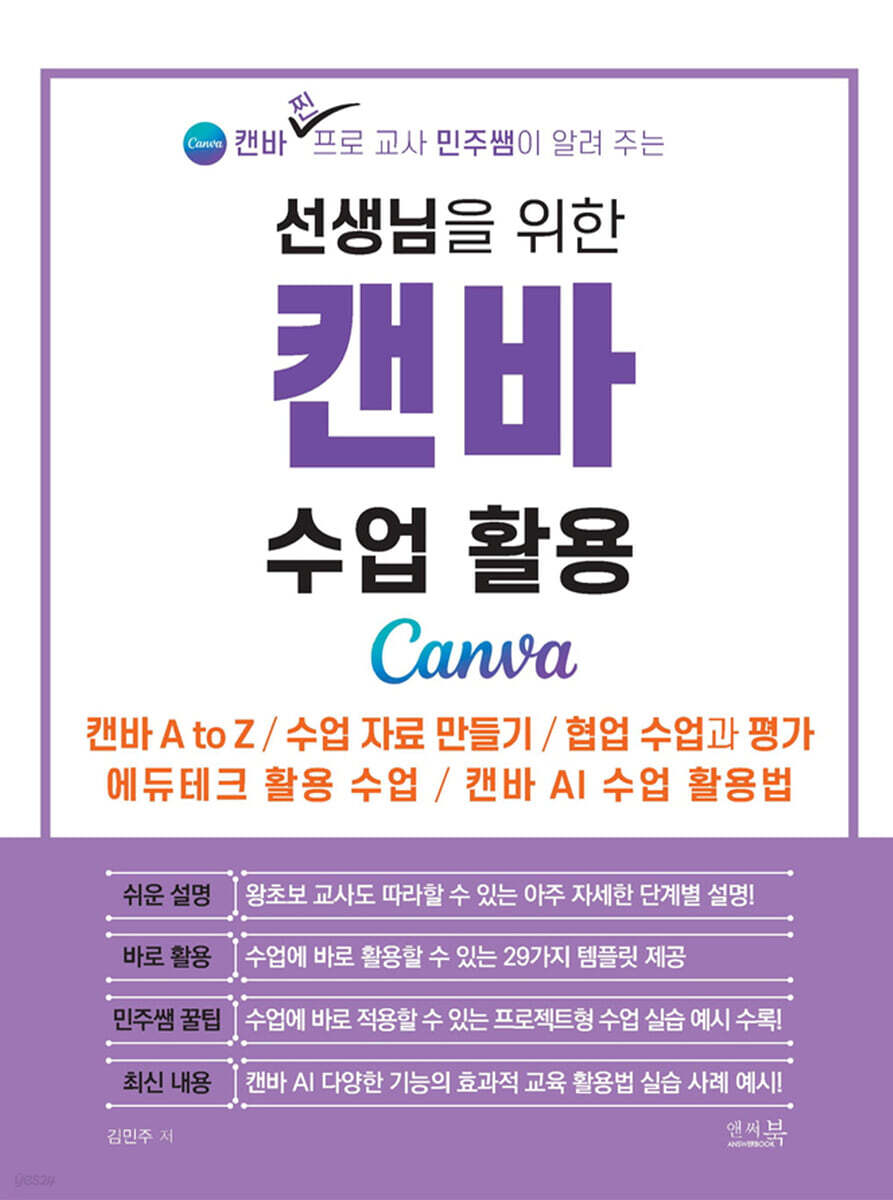
A Guide to Using Canva for All Teachers in Elementary, Middle, and High Schools
From Canva A to Z, learn everything from creating lesson materials, collaborative teaching and assessment, utilizing edtech in classes, and utilizing Canva AI in classes—all in one place!
"Canva Class Utilization for Teachers" is a book written by Kim Min-joo, a professional Canva instructor who has been verified through various training sessions and is a current teacher. It explains step-by-step so that even beginner teachers in elementary, middle, and high schools can follow along and immediately apply it to their classes. It also contains 29 practical templates that can be immediately used in classes and school work, as well as valuable know-how.
This book is not simply a functional manual explaining the features of Canvas.
Only the most useful topics for teachers' classes and work were selected, and Canva Pro teachers created it for beginner teachers so that they can easily solve the problems and use it right away.
We've selected templates that are highly usable by teachers, so you can create your own customized template that can be applied immediately to all elementary, middle, and high school educational settings.
From Canva A to Z, learn everything from creating lesson materials, collaborative teaching and assessment, utilizing edtech in classes, and utilizing Canva AI in classes—all in one place!
"Canva Class Utilization for Teachers" is a book written by Kim Min-joo, a professional Canva instructor who has been verified through various training sessions and is a current teacher. It explains step-by-step so that even beginner teachers in elementary, middle, and high schools can follow along and immediately apply it to their classes. It also contains 29 practical templates that can be immediately used in classes and school work, as well as valuable know-how.
This book is not simply a functional manual explaining the features of Canvas.
Only the most useful topics for teachers' classes and work were selected, and Canva Pro teachers created it for beginner teachers so that they can easily solve the problems and use it right away.
We've selected templates that are highly usable by teachers, so you can create your own customized template that can be applied immediately to all elementary, middle, and high school educational settings.
index
CHAPTER 00 Digital Tools in the 2022 Curriculum
00-01 The changing educational environment and the role of teachers
00-02 Canva, an easy and intuitive digital learning tool
00-03 Connecting Canvas and Curriculum: Core Competency-Based Instruction
00-04 Actual Class Practice Example
- Self-introduction video production: 'My Story' videos created by students themselves
- Class Newspaper Project: Collaborative Writing and Diverse Design Experiences
- Docent video production: Docent presentation explaining the artwork
Collaborative Presentation: Research various topics and create presentation materials.
- Travel destination introduction project: Displaying travel destination introduction materials in one place.
- Sports Day Poster Creation: Experience Creative Design
- AI Imagination Exhibition: Using Magic Media
- News Production Project: Writing Articles with Magic Write
CHAPTER 01 Creating a Classroom with Canva
01-00 The Changing Educational Environment and the Role of Teachers
01-01 Getting Started with Canva
- Sign up for Canva
- Authenticate Canva for education and use it for free
- Understanding the Canva Home Menu
- Using Canva's design templates
- Editing Canva's design templates
- Create a new design without a template
- Create new designs in custom sizes
01-02 Creating and Managing Teams
- Create a regular team
- Convert a regular team to a school team
- Manage your school team (if you created your own school team and became the team owner)
01-03 First Steps to Creating a Classroom with Canva
- Preparing a Canva classroom with a general account
- Create a Canva classroom with your school account
01-04 Running a Canvas Classroom Effectively
- Run classes to create individual works
- Run classes where students collaborate to create works together
- Collaborative classes using whiteboards
[Minju's Mini-Special Lecture] The Secret to Smooth Collaborative Classes with Unexpected Situations
CHAPTER 02 Canva Design and Class Recipes
02-01 Understanding the layout and basic functions of the Canva design editing screen
- Understanding the design editing screen layout
- Using design templates
02-02 Understanding the Three Ways to View the Design Edit Screen
- Understanding the thumbnail view
- Understanding Scroll View
- Understanding Grid View
- Use in class
02-03 Mastering the Design Elements of Canva
- Laying the foundations of design
- Text Elements _ Practice :: Creating Card News)
[Minju's Mini-Special Lecture] Mastering Text Element Editing Features
- Graphic Elements _ Practice :: Creating Bookmarks and Posters
- Making bookmarks and posters for class events
- Photo Elements _ Practice :: Designing a Travel Brochure Cover
- Video Elements _ Practice :: Creating a Travel Destination Presentation
- Create a travel destination introduction PPT cover and create a travel destination introduction video intro
- Insert YouTube video
- Frames and Grids _ Practice :: Creating a Class Album
- Table Chart Elements _ Practice :: Visualizing Statistical Data
[Minju's Mini-Special Lecture] Mastering Video Element Editing Features
02-04 Design Embed
- Save group work to a shared folder
- Prepare slides for each group's work exhibition.
- Embed the design
- Participate in comment appreciation activities (collaboration, invitation, comment, reply)
02-05 Inserting Links _ Practice :: Creating a Table of Contents for a Travel Brochure
- Preparing a template
- Change slide name
- Insert a 'Slide Move Link'
- Check link connection
- Insert a return home button
- Check the home button link connection
- Copy the home button
- Inserting external web links
- Check web link connection
- Edit the connected link
- Delete the connected link
CHAPTER 03: Leveraging Canva's AI Capabilities to the Fullest
03-01 Animation and Transition Effects _ Hands-on: Creating a Self-Introduction Presentation
- Using 'Element Animation'
- Using 'Page Animation'
- Using slide transition effects
- Complete the work
- Playing a video template work
03-02 Video Production _ Practice :: Creating a Self-Introduction Video
- Switch to the video editing screen
- Adjust clip playback time
- Change the order of clips
- Using the Clip Tool List
- Adjust timing by element
- Create a video clip
- Editing videos with AI
- Utilizing audio elements
[Minju's Mini-Special Lecture] Mastering Audio Element Editing Features
03-03 Content Creation Using AI and Video Capture _ Practice
- Create a collection of art pieces and become a docent - 'Record yourself' function
[Minju's Mini Lecture] Mastering Magic Write's Editing Features
- AI news production - 'Record presentation' function
Create a household newsletter and edit PDFs with AI Magic Write.
[Minju's Mini-Special Lecture] Educational Uses of Magic Write
03-04 Magic Studio _ Hands-on: Creating a Class Newspaper with AI
- Prepare templates and edit content
- Magic Expand
- Background removal
- Magic edit
- Text extraction
- Magic grab
- Magic eraser
03-05 Magic Media _ Practice :: Running an AI Imagination Exhibition _ Practice
- Preparing a template
- Create your own AI imagination
- Generating AI graphics
CHAPTER 04: Utilizing Your Complete Canvas Works to the Fullest
04-01 Presentation Practice: Self-Introduction Presentation Practice
- Prepare a self-introduction practice template
- Presenting full screen
- Utilizing live presentations
- [Practice] Using a Presentation Timer
04-02 Downloading the work _ Creating a poster work as a PDF, image, or video _ Practice
- Preparing a template
- Download the work
04-03 Share with a link _ Sharing various works of art _ Practice
- Use the public viewing link
- Using template links
- Using collaboration links
00-01 The changing educational environment and the role of teachers
00-02 Canva, an easy and intuitive digital learning tool
00-03 Connecting Canvas and Curriculum: Core Competency-Based Instruction
00-04 Actual Class Practice Example
- Self-introduction video production: 'My Story' videos created by students themselves
- Class Newspaper Project: Collaborative Writing and Diverse Design Experiences
- Docent video production: Docent presentation explaining the artwork
Collaborative Presentation: Research various topics and create presentation materials.
- Travel destination introduction project: Displaying travel destination introduction materials in one place.
- Sports Day Poster Creation: Experience Creative Design
- AI Imagination Exhibition: Using Magic Media
- News Production Project: Writing Articles with Magic Write
CHAPTER 01 Creating a Classroom with Canva
01-00 The Changing Educational Environment and the Role of Teachers
01-01 Getting Started with Canva
- Sign up for Canva
- Authenticate Canva for education and use it for free
- Understanding the Canva Home Menu
- Using Canva's design templates
- Editing Canva's design templates
- Create a new design without a template
- Create new designs in custom sizes
01-02 Creating and Managing Teams
- Create a regular team
- Convert a regular team to a school team
- Manage your school team (if you created your own school team and became the team owner)
01-03 First Steps to Creating a Classroom with Canva
- Preparing a Canva classroom with a general account
- Create a Canva classroom with your school account
01-04 Running a Canvas Classroom Effectively
- Run classes to create individual works
- Run classes where students collaborate to create works together
- Collaborative classes using whiteboards
[Minju's Mini-Special Lecture] The Secret to Smooth Collaborative Classes with Unexpected Situations
CHAPTER 02 Canva Design and Class Recipes
02-01 Understanding the layout and basic functions of the Canva design editing screen
- Understanding the design editing screen layout
- Using design templates
02-02 Understanding the Three Ways to View the Design Edit Screen
- Understanding the thumbnail view
- Understanding Scroll View
- Understanding Grid View
- Use in class
02-03 Mastering the Design Elements of Canva
- Laying the foundations of design
- Text Elements _ Practice :: Creating Card News)
[Minju's Mini-Special Lecture] Mastering Text Element Editing Features
- Graphic Elements _ Practice :: Creating Bookmarks and Posters
- Making bookmarks and posters for class events
- Photo Elements _ Practice :: Designing a Travel Brochure Cover
- Video Elements _ Practice :: Creating a Travel Destination Presentation
- Create a travel destination introduction PPT cover and create a travel destination introduction video intro
- Insert YouTube video
- Frames and Grids _ Practice :: Creating a Class Album
- Table Chart Elements _ Practice :: Visualizing Statistical Data
[Minju's Mini-Special Lecture] Mastering Video Element Editing Features
02-04 Design Embed
- Save group work to a shared folder
- Prepare slides for each group's work exhibition.
- Embed the design
- Participate in comment appreciation activities (collaboration, invitation, comment, reply)
02-05 Inserting Links _ Practice :: Creating a Table of Contents for a Travel Brochure
- Preparing a template
- Change slide name
- Insert a 'Slide Move Link'
- Check link connection
- Insert a return home button
- Check the home button link connection
- Copy the home button
- Inserting external web links
- Check web link connection
- Edit the connected link
- Delete the connected link
CHAPTER 03: Leveraging Canva's AI Capabilities to the Fullest
03-01 Animation and Transition Effects _ Hands-on: Creating a Self-Introduction Presentation
- Using 'Element Animation'
- Using 'Page Animation'
- Using slide transition effects
- Complete the work
- Playing a video template work
03-02 Video Production _ Practice :: Creating a Self-Introduction Video
- Switch to the video editing screen
- Adjust clip playback time
- Change the order of clips
- Using the Clip Tool List
- Adjust timing by element
- Create a video clip
- Editing videos with AI
- Utilizing audio elements
[Minju's Mini-Special Lecture] Mastering Audio Element Editing Features
03-03 Content Creation Using AI and Video Capture _ Practice
- Create a collection of art pieces and become a docent - 'Record yourself' function
[Minju's Mini Lecture] Mastering Magic Write's Editing Features
- AI news production - 'Record presentation' function
Create a household newsletter and edit PDFs with AI Magic Write.
[Minju's Mini-Special Lecture] Educational Uses of Magic Write
03-04 Magic Studio _ Hands-on: Creating a Class Newspaper with AI
- Prepare templates and edit content
- Magic Expand
- Background removal
- Magic edit
- Text extraction
- Magic grab
- Magic eraser
03-05 Magic Media _ Practice :: Running an AI Imagination Exhibition _ Practice
- Preparing a template
- Create your own AI imagination
- Generating AI graphics
CHAPTER 04: Utilizing Your Complete Canvas Works to the Fullest
04-01 Presentation Practice: Self-Introduction Presentation Practice
- Prepare a self-introduction practice template
- Presenting full screen
- Utilizing live presentations
- [Practice] Using a Presentation Timer
04-02 Downloading the work _ Creating a poster work as a PDF, image, or video _ Practice
- Preparing a template
- Download the work
04-03 Share with a link _ Sharing various works of art _ Practice
- Use the public viewing link
- Using template links
- Using collaboration links
Detailed image

Publisher's Review
This book is a guide to using Canvas that can be applied immediately in the educational field!
- Practical know-how from Canvas Pro instructor Manju Kim, proven through numerous training sessions!
- A step-by-step guide that can be applied directly to all elementary, middle, and high school education settings!
- You can apply it immediately by organizing examples of real-life situations encountered in the classroom!
- We've selected only the core Canvas features that even beginners can easily learn, so you can use them right away in the classroom!
Highly recommended for these types of people!
- Teachers and educators at daycare centers, kindergartens, elementary, middle, and high schools who are new to Canva
- Teachers considering using Canva for edutech classes
- Anyone curious about how to utilize Canva's latest AI features
- Teachers who want to create educational content using Canva templates.
It is explained in an easy-to-understand way so that even beginner teachers who are not familiar with the Canva features can follow along and immediately use it in classes and school work.
In addition, thanks to Teacher Minju's tips and tricks, which are filled with countless training sessions and classroom know-how, you can easily complete all of the content below on your own using Canva.
- Follow the core contents of Canva
- Use Canva in your classes right now.
- Using EdTech in Classes with Canva
- Collaborative teaching and assessment with Canva
- Utilize the latest Canva AI features for school work/classes.
After quickly mastering the basics of Canva in this book, follow the exercises on various topics step by step, and you will soon become a Canva pro who knows how to use Canva well.
This book is a practical guide to edutech that aims to revolutionize the classroom by realizing the use of Canva in classes and work.
The features of this book are as follows:
First, easy explanation: Easy to follow even for beginners.
Second, use of various templates: Templates that can be immediately used in class/school work are provided.
Third, practical application: Includes examples of project-based classes that can be applied directly to classes, such as collaborative classes and assessments!
Fourth, the latest content: Includes practical examples of how to effectively utilize the various functions of Canva AI in education.
We operate a dedicated book bulletin board in the “Reader Support Center” to quickly notify readers of any changes that may arise due to the latest updates to Canva.
Book Support Center: https://cafe.naver.com/answerbook/7885
- Practical know-how from Canvas Pro instructor Manju Kim, proven through numerous training sessions!
- A step-by-step guide that can be applied directly to all elementary, middle, and high school education settings!
- You can apply it immediately by organizing examples of real-life situations encountered in the classroom!
- We've selected only the core Canvas features that even beginners can easily learn, so you can use them right away in the classroom!
Highly recommended for these types of people!
- Teachers and educators at daycare centers, kindergartens, elementary, middle, and high schools who are new to Canva
- Teachers considering using Canva for edutech classes
- Anyone curious about how to utilize Canva's latest AI features
- Teachers who want to create educational content using Canva templates.
It is explained in an easy-to-understand way so that even beginner teachers who are not familiar with the Canva features can follow along and immediately use it in classes and school work.
In addition, thanks to Teacher Minju's tips and tricks, which are filled with countless training sessions and classroom know-how, you can easily complete all of the content below on your own using Canva.
- Follow the core contents of Canva
- Use Canva in your classes right now.
- Using EdTech in Classes with Canva
- Collaborative teaching and assessment with Canva
- Utilize the latest Canva AI features for school work/classes.
After quickly mastering the basics of Canva in this book, follow the exercises on various topics step by step, and you will soon become a Canva pro who knows how to use Canva well.
This book is a practical guide to edutech that aims to revolutionize the classroom by realizing the use of Canva in classes and work.
The features of this book are as follows:
First, easy explanation: Easy to follow even for beginners.
Second, use of various templates: Templates that can be immediately used in class/school work are provided.
Third, practical application: Includes examples of project-based classes that can be applied directly to classes, such as collaborative classes and assessments!
Fourth, the latest content: Includes practical examples of how to effectively utilize the various functions of Canva AI in education.
We operate a dedicated book bulletin board in the “Reader Support Center” to quickly notify readers of any changes that may arise due to the latest updates to Canva.
Book Support Center: https://cafe.naver.com/answerbook/7885
GOODS SPECIFICS
- Date of issue: May 30, 2025
- Page count, weight, size: 339 pages | 566g | 170*225*30mm
- ISBN13: 9791193059548
- ISBN10: 1193059542
You may also like
카테고리
korean


korean

![GQ KOREA Mark (Monthly): December [2025]](http://librairie.coreenne.fr/cdn/shop/files/8ef265dbbfbf186523ed75ba7319009d.jpg?v=1765340328&width=3840)


