

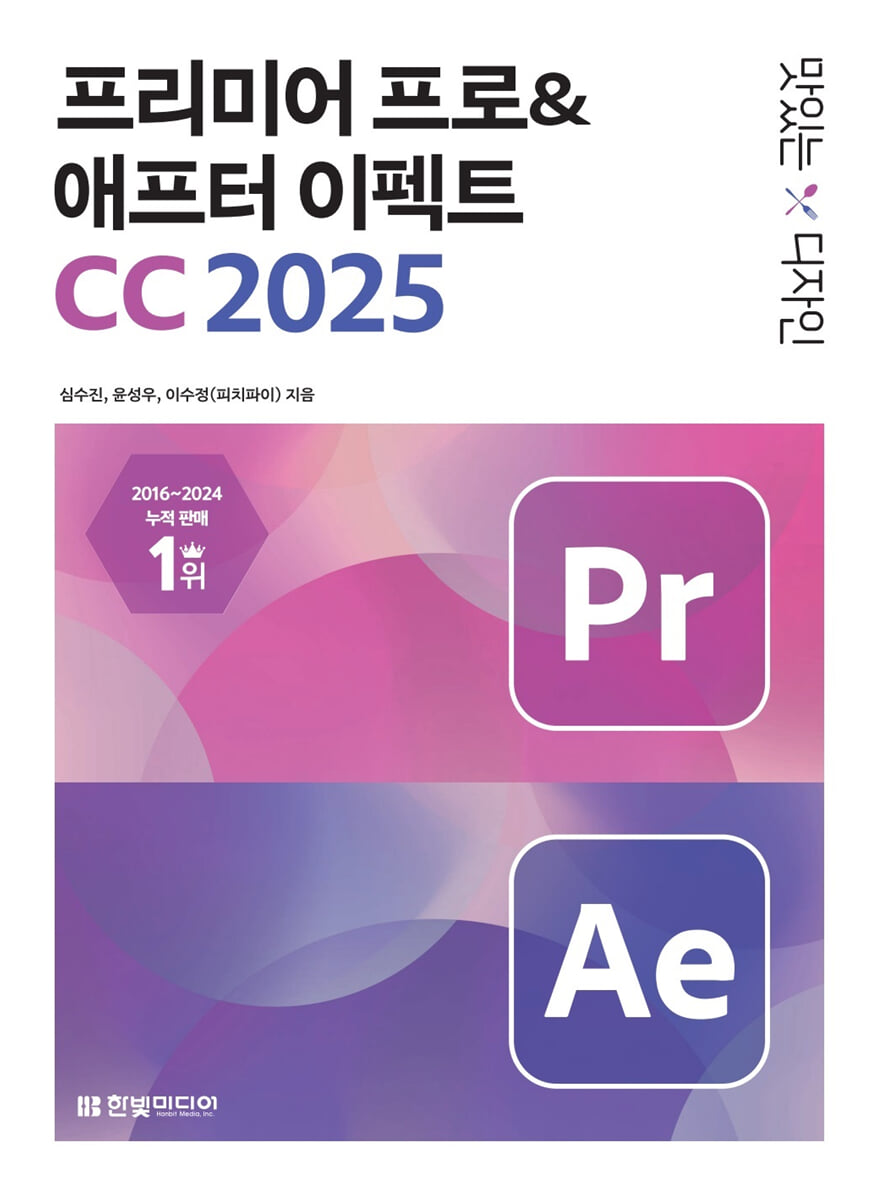
Delicious Design Premiere Pro & After Effects CC 2025
 |
Description
Book Introduction
The most complete recipe for learning Premiere Pro & After Effects!
All in one volume! An easy, quick, and effective introduction to graphics!
You can learn Premiere Pro and After Effects, essential for video editing and graphic design, all at once and easily.
You can learn without burden by selecting only the key points, and you can master the two programs more effectively than learning them separately.
It is fully compatible with the latest version, CC 2025, to help you quickly learn new features, and it makes learning basic and core functions easier with practical examples optimized for learning functions.
The three-step learning method, [Function Practice] - [Practice at a Glance] - [Practical Application], which allows you to master everything from basic functions to usage, helps anyone learn Premiere Pro and After Effects properly and start using them right away.
The 6-week online study group hosted by the official Delicious Design Study cafe provides a useful curriculum and Q&A sessions, making it easier to learn Premiere Pro and After Effects.
- You can preview some of the book's contents.
Preview
index
preface
Learning deliciously
3-Step Learning Structure & Example Completion Gallery
Download example & completed files
Delicious Design Help Page
Using the Delicious Design Study Official Cafe
What's New in Premiere Pro CC 2025
What's New in After Effects CC 2025
PART 01 Premiere Pro | Quick and Easy Premiere Pro Recipes
CHAPTER 01 A Short-Term Video Editing Course in Five Steps
LESSON 01: A Short Course in Video Editing: Follow the Video Editing Process in One Go
STEP ① Create a project
STEP ② Editing video cuts
STEP 3 Add basic subtitles and effects
STEP ④ Add background music and audio effects
STEP ⑤ Complete by outputting to an MP4 file
LESSON 02 Getting Started with Premiere Pro: Starting and Saving a Project
[Simple Practice] Creating and Setting Up a Sequence
[Simple Practice] Saving and Closing the Project File
[Simple Practice] Creating and Using Multiple Sequences
CHAPTER 02 Master Premiere Pro Video Editing
LESSON 01 Learning the Basics of Video Editing: Cutting One Video & Cutting Two Videos Simultaneously
Crop and move the video
[Simple Tutorial] Cutting and Moving a Video
Remove gaps between video clips
[Simple Practice] Deleting Spaces One by One with Ripple Delete
[Practice at a Glance] Erase All Blank Spaces at Once
[Practice at a Glance] Erase Only the Whitespace in the Selected Area
LESSON 02: Processing images in various ways, including position, size, and rotation: Learn about the [Effect Controls] panel, which allows you to adjust all options.
[Simple Tutorial] Changing the Video Source Size
[Simple Tutorial] Changing the Video Source Location
[Simple Tutorial] Changing the Rotation of a Video Source
[Simple Tutorial] Changing the Opacity of a Video Source
LESSON 03 Applying keyframes to change the image: Creating keyframes in the [Effect Controls] panel
[Simple Practice] Creating Keyframes and Moving Their Positions
[Simple Tutorial] Creating a Grow and Shrink Animation (Scale Keyframes)
[Simple Tutorial] Creating an Image Rotation Animation (Rotation Keyframes)
[Simple Tutorial] Creating an Animation That Gradually Reveals an Image (Opacity Keyframes)
[Simple Practice] Keyframe Interpolation
CHAPTER 03 Creating CG with Video Effects
LESSON 01 Placing a Color Matte Layer on a Video Track: Filling the Track with a Background Color with a Color Matte
[Simple Tutorial] Creating a Color Matte Layer
[Simple Practice] Using a Color Matte Layer as a Background
[Simple Tutorial] Applying a Black Dissolve Effect with Color Matte
LESSON 02: Understanding Video Effects: Learn about various video effects.
Using video effects
Learn more about video effects
[Simple Practice] Applying Commonly Used Blur Effects
[Simple Practice] Copying the completed effect properties and pasting them to another clip.
LESSON 03: Understanding Video Transitions: Understanding and Applying Video Transitions
Handling video transitions and clip handles
Applying Transitions to Videos
[Simple Tutorial] Editing Videos to Suit Transition Applications
[Simple Tutorial] Applying Video Transitions to Image Sources
LESSON 04 Creating Video Crop Effects: Creating Entertainment and Cinematic Effects with Masks and Cropping
Learn about the basic mask options
[Simple Tutorial] Editing Entertainment Styles with Masks
[Simple Tutorial] Creating a Cinematic Atmosphere with Video Cropping
CHAPTER 04 Improving Video Quality with Color Correction
LESSON 01: Mastering Color Correction in Premiere Pro: Color Correction with Lumetri Color
[Simple Tutorial] Basic Color Correction with Basic Correction
Explore Creative Items
[Simple Tutorial] Creating a Faded Film Effect with Creative
Learn about Curves
[Simple Tutorial] Adjusting Brightness and Color with Curves
[Simple Tutorial] Adjusting the Saturation of a Specific Color with Hue Saturation Curves
Learn about Vignette
[Practice at a Glance] Creating a Screen-Wrapping Effect with Vignette
LESSON 02 Color Correction with Adjustment Layers: Applying Lumetri Color to an Adjustment Layer
Learn about adjustment layers
[Simple Tutorial] Adding an Adjustment Layer and Color Correction
[Simple Tutorial] Color Correcting Selected Clips
LESSON 03 Color Correction with Blend Modes: Changing the Mood of Your Video with Bokeh and Noise Effects
Reversing the mood of a video using blend modes
[Simple Tutorial] Applying Bokeh Image Blend Modes
[Simple Tutorial] Applying the Noise Image Blend Mode
Blend modes for use with various sources
[Simple Tutorial] Applying Blend Modes to Multiple Sources
CHAPTER 05 Creating Various Types of Subtitles
LESSON 01 Creating Broadcast-Style Subtitles: Create subtitles with the Type Tool and Decorate Them Sensibly
[Simple Tutorial] Creating Basic Subtitles with the Type Tool
[Simple Tutorial] Creating Sparkling Subtitles
LESSON 02: Creating Automatic Subtitles with Speech Recognition: Creating Automatic Speech Recognition Subtitles with AI
[Simple Tutorial] Automatically Generating Subtitles
[Simple Tutorial] Designing Automatic Subtitles
LESSON 03: How to Design Beautiful Subtitles: Check out these inspirational subtitle design references.
Finding Design References
Find free font websites
CHAPTER 06 Editing Sound
LESSON 01 Adjusting Audio Volume: Learn Premiere Pro's Basic Audio Properties and Editing Features
Learn the basic properties of audio clips
[Simple Tutorial] Adjusting Audio Clip Volume
[Simple Practice] Adjusting Waveforms with Audio Gain
LESSON 02 Understanding the Basics of Audio Editing: Editing Audio Clips
Audio and video editing
[Simple Tutorial] Basic Audio Clip Editing
[Simple Practice] Creating a Sound That Gets Bigger or Smaller
[Practice at a Glance] Applying Audio Transitions Between Clips
[Practice at a Glance] Creating Audio Fade-In and Fade-Out Effects
LESSON 03 Remixing Audio: Automatically Adjusting Audio Clips to Fit the Length of a Video Clip
[Simple Tutorial] Automatically Remixing Audio
CHAPTER 07 Learning Expert Editing Techniques and Know-How
LESSON 01: Premiere Pro Editing Tools for Quick Video Editing: A Guide to Professional Editing Tools
Learn the basic features of the Tools panel
Editing tools in practice
[Simple Practice] Moving Multiple Clips at Once
[Simple Practice] Select and move only the desired tracks.
[Simple Practice] Editing only a portion of a text while maintaining the entire editing length.
[Practice at a Glance] Adjusting the Length of Selected Clips Only
LESSON 02 Mastering Premiere Pro Tracks: Layering Tracks
Adding and removing tracks
[Simple Practice] Creating a New Track Between Tracks
[Practice at a Glance] Deleting Unnecessary Tracks
[Practice at a Glance] Deleting Multiple Tracks Simultaneously
Editing video in multitrack
[Simple Practice] Learning how to use multi-track
LESSON 03: Understanding Sequence Nesting within a Sequence: Understanding the Structure of Grouped Clips and Applying Templates
Nest to group clips
[Simple Practice] Understanding Sequence Structure
[Simple Practice] Modifying a Template
[Simple Exercise] Filling in an Empty Sequence
LESSON 04 Working with Video Size Variations: Changing a Landscape Video to a Short-Format Portrait Video
Creating Vertical Videos for Social Media
[Simple Practice] Creating a Vertical Sequence by Duplicating an Existing Sequence
[Simple Tutorial] Automatically Adjusting the Video Aspect Ratio
[Simple Practice] Editing Design Elements
Premiere Pro Practical Shortcuts
PART 02 After Effects | Easy and Quick After Effects Recipes
CHAPTER 01 Getting Started with After Effects CC 2025
LESSON 01 After Effects and Motion Graphics: Understanding After Effects Concepts and Motion Graphics
Learn After Effects
Premiere Pro and After Effects
Understanding Motion Graphics
Plug-ins that help you work with After Effects
LESSON 02: Your First Encounter with After Effects: Getting to Know the Interface and Key Panels
After Effects interface
Toolbar, a collection of various tools
[Project] panel for loading and managing sources
[Composition] panel for checking and designing animation work
[Timeline] panel for managing media files in layers
[Properties] panel where you can set various types of layer properties
[Audio] panel where you can view audio options
[Effects & Presets] panel where you can search and apply animation presets and effects.
[Align] panel to align layers
[Character] panel and [Paragraph] panel for specifying text styles
[Effect Controls] panel to check and adjust applied effects
[Layer] panel that allows you to work while viewing only one layer
[Graph Editor] panel for editing animations
Setting up your work environment
Save Project
CHAPTER 02 Learning After Effects Basics & Core Features
LESSON 01 From After Effects Start to Output: Learn the entire process with After Effects basics.
STEP ① Launch After Effects and create a new composition.
STEP ② Loading images and audio files
STEP ③ Create a background image with a new solid layer
STEP ④ Enter and place text
STEP ⑤ Editing the text
STEP ⑥ Creating keyframe animation
STEP ⑦ Create text animation by applying animation presets
STEP ⑧ Draw a square frame and save it
STEP ⑨ Rendering with [Adobe Media Encoder] to extract video
LESSON 02 Importing Various Media Files: Import media files in various formats and start a project.
[Simple Practice] Loading a File
[Simple Tutorial] Importing Layered Photoshop (PSD) Files
[Simple Tutorial] Importing Illustrator (AI) Files
Importing files with alpha channels
LESSON 03 [Composition] Using the Panel: Creating or Editing a Composition
[Simple Practice] Creating a New Composition
Registering media files in the [Project] panel as a composition
LESSON 04 [Timeline] Getting to Know the Panel: Setting the Time Display Style and Understanding Detailed Options
Setting the time display style
[Timeline] Zoom in/out panel
Hide or show options in the [Timeline] panel
Set up and preview your work area
Creating a Composition Marker
LESSON 05 Getting Started with Keyframe Animation: Setting Up Keyframes and Learning the Basics of Animation
[Simple Practice] Setting Keyframes
[Simple Practice] Setting Keyframes and Editing Motion Paths
[Simple Practice] Adjusting Speed by Moving Keyframes
LESSON 06 Rendering and Saving as a Video File: Saving as a Video File
[Simple Practice] Rendering ① Add to Render Queue
[Simple Practice] Rendering ② Add to Adobe Media Encoder Queue
CHAPTER 03 Creating graphic images with various layers
LESSON 01 Creating a solid layer and applying effects: Changing the settings of a solid layer and utilizing blending modes
[Simple Practice] Creating a Solid Layer
[Simple Tutorial] Creating a Grid Background Using the [Grid] Effect
[Simple Practice] Changing Solid Layer Settings, Applying Effects, and Changing Blending Modes
LESSON 02 Mastering the Core Functions of Shape Layers: Creating Character Faces and Cloud Animation with Shape Layers
[Simple Practice] Understanding Shape Layers
[Simple Practice] Drawing a Character Face with Shape and Pen Tools
[Simple Practice] Transforming Shapes with the Add Formula
LESSON 03 Creating and Animating Text Layers: Creating typographic animations using the basic functions and additional properties of text layers.
[Simple Tutorial] Creating a Text Layer with the Text Tool
[Simple Tutorial] Creating an Animation of Changing Text
[Simple Practice] Creating typographic animation by adding the Animate property to a text layer.
[Simple Practice] Creating an Animation of Letters Moving Along a Line
[Simple Practice] Applying the [CC RepeTile] effect to a text layer to repeat it.
[Simple Tutorial] Create stunning typographic animations with one click using animation presets.
LESSON 04: Learning Core Layers Through Examples: Using Null Object and Adjustment Layers, and Converting Layers
[Simple Practice] Creating a Null Object Layer
[Simple Tutorial] Creating an Adjustment Layer
[Simple Tutorial] Converting a Vector Image Layer to a Shape Layer
CHAPTER 04 Building a Solid Foundation for Motion
LESSON 01: Animation Basics, Transform Animation: Practicing the Basics of After Effects Animation
Import the PSD file and start the project.
Setting up a project
Move Position
Move the anchor point and adjust the scale
Adjusting scale and rotation simultaneously
Creating a Fade In Animation with Opacity
Creating a flying motion
Rotate naturally along the motion path with the [Auto-Orient] function.
LESSON 02: Utilizing Advanced Animation Features: Understanding Interpolation Animation and Using the Graph Editor
[Simple Practice] Adjusting Interpolation with Keyframe Assistant
Check Keyframe Interpolation
Check the graph editor
[Simple Tutorial] Controlling Acceleration with Keyframe Velocity
[Simple Practice] Stopping a Motion in the Middle with Toggle Hold Keyframes
LESSON 03 Mastering the Core Principles of Animation: Understanding the Core Principles of Animation with a Bouncing Ball Animation
[Simple Tutorial] Creating a Bouncing Ball Animation Using the Graph Editor
CHAPTER 05: Practicing Essential After Effects Effects
LESSON 01: Creating Effects Useful for Background Design: Creating Background Designs with After Effects Basic Effects
Creating a soft, subtle gradient background
Creating a star-filled space background
Create a stylish diagonal striped background
Creating a squiggly curve effect
Applying a four-color gradient
LESSON 02: Essential Color Correction Effects: Practicing Color Correction Effects in After Effects
Convert a video clip to black and white
Applying the [Tint] effect to the color of a video clip
Creating a [Tritone] effect using three colors
Make it black and white, leaving only one color
LESSON 03 Sensational Logo Design Effects: Logo Design with Drop Shadows and Flowing Light Effects
Creating the most commonly used basic shadow effect
Create a softly flowing shadow effect along the edges
Creating shadows attached to letters
Create very long shadows
Darken the shadow color
Creating a shadow fade-out effect
Create a light-flowing effect along the logo
LESSON 04 Core Effects for Motion Design: Creating Diverse Designs with After Effects Core Effects
Creating an echo effect that expresses afterimages in motion
Create a motion tile effect that shows motion repeatedly
Creating Character Animation with the Puppet Tool
LESSON 05 Essential Effects for Adding Attractive Style: Creating a Unique Visual Style for Images and Videos
Creating a glow effect that expresses light
Creating a glow effect using two colors
Creating a cross-shaped glow effect
Create a sizzling edge effect
Applying wiggle expressions
CHAPTER 06 Mastering Advanced After Effects Features
LESSON 01 Learning and practicing 3D layer concepts: Adding 3D layers, cameras, and lights to 3D space
[Simple Tutorial] Converting to 3D Layers
[Simple Practice] Moving or Rotating a Layer in 3D Space
[Simple Tutorial] Learn about various camera tools.
[Simple Tutorial] Creating a New Camera
[Simple Practice] Understanding Lighting
[Simple Tutorial] Understanding the Cinema 4D Renderer
LESSON 02 Creating an Intro Animation with 3D Layers, Cameras, and Lights: Comprehensive Animation Practice Using All 3D Features
Open the aep file and start the project
Arrange layers front to back
Creating and Animating a Camera
Creating and Animating a Spot Light
Creating a Point Light
Fix the raccoon layer and activate the [Star] composition.
Zoom in with the zoom option on the camera
Apply Easy Ease to all keyframes
Creating a composition group with the Pre-compose feature
LESSON 03: Mastering Mask Basics: Understanding and Using Mask Functions
[Simple Tutorial] Making a Mask
Mask properties
Setting mask mode
LESSON 04 Using Track Mats: Understanding and Applying Track Mats
Learn about track mats
[Simple Practice] Applying Track Matte, Luma Matte, and Inverted Matte
LESSON 05: Using the Parent Function: Understanding and Using the Parent Function
[Simple Practice] Understanding the Parent Function
[Simple Practice] Setting Up Parent Relationships
After Effects Practical Shortcuts
Search
Detailed image

Publisher's Review
What kind of readers is this book for?
ㆍStudents and prospective/new designers learning video editing and motion graphics for the first time
ㆍOrdinary office workers who need to use Premiere Pro and After Effects
ㆍBeginners who want to quickly learn and utilize the functions of Premiere Pro & After Effects through various examples.
ㆍPeople who want to learn video editing and motion graphics as a simple hobby
#1 in graphics for 9 consecutive years!
A series trusted and watched by 740,000 readers
* Kyobo Book Centre, Aladdin, Yes24, Interpark_#1 in IT/Computer/Graphics (based on statistics from 2016 to 2024)
Check out the honest reviews from readers who have experienced "Delicious Design" first!
[Yoon Hye-jeong] From the most basic to advanced functions, this course provides easy-to-follow explanations and offers hands-on practice with a variety of examples, allowing you to effectively master the practical aspects of video graphics! By following the examples and practicing properly, you'll not only solidify your foundation but also unlock a wide range of applications!
[Kim Su-jeong] The 'Delicious Design Series' is a book I would highly recommend to beginners who have never learned design before and are new to graphic tools!
[Kang Min-seok] The 'Delicious Design Series', which even the general public can easily learn, is a great textbook for office workers like me to study in our spare time.
I highly recommend it as a basic introductory book.
1.
Learn Premiere Pro and After Effects in one book!
If you want to learn video production/editing and motion graphics properly, you need to learn both Premiere Pro and After Effects.
This book focuses on the essential features essential for using Premiere Pro and After Effects, focusing on the core concepts. From new features in CC 2025 to practical examples of their use, this book provides a solid foundation for understanding the fundamentals and practical application of both programs.
2.
Fully compatible with the latest versions of Premiere Pro & After Effects CC 2025!
This book is fully compliant with the latest version, CC 2025.
You can quickly and easily learn the new features in CC 2025 that will help you work more efficiently with Premiere Pro and After Effects, while building a solid foundation in video editing and motion graphics.
3.
Learn in 3 steps, the most perfect learning method!
[Functional Practice] that even beginners can use right away, [Practice at a Glance] that is easy to understand just by looking at it, and [Practical Application] that you can use right away. This is the most perfect 3-step learning structure to properly learn Premiere Pro and After Effects.
In [Function Practice], you will learn the basic knowledge, screen composition, panels and tools that you must know, and learn the basic operations and settings required before practicing examples.
[Practice at a Glance] teaches the core functions of the program through functional examples.
You can see the usage and utilization process of the main functions at a glance and check the results right away, so you can understand the functions thoroughly.
In [Practical Application], you will learn practical skills by combining multiple functions to create a complete example.
4.
A practical example that is perfect for learning the features!
If you just learn the basics and core functions of Premiere Pro and After Effects, you can easily handle most video production tasks.
Rather than the tedious method of memorizing every function in an encyclopedic manner, we help you learn effectively through a short course on video editing, expert techniques, and advanced effects practice.
You can learn the practical application of After Effects, which can be difficult, more efficiently with the author's direct lecture videos.
5.
A 6-week online study group with the official cafe, Delicious Design Study Group!
The 'Delicious Design Study Group' helps you learn Photoshop, Illustrator, Premiere Pro, and After Effects quickly and easily.
Delicious Design Study Formula
The cafe (https://cafe.naver.com/matdistudy) guides you through the study volume according to the 6-week curriculum, provides missions, and even offers rewards upon completion of the study.
Additionally, if you have any questions, you can use the [Q&A Bulletin Board] to ask them, and our learning mentors will respond quickly and kindly.
If you're feeling overwhelmed by learning on your own, want to learn Premiere Pro and After Effects properly, or want to quickly check out new Adobe features, check out the official Delicious Design Study cafe!
* These are actual reviews from people who studied using the official Delicious Design Study cafe!
"If I had been alone, I would have given up after three days, but thanks to the study group, I was able to get rid of the beginner's label and a book!" _Iromi
“I highly recommend it to anyone who is studying for the first time.
“There is nothing lacking, from the basics to practical application.” _Park Hae-in
GOODS SPECIFICS
- Date of issue: February 24, 2025
- Page count, weight, size: 568 pages | 1,334g | 188*257*24mm
- ISBN13: 9791169213356
- ISBN10: 1169213359
You may also like
카테고리
korean


korean


