

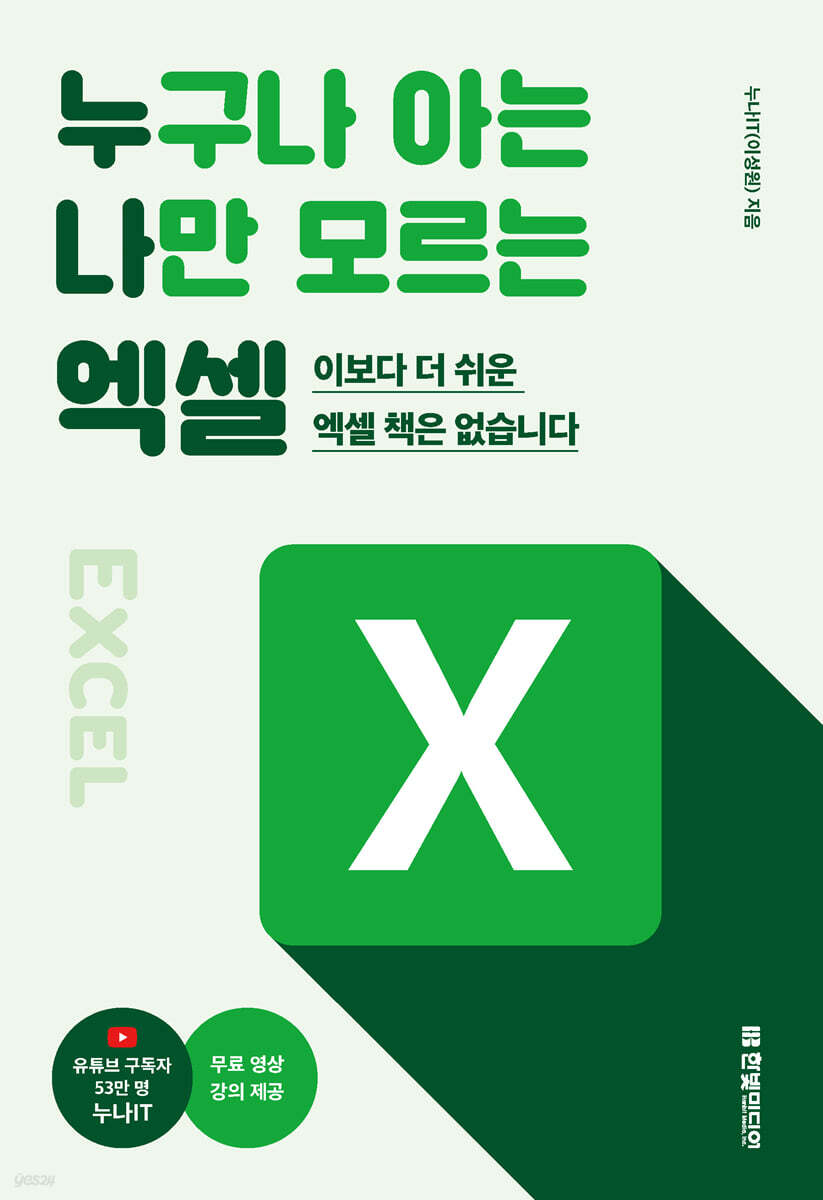
Excel that everyone knows but I don't
 |
Description
Book Introduction
There has never been an easier Excel book! A truly easy Excel book for absolute beginners, from IT education creator 'NunaIT'! Are you looking for a truly easy-to-use Excel book? While existing Excel books focus on improving the work skills of office workers, "Everyone Knows Excel, But I Don't" is designed for beginners learning Excel. We'll teach you step-by-step, from basics like entering content into cells and using shortcut keys to functions that calculate sums and averages. This book will teach you the fundamentals of Excel, the things you're too embarrassed to ask anyone about—the "everyone knows but you don't." It's written in an easy-to-understand format for everyone, from college students to seniors, and will be a valuable resource for those preparing for reemployment. Additionally, video lectures by IT education creator "NunaIT" are provided, making the practical training even easier to follow. If Excel has always seemed difficult, try "Everyone Knows Excel, But I Don't". Excel will become easier if you just read it with your eyes. |
- You can preview some of the book's contents.
Preview
index
preface
Why should I learn Excel?
Excel for Beginners: "Everyone Knows Excel, But I Don't"
Preview the learning content
Examining the book's structure
Play video lecture
Using practice files
Examining the Excel screen layout
Chapter 1: Five Things You Must Know Before Starting Excel
01 Get familiar with the keyboard
Just one minute! The surprisingly unknown difference between Delete and BackSpace
02 Let's run Excel on the computer.
03 Get familiar with the Excel screen
Let's enter content into cell 04.
05 Let's save the Excel file.
Chapter 2: Mastering Easy but Powerful Basic Functions
01 Let's adjust the screen size
Resize the screen
02 Move cells using the keyboard
Move the cell pointer with the arrow keys / Move the cell pointer with Enter and Tab
03 Let's change the font size and format.
Change font size / Apply formatting to font
04 Complete the table by applying borders and colors.
Draw borders in table shape / Change cell background and font color
Just 3 minutes! Create a simple table.
05 Let's erase the text and formatting.
Clear the contents entered in the cell / Clear the border and background color / Clear the format and contents at once / Edit the contents entered
Just 3 minutes! Feel free to edit or delete the format.
06 Let's enter the date and time
Enter date and time
07 Enter data quickly with the fill handle
Learn how to use the fill handle / Enter mixed data and date data with the fill handle
Just one minute! This is what Excel is famous for.
Just 3 minutes! Powerful auto-fill handle
08 Enter data using the quick fill function.
Learn how to use Quick Fill / Unmerge cells and then run Quick Fill
09 Let's freely adjust the column width and row height.
Adjusting column width and row height / Fixing when # appears in a cell / Setting the width and row height of multiple cells to the same value
Let's add or delete 10 columns and rows.
Inserting and deleting columns and rows / Inserting and deleting only some cells
Chapter 3: Developing Your Editing and Printing Skills
01 Let's try copying, pasting, and cutting.
Learn the copy-paste function / Learn the cut function / Learn the copy, paste, and cut shortcut keys
02 Change words or formats at once
Find specific words and change them all at once / Change formatting all at once
03 Let's fill in the data by selecting only the empty cells.
Select blank cells with Go To option / Format the specified cells and fill them with background color
04 Fix the header to easily check the contents
Freeze rows / Freeze columns / Freeze rows and columns simultaneously
05 Let's edit sheet
Rename a sheet / Add and delete sheets / Copy a sheet
06 Let's print the Excel file.
Preparing to print / Previewing print content / Printing
Just one minute! When Excel printing doesn't work the way I want it to
Chapter 4: Quick Calculation with Formulas
01 Let's learn about Excel's flower, functions.
Understanding Functions / Understanding the Basic Structure of Functions / Learning about Function Types
02 Let's learn about the auto-sum function.
Master the AutoSum feature / Get totals in 1 second with the fill handle / Get column-wise totals with AutoSum
Just one minute! Get the sum in 0.1 seconds.
Just 3 minutes! The most used function
03 Calculate the average automatically
Using the AVERAGE function in the AutoSum menu / Adjusting the number of decimal places
04 Let's input functions in various ways.
Learn how to input functions / Enter functions in cells or formula input bars / Find and enter functions directly in cells
05 Let's count the number of cells containing numbers.
Counting cells containing numbers / Counting cells containing letters using the COUNT function
06 Let's count the number of cells containing characters and empty cells.
Counting cells containing text / Counting empty cells / Displaying units in cells containing functions
07 Let's learn about the easy IF function.
IF function expressing 'if' as a function / Applying the IF function using the function wizard / Obtaining the remaining results with the fill handle
Just one minute! You'll never get confused with the Excel IF function.
Chapter 5: Using Functions Properly
01 Let's learn the absolute references you absolutely must know.
Why Formulas Give Errors / Fixing Cell Addresses with Absolute References
Just one minute! If you know only the dollar, you'll be an intermediate Excel user.
02 Let's learn about name definitions that simplify formulas.
Defining names in multiple cells / Using name definitions in functions / Creating multiple name definitions at once / Deleting or changing defined names / Creating function formulas using named ranges
Just one minute! Excel becomes easier if you just define names well.
03 Count the number of cells that meet the conditions using the COUNTIF function.
Using the COUNTIF Function / Specifying a Range with Absolute References
Just one minute! Are you still counting them one by one? Solve it with COUNTIF.
04 Let's add only the desired values using the SUMIF function.
Using the SUMIF function / Using arrow keys when specifying a range / Using the SUMIF function more easily by defining a name
Just one minute! Escape the Excel beginner stage! Easily sum data with SUMIF.
Chapter 6: Sorting Data and Finding the Information You Want
01 Six Key Things to Know When Entering Data in Excel
First, enter column headers. Second, enter dates in date format in a single cell. Third, do not merge cells. Fourth, do not leave cells blank. Fifth, do not enter letters in numeric cells. Sixth, do not enter multiple pieces of information in a single cell.
02 Let's organize the data so that it's easy to view.
Sort ascending / Sort descending
Sort by custom list
03 Let's select only the data you want using filters.
Apply and remove filters / Filter by search / Filter by date
Just one minute! Automatic filters to find the data you want in just a few clicks.
04 Let's learn about pivot tables that can manipulate data in various ways.
Inserting a PivotTable / Learning the PivotTable Structure / Configuring a PivotTable and Viewing Data / Changing Field Positions in a PivotTable
Just one minute! Why Pivot Tables Are Easier Than You Think
Chapter 7: Drawing charts that present data at a glance
01 Let's draw a chart
Creating a Chart / Changing the Chart Title / Displaying Data Labels and Axis Titles
02 Let's customize the chart design.
Change chart style / Change bar color / Change bar width
Just 1 minute! Quickly learn the essentials of Excel charts.
Appendix: Learn the shortcut keys you can use right away
Let's learn frequently used shortcuts.
Pressing shortcut keys / Moving with shortcut keys / Specifying a range with shortcut keys / Moving sheets / More useful shortcut keys to know
Repeat last action
Just one minute! Five of the most used shortcuts in Excel.
Video Lecture Roadmap
Detailed image

Publisher's Review
Preview the learning content
Chapter 1: Five Things You Must Know Before Starting Excel
Before you start using Excel in earnest, let's take a look at the basics you need to know.
[Learning this] Using the keyboard / Launching Excel / Viewing the Excel workspace / Entering content / Saving
Chapter 2: Mastering Easy but Powerful Basic Functions
Learn essential Excel functions, such as how to apply formats and use the fill handle.
[Learning these things] Resizing the screen / Moving cells / Editing formats / Applying borders and background colors / Date and time
Entering / Using the Fill Handle / Utilizing the Quick Fill Feature / Adding or Deleting Columns and Rows
Chapter 3: Developing Your Editing and Printing Skills
Learn how to edit and print data efficiently.
[Learn these things] Copy-paste / Replace words / Select empty cells / Freeze headers / Edit sheets / Print
Chapter 4: Quick Calculation with Formulas
Learn the concepts of functions and how to use autosum and basic functions.
[Learning this] Understanding functions / Using the auto-sum function (SUM, AVERAGE functions) / Learning how to input functions /
Using functions (COUNT, COUNTA, COUNTBLANK, IF functions)
Chapter 5: Using Functions Properly
Learn how to use functions more efficiently to improve your function usage skills.
[Learn these things] Applying absolute references / Defining names / Counting the number of cells that meet conditions (COUNTIF function) / Only the cells you want
Finding the sum (SUMIF function)
Chapter 6: Sorting Data and Finding the Information You Want
Learn how to sort and filter data to quickly extract and summarize the information you want.
[Learning this] Considerations when entering data / Sorting data / Applying filters / Creating pivot tables
Chapter 7: Drawing charts that present data at a glance
Learn how to create charts and apply design to visualize your data.
[Learning This] Creating Charts / Applying Chart Design
supplement
Learn useful shortcuts and review your learning with our video lecture roadmap.
What kind of readers is this book for?
- Senior generation: Those who are not familiar with using computers but need to use Excel for things like managing membership fees, creating a club membership list, and creating a religious activity plan.
- Re-employment seekers: Those who aim to re-employ by learning basic Excel functions in a short period of time.
- College students in their early 20s: Mobile generation who are not familiar with computers and need simple Excel work.
- Office worker: Someone who needs to do basic Excel work at work, but is hesitant to ask colleagues or seniors about the basics.
Features of this book
Many people want to learn Excel, but give up because it seems difficult.
However, if you learn Excel step by step, it is easier than you think, and it is a useful tool that can be used in daily life.
"Excel Everyone Knows, But I Don't" systematically guides beginners who are just starting out with Excel with the essential information they need.
As you follow the book, you will soon acquire the skills to use Excel naturally.
One, the world's easiest Excel introduction.
We explain complex concepts step by step using simple terms and friendly explanations so that even beginners who are new to Excel can easily understand them.
Second, you can systematically learn the essential information.
We'll teach you step-by-step, from the basics for beginners, such as how to use shortcuts and enter content into cells, to functions that calculate sums and averages.
Third, you can watch video lectures for free.
If you have any questions or need additional explanations, you can easily learn them through free YouTube lectures.
GOODS SPECIFICS
- Date of issue: November 29, 2024
- Page count, weight, size: 276 pages | 420g | 153*223*17mm
- ISBN13: 9791169213158
- ISBN10: 1169213154
You may also like
카테고리
korean


korean


