

Delicious Design Photoshop CC 2025
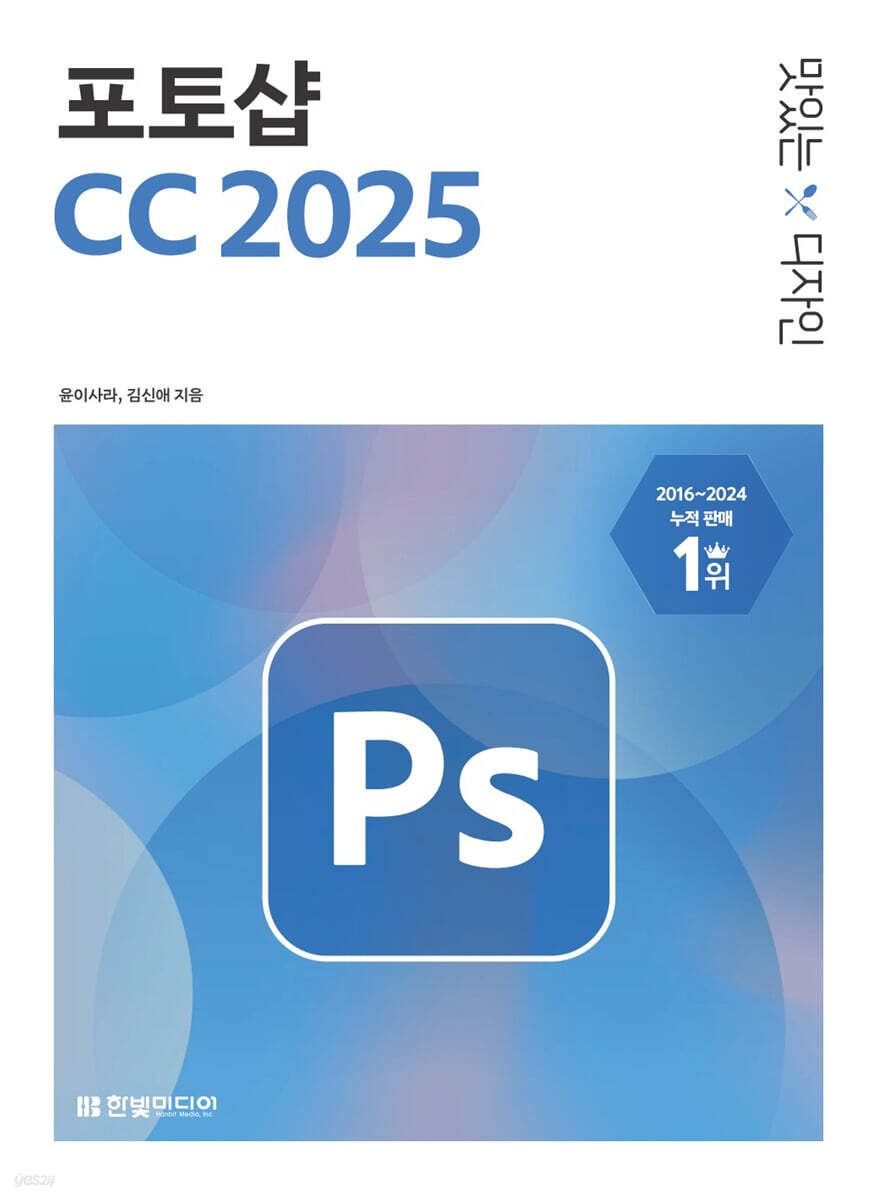 |
Description
Book Introduction
The most complete recipe for learning all the features of Photoshop!
Learn quickly and easily with the basics section that covers core functions and the practical section that is rich in practical examples, and start using it right away!
『Delicious Design Photoshop CC 2025』 is designed to help you learn the basics of Photoshop, the foundation of graphic design, from the very beginning to its proper use.
You can learn Photoshop's basic and core functions thoroughly, starting from the basics, and learn design skills effectively through various practical examples.
It is fully compatible with the latest version, CC 2025, so you can learn Photoshop more efficiently and quickly.
This is a three-step learning method that allows anyone to master Photoshop completely: [Functional Practice], [Practice at a Glance], and [Practical Application], helping them learn Photoshop properly and use it right away.
In particular, it is divided into [Basic Edition], which contains the core functions of Photoshop, and [Usage Edition], which is rich in practical examples, so that you can learn Photoshop properly from the basics and then apply it in your work.
For those who find it difficult to learn on their own, you can learn Photoshop more easily and efficiently through the 6-week online study program offered by the official Delicious Design Study cafe.
- You can preview some of the book's contents.
Preview
index
preface
Learning deliciously
3-Step Learning Structure & Example Completion Gallery
Download example & completed files
Delicious Design Help Page
Using the Delicious Design Study Official Cafe
What's New in Photoshop CC 2025
Delicious design, a sneak peek
PART 01 Easy and Quick Photoshop Recipes
CHAPTER 01 Uncovering Photoshop CC 2025
LESSON 01 Welcome, Photoshop: What is Photoshop and What is it Used for?
Where is Photoshop used?
LESSON 02: What Does Photoshop Look Like?: A Look at the Photoshop Launch Screen
Photoshop CC 2025 home screen
Photoshop CC 2025 main screen
[Simple Practice] Brightening a Dark Work Screen
Explore tool names and features
Expand/narrow the toolbar
[Simple Tutorial] Setting Up Your Own Toolbar
Learn more about the panel
Manipulating the panel
LESSON 03 Essential Graphics Knowledge: Vectors, Bitmaps, RGB, CMYK, Resolution, File Formats
What is the difference between vector and bitmap?
RGB and CMYK color modes
Resolution
Image File Formats: Which Format Should I Save Them In?
3 properties of color
CHAPTER 02 If you know this, you can completely master Photoshop.
LESSON 01: 20 Basic Photoshop Features to Try First: Master Photoshop Just by Following These
1 New to create a new document
2 Open to load images
3 Image Size to adjust the image size
4 Copy and paste the image
5 Move tool to move objects
6 Magnifier tool to adjust the working screen ratio
7 Object selection tool for quick selection by dragging
8 Transform to adjust the size of an object
9 Naturally Remove Spot Healing Brush Tool
10. Lasso tool to cut out only the necessary parts
11 Place Embedded Image Composite
12 Layer masks that hide the original without damaging it
13 Canvas Size to adjust the canvas size
14 Shape tool for drawing shapes
Text tool for entering 15 characters
Blending mode for compositing 16 layers
17 Color Picker Tool
18 Crop tool to remove unnecessary parts
19 Hand tool to move the screen
Export As to save as 20 images
LESSON 02 Managing Files: Creating a New Work Document, Loading Files, Saving Files, and Closing Windows
[Simple Practice] Creating a New Work Document
[Simple Practice] Loading Images
[Simple Practice] Saving an Image
Resizing images and canvases
[Simple Practice] Reducing Image Size
[Practice at a Glance] Creating Images That Don't Crack When Zoomed In
[Practice at a Glance] Adjusting Canvas Size
[Practice at a Glance] Close the Work Screen and Exit Photoshop
LESSON 03 SELECTION: Selecting the desired area in various ways
Selection tool to select in square or circular shapes
[Practice at a Glance] Softening Edges with Feather
Freely selectable lasso tool
Object selection tool for selecting objects with a single click or drag
[Practice at a Glance] Selecting with the Object Selection Tool
Refine Hair for precise selection with just one click
[Simple Practice] Selecting Every Strand of Hair with Precision
Quick Mask mode for delicate selection with a brush
[Practice at a Glance] Creating a Black and White Background with Quick Mask Mode
[Practice at a Glance] Changing Colors at Once with Color Range
[Practice at a Glance] Separating the Subject and Background with Focus Area
Modify to modify the selection
Pen tool for precise selection
LESSON 04 Moving: Freely moving the selection area
[Simple Practice] Cutting and Moving Only the Selection Area
[Simple Practice] Copy and Move
[Simple Practice] Merging Images from Different Workspaces into One
LESSON 05 Transforming, Rotating: Transforming, Rotating, and Distorting Images
[Simple Tutorial] Resizing and Rotating an Image
[Practice at a Glance] Distorting Images in Various Ways
LESSON 06 Crop and Split: Crop and Split Parts of an Image
[Simple Practice] Crop Tool for Cutting Out Images
[Simple Practice] Expanding an Image
[Practice at a Glance] Straightening Crooked Photos with the Crop Tool
[Practice at a Glance] Precise Cropping with the Perspective Crop Tool
[Practice at a Glance] Crop an Image at Once with the Split Tool
[Practice at a Glance] Creating an Image Mask of the Desired Shape with the Frame Tool
LESSON 07 Drawing and Coloring: Draw Freely and Fill in the Colors
Brush tool and pencil tool for drawing as you go
[Simple Tutorial] Installing a Brush
[Simple Practice] Using a Brush Using Tablet Pressure
[Simple Tutorial] Creating a Dotted Line Brush
Eraser tool to erase and delete images
[Simple Tutorial] Erasing Images and Backgrounds
Gradient tool that naturally fills two colors
[Simple Practice] Filling with a Gradient
[Simple Tutorial] Creating and Registering a New Gradient
[Practice at a Glance] Expressing a Dreamy Feel with Gradients
Paint tool that fills in one go
[Simple Practice] Filling with Color
[Simple Practice] Filling with Patterns
Foreground/background color to select a color
[Simple Practice] Specifying Foreground/Background Colors
Specifying foreground/background colors in other ways
LESSON 08 Retouching and Correction: Correcting Images to Your Desire
Blur, sharpen, and smudge tools to blur, sharpen, and smooth the image
Complete mastery of the Blur/Sharpen/Smudge tool options bar
Dodge, Burn, and Sponge tools to darken or lighten, and adjust value and saturation
Complete mastery of the Dodge/Burn/Sponge tool options bar
Healing Brush tool to remove impurities and clean up
Master the Spot Healing Brush/Healing Brush Tool Options Bar
Patch tool for smooth cloning, content-aware move tool, red-eye tool
[Practice at a Glance] Correcting Images with the Adjustment Brush
[Practice at a Glance] Whitening Blemish-Prone Skin
[Practice at a Glance] Easily Remove with One Click
Clone Stamp tool to duplicate an image in a specific area
LESSON 09 Entering Text: Enter the text as you wish and use the properties bar.
Text tool for entering text
[Simple Practice] Entering Text
Complete mastery of the text tool options bar and panels
[Simple Practice] Entering a Paragraph
[Paragraph] Complete panel mastery
Three ways to change character properties
Variable fonts that freely change character properties
[Practice at a Glance] Transforming Text Shapes with Warp Text
Frequently used Warp Text Style
[Simple Tutorial] Creating Curved Letters That Flow Along a Path
LESSON 10: Drawing Paths and Shapes in Vector Format: Drawing Various Shapes for Detailed Work
Vector method
Pen tool for precise extraction with a pass
[Simple Practice] Drawing Paths in Various Ways
[Simple Practice] Creating Shapes with the Pen Tool
[Simple Practice] Extracting Image Sources Using Passes
Shape tool for drawing vector shapes
[Simple Practice] Drawing a Triangle While Checking the Shape in Real Time
LESSON 11 View the screen as you want: Zoom, pan, and zoom in
[Simple Practice] Zooming in and out with the Magnifier Tool
[Simple Practice] Moving the Screen with the Palm Tool
Master the Palm Tool Options Bar and Panels
[Simple Practice] Rotating the Screen with the Rotate View Tool
Screen editing mode for a wider view of the workspace
LESSON 12: Work with Ease: Leverage New Features and Set Up Your Work Environment
Work faster and practice more easily
[Simple Practice] Get started quickly with help
[Simple Practice] Removing Distractions like Wires and People
[Practice at a Glance] Improved Generative Fill: Creating Similar Items
[Practice at a Glance] Creating Image Backgrounds Using AI
Setting up the work screen
[Simple Practice] Setting Up Your Own Workspace
[Practice at a Glance] Setting Up Photoshop
CHAPTER 03 Basic Layers and Channels of Compositing
LESSON 01 All About Layers: Understanding Layer Basics
Understanding Layers
[Simple Practice] Understanding Layer Concepts
Use and manage layers freely
[Simple Practice] Selecting and Renaming Layers
[Simple Practice] Creating a New Layer and Creating a Layer Group
[Simple Practice] Copying and Deleting Layers
[Simple Practice] Changing the Layer Order
[Simple Practice] Converting a [Background] Layer to a Normal Layer
[Simple Practice] Merging Layers
[Simple Practice] Hiding Layers
[Layers] panel
[Layers] panel pop-up menu
[Simple Tutorial] Enlarging an Image to Fit a Layer Size
Layer blending mode
[Simple Practice] Multiply Mode to Make White Transparent
[Simple Practice] Screen Mode to Make Black Transparent
[Simple Practice] Overlay Mode to Enhance Image Sharpness
[Practice at a Glance] Color Dodge Mode for Stronger Light Expression
Layer Style
[Simple Tutorial] Using Layer Styles Freely
Layer Mask
[Simple Practice] Applying a Layer Mask
[Simple Tutorial] Applying a Clipping Mask
Adjustment Layer
[Simple Practice] Using Adjustment Layers
[Simple Practice] Handling Adjustment Layers
Smart Object
[Simple Practice] Using Smart Objects
[Simple Tutorial] Editing with Smart Object Layers
LESSON 02 All About Channels: Understanding Channel Basics
The important role of channels
[Channels] View the panel
[Simple Practice] Channel-by-Channel Correction Using Color Channels
[Simple Practice] Changing Color Mode and Checking Channels
[Simple Tutorial] Using the Alpha Channel to Make Part of a Photo Black and White
CHAPTER 04 Image Correction Techniques and Filters for Professional Editing
LESSON 01: How to Adjust Like a Pro: Various Ways to Use the [Adjustments] Menu
Types of Adjustments
Using Adjustment Layers
[Practice at a Glance] Automatic Color Correction in 1 Second
[Simple Tutorial] Creating a Black and White Image
[Simple Practice] Correcting Black and White Images to Your Desired Tone
Make the image clearer
[Simple Practice] Quickly Adjusting Brightness and Contrast with Brightness/Contrast
[Simple Practice] Adjusting Brightness with Levels
[Simple Tutorial] Sharpening with Curves
[Simple Tutorial] Backlight Correction with Shadows/Highlights
[Simple Tutorial] Compensating Camera Exposure with Exposure
[Simple Practice] Adjusting Color, Saturation, and Brightness at Once with Hue/Saturation
[Simple Practice] Adjusting Colors with Color Balance
[Simple Practice] Creating Various Filter Effects with Photo Filter
[Simple Practice] Correcting Specific Colors with Selective Color
[Simple Tutorial] Changing Fabric Color with Replace Color
[Simple Tutorial] Creating a Poster-Style Feel with Posterize
[Simple Tutorial] Simplifying an Image Using Threshold
[Simple Tutorial] Flipping an Image with Invert
[Simple Tutorial] Applying Gradient Color to an Image with Gradient Map
LESSON 02: Retouching Images Like a Pro Photographer: Using Camera Raw
Take a look at the Camera Raw main screen
[Simple Tutorial] Correcting Exposure and Color with Camera Raw
LESSON 03 Five Essential Portrait Retouching Techniques: Must-Know Social Media Photo Retouching Techniques
[Simple Practice] Essential Portrait Photography Correction Technique ① Making Legs Longer
[Simple Practice] Essential Portrait Photography Correction Techniques ② Color Correction by Adjusting White Balance
[Simple Tutorial] Essential Portrait Retouching Techniques ③ Skin Retouching
[Simple Practice] Essential Portrait Retouching Techniques ④ Correcting Face Shape and Eye Size
[Simple Practice] Essential Portrait Photography Correction Techniques ⑤ Sharpening the Portrait's Boundaries
LESSON 04 Four Essential Landscape Photography Correction Techniques: Transforming 2%-Improper Photos into Great Photos
[Simple Practice] Essential Photo Correction Technique ① Changing the Sky
[Simple Practice] Essential Photo Correction Techniques ② Adjusting Contrast
[Simple Practice] Essential Photo Correction Techniques ③ Adjusting Sharpness
[Simple Practice] Essential Photo Correction Technique ④ Emphasizing Desired Colors
LESSON 05: The Fantasy World Created by Filters: Understanding the [Filter] Menu
All filter effects at a glance
Neural filter
[Simple Tutorial] Turning a Young Person into an Old Person with One Click
[Simple Tutorial] Converting a Black and White Photo to Color
[Simple Practice] Changing the Scenery in Each Season
Gallery of various filter effects
PART 02.
Photoshop Tips You Can Use Right Now
CHAPTER 01 Creating Sensational Images with Photoshop's AI Features
LESSON 01: AI-Powered Balloon Text Design: Creating Balloon-Textured Typography with Firefly
Create images from text
Creating Typography Designs in Adobe Firefly
Refining the results in Photoshop
LESSON 02: Changing a Character's Clothes with Generative AI: Easily and Naturally Synthesize Your Desired Clothes with New Generative AI Features
Create images from text
Fix the awkward parts and complete it
Change clothes with reference images (Beta version)
LESSON 03: Natural Compositing with Perspective Distortion: Learn how to blend in naturally with the background using perspective distortion.
Removing a car with generative fill
Import the image to be synthesized
Warp the car perspective to match the background
Adjusting colors and shadows
Expanding the background with Generative Expand
LESSON 04 Easily Complete Artwork with AI: Create Unique Artwork by Utilizing Unintended Results
Composite images using generative fill
Create artwork by adding and compositing images
Color correcting finished artwork
CHAPTER 02 The First Step in Using Photoshop: Image Utilization Examples
LESSON 01 Designing a Book Cover: Creating an Essay Cover with a Grid Layout
Create a new document and set margin guides
Enter and sort text
Specifying the cover color and compositing the texture background
Configuring the book band
Create a mockup
LESSON 02 Creating a Typography Web Poster: Using Guides to Position Objects Stably
Create a new document and set up guidelines
Enter and sort text
Creating a stripe pattern
Applying a stripe pattern to the text
Enter web poster details
Complete with color variations
LESSON 03: Creating Card News for Social Media: Managing Documents in One Place with Artboards
Creating an artboard and setting up guides
Load an image and make it black and white
Enter and decorate text
Add artboards and decorate the background
Inserting an image into a square box
Modify the image to appear outside the square box
Create multiple artboards and save them at once
LESSON 04 Drawing Line Illustrations on People: Drawing Lines and Coloring with the Brush Tool
Load an image and make the background black and white
Creating line illustrations
Decorate and color clothes
Synthesizing flower sources
Complete by entering matching characters
A free image website with no copyright concerns
CHAPTER 03 Typography Examples for Cooking Letters
LESSON 01 Creating Naturally Hidden 3D Letters: Applying Masks to Place Letters to Match the Image
Enter and sort text
Apply a mask to text to erase part of it
Decorate images using the brush tool
Decorate images using shape tools
LESSON 02: Designing Letters: Selecting an Area and Erasing Unnecessary Parts
Enter and sort text
Freely crop text after rasterizing it
LESSON 03 Creating Wavy Shadow Text: Repeating the Free Transform Function
Create a new document and enter text
Transforming text with the Free Transform feature
Create a shadow by repeating the previously applied transformation operation.
Applying a mask to create a three-dimensional effect
Modifying objects with smart object layers
LESSON 04 Creating a TV Noise Screen Animation: Applying Glitch Effects and Animation
Creating a black background for noise effects
Enter text
Applying a glitch effect to text
Create a group layer and apply animation
LESSON 05: Designing an Image Card with Standout Typography: Applying a Clipping Mask to Emphasize Typography
Load an image and select only the people
Fill the background with color
Correcting images and filling in colors using channels
Enter a title and apply a clipping mask
Complete by rasterizing the text
CHAPTER 04: Trendy Image Utilization Examples to Upgrade Your Skills
LESSON 01 Blending Design that Combines Shadows and Colors: Overlapping Colors Using the Noise Filter and Blending Modes
Separating the person from the background with the object selection tool
Make an image black and white
Place it naturally
Adjusting image colors
Applying a Noise Filter
Creating a character's shadow
LESSON 02 Distorting Lines in Poster Design: Distorting Lines by Applying a Clipping Mask to a Shape
Create a selection and copy it
Distorting lines
Applying shapes and clipping masks
Complete by entering a title
LESSON 03: Expressing a Collage-Like Feel with a Camera: Separating Images and Creating a Collage with Quick Mask Mode
Import an image and separate the subject from the background
Fill background color on blank background
Create an area that looks like it's taking a picture
Composite landscape images
Correcting with vintage colors
LESSON 04 Creating a Composite Image with Natural Colors: Quickly Compose an Image Using the Context Bar
Preparing the source image to be synthesized
Select the original image in detail with the Quick Mask feature.
Placing the images to be composited
Correcting and correcting the composition of the finished image
LESSON 05 Poster Design Using Object Images: Expressing Mixed Colors Using Blending Modes
Separating objects from their backgrounds with the Object Selection tool
Gather and align objects in one place
Correcting object colors
Applying a blending mode
Enter matching characters and draw shapes
Modifying the shape of an object with a smart object layer
LESSON 06: Vintage Retro Portrait Poster: Using Neural and Color Halftone Filters
Create a smiling face with a neural filter
Separating the person from the background with the object selection tool
Sharpen the character
Applying a vintage effect to a portrait using the Filter Gallery
Create a vintage-looking background using the filter gallery.
Using Blending Modes and Adjustment Layers
Apply a frame-shaped border
LESSON 07 Creating a Unique Atmosphere by Inserting Images into Patterns: Create a Pattern and Apply a Clipping Mask to the Image to Design
Create a new working document
Creating a pattern design with the shape tool
Applying a clipping mask to a pattern
Adjusting the finished image levels
LESSON 08 Creating a Color-Changing Text Animated GIF Animation
Create a new document and enter text
Create a selection area that obscures text
Applying a clipping mask
Applying animation using the timeline
LESSON 09: Creating Hand-Drawn Illustration Patterns: Applying Patterns with the Offset Function
Create a new document and draw a hand-drawn illustration
Aligning objects using the Offset function
Registering an image as a pattern
Fill the pattern in the desired area
LESSON 10: Designing YouTube Channel Art: Applying Masks to Group Layers
Composite a background image into a channel art template
Composite images into a safe area
Complete by entering a title in the safe area
Photoshop practical shortcut keys
Search
Detailed image

Publisher's Review
What kind of readers is this book for?
ㆍ Aspiring designers or new designers just entering the field
ㆍ Designers with 1-3 years of experience who want to quickly learn the new features of Photoshop CC 2025
ㆍJob seekers and the general public interested in design or Photoshop
ㆍ People who want to learn Photoshop but are overwhelmed by the difficult explanations
ㆍ Beginners who have used Photoshop a few times but lack basic skills and want to build solid skills
#1 in graphics for 9 consecutive years!
A series trusted and watched by 740,000 readers
* Kyobo Book Centre, Aladdin, Yes24, Interpark_#1 in IT/Computer/Graphics (based on statistics from 2016 to 2024)
ㆍ Complete mastery of Photoshop from basics to advanced use!
The 'Delicious Design' series, which provides the most perfect design recipes, has been verified by 740,000 readers.
In particular, it helps you learn and use Photoshop, the foundation of graphic design, from its basic functions to practical applications.
[Photoshop Basics for a Solid Foundation] covers only the basic and core functions, allowing you to learn without any burden. [Photoshop Utilization You Can Use Right Now] allows you to upgrade your design skills by practicing various practical application examples.
ㆍ Fully compatible with the latest version of Photoshop CC 2025!
This book is fully compatible with the latest version of Photoshop, CC 2025.
You can quickly check out the new features of CC 2025 that will help you use Photoshop more efficiently, and practice using examples of the new features.
Additionally, version-specific usage tips for users of lower versions are provided to help those who are not using CC 2025 learn without difficulty.
ㆍ The most perfect 3-step learning structure!
It consists of [Functional Practice] that even beginners can use right away, [Practice at a Glance] that is easy to understand just by looking at it, and [Practical Application] that can be used right away.
In [Function Practice], you will learn the basic knowledge, screen composition, panels and tools that you must know, and learn the basic operations and settings required before practicing examples.
[Practice at a Glance] teaches core functions through examples for each function.
You can see the usage and utilization process of the main functions at a glance and check the results right away, so you can understand the functions thoroughly.
In [Practical Application], you will learn practical skills by combining multiple functions to create a complete example.
ㆍ Practical examples that can be used immediately
It helps you learn the functions properly and use them like a designer.
If you are a complete beginner who is just starting out with Photoshop, thoroughly learn the core functions included in [Basics]. Once you are somewhat familiar with Photoshop, practice the various practical application examples introduced in [Usage] and try out Photoshop in various ways.
The application section is filled with great examples that you can use right away, so you can use Photoshop properly in both your work and your hobby.
ㆍ A 6-week online study group with the official cafe, Delicious Design Study Group!
The 'Delicious Design Study Group' helps you learn Photoshop, Illustrator, Premiere Pro, and After Effects quickly and easily.
The official cafe for Delicious Design Study (https://cafe.naver.com/matdistudy) provides information on the learning volume and missions according to the 6-week curriculum, and even provides rewards upon completion of the study.
Also, if you have any questions, you can post them on the [Study Questions] bulletin board and receive quick and friendly answers from a study mentor.
If you're feeling overwhelmed by learning on your own, want to learn Photoshop properly, or want to quickly check out Adobe's new features, check out the official Delicious Design Study cafe!
* These are actual reviews from people who studied using the official Delicious Design Study cafe!
"If I had been alone, I would have given up after three days, but thanks to the study group, I was able to get rid of the beginner's label and a book!" _Iromi
“I highly recommend it to anyone who is studying for the first time.
“There is nothing lacking, from the basics to practical application.” _Park Hae-in
GOODS SPECIFICS
- Date of issue: March 24, 2025
- Page count, weight, size: 480 pages | 982g | 188*257*20mm
- ISBN13: 9791169213585
- ISBN10: 1169213588
You may also like
카테고리
korean


korean


