

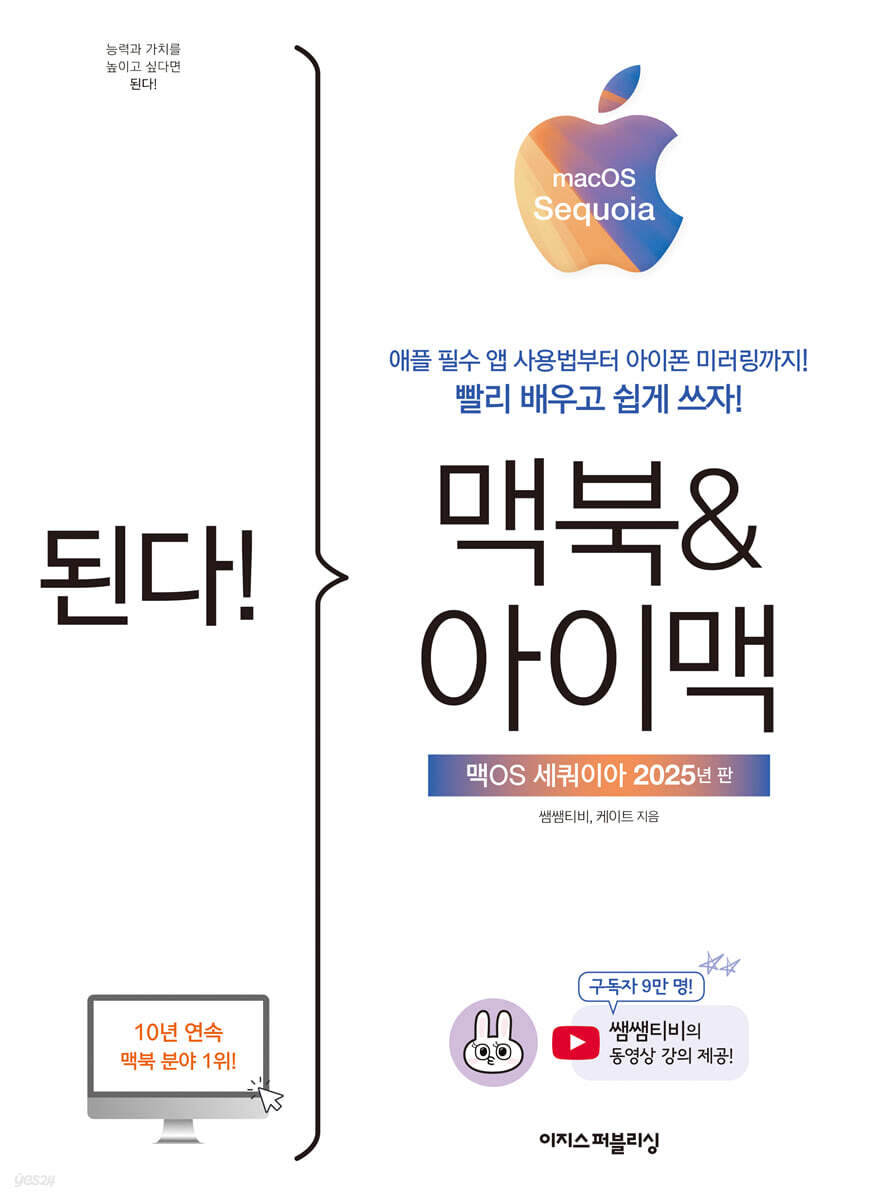
It works! MacBook & iMac - macOS Sequoia Edition
 |
Description
Book Introduction
The best-selling MacBook, updated for 2025!
A friendly introduction to macOS from 11-year Apple enthusiast Sam Sam TV.
Get fully up and running with macOS in just one hour! Learn quickly and get started right away!
Since its first publication in 2015, 『It Works! MacBook & iMac』, which has been revised annually and ranked #1 in the MacBook category, has been revised to match the latest version of macOS, Sequoia.
This book contains the know-how of 'SamSamTV', an Apple nerd who has been using iPhones and Macs for over 10 years.
If you are a MacBook beginner, you can get started with Mac more easily and quickly, and even if you are a MacBook user for a long time, you will be able to find the latest features of Sequoia.
We added the friendliness of providing video lectures for parts that are difficult to follow in a book.
If you've been hesitant about buying a Mac but are afraid to use it, try getting started with Mac with "You Can Do It! MacBook & iMac - macOS Sequoia Edition"!
A friendly introduction to macOS from 11-year Apple enthusiast Sam Sam TV.
Get fully up and running with macOS in just one hour! Learn quickly and get started right away!
Since its first publication in 2015, 『It Works! MacBook & iMac』, which has been revised annually and ranked #1 in the MacBook category, has been revised to match the latest version of macOS, Sequoia.
This book contains the know-how of 'SamSamTV', an Apple nerd who has been using iPhones and Macs for over 10 years.
If you are a MacBook beginner, you can get started with Mac more easily and quickly, and even if you are a MacBook user for a long time, you will be able to find the latest features of Sequoia.
We added the friendliness of providing video lectures for parts that are difficult to follow in a book.
If you've been hesitant about buying a Mac but are afraid to use it, try getting started with Mac with "You Can Do It! MacBook & iMac - macOS Sequoia Edition"!
- You can preview some of the book's contents.
Preview
index
The first story, a heart-pounding Mack that starts for the first time
01-1 Differences between macOS and Windows
01-2 A Tour of the macOS Interface
01-3 Getting Familiar with the Mac Keyboard
01-4 Connecting the mouse and changing settings
01-5 Trackpad is more comfortable than a mouse
01-6 Open and close the app
01-7 Full screen view and screen switching
01-8 Aligning Windows Tiles
01-9 Entering Korean, English, Chinese characters, and emoticons
01-10 Mac's Explorer, Finder
01-11 Mac screen capture, screenshot
01-12 It's convenient to know, shortcut keys
Second Story: Setting Up Your Own Mac for Full Mac Utilization
02-1 Configuring Your Own Interface
02-2 Viewing Mac Notifications and Widgets, Notification Center
02-3 Setting the screen mode
02-4 My own home screen, poison
02-5 Folder as poison, stack
02-6 The world's fastest browser, Safari
02-7 Install the program from the App Store
02-8 Updating macOS
Third Story: 8 Features Only Available on Mac
03-1 Apple's shared storage, iCloud
03-2 10 Trackpad Gestures
03-3 Spotlight, the search bar that finds anything
03-4 Mission Control for easy desktop management
03-5 Work Faster, Stage Manager
03-6 From Editing to Sharing, the Photos App
03-7 My own voice assistant, Siri
03-8 Password management made easy, password app
Story 4: Using Office Programs on a Mac
04-1 Mac Presentation, Keynote
04-2 Excel and Numbers on Mac
04-3 Mac's word processor, Pages
04-4 Adding Colorfulness to Document Creation: Installing Fonts
04-5 Connecting an External Display (Dual Monitor)
04-6 Connecting and Setting Up a Wireless Printer
Story 5: Adding Mac to Your Daily Life
05-1 Smart Personal Assistant, Advance Notification
05-2 All schedule management, calendar
05-3 Easy idea recording and notes
05-4 Infinitely Expandable Canvas, Freeform
05-5 Mac's Post-it Notes and Stickers
05-6 Integrated phone number management, contact information
05-7 Text messages sent and received on Mac
05-8 From voice calls to video calls, FaceTime
05-9 All email accounts in one, Mail
Story 6: Editing Photos and Videos with a Mac
06-1 Preview and edit images all at once
06-2 Fast and Easy Video Editing, iMovie
06-3 From hobby to professional composition and recording, GarageBand
06-4 From Playback to Recording, QuickTime Player
06-5 Fun photo shoot, photo booth
Story 7: Using a Mac with an iPhone or iPad
07-1 Understanding Apple's Continuity
07-2 Apple's exclusive file sharing, AirDrop
07-3 Mirroring your iPhone to your Mac's larger screen
07-4 Playing iPhone videos on Mac with AirPlay
Handoff, sharing work up to 07-5
07-6 Data connection anytime, anywhere, personal hotspot
07-7 iPad as a secondary display, Sidecar
07-8 Sharing keyboard and mouse with iPad, Universal Control
Search
01-1 Differences between macOS and Windows
01-2 A Tour of the macOS Interface
01-3 Getting Familiar with the Mac Keyboard
01-4 Connecting the mouse and changing settings
01-5 Trackpad is more comfortable than a mouse
01-6 Open and close the app
01-7 Full screen view and screen switching
01-8 Aligning Windows Tiles
01-9 Entering Korean, English, Chinese characters, and emoticons
01-10 Mac's Explorer, Finder
01-11 Mac screen capture, screenshot
01-12 It's convenient to know, shortcut keys
Second Story: Setting Up Your Own Mac for Full Mac Utilization
02-1 Configuring Your Own Interface
02-2 Viewing Mac Notifications and Widgets, Notification Center
02-3 Setting the screen mode
02-4 My own home screen, poison
02-5 Folder as poison, stack
02-6 The world's fastest browser, Safari
02-7 Install the program from the App Store
02-8 Updating macOS
Third Story: 8 Features Only Available on Mac
03-1 Apple's shared storage, iCloud
03-2 10 Trackpad Gestures
03-3 Spotlight, the search bar that finds anything
03-4 Mission Control for easy desktop management
03-5 Work Faster, Stage Manager
03-6 From Editing to Sharing, the Photos App
03-7 My own voice assistant, Siri
03-8 Password management made easy, password app
Story 4: Using Office Programs on a Mac
04-1 Mac Presentation, Keynote
04-2 Excel and Numbers on Mac
04-3 Mac's word processor, Pages
04-4 Adding Colorfulness to Document Creation: Installing Fonts
04-5 Connecting an External Display (Dual Monitor)
04-6 Connecting and Setting Up a Wireless Printer
Story 5: Adding Mac to Your Daily Life
05-1 Smart Personal Assistant, Advance Notification
05-2 All schedule management, calendar
05-3 Easy idea recording and notes
05-4 Infinitely Expandable Canvas, Freeform
05-5 Mac's Post-it Notes and Stickers
05-6 Integrated phone number management, contact information
05-7 Text messages sent and received on Mac
05-8 From voice calls to video calls, FaceTime
05-9 All email accounts in one, Mail
Story 6: Editing Photos and Videos with a Mac
06-1 Preview and edit images all at once
06-2 Fast and Easy Video Editing, iMovie
06-3 From hobby to professional composition and recording, GarageBand
06-4 From Playback to Recording, QuickTime Player
06-5 Fun photo shoot, photo booth
Story 7: Using a Mac with an iPhone or iPad
07-1 Understanding Apple's Continuity
07-2 Apple's exclusive file sharing, AirDrop
07-3 Mirroring your iPhone to your Mac's larger screen
07-4 Playing iPhone videos on Mac with AirPlay
Handoff, sharing work up to 07-5
07-6 Data connection anytime, anywhere, personal hotspot
07-7 iPad as a secondary display, Sidecar
07-8 Sharing keyboard and mouse with iPad, Universal Control
Search
Detailed image

Publisher's Review
From trackpad gestures to keyboard usage
We've prepared it in detail so that even beginners can easily get started!
“I hear the trackpad is so great, but I find it so uncomfortable.”, “How do I switch between English and Chinese characters?” All the worries of Mac beginners can be solved in this book.
It clearly tells you which function to use in which situation, so you don't have to memorize it all.
The 'trackpad', which was difficult to use because it was similar to other laptops but different, can be understood at a glance with numerous pictures and friendly explanations.
We've also organized keyboard shortcuts for easy reference and covered how to download apps.
Unlike Windows computers where you have to go to each program's website, Macs are convenient because all apps are organized in the 'App Store'.
------------------------------------------------------
Increase your Mac's usability with practical features!
Learn Mac basics by using apps yourself.
On Mac, all programs that you install and use are called apps.
The more you use the app, the more thoroughly you can learn about Mac.
Once you get to know the practical features of the Safari app, a web browser, you'll understand why people love it.
Also, just as you might be surprised to find yourself thinking, "Wow, there's a feature like this?" while using a Windows computer, Macs also have many features that make them more convenient for users.
It covers everything from 'Stage Manager', which neatly organizes complex screens with multiple apps, to 'Password App', which manages passwords for all accounts.
------------------------------------------------------
Mac is actually more convenient if you know how to use its features!
From 8 useful features to how to use Mac Office programs.
If you haven't yet used many features, such as Mac's voice recognition assistant 'Siri' and the search window 'Spotlight', learn them all with this book.
You can easily find files that you had difficulty finding yourself with just a word or a search.
In addition, we will introduce 6 other features in detail, so be sure to check them out.
Mac also comes with several office programs by default.
You know apps like Keynote, Numbers, and Pages, but you never thought to open them because you didn't know what they were? Don't be afraid, they're actually quite simple.
You can quickly become familiar with the app by opening it and creating simple presentations or statistical sheets as introduced in this book.
------------------------------------------------------
I also recommend it to content creators who want to utilize Mac!
Learn how to create simple videos with iMovie!
Professionals in graphics, video, and music have been working on Macs for a long time.
This means that there are many tools optimized for creating multimedia content on Mac.
Among YouTube creators, there are more and more who use Macs to create content.
This book also details how to use simple tools specifically for content producers.
In 'Sixth Story', you will learn how to correct and edit photos you took yourself using 'Photo Booth' and how to edit videos using 'iMovie'.
Plus, you can record and compose music directly with GarageBand! This book will help you create a variety of content while mastering the core features of each program.
------------------------------------------------------
Attention those who dream of the Apple ecosystem!
Learn how to connect your iPad and iPhone!
Most Mac users also use an iPhone or iPad.
Because these are devices that can create synergy when used together.
The iPad can be used as a secondary display for the Mac, and the iPhone can be displayed on the Mac's screen using the 'mirroring function'.
You can connect wirelessly as long as you use the same Apple ID.
From the "Handoff" feature, which lets you view websites on your iPad on your Mac, to the simple file transfer feature "AirDrop," and even the "Universal Clipboard" feature, which lets you copy content from your iPhone to your Mac, get started quickly and easily with "It's possible! MacBook & iMac - macOS Sequoia Edition."
------------------------------------------------------
Self-proclaimed Apple nerd 'SamSamTV' reveals his Mac usage know-how!
Check out the living tips from 11 years of Mac experience!
YouTubers 'SamSamTV' and 'Kate' also participated in writing this revised edition.
Both are professional Apple users who have used Macs for over 10 years, and they generously shared the know-how they have accumulated over the years.
This book not only provides a wealth of knowledge about Mac and Apple products, but also provides useful tips based on actual usage experience.
As you learn them one by one, you can learn functions you didn't know before, such as sharing your Wi-Fi password with a QR code.
In addition, in the 'I can conquer Mac too!' corner, which is a check-up question, you can find the answer to the question 'Am I using Mac well?'
------------------------------------------------------
"Meet intelligent readers who grow through books!"
[Do it! Study Room]: Learn, Share, and Grow Together
If you feel burdened by studying alone, visit the study cafe [Do it! Study Room].
You can meet readers who are studying the same book.
You can also participate in the [Do it! Study Group], upload your study plan, and put it into practice to receive a book as a gift and develop a consistent study habit.
- Do it! Study Room Cafe: cafe.naver.com/doitstudyroom → [Do it! Study Group] Menu
------------------------------------------------------
Why you should study with this book!
- It is composed of content that will be helpful not only to beginners but also to those who have been using Mac for a long time.
- From everyday life, to work, to hobbies! We've also included tips for using Mac in various situations.
- It also teaches you the basics of using Mac's office programs, Keynote, Numbers, and Pages.
- All the latest updates, including ‘iPhone Mirroring’, have been reflected.
This book is perfect for:
- A person who bought a pretty MacBook but regrets not knowing how to use it properly.
- People who want to take good care of their MacBook updated to the latest version
- People who want to use a MacBook for work
- People who dream of the Apple ecosystem by linking their MacBook, iPhone, and iPad.
We've prepared it in detail so that even beginners can easily get started!
“I hear the trackpad is so great, but I find it so uncomfortable.”, “How do I switch between English and Chinese characters?” All the worries of Mac beginners can be solved in this book.
It clearly tells you which function to use in which situation, so you don't have to memorize it all.
The 'trackpad', which was difficult to use because it was similar to other laptops but different, can be understood at a glance with numerous pictures and friendly explanations.
We've also organized keyboard shortcuts for easy reference and covered how to download apps.
Unlike Windows computers where you have to go to each program's website, Macs are convenient because all apps are organized in the 'App Store'.
------------------------------------------------------
Increase your Mac's usability with practical features!
Learn Mac basics by using apps yourself.
On Mac, all programs that you install and use are called apps.
The more you use the app, the more thoroughly you can learn about Mac.
Once you get to know the practical features of the Safari app, a web browser, you'll understand why people love it.
Also, just as you might be surprised to find yourself thinking, "Wow, there's a feature like this?" while using a Windows computer, Macs also have many features that make them more convenient for users.
It covers everything from 'Stage Manager', which neatly organizes complex screens with multiple apps, to 'Password App', which manages passwords for all accounts.
------------------------------------------------------
Mac is actually more convenient if you know how to use its features!
From 8 useful features to how to use Mac Office programs.
If you haven't yet used many features, such as Mac's voice recognition assistant 'Siri' and the search window 'Spotlight', learn them all with this book.
You can easily find files that you had difficulty finding yourself with just a word or a search.
In addition, we will introduce 6 other features in detail, so be sure to check them out.
Mac also comes with several office programs by default.
You know apps like Keynote, Numbers, and Pages, but you never thought to open them because you didn't know what they were? Don't be afraid, they're actually quite simple.
You can quickly become familiar with the app by opening it and creating simple presentations or statistical sheets as introduced in this book.
------------------------------------------------------
I also recommend it to content creators who want to utilize Mac!
Learn how to create simple videos with iMovie!
Professionals in graphics, video, and music have been working on Macs for a long time.
This means that there are many tools optimized for creating multimedia content on Mac.
Among YouTube creators, there are more and more who use Macs to create content.
This book also details how to use simple tools specifically for content producers.
In 'Sixth Story', you will learn how to correct and edit photos you took yourself using 'Photo Booth' and how to edit videos using 'iMovie'.
Plus, you can record and compose music directly with GarageBand! This book will help you create a variety of content while mastering the core features of each program.
------------------------------------------------------
Attention those who dream of the Apple ecosystem!
Learn how to connect your iPad and iPhone!
Most Mac users also use an iPhone or iPad.
Because these are devices that can create synergy when used together.
The iPad can be used as a secondary display for the Mac, and the iPhone can be displayed on the Mac's screen using the 'mirroring function'.
You can connect wirelessly as long as you use the same Apple ID.
From the "Handoff" feature, which lets you view websites on your iPad on your Mac, to the simple file transfer feature "AirDrop," and even the "Universal Clipboard" feature, which lets you copy content from your iPhone to your Mac, get started quickly and easily with "It's possible! MacBook & iMac - macOS Sequoia Edition."
------------------------------------------------------
Self-proclaimed Apple nerd 'SamSamTV' reveals his Mac usage know-how!
Check out the living tips from 11 years of Mac experience!
YouTubers 'SamSamTV' and 'Kate' also participated in writing this revised edition.
Both are professional Apple users who have used Macs for over 10 years, and they generously shared the know-how they have accumulated over the years.
This book not only provides a wealth of knowledge about Mac and Apple products, but also provides useful tips based on actual usage experience.
As you learn them one by one, you can learn functions you didn't know before, such as sharing your Wi-Fi password with a QR code.
In addition, in the 'I can conquer Mac too!' corner, which is a check-up question, you can find the answer to the question 'Am I using Mac well?'
------------------------------------------------------
"Meet intelligent readers who grow through books!"
[Do it! Study Room]: Learn, Share, and Grow Together
If you feel burdened by studying alone, visit the study cafe [Do it! Study Room].
You can meet readers who are studying the same book.
You can also participate in the [Do it! Study Group], upload your study plan, and put it into practice to receive a book as a gift and develop a consistent study habit.
- Do it! Study Room Cafe: cafe.naver.com/doitstudyroom → [Do it! Study Group] Menu
------------------------------------------------------
Why you should study with this book!
- It is composed of content that will be helpful not only to beginners but also to those who have been using Mac for a long time.
- From everyday life, to work, to hobbies! We've also included tips for using Mac in various situations.
- It also teaches you the basics of using Mac's office programs, Keynote, Numbers, and Pages.
- All the latest updates, including ‘iPhone Mirroring’, have been reflected.
This book is perfect for:
- A person who bought a pretty MacBook but regrets not knowing how to use it properly.
- People who want to take good care of their MacBook updated to the latest version
- People who want to use a MacBook for work
- People who dream of the Apple ecosystem by linking their MacBook, iPhone, and iPad.
GOODS SPECIFICS
- Date of issue: January 21, 2025
- Page count, weight, size: 336 pages | 188*257*15mm
- ISBN13: 9791163036692
You may also like
카테고리
korean


korean

![GQ KOREA Mark (Monthly): December [2025]](http://librairie.coreenne.fr/cdn/shop/files/8ef265dbbfbf186523ed75ba7319009d.jpg?v=1765340328&width=3840)


