

Unity 6 Self-Study Notes
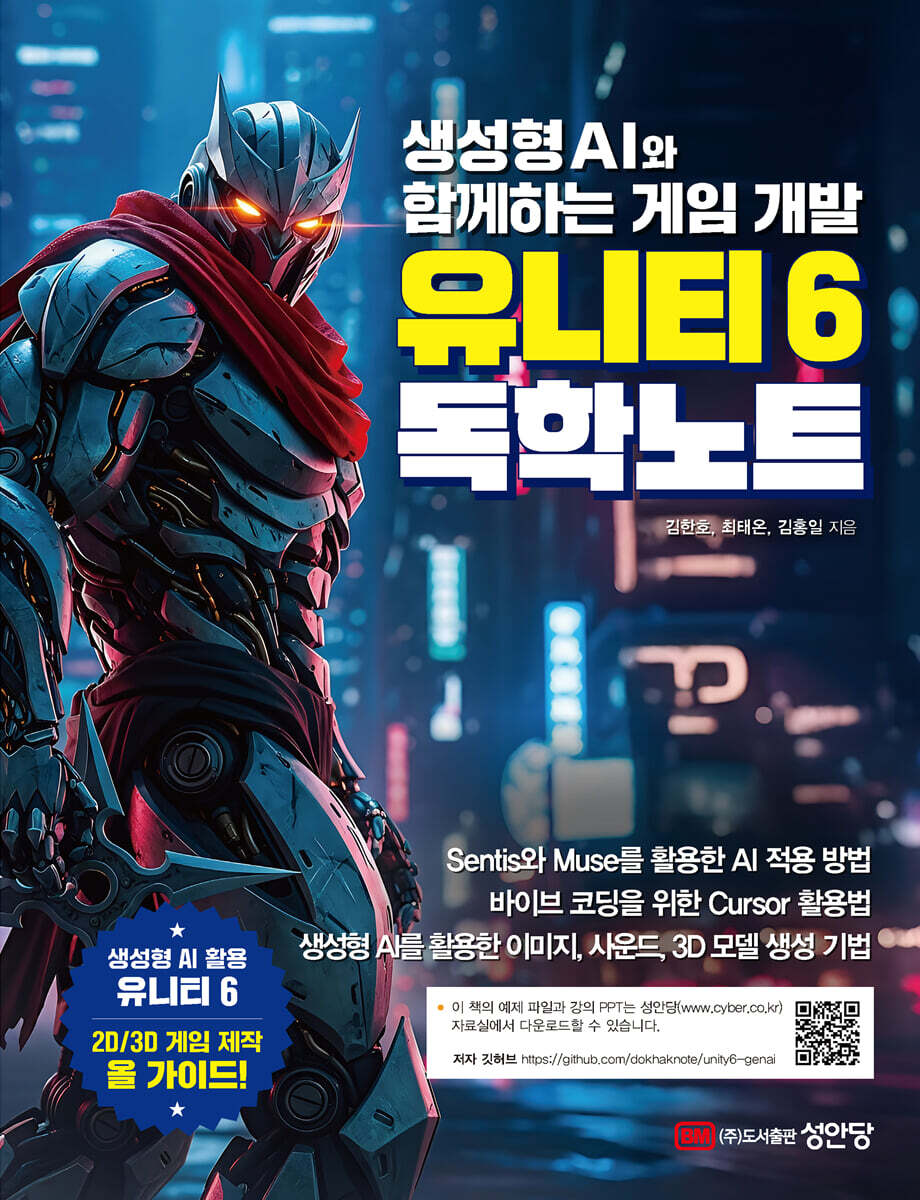 |
Description
Book Introduction
A Complete Guide to Creating 2D/3D Games with Generative AI in Unity 6
★ How to apply AI using Sentis and Muse
★ How to use the cursor for Vibe coding
★ Image, sound, and 3D model creation techniques using generative AI
The advanced introductory book, "Unity 6 Self-Study Notes," has been published, combining the latest Unity 6 version and generative AI technology to enable anyone from beginners to professionals to easily develop games.
This book provides a step-by-step guide to creating 2D/3D games using the latest generative AI technologies, including Unity 6, PhotoFusion 2, ChatGPT, Sentis, Musee, and Cursor.
It is full of practical examples utilizing generative AI, such as the Vibe Coding technique that allows creative game creation without complex coding knowledge, how to use AI-based image and sound creation tools, and developing an NPC (Non-Player Character, a character that is not directly controlled by the player in the game) dialogue system through ChatGPT API integration.
If you follow along, you can easily create a ninja character with ChatGPT and integrate it with Unity 6 using Vibe Coding for game development.
In Part 2 of the main text, we will lay the foundation by creating a 2D game in the Vampire Survivors-like genre, which is popular worldwide for its simple operation and high addictiveness, using generative AI. In Part 3, we will challenge ourselves to develop a 3D platformer game that combines a three-dimensional sense of space, time limits, obstacle avoidance, and jumping action.
Part 4, which covers advanced generative AI techniques in particular, focuses on implementing conversational NPCs using the ChatGPT API, adding various .NET libraries such as the OpenAI API called NuGetForUnity to your Unity project, installing tools that allow you to use the NuGet package manager, and then learning how to infer models trained with Sentis right at runtime, quickly generate concept art and animation drafts within the editor with Unity Muse, or automate repetitive code with Cursor to speed up development.
This book will provide a useful guide for everyone, from beginners who want to create games but struggle to get started, to developers who want to apply AI in practice.
★ How to apply AI using Sentis and Muse
★ How to use the cursor for Vibe coding
★ Image, sound, and 3D model creation techniques using generative AI
The advanced introductory book, "Unity 6 Self-Study Notes," has been published, combining the latest Unity 6 version and generative AI technology to enable anyone from beginners to professionals to easily develop games.
This book provides a step-by-step guide to creating 2D/3D games using the latest generative AI technologies, including Unity 6, PhotoFusion 2, ChatGPT, Sentis, Musee, and Cursor.
It is full of practical examples utilizing generative AI, such as the Vibe Coding technique that allows creative game creation without complex coding knowledge, how to use AI-based image and sound creation tools, and developing an NPC (Non-Player Character, a character that is not directly controlled by the player in the game) dialogue system through ChatGPT API integration.
If you follow along, you can easily create a ninja character with ChatGPT and integrate it with Unity 6 using Vibe Coding for game development.
In Part 2 of the main text, we will lay the foundation by creating a 2D game in the Vampire Survivors-like genre, which is popular worldwide for its simple operation and high addictiveness, using generative AI. In Part 3, we will challenge ourselves to develop a 3D platformer game that combines a three-dimensional sense of space, time limits, obstacle avoidance, and jumping action.
Part 4, which covers advanced generative AI techniques in particular, focuses on implementing conversational NPCs using the ChatGPT API, adding various .NET libraries such as the OpenAI API called NuGetForUnity to your Unity project, installing tools that allow you to use the NuGet package manager, and then learning how to infer models trained with Sentis right at runtime, quickly generate concept art and animation drafts within the editor with Unity Muse, or automate repetitive code with Cursor to speed up development.
This book will provide a useful guide for everyone, from beginners who want to create games but struggle to get started, to developers who want to apply AI in practice.
- You can preview some of the book's contents.
Preview
index
Author's Preface
Part 1: Introducing the Unity 6 Engine
Chapter 1: Unity 6 Release and Changes
1.1 Improved rendering performance
1.2 Simplifying Multiplayer Game Creation
1.3 Expanding multi-platform reach
1.4 More attractive visual implementation
1.5 New possibilities opened up by runtime AI
1.6 Improved Productivity and Functionality
Chapter 2 Installing Unity
Chapter 3 Creating a Unity Project and Configuring Screens
3.1 Creating a Unity Project
3.2 Unity Layout
3.3 Scene View
3.4 Game View
3.5 Hierarchy View
3.6 Project View
3.7 Inspector View
Chapter 4 Creating Game Objects - Creating a Low-Poly Puppy
Chapter 5: How to Develop Unity Games
5.1 Unity's Development Philosophy: Assemble and Connect!
5.2 Compose scenes like a director and move objects like an actor.
5.3 Overall flow of game development
Part 2: Creating a 2D Snake-like Game
Chapter 1 Creating a Project and Setting Up the Environment
1.1 Introduction to the Game Project
1.2 Creating a Unity Project
1.3 Setting up the production environment
1.4 Downloading and Importing Assets
1.5 Game Development with ChatGPT
Chapter 2 Generative AI and Player Character Creation
2.1 Creating Game Images with Generative AI
2.2 Creating a 2D Player Object
2.3 Adding physics components
Chapter 3 C# Scripts and Players
3.1 C# Script Basics
3.2 Writing a keyboard input movement script
3.3 Implementing physics-based movement
Chapter 4 Player Animation
4.1 Looking in the direction
4.2 Preparing a Sprite Sheet
4.3 Bringing Characters to Life with the Animation System
4.4 Switching animation states with scripts
Chapter 5 Infinite World Map
5.1 Implementing a Follow-up Camera
5.2 Creating Background Images with Generative AI
5.3 Implementing Background Scrolling
Chapter 6 Enemy Objects
6.1 Creating a Monster Prefab
6.2 Monster Twinning Animation
6.3 Player Tracking Logic
6.4 Collision and Player Health System
6.5 Monster Random Auto-Spawn
Chapter 7 Player Weapons
7.1 Monster Health System
7.2 Spinning Melee Weapon - Sword
7.3 Automatic Ranged Weapon - Spear
Chapter 8 Scoring System
8.1 Creating a Scoring UI
8.2 Saving High Scores with PlayerPrefs
8.3 Displaying results when game over
Chapter 9 Sound and Build
9.1 Adding Background Music
9.2 Adding sound effects
9.3 Building the Game
Part 3: Creating a 3D Platformer Game
Chapter 1 Creating a Project and Setting Up the Environment
1.1 Introduction to 3D Game Projects
1.2 Creating a Unity Project and Setting Up the Environment
1.3 Asset Store and Level Design
1.4 Creating a Sky in Your Game World with Skyboxes
Chapter 2 Player Objects
2.1 Creating a Unity project and setting up the environment
2.2 Player Movement and Camera
2.3 Setting up animations using Mixmo
Chapter 3 Interacting with Level Objects
3.1 Death Zone and Game Over
3.2 Obstacle objects that interfere with the game
3.3 Collectible Items and Scoring System
3.4 Time Limit and Timer UI
Chapter 4 Monsters that Interfere with the Game
4.1 Creating Monster Objects
4.2 Setting up the Unity Navigation System
4.3 Animation and Trigger Areas
Chapter 5: Decorating and Improving the Perfection
5.1 Particle effects to enhance immersion
5.2 Creating a Game Atmosphere with Lighting Effects
5.3 Improving the Quality of Your Work with Post-Processing
Chapter 6 Final Finishing and Build
6.1 Game Over UI and Game Clear System
6.2 Adding Sound
6.3 Creating and Building Game Icons
Part 4 Advanced Techniques for Generative Artificial Intelligence
Chapter 1: NPC Dialogue System Using the ChatGPT API
1.1 Installing the OpenAI library using NuGet
1.2 OpenAI and API
1.3 OpenAI API Request and Response Processing
1.4 API Request Tutorial
1.5 Implementing Interactive NPCs
Chapter 2: Using Sentis
2.1 Sentis Installation and Basic Configuration
2.2 What are AI models and ONNX?
2.3 Importing a sample model from the hugging face
Chapter 3 Using Muse
3.1 Muse Overview
3.2 How to install Muse and use its main functions
Chapter 4 Using Cursors
4.1 What is Cursor AI?
4.2 Installing and Starting Cursor AI
4.3 Integrating Cursor AI in Unity
4.4 Interface and Usage
4.5 Practical Example: Creating a Character Movement Script
Part 1: Introducing the Unity 6 Engine
Chapter 1: Unity 6 Release and Changes
1.1 Improved rendering performance
1.2 Simplifying Multiplayer Game Creation
1.3 Expanding multi-platform reach
1.4 More attractive visual implementation
1.5 New possibilities opened up by runtime AI
1.6 Improved Productivity and Functionality
Chapter 2 Installing Unity
Chapter 3 Creating a Unity Project and Configuring Screens
3.1 Creating a Unity Project
3.2 Unity Layout
3.3 Scene View
3.4 Game View
3.5 Hierarchy View
3.6 Project View
3.7 Inspector View
Chapter 4 Creating Game Objects - Creating a Low-Poly Puppy
Chapter 5: How to Develop Unity Games
5.1 Unity's Development Philosophy: Assemble and Connect!
5.2 Compose scenes like a director and move objects like an actor.
5.3 Overall flow of game development
Part 2: Creating a 2D Snake-like Game
Chapter 1 Creating a Project and Setting Up the Environment
1.1 Introduction to the Game Project
1.2 Creating a Unity Project
1.3 Setting up the production environment
1.4 Downloading and Importing Assets
1.5 Game Development with ChatGPT
Chapter 2 Generative AI and Player Character Creation
2.1 Creating Game Images with Generative AI
2.2 Creating a 2D Player Object
2.3 Adding physics components
Chapter 3 C# Scripts and Players
3.1 C# Script Basics
3.2 Writing a keyboard input movement script
3.3 Implementing physics-based movement
Chapter 4 Player Animation
4.1 Looking in the direction
4.2 Preparing a Sprite Sheet
4.3 Bringing Characters to Life with the Animation System
4.4 Switching animation states with scripts
Chapter 5 Infinite World Map
5.1 Implementing a Follow-up Camera
5.2 Creating Background Images with Generative AI
5.3 Implementing Background Scrolling
Chapter 6 Enemy Objects
6.1 Creating a Monster Prefab
6.2 Monster Twinning Animation
6.3 Player Tracking Logic
6.4 Collision and Player Health System
6.5 Monster Random Auto-Spawn
Chapter 7 Player Weapons
7.1 Monster Health System
7.2 Spinning Melee Weapon - Sword
7.3 Automatic Ranged Weapon - Spear
Chapter 8 Scoring System
8.1 Creating a Scoring UI
8.2 Saving High Scores with PlayerPrefs
8.3 Displaying results when game over
Chapter 9 Sound and Build
9.1 Adding Background Music
9.2 Adding sound effects
9.3 Building the Game
Part 3: Creating a 3D Platformer Game
Chapter 1 Creating a Project and Setting Up the Environment
1.1 Introduction to 3D Game Projects
1.2 Creating a Unity Project and Setting Up the Environment
1.3 Asset Store and Level Design
1.4 Creating a Sky in Your Game World with Skyboxes
Chapter 2 Player Objects
2.1 Creating a Unity project and setting up the environment
2.2 Player Movement and Camera
2.3 Setting up animations using Mixmo
Chapter 3 Interacting with Level Objects
3.1 Death Zone and Game Over
3.2 Obstacle objects that interfere with the game
3.3 Collectible Items and Scoring System
3.4 Time Limit and Timer UI
Chapter 4 Monsters that Interfere with the Game
4.1 Creating Monster Objects
4.2 Setting up the Unity Navigation System
4.3 Animation and Trigger Areas
Chapter 5: Decorating and Improving the Perfection
5.1 Particle effects to enhance immersion
5.2 Creating a Game Atmosphere with Lighting Effects
5.3 Improving the Quality of Your Work with Post-Processing
Chapter 6 Final Finishing and Build
6.1 Game Over UI and Game Clear System
6.2 Adding Sound
6.3 Creating and Building Game Icons
Part 4 Advanced Techniques for Generative Artificial Intelligence
Chapter 1: NPC Dialogue System Using the ChatGPT API
1.1 Installing the OpenAI library using NuGet
1.2 OpenAI and API
1.3 OpenAI API Request and Response Processing
1.4 API Request Tutorial
1.5 Implementing Interactive NPCs
Chapter 2: Using Sentis
2.1 Sentis Installation and Basic Configuration
2.2 What are AI models and ONNX?
2.3 Importing a sample model from the hugging face
Chapter 3 Using Muse
3.1 Muse Overview
3.2 How to install Muse and use its main functions
Chapter 4 Using Cursors
4.1 What is Cursor AI?
4.2 Installing and Starting Cursor AI
4.3 Integrating Cursor AI in Unity
4.4 Interface and Usage
4.5 Practical Example: Creating a Character Movement Script
Detailed image

GOODS SPECIFICS
- Date of issue: August 13, 2025
- Page count, weight, size: 644 pages | 188*245*35mm
- ISBN13: 9788931572735
- ISBN10: 8931572735
You may also like
카테고리
korean


korean

![GQ KOREA Mark (Monthly): December [2025]](http://librairie.coreenne.fr/cdn/shop/files/8ef265dbbfbf186523ed75ba7319009d.jpg?v=1765340328&width=3840)


