

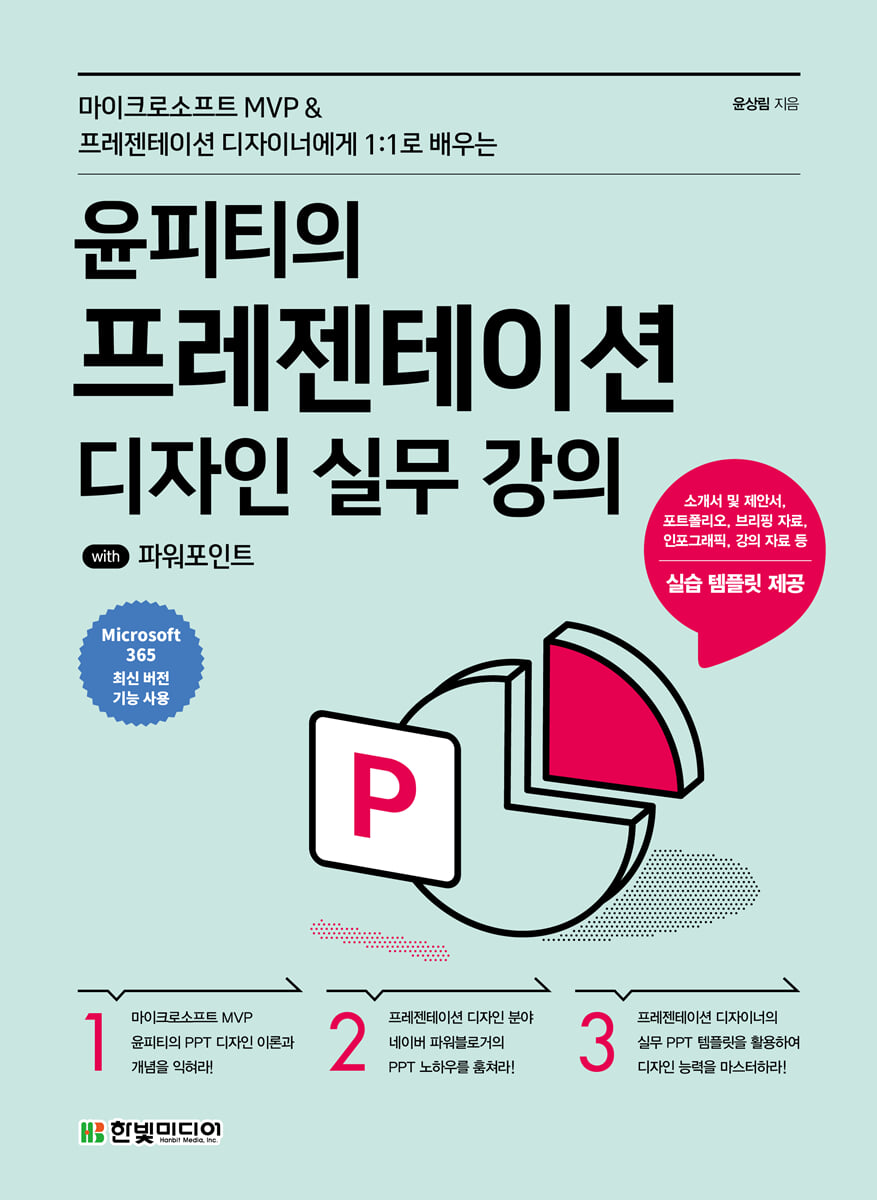
Yoon PT's Practical Presentation Design Course with PowerPoint
 |
Description
Book Introduction
Even PowerPoint beginners can design presentations like experts!
A Practical Guide to Presentation Design for Everyone Using PowerPoint
PowerPoint is an easy tool, but designing it is difficult.
Beginners and experts use the same tools and features, but produce different results.
This is a difference in know-how depending on how to use the same function.
A presentation isn't just about making it flashy and cool.
Even if you use a template created by a presentation expert, you should be able to modify it to suit your design goals and utilize design elements that clearly convey your message.
"Yoon PT's Presentation Design Practical Course with PowerPoint" thoroughly explains not only how to utilize PowerPoint features appropriately for a successful presentation, but also how to freely change the same template to fit your desired format.
Furthermore, we provide in-depth project-based training to help you learn PPT design workflows and help you achieve both aesthetics and efficiency through 'Yoon PT's Tips!'
- You can preview some of the book's contents.
Preview
index
Preface / Structure of this book / How to download example files / Gallery
PART 01 The Basics of Presentation Design
CHAPTER 01 Design know-how learned from Yoon PT
LESSON 01 Why We Design
What is design?
Why design?
What is the purpose of doing the work?
Who will see the work?
LESSON 02: 3 Essential Elements of Design Work
Color: Overall feel
Font: Detailed feel
Image (photo): Direct keyword
LESSON 03: Essentials More Important Than Trends
Readability: Visibility and Transmittibility
Margins: Density and Stability
Layout: Spatial Composition
Tone and Manner: Concept and Unity
CHAPTER 02 Basic PowerPoint Design Features You Must Remember
LESSON 01 PowerPoint Basic Settings
PowerPoint Settings to Increase Work Efficiency
[Simple Tutorial] How to Install [Yunpiti's Quick Launch Toolbar]
[Simple Practice] Setting Shortcut Keys via the Quick Access Toolbar
LESSON 02: Learning Essential Functions with Shortcuts
Copy/Paste Format
replication
Group / Ungroup
Applying a gradient to grouped objects
Undo / Redo
Convert uppercase ↔ lowercase
Increase/decrease text size
LESSON 03 Using the guide lines to set margins appropriate to the amount
The importance of margins on all sides
Maximize work efficiency with Slide Master
[Simple Practice] Securing Margins with Rulers and Guidelines
[Simple Practice] Using Guidelines to Organize the Overall Layout
LESSON 04 Tone and Manner: Improving the Perfection of Your Work
Tone & Manner, responsible for perfection and work time
The order of setting the tone and manner
CHAPTER 03 Yoon PT's Presentation Design Details
LESSON 01: Creating Tone and Manner by Combining Colors
Determine the main concept with color
[Simple Practice] Choosing Main, Sub, and Base Colors
[Simple Practice] Setting Colors in a PPT Example
LESSON 02: Editing Images to Bring Out the Points
Understanding the importance of images
[Simple Practice] Creating a Black and White Image
[Simple Tutorial] Darkening an Image
[Simple Practice] Cropping an Image to Fit the Aspect Ratio
[Simple Tutorial] Improving Image Quality with Decorative Effects
LESSON 03: Setting the Text to Improve Completion
Learn the importance of text
Check the difference between letters at a glance
Check the line spacing difference at a glance
[Simple Practice] Narrowing Letter Spacing to Improve Readability
[Simple Practice] Setting Kerning to Your Desired Value
[Simple Practice] Changing Line Spacing Options
LESSON 04: Bringing Details to Life with Gradients
[Simple Practice] Applying a Basic Gradient
[Simple Tutorial] Creating a Gradient Background Slide
[Simple Practice] Creating a Line with a Gradient
LESSON 05: Creating a 3D Effect Using Shadows
[Simple Practice] Applying Outer Shadows
[Simple Tutorial] Creating Neumorphism Style with Outer Shadows
[Simple Practice] Applying an Inner Shadow
PART 02 Presentation Template Practical Workflow
CHAPTER 01 Company Introduction and Proposal
PROJECT 01 Setting the slide ratio and flow configuration
PowerPoint aspect ratios: 4:3 and 16:9
Choose a slide ratio based on your needs
Creating a company profile flow
Configuring the Proposal Flow
PROJECT 02 A clean-looking company introduction
[Template Design] Slide Design with Centered Title
[Example Practice] Designing a Classic Company Introduction PPT
PROJECT 03 A company introduction reflecting trends
[Template Design] Slide design with the title positioned in the center left
[Example Practice] Designing a Sophisticated Company Introduction PPT
PROJECT 04 A Company Introduction That Inspires Trust
[Template Design] Slide design with the title located in the upper left corner
[Example Practice] Designing a Cool Company Introduction PPT
CHAPTER 02 PORTFOLIO
PROJECT 01 Learn about portfolio composition
Portfolio composition flow
[Template Design] Profile Information Slide Design
[Template Design] Slide design with neatly arranged images
[Template Design] Slide Design Expressing Experience and Competence
PROJECT 02 Text-based portfolio
[Simple Practice] Organizing Neatly with Line Spacing and Bullets
[Simple Practice] Easily Adjust Spacing with Individual Text Boxes
[Simple Tutorial] Creating a Luxurious Background with a Texture Image
[Simple Practice] Creating Mockup Images and Improving Their Quality
PROJECT 03 Portfolio for application to a specific company
What You Need to Know When Creating a Job Portfolio
[Template Design] Portfolio Design Using Identity
[Example Practice] Designing a Portfolio to Support a Specific Company
CHAPTER 03 Briefing Materials (Presentation Materials) Content Creation
PROJECT 01 Simple Table Design
[Template Design] Table Design Focused on Information Conveyance
[Simple Practice] Designing the Most Commonly Used Table
[Template Design] Table Design with Readability in Mind
[Template Design] Table Design with Pictograms
[Simple Practice] Designing a Table Using Gradient Lines
PROJECT 02 Eye-catching graphic design
[Template Design] Graph Design to Express Change Trends
[Simple Practice] Designing a Gradient Graph
[Simple Tutorial] Designing Infographics with Gradients
PROJECT 03 Cover design suitable for briefing
[Template Design] A Cover Design Ideal for Field Use
[Simple Practice] Cover Design Using Animation
[Simple Practice] Cover Design Using Video
[Simple Exercise] Animation for Briefing Numerical Data
[Simple Tutorial] Animation for Location Data Briefing
CHAPTER 04 Lecture Materials (Delivery Materials)
PROJECT 01 Lecture Materials Cover and Inner Page Design
[Template Design] PPT Design with Tone and Manner in Mind
[Template Design] Text-heavy Lecture Material Design
[Simple Practice] Designing a Sophisticated PPT
PROJECT 02 Keyword-based lecture material design
[Template Design] PPT Design Emphasizing Keywords
[Simple Tutorial] Designing a Gradient to Emphasize Keywords
PROJECT 03 Designing lecture materials with photos
[Template Design] Gradient Transparency PPT Design
[Simple Practice] Designing a PPT with Blurry Photos
INDEX
Detailed image

Publisher's Review
What kind of readers is this book for?
- Office workers who need to plan, design, and produce PT materials directly using PowerPoint.
- Office workers who need the know-how to prepare a presentation using a professional presentation template and modify it as needed.
- People who know the functions of the presentation authoring tool (PowerPoint) but have difficulty creating a PT due to lack of design know-how.
- Marketing and sales professionals who must promote their business areas, products, and services using a competitive PT compared to others.
- Instructors/teachers who want to create more engaging lecture materials using presentations.
Features of this book
1.
Build the fundamentals for good presentation design!
Learn Yunpit's unique design philosophy, the three essential elements of design work, and the four fundamental elements that are more important than trends, and develop your own design know-how.
By learning presentation design theory and practicing the skills in a lesson format, you can more easily master presentation design techniques.
2.
Learn essential features for PowerPoint design!
Speed up your work by following the work environment of Microsoft MVP Yoon Piti.
To increase the perfection of the work, the tone and manner and main concept are determined.
Furthermore, Yoon PT, a presentation design expert with 10 years of experience, shares his valuable know-how through 'Yoon PT's Tips!'
It clearly explains the parts that you may not know or make mistakes in while practicing.
3.
Follow Yunpiti's presentation design details!
Learn with a practical template for practical presentation design. Learn with practical examples organized in PROJECT format, allowing you to replicate Yunpiti's designs and develop a practical sense of the real world.
By designing a variety of materials, including introductions, proposals, portfolios, briefing materials, and lecture materials, you can become a professional presentation designer by learning practical work workflows and building your PPT skills.
GOODS SPECIFICS
- Date of issue: November 6, 2023
- Page count, weight, size: 328 pages | 188*257*30mm
- ISBN13: 9791169211673
- ISBN10: 1169211674
You may also like
카테고리
korean


korean


