

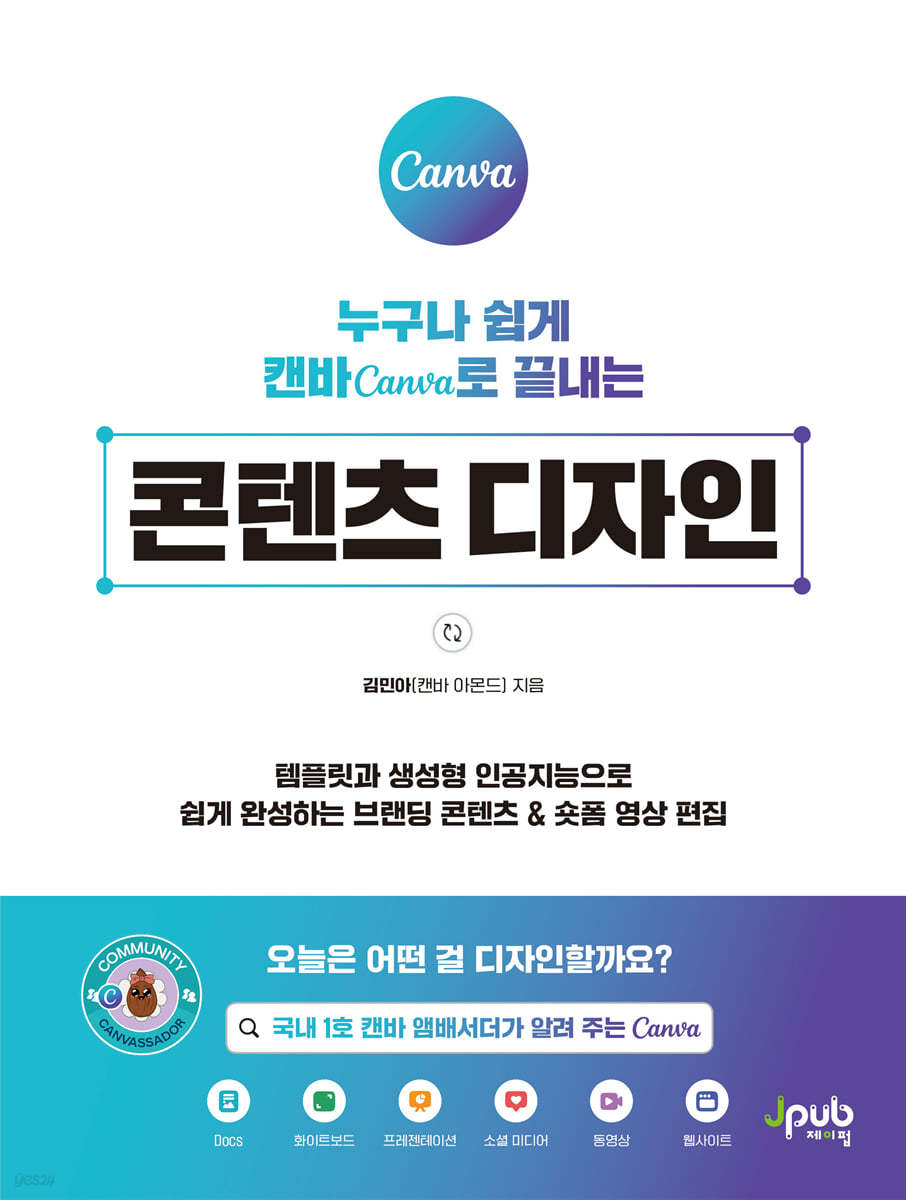
Anyone can easily design content with Canva.
 |
Description
Book Introduction
Canva, the powerhouse of content creation, becomes even more powerful with AI!
Just as we can't discuss marketing or branding without mentioning social media, we live in an era where image and video content are essential to social media.
In other words, to properly utilize SNS, you must also have the ability to create image and video content.
Even if you learn Photoshop to create images and Premiere Pro to produce videos, you won't be able to create the content you want in an instant, considering the time and effort you put into it.
For those who are only getting wrinkles from worrying, we introduce Canvas, which is like light.
With over 400,000 templates, you can create almost any content in no time.
Image design is basic, and short forms, which are popular these days, can also be easily completed.
It's not for nothing that it's become a program favored by global marketers.
Don't hesitate, start using Canva today.
You can create image content, edit videos, and even create presentation slides and websites.
In addition, you can create and use necessary images or videos using ChatGPT's generative artificial intelligence function that is no less than that of ChatGPT.
Just as we can't discuss marketing or branding without mentioning social media, we live in an era where image and video content are essential to social media.
In other words, to properly utilize SNS, you must also have the ability to create image and video content.
Even if you learn Photoshop to create images and Premiere Pro to produce videos, you won't be able to create the content you want in an instant, considering the time and effort you put into it.
For those who are only getting wrinkles from worrying, we introduce Canvas, which is like light.
With over 400,000 templates, you can create almost any content in no time.
Image design is basic, and short forms, which are popular these days, can also be easily completed.
It's not for nothing that it's become a program favored by global marketers.
Don't hesitate, start using Canva today.
You can create image content, edit videos, and even create presentation slides and websites.
In addition, you can create and use necessary images or videos using ChatGPT's generative artificial intelligence function that is no less than that of ChatGPT.
- You can preview some of the book's contents.
Preview
index
Structure of this book · 010
Entering · 012
[CHAPTER 01: Build the Fundamentals for Content Design]
LESSON 01 Getting Started with Canvas 016
__ Sign up for Canva membership 016
__ Paid use of Canva 018
__ Download and install the Canva app 023
LESSON 02: Explore the Canva Home Screen and Basic Features 026
__Understanding the Canva Home Screen Menu 026
__Using Canva Templates to Make Design Easier 028
__ Starting a new design from a blank page 031
__ Creating folders and managing design work 032
LESSON 03: Exploring the Design Editor Screen 035
__ Understanding the Editor Screen 035
__ Take a look at the design tool bar 039
__Explore the File Menu 042
__ View the Share Menu 044
LESSON 04 Understanding the Layer System 047
LESSON 05 Guidelines for Clean Design 050
__ Activate Guidelines 050
__ Add Guideline 051
__ Editing Guidelines 054
LESSON 06: Canvas Workflow: A Quick Look from the Beginning 056
[CHAPTER 02 Freely Editing Design Elements]
LESSON 01 Using Canva's Basic Design Elements 060
__ Understanding the types of design elements 060
__ Mastering Chart Editing Tips 065
Inserting and Decorating Tables 066
__ Smartly find and save the necessary elements 068
__Canva Element License 070
LESSON 02 Mastering Basic Element Editing 071
__ Editing line elements 071
__ Editing Shape Elements 074
__ Changing the color of graphic elements 077
__ Copy element style 080
LESSON 03 Applying Animation Effects to Elements 081
__ Adding animation effects to individual elements 081
__ Add animation effects to the entire page 083
LESSON 04: Drawing Design Elements 085
LESSON 05: Editing Photos in Various Ways 089
__Cleanly erase the background 089
__ Adding shadows to create a three-dimensional effect 092
__ Correcting the color of a photo 093
__ Change shape into various forms 097
LESSON 06 Basic Functions for Text Design 099
__ Applying effects to text boxes 099
__ Aligning Elements Neatly 101
__ Adding a Hyperlink 103
[CHAPTER 03: Using AI to Make Design Easier]
LESSON 01 Magic Switch 106: Freely Change Designs
__ Resizing a completed design 107
__ Using English Templates for Language Translation 109
__ Converting Designs into Text Content 110
LESSON 02 Magic Media 112: Creating Images and Videos
LESSON 03: Photo Editing Techniques Using Artificial Intelligence 116
Magic Eraser 117, which cleanly erases unnecessary objects
__ Magic Edit 118 that fills in the desired object
Magic Expand 119, which enlarges photos to fit the size of __
__Isolate objects or recognize text in photos 121
LESSON 04: Magic Design 122: Artificial Intelligence That Completes Designs
__ [Design One Step Further] Magic Morph 125: Designing More Elements
LESSON 05: Writing Manuscripts and Creating PPTs with AI 126
__ Magic Write 126, the AI chatbot from Smart Canvas
Converting a __ document to presentation slides 129
[CHAPTER 04: Mastering Canva's Video Editing Features]
LESSON 01: Getting Started with Video Production Pages 132
__ Start the video page at the desired size 132
__ Converting Multiple Design Pages to Video Pages 133
LESSON 02: Easily Editing Video Cuts 135
__ Fill the page with video elements 135
__ Cut the front and back to reduce the overall length 138
__ Separate and delete unnecessary sections 139
__ [Design One Step Further] Further Video Correction 142
LESSON 03 Adjusting Transition Effects, Playback Speed, and Timing 144
__ Play naturally with transition effects 144
__ Adjusting the speed of the video 146
Adjusting the timing of the __ element's appearance 148
LESSON 04 Adding and Editing Audio 151
__ Adding an Audio Track 151
__ Adjusting the volume of audio 154
__ Adding a growing and shrinking effect 155
[CHAPTER 05: Designing Content with Canva]
LESSON 01 Maintaining Design Consistency with Brand Menus 158
__Getting Started with a Brand Kit 158
__ Elements to be registered in the brand kit 159
__ Setting up a brand template 163
LESSON 02: Instagram Design Using Templates 165
__ Instagram Profile Design 165
__ Instagram Post Design 170
__ Upload directly to Instagram 176
__ [Design One Step Further] The modified template looks awkward! 178
LESSON 03: Instagram Posts Using Text 180
__ [Design One Step Further] Background Decoration 185
LESSON 04: Instagram Posts Using Photo Frames 188
__ [Design One Step Further] Photo and Text Placement 193
LESSON 05: Various Designs for Instagram Management 195
__ Transform your post into a story design 195
__ Instagram Highlight Cover Design 198
__ Creating Short-Form Reels Videos for Instagram 202
__ [Design One Step Further] 3 Representative Short-Form Styles 210
LESSON 06: Using the Global Card News Template 213
__ [Design One Step Further] Utilizing Canva's Hidden Gems: Secret Templates 219
LESSON 07: Designing a Square Thumbnail with a Standout Title 221
__ [Design One Step Further] 231 Things to Consider When Creating Thumbnails
LESSON 08: YouTube Thumbnails Created by AI 232
LESSON 09: Creating and Deploying a Free Website 236
__Designing a Website 236
__ Publish your website for free 241
[CHAPTER 06 Advanced Features to Increase Work Efficiency]
LESSON 01: Mass-producing Business Card Designs for Each Employee 248
__ [Design One Step Further] Upgrading Design with Various Apps 254
LESSON 02: Create Product Mockups with One Click 256
LESSON 03: Managing Business Social Media with Content Planner 260
Conclusion · 264
Search · 265
Entering · 012
[CHAPTER 01: Build the Fundamentals for Content Design]
LESSON 01 Getting Started with Canvas 016
__ Sign up for Canva membership 016
__ Paid use of Canva 018
__ Download and install the Canva app 023
LESSON 02: Explore the Canva Home Screen and Basic Features 026
__Understanding the Canva Home Screen Menu 026
__Using Canva Templates to Make Design Easier 028
__ Starting a new design from a blank page 031
__ Creating folders and managing design work 032
LESSON 03: Exploring the Design Editor Screen 035
__ Understanding the Editor Screen 035
__ Take a look at the design tool bar 039
__Explore the File Menu 042
__ View the Share Menu 044
LESSON 04 Understanding the Layer System 047
LESSON 05 Guidelines for Clean Design 050
__ Activate Guidelines 050
__ Add Guideline 051
__ Editing Guidelines 054
LESSON 06: Canvas Workflow: A Quick Look from the Beginning 056
[CHAPTER 02 Freely Editing Design Elements]
LESSON 01 Using Canva's Basic Design Elements 060
__ Understanding the types of design elements 060
__ Mastering Chart Editing Tips 065
Inserting and Decorating Tables 066
__ Smartly find and save the necessary elements 068
__Canva Element License 070
LESSON 02 Mastering Basic Element Editing 071
__ Editing line elements 071
__ Editing Shape Elements 074
__ Changing the color of graphic elements 077
__ Copy element style 080
LESSON 03 Applying Animation Effects to Elements 081
__ Adding animation effects to individual elements 081
__ Add animation effects to the entire page 083
LESSON 04: Drawing Design Elements 085
LESSON 05: Editing Photos in Various Ways 089
__Cleanly erase the background 089
__ Adding shadows to create a three-dimensional effect 092
__ Correcting the color of a photo 093
__ Change shape into various forms 097
LESSON 06 Basic Functions for Text Design 099
__ Applying effects to text boxes 099
__ Aligning Elements Neatly 101
__ Adding a Hyperlink 103
[CHAPTER 03: Using AI to Make Design Easier]
LESSON 01 Magic Switch 106: Freely Change Designs
__ Resizing a completed design 107
__ Using English Templates for Language Translation 109
__ Converting Designs into Text Content 110
LESSON 02 Magic Media 112: Creating Images and Videos
LESSON 03: Photo Editing Techniques Using Artificial Intelligence 116
Magic Eraser 117, which cleanly erases unnecessary objects
__ Magic Edit 118 that fills in the desired object
Magic Expand 119, which enlarges photos to fit the size of __
__Isolate objects or recognize text in photos 121
LESSON 04: Magic Design 122: Artificial Intelligence That Completes Designs
__ [Design One Step Further] Magic Morph 125: Designing More Elements
LESSON 05: Writing Manuscripts and Creating PPTs with AI 126
__ Magic Write 126, the AI chatbot from Smart Canvas
Converting a __ document to presentation slides 129
[CHAPTER 04: Mastering Canva's Video Editing Features]
LESSON 01: Getting Started with Video Production Pages 132
__ Start the video page at the desired size 132
__ Converting Multiple Design Pages to Video Pages 133
LESSON 02: Easily Editing Video Cuts 135
__ Fill the page with video elements 135
__ Cut the front and back to reduce the overall length 138
__ Separate and delete unnecessary sections 139
__ [Design One Step Further] Further Video Correction 142
LESSON 03 Adjusting Transition Effects, Playback Speed, and Timing 144
__ Play naturally with transition effects 144
__ Adjusting the speed of the video 146
Adjusting the timing of the __ element's appearance 148
LESSON 04 Adding and Editing Audio 151
__ Adding an Audio Track 151
__ Adjusting the volume of audio 154
__ Adding a growing and shrinking effect 155
[CHAPTER 05: Designing Content with Canva]
LESSON 01 Maintaining Design Consistency with Brand Menus 158
__Getting Started with a Brand Kit 158
__ Elements to be registered in the brand kit 159
__ Setting up a brand template 163
LESSON 02: Instagram Design Using Templates 165
__ Instagram Profile Design 165
__ Instagram Post Design 170
__ Upload directly to Instagram 176
__ [Design One Step Further] The modified template looks awkward! 178
LESSON 03: Instagram Posts Using Text 180
__ [Design One Step Further] Background Decoration 185
LESSON 04: Instagram Posts Using Photo Frames 188
__ [Design One Step Further] Photo and Text Placement 193
LESSON 05: Various Designs for Instagram Management 195
__ Transform your post into a story design 195
__ Instagram Highlight Cover Design 198
__ Creating Short-Form Reels Videos for Instagram 202
__ [Design One Step Further] 3 Representative Short-Form Styles 210
LESSON 06: Using the Global Card News Template 213
__ [Design One Step Further] Utilizing Canva's Hidden Gems: Secret Templates 219
LESSON 07: Designing a Square Thumbnail with a Standout Title 221
__ [Design One Step Further] 231 Things to Consider When Creating Thumbnails
LESSON 08: YouTube Thumbnails Created by AI 232
LESSON 09: Creating and Deploying a Free Website 236
__Designing a Website 236
__ Publish your website for free 241
[CHAPTER 06 Advanced Features to Increase Work Efficiency]
LESSON 01: Mass-producing Business Card Designs for Each Employee 248
__ [Design One Step Further] Upgrading Design with Various Apps 254
LESSON 02: Create Product Mockups with One Click 256
LESSON 03: Managing Business Social Media with Content Planner 260
Conclusion · 264
Search · 265
Detailed image
.jpg)
Publisher's Review
1.
Just change the text and images and it will be completed in no time.
As of February 2024, the 400,000 templates are not fixed and are continuously being added.
So, if you've searched with the right keywords and found a template that feels just right, you're already 80% done.
Now you just need to replace the text and images to suit your purpose.
The convenience of using templates is self-explanatory to anyone who has ever created a document, including PowerPoint.
2.
Almost all designs are completed in just one application: Canvas.
The types of designs you can create with Canva are incredibly diverse.
In fact, it's faster to find a design that can't be done.
It can be used not only for major social media content such as Instagram and YouTube, but also for creating documents such as Word, editing slides for presentations, editing videos, and creating posters and flyers for printing.
Even websites can be easily completed using templates and then posted on the Internet, and they also have convenient features such as batch creation of business cards for each member.
3.
If the required elements are missing, they are generated by artificial intelligence.
These days, it's impossible to talk about artificial intelligence without mentioning it.
Questions are asked to AI, and necessary images are also created by AI.
Canva also has this kind of artificial intelligence function that is almost perfect.
You can get the information you need by asking questions, create slides based on documents, and even create images or videos as needed.
There is almost no need to use a separate artificial intelligence such as ChatGPT.
Target audience for this book
- Online marketers who need to create their own content
- A solo entrepreneur running a social media platform for branding
- Ordinary people who want to become influencers by creating various contents.
Just change the text and images and it will be completed in no time.
As of February 2024, the 400,000 templates are not fixed and are continuously being added.
So, if you've searched with the right keywords and found a template that feels just right, you're already 80% done.
Now you just need to replace the text and images to suit your purpose.
The convenience of using templates is self-explanatory to anyone who has ever created a document, including PowerPoint.
2.
Almost all designs are completed in just one application: Canvas.
The types of designs you can create with Canva are incredibly diverse.
In fact, it's faster to find a design that can't be done.
It can be used not only for major social media content such as Instagram and YouTube, but also for creating documents such as Word, editing slides for presentations, editing videos, and creating posters and flyers for printing.
Even websites can be easily completed using templates and then posted on the Internet, and they also have convenient features such as batch creation of business cards for each member.
3.
If the required elements are missing, they are generated by artificial intelligence.
These days, it's impossible to talk about artificial intelligence without mentioning it.
Questions are asked to AI, and necessary images are also created by AI.
Canva also has this kind of artificial intelligence function that is almost perfect.
You can get the information you need by asking questions, create slides based on documents, and even create images or videos as needed.
There is almost no need to use a separate artificial intelligence such as ChatGPT.
Target audience for this book
- Online marketers who need to create their own content
- A solo entrepreneur running a social media platform for branding
- Ordinary people who want to become influencers by creating various contents.
GOODS SPECIFICS
- Date of issue: March 6, 2024
- Page count, weight, size: 268 pages | 170*225*16mm
- ISBN13: 9791192987903
You may also like
카테고리
korean


korean

![GQ KOREA Mark (Monthly): December [2025]](http://librairie.coreenne.fr/cdn/shop/files/8ef265dbbfbf186523ed75ba7319009d.jpg?v=1765340328&width=3840)


