

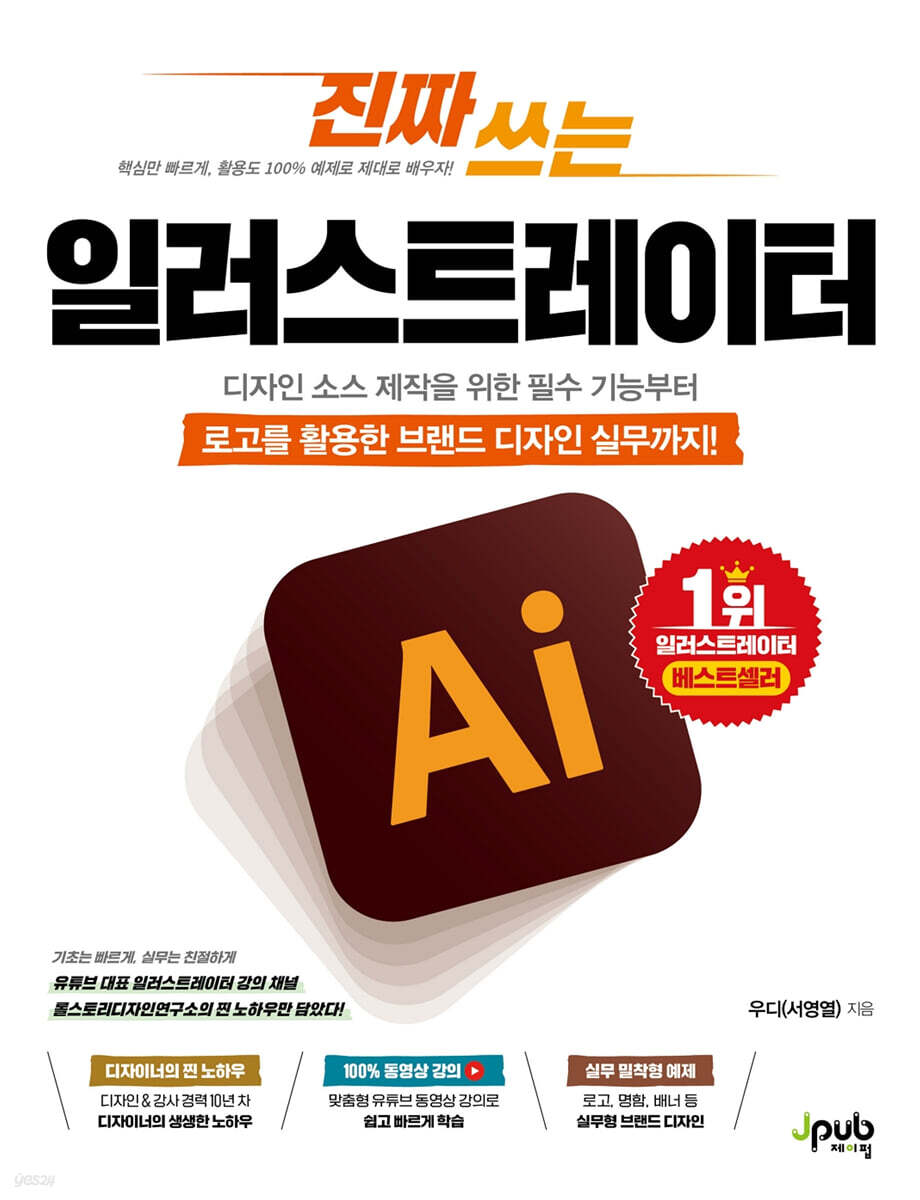
A real writing illustrator
 |
Description
Book Introduction
Create designs directly from blank artboards, from design sources to print-ready designs.
For designers, Photoshop and Illustrator are essential programs, like a needle and thread. What's the difference between these two seemingly similar programs? Photoshop is commonly known for its retouching and compositing tools. In other words, Photoshop is a tool that creates another oil from oil. On the other hand, Illustrator is a tool for creating design sources. Therefore, you should be able to achieve the desired result from a blank artboard with nothing on it. Also, it requires a lot of practice compared to Photoshop. This book allows you to practice about 40 projects that take advantage of the characteristics of these illustrators, and even experience brand design using logos, which can be considered the pinnacle of illustrators. |
- You can preview some of the book's contents.
Preview
index
[CHAPTER 01 Illustrator: Start with This in Mind]
LESSON 01: Understanding Basic Design Theory 24
__Distinguishing between bitmaps and vectors 24
__Monitor is RGB, printing is CMYK 25
__DPI, PPI resolution by component 27
__File formats to choose according to your purpose 28
LESSON 02: First Encounter with an Illustrator 30
__The History and Applications of Illustrator 30
__Home screen and starting new tasks 32
__A Look at the Illustrator Workspace 34
LESSON 03 Exploring the Toolbar and Panels 36
__Toolbar 36 where all tools are gathered
__Illustrator's Main Panel 44
__Create your own workspace 52
__Saving and Loading Your Own Workspace 57
[CHAPTER 02 Useful Illustrator Basics & Tips]
LESSON 01: Basic File Management: Saving 60
__Understanding Illustrator's Basic Save Functions 60
__Save as image file 64
LESSON 02: Manipulating Artboards 66
__Illustrator's basic drawing paper, Artboard 66
__Various screen zoom methods 69
LESSON 03: The View Menu for Freely Adjusting the Screen 72
LESSON 04 Two Ways to Enter Text 79
__Enter text with one click 79
__Drag to create a text box 80
LESSON 05 Freely Manipulating Shape Objects 82
__After drawing a shape object, select it and use it 82
__Change the shape of an object with Live Corners 84
__Offset Path 86, effective for object transformation
LESSON 06 Changing Object Color 89
Fill & Stroke 89: Changing the surface and line color
__Using gradients as default settings 93
__Change gradient settings with detailed options 95
LESSON 07: Scaling and Resizing Options to Know Before Transforming Objects 98
__Expand and Expand Appearance for Object Extension 98
__Relative property changes due to size changes, Scale Strokes & Effects 101
LESSON 08 Layer 103: Quickly Selecting Objects
Understanding the Basic Concepts of Layers 103
Check the __Layers panel configuration 103
LESSON 09 Using Image Files in Illustrator 106
Importing Images with __Link and Embed 106
__Using Images with the Live Update Feature 109
LESSON 10: Libraries and Shortcuts for Faster Design 112
__Save and Load Library 112
__Custom shortcuts 114 that you can modify to suit your convenience
LESSON 11 Saving a Package and Finishing Your Work as a Printable File 116
__Save package to keep design results intact 116
__Creating a Print-Ready File for Design Output 119
[CHAPTER 03: Twenty Basic Questions for Practical Use]
LESSON 01: Creating an Instagram Logo with Shapes and Gradients 128
__Drawing the basic shape of the logo 130
__Filling a Surface with a Gradient 132
LESSON 02: Transforming Shapes to Create Round Stars and Trajectories 137
__Draw a star shape with the basic tool and then transform it 139
__Expressing a trajectory by transforming a rectangle 142
LESSON 03 Creating a Simple Character by Combining Shapes 145
__Making a head by transforming a square 146
__Creating a Body with Shape and Reflection Tools 148
__Creating an arm by deleting anchor points 152
LESSON 04: The Core of Illustrator: Handling the Pen Tool and Paths 155
__Understanding Mathematical Paths 156
__Drawing and transforming lines and curves with the Pen tool 158
__Drawing a path with straight lines and curves connected 159
__Draw two curves connected by a corner point 160
__Add/remove anchor points and direction lines to a path 161
__Continuing drawing from an open path 162
LESSON 05 Merge or Intersect Objects with Pathfinder 166
__Cut and merge to create a heart icon 167
__Create a star icon excluding the intersection area 169
__Merge multiple objects to complete a cloud icon 171
LESSON 06: Drawing a Rainbow by Duplicating at Regular Intervals 174
__Creating a Basic Rainbow Shape Using a Garden 175
__Complete the rainbow by changing the color of each object 178
LESSON 07 Creating a Clock by Repeating Transformations 181
__Create a timeline by repeating the rotation duplication 182
__Complete by expressing the clock hands 186
LESSON 08 Expressing Free-Form Guidelines 188
__Draw a guide line in the shape of an arrow at the desired location 189
Enter __ characters and display all indicators 194
LESSON 09 Registering a desired shape as a brush and using it 196
__Drawing a cherry blossom object to be registered with the scatter brush 196
__Register with a scatter brush and scatter 202
LESSON 10: Using Pattern Brushes with Repeating Shapes 207
__Creating a basic shape to register with a pattern brush 208
Register with a pattern brush and draw a pattern 210
LESSON 11 Art Brush 215 that spreads objects along a path
__Creating a ribbon shape to register with an art brush 215
__Register and apply with an art brush 217
LESSON 12 Illustration 222 drawn with a water drop brush that fills the surface
__Draw a line filled with a surface along the outline in the image 223
__Change object colors in batches and save them as image files 229
LESSON 13: Turning a Photo into a Vector Logo with Image Trace 231
__Running image tracing after loading a bitmap image 231
__Completing the logo with vector objects 236
LESSON 14: Painting Vector Objects with the Live Paint Bucket Tool 241
__Converting a bitmap image to a vector 241
__Fill the clicked surface with the specified color 244
LESSON 15: Recolor Artwork with Colorful Color Changes 248
Designing an emblem with shapes and zigzag effects 250
Complete the emblem by entering __ characters 253
__Change the color combinations of various artworks with the color change function 256
LESSON 16: Calligraphy Begins with Outlining Letters 258
__Change the layout to feel the rhythm after entering characters 258
__Detailed transformation of characters to express them like calligraphy 260
LESSON 17 Distorting an Object into a Selected Shape, Such as an Arch or Fan 264
__Bending text with the Warp feature 264
Complete the layout by adding a __shape object 268
__Complete typography by changing the color after expanding the object 271
LESSON 18: Freely Distorting Objects into Any Shape You Want 274
Creating a broken heart object to use as a reference point 275
__Distort the character to the shape of the reference object 278
LESSON 19: Creating Regular Patterns with Pattern Functions 281
Understanding the Basic Functions for Using the __Pattern 282
__Registering geometric patterns 287
LESSON 20: Creating a Pattern-Filled Shape with a Clipping Mask 290
__Creating a repeating pattern to apply to objects 290
Applying a clipping mask that only appears inside the reference object 292
[CHAPTER 04 Illustrator Utilization Encyclopedia]
LESSON 01 Creating Natural Patterns with Irregular Arrangements 298
__Designing a sample object for pattern registration 298
__Registering and Applying Patterns 300
LESSON 02: Creating a Starry Night Sky with the Symbol Sprayer Feature 303
Expressing the Night Sky with Free-Form Gradients 303
__Transform a square into a star shape and register it as a symbol 306
__Place objects registered as symbols by spraying them 309
__Registering and Applying Graphic Styles 312
LESSON 03 Creating a Grid System Logo with Shape Builder Tools 314
__Learning the basics of using the shape construction tool 314
__Creating a Logo Using the Grid System 318
LESSON 04: Create Your Own Digital Seal in Your Favorite Font 321
__Creating a seal by modifying shapes and fonts 321
__Resize the artboard and save it as a png file 326
LESSON 05: Creating a Vintage-Style Tourist Attraction Stamp 329
__Drawing illustrations using photos as backgrounds 329
__Using illustrations to arrange them in the form of stamps 332
__Mottled Vintage Effect 333
LESSON 06: Complete a Stamp Illustration Using the Blend Function 337
__Create a stamp frame by filling in the middle steps with the blend function 337
Decorating Stamp Illustrations with Color Mixing 343
LESSON 07: Creating Three-Dimensional Typography with the Blend Function (346)
Expressing three-dimensionality with the blend function 346
__Change color to maximize three-dimensional effect 350
LESSON 08: Creating 3D Shadows with Transform Effects 354
__Register as a graphic style after expressing a long shadow 354
__Applying long shadow style to create a three-dimensional effect 356
LESSON 09 Applying a Blur Effect to Create a Neon Sign-Like Effect 361
__Applying a blur effect to express a neon sign 361
Complete with a neon sign style and decorate by changing the colors 365
LESSON 10: Expressing Multi-Line Lettering 368
__Creating a lettering frame in the desired shape 368
__Transform into multi-line lettering composed of multiple strokes 372
LESSON 11 Registering a Pattern Brush in the Shape of Masking Tape 376
__Designing a sample to represent masking tape 376
__Registering with a Pattern Brush and Changing the Start and End Tiles 378
LESSON 12: Creating a Watercolor-Like Art Brush 381
__Registering Art Brushes Using Bitmap Images 381
__Registering Art Brushes Using Vector Images 385
LESSON 13 Adding Texture to an Image with the Scatter Brush 390
Expressing grain particles with a __shape object and registering them as a brush 390
__Expressing texture by painting over an image 394
LESSON 14 Converting an Object to a 3D Object 397
__Applying new 3D features 398
Decorating the background using __ characters 405
LESSON 15: Creating a Mockup to Apply Your Design to Real Things 409
Creating a Smartphone Mockup Using Shapes 409
__Expressing Reflection Effects with Object Mask Function 413
Designing a Page to Place the Mockup 417
[CHAPTER 05: Illustrator Design in Practice]
LESSON 01: The Beginning of Branding: Logo Design 424
__Draw a symbol sketch using the grid 424
Extracting Faces from a Grid Using the Shape Construction Tool 428
__Entering characters flowing along the path 430
LESSON 02: A Clean Business Card Design Using a Logo 434
__Designing a Double-Sided Business Card with Only the Essential Information 434
__Creating a printable file for a business card production request 440
LESSON 03 Designing an X-Banner for Use as a Signboard 445
__Designing a Basic Layout 446
__Decorating Banners with Symbols and Shapes 449
LESSON 04: Designing a Simple, Clear A4-Sized Menu Board 452
__Creating a menu template that takes into account changes to menu information 453
__Complete the menu by adding a design after changing the actual menu contents 458
LESSON 05: Designing a Poster to Decorate Your Store 464
__Placing basic objects while maintaining design consistency 465
__Emphasis on the main object and complete it by adding design elements 468
LESSON 01: Understanding Basic Design Theory 24
__Distinguishing between bitmaps and vectors 24
__Monitor is RGB, printing is CMYK 25
__DPI, PPI resolution by component 27
__File formats to choose according to your purpose 28
LESSON 02: First Encounter with an Illustrator 30
__The History and Applications of Illustrator 30
__Home screen and starting new tasks 32
__A Look at the Illustrator Workspace 34
LESSON 03 Exploring the Toolbar and Panels 36
__Toolbar 36 where all tools are gathered
__Illustrator's Main Panel 44
__Create your own workspace 52
__Saving and Loading Your Own Workspace 57
[CHAPTER 02 Useful Illustrator Basics & Tips]
LESSON 01: Basic File Management: Saving 60
__Understanding Illustrator's Basic Save Functions 60
__Save as image file 64
LESSON 02: Manipulating Artboards 66
__Illustrator's basic drawing paper, Artboard 66
__Various screen zoom methods 69
LESSON 03: The View Menu for Freely Adjusting the Screen 72
LESSON 04 Two Ways to Enter Text 79
__Enter text with one click 79
__Drag to create a text box 80
LESSON 05 Freely Manipulating Shape Objects 82
__After drawing a shape object, select it and use it 82
__Change the shape of an object with Live Corners 84
__Offset Path 86, effective for object transformation
LESSON 06 Changing Object Color 89
Fill & Stroke 89: Changing the surface and line color
__Using gradients as default settings 93
__Change gradient settings with detailed options 95
LESSON 07: Scaling and Resizing Options to Know Before Transforming Objects 98
__Expand and Expand Appearance for Object Extension 98
__Relative property changes due to size changes, Scale Strokes & Effects 101
LESSON 08 Layer 103: Quickly Selecting Objects
Understanding the Basic Concepts of Layers 103
Check the __Layers panel configuration 103
LESSON 09 Using Image Files in Illustrator 106
Importing Images with __Link and Embed 106
__Using Images with the Live Update Feature 109
LESSON 10: Libraries and Shortcuts for Faster Design 112
__Save and Load Library 112
__Custom shortcuts 114 that you can modify to suit your convenience
LESSON 11 Saving a Package and Finishing Your Work as a Printable File 116
__Save package to keep design results intact 116
__Creating a Print-Ready File for Design Output 119
[CHAPTER 03: Twenty Basic Questions for Practical Use]
LESSON 01: Creating an Instagram Logo with Shapes and Gradients 128
__Drawing the basic shape of the logo 130
__Filling a Surface with a Gradient 132
LESSON 02: Transforming Shapes to Create Round Stars and Trajectories 137
__Draw a star shape with the basic tool and then transform it 139
__Expressing a trajectory by transforming a rectangle 142
LESSON 03 Creating a Simple Character by Combining Shapes 145
__Making a head by transforming a square 146
__Creating a Body with Shape and Reflection Tools 148
__Creating an arm by deleting anchor points 152
LESSON 04: The Core of Illustrator: Handling the Pen Tool and Paths 155
__Understanding Mathematical Paths 156
__Drawing and transforming lines and curves with the Pen tool 158
__Drawing a path with straight lines and curves connected 159
__Draw two curves connected by a corner point 160
__Add/remove anchor points and direction lines to a path 161
__Continuing drawing from an open path 162
LESSON 05 Merge or Intersect Objects with Pathfinder 166
__Cut and merge to create a heart icon 167
__Create a star icon excluding the intersection area 169
__Merge multiple objects to complete a cloud icon 171
LESSON 06: Drawing a Rainbow by Duplicating at Regular Intervals 174
__Creating a Basic Rainbow Shape Using a Garden 175
__Complete the rainbow by changing the color of each object 178
LESSON 07 Creating a Clock by Repeating Transformations 181
__Create a timeline by repeating the rotation duplication 182
__Complete by expressing the clock hands 186
LESSON 08 Expressing Free-Form Guidelines 188
__Draw a guide line in the shape of an arrow at the desired location 189
Enter __ characters and display all indicators 194
LESSON 09 Registering a desired shape as a brush and using it 196
__Drawing a cherry blossom object to be registered with the scatter brush 196
__Register with a scatter brush and scatter 202
LESSON 10: Using Pattern Brushes with Repeating Shapes 207
__Creating a basic shape to register with a pattern brush 208
Register with a pattern brush and draw a pattern 210
LESSON 11 Art Brush 215 that spreads objects along a path
__Creating a ribbon shape to register with an art brush 215
__Register and apply with an art brush 217
LESSON 12 Illustration 222 drawn with a water drop brush that fills the surface
__Draw a line filled with a surface along the outline in the image 223
__Change object colors in batches and save them as image files 229
LESSON 13: Turning a Photo into a Vector Logo with Image Trace 231
__Running image tracing after loading a bitmap image 231
__Completing the logo with vector objects 236
LESSON 14: Painting Vector Objects with the Live Paint Bucket Tool 241
__Converting a bitmap image to a vector 241
__Fill the clicked surface with the specified color 244
LESSON 15: Recolor Artwork with Colorful Color Changes 248
Designing an emblem with shapes and zigzag effects 250
Complete the emblem by entering __ characters 253
__Change the color combinations of various artworks with the color change function 256
LESSON 16: Calligraphy Begins with Outlining Letters 258
__Change the layout to feel the rhythm after entering characters 258
__Detailed transformation of characters to express them like calligraphy 260
LESSON 17 Distorting an Object into a Selected Shape, Such as an Arch or Fan 264
__Bending text with the Warp feature 264
Complete the layout by adding a __shape object 268
__Complete typography by changing the color after expanding the object 271
LESSON 18: Freely Distorting Objects into Any Shape You Want 274
Creating a broken heart object to use as a reference point 275
__Distort the character to the shape of the reference object 278
LESSON 19: Creating Regular Patterns with Pattern Functions 281
Understanding the Basic Functions for Using the __Pattern 282
__Registering geometric patterns 287
LESSON 20: Creating a Pattern-Filled Shape with a Clipping Mask 290
__Creating a repeating pattern to apply to objects 290
Applying a clipping mask that only appears inside the reference object 292
[CHAPTER 04 Illustrator Utilization Encyclopedia]
LESSON 01 Creating Natural Patterns with Irregular Arrangements 298
__Designing a sample object for pattern registration 298
__Registering and Applying Patterns 300
LESSON 02: Creating a Starry Night Sky with the Symbol Sprayer Feature 303
Expressing the Night Sky with Free-Form Gradients 303
__Transform a square into a star shape and register it as a symbol 306
__Place objects registered as symbols by spraying them 309
__Registering and Applying Graphic Styles 312
LESSON 03 Creating a Grid System Logo with Shape Builder Tools 314
__Learning the basics of using the shape construction tool 314
__Creating a Logo Using the Grid System 318
LESSON 04: Create Your Own Digital Seal in Your Favorite Font 321
__Creating a seal by modifying shapes and fonts 321
__Resize the artboard and save it as a png file 326
LESSON 05: Creating a Vintage-Style Tourist Attraction Stamp 329
__Drawing illustrations using photos as backgrounds 329
__Using illustrations to arrange them in the form of stamps 332
__Mottled Vintage Effect 333
LESSON 06: Complete a Stamp Illustration Using the Blend Function 337
__Create a stamp frame by filling in the middle steps with the blend function 337
Decorating Stamp Illustrations with Color Mixing 343
LESSON 07: Creating Three-Dimensional Typography with the Blend Function (346)
Expressing three-dimensionality with the blend function 346
__Change color to maximize three-dimensional effect 350
LESSON 08: Creating 3D Shadows with Transform Effects 354
__Register as a graphic style after expressing a long shadow 354
__Applying long shadow style to create a three-dimensional effect 356
LESSON 09 Applying a Blur Effect to Create a Neon Sign-Like Effect 361
__Applying a blur effect to express a neon sign 361
Complete with a neon sign style and decorate by changing the colors 365
LESSON 10: Expressing Multi-Line Lettering 368
__Creating a lettering frame in the desired shape 368
__Transform into multi-line lettering composed of multiple strokes 372
LESSON 11 Registering a Pattern Brush in the Shape of Masking Tape 376
__Designing a sample to represent masking tape 376
__Registering with a Pattern Brush and Changing the Start and End Tiles 378
LESSON 12: Creating a Watercolor-Like Art Brush 381
__Registering Art Brushes Using Bitmap Images 381
__Registering Art Brushes Using Vector Images 385
LESSON 13 Adding Texture to an Image with the Scatter Brush 390
Expressing grain particles with a __shape object and registering them as a brush 390
__Expressing texture by painting over an image 394
LESSON 14 Converting an Object to a 3D Object 397
__Applying new 3D features 398
Decorating the background using __ characters 405
LESSON 15: Creating a Mockup to Apply Your Design to Real Things 409
Creating a Smartphone Mockup Using Shapes 409
__Expressing Reflection Effects with Object Mask Function 413
Designing a Page to Place the Mockup 417
[CHAPTER 05: Illustrator Design in Practice]
LESSON 01: The Beginning of Branding: Logo Design 424
__Draw a symbol sketch using the grid 424
Extracting Faces from a Grid Using the Shape Construction Tool 428
__Entering characters flowing along the path 430
LESSON 02: A Clean Business Card Design Using a Logo 434
__Designing a Double-Sided Business Card with Only the Essential Information 434
__Creating a printable file for a business card production request 440
LESSON 03 Designing an X-Banner for Use as a Signboard 445
__Designing a Basic Layout 446
__Decorating Banners with Symbols and Shapes 449
LESSON 04: Designing a Simple, Clear A4-Sized Menu Board 452
__Creating a menu template that takes into account changes to menu information 453
__Complete the menu by adding a design after changing the actual menu contents 458
LESSON 05: Designing a Poster to Decorate Your Store 464
__Placing basic objects while maintaining design consistency 465
__Emphasis on the main object and complete it by adding design elements 468
Detailed image
.jpg)
Publisher's Review
Learn only the essential functions you need.
Adobe programs, including Illustrator, are continuously updated with new features every year.
However, designers in the field say that the usability of such new features is not that high.
So what should you learn? When it comes to practical application, there are a few key skills you'll most likely use.
This book is based on the author's extensive lectures and practical experience, allowing you to learn the essential skills necessary for actual design through hands-on practice.
Practice with a completed project
After learning the basics of design and the basic interface of Illustrator in Chapters 1 and 2, you will immediately proceed to practical training.
Since Illustrator's primary use is to create design sources, most examples start with a blank artboard.
As you progress through Chapters 3 and 4 and complete increasingly difficult designs, you will experience a sense of accomplishment as well as improved illustrator skills.
Experience logo design and brand design.
The essence of design work using Illustrator can be said to be brand design.
After honing your illustrator skills through a variety of completed projects, you can finally design a virtual logo yourself and use it to create a variety of brand designs, from business cards to banners and posters.
Learn various design know-how through live lectures.
Visit the author's YouTube channel for a variety of design-related content.
You can gain Adobe program tutorials and extensive design knowledge.
Additionally, there is a wealth of content for aspiring or new designers, including live video of the author providing feedback on aspiring designers' portfolios and video lectures based on the book.
Target audience for this book
Aspiring designer who knows a little bit about Photoshop but is still a beginner in Illustrator
A new designer who got a job as a designer but lacks practical experience
A designer who knows how to use Illustrator but is not good at design work
Small business owners who want to design simple banners or posters themselves.
Ordinary people who want to create their own characters as illustrators
Adobe programs, including Illustrator, are continuously updated with new features every year.
However, designers in the field say that the usability of such new features is not that high.
So what should you learn? When it comes to practical application, there are a few key skills you'll most likely use.
This book is based on the author's extensive lectures and practical experience, allowing you to learn the essential skills necessary for actual design through hands-on practice.
Practice with a completed project
After learning the basics of design and the basic interface of Illustrator in Chapters 1 and 2, you will immediately proceed to practical training.
Since Illustrator's primary use is to create design sources, most examples start with a blank artboard.
As you progress through Chapters 3 and 4 and complete increasingly difficult designs, you will experience a sense of accomplishment as well as improved illustrator skills.
Experience logo design and brand design.
The essence of design work using Illustrator can be said to be brand design.
After honing your illustrator skills through a variety of completed projects, you can finally design a virtual logo yourself and use it to create a variety of brand designs, from business cards to banners and posters.
Learn various design know-how through live lectures.
Visit the author's YouTube channel for a variety of design-related content.
You can gain Adobe program tutorials and extensive design knowledge.
Additionally, there is a wealth of content for aspiring or new designers, including live video of the author providing feedback on aspiring designers' portfolios and video lectures based on the book.
Target audience for this book
Aspiring designer who knows a little bit about Photoshop but is still a beginner in Illustrator
A new designer who got a job as a designer but lacks practical experience
A designer who knows how to use Illustrator but is not good at design work
Small business owners who want to design simple banners or posters themselves.
Ordinary people who want to create their own characters as illustrators
GOODS SPECIFICS
- Date of issue: February 10, 2023
- Page count, weight, size: 476 pages | 964g | 188*245*20mm
- ISBN13: 9791192469799
- ISBN10: 1192469798
You may also like
카테고리
korean


korean

![GQ KOREA Mark (Monthly): December [2025]](http://librairie.coreenne.fr/cdn/shop/files/8ef265dbbfbf186523ed75ba7319009d.jpg?v=1765340328&width=3840)


