

7-Day Practical Excel
 |
Description
Book Introduction
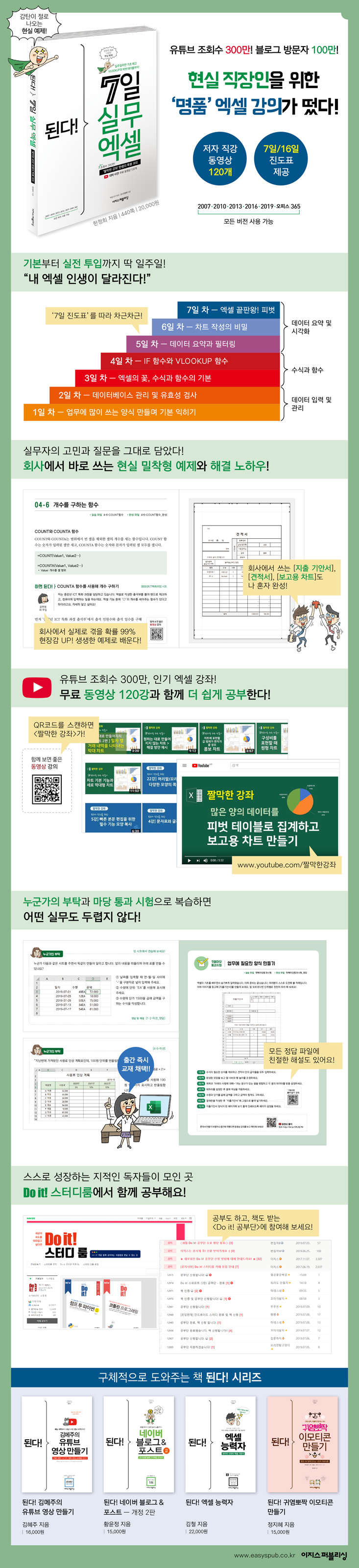
In just 7 days, you'll learn the basics, VLOOKUP, and pivot tables! 3 million views! Teacher Han's special "short lecture" Teacher Han Jeong-hee, whose YouTube channel 'Short Lectures' is filled with touching and grateful comments from subscribers, has finally published a book. "You Can Do It! 7-Day Practical Excel" is designed for busy office workers to learn Excel in just 7 days. On the first and second days, you will learn the basics of Excel by creating forms such as expense reports. On the 3rd and 4th days, you will learn the basics of Excel: formulas and functions. In particular, you will master the IF and VLOOKUP functions, which are most frequently used in practice. On days 5 to 7, you will learn how to summarize and visualize data, as well as pivot tables, the ultimate tool in Excel. For those who want to spend a little more time learning Excel step by step, we have also prepared a 16-day course. If you find it difficult to read and follow along, scan the QR code inserted in the book and watch the video lecture. You can listen to popular courses with 3 million views for free. |
- You can preview some of the book's contents.
Preview
index
First Yard | Excel Basics, Data Entry and Management
Chapter 1: Data Entry - Basic Excel in One Day
01-1 What is Excel?
01-2 Traps that are easy to fall into when entering data in cells
01-3 Smart Excel that automatically fills in data
Create your own list to automatically populate
01-4 Enter data and insert simple formulas
Enter letters and numbers
Applying comma style to data
Highlight the title
Highlight the first row and left column
Enter a formula
01-5 Decorating cells and organizing rows and columns
Add borders to cells and fill them with color
Change column width and row height
Change column width and row height consistently
Adding and deleting rows/columns
How to remove and cancel applied formatting
01-6 Managing Sheets and Workbooks
Change sheet name and add sheet
Enter the same content in multiple sheets simultaneously
Change the sheet color
Move/copy/delete sheets
Move/copy sheets to another workbook
01-7 Practice! Creating a Quotation Form
Enter a title and date
Create basic information fields
Create a spreadsheet
Adding formulas to quotes
Convert the total amount to numeric (Korean) and currency formats.
01-8 How to print beautifully
Setting up printing
Chapter 2 Database - Easy Management with Good Input
02-1 Five Rules for Creating a Database
02-2 How to select 100 rows of data in 1 second
Select a range of cells at once
Select only empty cells from a large amount of data
02-3 Can't the first row be fixed?
Freezing and Unfreezing the Title Row
How to compare data in one sheet
02-4 Sorting data for easy viewing
Sort amounts in ascending/descending order
Sort by branch name in ascending order and amount in descending order
Sort by position within the company
02-5 Filling in blank cells with data
Insert the data value directly above into the empty cell
02-6 Remove blank spaces hidden in cells
Remove blank spaces with the [Replace] function
Remove invisible characters
Chapter 3 Data Management - What Makes Excel Special for Experts
03-1 Prevent incorrect data entry with validation!
Make data selectable from a list box
Specifying a range of cells for inputtable data
Display a descriptive message when a cell is selected
Display an error message when input is incorrect
Restrict date entry
Mark incorrectly entered data with a red circle
Set the code number to be entered in English and the textbook name to be entered in Korean.
03-2 Organizing data according to database creation rules
Step 1: Select only blank rows and delete them all at once
Step 2: Delete unnecessary rows
Step 3: Delete all but one title line
Step 4: Remove the unnecessary merged columns, leaving only one.
Converting numbers stored as character data into numeric data in step 5
03-3 Smartly printing large amounts of data
Print the desired sheet
Adjust margins to avoid truncating some of the data
Change paper orientation to landscape
Page Break Preview
Repeat the title row on each page
Add header/footer
Insert a picture in the header
03-4 Various Ways to Protect Excel Documents
Protect sheet contents from being modified
Unprotect the sheet
How to allow only certain functions in a protected sheet
Protect sheets except for specific ranges
Protecting a document from revealing hidden sheets
Create the forms needed for the first yard passage test.
Second Yard | Excel's Flower: Formulas and Functions
Chapter 4 Formulas and Functions - Excel that calculates the way you want
04-1 Basic formula for writing formulas
Writing a formula
Finding the composition ratio
Edit the formula
Calculating discount amount with mixed references
04-2 The Need for Excel Functions
Using the [Function Arguments] dialog box
Enter the function formula directly
04-3 Easy to use functions with the auto-sum function
Find the sum at once by specifying a block
Finding the average with the AVERAGE function
Finding the maximum and minimum values using the MAX and MIN functions
04-4 Function to find rank
Finding the rank using the RANK function
04-5 Function to truncate number digits
Rounding down to the nearest whole number using the ROUNDDOWN function
Represent up to the first decimal place and discard the remainder
04-6 Function to find the number
Counting using the COUNTA function
Counting blank cells using the COUNTBLANK function
Counting the number of items that meet a condition using the COUNTIF function
Counting numbers that meet multiple conditions using the COUNTIFS function
Find the number of graduates by age
Chapter 5: Logic and Conditions - Basic Skills for Smart Excel Use
05-1 Logical functions that determine conditions
Using the IF function to get true or false results based on conditions
Display the result value as blank
Displaying result values as special characters such as ↗ and ↘
Write the result value as a formula
Nesting AND functions when writing conditional expressions in the IF function
Compare two sheets to get true or false results
05-2 Conditional formatting to check data that meets conditions at a glance
Color-code ↗ and ↘ with cell highlighting rules
Highlight cells that exceed the total score with color using upper/lower rules
Clear conditional formatting
Highlight all rows that match a condition with color
Use the AND function to highlight all rows that meet two conditions.
05-3 VLOOKUP function that finds data that meets conditions
Finding values that meet conditions using the VLOOKUP function
Finding values that meet conditions using the HLOOKUP function
Resolving the #N/A Error Using the IFERROR Function
Finding similar values using the VLOOKUP function
Finding values from other sheets using the VLOOKUP function
05-4 INDEX + MATCH Function that Surpasses VLOOKUP
Finding data by position using the INDEX function
Finding data location values using the MATCH function
Automatically fill in information by nesting INDEX and MATCH functions
Chapter 6 Text - How to Handle Character Data
06-1 Splitting text merged into one cell
How to split text when it is separated by spaces
How to split text when it is separated by a specific symbol
How to divide when text width is constant
06-2 LEFT, RIGHT, MID functions for extracting text
Replace the last six digits of the resident registration number with * using the LEFT function and the & (concatenation operator).
Extracting the last digits of a resident registration number using the RIGHT function
Extracting gender-determining characters using the MID function
Correctly display gender as male or female
Concatenate characters using & (concatenation operator)
Joining characters using the CONCATENATE function
06-3 REPLACE and SUBSTITUTE functions for text changes
Replace the middle letter of a name with * using the REPLACE function
Change the last six digits of your resident registration number to * using the REPLACE function.
Paste as values, not formulas
Removing specific characters with the SUBSTITUTE function
06-4 LEN function to find the number of characters and FIND function to find the location
Practicing the LEN and FIND functions
Restricting input with the Resident Registration Number validation function
Chapter 7 Dates and Times - Excel is fast and accurate for time calculations.
Why use the 07-1 function to enter dates?
Calculating the rental period using the TODAY function
07-2 Using Date Functions
Extracting the year, month, and day from a date using the YEAR, MONTH, and DAY functions
Calculate age
Finding the date of birth using the resident registration number using the DATE function
Calculating age using resident registration number
07-3 DATEDIF function to calculate period
Find your age
Calculating the useful life and number of months for each item
Calculate the usage period in the format 0 years 0 months
07-4 WORKDAY function to find dates excluding public holidays
Find the end date
Finding the End Date with the WORKDAY.INTL Function
07-5 NETWORKDAYS function to calculate the number of days excluding holidays
Find the number of working days excluding weekends and holidays
Find the number of working days that fall on a specific day as a weekend
WEEKDAY function to find the day of the week corresponding to the date 07-6
The simplest way to find the day of the week
Practicing the WEEKDAY function
Find the day of the week corresponding to a date
Create a convenient quotation using the second yard pass test function.
Third Yard | Essential for Reports! Data Aggregation and Visualization
Chapter 8 Data Aggregation - The First Step to Creating a Report
08-1 Finding the sum and average that meet the conditions
Get the sum that meets the conditions using the SUMIF function
Finding the average that meets the conditions using the AVERAGEIF function
Finding the sum that meets two or more conditions using the SUMIFS function
Finding the average for multiple conditions using the AVERAGEIFS function
Using the SUMIFS function to tally unpaid fees by student
08-2 3D formula that aggregates data entered in multiple sheets
Writing 3D equations
08-3 Consolidation that aggregates multiple sheets or multiple workbooks into one
Average multiple sheet items using the Consolidate function
Get consolidated results for a specific item
Consolidate the aggregated data for six branches into a consolidated document file.
08-4 Subtotals that summarize data by grouping specific fields
Finding partial sums by product name
Remove subtotals
Calculating the total and average monthly event amounts
Print by group
Copy only the cells visible on the screen
Chapter 9 Filtering - How to Find Values
09-1 Display only data that meets the conditions on the screen
Learn the basics of using filters
Clear conditions applied to a filter
Filter all product names containing 'coffee'
Filter transactions with more than 30 sales
Filter transactions between 5 million won and 7 million won
Filter 10 events by highest event amount
Filter by top 10% of event amounts
Filtering transactions for "semi-automatic coffee makers" traded in March
Filter transactions over a month
Show only data marked in blue
09-2 Finding a sum that changes depending on the filter result
Finding partial sums that vary depending on the filter result
09-3 Advanced Filter
Filtering the list of applicants for more than two subjects
Filter out matching and mismatched data by comparing two sheets
Chapter 10 Charts - Data that's easy to see and understand.
10-1 How to Create a Basic Chart
Create a vertical bar chart
Create a horizontal bar chart
Create a line chart to easily see trends
Create a pie chart to view composition ratios
10-2 Combo chart when the deviation of the range of values to be expressed is large
Creating a combo chart with both bars and lines
Editing a Combo Chart
Chapter 11: PivotTables and PivotCharts - Summarizing Complex and Large Data
11-1 The Ultimate Data Aggregation: Pivot Tables
Create a Pivot Table
Change the Pivot Table Layout
Remove PivotTable Fields
Adding a Filter Area to a PivotTable
Creating a PivotTable That Displays Both Sums and Averages
Create a pivot table that aggregates the total monthly event amounts.
Create a pivot table that calculates the total event amount by quarter.
Create a pivot table that calculates the total amount of event fees every 15 days.
Refresh data
Reflect changes in the original data in the pivot table
11-2 Inserting a Recommended Pivot Table and Slicer
Quickly aggregate with recommended pivot tables
Use slicers to see only the data you want in a pivot table.
Remove Slicer
11-3 Pivot Charts that Visualize Pivot Tables
Creating a PivotChart with a PivotTable
Third Yard Pass Exam: Creating Report Charts Using Pivot Tables
Chapter 1: Data Entry - Basic Excel in One Day
01-1 What is Excel?
01-2 Traps that are easy to fall into when entering data in cells
01-3 Smart Excel that automatically fills in data
Create your own list to automatically populate
01-4 Enter data and insert simple formulas
Enter letters and numbers
Applying comma style to data
Highlight the title
Highlight the first row and left column
Enter a formula
01-5 Decorating cells and organizing rows and columns
Add borders to cells and fill them with color
Change column width and row height
Change column width and row height consistently
Adding and deleting rows/columns
How to remove and cancel applied formatting
01-6 Managing Sheets and Workbooks
Change sheet name and add sheet
Enter the same content in multiple sheets simultaneously
Change the sheet color
Move/copy/delete sheets
Move/copy sheets to another workbook
01-7 Practice! Creating a Quotation Form
Enter a title and date
Create basic information fields
Create a spreadsheet
Adding formulas to quotes
Convert the total amount to numeric (Korean) and currency formats.
01-8 How to print beautifully
Setting up printing
Chapter 2 Database - Easy Management with Good Input
02-1 Five Rules for Creating a Database
02-2 How to select 100 rows of data in 1 second
Select a range of cells at once
Select only empty cells from a large amount of data
02-3 Can't the first row be fixed?
Freezing and Unfreezing the Title Row
How to compare data in one sheet
02-4 Sorting data for easy viewing
Sort amounts in ascending/descending order
Sort by branch name in ascending order and amount in descending order
Sort by position within the company
02-5 Filling in blank cells with data
Insert the data value directly above into the empty cell
02-6 Remove blank spaces hidden in cells
Remove blank spaces with the [Replace] function
Remove invisible characters
Chapter 3 Data Management - What Makes Excel Special for Experts
03-1 Prevent incorrect data entry with validation!
Make data selectable from a list box
Specifying a range of cells for inputtable data
Display a descriptive message when a cell is selected
Display an error message when input is incorrect
Restrict date entry
Mark incorrectly entered data with a red circle
Set the code number to be entered in English and the textbook name to be entered in Korean.
03-2 Organizing data according to database creation rules
Step 1: Select only blank rows and delete them all at once
Step 2: Delete unnecessary rows
Step 3: Delete all but one title line
Step 4: Remove the unnecessary merged columns, leaving only one.
Converting numbers stored as character data into numeric data in step 5
03-3 Smartly printing large amounts of data
Print the desired sheet
Adjust margins to avoid truncating some of the data
Change paper orientation to landscape
Page Break Preview
Repeat the title row on each page
Add header/footer
Insert a picture in the header
03-4 Various Ways to Protect Excel Documents
Protect sheet contents from being modified
Unprotect the sheet
How to allow only certain functions in a protected sheet
Protect sheets except for specific ranges
Protecting a document from revealing hidden sheets
Create the forms needed for the first yard passage test.
Second Yard | Excel's Flower: Formulas and Functions
Chapter 4 Formulas and Functions - Excel that calculates the way you want
04-1 Basic formula for writing formulas
Writing a formula
Finding the composition ratio
Edit the formula
Calculating discount amount with mixed references
04-2 The Need for Excel Functions
Using the [Function Arguments] dialog box
Enter the function formula directly
04-3 Easy to use functions with the auto-sum function
Find the sum at once by specifying a block
Finding the average with the AVERAGE function
Finding the maximum and minimum values using the MAX and MIN functions
04-4 Function to find rank
Finding the rank using the RANK function
04-5 Function to truncate number digits
Rounding down to the nearest whole number using the ROUNDDOWN function
Represent up to the first decimal place and discard the remainder
04-6 Function to find the number
Counting using the COUNTA function
Counting blank cells using the COUNTBLANK function
Counting the number of items that meet a condition using the COUNTIF function
Counting numbers that meet multiple conditions using the COUNTIFS function
Find the number of graduates by age
Chapter 5: Logic and Conditions - Basic Skills for Smart Excel Use
05-1 Logical functions that determine conditions
Using the IF function to get true or false results based on conditions
Display the result value as blank
Displaying result values as special characters such as ↗ and ↘
Write the result value as a formula
Nesting AND functions when writing conditional expressions in the IF function
Compare two sheets to get true or false results
05-2 Conditional formatting to check data that meets conditions at a glance
Color-code ↗ and ↘ with cell highlighting rules
Highlight cells that exceed the total score with color using upper/lower rules
Clear conditional formatting
Highlight all rows that match a condition with color
Use the AND function to highlight all rows that meet two conditions.
05-3 VLOOKUP function that finds data that meets conditions
Finding values that meet conditions using the VLOOKUP function
Finding values that meet conditions using the HLOOKUP function
Resolving the #N/A Error Using the IFERROR Function
Finding similar values using the VLOOKUP function
Finding values from other sheets using the VLOOKUP function
05-4 INDEX + MATCH Function that Surpasses VLOOKUP
Finding data by position using the INDEX function
Finding data location values using the MATCH function
Automatically fill in information by nesting INDEX and MATCH functions
Chapter 6 Text - How to Handle Character Data
06-1 Splitting text merged into one cell
How to split text when it is separated by spaces
How to split text when it is separated by a specific symbol
How to divide when text width is constant
06-2 LEFT, RIGHT, MID functions for extracting text
Replace the last six digits of the resident registration number with * using the LEFT function and the & (concatenation operator).
Extracting the last digits of a resident registration number using the RIGHT function
Extracting gender-determining characters using the MID function
Correctly display gender as male or female
Concatenate characters using & (concatenation operator)
Joining characters using the CONCATENATE function
06-3 REPLACE and SUBSTITUTE functions for text changes
Replace the middle letter of a name with * using the REPLACE function
Change the last six digits of your resident registration number to * using the REPLACE function.
Paste as values, not formulas
Removing specific characters with the SUBSTITUTE function
06-4 LEN function to find the number of characters and FIND function to find the location
Practicing the LEN and FIND functions
Restricting input with the Resident Registration Number validation function
Chapter 7 Dates and Times - Excel is fast and accurate for time calculations.
Why use the 07-1 function to enter dates?
Calculating the rental period using the TODAY function
07-2 Using Date Functions
Extracting the year, month, and day from a date using the YEAR, MONTH, and DAY functions
Calculate age
Finding the date of birth using the resident registration number using the DATE function
Calculating age using resident registration number
07-3 DATEDIF function to calculate period
Find your age
Calculating the useful life and number of months for each item
Calculate the usage period in the format 0 years 0 months
07-4 WORKDAY function to find dates excluding public holidays
Find the end date
Finding the End Date with the WORKDAY.INTL Function
07-5 NETWORKDAYS function to calculate the number of days excluding holidays
Find the number of working days excluding weekends and holidays
Find the number of working days that fall on a specific day as a weekend
WEEKDAY function to find the day of the week corresponding to the date 07-6
The simplest way to find the day of the week
Practicing the WEEKDAY function
Find the day of the week corresponding to a date
Create a convenient quotation using the second yard pass test function.
Third Yard | Essential for Reports! Data Aggregation and Visualization
Chapter 8 Data Aggregation - The First Step to Creating a Report
08-1 Finding the sum and average that meet the conditions
Get the sum that meets the conditions using the SUMIF function
Finding the average that meets the conditions using the AVERAGEIF function
Finding the sum that meets two or more conditions using the SUMIFS function
Finding the average for multiple conditions using the AVERAGEIFS function
Using the SUMIFS function to tally unpaid fees by student
08-2 3D formula that aggregates data entered in multiple sheets
Writing 3D equations
08-3 Consolidation that aggregates multiple sheets or multiple workbooks into one
Average multiple sheet items using the Consolidate function
Get consolidated results for a specific item
Consolidate the aggregated data for six branches into a consolidated document file.
08-4 Subtotals that summarize data by grouping specific fields
Finding partial sums by product name
Remove subtotals
Calculating the total and average monthly event amounts
Print by group
Copy only the cells visible on the screen
Chapter 9 Filtering - How to Find Values
09-1 Display only data that meets the conditions on the screen
Learn the basics of using filters
Clear conditions applied to a filter
Filter all product names containing 'coffee'
Filter transactions with more than 30 sales
Filter transactions between 5 million won and 7 million won
Filter 10 events by highest event amount
Filter by top 10% of event amounts
Filtering transactions for "semi-automatic coffee makers" traded in March
Filter transactions over a month
Show only data marked in blue
09-2 Finding a sum that changes depending on the filter result
Finding partial sums that vary depending on the filter result
09-3 Advanced Filter
Filtering the list of applicants for more than two subjects
Filter out matching and mismatched data by comparing two sheets
Chapter 10 Charts - Data that's easy to see and understand.
10-1 How to Create a Basic Chart
Create a vertical bar chart
Create a horizontal bar chart
Create a line chart to easily see trends
Create a pie chart to view composition ratios
10-2 Combo chart when the deviation of the range of values to be expressed is large
Creating a combo chart with both bars and lines
Editing a Combo Chart
Chapter 11: PivotTables and PivotCharts - Summarizing Complex and Large Data
11-1 The Ultimate Data Aggregation: Pivot Tables
Create a Pivot Table
Change the Pivot Table Layout
Remove PivotTable Fields
Adding a Filter Area to a PivotTable
Creating a PivotTable That Displays Both Sums and Averages
Create a pivot table that aggregates the total monthly event amounts.
Create a pivot table that calculates the total event amount by quarter.
Create a pivot table that calculates the total amount of event fees every 15 days.
Refresh data
Reflect changes in the original data in the pivot table
11-2 Inserting a Recommended Pivot Table and Slicer
Quickly aggregate with recommended pivot tables
Use slicers to see only the data you want in a pivot table.
Remove Slicer
11-3 Pivot Charts that Visualize Pivot Tables
Creating a PivotChart with a PivotTable
Third Yard Pass Exam: Creating Report Charts Using Pivot Tables
Detailed image
Publisher's Review
This book is perfect for these people!
- New employees about to start work
- A professional night shift worker who suffered because of Excel yesterday too
- A kind manager who wants to learn Excel so that his subordinates don't have to suffer.
- A college student who studied for a certification but doesn't know how to actually use Excel.
My Excel life will change in 7 days!
Because you learn with premium Excel lectures for real-world office workers!
Can you believe you can learn Excel in just seven days? It may seem unbelievable, but the answer is yes.
If you properly learn the basic principles and flow of Excel, you can utilize it 200% in actual work.
The author, Han Jeong-hee, an Excel instructor known as the 'Excel Angel' among netizens, has put her accumulated teaching know-how into this book so that you can learn the basics of Excel in just 7 days.
By answering questions received at lectures at over 60 public offices and questions left on YouTube and blogs, I have gained a thorough understanding of the company's practical situation.
The examples in this book also come from the author's own experiences.
This book teaches Excel in a meticulous and accurate manner, just like the author's personality.
You will experience the amazing miracle of knowing ten by looking at one, and even a complete Excel beginner will be able to complete expense reports, estimates, and report charts used in the company on their own.
In fact, the editor of this book has also become an Excel expert who can use Excel fluently in the office.
This book, as the title suggests, is real!
VLOOKUP function, charts, pivot tables...
You need to know how to use Excel to be able to use it in practice!
Song, a finance department employee, was embarrassed because he didn't know the VLOOKUP function.
The HR manager who needs to change the last digits of the resident registration number to *.
Manager Hwang of the management team has to make an important sales announcement tomorrow.
The stories that appear in the book are all our lives.
It is more immersive because it contains the struggles of practical work.
It may seem complicated, but the solution is surprisingly simple.
It's because the function is not properly understood.
That doesn't mean you need to learn all of Excel's features.
You just need to learn what the book tells you.
Even the editor who had tried it out in advance was surprised.
I was amazed once by the realistic examples, and twice by the quick problem solving.
This book truly demonstrates core functions and practical solutions used in companies! It's a truly practical book.
I want to keep it hidden and keep it to myself.
'Someone's request' that appears in the middle of the book
If you pass the 'passing test', you too are now an Excel expert!
We've all probably had the experience of understanding everything while studying, but then going blank when we actually try to use it.
If you don't use it often, you tend to forget it.
So, this book has a review problem called 'Someone's Request' and a confirmation problem called 'Yard Pass Test'.
Let's review the skills we learned in that section through a situation where someone asks us a favor.
If you review what you have learned immediately, you will remember it for a long time.
And with the 'Yard Pass Test', you can practice what you have learned.
If you grant the request and pass the test, you will gain the confidence that you can handle any situation.
3 million views! Popular YouTube lecture "Short Lecture"
Double your learning with videos throughout the book!
“Are you by any chance an Excel angel?” “I will bow in the direction you are every morning.”
The YouTube channel 'Short Lectures' is full of endless thank yous.
The number of videos uploaded once a week since 2016 has now grown to around 120.
While I was writing the book, the number of views also increased from 2 million to 3 million.
This is proof that 'short lectures' are solving many people's problems.
You can access this popular lecture through a QR code in the book.
You can learn Excel in just seven days by just reading the book, but if you watch the video lectures for review, your learning effect will more than double.
"When I was learning Excel by focusing on functions, there were many times when I didn't know what the principle of this function was or why I should use this function in this situation.
This book answers these questions at once."
Kim Shin-ui / Military officer
"This book thoroughly explains the principles, covers practical exercises in detail, and explains them in a friendly way that anyone can follow."
Song Jeong-mi / Lee Han-IT instructor
※ Are you frustrated because you have no place to ask questions?
You can solve it with this book!
Are you anxious about learning Excel from a book and having nowhere to turn for help? There's a place to relieve frustrations like, "I'm not good at this part..." or, "This function seems useful, but I don't know where to use it."
You can meet people studying Excel at the 'Do it! Study Room' Naver Cafe, operated by Aegis Publishing.
Do it! If you complete the entire book as a study group member, you'll even get a free book!
Doit! Study Room: cafe.naver.com/doitstudyroom
If you have any questions for the author, you can visit the blog and cafe he runs himself.
You can hear the author's friendly response.
Short Tutorial Blog: hantip.net
Lee Han IT Cafe: 2hanit.com
- New employees about to start work
- A professional night shift worker who suffered because of Excel yesterday too
- A kind manager who wants to learn Excel so that his subordinates don't have to suffer.
- A college student who studied for a certification but doesn't know how to actually use Excel.
My Excel life will change in 7 days!
Because you learn with premium Excel lectures for real-world office workers!
Can you believe you can learn Excel in just seven days? It may seem unbelievable, but the answer is yes.
If you properly learn the basic principles and flow of Excel, you can utilize it 200% in actual work.
The author, Han Jeong-hee, an Excel instructor known as the 'Excel Angel' among netizens, has put her accumulated teaching know-how into this book so that you can learn the basics of Excel in just 7 days.
By answering questions received at lectures at over 60 public offices and questions left on YouTube and blogs, I have gained a thorough understanding of the company's practical situation.
The examples in this book also come from the author's own experiences.
This book teaches Excel in a meticulous and accurate manner, just like the author's personality.
You will experience the amazing miracle of knowing ten by looking at one, and even a complete Excel beginner will be able to complete expense reports, estimates, and report charts used in the company on their own.
In fact, the editor of this book has also become an Excel expert who can use Excel fluently in the office.
This book, as the title suggests, is real!
VLOOKUP function, charts, pivot tables...
You need to know how to use Excel to be able to use it in practice!
Song, a finance department employee, was embarrassed because he didn't know the VLOOKUP function.
The HR manager who needs to change the last digits of the resident registration number to *.
Manager Hwang of the management team has to make an important sales announcement tomorrow.
The stories that appear in the book are all our lives.
It is more immersive because it contains the struggles of practical work.
It may seem complicated, but the solution is surprisingly simple.
It's because the function is not properly understood.
That doesn't mean you need to learn all of Excel's features.
You just need to learn what the book tells you.
Even the editor who had tried it out in advance was surprised.
I was amazed once by the realistic examples, and twice by the quick problem solving.
This book truly demonstrates core functions and practical solutions used in companies! It's a truly practical book.
I want to keep it hidden and keep it to myself.
'Someone's request' that appears in the middle of the book
If you pass the 'passing test', you too are now an Excel expert!
We've all probably had the experience of understanding everything while studying, but then going blank when we actually try to use it.
If you don't use it often, you tend to forget it.
So, this book has a review problem called 'Someone's Request' and a confirmation problem called 'Yard Pass Test'.
Let's review the skills we learned in that section through a situation where someone asks us a favor.
If you review what you have learned immediately, you will remember it for a long time.
And with the 'Yard Pass Test', you can practice what you have learned.
If you grant the request and pass the test, you will gain the confidence that you can handle any situation.
3 million views! Popular YouTube lecture "Short Lecture"
Double your learning with videos throughout the book!
“Are you by any chance an Excel angel?” “I will bow in the direction you are every morning.”
The YouTube channel 'Short Lectures' is full of endless thank yous.
The number of videos uploaded once a week since 2016 has now grown to around 120.
While I was writing the book, the number of views also increased from 2 million to 3 million.
This is proof that 'short lectures' are solving many people's problems.
You can access this popular lecture through a QR code in the book.
You can learn Excel in just seven days by just reading the book, but if you watch the video lectures for review, your learning effect will more than double.
"When I was learning Excel by focusing on functions, there were many times when I didn't know what the principle of this function was or why I should use this function in this situation.
This book answers these questions at once."
Kim Shin-ui / Military officer
"This book thoroughly explains the principles, covers practical exercises in detail, and explains them in a friendly way that anyone can follow."
Song Jeong-mi / Lee Han-IT instructor
※ Are you frustrated because you have no place to ask questions?
You can solve it with this book!
Are you anxious about learning Excel from a book and having nowhere to turn for help? There's a place to relieve frustrations like, "I'm not good at this part..." or, "This function seems useful, but I don't know where to use it."
You can meet people studying Excel at the 'Do it! Study Room' Naver Cafe, operated by Aegis Publishing.
Do it! If you complete the entire book as a study group member, you'll even get a free book!
Doit! Study Room: cafe.naver.com/doitstudyroom
If you have any questions for the author, you can visit the blog and cafe he runs himself.
You can hear the author's friendly response.
Short Tutorial Blog: hantip.net
Lee Han IT Cafe: 2hanit.com
GOODS SPECIFICS
- Date of issue: July 25, 2019
- Page count, weight, size: 440 pages | 188*257*30mm
- ISBN13: 9791163030935
- ISBN10: 1163030937
You may also like
카테고리
korean


korean

![GQ KOREA Mark (Monthly): December [2025]](http://librairie.coreenne.fr/cdn/shop/files/8ef265dbbfbf186523ed75ba7319009d.jpg?v=1765340328&width=3840)


