

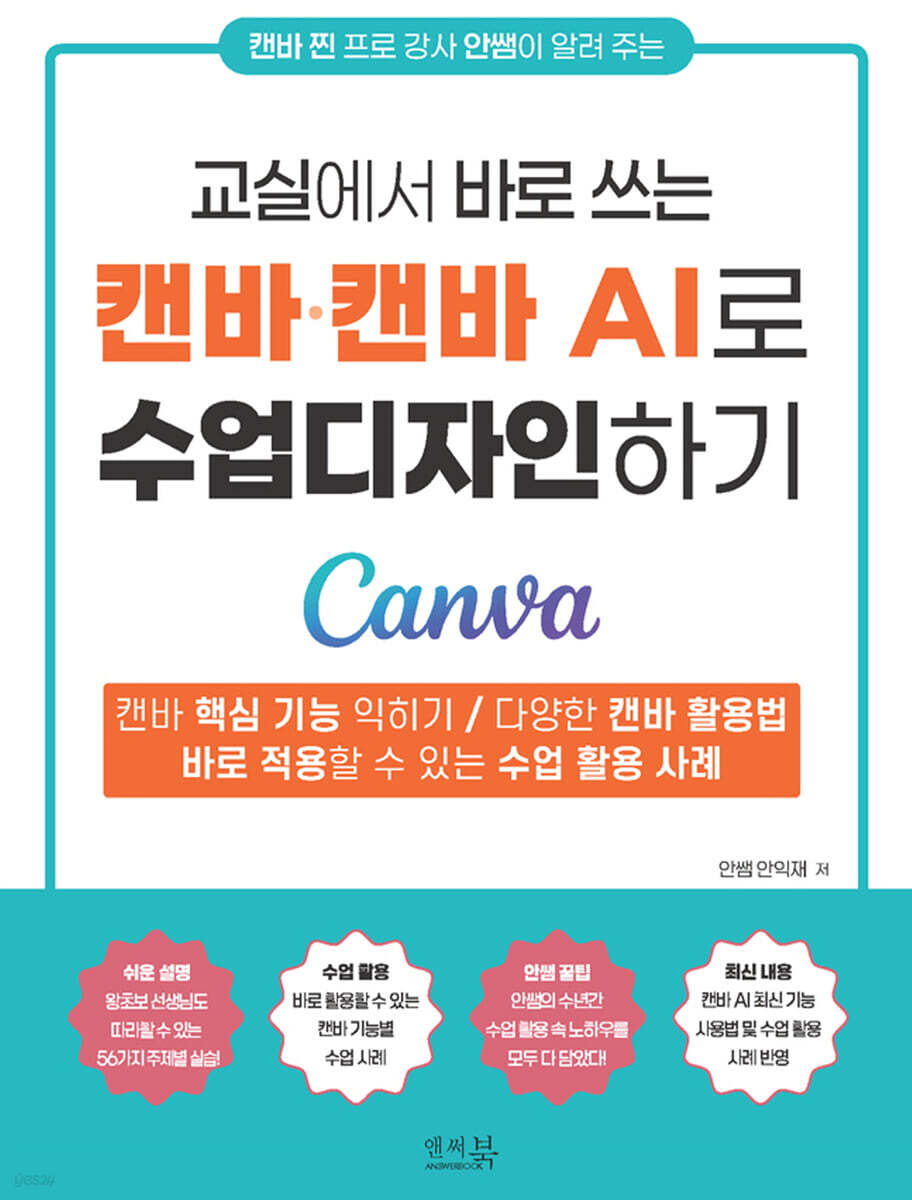
Design your classes with Canva and Canva AI, right in the classroom.
 |
Description
Book Introduction
Designing Classroom Classes with Canva/Canva AI doesn't just introduce 'how to use Canva'.
We wanted to provide a detailed account of how Canva is actually used in the classroom, how students reacted, and how classes using Canva were expanded through real-life case studies.
We wanted to provide a detailed account of how Canva is actually used in the classroom, how students reacted, and how classes using Canva were expanded through real-life case studies.
index
Chapter 1: Design EdTech Tool Canva, Let's Get Started!
Get started with Canva, a design tool you can use right away in class.
7 Reasons to Use Canva in the Classroom
- Getting started with Canva
1-2 Educator Certification is a Must! Start using Canva for Free
1-3 Canva Design, Shall We Get Started?
- Search for Canva templates
Teacher Ahn's Mini-Special Lecture _ 10 Canva Templates Recommended by Teacher Ahn
1-4 Complete mastery of the Canva editing screen, easy even for beginners
- Tour the Canva editing screen
- Learn about design features
- Learn about element functions
- Learn about text features
- Find out what to upload
- Learn how to link apps
Chapter 2: Creating a Student-Inspired Class Using Canvas Features
Invite students to class 2-1
- Invite with QR code
- Invite via link
2-2 Learn how to use links to suit your class objectives.
- Create collaborative classes using shared links
- Design individual assignment lessons using template links
2-3 Three Ways to Collect Student Assignments
- The simplest way: Receive individual submissions using the 'Send to Teacher' function.
- Task-based collection: Individually submit designated activities using the 'Assign' function.
- Organize group and free activities: Organize various results at once with a 'project folder'.
2-4 Focus 200%! Creating a Fun Presentation Class
- Increase presentation focus with the timer function
- 'Magic Shortcuts' to help you with your classes
- Classroom communication ON with Canva Live!
Chapter 3: Magic at Your Fingertips: The World of Canvas AI
3-1 GPT on Canvas? Start writing with Magic Write!
Teacher Ahn's Mini-Special Lecture - How to enable AI features in student accounts?
3-2 Photo editing is now left to AI.
6 Wizards of Image Editing
- One click! 'Remove Background'
- Add a background to a plain photo 'Create Background'
- Just grab the target! 'Magic Grab'
- Extract only the text in the photo 'Text Extraction'
- Change to the image you want with 'Magic Edit'
- Expand your imagination beyond the photo with 'Magic Expand'
'Magic Media' draws an image when you write 3-3 sentences.
Teacher Ahn's mini special lecture _ This is how I used Magic Media.
3-4 Let AI speak for you, 'AI-Voice'
3-5 Image Creation with Canva AI
3-6 Document Drafting with Canva AI
Create your own class-use website using the 3-7 prompts from Canva Code.
- Creating an elementary English vocabulary quiz website
- Create 3 Websites to Use in Classrooms with Canva Code
Chapter 4: Using a Variety of Canva Apps to Expand Your Classroom Possibilities
4-1 Using YouTube videos with Canva 'YouTube'
4-2 Easy and fast QR code creation 'QR code'
4-3 Fun Design Mockups I Customize
4-4 The graph 'chart' I created
4-5 Create your own character 'Character Builder'
Design 4-6 frames as you like with 'Frame Maker'
'Sketch to Life', which turns sketches into images
'Animeify' turns 4-8 photos into cartoons
If you want to use 4-9 GIFs, use 'GIPHY'
4-10 Product Photos: AI-Powered Product Images
4-11 AI Deepfake Video Creation 'D-ID'
Chapter 5 How about a class like this with Canvas?
5-1 Creating a business card of my future dreams ▶ Template: Business card
5-2 Create your own bar graph report ▶ Template: Graph
5-3 Creating Poetry in Collaboration with AI ▶ Template: Presentation
5-4 Poster Exhibition to Solve Discrimination ▶ Template: Poster
5-5 Creating materials introducing other countries ▶ Template: Collage
5-6 Creating a Class Logo ▶Template: Sticker or Logo
5-7 Creating a 4-panel comic ▶ Template: Cuttoon
5-8 Brainstorming with a Whiteboard ▶ Template: Whiteboard
5-9 Shall we draw along the cookie bag?
Create a 5-10 class event ticket ▶ Template: Ticket
Chapter 6: Canvas, Beyond Canvas
6-1 Find the Canva design you want with ChatGPT
6-2 Mass-producing Documents Using GPT (Creating English Word Card Videos)
6-3 Canva Meets Suno AI (Music Video for Independence Activists)
6-4 Creating an eBook of our class yearbook with the Heyzine Flipbooks app
Adding AI and Design to 6-5 Spreadsheets with 'Canva Sheets'
- Learn the basic functions of Canvas sheets
- Automatically input data using 'Create Table'
- 'Fill blank cells' that automatically fills in the data I want
- 'Magic Charts' that quickly and easily converts data into charts
- 'Magic Insights' summarizes your data with one click
Say goodbye to complex formulas! 'Magic Formulas' easily generates formulas with explanations.
Get started with Canva, a design tool you can use right away in class.
7 Reasons to Use Canva in the Classroom
- Getting started with Canva
1-2 Educator Certification is a Must! Start using Canva for Free
1-3 Canva Design, Shall We Get Started?
- Search for Canva templates
Teacher Ahn's Mini-Special Lecture _ 10 Canva Templates Recommended by Teacher Ahn
1-4 Complete mastery of the Canva editing screen, easy even for beginners
- Tour the Canva editing screen
- Learn about design features
- Learn about element functions
- Learn about text features
- Find out what to upload
- Learn how to link apps
Chapter 2: Creating a Student-Inspired Class Using Canvas Features
Invite students to class 2-1
- Invite with QR code
- Invite via link
2-2 Learn how to use links to suit your class objectives.
- Create collaborative classes using shared links
- Design individual assignment lessons using template links
2-3 Three Ways to Collect Student Assignments
- The simplest way: Receive individual submissions using the 'Send to Teacher' function.
- Task-based collection: Individually submit designated activities using the 'Assign' function.
- Organize group and free activities: Organize various results at once with a 'project folder'.
2-4 Focus 200%! Creating a Fun Presentation Class
- Increase presentation focus with the timer function
- 'Magic Shortcuts' to help you with your classes
- Classroom communication ON with Canva Live!
Chapter 3: Magic at Your Fingertips: The World of Canvas AI
3-1 GPT on Canvas? Start writing with Magic Write!
Teacher Ahn's Mini-Special Lecture - How to enable AI features in student accounts?
3-2 Photo editing is now left to AI.
6 Wizards of Image Editing
- One click! 'Remove Background'
- Add a background to a plain photo 'Create Background'
- Just grab the target! 'Magic Grab'
- Extract only the text in the photo 'Text Extraction'
- Change to the image you want with 'Magic Edit'
- Expand your imagination beyond the photo with 'Magic Expand'
'Magic Media' draws an image when you write 3-3 sentences.
Teacher Ahn's mini special lecture _ This is how I used Magic Media.
3-4 Let AI speak for you, 'AI-Voice'
3-5 Image Creation with Canva AI
3-6 Document Drafting with Canva AI
Create your own class-use website using the 3-7 prompts from Canva Code.
- Creating an elementary English vocabulary quiz website
- Create 3 Websites to Use in Classrooms with Canva Code
Chapter 4: Using a Variety of Canva Apps to Expand Your Classroom Possibilities
4-1 Using YouTube videos with Canva 'YouTube'
4-2 Easy and fast QR code creation 'QR code'
4-3 Fun Design Mockups I Customize
4-4 The graph 'chart' I created
4-5 Create your own character 'Character Builder'
Design 4-6 frames as you like with 'Frame Maker'
'Sketch to Life', which turns sketches into images
'Animeify' turns 4-8 photos into cartoons
If you want to use 4-9 GIFs, use 'GIPHY'
4-10 Product Photos: AI-Powered Product Images
4-11 AI Deepfake Video Creation 'D-ID'
Chapter 5 How about a class like this with Canvas?
5-1 Creating a business card of my future dreams ▶ Template: Business card
5-2 Create your own bar graph report ▶ Template: Graph
5-3 Creating Poetry in Collaboration with AI ▶ Template: Presentation
5-4 Poster Exhibition to Solve Discrimination ▶ Template: Poster
5-5 Creating materials introducing other countries ▶ Template: Collage
5-6 Creating a Class Logo ▶Template: Sticker or Logo
5-7 Creating a 4-panel comic ▶ Template: Cuttoon
5-8 Brainstorming with a Whiteboard ▶ Template: Whiteboard
5-9 Shall we draw along the cookie bag?
Create a 5-10 class event ticket ▶ Template: Ticket
Chapter 6: Canvas, Beyond Canvas
6-1 Find the Canva design you want with ChatGPT
6-2 Mass-producing Documents Using GPT (Creating English Word Card Videos)
6-3 Canva Meets Suno AI (Music Video for Independence Activists)
6-4 Creating an eBook of our class yearbook with the Heyzine Flipbooks app
Adding AI and Design to 6-5 Spreadsheets with 'Canva Sheets'
- Learn the basic functions of Canvas sheets
- Automatically input data using 'Create Table'
- 'Fill blank cells' that automatically fills in the data I want
- 'Magic Charts' that quickly and easily converts data into charts
- 'Magic Insights' summarizes your data with one click
Say goodbye to complex formulas! 'Magic Formulas' easily generates formulas with explanations.
Detailed image

Publisher's Review
This book is a guide to using Canva for classroom design, covering everything from the basics of Canva & Canva AI to 56 functions and practical class examples that can be used right away in the classroom.
The knowledge you will gain from this book is as follows:
First, you can learn about the basics of Canva, the latest updates, the latest features of Canva AI, and classes on utilizing Canva.
Second, you can learn how to use Canvas and use it to teach edutech classes that integrate with various subjects.
Third, it can be applied to all educational settings from kindergarten to elementary, middle, and high school for various purposes, such as creating teaching materials or utilizing student-participatory classes.
Fourth, you can experience the effectiveness of various classes utilizing Canva, and gain confidence in edutech classes through classes utilizing Canva.
Highly recommended for these types of people!
- Teachers and educators at daycare centers, kindergartens, elementary, middle, and high schools who are new to Canva
- Teachers who want to start using Canva in their classes right now
- For those who are curious about how to utilize the latest updated features of Canva, such as Canva AI and Canva Sheets, in class.
- Anyone who wants to know about classroom use cases using Canva and generative AI
- Teachers interested in teaching methods that actively encourage student participation through edutech (student-participatory classes)
- Teachers who want to create diverse class content using Canva templates.
These are some testimonials from teachers who have experienced the classroom applications contained in this book.
- "I learned how to use it in class, beyond just explaining the functions."
- "I learned a lot of useful tips for dealing with various problematic situations that can arise during class."
- "Using Canva, I was able to create a much more diverse range of student-participatory class content, and preparation became much easier!"
"I was able to apply it right away in my classes because it taught me everything from how to issue an educational account for Canva, how to use the basics, Canva AI, and generative AI, as well as how to invite students and manage assignments."
- "I really enjoyed creating teaching materials using Canva's various new features, and there were so many examples of how to use them in class!"
The knowledge you will gain from this book is as follows:
First, you can learn about the basics of Canva, the latest updates, the latest features of Canva AI, and classes on utilizing Canva.
Second, you can learn how to use Canvas and use it to teach edutech classes that integrate with various subjects.
Third, it can be applied to all educational settings from kindergarten to elementary, middle, and high school for various purposes, such as creating teaching materials or utilizing student-participatory classes.
Fourth, you can experience the effectiveness of various classes utilizing Canva, and gain confidence in edutech classes through classes utilizing Canva.
Highly recommended for these types of people!
- Teachers and educators at daycare centers, kindergartens, elementary, middle, and high schools who are new to Canva
- Teachers who want to start using Canva in their classes right now
- For those who are curious about how to utilize the latest updated features of Canva, such as Canva AI and Canva Sheets, in class.
- Anyone who wants to know about classroom use cases using Canva and generative AI
- Teachers interested in teaching methods that actively encourage student participation through edutech (student-participatory classes)
- Teachers who want to create diverse class content using Canva templates.
These are some testimonials from teachers who have experienced the classroom applications contained in this book.
- "I learned how to use it in class, beyond just explaining the functions."
- "I learned a lot of useful tips for dealing with various problematic situations that can arise during class."
- "Using Canva, I was able to create a much more diverse range of student-participatory class content, and preparation became much easier!"
"I was able to apply it right away in my classes because it taught me everything from how to issue an educational account for Canva, how to use the basics, Canva AI, and generative AI, as well as how to invite students and manage assignments."
- "I really enjoyed creating teaching materials using Canva's various new features, and there were so many examples of how to use them in class!"
GOODS SPECIFICS
- Date of issue: July 30, 2025
- Pages, weight, size: 253 pages | 459g | 170*235*10mm
- ISBN13: 9791193059586
- ISBN10: 1193059585
You may also like
카테고리
korean


korean

![ELLE 엘르 스페셜 에디션 A형 : 12월 [2025]](http://librairie.coreenne.fr/cdn/shop/files/b8e27a3de6c9538896439686c6b0e8fb.jpg?v=1766436872&width=3840)


