

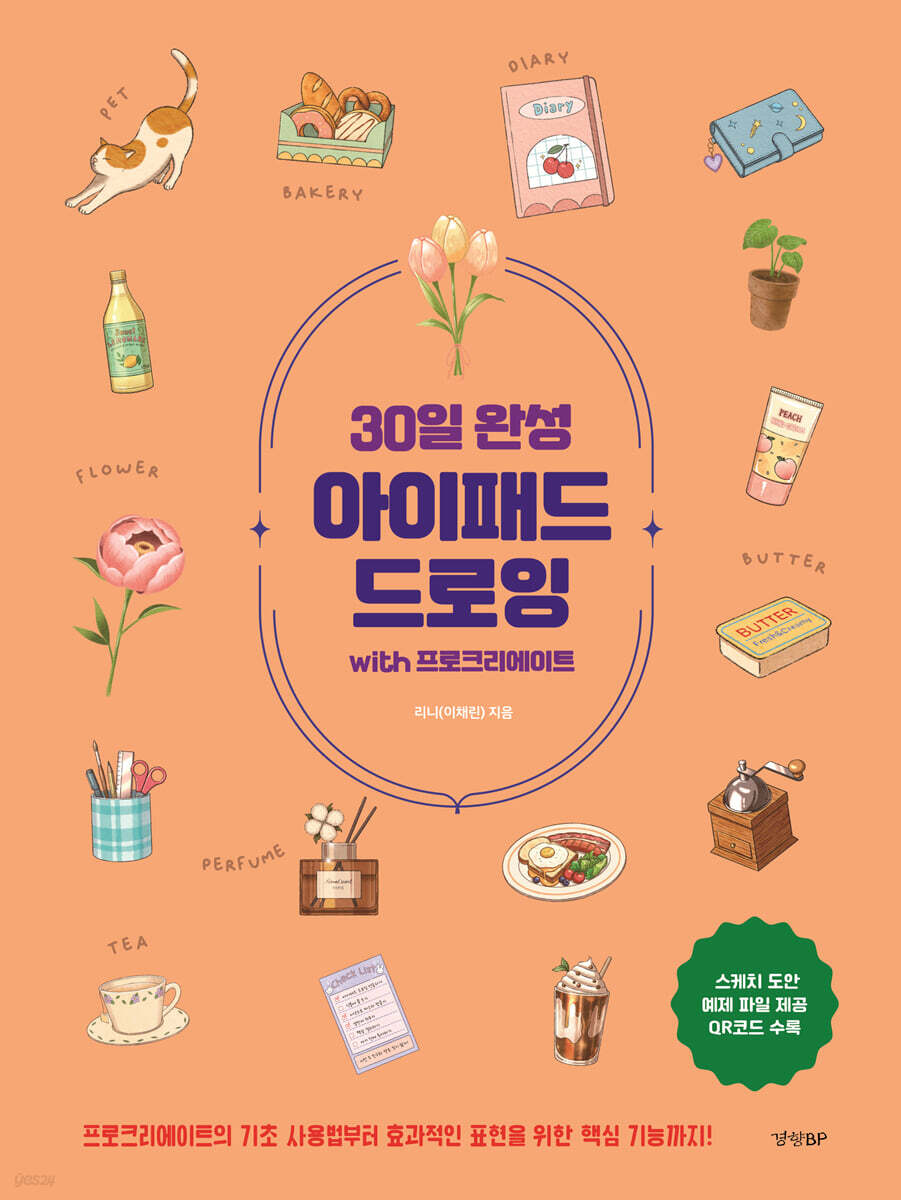
30-Day iPad Drawing with Procreate
 |
Description
Book Introduction
Even beginners can enjoy drawing without any burden, as long as they have an iPad and the Procreate app.
Drawing is a dream that many people have had at least once.
Not only is it a romantic way to record precious moments or objects, it's also a great way to organize your thoughts and feelings.
In the past, to paint, you needed a canvas, paints, brushes, and other supplies, and there were so many different types of paints that it was difficult to access them easily.
Especially for beginners, it was not easy to even decide which materials and tools to choose.
But now, thanks to the iPad and the Procreate app, the barrier to entry for drawing is getting lower.
With just an iPad, Apple Pencil, and the Procreate app, you can draw anything, anywhere.
If you are a beginner who is just starting to draw, I recommend following this book with the goal of consistently drawing one thing a day.
You can start by drawing everyday objects and, in the latter half, create a space with a view of the ocean and sunset, and even a cozy cafe scene greeted by cats.
You can draw more natural and realistic pictures by utilizing Procreate's various functions and expressing perspective and three-dimensionality using perspective techniques.
By practicing with this book, you will learn how to add depth and completeness to your drawings, rather than simply copying them.
Drawing is a dream that many people have had at least once.
Not only is it a romantic way to record precious moments or objects, it's also a great way to organize your thoughts and feelings.
In the past, to paint, you needed a canvas, paints, brushes, and other supplies, and there were so many different types of paints that it was difficult to access them easily.
Especially for beginners, it was not easy to even decide which materials and tools to choose.
But now, thanks to the iPad and the Procreate app, the barrier to entry for drawing is getting lower.
With just an iPad, Apple Pencil, and the Procreate app, you can draw anything, anywhere.
If you are a beginner who is just starting to draw, I recommend following this book with the goal of consistently drawing one thing a day.
You can start by drawing everyday objects and, in the latter half, create a space with a view of the ocean and sunset, and even a cozy cafe scene greeted by cats.
You can draw more natural and realistic pictures by utilizing Procreate's various functions and expressing perspective and three-dimensionality using perspective techniques.
By practicing with this book, you will learn how to add depth and completeness to your drawings, rather than simply copying them.
- You can preview some of the book's contents.
Preview
index
Prologue - One Step a Day, 30 Days, A Journey to Easier Drawing
INTRO: Preparing to Draw on Your iPad
iPad and Apple Pencil
iPad
Apple Pencil
Convenient accessories
iPad screen protector
iPad case
iPad stand
Apple Pencil tip
Apple Pencil Case and Holder
Installing Procreate
Learn about settings and multitasking
iPad and Apple Pencil Settings
Multitasking using split screen
Multitasking with Stage Manager
Preparing the example file
CHAPTER 1: Learning the Basics of Procreate
Getting familiar with Procreate
Browse the gallery
Rini's Advice: Managing Your Gallery Using Gestures
Create a new canvas
Take a look at the task screen interface
Customizing the Rini's Advice Interface
Mastering Gesture Features
Rini's Advice: Gesture-related features you should know
Get familiar with the drawing tools
Explore the Brush Library
Create your own brush set
Editing in Brush Studio
Rini's Advice Brush and Apple Pencil Additional Settings
Practice drawing lines
Hidden Features of Rini's Advice Drawing Tools
A closer look at the color tools
Hidden Features of Rini's Advice Color Tool
Practice coloring
Get to know layers
Exploring the Layer Tool Interface
Explore Layer Tool Gestures
Rini's Advice Moving Layers Between Canvases
CHAPTER 2: Recording Your Daily Life and Learning Various Features
On my desk
Day 1: Diary
Using Sketch Files / Learning Layer Order / Adding Paper Texture Files
Rini's Advice: Adding Paper Texture Files to Create an Analog Feel
Rini's Advice Saving and Sharing Images
Day 2: Teacup Set
Sketching with Quick Shapes / Duplicating Layers / Transform Tools - Magnet, Distort, Flip Horizontal / Using Layer Blending Modes / Using Alpha Channel Lock
A Closer Look at Rini's Advice Layer Blending Modes
Day 3: Diffuser
Transform Tool - Rotate / Color using Canvas Reference
Take a closer look at Rini's Advice Canvas Reference
Rini's Advice: Setting up convenient gestures with the sidebar square button
Day 4: Pencil Holder
Coloring with Layer References and Color Drops / Using Clipping Masks
Rini's Advice: The Difference Between 'Clipping Mask' and 'Alpha Channel Lock'
Day 5: Checklist
Using the 2D Grid Drawing Guide / Drawing with the Drawing Assistance Feature / Transform Tools - Freeform, Uniform, Snap, and Warp / Adding Text
Learn more about Rini's Advice transformation tools.
A closer look at Rini's Advice text style editing panel
In my bag
Day 6: Lip gloss
Selection Tool - Rectangle / Coloring with Selection Tool and Color Fill / Adjustment Tool - Duplicate, Light Scattering
Day 7: Hand Cream
Selection Tool - Lasso / Coloring with the Selection Tool and Color Drop / Using the Copy and Paste Menu / Adjustment Tool - Gaussian Blur
Learn more about Rini's Advice selection tool
Rini's Advice: A Closer Look at the Copy and Paste Menu
Day 8: Lemonade
Using the Symmetry Drawing Guide / Drawing with the Drawing Help Feature
Learn more about Rini's Advice Symmetry Drawing Guide
Day 9: Card Wallet
Adjustment Tools - Hue, Saturation, Brightness / Using the Pencil Filter in the Adjustment Tools
Filter and action menus in Rini's Advice adjustment tool
At a cafe I often go to
Day 10: Brunch
Load a color palette and colorize
Share Rini's Advice Palette
Rini's Advice: Extracting Colors from an Image to Create a Palette
Day 11: Frappuccino Cup
Using the Smudge Tool
Day 12: Menu
Duplicate a picture and use it / Change the canvas size / Adjustment tool - Curve
Learn more about Rini's Advice Canvas 'Cutting and Resizing'
A closer look at the 'Curve' feature in Rini's Advice adjustment tool.
Day 13: Coffee Grinder
Using the Equidistant Drawing Guide / Drawing with the Drawing Assistance feature
At the flower shop in front of the house [Analog hand drawing]
Day 14: Monstera pot
Expressing watercolor texture
15th: A bouquet of tulips
Expressing Colored Pencil Texture / Using Pixel Liquification
Learn more about the 'Liquify' feature in Rini's Advice adjustment tool.
16th: Peony Flower
Expressing acrylic texture / Using masks / Filling a new layer with background color
CHAPTER 3 Adding Three-Dimensional Effects with Perspective
What is perspective?
Mastering one-point perspective
Day 17: Bakery Box [Line Drawing]
Drawing with one-point perspective / Using the perspective drawing guide / Drawing with the drawing help feature
Day 18: Bakery Box [Colored]
Day 19: Bakery Box [Light and Shadow Expression]
Mastering Two-Point Perspective
Day 20: Juice pack and glass cup [line drawing]
Drawing with two-point perspective / Using the perspective drawing guide / Drawing with the drawing help feature
Day 21: Juice pack and glass cup [coloring]
Day 22: Juice pack and glass cup [expression of light and shade and texture]
Rini's Advice: A Brief Guide to Three-Point Perspective
CHAPTER 4 Drawing Space and Landscapes Using Perspective
Drawing space using one-point perspective
Day 23: Room with a view of the sea and sunset [line drawing]
Drawing space using one-point perspective / Expressing gradation / Expressing sunset light
Day 24: Room with a view of the sea and sunset [color]
Day 25: A room with a view of the sea and sunset [light and shade and texture expression]
Drawing a Landscape Using Two-Point Perspective
Day 26: Cat-Welcoming Alley Cafe [Line Drawing]
Drawing Landscapes with Two-Point Perspective / Expressing Bricks / Expressing Afternoon Sunlight
Day 27: Cat-Friendly Alley Cafe [Colored]
Day 28: Cat-Welcoming Alley Cafe [Light and Shadow Expression]
CHAPTER 5: Creating Animation and Goods
Animation and emoticons
Day 29: Creating Moving Animations
Using Animation Assist
Rini's Advice Explore more animation assists
Rini's Advice Adjusting the size of emoticons
Goods made with my own drawings
Day 30: Create posters, postcards, and stickers
Learn about the features of each product / Create a production file and order
Rini's Advice: Creating GoodNotes Stickers
Appendix: Useful Features to Know
Setting up and exporting timelapse
Rini's Advice: 30 Hidden Features of Procreate
Explore all the features of the adjustment tool
Install free brushes, palettes, and fonts
Brushes & Palettes
Font
Browse Key Features
INTRO: Preparing to Draw on Your iPad
iPad and Apple Pencil
iPad
Apple Pencil
Convenient accessories
iPad screen protector
iPad case
iPad stand
Apple Pencil tip
Apple Pencil Case and Holder
Installing Procreate
Learn about settings and multitasking
iPad and Apple Pencil Settings
Multitasking using split screen
Multitasking with Stage Manager
Preparing the example file
CHAPTER 1: Learning the Basics of Procreate
Getting familiar with Procreate
Browse the gallery
Rini's Advice: Managing Your Gallery Using Gestures
Create a new canvas
Take a look at the task screen interface
Customizing the Rini's Advice Interface
Mastering Gesture Features
Rini's Advice: Gesture-related features you should know
Get familiar with the drawing tools
Explore the Brush Library
Create your own brush set
Editing in Brush Studio
Rini's Advice Brush and Apple Pencil Additional Settings
Practice drawing lines
Hidden Features of Rini's Advice Drawing Tools
A closer look at the color tools
Hidden Features of Rini's Advice Color Tool
Practice coloring
Get to know layers
Exploring the Layer Tool Interface
Explore Layer Tool Gestures
Rini's Advice Moving Layers Between Canvases
CHAPTER 2: Recording Your Daily Life and Learning Various Features
On my desk
Day 1: Diary
Using Sketch Files / Learning Layer Order / Adding Paper Texture Files
Rini's Advice: Adding Paper Texture Files to Create an Analog Feel
Rini's Advice Saving and Sharing Images
Day 2: Teacup Set
Sketching with Quick Shapes / Duplicating Layers / Transform Tools - Magnet, Distort, Flip Horizontal / Using Layer Blending Modes / Using Alpha Channel Lock
A Closer Look at Rini's Advice Layer Blending Modes
Day 3: Diffuser
Transform Tool - Rotate / Color using Canvas Reference
Take a closer look at Rini's Advice Canvas Reference
Rini's Advice: Setting up convenient gestures with the sidebar square button
Day 4: Pencil Holder
Coloring with Layer References and Color Drops / Using Clipping Masks
Rini's Advice: The Difference Between 'Clipping Mask' and 'Alpha Channel Lock'
Day 5: Checklist
Using the 2D Grid Drawing Guide / Drawing with the Drawing Assistance Feature / Transform Tools - Freeform, Uniform, Snap, and Warp / Adding Text
Learn more about Rini's Advice transformation tools.
A closer look at Rini's Advice text style editing panel
In my bag
Day 6: Lip gloss
Selection Tool - Rectangle / Coloring with Selection Tool and Color Fill / Adjustment Tool - Duplicate, Light Scattering
Day 7: Hand Cream
Selection Tool - Lasso / Coloring with the Selection Tool and Color Drop / Using the Copy and Paste Menu / Adjustment Tool - Gaussian Blur
Learn more about Rini's Advice selection tool
Rini's Advice: A Closer Look at the Copy and Paste Menu
Day 8: Lemonade
Using the Symmetry Drawing Guide / Drawing with the Drawing Help Feature
Learn more about Rini's Advice Symmetry Drawing Guide
Day 9: Card Wallet
Adjustment Tools - Hue, Saturation, Brightness / Using the Pencil Filter in the Adjustment Tools
Filter and action menus in Rini's Advice adjustment tool
At a cafe I often go to
Day 10: Brunch
Load a color palette and colorize
Share Rini's Advice Palette
Rini's Advice: Extracting Colors from an Image to Create a Palette
Day 11: Frappuccino Cup
Using the Smudge Tool
Day 12: Menu
Duplicate a picture and use it / Change the canvas size / Adjustment tool - Curve
Learn more about Rini's Advice Canvas 'Cutting and Resizing'
A closer look at the 'Curve' feature in Rini's Advice adjustment tool.
Day 13: Coffee Grinder
Using the Equidistant Drawing Guide / Drawing with the Drawing Assistance feature
At the flower shop in front of the house [Analog hand drawing]
Day 14: Monstera pot
Expressing watercolor texture
15th: A bouquet of tulips
Expressing Colored Pencil Texture / Using Pixel Liquification
Learn more about the 'Liquify' feature in Rini's Advice adjustment tool.
16th: Peony Flower
Expressing acrylic texture / Using masks / Filling a new layer with background color
CHAPTER 3 Adding Three-Dimensional Effects with Perspective
What is perspective?
Mastering one-point perspective
Day 17: Bakery Box [Line Drawing]
Drawing with one-point perspective / Using the perspective drawing guide / Drawing with the drawing help feature
Day 18: Bakery Box [Colored]
Day 19: Bakery Box [Light and Shadow Expression]
Mastering Two-Point Perspective
Day 20: Juice pack and glass cup [line drawing]
Drawing with two-point perspective / Using the perspective drawing guide / Drawing with the drawing help feature
Day 21: Juice pack and glass cup [coloring]
Day 22: Juice pack and glass cup [expression of light and shade and texture]
Rini's Advice: A Brief Guide to Three-Point Perspective
CHAPTER 4 Drawing Space and Landscapes Using Perspective
Drawing space using one-point perspective
Day 23: Room with a view of the sea and sunset [line drawing]
Drawing space using one-point perspective / Expressing gradation / Expressing sunset light
Day 24: Room with a view of the sea and sunset [color]
Day 25: A room with a view of the sea and sunset [light and shade and texture expression]
Drawing a Landscape Using Two-Point Perspective
Day 26: Cat-Welcoming Alley Cafe [Line Drawing]
Drawing Landscapes with Two-Point Perspective / Expressing Bricks / Expressing Afternoon Sunlight
Day 27: Cat-Friendly Alley Cafe [Colored]
Day 28: Cat-Welcoming Alley Cafe [Light and Shadow Expression]
CHAPTER 5: Creating Animation and Goods
Animation and emoticons
Day 29: Creating Moving Animations
Using Animation Assist
Rini's Advice Explore more animation assists
Rini's Advice Adjusting the size of emoticons
Goods made with my own drawings
Day 30: Create posters, postcards, and stickers
Learn about the features of each product / Create a production file and order
Rini's Advice: Creating GoodNotes Stickers
Appendix: Useful Features to Know
Setting up and exporting timelapse
Rini's Advice: 30 Hidden Features of Procreate
Explore all the features of the adjustment tool
Install free brushes, palettes, and fonts
Brushes & Palettes
Font
Browse Key Features
Detailed image

Publisher's Review
You can easily learn various functions of Procreate.
Procreate is the world's most popular iPad drawing app, allowing you to create sketches, watercolors, oil paintings, pen drawings, and even beautiful digital paintings.
However, since there is no Korean manual provided and useful features are hidden like treasure hunts, there are many cases where the tools and functions cannot be used properly.
This book provides detailed and user-friendly instructions for everything you need to know about iPad drawing, from the basics of Procreate to key features for more effective expression.
This book is designed to help you draw pictures of various materials by utilizing various functions step by step over 30 days.
By gradually increasing the difficulty level to an appropriate level each day, you can experience your drawing skills improving as you draw step by step.
If you are an intermediate or advanced artist, you can discover advanced features you didn't know about by following the book.
Each chapter is packed with not only various features but also professional tips to add emotion to your drawings and work more efficiently.
Additionally, perspective drawing, a drawing theory that can be difficult to understand, was explained in a way that anyone can easily understand and apply.
Learning perspective will not only allow you to express depth and three-dimensionality in your drawings, but will also allow you to draw vivid spaces and landscapes based on this.
Procreate is the world's most popular iPad drawing app, allowing you to create sketches, watercolors, oil paintings, pen drawings, and even beautiful digital paintings.
However, since there is no Korean manual provided and useful features are hidden like treasure hunts, there are many cases where the tools and functions cannot be used properly.
This book provides detailed and user-friendly instructions for everything you need to know about iPad drawing, from the basics of Procreate to key features for more effective expression.
This book is designed to help you draw pictures of various materials by utilizing various functions step by step over 30 days.
By gradually increasing the difficulty level to an appropriate level each day, you can experience your drawing skills improving as you draw step by step.
If you are an intermediate or advanced artist, you can discover advanced features you didn't know about by following the book.
Each chapter is packed with not only various features but also professional tips to add emotion to your drawings and work more efficiently.
Additionally, perspective drawing, a drawing theory that can be difficult to understand, was explained in a way that anyone can easily understand and apply.
Learning perspective will not only allow you to express depth and three-dimensionality in your drawings, but will also allow you to draw vivid spaces and landscapes based on this.
GOODS SPECIFICS
- Date of issue: February 19, 2025
- Page count, weight, size: 285 pages | 724g | 188*250*15mm
- ISBN13: 9788969526090
- ISBN10: 8969526099
You may also like
카테고리
korean


korean

![GQ KOREA Mark (Monthly): December [2025]](http://librairie.coreenne.fr/cdn/shop/files/8ef265dbbfbf186523ed75ba7319009d.jpg?v=1765340328&width=3840)


