

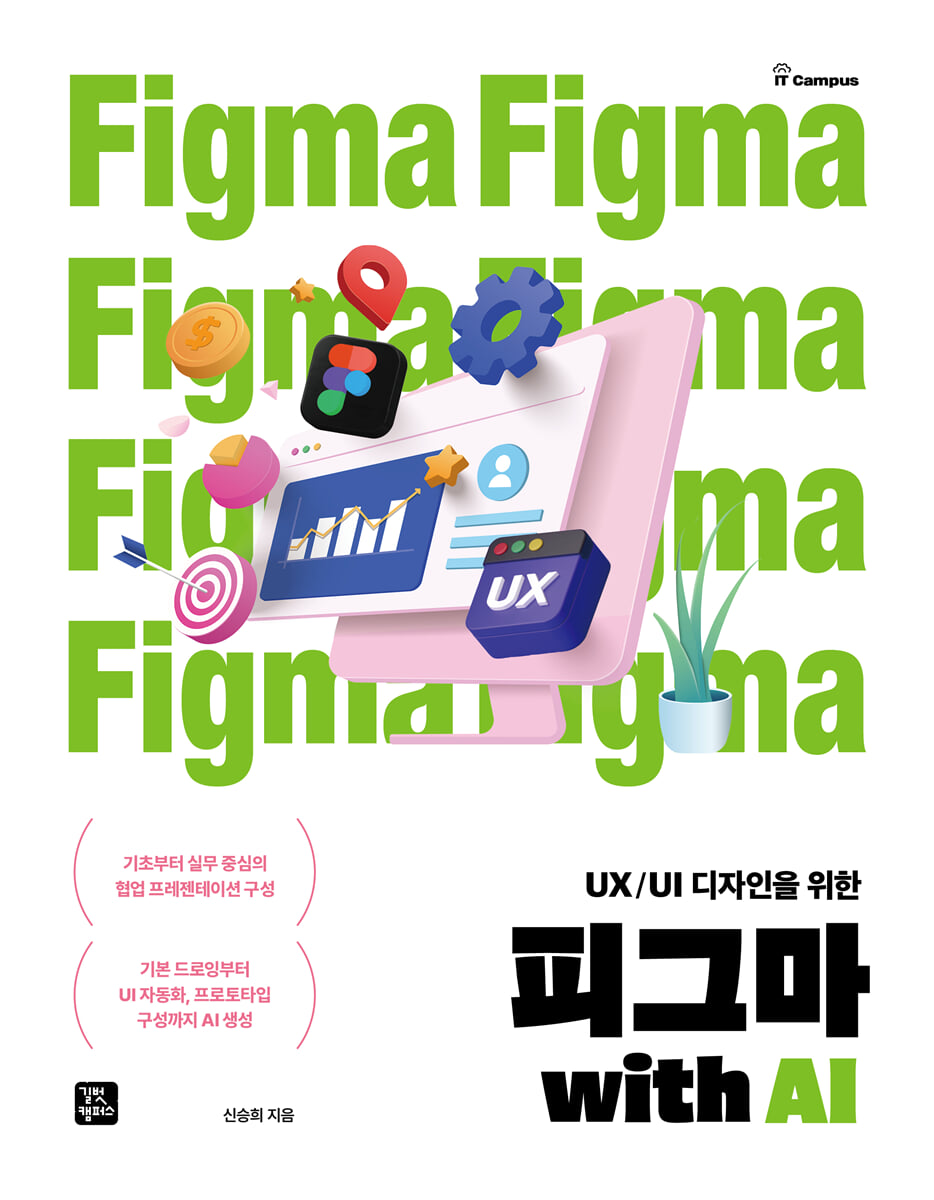
Figma with AI
 |
Description
Book Introduction
Creating collaborative presentations focused on practice from the ground up
AI generation from basic drawing to UI automation and prototype construction.
Figma is an intuitive and powerful tool not only for designers, but also for students working on team projects, practitioners requiring visual planning, and users in various fields responsible for content creation. As a design tool with a collaboration-centered workflow and features that maximize productivity, it is ideal for developing practical skills that can be immediately applied to real-world projects.
"Figma with AI for UX/UI Design" uses Figma, the digital design standard, but teaches that the essence of design lies in design ability rather than dexterity, and that this tool can be used to elicit creativity and problem-solving skills.
Based on Figma's powerful AI capabilities, we introduce Figma as a tool that frees up designers' hands and allows them to use their brains more, creating an environment where they can focus on "creative thinking."
Whether you're just starting out with Figma or already using it, "Figma with AI for UX/UI Design" will help you take it to the next level.
AI generation from basic drawing to UI automation and prototype construction.
Figma is an intuitive and powerful tool not only for designers, but also for students working on team projects, practitioners requiring visual planning, and users in various fields responsible for content creation. As a design tool with a collaboration-centered workflow and features that maximize productivity, it is ideal for developing practical skills that can be immediately applied to real-world projects.
"Figma with AI for UX/UI Design" uses Figma, the digital design standard, but teaches that the essence of design lies in design ability rather than dexterity, and that this tool can be used to elicit creativity and problem-solving skills.
Based on Figma's powerful AI capabilities, we introduce Figma as a tool that frees up designers' hands and allows them to use their brains more, creating an environment where they can focus on "creative thinking."
Whether you're just starting out with Figma or already using it, "Figma with AI for UX/UI Design" will help you take it to the next level.
- You can preview some of the book's contents.
Preview
index
WEEK 01 Get Smart with AI! Before Learning Figma AI
1.1 Figma, why is it so popular?
01 A new world of collaborative design: No more worries about teamwork with real-time cloud collaboration!
02 Various platforms, seamless compatibility Turn your ideas into reality!
03 Workflow optimized for UX/UI design
04 A Powerful Ecosystem of AI, Community, and Plugins
05 Presentation materials? A snap with Figma slides!
1.2 Welcome! Figma AI Installation Guide
01 Learn about Figma's pricing policy
02 Create a Figma account
1.3 AI that became Figma's wings
01 AI Features Overview
02 How to Use AI Functions
03 Top 10 Useful AI Plugins
Practice problems
WEEK 02 A Glance at the Figma Interface
2.1 Understanding the Figma Basics
01 Take a look at the Figma home screen
02 Take a look at the Figma work screen
2.2 Understanding the Toolbar
01 Design Mode Toolbar
02 Draw Mode Toolbar
03 Developer Mode Toolbar
2.3 Completely conquer the panels of the work window!
01 Left Panel: Managing Files and Assets
02 Right Panel: Explore the Design, Prototype, and Inspect features
2.4 Learn shortcuts for efficient work
01 Learn useful shortcuts
Practice problems
WEEK 03: From Basic Drawing to Practical Editing! Object Drawing
3.1 Start off cool with basic shapes!
01 Learn about the Rectangle Tool
02 Using lines and arrows
03 Using the circle tool
04 Using the Polygon Tool
3.2 Designing a Shopping Bag with the Pen Tool
01 Designing a Line Style Logo
02 Designing a Pebble Object Shopping Bag
03 Using the Cobblestone Artwork as a Mockup
04 Understanding Vectors vs. Bitmaps
3.3 Creating icons and text buttons using plugins
3.4 Creating icons using AI features
Practice problems
WEEK 04 Project Management Skills at a Glance
4.1 Project Management: Creating a Workspace
Expand your workspace by creating page 01
02 Configuring a workflow to understand the screen flow at a glance
4.2 Configuring a Workflow by Linking Pages
01 Connecting pages with simple button icons
4.3 Figma Layout Management, Grids & Guides
01 How to use the layout grid
4.4 Try Grid & Guides Yourself
01 Follow the grid system
02 Saving a layout grid for team collaboration
03 Registering in the Team Library
04 Applying the saved layout grid
05 Applying the layout grid file shared by a team member
06 Align accurately with the guide
4.5 UX Structuring: Layers and Responsive Architecture Design
01 How to systematically manage layers
02 Constraints for Responsive Structural Design
03 Automatically change layer names with Rename layers
Practice problems
WEEK 05 Auto Layout, Design for a Better World
5.1 The magic of auto layout and automatic alignment
01 Frame and Auto Layout,
What's the difference?
5.2 Practicing Auto Layout
01 Creating a Product Card Using Auto Layout
02 Create a product list page like a shopping mall!
03 Configuring the Product Page Layout with Grid
5.3 Implementing Responsive Design to Increase Work Efficiency
01 What is responsive design?
02 Settings for responsive layout
03 Automatic content change using AI
04 Breakpoint Practice from Desktop to Mobile
Practice problems
WEEK 06 Components and Variants: The Secrets of Effective Designers
6.1 Creating Reusable Designs with Components
01 Understanding Components and Their Necessity
02 Things to keep in mind when using components
6.2 Creating a Simple Component
6.3 Master Components & Instance Usage
01 Understanding the Difference Between Master Components and Instances
6.4 Freely change instances
6.5 Using the Component Library
6.6 Understanding Instance Detachment and Component Swapping
6.7 Efficient Management with Variants
01 Mastering Variant's Core Features
6.8 Practice designing buttons in various states
01 Creating a basic button
02 Designing a Hover Button
03 Designing a clicked button
04 Designing a disabled button
05 Organize by same properties
06 Designing buttons by size
6.9 Final testing and use on the login page
01 Connecting Interactions
02 Use it on the login page
03 Testing in Presentation Mode
Practice problems
WEEK 07: AI Transforming Design Thinking
7.1 User-Centered Innovation! Design Thinking
01 Why is design thinking necessary?
02 The Role of Designers in the AI Era
03 Forming a team to work together
7.2 Overview of the Design Thinking Process
Step 1: Empathize
Step 2: Define the Problem
Step 3: Ideate
Step 4: Prototype
Step 5: Test
7.3 Understanding Circular Processes
Practice problems
WEEK 08 Real-time collaboration, start your practice with PigJam!
8.1 Bringing Ideas to Life with PigJam
01 Learn about the practical course
8.2 Level up your teamwork with real-time collaboration!
01 Invite team members to the shared board
02 Complete the mission to loosen up your hands
8.3 Step 1: Empathy: Visualizing the User Voice
8.4 Step 2: Defining the Problem and Identifying the Real Problem
01 Grouping common keywords
02 Finding Patterns and Deriving Insights
8.5 Step 3: Ideation, Ideas galore!
Practice problems
WEEK 09 Design like a pro with our design system!
9.1 A design system that saves projects!
01 Why You Need a Design System
02 Understanding Design System Components
9.2 Let's create our own team library!
01 Why Libraries Are Important
02 Government-wide UI/UX design system
03 Organizing text styles
04 Setting a new text style
05 Typography Design Guide
06 Color System Design Guide
07 Installing the Color Palette Plugin
9.3 Publishing & Managing Team Libraries
01 Publishing a Team Library
02 Importing Team Libraries into a New File
Practice problems
WEEK 10: Turn your ideas into prototypes faster with AI!
10.1 Creating a Figma Site Without Coding
01 What is the Figma site?
02 Five Features of the Figma Site
03 Figma Site Interface and Toolbar Overview
10.2 Sketching with AI Templates
01 Find a Figma site template that suits your style
02 Simultaneously edit content at all breakpoints
03 Testing Responsive Web Pages
04 Device-Specific Optimization! Setting Breakpoints
10.3 Adding a UX Block Layout
01 Learn about layout structure blocks
02 Learn about blocks for content delivery
Practice problems
WEEK 11: Catch Up on Practical UX Screen Design
11.1 Designing Tone & Mood with Added Sense
01 Inspiration that sets the tone for emotion
02 Design Tone & Mood Style
03 Creating a Mood Board
11.2 Start AI Prototyping Right Away, Without a Template!
01 Final Summary of Pig Jam Ideas
02 Creating a prompt with ChatGPT
03 Drafting a Prototype with AI
04 Modifying the Prototype Style
11.3 AI-powered main visuals, faster and clearer
01 Creating a prompt with ChatGPT
02 Creating an Image in Google Image FX
Practice problems
WEEK 12 Immersive Interactions
12.1 Clicks and More Button Interactions
01 Importing Figma Designs to the Figma Site
Important CTA buttons when creating page 02
03 Applying button interaction effects
12.2 Eye-Catching Micro-Interactions
01 Applying effects that appear on the screen
02 Applying a flowing text effect
03 Applying typing effects
12.3 Scroll Animation Interaction!
UX that leads the flow
01 Applying a directing effect that creates a sense of space
02 Applying freely changing interactions
Practice problems
WEEK 13: A Flowing User Journey and Final Presentation
13.1 Living Interaction Flow
01 Applying Slide Overlay Interactions
02 Close the window, apply the overlay interaction that appears in the center
03 Applying the Swap Overlay Interaction
04 Applying page transition interactions
05 Applying the Return Interaction
06 Things to keep in mind when configuring interaction flow
13.2 Creating a Final Presentation Material that Conveys the Key Points
01 Creating a framework to contain your ideas
02 Translate in one go with AI
03 Connecting the Figma Prototype
04 Preparing Presentations with AI
05 Presentation Preparation Checklist
Practice problems
Search
1.1 Figma, why is it so popular?
01 A new world of collaborative design: No more worries about teamwork with real-time cloud collaboration!
02 Various platforms, seamless compatibility Turn your ideas into reality!
03 Workflow optimized for UX/UI design
04 A Powerful Ecosystem of AI, Community, and Plugins
05 Presentation materials? A snap with Figma slides!
1.2 Welcome! Figma AI Installation Guide
01 Learn about Figma's pricing policy
02 Create a Figma account
1.3 AI that became Figma's wings
01 AI Features Overview
02 How to Use AI Functions
03 Top 10 Useful AI Plugins
Practice problems
WEEK 02 A Glance at the Figma Interface
2.1 Understanding the Figma Basics
01 Take a look at the Figma home screen
02 Take a look at the Figma work screen
2.2 Understanding the Toolbar
01 Design Mode Toolbar
02 Draw Mode Toolbar
03 Developer Mode Toolbar
2.3 Completely conquer the panels of the work window!
01 Left Panel: Managing Files and Assets
02 Right Panel: Explore the Design, Prototype, and Inspect features
2.4 Learn shortcuts for efficient work
01 Learn useful shortcuts
Practice problems
WEEK 03: From Basic Drawing to Practical Editing! Object Drawing
3.1 Start off cool with basic shapes!
01 Learn about the Rectangle Tool
02 Using lines and arrows
03 Using the circle tool
04 Using the Polygon Tool
3.2 Designing a Shopping Bag with the Pen Tool
01 Designing a Line Style Logo
02 Designing a Pebble Object Shopping Bag
03 Using the Cobblestone Artwork as a Mockup
04 Understanding Vectors vs. Bitmaps
3.3 Creating icons and text buttons using plugins
3.4 Creating icons using AI features
Practice problems
WEEK 04 Project Management Skills at a Glance
4.1 Project Management: Creating a Workspace
Expand your workspace by creating page 01
02 Configuring a workflow to understand the screen flow at a glance
4.2 Configuring a Workflow by Linking Pages
01 Connecting pages with simple button icons
4.3 Figma Layout Management, Grids & Guides
01 How to use the layout grid
4.4 Try Grid & Guides Yourself
01 Follow the grid system
02 Saving a layout grid for team collaboration
03 Registering in the Team Library
04 Applying the saved layout grid
05 Applying the layout grid file shared by a team member
06 Align accurately with the guide
4.5 UX Structuring: Layers and Responsive Architecture Design
01 How to systematically manage layers
02 Constraints for Responsive Structural Design
03 Automatically change layer names with Rename layers
Practice problems
WEEK 05 Auto Layout, Design for a Better World
5.1 The magic of auto layout and automatic alignment
01 Frame and Auto Layout,
What's the difference?
5.2 Practicing Auto Layout
01 Creating a Product Card Using Auto Layout
02 Create a product list page like a shopping mall!
03 Configuring the Product Page Layout with Grid
5.3 Implementing Responsive Design to Increase Work Efficiency
01 What is responsive design?
02 Settings for responsive layout
03 Automatic content change using AI
04 Breakpoint Practice from Desktop to Mobile
Practice problems
WEEK 06 Components and Variants: The Secrets of Effective Designers
6.1 Creating Reusable Designs with Components
01 Understanding Components and Their Necessity
02 Things to keep in mind when using components
6.2 Creating a Simple Component
6.3 Master Components & Instance Usage
01 Understanding the Difference Between Master Components and Instances
6.4 Freely change instances
6.5 Using the Component Library
6.6 Understanding Instance Detachment and Component Swapping
6.7 Efficient Management with Variants
01 Mastering Variant's Core Features
6.8 Practice designing buttons in various states
01 Creating a basic button
02 Designing a Hover Button
03 Designing a clicked button
04 Designing a disabled button
05 Organize by same properties
06 Designing buttons by size
6.9 Final testing and use on the login page
01 Connecting Interactions
02 Use it on the login page
03 Testing in Presentation Mode
Practice problems
WEEK 07: AI Transforming Design Thinking
7.1 User-Centered Innovation! Design Thinking
01 Why is design thinking necessary?
02 The Role of Designers in the AI Era
03 Forming a team to work together
7.2 Overview of the Design Thinking Process
Step 1: Empathize
Step 2: Define the Problem
Step 3: Ideate
Step 4: Prototype
Step 5: Test
7.3 Understanding Circular Processes
Practice problems
WEEK 08 Real-time collaboration, start your practice with PigJam!
8.1 Bringing Ideas to Life with PigJam
01 Learn about the practical course
8.2 Level up your teamwork with real-time collaboration!
01 Invite team members to the shared board
02 Complete the mission to loosen up your hands
8.3 Step 1: Empathy: Visualizing the User Voice
8.4 Step 2: Defining the Problem and Identifying the Real Problem
01 Grouping common keywords
02 Finding Patterns and Deriving Insights
8.5 Step 3: Ideation, Ideas galore!
Practice problems
WEEK 09 Design like a pro with our design system!
9.1 A design system that saves projects!
01 Why You Need a Design System
02 Understanding Design System Components
9.2 Let's create our own team library!
01 Why Libraries Are Important
02 Government-wide UI/UX design system
03 Organizing text styles
04 Setting a new text style
05 Typography Design Guide
06 Color System Design Guide
07 Installing the Color Palette Plugin
9.3 Publishing & Managing Team Libraries
01 Publishing a Team Library
02 Importing Team Libraries into a New File
Practice problems
WEEK 10: Turn your ideas into prototypes faster with AI!
10.1 Creating a Figma Site Without Coding
01 What is the Figma site?
02 Five Features of the Figma Site
03 Figma Site Interface and Toolbar Overview
10.2 Sketching with AI Templates
01 Find a Figma site template that suits your style
02 Simultaneously edit content at all breakpoints
03 Testing Responsive Web Pages
04 Device-Specific Optimization! Setting Breakpoints
10.3 Adding a UX Block Layout
01 Learn about layout structure blocks
02 Learn about blocks for content delivery
Practice problems
WEEK 11: Catch Up on Practical UX Screen Design
11.1 Designing Tone & Mood with Added Sense
01 Inspiration that sets the tone for emotion
02 Design Tone & Mood Style
03 Creating a Mood Board
11.2 Start AI Prototyping Right Away, Without a Template!
01 Final Summary of Pig Jam Ideas
02 Creating a prompt with ChatGPT
03 Drafting a Prototype with AI
04 Modifying the Prototype Style
11.3 AI-powered main visuals, faster and clearer
01 Creating a prompt with ChatGPT
02 Creating an Image in Google Image FX
Practice problems
WEEK 12 Immersive Interactions
12.1 Clicks and More Button Interactions
01 Importing Figma Designs to the Figma Site
Important CTA buttons when creating page 02
03 Applying button interaction effects
12.2 Eye-Catching Micro-Interactions
01 Applying effects that appear on the screen
02 Applying a flowing text effect
03 Applying typing effects
12.3 Scroll Animation Interaction!
UX that leads the flow
01 Applying a directing effect that creates a sense of space
02 Applying freely changing interactions
Practice problems
WEEK 13: A Flowing User Journey and Final Presentation
13.1 Living Interaction Flow
01 Applying Slide Overlay Interactions
02 Close the window, apply the overlay interaction that appears in the center
03 Applying the Swap Overlay Interaction
04 Applying page transition interactions
05 Applying the Return Interaction
06 Things to keep in mind when configuring interaction flow
13.2 Creating a Final Presentation Material that Conveys the Key Points
01 Creating a framework to contain your ideas
02 Translate in one go with AI
03 Connecting the Figma Prototype
04 Preparing Presentations with AI
05 Presentation Preparation Checklist
Practice problems
Search
Detailed image

Publisher's Review
From UI/UX beginner to practical design
Figma
This book systematically covers everything from Figma's basic concepts to automation features and practical applications.
We'll guide you step-by-step through practical courses that can be applied immediately in real-world settings, such as building a collaboration-centric design system and creating efficient presentations.
In particular, it is designed to simultaneously increase productivity and creativity in design work through practical know-how utilizing the latest features such as prompt-based visualization, image generation, layout automation, and style recommendations of AI functions.
STEP 1: Utilizing Figma's Core Features
STEP 2: UI Automation with Generative AI
STEP3 UX Design System & Practical Project Practice
STEP 4: Create and Share a Collaborative Presentation
Figma
This book systematically covers everything from Figma's basic concepts to automation features and practical applications.
We'll guide you step-by-step through practical courses that can be applied immediately in real-world settings, such as building a collaboration-centric design system and creating efficient presentations.
In particular, it is designed to simultaneously increase productivity and creativity in design work through practical know-how utilizing the latest features such as prompt-based visualization, image generation, layout automation, and style recommendations of AI functions.
STEP 1: Utilizing Figma's Core Features
STEP 2: UI Automation with Generative AI
STEP3 UX Design System & Practical Project Practice
STEP 4: Create and Share a Collaborative Presentation
GOODS SPECIFICS
- Date of issue: August 29, 2025
- Page count, weight, size: 368 pages | 183*235*30mm
- ISBN13: 9791140715053
- ISBN10: 1140715054
You may also like
카테고리
korean


korean

![ELLE 엘르 스페셜 에디션 A형 : 12월 [2025]](http://librairie.coreenne.fr/cdn/shop/files/b8e27a3de6c9538896439686c6b0e8fb.jpg?v=1766436872&width=3840)


