

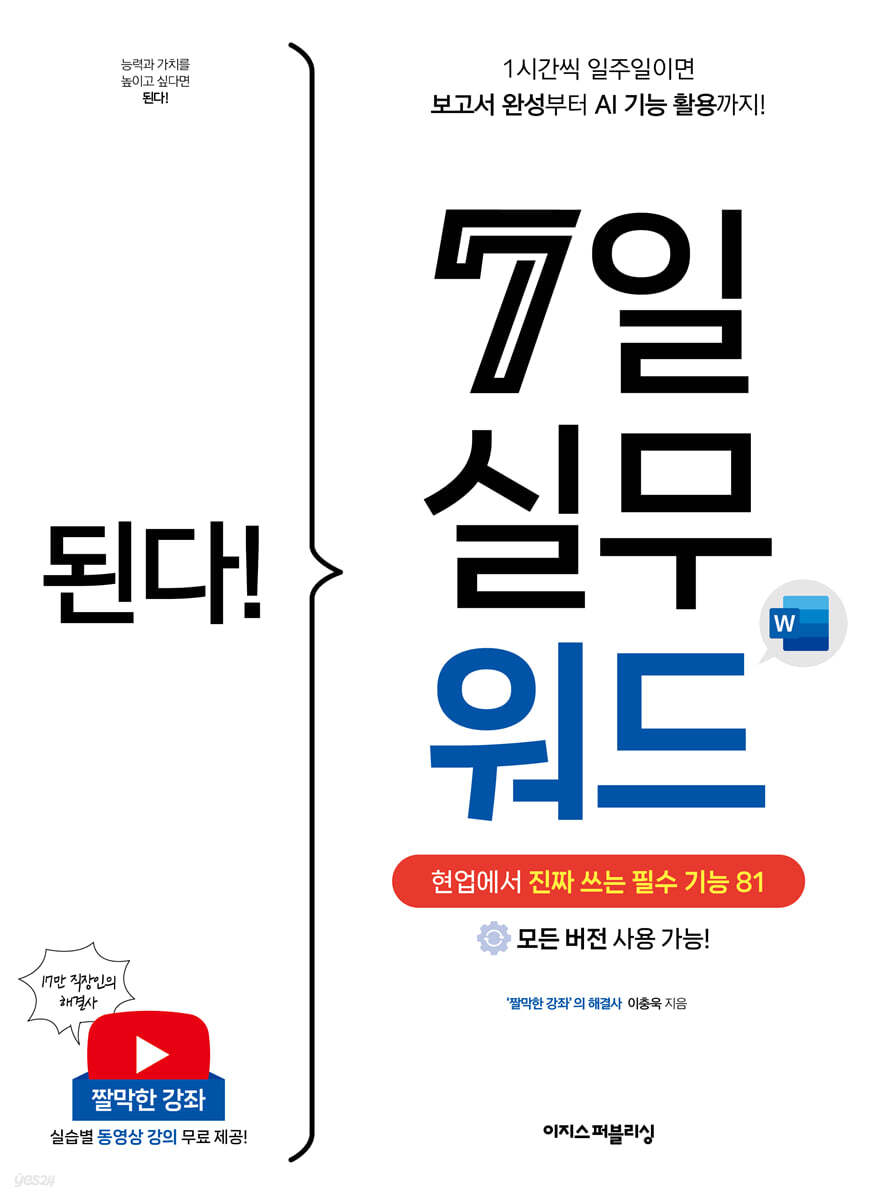
It's done! 7-day practical word
 |
Description
Book Introduction
Learn only the essential functions with 81 step-by-step exercises and drastically reduce your work time!
Get started with high-quality Word with video lectures from "Short Course," which has 170,000 subscribers!
This book is a basic Word book that even beginners can easily follow. It consists of 81 practical exercises that carefully select essential functions frequently used in actual work settings.
After reading this book, you can instantly unify formats using the style function and easily create supplementary materials using tables, charts, pictures, and figures to enhance the completeness of your documents.
You can also easily learn how to use Copilot, an AI feature added to the latest version.
In addition, you can create documents up to five times faster by using the Format Painter and Quick Access Toolbar, and by using methods such as word spacing that evenly align words.
The author wrote this book based on his 28 years of teaching expertise and the various questions he received from his YouTube "Short Lectures."
If you follow along step by step, explaining in detail so that you don't get stuck while practicing, you will be able to solve any document you have to deal with in the future without any difficulties.
Additionally, you can watch video lectures for each practice, so you can learn even the author's small know-how.
Get started with high-quality Word with video lectures from "Short Course," which has 170,000 subscribers!
This book is a basic Word book that even beginners can easily follow. It consists of 81 practical exercises that carefully select essential functions frequently used in actual work settings.
After reading this book, you can instantly unify formats using the style function and easily create supplementary materials using tables, charts, pictures, and figures to enhance the completeness of your documents.
You can also easily learn how to use Copilot, an AI feature added to the latest version.
In addition, you can create documents up to five times faster by using the Format Painter and Quick Access Toolbar, and by using methods such as word spacing that evenly align words.
The author wrote this book based on his 28 years of teaching expertise and the various questions he received from his YouTube "Short Lectures."
If you follow along step by step, explaining in detail so that you don't get stuck while practicing, you will be able to solve any document you have to deal with in the future without any difficulties.
Additionally, you can watch video lectures for each practice, so you can learn even the author's small know-how.
- You can preview some of the book's contents.
Preview
index
01 Everything you need to edit basic documents
01-1 Creating and Saving a New Document
__Look at the Word home screen
__ just do it!} Writing a simple document
__ just do it! } Save and open the document, save as PDF
01-2 Screen settings for convenient document creation
__5 Viewing Modes for Comfortable Working
__ just do it! } [Overview] View the document at a glance in view mode
__Explore the document structure with the navigation pane
__View multiple windows at a glance
__Show/Hide Edit Symbols
__Zoom in/out of the screen
01-3 Entering symbols and Chinese characters
__ just do it! } Enter the symbol
__ just do it! } Register frequently used symbols as shortcut keys
__ just do it! } Register frequently used symbols to autocorrect
__ just do it! } Enter the original text
__ just do it!} Entering Chinese characters
01-4 Cut the time it takes to write documents in half
__3 shortcut keys
__ just do it!} Using shortcut keys in the ribbon tab
__Just do it! } Add frequently used functions to the Quick Access Toolbar
A super simple way to select a range
__ just do it! } Select a range with one mouse click
__ just do it! } Quickly select a range with the keyboard
__How to quickly apply a format - Format Painter
__Just do it! } Create documents quickly with format copy
The report mission has arrived! | Write a report outline
Quick TIP | I only want to change the format of the very beginning!
02 Formatting to improve document readability
02-1 Basics of Page Setup, Paper and Margins
__ just do it! } Set paper type and margins
__ just do it! } Change the paper orientation within a document
__ just do it! } Adding a background color to a document
__ just do it! } Add a watermark to the background
02-2 Formatting Consistently! Applying Styles
__ just do it!} Creating a style for the outline
Applying the __do it! } style
__ just do it! } Assigning the style to a shortcut key
__ just do it! } Registering a character style for emphasis
__ just do it! } Modify the style
__ just do it! } Delete style
02-3 Theme function that applies the format at once
__ just do it! } Change the theme and set the format at once
__ just do it! } Create a new theme font
__ just do it! } Save the current theme
02-4 Numbering and multilevel lists for listing items
__ just do it! } Numbering
__ just do it! } Change the number shape
__ just do it! } Keep the spacing between numbers and content consistent
__ just do it!} Setting up a multi-level list
__ just do it! } Change the multi-level list style
02-5 3 Text Customizations for Easy Reading at a Glance
__ just do it! } Adjust word width with text auto-fit
__ just do it! } Set the word not to be cut off
__ just do it! } Remove spelling marks
Report mission dropped! | Applying styles and multilevel lists to reports
Quick Tip | 1.
2. 3.
Next time again 1.
2. 3.
I want to start with!
03 Organize data at a glance with tables and charts
03-1 Organizing data in a table
Inserting a table { __ just do it! }
__ just do it! } Adding borders and shading to a table
03-2 Table editing techniques to improve readability
__ just do it! } Insert rows and columns and merge cells
__ just do it! } Apply various border lines and add shading
__ just do it! } Split and merge tables
__ just do it! } Show table header row on each page
Using the formula function in Table 03-3
__ just do it!} Enter a formula in the table to get the total
__ just do it! } Calculate by entering cell address in formula
__ just do it! } Import and use Excel data
03-4 Representing Data Flow with Charts
__ just do it! } Make a table into a chart
__ just do it! } Edit the chart to make it look good
Report mission dropped! | Insert a table to increase credibility
Quick TIP | You entered the data in the table in the wrong order!
04 Creating supplementary materials such as pictures, shapes, and equations
04-1 Inserting and editing pictures
__ just do it! } Inserting a picture
__ just do it!} Arrange the pictures appropriately
__ just do it!} Editing the picture
__ just do it!} Compress images to reduce file size
04-2 Creating a flowchart with shapes
__ just do it! } Draw a flowchart frame with shapes
__ just do it! } Enter text in the shape
04-3 How to enter WordArt and formulas
__ just do it! } Inserting Word Art
__ just do it! } Inserting a formula
04-4 Register and use frequently used elements!
__ just do it! } Registering a quick document element
__ just do it!} Using quick document elements
The report mission has been dropped! | Insert an image that fits the content.
Quick Tip | Ask your copilot, your personal co-pilot, to write the documentation for you!
05 Document details to complete the report
05-1 Inserting headers, footers, and page numbers
__ just do it! } Inserting headers and page numbers
__ just do it! } Divide the section and insert different headers
__ just do it! } Display the current page number and total page number together
05-2 Reinforcing explanations with footnotes and endnotes
__ just do it! } Insert footnote
__ just do it! } Change footnotes to endnotes
05-3 Divide the pages into sections like a magazine with multi-level settings
__ just do it!} Align the title and body in two columns
__ just do it!} Create a document with different number of paragraphs on one page
__ just do it! } Edit the entire document back to 1 column
05-4 Inserting Captions in Tables and Figures
__ just do it! } Inserting a caption in a table
__ just do it! } Delete caption
__Just do it!} Setting up a moving caption with a picture
Report mission dropped! | Try inserting page numbers and captions
A quick tip | I want to condense and organize a document that's been haphazardly turned over!
06 Printing and distributing documents
06-1 Creating a Cover and Table of Contents Page
__ just do it! } Insert a cover
__ just do it! } Create an automatic table of contents page
__ just do it!} Create a table of contents by directly entering it
06-2 All About Printing
__Printing and Print Settings
__ just do it! } Print multiple pages on one sheet of paper
__ just do it! } Print in booklet format
06-3 How to create a document with multiple recipients at once
__Just do it!} Create invitations to send to multiple people using mail merge
__Just do it!} Create a recipient label to attach to the invitation envelope
Report mission dropped! | Print report with title and table of contents page
A quick tip | I want to neatly add a stamp (signature) to the payment form!
07 Collaboration features for collaboration
07-1 Two Ways to Feedback on a Word Document
__ just do it!} Communicate with notes
__ just do it! } Track changes
__ just do it! } Apply changes
__ just do it! } Compare documents
07-2 Restrict editing to prevent arbitrary modifications
__The Role of Control and 10 Types
Insert a control that allows you to enter/select items by doing __!
__ just do it! } Restrict editing
07-3 Creating a template to use over and over again
__ just do it!} Create and use a template file
__ just do it! } Modify the template file
Report mission dropped! | Restrict editing to notes only
Quick TIP | I want to merge multiple documents into one!
Search
01-1 Creating and Saving a New Document
__Look at the Word home screen
__ just do it!} Writing a simple document
__ just do it! } Save and open the document, save as PDF
01-2 Screen settings for convenient document creation
__5 Viewing Modes for Comfortable Working
__ just do it! } [Overview] View the document at a glance in view mode
__Explore the document structure with the navigation pane
__View multiple windows at a glance
__Show/Hide Edit Symbols
__Zoom in/out of the screen
01-3 Entering symbols and Chinese characters
__ just do it! } Enter the symbol
__ just do it! } Register frequently used symbols as shortcut keys
__ just do it! } Register frequently used symbols to autocorrect
__ just do it! } Enter the original text
__ just do it!} Entering Chinese characters
01-4 Cut the time it takes to write documents in half
__3 shortcut keys
__ just do it!} Using shortcut keys in the ribbon tab
__Just do it! } Add frequently used functions to the Quick Access Toolbar
A super simple way to select a range
__ just do it! } Select a range with one mouse click
__ just do it! } Quickly select a range with the keyboard
__How to quickly apply a format - Format Painter
__Just do it! } Create documents quickly with format copy
The report mission has arrived! | Write a report outline
Quick TIP | I only want to change the format of the very beginning!
02 Formatting to improve document readability
02-1 Basics of Page Setup, Paper and Margins
__ just do it! } Set paper type and margins
__ just do it! } Change the paper orientation within a document
__ just do it! } Adding a background color to a document
__ just do it! } Add a watermark to the background
02-2 Formatting Consistently! Applying Styles
__ just do it!} Creating a style for the outline
Applying the __do it! } style
__ just do it! } Assigning the style to a shortcut key
__ just do it! } Registering a character style for emphasis
__ just do it! } Modify the style
__ just do it! } Delete style
02-3 Theme function that applies the format at once
__ just do it! } Change the theme and set the format at once
__ just do it! } Create a new theme font
__ just do it! } Save the current theme
02-4 Numbering and multilevel lists for listing items
__ just do it! } Numbering
__ just do it! } Change the number shape
__ just do it! } Keep the spacing between numbers and content consistent
__ just do it!} Setting up a multi-level list
__ just do it! } Change the multi-level list style
02-5 3 Text Customizations for Easy Reading at a Glance
__ just do it! } Adjust word width with text auto-fit
__ just do it! } Set the word not to be cut off
__ just do it! } Remove spelling marks
Report mission dropped! | Applying styles and multilevel lists to reports
Quick Tip | 1.
2. 3.
Next time again 1.
2. 3.
I want to start with!
03 Organize data at a glance with tables and charts
03-1 Organizing data in a table
Inserting a table { __ just do it! }
__ just do it! } Adding borders and shading to a table
03-2 Table editing techniques to improve readability
__ just do it! } Insert rows and columns and merge cells
__ just do it! } Apply various border lines and add shading
__ just do it! } Split and merge tables
__ just do it! } Show table header row on each page
Using the formula function in Table 03-3
__ just do it!} Enter a formula in the table to get the total
__ just do it! } Calculate by entering cell address in formula
__ just do it! } Import and use Excel data
03-4 Representing Data Flow with Charts
__ just do it! } Make a table into a chart
__ just do it! } Edit the chart to make it look good
Report mission dropped! | Insert a table to increase credibility
Quick TIP | You entered the data in the table in the wrong order!
04 Creating supplementary materials such as pictures, shapes, and equations
04-1 Inserting and editing pictures
__ just do it! } Inserting a picture
__ just do it!} Arrange the pictures appropriately
__ just do it!} Editing the picture
__ just do it!} Compress images to reduce file size
04-2 Creating a flowchart with shapes
__ just do it! } Draw a flowchart frame with shapes
__ just do it! } Enter text in the shape
04-3 How to enter WordArt and formulas
__ just do it! } Inserting Word Art
__ just do it! } Inserting a formula
04-4 Register and use frequently used elements!
__ just do it! } Registering a quick document element
__ just do it!} Using quick document elements
The report mission has been dropped! | Insert an image that fits the content.
Quick Tip | Ask your copilot, your personal co-pilot, to write the documentation for you!
05 Document details to complete the report
05-1 Inserting headers, footers, and page numbers
__ just do it! } Inserting headers and page numbers
__ just do it! } Divide the section and insert different headers
__ just do it! } Display the current page number and total page number together
05-2 Reinforcing explanations with footnotes and endnotes
__ just do it! } Insert footnote
__ just do it! } Change footnotes to endnotes
05-3 Divide the pages into sections like a magazine with multi-level settings
__ just do it!} Align the title and body in two columns
__ just do it!} Create a document with different number of paragraphs on one page
__ just do it! } Edit the entire document back to 1 column
05-4 Inserting Captions in Tables and Figures
__ just do it! } Inserting a caption in a table
__ just do it! } Delete caption
__Just do it!} Setting up a moving caption with a picture
Report mission dropped! | Try inserting page numbers and captions
A quick tip | I want to condense and organize a document that's been haphazardly turned over!
06 Printing and distributing documents
06-1 Creating a Cover and Table of Contents Page
__ just do it! } Insert a cover
__ just do it! } Create an automatic table of contents page
__ just do it!} Create a table of contents by directly entering it
06-2 All About Printing
__Printing and Print Settings
__ just do it! } Print multiple pages on one sheet of paper
__ just do it! } Print in booklet format
06-3 How to create a document with multiple recipients at once
__Just do it!} Create invitations to send to multiple people using mail merge
__Just do it!} Create a recipient label to attach to the invitation envelope
Report mission dropped! | Print report with title and table of contents page
A quick tip | I want to neatly add a stamp (signature) to the payment form!
07 Collaboration features for collaboration
07-1 Two Ways to Feedback on a Word Document
__ just do it!} Communicate with notes
__ just do it! } Track changes
__ just do it! } Apply changes
__ just do it! } Compare documents
07-2 Restrict editing to prevent arbitrary modifications
__The Role of Control and 10 Types
Insert a control that allows you to enter/select items by doing __!
__ just do it! } Restrict editing
07-3 Creating a template to use over and over again
__ just do it!} Create and use a template file
__ just do it! } Modify the template file
Report mission dropped! | Restrict editing to notes only
Quick TIP | I want to merge multiple documents into one!
Search
Detailed image

Publisher's Review
◆ Recommended for these people!
ㆍ A 'new employee' who was given the mission of writing a report in Word immediately after joining the company.
ㆍ Word processor program is for those who have only used Hangul
ㆍ 'Assistant Manager/Manager' who wants to level up their report writing skills
ㆍ College students who want to write neat reports
ㆍ Job seekers who want to use 'Word' in the [Work Ability] section of their resume
ㆍ Anyone who wants to learn Word!
◆ Advantages of this book
ㆍ 81 practical exercises that can be applied directly to real-world situations.
ㆍ You can follow the practice without any problems with detailed explanations from editing screen settings to booklet printing.
ㆍ You can learn Word functions more easily with the author's video lectures that can be viewed along with the book.
ㆍ After completing your studies, you can check your skills on your own in the assignment corner provided at the end of each chapter.
------------------------------------------------------
Learn the features you need to create documents quickly and easily, and start using them right away!
How to Create a Word Document in 81 Step-by-Step Practice Lessons
“I’m being asked to write a report, but this is my first time using Word, so I’m at a loss!”
“I want to save time on document creation by reducing repetitive tasks!”
If you've ever been given the task of creating a document using Word and found yourself stumped, this book is for you.
This book is structured as a step-by-step 'practical' guide to writing a report, so even beginners can quickly and easily learn Word's functions.
Also, this book contains 81 frequently used functions, so you can easily solve most problems you encounter in the office by just following along.
For example, you can learn the basics of document editing by starting with the editing screen settings and covering the style features that create highly readable documents.
You can also learn how to neatly insert supplementary documents such as tables, charts, and pictures, as well as the essential functions for printing and collaboration through hands-on practice.
In addition to this, if you learn the author's know-how to write documents quickly, you will soon become a Word expert who will find it funny to leave work on time.
ㆍDownload the practice file: www.easyspub.co.kr → [Data Room] → Search for 'Word'
------------------------------------------------------
Free video lectures of the 'short lectures' that impressed 170,000 office workers!
Friendly explanations as well as useful tips to know!
“I hadn’t used Word before, but after taking your class, I felt more confident!”
“Thank you for explaining it so well, it stays in my head for a long time!”
Discover the practical solution that's highly praised by many office workers, "Short Course," in this book.
By watching the practice-specific video lectures along with this book, even beginners can easily use Word functions.
Scanning the QR code in the book with your smartphone or tablet camera will take you directly to the relevant video lecture.
If you have any questions while reading the book, please contact the author directly through comments!
ㆍAuthor's YouTube channel 'Short Lectures': www.youtube.com/@hantip
------------------------------------------------------
No matter how much you learn, you have to be able to actually use it to become a true skill!
Apply the skills you learned in the book right away and even test your skills yourself!
At the end of each chapter, you can apply the functions to a virtual report and check your own level in the assignment corner, "Report Mission Failed!"
If you find it difficult to complete the mission right away, refer to the hints below or review it by following the related exercises again.
The moment you make it your own, you will be able to easily solve any reporting problem you encounter at work.
We've even included a study plan so you don't give up midway, so check your study dates and finish the book!
------------------------------------------------------
From using AI Copilot to reducing page count and inserting stamps!
Take a step further with these short tips that collect frequently asked questions!
Among the countless questions I received in my offline lectures and on my YouTube channel, I've selected the 7 most surprising ones and will introduce them in the form of "Short Tips."
It includes useful but not essential features for report writing, such as how to use Microsoft's generative AI, Copilot, to create documents or how to reduce pages at once without manually adjusting paragraphs.
The features introduced here can help you reduce the time and hassle of document creation.
------------------------------------------------------
"Meet intelligent readers who grow through books!"
[Do it! Study Room]: Learn, Share, and Grow Together
If you find studying alone burdensome, try visiting the study cafe 'Do it! Study Room'.
By joining [Do it! Study Group] and uploading your study plan and putting it into practice, you can receive a book as a gift and develop a consistent study habit.
· Do it! Study Room Cafe: cafe.naver.com/doitstudyroom → [Do it! Study Group] Menu
ㆍ A 'new employee' who was given the mission of writing a report in Word immediately after joining the company.
ㆍ Word processor program is for those who have only used Hangul
ㆍ 'Assistant Manager/Manager' who wants to level up their report writing skills
ㆍ College students who want to write neat reports
ㆍ Job seekers who want to use 'Word' in the [Work Ability] section of their resume
ㆍ Anyone who wants to learn Word!
◆ Advantages of this book
ㆍ 81 practical exercises that can be applied directly to real-world situations.
ㆍ You can follow the practice without any problems with detailed explanations from editing screen settings to booklet printing.
ㆍ You can learn Word functions more easily with the author's video lectures that can be viewed along with the book.
ㆍ After completing your studies, you can check your skills on your own in the assignment corner provided at the end of each chapter.
------------------------------------------------------
Learn the features you need to create documents quickly and easily, and start using them right away!
How to Create a Word Document in 81 Step-by-Step Practice Lessons
“I’m being asked to write a report, but this is my first time using Word, so I’m at a loss!”
“I want to save time on document creation by reducing repetitive tasks!”
If you've ever been given the task of creating a document using Word and found yourself stumped, this book is for you.
This book is structured as a step-by-step 'practical' guide to writing a report, so even beginners can quickly and easily learn Word's functions.
Also, this book contains 81 frequently used functions, so you can easily solve most problems you encounter in the office by just following along.
For example, you can learn the basics of document editing by starting with the editing screen settings and covering the style features that create highly readable documents.
You can also learn how to neatly insert supplementary documents such as tables, charts, and pictures, as well as the essential functions for printing and collaboration through hands-on practice.
In addition to this, if you learn the author's know-how to write documents quickly, you will soon become a Word expert who will find it funny to leave work on time.
ㆍDownload the practice file: www.easyspub.co.kr → [Data Room] → Search for 'Word'
------------------------------------------------------
Free video lectures of the 'short lectures' that impressed 170,000 office workers!
Friendly explanations as well as useful tips to know!
“I hadn’t used Word before, but after taking your class, I felt more confident!”
“Thank you for explaining it so well, it stays in my head for a long time!”
Discover the practical solution that's highly praised by many office workers, "Short Course," in this book.
By watching the practice-specific video lectures along with this book, even beginners can easily use Word functions.
Scanning the QR code in the book with your smartphone or tablet camera will take you directly to the relevant video lecture.
If you have any questions while reading the book, please contact the author directly through comments!
ㆍAuthor's YouTube channel 'Short Lectures': www.youtube.com/@hantip
------------------------------------------------------
No matter how much you learn, you have to be able to actually use it to become a true skill!
Apply the skills you learned in the book right away and even test your skills yourself!
At the end of each chapter, you can apply the functions to a virtual report and check your own level in the assignment corner, "Report Mission Failed!"
If you find it difficult to complete the mission right away, refer to the hints below or review it by following the related exercises again.
The moment you make it your own, you will be able to easily solve any reporting problem you encounter at work.
We've even included a study plan so you don't give up midway, so check your study dates and finish the book!
------------------------------------------------------
From using AI Copilot to reducing page count and inserting stamps!
Take a step further with these short tips that collect frequently asked questions!
Among the countless questions I received in my offline lectures and on my YouTube channel, I've selected the 7 most surprising ones and will introduce them in the form of "Short Tips."
It includes useful but not essential features for report writing, such as how to use Microsoft's generative AI, Copilot, to create documents or how to reduce pages at once without manually adjusting paragraphs.
The features introduced here can help you reduce the time and hassle of document creation.
------------------------------------------------------
"Meet intelligent readers who grow through books!"
[Do it! Study Room]: Learn, Share, and Grow Together
If you find studying alone burdensome, try visiting the study cafe 'Do it! Study Room'.
By joining [Do it! Study Group] and uploading your study plan and putting it into practice, you can receive a book as a gift and develop a consistent study habit.
· Do it! Study Room Cafe: cafe.naver.com/doitstudyroom → [Do it! Study Group] Menu
GOODS SPECIFICS
- Date of issue: November 15, 2024
- Page count, weight, size: 276 pages | 188*257*11mm
- ISBN13: 9791163036548
You may also like
카테고리
korean


korean

![ELLE 엘르 스페셜 에디션 A형 : 12월 [2025]](http://librairie.coreenne.fr/cdn/shop/files/b8e27a3de6c9538896439686c6b0e8fb.jpg?v=1766436872&width=3840)


