

All-in-one figma in one volume
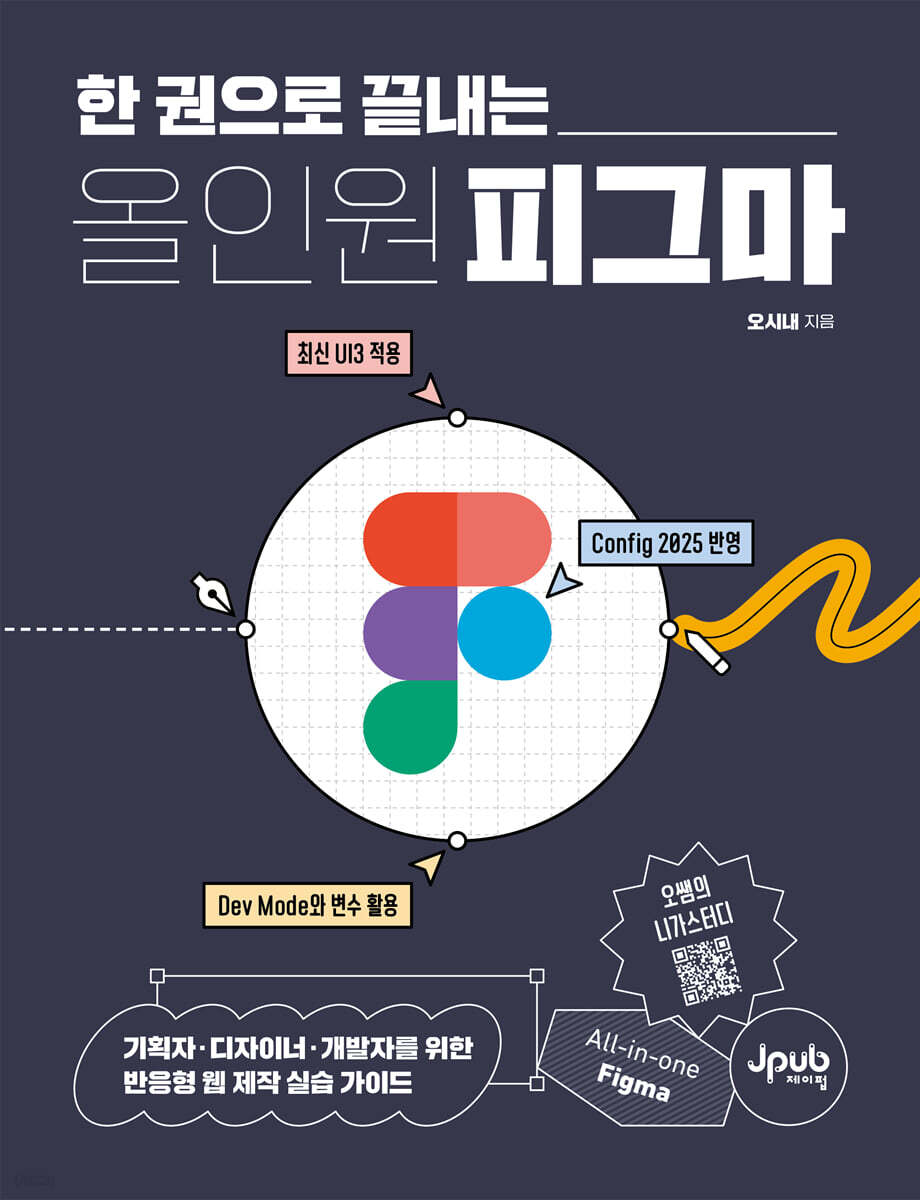 |
Description
Book Introduction
From planning to responsive web development, complete it all with Figma.
Figma is now no longer just a design tool; it has established itself as a collaborative platform that connects planning, design, and development.
This book is a practical guide that demonstrates the true value of Figma.
Planners can create effective plans with Figma, designers can design developer-friendly UIs, and developers can learn how to naturally connect designs to code through Dev Mode.
It is structured in a friendly, hands-on approach that even beginners can follow, so that even those who are new to Figma can get started without any burden.
You can learn each function and concept step by step with real-world screen examples. It is not just an example to simply follow, but helps you understand 'why it should be done this way' and apply it directly to practical work.
This will be a solid guide for those who have used Figma at least once but felt lost in practical applications.
At the end of the book, you can experience the entire process from planning to design and developer handoff by creating a responsive web project called 'Euro Bike Tour' with a travel agency concept.
Learn how to maximize collaboration efficiency through practical, on-the-job component design, auto-layout, variables, and prototyping techniques.
It contains content that can be applied to practice right away, reflecting the latest Figma UI3 interface and recent Config updates.
Additionally, the learning effect will be even greater if you watch it together with the author's YouTube lecture (Mr. Oh's Niga Study).
This is an all-in-one, practical guide for planners, designers, and developers who want to create better results with Figma.
With this one book, you can learn everything from planning to design, prototyping, and responsive web implementation all at once.
If you follow along from beginning to end, you will find that your project has become clearer, faster, and more complete.
Figma is now no longer just a design tool; it has established itself as a collaborative platform that connects planning, design, and development.
This book is a practical guide that demonstrates the true value of Figma.
Planners can create effective plans with Figma, designers can design developer-friendly UIs, and developers can learn how to naturally connect designs to code through Dev Mode.
It is structured in a friendly, hands-on approach that even beginners can follow, so that even those who are new to Figma can get started without any burden.
You can learn each function and concept step by step with real-world screen examples. It is not just an example to simply follow, but helps you understand 'why it should be done this way' and apply it directly to practical work.
This will be a solid guide for those who have used Figma at least once but felt lost in practical applications.
At the end of the book, you can experience the entire process from planning to design and developer handoff by creating a responsive web project called 'Euro Bike Tour' with a travel agency concept.
Learn how to maximize collaboration efficiency through practical, on-the-job component design, auto-layout, variables, and prototyping techniques.
It contains content that can be applied to practice right away, reflecting the latest Figma UI3 interface and recent Config updates.
Additionally, the learning effect will be even greater if you watch it together with the author's YouTube lecture (Mr. Oh's Niga Study).
This is an all-in-one, practical guide for planners, designers, and developers who want to create better results with Figma.
With this one book, you can learn everything from planning to design, prototyping, and responsive web implementation all at once.
If you follow along from beginning to end, you will find that your project has become clearer, faster, and more complete.
- You can preview some of the book's contents.
Preview
index
Recommendation x
Preface xii
About this book xiv
PART I: Introduction to Figma 1
CHAPTER 01 Why Use Figma? 3
LESSON 01 UI/UX 4 for Understanding Web App Development
LESSON 02: The Complete Process for Web Development 7
LESSON 03: 9 Reasons Designers Need to Study Development for Collaboration
LESSON 04: 10 Reasons Developers Should Learn Figma for Collaboration
CHAPTER 02 Figma Installation and Interface 11
LESSON 01: How to Install Figma 12
__Sign up for the Figma website 12 / Download the Figma desktop application 17 / Download the Figma mobile application 19
LESSON 02 Checking the Figma Interface 20
__Check the entire interface 20 / Main menu 22 / Toolbox types 23 / Panel types 26 / Interface dark mode settings 28
LESSON 03 Upgrading Your Account to Use Dev Mode 29
PART II Developer Handoff 31
CHAPTER 03 Checking Figma Design Elements 33
LESSON 01 Types of Figma Design Components 34
LESSON 02 Selecting elements using the Move tool and Layers panel 35
LESSON 03 Checking the Spacing Between Design Contents 38
LESSON 04 Multi-Edit Function 39
__Resize all frame elements 39 / Change text on different layers at once 41
CHAPTER 04 Style Check 43
LESSON 01 Color Style 44
__Creating a Color Style 44 / Applying and Removing a Color Style 49 / Creating a Color Style Group 51 / Creating a Group Right After Creating a Color Style 52
LESSON 02 Text Style 56
__Creating Text Styles 56 / Applying and Removing Text Styles 59
LESSON 03 Grid Style 61
Creating a Grid 62 / Registering a Grid Style 65
LESSON 04 Effect Style 69
__Types of Effects 69 / Registering Effect Styles 76 / Applying Effect Styles 78
CHAPTER 05 Collaboration 81
LESSON 01 How to Use the Comment Tool 82
__Post a comment 82 / Check comments 83 / Reply to a comment 84 / Check all comments 85 / Hide comments 85 / Hide resolved comments from the panel 86 / Delete comments 87
LESSON 02 How to Share Files 88
Invite to Team 88 / Send File Address 95 / Share File Directly 98
LESSON 03 Previewing the Prototype 100
__View files in prototype mode 100 / Share prototype mode 102
CHAPTER 06 Saving Images 103
LESSON 01 Image Format 104
Image formats that can be imported from Figma 104 / Importing GIF formats into Figma 105
LESSON 02 Exporting Images 109
__Exporting Images from Design Files 109 / Understanding Resolution 114 / Exporting Images by Resolution 120 / Selecting a Frame and Exporting as an Image 124 / Exporting a Plan to PDF 126
LESSON 03: Using APNG over GIF 132
__Export GIF file 132 / Export APNG file 136
CHAPTER 07 Checking CSS Code 139
LESSON 01: Checking Code Using Dev Mode 140
__Change to Dev Mode Team File 140 / Using Dev Mode 143 / Checking Dev Mode Features 147
LESSON 02 VS Code Connection 151
Connecting VS Code and Figma 151 / Leveraging Figma Design in VS Code 154
LESSON 03 Connecting Zeppelin and Figma 157
__Sign up for Zeppelin and integrate with Figma 158 / Install the Zeppelin plugin in Figma 162 / View Figma files linked to Zeppelin 165
PART III Building Components Tailored to Development 167
CHAPTER 08 Creating Components 169
LESSON 01 How to Use Components 170
LESSON 02 Changing an Instance to the Original Component 173
LESSON 03 Instance Release 176
LESSON 04 Using the Assets Panel 179
LESSON 05 Instances within Components 182
CHAPTER 09 Auto Layout 187
LESSON 01 Padding and Margins 188
__Padding Practice 190 / Padding and Margin Practice 194
LESSON 02 Auto 200 for Space Between
LESSON 03 Auto Layout Size Unit 204
LESSON 04 Auto Layout Alignment Function 210
LESSON 05 Ignore auto layout 212
CHAPTER 10: TECHNIQUES FOR RESPECTIVE WEB DEVELOPMENT 217
LESSON 01 Sorting and Constraints 218
__Auto Layout Alignment 218 / Component Alignment 220 / Frame Alignment 224
LESSON 02 min-width and max-width 230
__min-width 230 / min-height 234 / Applying min-width to child elements 237 / max-width 240 / max-height 243 / Applying max-width to child elements 246 / Example of applying size 248
LESSON 03 Auto Layout wrap 256
LESSON 04 Coding with Dev Mode and VS Code 262
PART IV PROTOTYPING 289
CHAPTER 11 Introducing Variants 291
LESSON 01 Understanding Variants 292
LESSON 02 Creating a Checkbox 295
LESSON 03: Creating a Toggle Switch 301
LESSON 04 Creating a Login Button 305
LESSON 05 Creating Input Fields 308
LESSON 06 Error 312 Occurs When Variant Component Names Are Different
CHAPTER 12 PROTOTYPE 315
LESSON 01: Prototype and Interaction Concepts (316)
__Prototype Panel 316 / Select Device 318 / Create Connection 321 / Interaction Window 321 / Run Prototype 324
LESSON 02: Login Page Prototype Using Variants 326
LESSON 03 Image Slider Prototype 335
LESSON 04 Overlay Prototype 349
LESSON 05 Position Prototype 353
__Fixed function implementation 354 / Sticky function implementation 358 / Scroll to prototype 361
CHAPTER 13 VARIABLE PROTOTYPES 365
LESSON 01 Types of Variables 366
__Color variable registration 367 / Number variable registration 374 / Number variable auto layout value registration 380 / String variable registration 385 / Variable group processing 390 / Boolean variable registration 393
LESSON 02 String Variable Prototype 398
__Change strings based on variables 398 / String variables and variants 408 / Enabling/disabling buttons 416
LESSON 03: Numeric Variable Prototype 423
Thermometer using numeric variables 423 / Volume control using numeric variables 435
LESSON 04 Conditional Statement Prototype 444
Volume control using conditions 445 / Controlling the number of product sales banners 457
LESSON 05 VARIABLE MODE 469
Product banner using variable mode 470 / Dark mode handling using variable mode 487
PART V: Responsive Web Design 501
CHAPTER 14: Creating a Plan 503
LESSON 01 Creating a Presentation Template 504
__Frame size selection 505 / Create with common area components 505
LESSON 02 Using the Hyperlink Feature 509
__Loading an example file 509 / Applying a hyperlink to text 510 / Applying a hyperlink to an element 512
LESSON 03: Autoflow Plug-in for Information Architecture and Workflow Diagrams 515
__Information Design Connection Processing 515 / Workflow Diagram Connection Processing 519
LESSON 04 Style Guide 521
__Loading Example Files 521 / Color Guide 522 / Font Guide 522 / Logo Guide 525 / Icon Guide 526
LESSON 05: Creating a Table 529
Creating Tables Using Plugins 529 / Creating Tables for Storyboarding 536
LESSON 06: Creating Wireframes 540
Wireframe Generator 541 / Forms 543 / Handy Components 545 / Using Provided Wireframes 546
CHAPTER 15: Implementing the Design 553
LESSON 01: Creating a Style Guide 554
__Color style registration 555 / Text style registration 558 / Grid style registration 561
LESSON 02: Constraints for Responsive Web Design 575
__Header Area Constraints 575 / Footer Area Constraints 578 / Size-based Processing 580
LESSON 03: Desktop Prototype 585
__Main Menu Creation 585 / Main Image Creation 599 / Tab Bar Creation 606 / Video Playback 611 / Slide Creation 617
LESSON 04 Mobile Prototype 624
__Main Image Creation 624 / Carousel Creation 630 / Drawer Creation 636
LESSON 05: Things to Check Before Handoff 643
__Layer Organization 643 / Checking Components and Groups 644 / Numbers and Areas 644 / Exporting 645
Preface xii
About this book xiv
PART I: Introduction to Figma 1
CHAPTER 01 Why Use Figma? 3
LESSON 01 UI/UX 4 for Understanding Web App Development
LESSON 02: The Complete Process for Web Development 7
LESSON 03: 9 Reasons Designers Need to Study Development for Collaboration
LESSON 04: 10 Reasons Developers Should Learn Figma for Collaboration
CHAPTER 02 Figma Installation and Interface 11
LESSON 01: How to Install Figma 12
__Sign up for the Figma website 12 / Download the Figma desktop application 17 / Download the Figma mobile application 19
LESSON 02 Checking the Figma Interface 20
__Check the entire interface 20 / Main menu 22 / Toolbox types 23 / Panel types 26 / Interface dark mode settings 28
LESSON 03 Upgrading Your Account to Use Dev Mode 29
PART II Developer Handoff 31
CHAPTER 03 Checking Figma Design Elements 33
LESSON 01 Types of Figma Design Components 34
LESSON 02 Selecting elements using the Move tool and Layers panel 35
LESSON 03 Checking the Spacing Between Design Contents 38
LESSON 04 Multi-Edit Function 39
__Resize all frame elements 39 / Change text on different layers at once 41
CHAPTER 04 Style Check 43
LESSON 01 Color Style 44
__Creating a Color Style 44 / Applying and Removing a Color Style 49 / Creating a Color Style Group 51 / Creating a Group Right After Creating a Color Style 52
LESSON 02 Text Style 56
__Creating Text Styles 56 / Applying and Removing Text Styles 59
LESSON 03 Grid Style 61
Creating a Grid 62 / Registering a Grid Style 65
LESSON 04 Effect Style 69
__Types of Effects 69 / Registering Effect Styles 76 / Applying Effect Styles 78
CHAPTER 05 Collaboration 81
LESSON 01 How to Use the Comment Tool 82
__Post a comment 82 / Check comments 83 / Reply to a comment 84 / Check all comments 85 / Hide comments 85 / Hide resolved comments from the panel 86 / Delete comments 87
LESSON 02 How to Share Files 88
Invite to Team 88 / Send File Address 95 / Share File Directly 98
LESSON 03 Previewing the Prototype 100
__View files in prototype mode 100 / Share prototype mode 102
CHAPTER 06 Saving Images 103
LESSON 01 Image Format 104
Image formats that can be imported from Figma 104 / Importing GIF formats into Figma 105
LESSON 02 Exporting Images 109
__Exporting Images from Design Files 109 / Understanding Resolution 114 / Exporting Images by Resolution 120 / Selecting a Frame and Exporting as an Image 124 / Exporting a Plan to PDF 126
LESSON 03: Using APNG over GIF 132
__Export GIF file 132 / Export APNG file 136
CHAPTER 07 Checking CSS Code 139
LESSON 01: Checking Code Using Dev Mode 140
__Change to Dev Mode Team File 140 / Using Dev Mode 143 / Checking Dev Mode Features 147
LESSON 02 VS Code Connection 151
Connecting VS Code and Figma 151 / Leveraging Figma Design in VS Code 154
LESSON 03 Connecting Zeppelin and Figma 157
__Sign up for Zeppelin and integrate with Figma 158 / Install the Zeppelin plugin in Figma 162 / View Figma files linked to Zeppelin 165
PART III Building Components Tailored to Development 167
CHAPTER 08 Creating Components 169
LESSON 01 How to Use Components 170
LESSON 02 Changing an Instance to the Original Component 173
LESSON 03 Instance Release 176
LESSON 04 Using the Assets Panel 179
LESSON 05 Instances within Components 182
CHAPTER 09 Auto Layout 187
LESSON 01 Padding and Margins 188
__Padding Practice 190 / Padding and Margin Practice 194
LESSON 02 Auto 200 for Space Between
LESSON 03 Auto Layout Size Unit 204
LESSON 04 Auto Layout Alignment Function 210
LESSON 05 Ignore auto layout 212
CHAPTER 10: TECHNIQUES FOR RESPECTIVE WEB DEVELOPMENT 217
LESSON 01 Sorting and Constraints 218
__Auto Layout Alignment 218 / Component Alignment 220 / Frame Alignment 224
LESSON 02 min-width and max-width 230
__min-width 230 / min-height 234 / Applying min-width to child elements 237 / max-width 240 / max-height 243 / Applying max-width to child elements 246 / Example of applying size 248
LESSON 03 Auto Layout wrap 256
LESSON 04 Coding with Dev Mode and VS Code 262
PART IV PROTOTYPING 289
CHAPTER 11 Introducing Variants 291
LESSON 01 Understanding Variants 292
LESSON 02 Creating a Checkbox 295
LESSON 03: Creating a Toggle Switch 301
LESSON 04 Creating a Login Button 305
LESSON 05 Creating Input Fields 308
LESSON 06 Error 312 Occurs When Variant Component Names Are Different
CHAPTER 12 PROTOTYPE 315
LESSON 01: Prototype and Interaction Concepts (316)
__Prototype Panel 316 / Select Device 318 / Create Connection 321 / Interaction Window 321 / Run Prototype 324
LESSON 02: Login Page Prototype Using Variants 326
LESSON 03 Image Slider Prototype 335
LESSON 04 Overlay Prototype 349
LESSON 05 Position Prototype 353
__Fixed function implementation 354 / Sticky function implementation 358 / Scroll to prototype 361
CHAPTER 13 VARIABLE PROTOTYPES 365
LESSON 01 Types of Variables 366
__Color variable registration 367 / Number variable registration 374 / Number variable auto layout value registration 380 / String variable registration 385 / Variable group processing 390 / Boolean variable registration 393
LESSON 02 String Variable Prototype 398
__Change strings based on variables 398 / String variables and variants 408 / Enabling/disabling buttons 416
LESSON 03: Numeric Variable Prototype 423
Thermometer using numeric variables 423 / Volume control using numeric variables 435
LESSON 04 Conditional Statement Prototype 444
Volume control using conditions 445 / Controlling the number of product sales banners 457
LESSON 05 VARIABLE MODE 469
Product banner using variable mode 470 / Dark mode handling using variable mode 487
PART V: Responsive Web Design 501
CHAPTER 14: Creating a Plan 503
LESSON 01 Creating a Presentation Template 504
__Frame size selection 505 / Create with common area components 505
LESSON 02 Using the Hyperlink Feature 509
__Loading an example file 509 / Applying a hyperlink to text 510 / Applying a hyperlink to an element 512
LESSON 03: Autoflow Plug-in for Information Architecture and Workflow Diagrams 515
__Information Design Connection Processing 515 / Workflow Diagram Connection Processing 519
LESSON 04 Style Guide 521
__Loading Example Files 521 / Color Guide 522 / Font Guide 522 / Logo Guide 525 / Icon Guide 526
LESSON 05: Creating a Table 529
Creating Tables Using Plugins 529 / Creating Tables for Storyboarding 536
LESSON 06: Creating Wireframes 540
Wireframe Generator 541 / Forms 543 / Handy Components 545 / Using Provided Wireframes 546
CHAPTER 15: Implementing the Design 553
LESSON 01: Creating a Style Guide 554
__Color style registration 555 / Text style registration 558 / Grid style registration 561
LESSON 02: Constraints for Responsive Web Design 575
__Header Area Constraints 575 / Footer Area Constraints 578 / Size-based Processing 580
LESSON 03: Desktop Prototype 585
__Main Menu Creation 585 / Main Image Creation 599 / Tab Bar Creation 606 / Video Playback 611 / Slide Creation 617
LESSON 04 Mobile Prototype 624
__Main Image Creation 624 / Carousel Creation 630 / Drawer Creation 636
LESSON 05: Things to Check Before Handoff 643
__Layer Organization 643 / Checking Components and Groups 644 / Numbers and Areas 644 / Exporting 645
Detailed image

Into the book
Anyone who has worked on a web app project has probably experienced countless moments where collaboration wasn't smooth.
Planners have likely encountered designers who don't quite understand the intent of their plans, or developers who say implementation is impossible.
You may have experienced a situation where the designer simply designed according to the plan, but the developer responded by saying that the design was nonsensical, or pointed out that the planner did not understand the UI/UX concept.
If you're a developer, you've probably seen planners or designers questioning whether there's anything a computer can't do, not understanding why development is impossible, or even seeing them question your abilities.
--- p.3
If you're working on web app development, I highly recommend learning Figma as soon as possible.
I have taught Figma at a company in the past.
As many companies realize the importance of Figma, individuals also need to actively learn it.
It's also important to develop a deeper understanding of UI/UX, which literally means user experience.
Therefore, the most effective way to learn is to become a user yourself and experience various websites and applications.
--- p.6
When a developer receives a Figma-built design, they must first check how the design is structured.
Figma offers a wide variety of design components, so it's important to choose the right ones.
Also, adjusting the spacing between elements is a key part of the development process.
Many developers have probably had the experience of checking the spacing by eye and then implementing it, only to be criticized by the designer.
Therefore, it is necessary to use the move tool to accurately select elements and thoroughly check the spacing between design contents.
--- p.33
With the launch of Figma's Dev Mode in June 2023, Figma presents a new vision.
Along with this, features have been added to make design elements more tailored to the development environment.
Most websites today are built responsively, taking mobile web into consideration.
To support this, Figma offers a variety of features that make collaboration between developers and designers more efficient.
/ In Part 3, we will first look at the existing components, auto layout, and constraints features, and then check out what new features are available for responsive web.
Let's explore how to create designs tailored to your development environment more efficiently using the features provided by Figma.
--- p.168
One of the reasons Figma gained more traction among UI/UX designers than Adobe XD when it first came out was because of its versatility in prototyping capabilities.
Figma supports a wide range of events and features, allowing you to create a wide range of prototypes.
When designers create well-executed prototypes, developers can more easily understand the entire process, reducing the time spent on communication to understand the process.
(Omitted) In Part 4, we will look at Figma's variant and prototype functions.
Let's see how effectively creating a design prototype can save you a lot of time and effort when working with developers.
--- p.290
We looked at many of Figma's features in Parts 1 through 4.
In Part 5, we will use these features to create a responsive web.
We will create everything from the basics of planning to design and prototype implementation.
Responsive web refers to a web that recognizes and responds to devices such as desktops, tablets, and mobile devices.
We'll show you how to save time by creating desktop, tablet, and mobile designs, and even create prototypes to facilitate communication with developers.
In Part 5, we will create a responsive web project called 'Euro Bike Tour', focusing on travel agencies.
Planners have likely encountered designers who don't quite understand the intent of their plans, or developers who say implementation is impossible.
You may have experienced a situation where the designer simply designed according to the plan, but the developer responded by saying that the design was nonsensical, or pointed out that the planner did not understand the UI/UX concept.
If you're a developer, you've probably seen planners or designers questioning whether there's anything a computer can't do, not understanding why development is impossible, or even seeing them question your abilities.
--- p.3
If you're working on web app development, I highly recommend learning Figma as soon as possible.
I have taught Figma at a company in the past.
As many companies realize the importance of Figma, individuals also need to actively learn it.
It's also important to develop a deeper understanding of UI/UX, which literally means user experience.
Therefore, the most effective way to learn is to become a user yourself and experience various websites and applications.
--- p.6
When a developer receives a Figma-built design, they must first check how the design is structured.
Figma offers a wide variety of design components, so it's important to choose the right ones.
Also, adjusting the spacing between elements is a key part of the development process.
Many developers have probably had the experience of checking the spacing by eye and then implementing it, only to be criticized by the designer.
Therefore, it is necessary to use the move tool to accurately select elements and thoroughly check the spacing between design contents.
--- p.33
With the launch of Figma's Dev Mode in June 2023, Figma presents a new vision.
Along with this, features have been added to make design elements more tailored to the development environment.
Most websites today are built responsively, taking mobile web into consideration.
To support this, Figma offers a variety of features that make collaboration between developers and designers more efficient.
/ In Part 3, we will first look at the existing components, auto layout, and constraints features, and then check out what new features are available for responsive web.
Let's explore how to create designs tailored to your development environment more efficiently using the features provided by Figma.
--- p.168
One of the reasons Figma gained more traction among UI/UX designers than Adobe XD when it first came out was because of its versatility in prototyping capabilities.
Figma supports a wide range of events and features, allowing you to create a wide range of prototypes.
When designers create well-executed prototypes, developers can more easily understand the entire process, reducing the time spent on communication to understand the process.
(Omitted) In Part 4, we will look at Figma's variant and prototype functions.
Let's see how effectively creating a design prototype can save you a lot of time and effort when working with developers.
--- p.290
We looked at many of Figma's features in Parts 1 through 4.
In Part 5, we will use these features to create a responsive web.
We will create everything from the basics of planning to design and prototype implementation.
Responsive web refers to a web that recognizes and responds to devices such as desktops, tablets, and mobile devices.
We'll show you how to save time by creating desktop, tablet, and mobile designs, and even create prototypes to facilitate communication with developers.
In Part 5, we will create a responsive web project called 'Euro Bike Tour', focusing on travel agencies.
--- p.502
Publisher's Review
From planning to responsive web development, complete it all with Figma.
Figma is now no longer just a design tool; it has established itself as a collaborative platform that connects planning, design, and development.
This book is a practical guide that demonstrates the true value of Figma.
Planners can create effective plans with Figma, designers can design developer-friendly UIs, and developers can learn how to naturally connect designs to code through Dev Mode.
It is structured in a friendly, hands-on approach that even beginners can follow, so that even those who are new to Figma can get started without any burden.
You can learn each function and concept step by step with real-world screen examples. It is not just an example to simply follow, but helps you understand 'why it should be done this way' and apply it directly to practical work.
This will be a solid guide for those who have used Figma at least once but felt lost in practical applications.
At the end of the book, you can experience the entire process from planning to design and developer handoff by creating a responsive web project called 'Euro Bike Tour' with a travel agency concept.
Learn how to maximize collaboration efficiency through practical, on-the-job component design, auto-layout, variables, and prototyping techniques.
It contains content that can be applied to practice right away, reflecting the latest Figma UI3 interface and recent Config updates.
Additionally, the learning effect will be even greater if you watch it together with the author's YouTube lecture (Mr. Oh's Niga Study).
This is an all-in-one, practical guide for planners, designers, and developers who want to create better results with Figma.
With this one book, you can learn everything from planning to design, prototyping, and responsive web implementation all at once.
If you follow along from beginning to end, you will find that your project has become clearer, faster, and more complete.
Key Contents
● Understanding Figma basic installation and interface
● Collaboration features and handoff methods for designers and developers
● Design system configuration including color, text, grid, and effect styles
● Utilizing components, auto layout, and constraints
● Practice creating prototypes such as login pages, image sliders, and drawers
● Provides wireframe component files created by the author
● Collaborate on development with Dev Mode, VS Code, and Zeplin integration
● Complete hands-on training in responsive web page planning, design, and prototyping
Figma is now no longer just a design tool; it has established itself as a collaborative platform that connects planning, design, and development.
This book is a practical guide that demonstrates the true value of Figma.
Planners can create effective plans with Figma, designers can design developer-friendly UIs, and developers can learn how to naturally connect designs to code through Dev Mode.
It is structured in a friendly, hands-on approach that even beginners can follow, so that even those who are new to Figma can get started without any burden.
You can learn each function and concept step by step with real-world screen examples. It is not just an example to simply follow, but helps you understand 'why it should be done this way' and apply it directly to practical work.
This will be a solid guide for those who have used Figma at least once but felt lost in practical applications.
At the end of the book, you can experience the entire process from planning to design and developer handoff by creating a responsive web project called 'Euro Bike Tour' with a travel agency concept.
Learn how to maximize collaboration efficiency through practical, on-the-job component design, auto-layout, variables, and prototyping techniques.
It contains content that can be applied to practice right away, reflecting the latest Figma UI3 interface and recent Config updates.
Additionally, the learning effect will be even greater if you watch it together with the author's YouTube lecture (Mr. Oh's Niga Study).
This is an all-in-one, practical guide for planners, designers, and developers who want to create better results with Figma.
With this one book, you can learn everything from planning to design, prototyping, and responsive web implementation all at once.
If you follow along from beginning to end, you will find that your project has become clearer, faster, and more complete.
Key Contents
● Understanding Figma basic installation and interface
● Collaboration features and handoff methods for designers and developers
● Design system configuration including color, text, grid, and effect styles
● Utilizing components, auto layout, and constraints
● Practice creating prototypes such as login pages, image sliders, and drawers
● Provides wireframe component files created by the author
● Collaborate on development with Dev Mode, VS Code, and Zeplin integration
● Complete hands-on training in responsive web page planning, design, and prototyping
GOODS SPECIFICS
- Date of issue: December 4, 2025
- Page count, weight, size: 660 pages | 188*245*28mm
- ISBN13: 9791194587866
You may also like
카테고리
korean


korean

![GQ KOREA Mark (Monthly): December [2025]](http://librairie.coreenne.fr/cdn/shop/files/8ef265dbbfbf186523ed75ba7319009d.jpg?v=1765340328&width=3840)


