

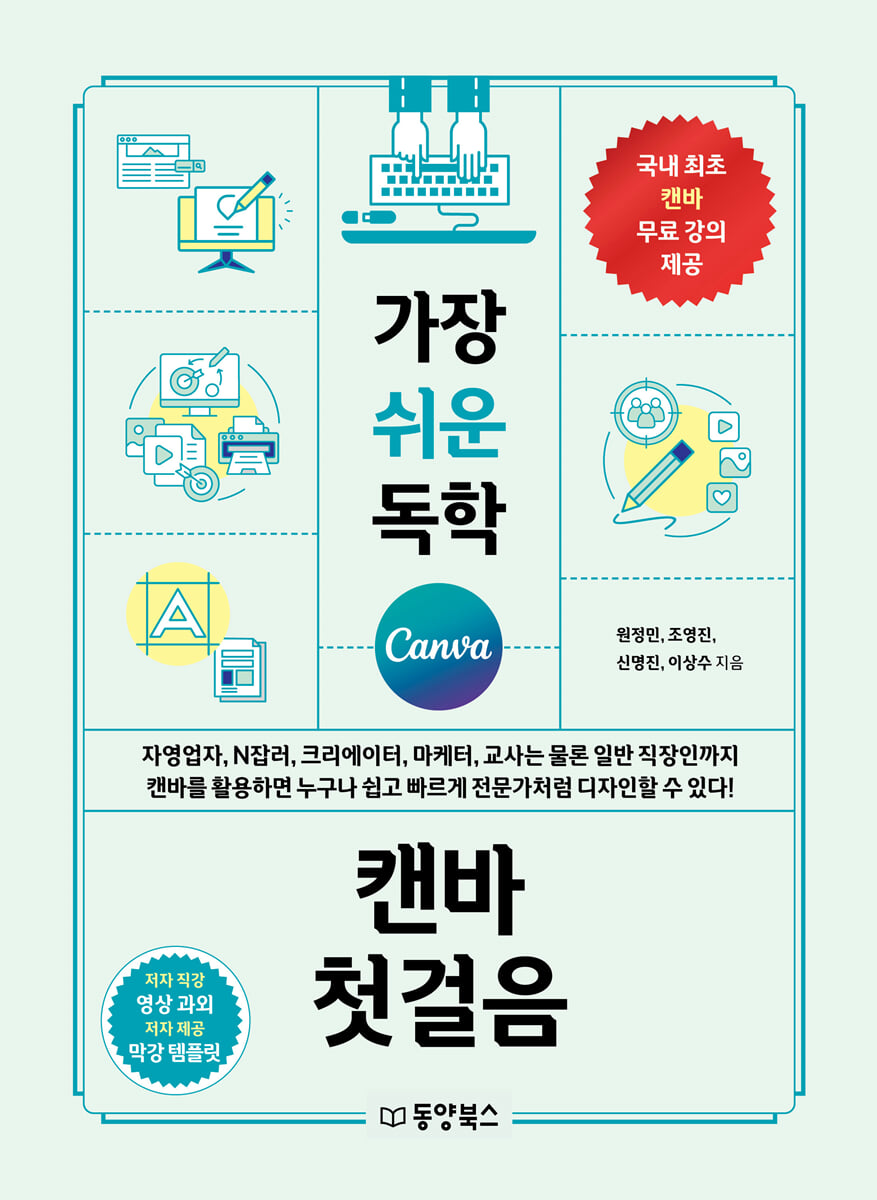
The easiest self-study first steps in Canva
 |
Description
Book Introduction
Quickly and easily create all your content with Canva, the best design tool!
Self-study is efficient and smart!
PPT, SNS posts, short forms, and thumbnails all have core content that is important, but design is also very important.
However, it takes too much time and effort to study and research for a sensory design.
In "The Easiest Self-Study Canva: First Steps," we'll teach you design know-how that can be easily and simply implemented using Canva, the ultimate tool for quickly and easily providing customized designs, even without professional design skills.
We provide QR codes for 'author-directed video lectures' that easily explain Canva's core features, such as login, pricing plans, design editing, app recommendations, and how to use AI.
You can easily practice Canva's functions by watching video lectures along with the book.
Additionally, templates that readers would find useful are provided as 'Author-provided Powerful Links' QR codes, so that they can be easily used without the hassle of searching for them.
Self-study is efficient and smart!
PPT, SNS posts, short forms, and thumbnails all have core content that is important, but design is also very important.
However, it takes too much time and effort to study and research for a sensory design.
In "The Easiest Self-Study Canva: First Steps," we'll teach you design know-how that can be easily and simply implemented using Canva, the ultimate tool for quickly and easily providing customized designs, even without professional design skills.
We provide QR codes for 'author-directed video lectures' that easily explain Canva's core features, such as login, pricing plans, design editing, app recommendations, and how to use AI.
You can easily practice Canva's functions by watching video lectures along with the book.
Additionally, templates that readers would find useful are provided as 'Author-provided Powerful Links' QR codes, so that they can be easily used without the hassle of searching for them.
- You can preview some of the book's contents.
Preview
index
Chapter 1 Getting Started with Canva
1.
What is Canvas?
The best design tool for ease and speed
Canva, the easiest and most versatile tool to become a designer with just a search and a click.
Canva optimized for collaboration
2. Canva: Improve design quality and reduce time with AI tools
Magic Media
Magic Eraser
Magic Edit
Data connection
3.
Log in to Canva
Canva Login
4.
Canva Pricing Plan
Explore Canva pricing plans
Difference between free and paid plans
Differences in rate plans by design
Differences in rate plans by element
Differences in rates by font
Differences in rate plans by function
5.
Canvas Copyright
NO commercial use of the original
Precautions for commercial use
Tip 1: Using the Canva App
Chapter 2: Easy-to-learn Canvas Basics
1.
Explore Canva Home
Canva Home
2.
Use a variety of templates
Template
Search for templates
3.
Complete social media posts with elements and text
Search for templates
Take a look at the design editing screen
Change the title
Delete an element
Copy and paste elements
Sorting elements
Change design colors
Change the text design
Add text
Add an element
Download the design
4.
Using the Guidelines
Getting Started with Guidelines
Deploying guidelines
Guideline Lock
Delete Guidelines
Using the Guidelines
5.
Managing projects and folders
Project
Create a folder
Organizing designs into folders
6.
Canva optimized for sharing and collaboration
Design Sharing
Design Collaboration
Design Collaboration - Comments and Mentions
Various sharing methods
Quick Tip: Using Canva Creator Templates
Chapter 3 Canva, Optimized for PPT & Short-Form Production
1.
Create a high-quality PPT presentation with ease
Preparing to produce PPT
Apply search filters to find the template you want
Editing a template
Change the font
Change the background image
Setting up an AI-powered layout
2.
Eye-catching animation
Types of Canvas Animation
Switch to thumbnail view
Adding Transition Effects
Add [Element Animation]
Remove animation
PPT mid-term review
Download the completed PPT
Recording a presentation video using the recording function
3.
Creating Videos & Short-Form Content
High-quality videos created with Canva
Start editing your video
Learn about different ways to edit cuts
Add music to create the mood of the video
Add subtitles using the text function
Automatic subtitles with AI
Add scene transition effects
Play and download videos
Use charts smarter with Magic Chart and Magic Insights.
Quick tip: Connect with your audience with Canva Live.
Chapter 4: Canva Optimized for Design
1.
How to use basic shapes properly
How to edit shapes
Change the shape and use it
Setting shape borders
Add a touch of specialness with transparency settings
Create a stylish thumbnail by adjusting the shape's transparency and border.
2.
Create engaging posts with frames and grids
Frames and Grids
Create an advertising poster by inserting an image into a frame
Frame Maker
Using Word in Microsoft 365
Create various thumbnails with a grid
Create a four-cut photo frame with a grid
3.
Create emotional posts with various effects
Remove background quickly
Create unique thumbnails with drop shadow effects
Sensual image correction using the duotone effect
Card news created with a blur (mosaic) effect
Utilizing the 'auto focus' and 'face retouch' functions
4.
Even color blind people can easily match colors
The Basics of Color Matching
Color Combination Tips
Blend colors right in Canva
Save time! Use the Brand Kit
5.
Products with designs applied using mockups
Create photos quickly
What are Mockups?
Using Mockups
6.
Complete your website, portfolio, and invitations with links
Creating a basic template for your homepage
Insert a link on your homepage
Tip: Add your favorite fonts and use Canva to your advantage.
Chapter 5: Boost Your Design Skills by 200% with Canva AI
1.
Explore Canva's Magic Studio
Explore Magic Studio Features
2.
Magic Grab, Text Grab, automatically extracts and separates text
When you want to separate an object from the background, use Magic Grab
Extract text when you want to edit the text in the image
3.
Magic Eraser, Magic Expand, Magic Edit & Background Creation that automatically erases, creates, and repairs images.
Magic Eraser that erases like magic
Magic Expand, which creates even the most nonexistent
Magic Edit, edit as you like
If you want to create or change a background, click 'Create Background'
4.
Magic Media creates your own design as you speak
Creating Images with Magic Media
Videos and graphics created with Magic Media
Complete your image using Magic Studio's features
5.
Create the content you want with Canva AI's code generation.
Get started with Canva AI code generation
Practice generating AI code with Canva - 'Roulette Game'
Post on website
Tip: Canva AI Product Terms and Conditions
Chapter 6: Upgrading Productivity with Canva AI
1.
Drafting with Magic Write
Change of tone
Customize prompt editing
Text generation
2.
Automate simple, repetitive tasks with Canva
Mass production of SNS posts
3. Easily upload to social media
[Instagram] How to Upload
[Instagram] - Post directly from the mobile app
[Instagram] - Schedule a Post on Desktop
[X, Twitter] How to upload
4.
Easily change your design with resizing and automatic translation.
Resize
How to resize
5.
Quickly create foreign language guides/posts using machine translation.
6.
Introducing useful Canva apps
Canva app
Meet the Canva app
Recommended Presentation Apps
Design recommendation app
Recommended apps to improve productivity
Music and sound generation apps
A quick tip! Canva, the all-in-one tool for document and sheet work.
Chapter 7 Using Canvas in Class
1.
Get certified as a teacher and use Canva features for free.
Apply for teacher certification
2.
Take a class using Canvas
Why is Canva so beloved as a learning tool?
Invite students to your educational team
Create a group (or class) by class
Comparing Classroom Instructional Methods Using Canva
[Method 1] Project - Create a folder to manage all student work.
How to create a design in a folder from a student's perspective
[Method 2] Create individual works and share only the results.
Create and distribute a study guide template
Managing Team Member Roles
3.
Learn how to use Canva in the classroom.
Planning a Lesson Using Canva
Tips for Teaching with Canva
Explore examples of classrooms using Canva.
Creating teaching materials using Canva
Tips for creating printed materials like business cards and flyers with Canva
1.
What is Canvas?
The best design tool for ease and speed
Canva, the easiest and most versatile tool to become a designer with just a search and a click.
Canva optimized for collaboration
2. Canva: Improve design quality and reduce time with AI tools
Magic Media
Magic Eraser
Magic Edit
Data connection
3.
Log in to Canva
Canva Login
4.
Canva Pricing Plan
Explore Canva pricing plans
Difference between free and paid plans
Differences in rate plans by design
Differences in rate plans by element
Differences in rates by font
Differences in rate plans by function
5.
Canvas Copyright
NO commercial use of the original
Precautions for commercial use
Tip 1: Using the Canva App
Chapter 2: Easy-to-learn Canvas Basics
1.
Explore Canva Home
Canva Home
2.
Use a variety of templates
Template
Search for templates
3.
Complete social media posts with elements and text
Search for templates
Take a look at the design editing screen
Change the title
Delete an element
Copy and paste elements
Sorting elements
Change design colors
Change the text design
Add text
Add an element
Download the design
4.
Using the Guidelines
Getting Started with Guidelines
Deploying guidelines
Guideline Lock
Delete Guidelines
Using the Guidelines
5.
Managing projects and folders
Project
Create a folder
Organizing designs into folders
6.
Canva optimized for sharing and collaboration
Design Sharing
Design Collaboration
Design Collaboration - Comments and Mentions
Various sharing methods
Quick Tip: Using Canva Creator Templates
Chapter 3 Canva, Optimized for PPT & Short-Form Production
1.
Create a high-quality PPT presentation with ease
Preparing to produce PPT
Apply search filters to find the template you want
Editing a template
Change the font
Change the background image
Setting up an AI-powered layout
2.
Eye-catching animation
Types of Canvas Animation
Switch to thumbnail view
Adding Transition Effects
Add [Element Animation]
Remove animation
PPT mid-term review
Download the completed PPT
Recording a presentation video using the recording function
3.
Creating Videos & Short-Form Content
High-quality videos created with Canva
Start editing your video
Learn about different ways to edit cuts
Add music to create the mood of the video
Add subtitles using the text function
Automatic subtitles with AI
Add scene transition effects
Play and download videos
Use charts smarter with Magic Chart and Magic Insights.
Quick tip: Connect with your audience with Canva Live.
Chapter 4: Canva Optimized for Design
1.
How to use basic shapes properly
How to edit shapes
Change the shape and use it
Setting shape borders
Add a touch of specialness with transparency settings
Create a stylish thumbnail by adjusting the shape's transparency and border.
2.
Create engaging posts with frames and grids
Frames and Grids
Create an advertising poster by inserting an image into a frame
Frame Maker
Using Word in Microsoft 365
Create various thumbnails with a grid
Create a four-cut photo frame with a grid
3.
Create emotional posts with various effects
Remove background quickly
Create unique thumbnails with drop shadow effects
Sensual image correction using the duotone effect
Card news created with a blur (mosaic) effect
Utilizing the 'auto focus' and 'face retouch' functions
4.
Even color blind people can easily match colors
The Basics of Color Matching
Color Combination Tips
Blend colors right in Canva
Save time! Use the Brand Kit
5.
Products with designs applied using mockups
Create photos quickly
What are Mockups?
Using Mockups
6.
Complete your website, portfolio, and invitations with links
Creating a basic template for your homepage
Insert a link on your homepage
Tip: Add your favorite fonts and use Canva to your advantage.
Chapter 5: Boost Your Design Skills by 200% with Canva AI
1.
Explore Canva's Magic Studio
Explore Magic Studio Features
2.
Magic Grab, Text Grab, automatically extracts and separates text
When you want to separate an object from the background, use Magic Grab
Extract text when you want to edit the text in the image
3.
Magic Eraser, Magic Expand, Magic Edit & Background Creation that automatically erases, creates, and repairs images.
Magic Eraser that erases like magic
Magic Expand, which creates even the most nonexistent
Magic Edit, edit as you like
If you want to create or change a background, click 'Create Background'
4.
Magic Media creates your own design as you speak
Creating Images with Magic Media
Videos and graphics created with Magic Media
Complete your image using Magic Studio's features
5.
Create the content you want with Canva AI's code generation.
Get started with Canva AI code generation
Practice generating AI code with Canva - 'Roulette Game'
Post on website
Tip: Canva AI Product Terms and Conditions
Chapter 6: Upgrading Productivity with Canva AI
1.
Drafting with Magic Write
Change of tone
Customize prompt editing
Text generation
2.
Automate simple, repetitive tasks with Canva
Mass production of SNS posts
3. Easily upload to social media
[Instagram] How to Upload
[Instagram] - Post directly from the mobile app
[Instagram] - Schedule a Post on Desktop
[X, Twitter] How to upload
4.
Easily change your design with resizing and automatic translation.
Resize
How to resize
5.
Quickly create foreign language guides/posts using machine translation.
6.
Introducing useful Canva apps
Canva app
Meet the Canva app
Recommended Presentation Apps
Design recommendation app
Recommended apps to improve productivity
Music and sound generation apps
A quick tip! Canva, the all-in-one tool for document and sheet work.
Chapter 7 Using Canvas in Class
1.
Get certified as a teacher and use Canva features for free.
Apply for teacher certification
2.
Take a class using Canvas
Why is Canva so beloved as a learning tool?
Invite students to your educational team
Create a group (or class) by class
Comparing Classroom Instructional Methods Using Canva
[Method 1] Project - Create a folder to manage all student work.
How to create a design in a folder from a student's perspective
[Method 2] Create individual works and share only the results.
Create and distribute a study guide template
Managing Team Member Roles
3.
Learn how to use Canva in the classroom.
Planning a Lesson Using Canva
Tips for Teaching with Canva
Explore examples of classrooms using Canva.
Creating teaching materials using Canva
Tips for creating printed materials like business cards and flyers with Canva
Detailed image

Publisher's Review
From design tips to the latest Canva AI features.
The world's easiest and most user-friendly Canva guide
This is a must for these people!
Self-employed and N-jobbers who need to quickly produce promotional materials, event announcements, etc.
Anyone who wants to easily create SNS content such as thumbnails, short-form content, and posts.
Those who want to increase design productivity through Canva AI or mass production
Students and instructors who want to neatly complete lecture or presentation materials
Teachers who want to create beautiful class PPTs or worksheets and conduct Canva classes with students
ㆍVideo tutorials directly from the author explaining the core features of Canvas are included in QR codes throughout.
ㆍIt goes beyond simple function explanations and contains plenty of practical tips that can be used immediately in real-world situations.
ㆍWe will teach you design know-how that can be done easily and simply even without professional expertise.
ㆍWe share ways to increase productivity by utilizing Canva and ways to utilize Canva AI.
ㆍThis includes examples of how to use Canva in the classroom for teachers.
Quickly and easily create all your content with Canva, the best design tool!
PPT, SNS posts, short forms, and thumbnails all have core content that is important, but design is also very important.
However, it takes too much time and effort to study and research for a sensory design.
This book will teach you design know-how that can be easily and simply done without professional design sense, using Canva, the best tool that can provide customized designs very quickly and easily.
Self-study is efficient and smart!
We provide QR codes for 'author-directed video lectures' that easily explain Canva's core features, such as login, pricing plans, design editing, app recommendations, and how to use AI.
You can easily practice Canva's functions by watching video lectures along with the book.
Additionally, templates that readers would find useful are provided as 'Author-provided Powerful Links' QR codes, so that they can be easily used without the hassle of searching for them.
Upgrade your productivity with Canva AI and smart usage!
Canva has a variety of AI-powered tools.
Canva makes design easier by providing AI-powered tools in one place.
We share ways to increase your productivity using Canva and how to use the various functions of Canva AI to increase your design skills by 200%.
Teaching teachers how to use Canva in their classes!
Canva is an attractive tool not only for office workers and the general public, but also for teachers and students across the country.
Using Canva, you can provide students with learning experiences they've never experienced before.
This book is rich in information on how to manage and conduct classes with teachers and students, how to use Canva for education, how to set up a class environment, and specific examples of using Canva in class.
Full of tips you can use right away in real life!
It is full of useful Canvas tips based on the authors' know-how.
Rather than simply explaining the functions, it provides detailed and friendly explanations with various examples so that readers can immediately apply them in real-world situations.
Authors' Canvas Course Reviews - Teacherville Samdongne
● dlt****
I've always been interested in Canvas, but I've never really thought about using it.
I was inspired to give it a try because you showed me a simple and easy method.
thank you
● kjy****
I've heard of Canva, but I've never used it before. You've covered the basics well, so I think I can get started.
Thank you for teaching me the essential fundamentals so passionately.
I applaud the instructor's passion for teaching passionately until late at night.
Thank you.^^
● yhe***
I like your lectures so much that I've been following along, starting with Notion. I've been using Canva since before, but I really enjoyed this lecture because I learned new things I didn't know before.
The explanations are really thorough and kind!!! What topic will be the next lecture? I'll follow along again ㅎㅎㅎ
● vmf***
It was great that I could learn step by step from the basics, making it perfect for beginners who have little to no knowledge of Canvas.
Thank you for sharing such useful information in just one hour!^^
● ill****
thank you
Friendly and easy to understand explanations.
Authors' Canva Course Reviews - Knowledge Spring
“This is the best Canva training I’ve ever taken.”
“It was very helpful to learn about the many different ways to use Canvas in class.
“I think the students will like it.”
“You explained all of Canva’s features in detail.
I was only using the presentation feature a little bit, but I was surprised by the variety of functions and ways to use it, as if I was seeing Canva's full potential.
“Thank you for your detailed answers to each question, along with easy-to-understand examples and explanations.”
“It was helpful that you invited students to the lecture and allowed them to actually teach the class.”
“It was great to learn how to use Canva as a teacher.”
“I’m glad that I’ve been able to organize the things I had vaguely understood while using Canva.”
“It was a very helpful hands-on experience as it explained in detail how to use the useful features of the Canvas program.
thank you!!!"
“It was very helpful because you explained it in such detail.”
“I think I could use Canvas a bit.
“Thank you for your hard work and helpful lectures!!!”
The world's easiest and most user-friendly Canva guide
This is a must for these people!
Self-employed and N-jobbers who need to quickly produce promotional materials, event announcements, etc.
Anyone who wants to easily create SNS content such as thumbnails, short-form content, and posts.
Those who want to increase design productivity through Canva AI or mass production
Students and instructors who want to neatly complete lecture or presentation materials
Teachers who want to create beautiful class PPTs or worksheets and conduct Canva classes with students
ㆍVideo tutorials directly from the author explaining the core features of Canvas are included in QR codes throughout.
ㆍIt goes beyond simple function explanations and contains plenty of practical tips that can be used immediately in real-world situations.
ㆍWe will teach you design know-how that can be done easily and simply even without professional expertise.
ㆍWe share ways to increase productivity by utilizing Canva and ways to utilize Canva AI.
ㆍThis includes examples of how to use Canva in the classroom for teachers.
Quickly and easily create all your content with Canva, the best design tool!
PPT, SNS posts, short forms, and thumbnails all have core content that is important, but design is also very important.
However, it takes too much time and effort to study and research for a sensory design.
This book will teach you design know-how that can be easily and simply done without professional design sense, using Canva, the best tool that can provide customized designs very quickly and easily.
Self-study is efficient and smart!
We provide QR codes for 'author-directed video lectures' that easily explain Canva's core features, such as login, pricing plans, design editing, app recommendations, and how to use AI.
You can easily practice Canva's functions by watching video lectures along with the book.
Additionally, templates that readers would find useful are provided as 'Author-provided Powerful Links' QR codes, so that they can be easily used without the hassle of searching for them.
Upgrade your productivity with Canva AI and smart usage!
Canva has a variety of AI-powered tools.
Canva makes design easier by providing AI-powered tools in one place.
We share ways to increase your productivity using Canva and how to use the various functions of Canva AI to increase your design skills by 200%.
Teaching teachers how to use Canva in their classes!
Canva is an attractive tool not only for office workers and the general public, but also for teachers and students across the country.
Using Canva, you can provide students with learning experiences they've never experienced before.
This book is rich in information on how to manage and conduct classes with teachers and students, how to use Canva for education, how to set up a class environment, and specific examples of using Canva in class.
Full of tips you can use right away in real life!
It is full of useful Canvas tips based on the authors' know-how.
Rather than simply explaining the functions, it provides detailed and friendly explanations with various examples so that readers can immediately apply them in real-world situations.
Authors' Canvas Course Reviews - Teacherville Samdongne
● dlt****
I've always been interested in Canvas, but I've never really thought about using it.
I was inspired to give it a try because you showed me a simple and easy method.
thank you
● kjy****
I've heard of Canva, but I've never used it before. You've covered the basics well, so I think I can get started.
Thank you for teaching me the essential fundamentals so passionately.
I applaud the instructor's passion for teaching passionately until late at night.
Thank you.^^
● yhe***
I like your lectures so much that I've been following along, starting with Notion. I've been using Canva since before, but I really enjoyed this lecture because I learned new things I didn't know before.
The explanations are really thorough and kind!!! What topic will be the next lecture? I'll follow along again ㅎㅎㅎ
● vmf***
It was great that I could learn step by step from the basics, making it perfect for beginners who have little to no knowledge of Canvas.
Thank you for sharing such useful information in just one hour!^^
● ill****
thank you
Friendly and easy to understand explanations.
Authors' Canva Course Reviews - Knowledge Spring
“This is the best Canva training I’ve ever taken.”
“It was very helpful to learn about the many different ways to use Canvas in class.
“I think the students will like it.”
“You explained all of Canva’s features in detail.
I was only using the presentation feature a little bit, but I was surprised by the variety of functions and ways to use it, as if I was seeing Canva's full potential.
“Thank you for your detailed answers to each question, along with easy-to-understand examples and explanations.”
“It was helpful that you invited students to the lecture and allowed them to actually teach the class.”
“It was great to learn how to use Canva as a teacher.”
“I’m glad that I’ve been able to organize the things I had vaguely understood while using Canva.”
“It was a very helpful hands-on experience as it explained in detail how to use the useful features of the Canvas program.
thank you!!!"
“It was very helpful because you explained it in such detail.”
“I think I could use Canvas a bit.
“Thank you for your hard work and helpful lectures!!!”
GOODS SPECIFICS
- Date of issue: July 17, 2025
- Page count, weight, size: 372 pages | 784g | 188*257*16mm
- ISBN13: 9791172109356
- ISBN10: 1172109354
You may also like
카테고리
korean


korean

![GQ KOREA Mark (Monthly): December [2025]](http://librairie.coreenne.fr/cdn/shop/files/8ef265dbbfbf186523ed75ba7319009d.jpg?v=1765340328&width=3840)


