

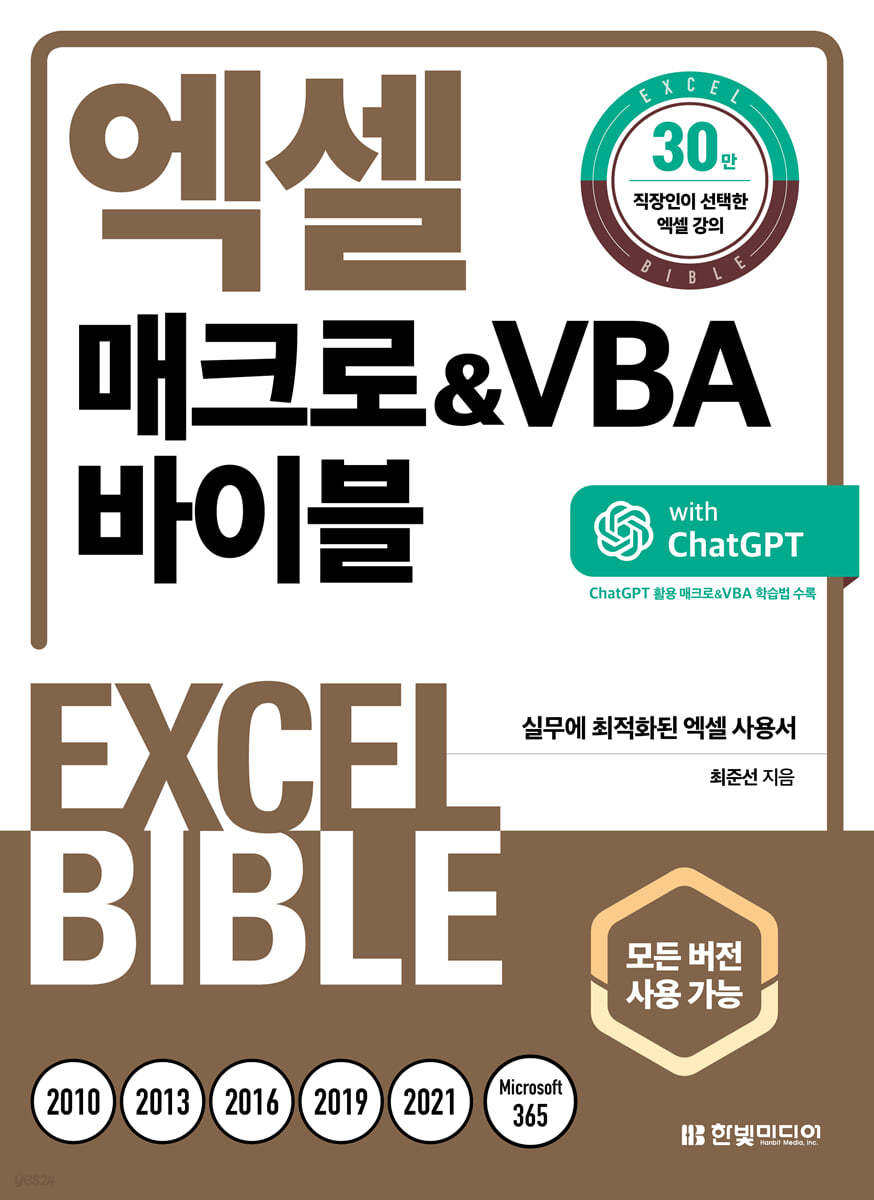
Excel Macro & VBA Bible
 |
Description
Book Introduction
Automate your work with macro codes tailored to your needs, from the basics of Excel macros and VBA to practical application!
Almost everything about Excel macros and VBA suggested by Choi Jun-seon of Naver Excel's representative cafe 'Excel...One a Day'!
You can systematically learn everything from the basic functions of Excel macros and VBA to key features and code that can be used in actual work, across all versions, including Excel 2010, 2013, 2016, 2019, 2021, and Microsoft 365.
Contents that differ by version are displayed along with detailed usage tips to ensure that you can practice macros and VBA examples without any difficulties regardless of which version you use.
The table of contents is carefully organized with content applicable to work, such as basic macro grammar, major Excel objects, and frequently used function controls, and practical functions are displayed for easy finding.
In addition, formula and function help are placed throughout, so you can understand unfamiliar functions and terms at once.
Once you master the macro and VBA learning methods that utilize AI such as ChatGPT, you will be able to learn almost everything about Excel task automation programming.
If you have any difficulties while learning, you can get help from the author by visiting the representative Naver Excel cafe, “Excel...One a Day,” and the YouTube channel, “Excel Master.”
Almost everything about Excel macros and VBA suggested by Choi Jun-seon of Naver Excel's representative cafe 'Excel...One a Day'!
You can systematically learn everything from the basic functions of Excel macros and VBA to key features and code that can be used in actual work, across all versions, including Excel 2010, 2013, 2016, 2019, 2021, and Microsoft 365.
Contents that differ by version are displayed along with detailed usage tips to ensure that you can practice macros and VBA examples without any difficulties regardless of which version you use.
The table of contents is carefully organized with content applicable to work, such as basic macro grammar, major Excel objects, and frequently used function controls, and practical functions are displayed for easy finding.
In addition, formula and function help are placed throughout, so you can understand unfamiliar functions and terms at once.
Once you master the macro and VBA learning methods that utilize AI such as ChatGPT, you will be able to learn almost everything about Excel task automation programming.
If you have any difficulties while learning, you can get help from the author by visiting the representative Naver Excel cafe, “Excel...One a Day,” and the YouTube channel, “Excel Master.”
- You can preview some of the book's contents.
Preview
index
PART 01 Macro Basics
CHAPTER 01 Environment Settings and Programming Basics
01-01 Understanding Macros and VBA
01-02 Save as a macro-enabled workbook
01-03 Show [Developer] tab in ribbon
01-04 Security warning message line and trusted document
01-05 Registering the main work folder as a trusted location
01-06 Security Risk Message Line Meaning and How to Resolve Display
CHAPTER 02 Macro Recorder
02-01 How to Use the Macro Recorder
02-02 How to efficiently modify recorded code
02-03 Running a macro using a shortcut key
02-04 How to use a macro in multiple files
02-05 Delete Personal Macro Workbook
Click the 02-06 button to run the macro
02-07 How to register a macro in the ribbon menu
CHAPTER 03 Visual Basic Editor
03-01 How to configure and dock the VB editor window
03-02 Understanding and Using the Project Explorer Window
03-03 Exporting and Importing Objects
03-04 Understanding and Using the Properties Window
03-05 Understanding and Using the Code Window
03-06 Understanding and Using the Direct Execution Window
03-07 How to set VB editor options
03-08 VB editor and fonts for coding
03-09 Major shortcuts in the VB editor
03-10 How to use the [Edit] toolbar in the VB editor
03-11 How to Protect Macro Code with a Password
PART 02 Learning VBA
CHAPTER 04 Excel's Object Model
04-01 Understanding Excel's Object Model
04-02 Objects and Collections
04-03 How to check which commands are supported by an object
04-04 What do ThisWorkbook and ActiveSheet mean?
04-05 How to use With statement
CHAPTER 05 Sub Procedures
05-01 What is a Sub Procedure?
05-02 Understanding and Using Comments
05-03 Developing procedures by dividing them into work units
05-04 Understanding and Using Variables
05-05 Understanding and Using Constants
05-06 Understanding and Using Object Variables
05-07 Understanding and Using Array Variables
05-08 Understanding and Using Dynamic Array Variables
05-09 Understanding and Using User-Defined Data Types
05-10 How to share variables with multiple macros
05-11 How to prevent variables from being initialized after running a macro?
CHAPTER 06 Judgment
06-01 How to structure and use the If statement
06-02 How to use And, Or, and Not operators for multiple condition processing
06-03 How to use the IIf function
06-04 How to use the ElseIf clause in an If statement
06-05 How to use the Switch function
06-06 How to structure and use the Select Case statement
06-07 How to use the Like comparison operator in an If statement
CHAPTER 07 Circular Loops
07-01 For…Next How to structure and use the statement
07-02 How to Use Step Keywords
07-03 Example of a loop that loops backwards
07-04 Example of a loop structure that nests For…Next statements
07-05 Understanding the syntax and usage of the Do… Loop statement
07-06 A practical example of escaping nested For…Next loops in one go.
07-07 How to structure and use the For Each…Next statement
07-08 Example of Using For…Next Loops to Loop Through an Array
07-09 How to resolve (no response) issue when using loop
CHAPTER 08 Function Procedure
08-01 How to create a function not provided in Excel or a higher version of a function
08-02 How to configure optional arguments when creating a function
08-03 How to store and use multiple arguments of a function to be created in a single array variable
08-04 How to set the exact error that the generated function will return
08-05 Do built-in functions (such as SUM) and user-developed functions behave differently?
08-06 What role do the ByRef and ByVal keywords play?
08-07 How to display the created function in the Function Wizard?
08-08 How to use user-created functions in all files?
08-09 How to disable and delete additional features
CHAPTER 09 Error Handling and Speed Improvement
09-01 Error Occurrence Situation and Response Method
When does error 09-02 occur and how can I fix it?
Essential Tools for Troubleshooting 09-03 Errors
09-04 How to make the macro run only up to a specific line instead of the whole thing?
09-05 How to use the On Error statement to control situations where errors occur
09-06 How to optimize code by taking advantage of situations where errors occur
09-07 To increase the speed of macro execution, use the functions provided by Excel.
09-08 How to change Excel settings to speed up macro execution
CHAPTER 10 VBA Built-in Functions
10-01 How to display the message window you need at the moment you want it
10-02 How to allow the user to input desired values while running a macro?
10-03 How to allow selection of work range while running macro?
10-04 How to resize the MsgBox and InputBox dialog boxes
10-05 How are the Left, Mid, and Right functions different from Excel's built-in functions?
10-06 InStr function, which is identical to the Find function, and InStrRev function, which is only provided in VBA.
10-07 When checking whether a cell is empty, use the IsEmpty or Len function.
Replace function used to modify or delete data stored in variables 10-08
10-09 How to use character codes with the Asc and Chr functions
How to convert between numeric and text data types
10-11 Data Type Conversion Functions
Data conversion using the 10-12 Format function
10-13 Function that returns today's date and current time
10-14 How to input and calculate dates using the DateSerial and DateValue functions
Calculate date/time before and after a certain period of time from the 10-15 reference point
10-16 How to return the upper unit of a date (year, quarter, month, etc.) using the DatePart function
10-17 How to calculate the difference between two dates (duration of employment)
10-18 How to calculate the time required using the Timer function
10-19 How to pass values as an array using the Array function
How to separate 10-20 data by a delimiter and store it in an array
How to return values in an array 10-21 by concatenating them with a delimiter
How to enter a formula in cells 10-22 (or a range)
10-23 How to Use Worksheet Functions in Macros
How to resolve errors that occur when using worksheet functions in macros 10-24
10-25 Things to keep in mind when using date data in worksheet functions
PART 03 Main Objects of Excel Program
CHAPTER 11 Cell or Range Objects
11-01 Understanding the Key Members of a Range Object
11-02 How to refer to a cell (or range) with a Range object
11-03 How to reference a contiguous range with Ctrl + A
11-04 How to reference a dynamic range using Ctrl + arrow keys
11-05 How to reference a range that matches your desired conditions across the entire range
11-06 How to adjust the reference range using Offset and Resize
11-07 Differences between Value, Value2, Text, and Formula properties and how to use them
11-08 How to enter a formula or array formula in a cell
11-09 How to change cell display format using number format codes
11-10 How to use copy, cut, and paste
11-11 How to copy and paste only part of a cell using Paste Selection
11-12 Transpose function and row/column swapping
How to copy and paste range 11-13 into a picture
How to save tables 11-14 as image files
11-15 Difference between Clear Cell and Delete Cell Method
11-16 How to delete unused blank columns (or rows)
11-17 How to insert a row (or column) at a desired location
Remove all hyperlinks in sheets 11-18
11-19 Automatically merge cells by recognizing empty cells in the selection range
11-20 How to develop VLOOKUP and XLOOKUP functions as macros
11-21 How to find a location that satisfies multiple conditions when searching for a value using the Find method
11-22 How to delete ghost texts
11-23 How to apply font and background formatting to subtotal rows using the Interior property
11-24 How to set the desired border format using the Border property
11-25 How to register an Excel table (ListObject)
11-26 How to reference an Excel table range
11-27 Things to keep in mind when developing a macro that enters new data into an Excel table
CHAPTER 12 Sheet Objects
12-01 Understanding the Key Members of the Worksheet Object
12-02 Understanding the Difference Between the Activate and Select Methods
12-03 How to change sheet tab names and things to watch out for
12-04 How to add a blank worksheet
12-05 How to delete unused sheets
12-06 How to create a table of contents sheet that can be moved to the entire sheet
12-07 How to move a sheet tab position or copy (or move) it to another file
12-08 How to arrange sheet tabs in the desired order
How to hide or cancel a sheet 12-09
How to protect or release sheets 12-10
How to use the UsedRange property to return the entire range in use in sheet 12-11
How to hide formulas entered in sheets 12-12 at once
How to limit the range of selections in sheets 12-13
12-14 How to print only the sheets you want
Print only specific parts of Table 12-15 by item
12-16 How to print with desired information displayed in the header/footer
How to fit the width of pages 12-17 and repeat the title row
CHAPTER 13 File (Workbook) Object
13-01 Understanding the Key Members of the Workbook Object
13-02 How to open Excel files and things to watch out for
13-03 How to select and open a file to work on
13-04 How to open multiple files at once for work
13-05 How to set the default folder when opening the [Open] dialog box using the GetOpenFilename method
13-06 How to merge files within a specific folder into one
13-07 How to reference data without opening the file
13-08 How to select a working folder directly
13-09 How to create a new blank workbook file
13-10 How to save the file you worked on
How to create a daily backup file 13-11
How to automatically save 13-12 xls format files as Excel 2007 or later file formats (xlsx, xlsm)
13-13 How to save each sheet as a separate file
13-14 How to save the current sheet as a PDF file
13-15 How to convert a text file to an Excel file
How to set up automatic deletion of files when their validity period expires
CHAPTER 14 Excel Program (Application)
14-01 Key members of the Application object
14-02 How to Verify Excel Calculation Results Using the Calculator App
14-03 How to return the result of a calculation string
14-04 How to find the intersection and union range using the Intersect and Union methods
14-05 How to determine what object the user has selected using the Selection property
14-06 How to determine the target object that called the macro
14-07 How to select cells in a sheet that are not displayed on the screen
14-08 How to run a macro from another file
14-09 How to call and use the basic Excel dialog box from a macro
14-10 How to print by selecting the desired printer
14-11 How to display macro progress in the status bar
14-12 How to cancel a macro execution midway
14-13 How to reset Excel settings to default
14-14 How to display desired tabs on the ribbon menu with a macro
14-15 How to hide or show the ribbon menu
14-16 How to control commands on the ribbon menu with macros
14-17 How to add desired commands to the shortcut menu
How to remove the 14-18 Additional Features tab with a macro
CHAPTER 15 Event
15-01 How to create an event
15-02 Understanding the Key Events of the Worksheet Object
How to check the status of how many times you move to which sheet in the 15-03 file.
15-04 How to move selected data to a desired location and record it
15-05 How to limit copying to a range with validation set
15-06 How to make items already selected in the validation list no longer visible
15-07 How to initialize sublists when modifying the parent list of validation
15-08 How to prevent data within a specific range from being modified without sheet protection
15-09 How to accumulate and sum the entered values and record the details of the entered values
15-10 How to sort the column containing the double-clicked cell
15-11 Understanding Events of the Workbook Object
15-12 Differences between the Workbook_Open event and the Auto_Open macro
How to use the Before_Close event that occurs when closing a file 15-13
15-14 How to prevent a file from being closed until a specific task is processed
How to automatically create a backup file every time you save a file 15-15
15-16 How to print pages by dividing them by desired conditions
15-17 How to automatically create a blank form when inserting a new sheet
15-18 How to synchronize the display positions of two sheets
15-19 Event Priority
How to use events that apply to all files 15-20
How to use the Application object using the 15-21 class module
15-22 How to schedule a macro to run at a specific time
How to repeat a specific macro at regular intervals of 15-23
15-24 How to execute a desired macro with a specific keystroke
CHAPTER 16 Custom Forms
16-01 Understanding Userforms
16-02 How to run and close the developed form
16-03 Understanding Active-X Controls in the Toolbox
16-04 How to use the Toolbox window
16-05 Understanding Form Control Properties and Events
16-06 How to create OK, Close, and Cancel buttons
16-07 How to set a hyperlink using a label control
16-08 Using the TextBox Control
16-09 How to enter numbers in a TextBox control
16-10 How to set up a TextBox to receive a password
How to add a combo box to form 16-11
16-12 How to add only unique items from duplicate data to a combo box control
16-13 How to link two combo box controls
16-14 How to use the ListBox control
16-15 How to multi-select ListBox items
16-16 How to find and search for ListBox items
16-17 How to pass or retrieve items between two ListBoxes
16-18 How to sort ListBox items
16-19 How to move ListBox items up/down
How to use the 16-20 CheckBox control
16-21 How to use the OptionButton control
How to manage option buttons 16-22 by group
16-23 How to use the scroll bar and spin button
How to add images to a 16-24 form
RefEdit control used when referencing a range in form 16-25
16-26 TreeView Control I - Control Registration and Form Configuration
16-27 TreeView Control II - Control Settings
16-28 TreeView Control III - Interacting with Other Controls
16-29 TreeView Control IV - Learning Additional Properties
16-30 ListView Control I - Registering and Configuring the Form
16-31 ListView Control II - Setting Up the Control
16-32 ListView Control III - Sorting
16-33 ListView Control IV - Searching
How to change the font of multiple controls inserted into a form at once
16-35 How to align multiple control positions
How to adjust the order of controls by pressing Tab on a form 16-36
CHAPTER 17 Practical Application Form
17-01 Input Form I - Form Configuration
17-02 Input Form II - Form Initialization and Execution
17-03 Input Form III - Input Button Function Development
17-04 Search/Edit Form I - Search Form Configuration
17-05 Search/Edit Form II - Search Form Function Development
17-06 Search/Edit Form III - Edit Form Development
17-07 Progress (Label Control) Display Form I - Form Configuration
17-08 Progress (Label Control) Display Form II - Macro Development
17-09 Progress (Label Control) Display Form III - Linking Macros and Forms
17-10 Progress Control Display Form I - Form Configuration
17-11 Progress Control Display Form II - Macro Development
17-12 Progress Control Display Form III - Form Linking
17-13 Chart Display Form I - Form Configuration
17-14 Chart Display Form II - Initializing the Form and Creating a Chart
17-15 Chart Display Form III - Completing the Form
17-16 Wizard Form I - Form Configuration
17-17 Wizard Form II - Configuring Controls by Page
17-18 Wizard Form III - Development of step-by-step control functions
17-19 Wizard Form IV - Form Function Development
PART 04 Other Useful Development Methods
CHAPTER 18 Charts
18-01 How to create a chart in the desired location and size
18-02 Automatically change the chart source range to match the selection
18-03 How to display desired values in chart data labels
18-04 How to align multiple charts without overlapping them
How to apply the 18-05 chart event
18-06 How to highlight a line graph where the mouse pointer is located
CHAPTER 19 Pivot Tables
19-01 Creating a PivotTable Report
19-02 How to create multiple analysis reports with pivots
19-03 Creating a Pivot Table by Setting Relationships
19-04 Automating Pivot Table Refresh
19-05 How to synchronize numbers in the value area with the format of the original table
CHAPTER 20 How to use frequently used Excel functions
20-01 How to control automatic filters with macros
20-02 Copy/paste into a table with auto-filter set
20-03 How to reset cell styles
20-04 Useful macros for users who use notes a lot
20-05 Modifying calculation results using [Find Target Value]
20-06 Easily Create a Survey Using Checkbox Controls
CHAPTER 21 Manipulating the VB Editor
21-01 How to develop a macro to create (or delete) an event procedure
How to automatically update macros using the 21-02 Module file
21-03 How to back up files by type of developed VBA code
21-04 Delete all VBA code in file
CHAPTER 22 ADO
22-01 How to connect to another Excel file using ADO
22-02 How to Import an Access Table (or Query) into Excel
22-03 How to import data without opening another Excel file
22-04 Retrieving only the data that meets the desired conditions using SQL
22-05 How to return external data to an Excel table
22-06 How to import external data by linking it with the desired delimiter
22-07 How to summarize external data and return results
22-08 Using Access tables and queries as pivot table sources
22-09 How to modify data without opening the file
22-10 How to add new data without opening an Excel file
22-11 How to add Excel data to an Access table
22-12 Consolidating data from multiple sheets into an Access table
22-13 Delete only data that meets specific conditions from an Access table
CHAPTER 23 Macro Development Using ChatGPT
23-01 How to use ChatGPT to study macros?
23-02 How to get the code needed to develop macros using ChatGPT
23-03 Resolving macro errors using ChatGPT
23-04 How to Improve Code Efficiency Using ChatGPT
23-05 How to update macros using ChatGPT
23-06 ChatGPT Use Case - Inserting Excel Charts into PowerPoint
23-07 ChatGPT Use Case - Converting a Purchase Order Sheet to PDF and Sending It via Outlook
23-08 ChatGPT Use Case - Web Data Crawling
INDEX
CHAPTER 01 Environment Settings and Programming Basics
01-01 Understanding Macros and VBA
01-02 Save as a macro-enabled workbook
01-03 Show [Developer] tab in ribbon
01-04 Security warning message line and trusted document
01-05 Registering the main work folder as a trusted location
01-06 Security Risk Message Line Meaning and How to Resolve Display
CHAPTER 02 Macro Recorder
02-01 How to Use the Macro Recorder
02-02 How to efficiently modify recorded code
02-03 Running a macro using a shortcut key
02-04 How to use a macro in multiple files
02-05 Delete Personal Macro Workbook
Click the 02-06 button to run the macro
02-07 How to register a macro in the ribbon menu
CHAPTER 03 Visual Basic Editor
03-01 How to configure and dock the VB editor window
03-02 Understanding and Using the Project Explorer Window
03-03 Exporting and Importing Objects
03-04 Understanding and Using the Properties Window
03-05 Understanding and Using the Code Window
03-06 Understanding and Using the Direct Execution Window
03-07 How to set VB editor options
03-08 VB editor and fonts for coding
03-09 Major shortcuts in the VB editor
03-10 How to use the [Edit] toolbar in the VB editor
03-11 How to Protect Macro Code with a Password
PART 02 Learning VBA
CHAPTER 04 Excel's Object Model
04-01 Understanding Excel's Object Model
04-02 Objects and Collections
04-03 How to check which commands are supported by an object
04-04 What do ThisWorkbook and ActiveSheet mean?
04-05 How to use With statement
CHAPTER 05 Sub Procedures
05-01 What is a Sub Procedure?
05-02 Understanding and Using Comments
05-03 Developing procedures by dividing them into work units
05-04 Understanding and Using Variables
05-05 Understanding and Using Constants
05-06 Understanding and Using Object Variables
05-07 Understanding and Using Array Variables
05-08 Understanding and Using Dynamic Array Variables
05-09 Understanding and Using User-Defined Data Types
05-10 How to share variables with multiple macros
05-11 How to prevent variables from being initialized after running a macro?
CHAPTER 06 Judgment
06-01 How to structure and use the If statement
06-02 How to use And, Or, and Not operators for multiple condition processing
06-03 How to use the IIf function
06-04 How to use the ElseIf clause in an If statement
06-05 How to use the Switch function
06-06 How to structure and use the Select Case statement
06-07 How to use the Like comparison operator in an If statement
CHAPTER 07 Circular Loops
07-01 For…Next How to structure and use the statement
07-02 How to Use Step Keywords
07-03 Example of a loop that loops backwards
07-04 Example of a loop structure that nests For…Next statements
07-05 Understanding the syntax and usage of the Do… Loop statement
07-06 A practical example of escaping nested For…Next loops in one go.
07-07 How to structure and use the For Each…Next statement
07-08 Example of Using For…Next Loops to Loop Through an Array
07-09 How to resolve (no response) issue when using loop
CHAPTER 08 Function Procedure
08-01 How to create a function not provided in Excel or a higher version of a function
08-02 How to configure optional arguments when creating a function
08-03 How to store and use multiple arguments of a function to be created in a single array variable
08-04 How to set the exact error that the generated function will return
08-05 Do built-in functions (such as SUM) and user-developed functions behave differently?
08-06 What role do the ByRef and ByVal keywords play?
08-07 How to display the created function in the Function Wizard?
08-08 How to use user-created functions in all files?
08-09 How to disable and delete additional features
CHAPTER 09 Error Handling and Speed Improvement
09-01 Error Occurrence Situation and Response Method
When does error 09-02 occur and how can I fix it?
Essential Tools for Troubleshooting 09-03 Errors
09-04 How to make the macro run only up to a specific line instead of the whole thing?
09-05 How to use the On Error statement to control situations where errors occur
09-06 How to optimize code by taking advantage of situations where errors occur
09-07 To increase the speed of macro execution, use the functions provided by Excel.
09-08 How to change Excel settings to speed up macro execution
CHAPTER 10 VBA Built-in Functions
10-01 How to display the message window you need at the moment you want it
10-02 How to allow the user to input desired values while running a macro?
10-03 How to allow selection of work range while running macro?
10-04 How to resize the MsgBox and InputBox dialog boxes
10-05 How are the Left, Mid, and Right functions different from Excel's built-in functions?
10-06 InStr function, which is identical to the Find function, and InStrRev function, which is only provided in VBA.
10-07 When checking whether a cell is empty, use the IsEmpty or Len function.
Replace function used to modify or delete data stored in variables 10-08
10-09 How to use character codes with the Asc and Chr functions
How to convert between numeric and text data types
10-11 Data Type Conversion Functions
Data conversion using the 10-12 Format function
10-13 Function that returns today's date and current time
10-14 How to input and calculate dates using the DateSerial and DateValue functions
Calculate date/time before and after a certain period of time from the 10-15 reference point
10-16 How to return the upper unit of a date (year, quarter, month, etc.) using the DatePart function
10-17 How to calculate the difference between two dates (duration of employment)
10-18 How to calculate the time required using the Timer function
10-19 How to pass values as an array using the Array function
How to separate 10-20 data by a delimiter and store it in an array
How to return values in an array 10-21 by concatenating them with a delimiter
How to enter a formula in cells 10-22 (or a range)
10-23 How to Use Worksheet Functions in Macros
How to resolve errors that occur when using worksheet functions in macros 10-24
10-25 Things to keep in mind when using date data in worksheet functions
PART 03 Main Objects of Excel Program
CHAPTER 11 Cell or Range Objects
11-01 Understanding the Key Members of a Range Object
11-02 How to refer to a cell (or range) with a Range object
11-03 How to reference a contiguous range with Ctrl + A
11-04 How to reference a dynamic range using Ctrl + arrow keys
11-05 How to reference a range that matches your desired conditions across the entire range
11-06 How to adjust the reference range using Offset and Resize
11-07 Differences between Value, Value2, Text, and Formula properties and how to use them
11-08 How to enter a formula or array formula in a cell
11-09 How to change cell display format using number format codes
11-10 How to use copy, cut, and paste
11-11 How to copy and paste only part of a cell using Paste Selection
11-12 Transpose function and row/column swapping
How to copy and paste range 11-13 into a picture
How to save tables 11-14 as image files
11-15 Difference between Clear Cell and Delete Cell Method
11-16 How to delete unused blank columns (or rows)
11-17 How to insert a row (or column) at a desired location
Remove all hyperlinks in sheets 11-18
11-19 Automatically merge cells by recognizing empty cells in the selection range
11-20 How to develop VLOOKUP and XLOOKUP functions as macros
11-21 How to find a location that satisfies multiple conditions when searching for a value using the Find method
11-22 How to delete ghost texts
11-23 How to apply font and background formatting to subtotal rows using the Interior property
11-24 How to set the desired border format using the Border property
11-25 How to register an Excel table (ListObject)
11-26 How to reference an Excel table range
11-27 Things to keep in mind when developing a macro that enters new data into an Excel table
CHAPTER 12 Sheet Objects
12-01 Understanding the Key Members of the Worksheet Object
12-02 Understanding the Difference Between the Activate and Select Methods
12-03 How to change sheet tab names and things to watch out for
12-04 How to add a blank worksheet
12-05 How to delete unused sheets
12-06 How to create a table of contents sheet that can be moved to the entire sheet
12-07 How to move a sheet tab position or copy (or move) it to another file
12-08 How to arrange sheet tabs in the desired order
How to hide or cancel a sheet 12-09
How to protect or release sheets 12-10
How to use the UsedRange property to return the entire range in use in sheet 12-11
How to hide formulas entered in sheets 12-12 at once
How to limit the range of selections in sheets 12-13
12-14 How to print only the sheets you want
Print only specific parts of Table 12-15 by item
12-16 How to print with desired information displayed in the header/footer
How to fit the width of pages 12-17 and repeat the title row
CHAPTER 13 File (Workbook) Object
13-01 Understanding the Key Members of the Workbook Object
13-02 How to open Excel files and things to watch out for
13-03 How to select and open a file to work on
13-04 How to open multiple files at once for work
13-05 How to set the default folder when opening the [Open] dialog box using the GetOpenFilename method
13-06 How to merge files within a specific folder into one
13-07 How to reference data without opening the file
13-08 How to select a working folder directly
13-09 How to create a new blank workbook file
13-10 How to save the file you worked on
How to create a daily backup file 13-11
How to automatically save 13-12 xls format files as Excel 2007 or later file formats (xlsx, xlsm)
13-13 How to save each sheet as a separate file
13-14 How to save the current sheet as a PDF file
13-15 How to convert a text file to an Excel file
How to set up automatic deletion of files when their validity period expires
CHAPTER 14 Excel Program (Application)
14-01 Key members of the Application object
14-02 How to Verify Excel Calculation Results Using the Calculator App
14-03 How to return the result of a calculation string
14-04 How to find the intersection and union range using the Intersect and Union methods
14-05 How to determine what object the user has selected using the Selection property
14-06 How to determine the target object that called the macro
14-07 How to select cells in a sheet that are not displayed on the screen
14-08 How to run a macro from another file
14-09 How to call and use the basic Excel dialog box from a macro
14-10 How to print by selecting the desired printer
14-11 How to display macro progress in the status bar
14-12 How to cancel a macro execution midway
14-13 How to reset Excel settings to default
14-14 How to display desired tabs on the ribbon menu with a macro
14-15 How to hide or show the ribbon menu
14-16 How to control commands on the ribbon menu with macros
14-17 How to add desired commands to the shortcut menu
How to remove the 14-18 Additional Features tab with a macro
CHAPTER 15 Event
15-01 How to create an event
15-02 Understanding the Key Events of the Worksheet Object
How to check the status of how many times you move to which sheet in the 15-03 file.
15-04 How to move selected data to a desired location and record it
15-05 How to limit copying to a range with validation set
15-06 How to make items already selected in the validation list no longer visible
15-07 How to initialize sublists when modifying the parent list of validation
15-08 How to prevent data within a specific range from being modified without sheet protection
15-09 How to accumulate and sum the entered values and record the details of the entered values
15-10 How to sort the column containing the double-clicked cell
15-11 Understanding Events of the Workbook Object
15-12 Differences between the Workbook_Open event and the Auto_Open macro
How to use the Before_Close event that occurs when closing a file 15-13
15-14 How to prevent a file from being closed until a specific task is processed
How to automatically create a backup file every time you save a file 15-15
15-16 How to print pages by dividing them by desired conditions
15-17 How to automatically create a blank form when inserting a new sheet
15-18 How to synchronize the display positions of two sheets
15-19 Event Priority
How to use events that apply to all files 15-20
How to use the Application object using the 15-21 class module
15-22 How to schedule a macro to run at a specific time
How to repeat a specific macro at regular intervals of 15-23
15-24 How to execute a desired macro with a specific keystroke
CHAPTER 16 Custom Forms
16-01 Understanding Userforms
16-02 How to run and close the developed form
16-03 Understanding Active-X Controls in the Toolbox
16-04 How to use the Toolbox window
16-05 Understanding Form Control Properties and Events
16-06 How to create OK, Close, and Cancel buttons
16-07 How to set a hyperlink using a label control
16-08 Using the TextBox Control
16-09 How to enter numbers in a TextBox control
16-10 How to set up a TextBox to receive a password
How to add a combo box to form 16-11
16-12 How to add only unique items from duplicate data to a combo box control
16-13 How to link two combo box controls
16-14 How to use the ListBox control
16-15 How to multi-select ListBox items
16-16 How to find and search for ListBox items
16-17 How to pass or retrieve items between two ListBoxes
16-18 How to sort ListBox items
16-19 How to move ListBox items up/down
How to use the 16-20 CheckBox control
16-21 How to use the OptionButton control
How to manage option buttons 16-22 by group
16-23 How to use the scroll bar and spin button
How to add images to a 16-24 form
RefEdit control used when referencing a range in form 16-25
16-26 TreeView Control I - Control Registration and Form Configuration
16-27 TreeView Control II - Control Settings
16-28 TreeView Control III - Interacting with Other Controls
16-29 TreeView Control IV - Learning Additional Properties
16-30 ListView Control I - Registering and Configuring the Form
16-31 ListView Control II - Setting Up the Control
16-32 ListView Control III - Sorting
16-33 ListView Control IV - Searching
How to change the font of multiple controls inserted into a form at once
16-35 How to align multiple control positions
How to adjust the order of controls by pressing Tab on a form 16-36
CHAPTER 17 Practical Application Form
17-01 Input Form I - Form Configuration
17-02 Input Form II - Form Initialization and Execution
17-03 Input Form III - Input Button Function Development
17-04 Search/Edit Form I - Search Form Configuration
17-05 Search/Edit Form II - Search Form Function Development
17-06 Search/Edit Form III - Edit Form Development
17-07 Progress (Label Control) Display Form I - Form Configuration
17-08 Progress (Label Control) Display Form II - Macro Development
17-09 Progress (Label Control) Display Form III - Linking Macros and Forms
17-10 Progress Control Display Form I - Form Configuration
17-11 Progress Control Display Form II - Macro Development
17-12 Progress Control Display Form III - Form Linking
17-13 Chart Display Form I - Form Configuration
17-14 Chart Display Form II - Initializing the Form and Creating a Chart
17-15 Chart Display Form III - Completing the Form
17-16 Wizard Form I - Form Configuration
17-17 Wizard Form II - Configuring Controls by Page
17-18 Wizard Form III - Development of step-by-step control functions
17-19 Wizard Form IV - Form Function Development
PART 04 Other Useful Development Methods
CHAPTER 18 Charts
18-01 How to create a chart in the desired location and size
18-02 Automatically change the chart source range to match the selection
18-03 How to display desired values in chart data labels
18-04 How to align multiple charts without overlapping them
How to apply the 18-05 chart event
18-06 How to highlight a line graph where the mouse pointer is located
CHAPTER 19 Pivot Tables
19-01 Creating a PivotTable Report
19-02 How to create multiple analysis reports with pivots
19-03 Creating a Pivot Table by Setting Relationships
19-04 Automating Pivot Table Refresh
19-05 How to synchronize numbers in the value area with the format of the original table
CHAPTER 20 How to use frequently used Excel functions
20-01 How to control automatic filters with macros
20-02 Copy/paste into a table with auto-filter set
20-03 How to reset cell styles
20-04 Useful macros for users who use notes a lot
20-05 Modifying calculation results using [Find Target Value]
20-06 Easily Create a Survey Using Checkbox Controls
CHAPTER 21 Manipulating the VB Editor
21-01 How to develop a macro to create (or delete) an event procedure
How to automatically update macros using the 21-02 Module file
21-03 How to back up files by type of developed VBA code
21-04 Delete all VBA code in file
CHAPTER 22 ADO
22-01 How to connect to another Excel file using ADO
22-02 How to Import an Access Table (or Query) into Excel
22-03 How to import data without opening another Excel file
22-04 Retrieving only the data that meets the desired conditions using SQL
22-05 How to return external data to an Excel table
22-06 How to import external data by linking it with the desired delimiter
22-07 How to summarize external data and return results
22-08 Using Access tables and queries as pivot table sources
22-09 How to modify data without opening the file
22-10 How to add new data without opening an Excel file
22-11 How to add Excel data to an Access table
22-12 Consolidating data from multiple sheets into an Access table
22-13 Delete only data that meets specific conditions from an Access table
CHAPTER 23 Macro Development Using ChatGPT
23-01 How to use ChatGPT to study macros?
23-02 How to get the code needed to develop macros using ChatGPT
23-03 Resolving macro errors using ChatGPT
23-04 How to Improve Code Efficiency Using ChatGPT
23-05 How to update macros using ChatGPT
23-06 ChatGPT Use Case - Inserting Excel Charts into PowerPoint
23-07 ChatGPT Use Case - Converting a Purchase Order Sheet to PDF and Sending It via Outlook
23-08 ChatGPT Use Case - Web Data Crawling
INDEX
Detailed image

Publisher's Review
What kind of readers is this book for?
- Office workers who want to make daily repetitive Excel tasks easier and more convenient by using Excel macros and VBA.
- Office workers who want to modify Excel VBA code to suit their work.
- Office workers who want to learn advanced Excel functions extensively, apply them to their work, and improve work efficiency by automating tasks.
- Office workers who want to learn Excel functions naturally by looking for necessary macro and VBA functions.
- Office workers who want to learn how to utilize artificial intelligence, such as ChatGPT, a recent trend, in Excel macros.
Features of this book
ㆍUse all versions
It provides detailed and easy-to-understand basic grammar and code for handling Excel macros and VBA, helping you to use them effectively in your work.
You can learn from all versions of Excel, including Excel 2010, 2013, 2016, 2019, 2021, and Microsoft 365.
ㆍPractical application examples
The high-level examples essential for practical use were selected from the author's lectures, practical experience, and various cases obtained while operating Naver's representative Excel cafe, "Excel...One a Day."
You can experience practical macro & VBA examples optimized for learning.
ㆍEasy-to-find configuration
It is impossible to memorize all the codes and syntax that make up Excel macros and VBA.
This book is organized so that you can quickly find and use the code and examples you want whenever you need them.
I put it on my desk and use it whenever I need to.
ㆍChatGPT utilization macro & VBA learning method included
We provide detailed guidance on how to utilize ChatGPT chatbot AI-powered macros and VBA, as well as learning know-how for readers who are not yet familiar with programming, and suggest ways to apply them in actual work.
- Office workers who want to make daily repetitive Excel tasks easier and more convenient by using Excel macros and VBA.
- Office workers who want to modify Excel VBA code to suit their work.
- Office workers who want to learn advanced Excel functions extensively, apply them to their work, and improve work efficiency by automating tasks.
- Office workers who want to learn Excel functions naturally by looking for necessary macro and VBA functions.
- Office workers who want to learn how to utilize artificial intelligence, such as ChatGPT, a recent trend, in Excel macros.
Features of this book
ㆍUse all versions
It provides detailed and easy-to-understand basic grammar and code for handling Excel macros and VBA, helping you to use them effectively in your work.
You can learn from all versions of Excel, including Excel 2010, 2013, 2016, 2019, 2021, and Microsoft 365.
ㆍPractical application examples
The high-level examples essential for practical use were selected from the author's lectures, practical experience, and various cases obtained while operating Naver's representative Excel cafe, "Excel...One a Day."
You can experience practical macro & VBA examples optimized for learning.
ㆍEasy-to-find configuration
It is impossible to memorize all the codes and syntax that make up Excel macros and VBA.
This book is organized so that you can quickly find and use the code and examples you want whenever you need them.
I put it on my desk and use it whenever I need to.
ㆍChatGPT utilization macro & VBA learning method included
We provide detailed guidance on how to utilize ChatGPT chatbot AI-powered macros and VBA, as well as learning know-how for readers who are not yet familiar with programming, and suggest ways to apply them in actual work.
GOODS SPECIFICS
- Date of issue: May 31, 2023
- Page count, weight, size: 1,100 pages | 2,214g | 188*258*45mm
- ISBN13: 9791169210997
- ISBN10: 1169210996
You may also like
카테고리
korean


korean

![GQ KOREA Mark (Monthly): December [2025]](http://librairie.coreenne.fr/cdn/shop/files/8ef265dbbfbf186523ed75ba7319009d.jpg?v=1765340328&width=3840)


