

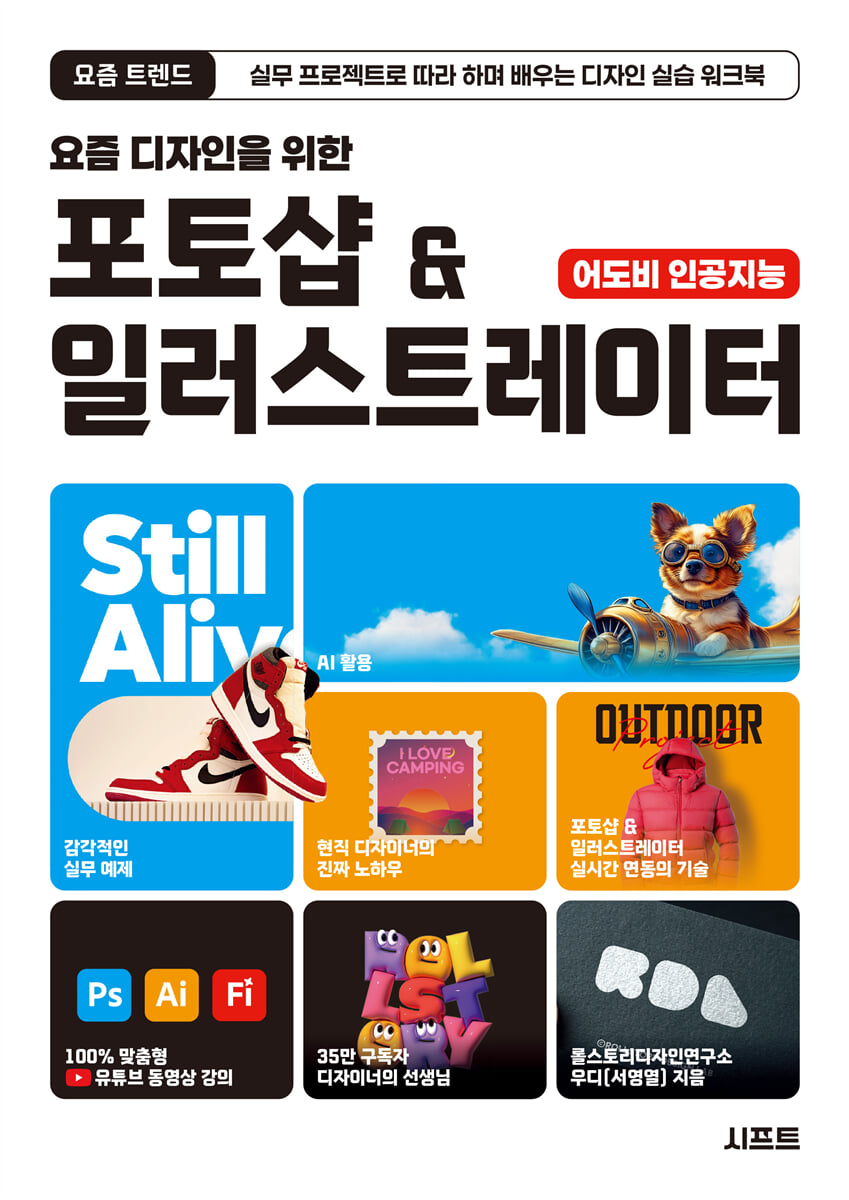
Photoshop & Illustrator for Modern Design
 |
Description
Book Introduction
Learn Photoshop and Illustrator through 50+ projects, including Adobe's generative AI.
This book contains the usage of Photoshop and Illustrator, design tools that are essential for designers and that even non-designers would want to learn at least once.
This book is structured around the principle of "minimizing unnecessary theory and practicing essential functions with high-quality examples," thereby increasing learning efficiency and allowing you to acquire a practical sense more quickly.
It will be of great help to beginners and even designers with little practical experience in building skills that can be used immediately.
It includes Adobe's new features, such as automatic subject selection and generative artificial intelligence, to keep up with the latest trends, and also introduces efficient design methods by linking Photoshop and Illustrator.
If you want to learn Photoshop and Illustrator quickly and use them properly, this book is the best choice.
This book contains the usage of Photoshop and Illustrator, design tools that are essential for designers and that even non-designers would want to learn at least once.
This book is structured around the principle of "minimizing unnecessary theory and practicing essential functions with high-quality examples," thereby increasing learning efficiency and allowing you to acquire a practical sense more quickly.
It will be of great help to beginners and even designers with little practical experience in building skills that can be used immediately.
It includes Adobe's new features, such as automatic subject selection and generative artificial intelligence, to keep up with the latest trends, and also introduces efficient design methods by linking Photoshop and Illustrator.
If you want to learn Photoshop and Illustrator quickly and use them properly, this book is the best choice.
- You can preview some of the book's contents.
Preview
index
[PART 01 Preparing Your Photoshop & Illustrator Design]
LESSON 01: Learning the Basic Concepts of Design 22
_ Understanding the Difference Between Bitmaps and Vectors 22
_ Understanding RGB and CMYK Color Modes 24
_ Understanding the concept of resolution for clear design 25
_ Guide to Choosing the Right File Format for Your Work 26
LESSON 02: A Collection of 27 Useful Sites to Know
LESSON 03 Creative Cloud 30 for Program Installation and Updates
_ 30 Key Features of Creative Cloud
_ Changing the language for installing and using the program 31
_ Using Creative Cloud 33
LESSON 04 Exploring the Photoshop Toolbar and Panels 36
_ Photoshop Toolbar 36 with various tools
_ A look at the main Photoshop panels 41
_ Setting up and saving your own work environment and workspace 45
LESSON 05 Exploring the Illustrator Toolbar and Panels 50
_ Illustrator Toolbar 50 with various tools
_ A look at the main panels of Illustrator 58
[PART 02 The Pinnacle of Bitmap Graphics: Photoshop]
LESSON 01: Learn Photoshop Basics While Creating 66
_ Start a new task and import images 68
_ Creating a Polaroid Frame Using Shapes 70
_ Decorate the frame with text input and layer styles 73
_ Organize layers into groups and save design results 76
_ Try it out 79
LESSON 02: Retouching Landscape Photos with Adjustment Layers 81
_ Open the image file and align it horizontally 83
_ Color Correction with Selective Color 84
_ Adjusting Image Brightness with Curves 87
_ Try it out 89
LESSON 03: Composite Portraits and Text with Clipping Masks 91
_ Selecting a subject after adding guidelines 92
_ Preparing the Clipping Mask Mask 94
_Compositing Text with a Clipping Mask 96
_ Try it out 98
LESSON 04 100 Artworks Completed with Blending Mode
_ Creating Backgrounds with Blending Modes 101
_Completing Artwork with Blending Modes and Clipping Masks 105
_ Application 111
LESSON 05: Retouching Portraits with Various Filters 112
_Dyeing Hair with Camera Raw 113
_ Skin Correction with Neural Filters 117
_ Correcting Appearance with Liquify 118
_ Try it out 120
LESSON 06: Designing an Eye-Catching Banner 123
_ Creating a background with a prominent diagonal line 124
_ 125 Arrangement of portraits with elaborate hair selection
_ Arranging messages for readability 128
_ Complete the design by changing colors and adding styles 132
LESSON 07: Designing an Invitation Using the Layer Mask Feature 135
_ Create a yellow paper texture background with blending mode 136
_ Expressing a photo frame using the layer mask function 138
_ Enter invitation text and key information 140
LESSON 08: Emotional Thumbnail Design with Split Composition 143
_ Creating a two-part thumbnail background with two photos 144
_ Blur the borders of a photo 146
_ Decorating Designs with Keywords and Lorem Ipsum 149
_ Correcting with Color Lookup and applying neon sign effect 152
LESSON 09: Designing a Banner That Makes Your Product Stand Out 155
_ Dividing the area into a rectangle with rounded corners 156
_ Placing product photos to create a sense of three-dimensionality 157
_ Complete the design by placing copy, logo, etc. 159
LESSON 10: Card News Template 163 Completed with the Artboard Feature
_ Creating a basic background for the card news on the first artboard 164
_ Configuring the basic layout of card news 166
_ Configuring the Card News Number Area 169
_ Complete the template by duplicating the artboard 171
_ Application 173
LESSON 11: Typography with Long Shadows 175
_ Expressing long shadows using the layer duplication function 176
_ Add depth by applying layer styles 180
_ Creating Natural Shadows with Gradients 181
_ Try it out 182
LESSON 12: Designing Titles with a Mood 183
_ Expressing texture with a brush 184
_ Adding detail to texture expression 187
_ Applying gradients and adding additional work to further emphasize the atmosphere 189
LESSON 13: Typography with a Flashy Sense of Speed 192
_ Expressing a sense of speed with diagonal lines and blurring 193
_ Shining Typography 196
_ Try it out 200
LESSON 14: Creating 3D Typography with Layer Styles 204
_ Creating Typography Basics by Distorting with Free Transform 204
_ Expressing three-dimensionality with layer styles 206
_ Try it out 208
LESSON 15 Photograph Decorated with Neon Effects 209
_ Setting the neon effect after correcting with LUT 209
_ Create different types of neon by changing the color 213
_ Drawing a Neon Sign with a Brush 215
LESSON 16: Vintage Poster Design 218
_ Expressing the vintage effect after simplifying with a threshold value 219
_ Complete the poster by entering text 223
LESSON 17: A Sensational Background Created with Glassmorphism Effects 226
_ Expressing the glassmorphism effect as if reflected in glass 227
_ Complete the background by applying a layer mask 229
_ 233 Arranging Text Sensibly
_ Try it out 236
LESSON 18 Retro Cover Completed with Duotone Effect 238
_ Correcting images for duotone application 239
_ Applying Duotone with Gradient Map 243
_Completing the Retro Cover Design 245
LESSON 19: Characters Drawn with Custom Brushes 250
_ Create your own custom brush 251
_ Drawing a character following the outline 254
_ Coloring to complete the puppy drawing 256
LESSON 20: Captivating Clients with Mockups 258
_ Creating a Design Area 259
_ Expressing textures similar to actual products 263
_ Save as mockup file 267
_ Try out the finished mockup 268
_ Try it out 270
[PART 03 Illustrator: The Essentials of Vector Design]
LESSON 01: A Fox Character Completed with Squares and Live Corners 274
_ Creating a background with a square 275
_Completing the face with squares and live corners 277
_ Adding details to improve character completion 281
_ Try it out 284
LESSON 02: Flower Illustration Completed with Paintbrush and Offset Paths 287
_ Expressing the Face of a Flower with a Circle and Offset Path 288
_Cutting out circles to express facial expressions 290
_ Drawing stems with freehand drawing 293
_ Try it out 296
LESSON 03: Landscape Illustration Completed with Shapes and Pathfinder 298
_Merge multiple shapes with Pathfinder 299
_ Complete the tree illustration by dividing and merging with Pathfinder 301
_ Final completion of landscape illustration 304
LESSON 04 Clock Illustration 308, Completed Through Repeated Rotations and Transformations
_ Creating a clock background with basic shapes 309
_ Creating a clock face using a transformation loop 311
_ Complete the clock illustration by adding the hour and minute hands 313
_ Try it out 316
LESSON 05: Creating a Korean Logo with a Water Drop Brush 320
_ Expressing a tiled roof with a water drop brush 321
_ Complete the logo by entering characters 324
LESSON 06: Creating a Pattern and Coloring a Character 327
_ Designing a Flower-Shaped Pattern Element 328
_ Register with pattern 330
_ Coloring characters using registered patterns 332
LESSON 07: Stamp Design Completed with the Blend Tool and Clipping Mask 336
_ Creating a stamp frame shape with the Blend tool 337
_ Designing Stamps Using Clipping Masks 342
_ Try it out 345
LESSON 08: Designing a New Retro Poster by Distorting the Letters 346
_ Creating a concave shape using Pathfinder 347
_ Distort after entering text 351
_ Increasing the design's completeness through detailed modifications 354
_ Creating design elements to register with Art Brush 358
LESSON 09: Complete the snake illustration by registering with the Art Brush 358
_ Registering design elements as art brushes 360
_ Try it out 364
LESSON 10: Making Masking Tape with a Pattern Brush 366
_ Completing the design elements to be registered as patterns 367
_ Registering the completed design as a pattern brush 368
_ Specifying the start and end tiles of a pattern brush 370
LESSON 11: Creating a Grid Logo with the Shape Builder Tool 373
_ Learn how to use the basic shape construction tools 374
_ Creating a Grid Logo with the Shape Builder Tool 376
LESSON 12 Emblem Completed with Shapes and Letters 379
_ Creating a basic frame using circles and offset paths 380
_ Transforming the shape of a circle using the Pathfinder function 382
_ Entering text in a round shape along the path 385
LESSON 13: Character 391, completed by converting a sketch image to a vector
_ Converting bitmaps to vectors using the image tracing feature 392
_ Coloring characters with Live Paint Bucket 397
_ Try it out 400
LESSON 14: Pixel Art 403 Completed with the Mosaic Feature
_ Creating a Pixel Art Guide Using Images 404
_ Grid display and settings for pixel work 407
_ Working with pixels using a grid 408
LESSON 15 Chalk Art 412 Completed Using Various Effects
_ Expressing Chalk Art Texture 413
_ Save as a graphic style and apply it to an object 415
LESSON 16: Neon Sign Completed with Blur Effect 418
_ Applying a blur effect to express light 419
_Complete the neon sign effect by overlapping multiple blur effect objects 421
LESSON 17: Variable Typography Completed with Transform Functions 425
_ Create shapes with seven attributes and transform them to express three-dimensional images 426
_ Decorating typography by adding line properties 431
LESSON 18: 3D Typography Completed with Blend Functions 434
_ Creating typographic shapes by entering characters 435
_ Expressing three-dimensionality with the blend tool 438
LESSON 19: 3D Typography: Transforming 2D Objects into 3D Objects 440
_ Designing Typography in 2D 441
_ Converting 2D to 3D Objects 444
_ Application 447
LESSON 20 Completed card 449 by combining 2D and 3D objects
_ Converting 2D Objects to 3D Objects 449
_ Complete the card design by adding 2D objects to 3D objects 452
[PART 04: Photoshop & Illustrator Integration Techniques]
LESSON 01: Printable Poster 458, Completed Using Photoshop and Illustrator
_ Real-time integration between Photoshop and Illustrator 459
_Complete your poster design by editing images in Photoshop 461
_ Creating a Printable File 465
LESSON 02: Expressing Texture by Importing Layers 467
_ Importing Illustrator Objects as Individual Layers in Photoshop 467
_ Expressing grain texture using blend modes and brush combinations 470
LESSON 03: Artwork Design Completed with Smart Objects 473
_ Importing Illustrator Objects as Smart Objects 474
_Completing the Artwork Design 475
[APPENDIX: Leveraging Adobe AI]
LESSON 01: Creating Images with AI 482
LESSON 02 Generative Filling & Generative Expansion 487
_ Adding objects after specifying a selection area 487
_ Filling blank spaces in images with artificial intelligence 490
LESSON 03 AI-Generated Vector Graphics & Shape Filling 492
_ 3 Types of Vector Graphics That Can Be Generated with AI 493
_ Generative shape fill that fills the shape of the selected object 498
LESSON 04: 500 AI-Generated Patterns
LESSON 05: Typography 504: Completed with AI
LESSON 01: Learning the Basic Concepts of Design 22
_ Understanding the Difference Between Bitmaps and Vectors 22
_ Understanding RGB and CMYK Color Modes 24
_ Understanding the concept of resolution for clear design 25
_ Guide to Choosing the Right File Format for Your Work 26
LESSON 02: A Collection of 27 Useful Sites to Know
LESSON 03 Creative Cloud 30 for Program Installation and Updates
_ 30 Key Features of Creative Cloud
_ Changing the language for installing and using the program 31
_ Using Creative Cloud 33
LESSON 04 Exploring the Photoshop Toolbar and Panels 36
_ Photoshop Toolbar 36 with various tools
_ A look at the main Photoshop panels 41
_ Setting up and saving your own work environment and workspace 45
LESSON 05 Exploring the Illustrator Toolbar and Panels 50
_ Illustrator Toolbar 50 with various tools
_ A look at the main panels of Illustrator 58
[PART 02 The Pinnacle of Bitmap Graphics: Photoshop]
LESSON 01: Learn Photoshop Basics While Creating 66
_ Start a new task and import images 68
_ Creating a Polaroid Frame Using Shapes 70
_ Decorate the frame with text input and layer styles 73
_ Organize layers into groups and save design results 76
_ Try it out 79
LESSON 02: Retouching Landscape Photos with Adjustment Layers 81
_ Open the image file and align it horizontally 83
_ Color Correction with Selective Color 84
_ Adjusting Image Brightness with Curves 87
_ Try it out 89
LESSON 03: Composite Portraits and Text with Clipping Masks 91
_ Selecting a subject after adding guidelines 92
_ Preparing the Clipping Mask Mask 94
_Compositing Text with a Clipping Mask 96
_ Try it out 98
LESSON 04 100 Artworks Completed with Blending Mode
_ Creating Backgrounds with Blending Modes 101
_Completing Artwork with Blending Modes and Clipping Masks 105
_ Application 111
LESSON 05: Retouching Portraits with Various Filters 112
_Dyeing Hair with Camera Raw 113
_ Skin Correction with Neural Filters 117
_ Correcting Appearance with Liquify 118
_ Try it out 120
LESSON 06: Designing an Eye-Catching Banner 123
_ Creating a background with a prominent diagonal line 124
_ 125 Arrangement of portraits with elaborate hair selection
_ Arranging messages for readability 128
_ Complete the design by changing colors and adding styles 132
LESSON 07: Designing an Invitation Using the Layer Mask Feature 135
_ Create a yellow paper texture background with blending mode 136
_ Expressing a photo frame using the layer mask function 138
_ Enter invitation text and key information 140
LESSON 08: Emotional Thumbnail Design with Split Composition 143
_ Creating a two-part thumbnail background with two photos 144
_ Blur the borders of a photo 146
_ Decorating Designs with Keywords and Lorem Ipsum 149
_ Correcting with Color Lookup and applying neon sign effect 152
LESSON 09: Designing a Banner That Makes Your Product Stand Out 155
_ Dividing the area into a rectangle with rounded corners 156
_ Placing product photos to create a sense of three-dimensionality 157
_ Complete the design by placing copy, logo, etc. 159
LESSON 10: Card News Template 163 Completed with the Artboard Feature
_ Creating a basic background for the card news on the first artboard 164
_ Configuring the basic layout of card news 166
_ Configuring the Card News Number Area 169
_ Complete the template by duplicating the artboard 171
_ Application 173
LESSON 11: Typography with Long Shadows 175
_ Expressing long shadows using the layer duplication function 176
_ Add depth by applying layer styles 180
_ Creating Natural Shadows with Gradients 181
_ Try it out 182
LESSON 12: Designing Titles with a Mood 183
_ Expressing texture with a brush 184
_ Adding detail to texture expression 187
_ Applying gradients and adding additional work to further emphasize the atmosphere 189
LESSON 13: Typography with a Flashy Sense of Speed 192
_ Expressing a sense of speed with diagonal lines and blurring 193
_ Shining Typography 196
_ Try it out 200
LESSON 14: Creating 3D Typography with Layer Styles 204
_ Creating Typography Basics by Distorting with Free Transform 204
_ Expressing three-dimensionality with layer styles 206
_ Try it out 208
LESSON 15 Photograph Decorated with Neon Effects 209
_ Setting the neon effect after correcting with LUT 209
_ Create different types of neon by changing the color 213
_ Drawing a Neon Sign with a Brush 215
LESSON 16: Vintage Poster Design 218
_ Expressing the vintage effect after simplifying with a threshold value 219
_ Complete the poster by entering text 223
LESSON 17: A Sensational Background Created with Glassmorphism Effects 226
_ Expressing the glassmorphism effect as if reflected in glass 227
_ Complete the background by applying a layer mask 229
_ 233 Arranging Text Sensibly
_ Try it out 236
LESSON 18 Retro Cover Completed with Duotone Effect 238
_ Correcting images for duotone application 239
_ Applying Duotone with Gradient Map 243
_Completing the Retro Cover Design 245
LESSON 19: Characters Drawn with Custom Brushes 250
_ Create your own custom brush 251
_ Drawing a character following the outline 254
_ Coloring to complete the puppy drawing 256
LESSON 20: Captivating Clients with Mockups 258
_ Creating a Design Area 259
_ Expressing textures similar to actual products 263
_ Save as mockup file 267
_ Try out the finished mockup 268
_ Try it out 270
[PART 03 Illustrator: The Essentials of Vector Design]
LESSON 01: A Fox Character Completed with Squares and Live Corners 274
_ Creating a background with a square 275
_Completing the face with squares and live corners 277
_ Adding details to improve character completion 281
_ Try it out 284
LESSON 02: Flower Illustration Completed with Paintbrush and Offset Paths 287
_ Expressing the Face of a Flower with a Circle and Offset Path 288
_Cutting out circles to express facial expressions 290
_ Drawing stems with freehand drawing 293
_ Try it out 296
LESSON 03: Landscape Illustration Completed with Shapes and Pathfinder 298
_Merge multiple shapes with Pathfinder 299
_ Complete the tree illustration by dividing and merging with Pathfinder 301
_ Final completion of landscape illustration 304
LESSON 04 Clock Illustration 308, Completed Through Repeated Rotations and Transformations
_ Creating a clock background with basic shapes 309
_ Creating a clock face using a transformation loop 311
_ Complete the clock illustration by adding the hour and minute hands 313
_ Try it out 316
LESSON 05: Creating a Korean Logo with a Water Drop Brush 320
_ Expressing a tiled roof with a water drop brush 321
_ Complete the logo by entering characters 324
LESSON 06: Creating a Pattern and Coloring a Character 327
_ Designing a Flower-Shaped Pattern Element 328
_ Register with pattern 330
_ Coloring characters using registered patterns 332
LESSON 07: Stamp Design Completed with the Blend Tool and Clipping Mask 336
_ Creating a stamp frame shape with the Blend tool 337
_ Designing Stamps Using Clipping Masks 342
_ Try it out 345
LESSON 08: Designing a New Retro Poster by Distorting the Letters 346
_ Creating a concave shape using Pathfinder 347
_ Distort after entering text 351
_ Increasing the design's completeness through detailed modifications 354
_ Creating design elements to register with Art Brush 358
LESSON 09: Complete the snake illustration by registering with the Art Brush 358
_ Registering design elements as art brushes 360
_ Try it out 364
LESSON 10: Making Masking Tape with a Pattern Brush 366
_ Completing the design elements to be registered as patterns 367
_ Registering the completed design as a pattern brush 368
_ Specifying the start and end tiles of a pattern brush 370
LESSON 11: Creating a Grid Logo with the Shape Builder Tool 373
_ Learn how to use the basic shape construction tools 374
_ Creating a Grid Logo with the Shape Builder Tool 376
LESSON 12 Emblem Completed with Shapes and Letters 379
_ Creating a basic frame using circles and offset paths 380
_ Transforming the shape of a circle using the Pathfinder function 382
_ Entering text in a round shape along the path 385
LESSON 13: Character 391, completed by converting a sketch image to a vector
_ Converting bitmaps to vectors using the image tracing feature 392
_ Coloring characters with Live Paint Bucket 397
_ Try it out 400
LESSON 14: Pixel Art 403 Completed with the Mosaic Feature
_ Creating a Pixel Art Guide Using Images 404
_ Grid display and settings for pixel work 407
_ Working with pixels using a grid 408
LESSON 15 Chalk Art 412 Completed Using Various Effects
_ Expressing Chalk Art Texture 413
_ Save as a graphic style and apply it to an object 415
LESSON 16: Neon Sign Completed with Blur Effect 418
_ Applying a blur effect to express light 419
_Complete the neon sign effect by overlapping multiple blur effect objects 421
LESSON 17: Variable Typography Completed with Transform Functions 425
_ Create shapes with seven attributes and transform them to express three-dimensional images 426
_ Decorating typography by adding line properties 431
LESSON 18: 3D Typography Completed with Blend Functions 434
_ Creating typographic shapes by entering characters 435
_ Expressing three-dimensionality with the blend tool 438
LESSON 19: 3D Typography: Transforming 2D Objects into 3D Objects 440
_ Designing Typography in 2D 441
_ Converting 2D to 3D Objects 444
_ Application 447
LESSON 20 Completed card 449 by combining 2D and 3D objects
_ Converting 2D Objects to 3D Objects 449
_ Complete the card design by adding 2D objects to 3D objects 452
[PART 04: Photoshop & Illustrator Integration Techniques]
LESSON 01: Printable Poster 458, Completed Using Photoshop and Illustrator
_ Real-time integration between Photoshop and Illustrator 459
_Complete your poster design by editing images in Photoshop 461
_ Creating a Printable File 465
LESSON 02: Expressing Texture by Importing Layers 467
_ Importing Illustrator Objects as Individual Layers in Photoshop 467
_ Expressing grain texture using blend modes and brush combinations 470
LESSON 03: Artwork Design Completed with Smart Objects 473
_ Importing Illustrator Objects as Smart Objects 474
_Completing the Artwork Design 475
[APPENDIX: Leveraging Adobe AI]
LESSON 01: Creating Images with AI 482
LESSON 02 Generative Filling & Generative Expansion 487
_ Adding objects after specifying a selection area 487
_ Filling blank spaces in images with artificial intelligence 490
LESSON 03 AI-Generated Vector Graphics & Shape Filling 492
_ 3 Types of Vector Graphics That Can Be Generated with AI 493
_ Generative shape fill that fills the shape of the selected object 498
LESSON 04: 500 AI-Generated Patterns
LESSON 05: Typography 504: Completed with AI
Detailed image

Publisher's Review
★ Learning method composed of practical examples
This book is structured in a project-based format, allowing designers to create posters, card news, banners, photo retouching and compositing, character drawing, and pattern work, which are tasks they actually do a lot.
By following all 55 functional exercises, you will naturally grasp the main functions of Photoshop and Illustrator, further developing your design sense and learning the know-how for efficient design work.
Stop learning Photoshop and Illustrator by rote. Let's develop practical skills and application skills simultaneously with trendy, practical examples!
★ Minimize unnecessary theories
The biggest obstacle when learning something from a book is boring theoretical learning.
This book introduces only the basic concepts and tool interfaces needed for design work, and then moves straight into practical training.
The main tools will be introduced in detail again during the exercise, so you can skip the first part.
Hands-on learning is an efficient way to learn new skills without getting bored, and it also builds confidence through completed results, making it the perfect choice for beginners thinking, "Should I give it a try?"
★ Trendy examples and Adobe's generative AI
All the exercises in this book are composed of trendy examples that are suitable for practical use.
We also introduce generative artificial intelligence capabilities that will be included in Adobe after 2024.
By utilizing the latest AI-related features, you can quickly handle tasks that were previously difficult, such as delicate background removal or image creation.
★ 100% customized YouTube video lectures provided
The author of this book is a practicing designer and YouTube creator with 350,000 subscribers.
He is also a teacher to designers who provides feedback on the portfolios of aspiring designers.
You can check out the author's video lectures on his YouTube channel.
This is a 100% customized lecture that matches the content of the book. If you are a reader who finds it difficult to learn from the book alone, be sure to take advantage of the video lectures.
YouTube video lectures will be updated sequentially until the end of December 2025.
★ Features of this book
● 55 practical examples that even those who give up after reading only the function descriptions can learn in a fun way.
● Sensational examples that can help you develop your design sense, and practical training that fits the current trends
● It is composed of essential and frequently used functions, so it can be quickly applied to practical work.
● Includes how to use Photoshop and Illustrator together
● Added appendix on how to use Adobe AI features and generative AI learning
● 100% customized YouTube video lectures provided
★ This book is for these people.
● Aspiring designers who know how to use basic tools but are unsure how to utilize them
● A new designer who majored in design but is not familiar with using the program
● Content marketers who need to create design content
● Influencers who want to enrich their SNS
● An all-rounder who must handle everything himself
This book is structured in a project-based format, allowing designers to create posters, card news, banners, photo retouching and compositing, character drawing, and pattern work, which are tasks they actually do a lot.
By following all 55 functional exercises, you will naturally grasp the main functions of Photoshop and Illustrator, further developing your design sense and learning the know-how for efficient design work.
Stop learning Photoshop and Illustrator by rote. Let's develop practical skills and application skills simultaneously with trendy, practical examples!
★ Minimize unnecessary theories
The biggest obstacle when learning something from a book is boring theoretical learning.
This book introduces only the basic concepts and tool interfaces needed for design work, and then moves straight into practical training.
The main tools will be introduced in detail again during the exercise, so you can skip the first part.
Hands-on learning is an efficient way to learn new skills without getting bored, and it also builds confidence through completed results, making it the perfect choice for beginners thinking, "Should I give it a try?"
★ Trendy examples and Adobe's generative AI
All the exercises in this book are composed of trendy examples that are suitable for practical use.
We also introduce generative artificial intelligence capabilities that will be included in Adobe after 2024.
By utilizing the latest AI-related features, you can quickly handle tasks that were previously difficult, such as delicate background removal or image creation.
★ 100% customized YouTube video lectures provided
The author of this book is a practicing designer and YouTube creator with 350,000 subscribers.
He is also a teacher to designers who provides feedback on the portfolios of aspiring designers.
You can check out the author's video lectures on his YouTube channel.
This is a 100% customized lecture that matches the content of the book. If you are a reader who finds it difficult to learn from the book alone, be sure to take advantage of the video lectures.
YouTube video lectures will be updated sequentially until the end of December 2025.
★ Features of this book
● 55 practical examples that even those who give up after reading only the function descriptions can learn in a fun way.
● Sensational examples that can help you develop your design sense, and practical training that fits the current trends
● It is composed of essential and frequently used functions, so it can be quickly applied to practical work.
● Includes how to use Photoshop and Illustrator together
● Added appendix on how to use Adobe AI features and generative AI learning
● 100% customized YouTube video lectures provided
★ This book is for these people.
● Aspiring designers who know how to use basic tools but are unsure how to utilize them
● A new designer who majored in design but is not familiar with using the program
● Content marketers who need to create design content
● Influencers who want to enrich their SNS
● An all-rounder who must handle everything himself
GOODS SPECIFICS
- Date of issue: June 15, 2025
- Page count, weight, size: 512 pages | 888g | 171*240*22mm
- ISBN13: 9791198673084
You may also like
카테고리
korean


korean

![GQ KOREA Mark (Monthly): December [2025]](http://librairie.coreenne.fr/cdn/shop/files/8ef265dbbfbf186523ed75ba7319009d.jpg?v=1765340328&width=3840)


