

Practical PowerPoint for Office Workers
 |
Description
Book Introduction
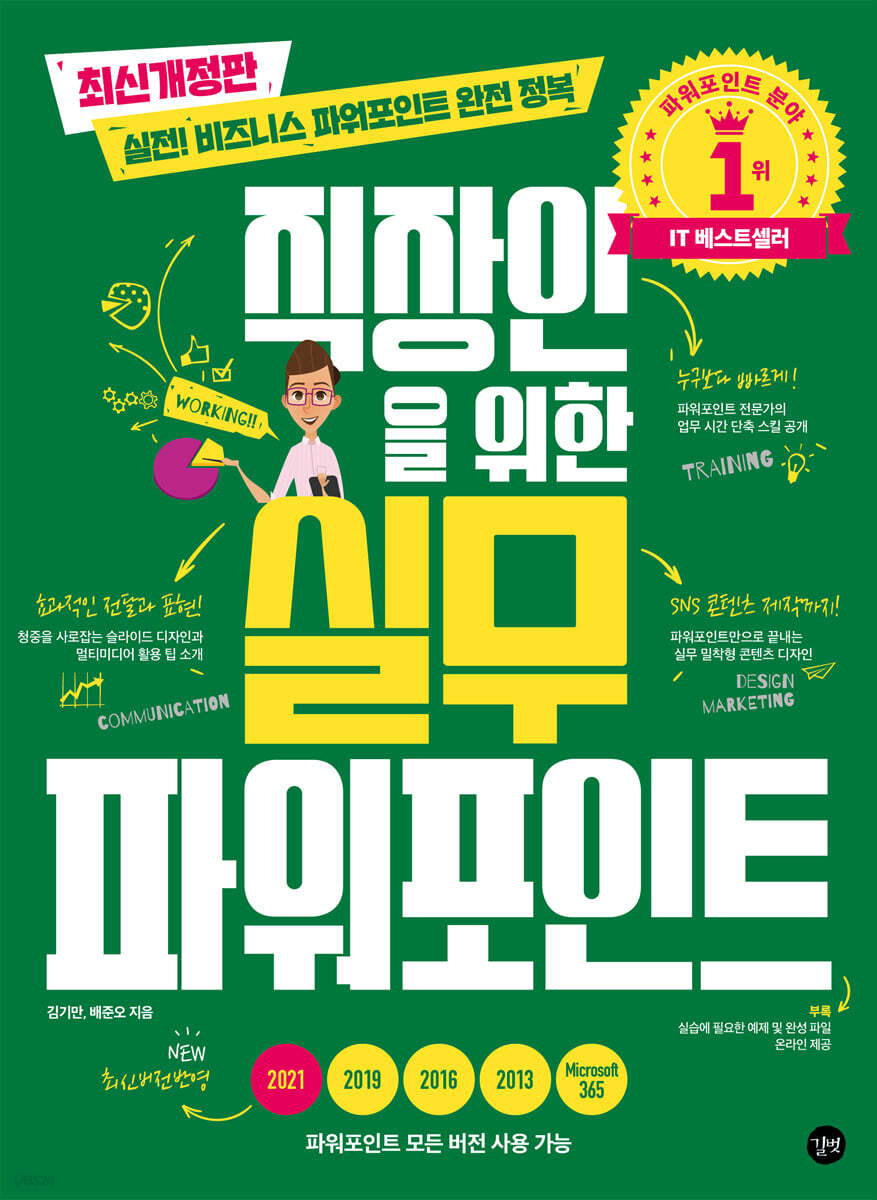
[Latest Revised Edition] Practical! Master Business PowerPoint
Practical PowerPoint for Office Workers
All versions of PowerPoint (2021/2019/2016/2013/Microsoft365) are available.
Reflects the latest version of PowerPoint 2021
Faster than anyone else! We'll reveal time-saving skills and tips from PowerPoint experts.
We introduce effective communication and presentation, and tips for engaging audiences through slide design and multimedia utilization. From creating social media content, you can create practical content designs using just PowerPoint.
Practical PowerPoint for Office Workers
All versions of PowerPoint (2021/2019/2016/2013/Microsoft365) are available.
Reflects the latest version of PowerPoint 2021
Faster than anyone else! We'll reveal time-saving skills and tips from PowerPoint experts.
We introduce effective communication and presentation, and tips for engaging audiences through slide design and multimedia utilization. From creating social media content, you can create practical content designs using just PowerPoint.
- You can preview some of the book's contents.
Preview
index
Chapter 01 Shorten your work hours and leave work on time
Section 01 Become a PowerPoint Master in 10 Minutes
01 Setting up a work environment recommended by experts
02 Adding the [Developer Tools] tab to the ribbon menu
03 Moving the location of the Quick Launch Toolbar
04 Entering frequently used special characters
05 How to Recover Presentation Documents
Section 02: How to quickly enter text
01 Learn how to quickly and accurately create presentation documents.
02 Create a presentation document using extracted keywords
03 Creating a presentation document using Word/Hangeul
04 Entering text using the overview window
05 Organizing documents using indentation/outdentation
06 Learn essential shortcuts for text entry
07 Change the font of all slides at once
Chapter 02: Learn design know-how to increase concentration
Section 03 Just choose the right color and you're done with design worries!
01 Understanding the basics of color
02 Easily select colors using theme colors and color combinations
03 Extracting the desired color from the homepage
04 Insert an icon and design it to match the icon and color.
05 Check out the color scheme sites needed for design.
Section 04: Improve your communication by specifying the correct font
01 Adjust line spacing to improve readability
02 Choosing the right font for your design
03 Learn about free fonts without copyright concerns
04 Expressing Effective Messages with Text Only
Save including fonts 05
[Clinic Before & After] Effectively Designating Colors to Increase Readability
Section 05: Examining Slide Arrangements That Audiences Love
Slide 01 Understanding the Rule of Thirds
02 Display guide lines at desired intervals
03 Creating a balanced layout
04 Placing images and text with stability
05 Resize slides in pixel units
06 Specifying the layout using the slide master
07 Placing text in a shape
[Clinic Before & After] Improving Communication Power with Appropriate Font Placement
[Clinic Before & After] Filling a Slide with Images and Placing Text
Chapter 03 Using Visual Aids to Increase Attention
Section 06: Using Shapes to Enhance Document Communication
01 Easily select overlapping objects using the [Selection] window
02 Easily duplicate objects using C + D
03 Easily align multiple shapes
04 Specify the horizontal spacing of all shapes equally
05 Avoid copying and repetitive work
06 Group multiple shapes to work quickly
07 How to insert an image into a shape
08 Merge and subtract shapes
09 Merge and subtract shapes to create a gear
10 Designing a Cover Using the Subtraction Function of Shapes and Text
11 Import text and decorate it with SmartArt graphics
12. Change detailed designs using SmartArt graphics.
[Clinic Before & After] Designing a List Using Shape Merge
[Clinic Before & After] Sequential Design Using Shape Subtraction
Section 07 Inserting Tables and Charts to Improve Readability
01 Review the basic principles of table design
02 Highlighting and right-aligning numbers in Table 02
03 Creating a table without lines
04 Place the comparison item in the center of the table
05 Examining the Basic Principles of Chart Design
06 Adding chart elements and changing the colors of chart pieces
07 Transforming a pie chart into a fan shape
08 Creating an Infographic-Style Pie Chart
09 Converting a 3D chart to a 2D chart
10. Accurately displaying colors from Excel charts in PowerPoint
11 Creating Infographic-Style Bar Charts
[Clinic Before & After] Designing a Chart That Expresses the Topic Well
Chapter 04: Creating a Standout Report by Inserting Images
Section 08 Find the right images for your document at once
01 Extract image and video files at once
02 Learn how to insert simple icons
03 Learn how to insert emojis
04 Insert a free icon and change the background color
05 Discover Free Image Sites
[Clinic Before & After] Designing Slides Using Icons
Section 09 Specifying various graphic effects like Photoshop
01 Create a simple cover by cropping the image
02 Resize image by pixel value
03 Quickly arrange images to complete the picture layout.
04 Making the background transparent
05 Inserting SVG files at once
06 Compress images to reduce file size
07 Splitting the image evenly using the table
08 Creating a Neumorphism Effect
09 Creating a Neon Sign Effect
10 Creating Brush Effects
[Clinic Before & After] Designing for Balance According to the Rule of Thirds
Chapter 05 Creating a Powerful Presentation
Section 10: Inserting Videos to Capture Audience Attention
01 Learn how to insert videos
02 Editing the video according to the presenter's intention
03 Recording the presentation screen as a video
04 Create a caption file and add subtitles to your video
05 Inserting video into text using the 'Stock Video' feature
Section 11 Specifying Animation and Transition Effects
01 Duplicate the slide and assign a morphing effect
02 Create various screens with morphing effects
03 Creating a morphing effect in 3D
04 Expressing animation effects freely 1 - Reveal and wipe effects
05 Expressing animation effects freely 2 - Brightness change, protrusion effect
06 Specifying animation effects in the [Animation Window]
Section 12: Explore Tools to Present Like a Professional
01 Take a look at the Presenter Tools screen
02 Present conveniently using presenter tools and shortcut keys
03 Presenting using the subtitle function
04 Recording a Slideshow
Section 13 Printing in the optimal format for presentation
01 Print only the desired part accurately
02 Splitting multiple slides onto one page
03 Removing the date and slide number from the slide master
04 Distinguishing chart colors when printing in grayscale
Chapter 06 Upgrading Your Presentation Writing Skills
Section 14: Making the Most of Free Utilities
01 Converting an image to a vector file (SVG file) - rapidresizer
02 Share documents and collaborate efficiently - Microsoft Teams
03 Quickly Insert QR Codes - QR4Office
04 Easily set a break timer - Breaktime
05 Conduct surveys in real time and check results quickly - Poll Everywere
Chapter 07 Creating SNS Content with PowerPoint
Section 15: Designing Images Without Photoshop
01 Understanding SNS Content Size
02 Creating Effective Card News on Instagram
03 Creating a Facebook Cover Image
04 Creating Effective Card News on Facebook
05 Creating a Naver Blog Thumbnail
Section 16 Creating Videos with PowerPoint
01 Creating After Effects-style videos
02 Create a sophisticated and stylish design using the morphing effect.
03 Export the video to post on SNS
Section 01 Become a PowerPoint Master in 10 Minutes
01 Setting up a work environment recommended by experts
02 Adding the [Developer Tools] tab to the ribbon menu
03 Moving the location of the Quick Launch Toolbar
04 Entering frequently used special characters
05 How to Recover Presentation Documents
Section 02: How to quickly enter text
01 Learn how to quickly and accurately create presentation documents.
02 Create a presentation document using extracted keywords
03 Creating a presentation document using Word/Hangeul
04 Entering text using the overview window
05 Organizing documents using indentation/outdentation
06 Learn essential shortcuts for text entry
07 Change the font of all slides at once
Chapter 02: Learn design know-how to increase concentration
Section 03 Just choose the right color and you're done with design worries!
01 Understanding the basics of color
02 Easily select colors using theme colors and color combinations
03 Extracting the desired color from the homepage
04 Insert an icon and design it to match the icon and color.
05 Check out the color scheme sites needed for design.
Section 04: Improve your communication by specifying the correct font
01 Adjust line spacing to improve readability
02 Choosing the right font for your design
03 Learn about free fonts without copyright concerns
04 Expressing Effective Messages with Text Only
Save including fonts 05
[Clinic Before & After] Effectively Designating Colors to Increase Readability
Section 05: Examining Slide Arrangements That Audiences Love
Slide 01 Understanding the Rule of Thirds
02 Display guide lines at desired intervals
03 Creating a balanced layout
04 Placing images and text with stability
05 Resize slides in pixel units
06 Specifying the layout using the slide master
07 Placing text in a shape
[Clinic Before & After] Improving Communication Power with Appropriate Font Placement
[Clinic Before & After] Filling a Slide with Images and Placing Text
Chapter 03 Using Visual Aids to Increase Attention
Section 06: Using Shapes to Enhance Document Communication
01 Easily select overlapping objects using the [Selection] window
02 Easily duplicate objects using C + D
03 Easily align multiple shapes
04 Specify the horizontal spacing of all shapes equally
05 Avoid copying and repetitive work
06 Group multiple shapes to work quickly
07 How to insert an image into a shape
08 Merge and subtract shapes
09 Merge and subtract shapes to create a gear
10 Designing a Cover Using the Subtraction Function of Shapes and Text
11 Import text and decorate it with SmartArt graphics
12. Change detailed designs using SmartArt graphics.
[Clinic Before & After] Designing a List Using Shape Merge
[Clinic Before & After] Sequential Design Using Shape Subtraction
Section 07 Inserting Tables and Charts to Improve Readability
01 Review the basic principles of table design
02 Highlighting and right-aligning numbers in Table 02
03 Creating a table without lines
04 Place the comparison item in the center of the table
05 Examining the Basic Principles of Chart Design
06 Adding chart elements and changing the colors of chart pieces
07 Transforming a pie chart into a fan shape
08 Creating an Infographic-Style Pie Chart
09 Converting a 3D chart to a 2D chart
10. Accurately displaying colors from Excel charts in PowerPoint
11 Creating Infographic-Style Bar Charts
[Clinic Before & After] Designing a Chart That Expresses the Topic Well
Chapter 04: Creating a Standout Report by Inserting Images
Section 08 Find the right images for your document at once
01 Extract image and video files at once
02 Learn how to insert simple icons
03 Learn how to insert emojis
04 Insert a free icon and change the background color
05 Discover Free Image Sites
[Clinic Before & After] Designing Slides Using Icons
Section 09 Specifying various graphic effects like Photoshop
01 Create a simple cover by cropping the image
02 Resize image by pixel value
03 Quickly arrange images to complete the picture layout.
04 Making the background transparent
05 Inserting SVG files at once
06 Compress images to reduce file size
07 Splitting the image evenly using the table
08 Creating a Neumorphism Effect
09 Creating a Neon Sign Effect
10 Creating Brush Effects
[Clinic Before & After] Designing for Balance According to the Rule of Thirds
Chapter 05 Creating a Powerful Presentation
Section 10: Inserting Videos to Capture Audience Attention
01 Learn how to insert videos
02 Editing the video according to the presenter's intention
03 Recording the presentation screen as a video
04 Create a caption file and add subtitles to your video
05 Inserting video into text using the 'Stock Video' feature
Section 11 Specifying Animation and Transition Effects
01 Duplicate the slide and assign a morphing effect
02 Create various screens with morphing effects
03 Creating a morphing effect in 3D
04 Expressing animation effects freely 1 - Reveal and wipe effects
05 Expressing animation effects freely 2 - Brightness change, protrusion effect
06 Specifying animation effects in the [Animation Window]
Section 12: Explore Tools to Present Like a Professional
01 Take a look at the Presenter Tools screen
02 Present conveniently using presenter tools and shortcut keys
03 Presenting using the subtitle function
04 Recording a Slideshow
Section 13 Printing in the optimal format for presentation
01 Print only the desired part accurately
02 Splitting multiple slides onto one page
03 Removing the date and slide number from the slide master
04 Distinguishing chart colors when printing in grayscale
Chapter 06 Upgrading Your Presentation Writing Skills
Section 14: Making the Most of Free Utilities
01 Converting an image to a vector file (SVG file) - rapidresizer
02 Share documents and collaborate efficiently - Microsoft Teams
03 Quickly Insert QR Codes - QR4Office
04 Easily set a break timer - Breaktime
05 Conduct surveys in real time and check results quickly - Poll Everywere
Chapter 07 Creating SNS Content with PowerPoint
Section 15: Designing Images Without Photoshop
01 Understanding SNS Content Size
02 Creating Effective Card News on Instagram
03 Creating a Facebook Cover Image
04 Creating Effective Card News on Facebook
05 Creating a Naver Blog Thumbnail
Section 16 Creating Videos with PowerPoint
01 Creating After Effects-style videos
02 Create a sophisticated and stylish design using the morphing effect.
03 Export the video to post on SNS
Detailed image

Publisher's Review
100% realistic, containing only what you need for work!
Reduce work hours and increase efficiency!
[Practical Master 1]
Work faster! Reduce work hours.
→ Follow practical examples available in all versions of Microsoft 365 and PowerPoint 2013 to 2021, and learn only the essential tips to quickly complete tasks.
[Practical Master 2]
Effectively express your message! Increase your audience's attention.
→ Learn how to use images and multimedia features to enhance your communication skills, so you can effectively deliver your message and increase the focus of your presentation.
[Practical Master 3]
Come to the Design Clinic! Enhance your presentation's persuasiveness.
→ Identify problems with existing designs through slide analysis clinics and increase the persuasiveness of your presentations with improved slide designs.
[Practical Master 4]
Create social media content! PowerPoint is all you need.
→ You can create practical SNS content essential for marketing, from card news to thumbnails and videos, using only PowerPoint, without any graphics program.
Reduce work hours and increase efficiency!
[Practical Master 1]
Work faster! Reduce work hours.
→ Follow practical examples available in all versions of Microsoft 365 and PowerPoint 2013 to 2021, and learn only the essential tips to quickly complete tasks.
[Practical Master 2]
Effectively express your message! Increase your audience's attention.
→ Learn how to use images and multimedia features to enhance your communication skills, so you can effectively deliver your message and increase the focus of your presentation.
[Practical Master 3]
Come to the Design Clinic! Enhance your presentation's persuasiveness.
→ Identify problems with existing designs through slide analysis clinics and increase the persuasiveness of your presentations with improved slide designs.
[Practical Master 4]
Create social media content! PowerPoint is all you need.
→ You can create practical SNS content essential for marketing, from card news to thumbnails and videos, using only PowerPoint, without any graphics program.
GOODS SPECIFICS
- Publication date: December 30, 2022
- Page count, weight, size: 484 pages | 188*257*21mm
- ISBN13: 9791140702633
You may also like
카테고리
korean


korean

![GQ KOREA Mark (Monthly): December [2025]](http://librairie.coreenne.fr/cdn/shop/files/8ef265dbbfbf186523ed75ba7319009d.jpg?v=1765340328&width=3840)


