

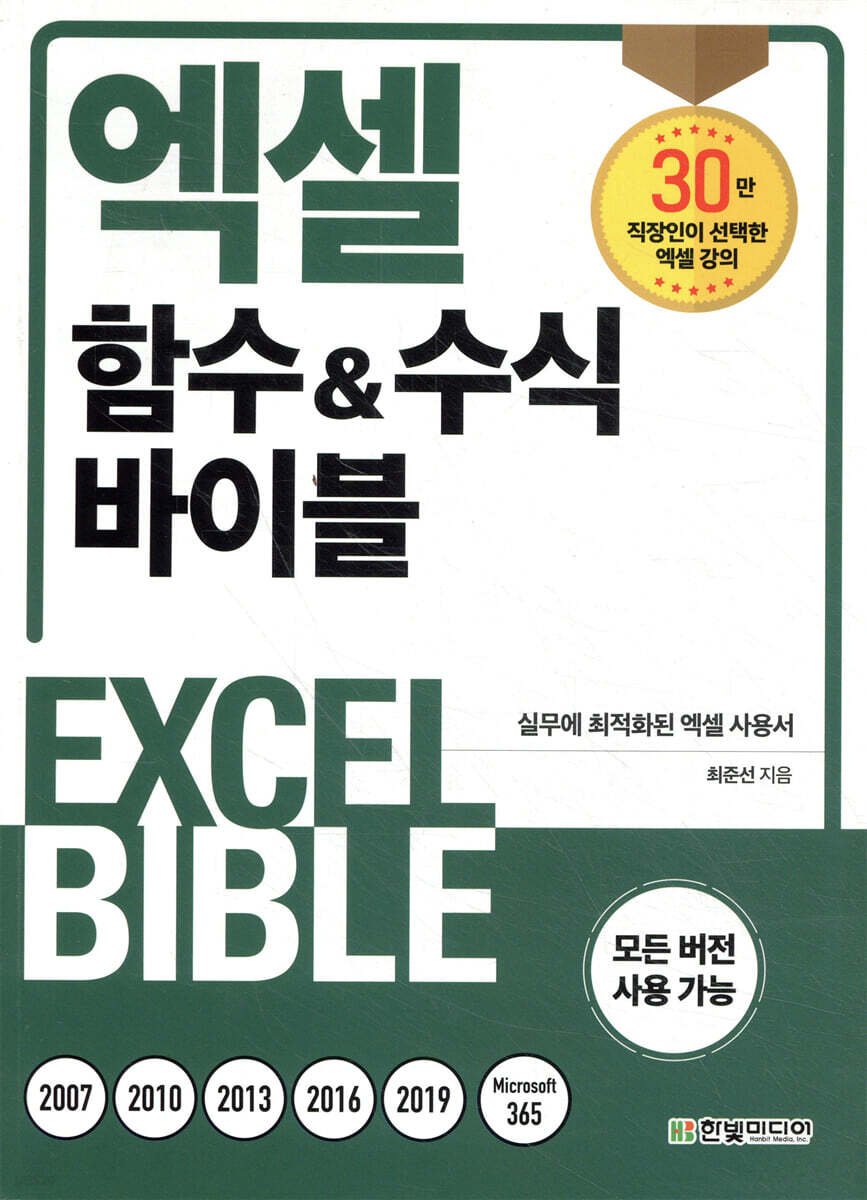
Excel Function & Formula Bible
 |
Description
Book Introduction
Master essential Excel functions and formulas optimized for your work to greatly improve your Excel skills!
Everything about Excel functions and formulas, suggested by Choi Jun-seon of Naver Excel's representative cafe, "Excel...One a Day"!
We have selected essential functions and formulas optimized for work that are essential for working with Excel and organized them so that you can learn them through various examples.
From basic functions to intermediate and advanced functions, you will learn practical examples that can be applied directly to your work, and the principles of formula composition and how to utilize functions are thoroughly organized.
In particular, it covers array formulas that significantly increase the productivity of Excel work, as well as dynamic array functions and formulas provided from the Microsoft 365 version, in depth to help you improve work efficiency.
Additionally, we have detailed the differences between versions so that it can be used in all versions, including Excel 2007, 2010, 2013, 2016, 2019, and Microsoft 365, so you can look it up and use it conveniently anytime, anywhere.
If you have any difficulties while learning, you can visit Naver Excel's representative cafe, 'Excel...One a Day', and get help from the author to solve them.
Everything about Excel functions and formulas, suggested by Choi Jun-seon of Naver Excel's representative cafe, "Excel...One a Day"!
We have selected essential functions and formulas optimized for work that are essential for working with Excel and organized them so that you can learn them through various examples.
From basic functions to intermediate and advanced functions, you will learn practical examples that can be applied directly to your work, and the principles of formula composition and how to utilize functions are thoroughly organized.
In particular, it covers array formulas that significantly increase the productivity of Excel work, as well as dynamic array functions and formulas provided from the Microsoft 365 version, in depth to help you improve work efficiency.
Additionally, we have detailed the differences between versions so that it can be used in all versions, including Excel 2007, 2010, 2013, 2016, 2019, and Microsoft 365, so you can look it up and use it conveniently anytime, anywhere.
If you have any difficulties while learning, you can visit Naver Excel's representative cafe, 'Excel...One a Day', and get help from the author to solve them.
- You can preview some of the book's contents.
Preview
index
PART 01 Basics of Excel Formulas
CHAPTER 01 Understanding the Basics of Formulas
01-01 Formulas, functions, and operators
01-02 Using various methods to enter formulas
01-03 Understanding Excel Formula Limitations
01-04 Distinguishing Data Formats in Excel
01-05 Understanding how to set the display format
01-06 Understanding the exponential display format (5E+10)
01-07 Displaying amounts in multiple languages
01-08 How to Manage Date and Time Data in Excel
01-09 Save the desired value as is using the text display format
01-10 Understanding Format Codes
01-11 Apply formats differently according to desired conditions
Displaying the 01-12 ten thousand unit separator
01-13 How to reference cells in different locations
01-14 Referencing (linking) cells in other files
01-15 Change the linked file to another file of your choice
01-16 Disconnecting a linked file and changing the formula to a value
01-17 Understanding and Using Relative References
01-18 Understanding and Using Absolute References
01-19 Understanding and Using Mixed References
01-20 Understanding and Using Arithmetic Operators
01-21 Understanding and Using Comparison Operators
01-22 Understanding and Using Reference Operators
01-23 Operator Precedence
CHAPTER 02 Excel functions that help you use formulas
02-01 Understanding How to Use the Function Wizard
How to use the 02-02 function easily
02-03 Understanding How to Use the Formula Input Bar
02-04 How to set a shortcut key to move to the formula input bar
02-05 Copying and using formulas in various ways
02-06 Fill in values in the separated area with a formula
02-07 Defining data ranges by name
02-08 Define and use values to be used in calculations by name
02-09 Configuring Shortcuts
02-10 Defining a formula by name
02-11 How to define file and sheet related names
02-12 Defining and using names with relative references
02-13 Defining 3D References and Aggregating Questionnaires
02-14 Find and delete the name that caused the error
02-15 Causes of name duplication and solutions
02-16 Convert to Excel Table
02-17 Understanding Calculated Columns and Structured References
02-18 Understanding Various Structured Reference Syntax
02-19 Structural References and Reference Methods
02-20 How to resolve compatibility issues with structural references
02-21 How to Fix Excel Table Range Not Expanding Automatically
02-22 Hide formula
02-23 Converting formulas to values
CHAPTER 03 Solving Formula Problems
03-01 Understanding and Setting Up Error Markers
03-02 #DIV/0! Error Causes and Solutions
Causes and Solutions for the 03-03 #N/A Error
03-04 #NAME? Causes and Solutions for Errors
03-05 #NULL! Error Causes and Solutions
Causes and Solutions for Error 03-06 #NUM!
03-07 #VALUE! Error Causes and Solutions
03-08 #REF! Error Causes and Solutions
03-09 ######## Causes and solutions for errors
03-10 #SPILL! Causes and Solutions for Errors
03-11 #CALC! Error Causes and Solutions
03-12 Causes of Circular References and How to Fix Them
03-13 Check the reference location and quickly move to that location
03-14 Step-by-step calculation process for complex formulas
03-15 Checking Calculation Options If the Formula Isn't Calculated Automatically
03-16 Change the formula result to the value I want using Goal Finder
03-17 Installing the Solver Add-on
03-18 Compensating for the shortcomings of finding the target value using the solution
PART 02 Excel Practical Functions
CHAPTER 04 Decision Functions
04-01 Returning desired results based on whether a condition is met - IF function
04-02 Judging data using IS series functions - IFERROR function
04-03 Creating a conditional expression to determine the Excel version - INFO function
04-04 Solving function nesting problems - AND, OR, NOT, XOR functions
04-05 Converting an index number to a desired value - CHOOSE function
04-06 Processing multiple conditions with a single function without nesting - IFS function
04-07 Converting multiple code values to desired values - SWITCH function
CHAPTER 05 Editing Functions
05-01 Retrieving only the desired portion of a cell value - LEFT, MID, RIGHT functions
05-02 Separating left/right at the delimiter position - FIND, SEARCH functions
05-03 Separating left and right in cells without delimiters - LEN function
05-04 Splitting columns at the same delimiter position
05-05 Finding the current file path, file name, and sheet name - CELL function
05-06 Returning desired results based on whether a specific word is included
05-07 Splitting numbers by digits - TEXT, REPT functions
05-08 Various data connection methods
Concatenate text within a range of 05-09 - PHONETIC function
05-10 Concatenating all data within a specific range - CONCAT function
05-11 Joining data within a specific range using a delimiter - TEXTJOIN function
05-12 Modifying and deleting parts of cells - SUBSTITUTE, REPLACE functions
05-13 Calculating numbers containing text characters
05-14 Separating only the part of data that contains the same delimiter
05-15 Separate all data containing multiple delimiters
05-16 Counting the number of specific words in a string
05-17 Deleting Invisible Ghost Characters - TRIM, CLEAN Functions
05-18 Converting text numbers to numeric data - VALUE function
05-19 Converting text dates to date data - DATEVALUE function
05-20 Converting numbers to Korean or Chinese characters - NUMBERSTRING function
05-21 How to calculate a string like 100+200 - EVALUATE function
Returning the formula string used in cell 05-22 - FORMULATEXT function
CHAPTER 06 Aggregation and Statistical Functions
06-01 Counting the number of data under various conditions
06-02 Conditional configuration pattern for functions with IF
06-03 Configuring AND and OR conditions using the COUNTIFS function
Counting the number of times in the 06-04 interval - FREQUENCY function
06-05 Inserting serial numbers into tables in various situations
06-06 Checking for and Handling Duplicates - COUNTIFS Function
Counting the number of specific words in a string entered in cell 06-07
06-08 Calculating totals using the SUM and SUMIF functions
06-09 Relationship between COUNTIF and SUMIF functions
06-10 Calculate cumulative total
06-11 Finding the cumulative total that meets the conditions
06-12 Summing Multiple Conditions with the SUMIFS Function
06-13 Calculating the sum by background color or font color condition
06-14 Mean, Median, and Mode - AVERAGE Function
06-15 Finding the average excluding zero - AVERAGEIF function
06-16 Finding the average excluding the maximum/minimum values
06-17 Finding the average excluding the upper/lower N% (numbers) - TRIMMEAN function
06-18 Finding a Weighted Average - SUMPRODUCT Function
06-19 Obtaining N upper/lower data
06-20 Finding maximum/minimum values with constraints
06-21 Finding the maximum/minimum value that satisfies the condition
06-22 Finding the quotient and remainder of division - QUOTIENT, MOD functions
06-23 Resolving calculation errors in the MOD function
06-24 Rounding, Up, and Down - ROUND Series Functions
06-25 Change the rounding standard
Rounding up, down, and up to multiples of 06-26
06-27 Calculating Ranks - RANK, RANK.EQ Functions
06-28 Reordering the rankings by classifying them according to new criteria
06-29 Finding Ranks with Multiple Ranges of Values
06-30 Finding the ranking for tables with the same structure entered in multiple sheets
06-31 Finding Percentage Rank - PERCENTRANK Function
06-32 Aggregating only the data visible on the screen - SUBTOTAL function
06-33 Aggregating without formula errors - AGGREGATE function
06-34 Assigning serial numbers to data displayed on the screen
CHAPTER 07 Date and Time Functions
07-01 Recording today's date and time - NOW, TODAY functions
Returning the day of the week for a date on July 2 - WEEKDAY, TEXT functions
07-03 Automatically record data entry date and time
Calculating the start and end dates of the month of July and April
07-05 Calculating the start and end dates of the week in which a specific date falls
07-06 Making a Perpetual Calendar
Return the previous weekday date when the date falls on a weekend
Calculating the date of a specific day of the Nth week of each month
Calculating the date N months (years) before (or after) 07-09
07-10 Calculate the end date (estimated delivery date) excluding weekends and holidays
Grouping by half year and quarter from 07-11
Calculating Fiscal Year and Fiscal Quarter 07-12
07-13 Distinguishing between common and leap years
Calculating the week of the month in which the date falls
Calculating the length of service from the date of employment on July 15 - DATEDIF function
07-16 Calculating age, full age, and insurance age
07-17 Calculating the sum and average of the length of service
07-18 Divide the time into AM/PM
07-19 Distinguishing hours, minutes, and seconds from time
Adjust the 07-20 time in 30-minute and 1-hour intervals
Calculating part-time salary based on working hours
07-22 Calculate working hours excluding break time
07-23 Calculating Overtime Hours
CHAPTER 08 Reference Functions
08-01 Referencing values from another table using the VLOOKUP function
08-02 Finding values in a range sorted in ascending order
Finding a value in row 08-03 and referencing the cell below - HLOOKUP function
08-04 Converting the VLOOKUP function to INDEX and MATCH functions
08-05 Referencing the value in the left column of the value being looked for
08-06 Referencing values in a table sorted by interval in descending order
08-07 New Reference Function - XLOOKUP Function
08-08 New Find Function - XMATCH Function
08-09 How to reference a value when you only know part of the value to find
08-10 Finding values containing wildcard characters (*, ?, ~)
08-11 How to find multiple values at once
08-12 How to troubleshoot when #N/A error occurs even though the value you are looking for exists
08-13 Refer to the last entered value
08-14 Find all locations where duplicate numbers are entered
08-15 Referencing desired values from multiple tables
08-16 Referencing desired values from multiple tables with different table configurations
08-17 Referencing Hyperlinks - HYPERLINK Function
See Figure 08-18 (Image)
08-19 Referencing Dynamic Ranges - OFFSET Function
08-20 Reference only the most recent data among the entered data
08-21 Converting column (or row) data to row data
08-22 Converting an existing table to table format
08-23 Refer to locations spaced at regular intervals
08-24 Always refer to a fixed location -INDIRECT function
08-25 Consolidating data scattered across multiple sheets into one
PART 03 Array Formulas and Array Functions
CHAPTER 09 Principles of Arrays
09-01 Differences between general formulas and array formulas
09-02 Legacy Arrays and Dynamic Arrays
09-03 Understanding Matrices and Dimensions
09-04 How to check the values stored in an array
09-05 Array Constants
09-06 Array (Matrix) Operations
09-07 How to change the direction of a one-dimensional array
09-08 Understanding AND and OR Operations of Boolean Values
09-09 Duplicate Removal Function - UNIQUE Function
09-10 Reference all data that meets desired conditions - FILTER function
09-11 Sorting and returning results within an array - SORT, SORTBY functions
09-12 Returning a serial number - SEQUENCE function
CHAPTER 10 Array formulas frequently used in practice
Array formula to add IF condition to 10-01 function
10-02 Array formula handling OR conditions
10-03 Calculate the average (aggregate) values of the upper and lower N
10-04 Aggregating columns (or rows) spaced at regular intervals
Counting numbers that match the 10-05 Lotto winning numbers
10-06 Counting unique numbers
10-07 Count and display the maximum number of consecutive occurrences of the same value.
10-08 Using 3-Dimensional References in the SUMIF Function
10-09 Adding IF conditions to a table with an automatic filter applied and aggregating
10-10 Calculating gender and age group from resident registration numbers
10-11 When there are multiple identical delimiters, cut left/right from the last position of the delimiter.
Separate numbers, English, and Korean characters from 10-12
Monthly and quarterly aggregation from data entered only on the 10th-13th day
10-14 Find and reference approximate locations
Classify data by checking whether it contains 10-15 specific words.
10-16 Find and reference locations that satisfy all conditions
10-17 Finding and referencing the position of the last value in a table containing mixed text and numbers
Reference all values that meet the conditions 10-18 in order
10-19 Reference irregularly merged cells in order
Reference in order the values that meet the conditions of 10-20, excluding blank cells.
10-21 Reference only unique items that meet the conditions among duplicate data
10-22 Sort and display data
Search
CHAPTER 01 Understanding the Basics of Formulas
01-01 Formulas, functions, and operators
01-02 Using various methods to enter formulas
01-03 Understanding Excel Formula Limitations
01-04 Distinguishing Data Formats in Excel
01-05 Understanding how to set the display format
01-06 Understanding the exponential display format (5E+10)
01-07 Displaying amounts in multiple languages
01-08 How to Manage Date and Time Data in Excel
01-09 Save the desired value as is using the text display format
01-10 Understanding Format Codes
01-11 Apply formats differently according to desired conditions
Displaying the 01-12 ten thousand unit separator
01-13 How to reference cells in different locations
01-14 Referencing (linking) cells in other files
01-15 Change the linked file to another file of your choice
01-16 Disconnecting a linked file and changing the formula to a value
01-17 Understanding and Using Relative References
01-18 Understanding and Using Absolute References
01-19 Understanding and Using Mixed References
01-20 Understanding and Using Arithmetic Operators
01-21 Understanding and Using Comparison Operators
01-22 Understanding and Using Reference Operators
01-23 Operator Precedence
CHAPTER 02 Excel functions that help you use formulas
02-01 Understanding How to Use the Function Wizard
How to use the 02-02 function easily
02-03 Understanding How to Use the Formula Input Bar
02-04 How to set a shortcut key to move to the formula input bar
02-05 Copying and using formulas in various ways
02-06 Fill in values in the separated area with a formula
02-07 Defining data ranges by name
02-08 Define and use values to be used in calculations by name
02-09 Configuring Shortcuts
02-10 Defining a formula by name
02-11 How to define file and sheet related names
02-12 Defining and using names with relative references
02-13 Defining 3D References and Aggregating Questionnaires
02-14 Find and delete the name that caused the error
02-15 Causes of name duplication and solutions
02-16 Convert to Excel Table
02-17 Understanding Calculated Columns and Structured References
02-18 Understanding Various Structured Reference Syntax
02-19 Structural References and Reference Methods
02-20 How to resolve compatibility issues with structural references
02-21 How to Fix Excel Table Range Not Expanding Automatically
02-22 Hide formula
02-23 Converting formulas to values
CHAPTER 03 Solving Formula Problems
03-01 Understanding and Setting Up Error Markers
03-02 #DIV/0! Error Causes and Solutions
Causes and Solutions for the 03-03 #N/A Error
03-04 #NAME? Causes and Solutions for Errors
03-05 #NULL! Error Causes and Solutions
Causes and Solutions for Error 03-06 #NUM!
03-07 #VALUE! Error Causes and Solutions
03-08 #REF! Error Causes and Solutions
03-09 ######## Causes and solutions for errors
03-10 #SPILL! Causes and Solutions for Errors
03-11 #CALC! Error Causes and Solutions
03-12 Causes of Circular References and How to Fix Them
03-13 Check the reference location and quickly move to that location
03-14 Step-by-step calculation process for complex formulas
03-15 Checking Calculation Options If the Formula Isn't Calculated Automatically
03-16 Change the formula result to the value I want using Goal Finder
03-17 Installing the Solver Add-on
03-18 Compensating for the shortcomings of finding the target value using the solution
PART 02 Excel Practical Functions
CHAPTER 04 Decision Functions
04-01 Returning desired results based on whether a condition is met - IF function
04-02 Judging data using IS series functions - IFERROR function
04-03 Creating a conditional expression to determine the Excel version - INFO function
04-04 Solving function nesting problems - AND, OR, NOT, XOR functions
04-05 Converting an index number to a desired value - CHOOSE function
04-06 Processing multiple conditions with a single function without nesting - IFS function
04-07 Converting multiple code values to desired values - SWITCH function
CHAPTER 05 Editing Functions
05-01 Retrieving only the desired portion of a cell value - LEFT, MID, RIGHT functions
05-02 Separating left/right at the delimiter position - FIND, SEARCH functions
05-03 Separating left and right in cells without delimiters - LEN function
05-04 Splitting columns at the same delimiter position
05-05 Finding the current file path, file name, and sheet name - CELL function
05-06 Returning desired results based on whether a specific word is included
05-07 Splitting numbers by digits - TEXT, REPT functions
05-08 Various data connection methods
Concatenate text within a range of 05-09 - PHONETIC function
05-10 Concatenating all data within a specific range - CONCAT function
05-11 Joining data within a specific range using a delimiter - TEXTJOIN function
05-12 Modifying and deleting parts of cells - SUBSTITUTE, REPLACE functions
05-13 Calculating numbers containing text characters
05-14 Separating only the part of data that contains the same delimiter
05-15 Separate all data containing multiple delimiters
05-16 Counting the number of specific words in a string
05-17 Deleting Invisible Ghost Characters - TRIM, CLEAN Functions
05-18 Converting text numbers to numeric data - VALUE function
05-19 Converting text dates to date data - DATEVALUE function
05-20 Converting numbers to Korean or Chinese characters - NUMBERSTRING function
05-21 How to calculate a string like 100+200 - EVALUATE function
Returning the formula string used in cell 05-22 - FORMULATEXT function
CHAPTER 06 Aggregation and Statistical Functions
06-01 Counting the number of data under various conditions
06-02 Conditional configuration pattern for functions with IF
06-03 Configuring AND and OR conditions using the COUNTIFS function
Counting the number of times in the 06-04 interval - FREQUENCY function
06-05 Inserting serial numbers into tables in various situations
06-06 Checking for and Handling Duplicates - COUNTIFS Function
Counting the number of specific words in a string entered in cell 06-07
06-08 Calculating totals using the SUM and SUMIF functions
06-09 Relationship between COUNTIF and SUMIF functions
06-10 Calculate cumulative total
06-11 Finding the cumulative total that meets the conditions
06-12 Summing Multiple Conditions with the SUMIFS Function
06-13 Calculating the sum by background color or font color condition
06-14 Mean, Median, and Mode - AVERAGE Function
06-15 Finding the average excluding zero - AVERAGEIF function
06-16 Finding the average excluding the maximum/minimum values
06-17 Finding the average excluding the upper/lower N% (numbers) - TRIMMEAN function
06-18 Finding a Weighted Average - SUMPRODUCT Function
06-19 Obtaining N upper/lower data
06-20 Finding maximum/minimum values with constraints
06-21 Finding the maximum/minimum value that satisfies the condition
06-22 Finding the quotient and remainder of division - QUOTIENT, MOD functions
06-23 Resolving calculation errors in the MOD function
06-24 Rounding, Up, and Down - ROUND Series Functions
06-25 Change the rounding standard
Rounding up, down, and up to multiples of 06-26
06-27 Calculating Ranks - RANK, RANK.EQ Functions
06-28 Reordering the rankings by classifying them according to new criteria
06-29 Finding Ranks with Multiple Ranges of Values
06-30 Finding the ranking for tables with the same structure entered in multiple sheets
06-31 Finding Percentage Rank - PERCENTRANK Function
06-32 Aggregating only the data visible on the screen - SUBTOTAL function
06-33 Aggregating without formula errors - AGGREGATE function
06-34 Assigning serial numbers to data displayed on the screen
CHAPTER 07 Date and Time Functions
07-01 Recording today's date and time - NOW, TODAY functions
Returning the day of the week for a date on July 2 - WEEKDAY, TEXT functions
07-03 Automatically record data entry date and time
Calculating the start and end dates of the month of July and April
07-05 Calculating the start and end dates of the week in which a specific date falls
07-06 Making a Perpetual Calendar
Return the previous weekday date when the date falls on a weekend
Calculating the date of a specific day of the Nth week of each month
Calculating the date N months (years) before (or after) 07-09
07-10 Calculate the end date (estimated delivery date) excluding weekends and holidays
Grouping by half year and quarter from 07-11
Calculating Fiscal Year and Fiscal Quarter 07-12
07-13 Distinguishing between common and leap years
Calculating the week of the month in which the date falls
Calculating the length of service from the date of employment on July 15 - DATEDIF function
07-16 Calculating age, full age, and insurance age
07-17 Calculating the sum and average of the length of service
07-18 Divide the time into AM/PM
07-19 Distinguishing hours, minutes, and seconds from time
Adjust the 07-20 time in 30-minute and 1-hour intervals
Calculating part-time salary based on working hours
07-22 Calculate working hours excluding break time
07-23 Calculating Overtime Hours
CHAPTER 08 Reference Functions
08-01 Referencing values from another table using the VLOOKUP function
08-02 Finding values in a range sorted in ascending order
Finding a value in row 08-03 and referencing the cell below - HLOOKUP function
08-04 Converting the VLOOKUP function to INDEX and MATCH functions
08-05 Referencing the value in the left column of the value being looked for
08-06 Referencing values in a table sorted by interval in descending order
08-07 New Reference Function - XLOOKUP Function
08-08 New Find Function - XMATCH Function
08-09 How to reference a value when you only know part of the value to find
08-10 Finding values containing wildcard characters (*, ?, ~)
08-11 How to find multiple values at once
08-12 How to troubleshoot when #N/A error occurs even though the value you are looking for exists
08-13 Refer to the last entered value
08-14 Find all locations where duplicate numbers are entered
08-15 Referencing desired values from multiple tables
08-16 Referencing desired values from multiple tables with different table configurations
08-17 Referencing Hyperlinks - HYPERLINK Function
See Figure 08-18 (Image)
08-19 Referencing Dynamic Ranges - OFFSET Function
08-20 Reference only the most recent data among the entered data
08-21 Converting column (or row) data to row data
08-22 Converting an existing table to table format
08-23 Refer to locations spaced at regular intervals
08-24 Always refer to a fixed location -INDIRECT function
08-25 Consolidating data scattered across multiple sheets into one
PART 03 Array Formulas and Array Functions
CHAPTER 09 Principles of Arrays
09-01 Differences between general formulas and array formulas
09-02 Legacy Arrays and Dynamic Arrays
09-03 Understanding Matrices and Dimensions
09-04 How to check the values stored in an array
09-05 Array Constants
09-06 Array (Matrix) Operations
09-07 How to change the direction of a one-dimensional array
09-08 Understanding AND and OR Operations of Boolean Values
09-09 Duplicate Removal Function - UNIQUE Function
09-10 Reference all data that meets desired conditions - FILTER function
09-11 Sorting and returning results within an array - SORT, SORTBY functions
09-12 Returning a serial number - SEQUENCE function
CHAPTER 10 Array formulas frequently used in practice
Array formula to add IF condition to 10-01 function
10-02 Array formula handling OR conditions
10-03 Calculate the average (aggregate) values of the upper and lower N
10-04 Aggregating columns (or rows) spaced at regular intervals
Counting numbers that match the 10-05 Lotto winning numbers
10-06 Counting unique numbers
10-07 Count and display the maximum number of consecutive occurrences of the same value.
10-08 Using 3-Dimensional References in the SUMIF Function
10-09 Adding IF conditions to a table with an automatic filter applied and aggregating
10-10 Calculating gender and age group from resident registration numbers
10-11 When there are multiple identical delimiters, cut left/right from the last position of the delimiter.
Separate numbers, English, and Korean characters from 10-12
Monthly and quarterly aggregation from data entered only on the 10th-13th day
10-14 Find and reference approximate locations
Classify data by checking whether it contains 10-15 specific words.
10-16 Find and reference locations that satisfy all conditions
10-17 Finding and referencing the position of the last value in a table containing mixed text and numbers
Reference all values that meet the conditions 10-18 in order
10-19 Reference irregularly merged cells in order
Reference in order the values that meet the conditions of 10-20, excluding blank cells.
10-21 Reference only unique items that meet the conditions among duplicate data
10-22 Sort and display data
Search
Detailed image

Publisher's Review
What kind of readers is this book for?
- Office workers who need to use Excel functions and formulas immediately at work.
- People who want to conveniently create Excel documents by freely handling Excel functions and formulas.
- People who want to learn the principles of Excel functions and formulas by finding and using the content they need whenever they need it.
- People who want to learn and utilize advanced Excel functions that are efficient for work but not easily accessible through practical examples.
- People who want to know the new function formula features and how to use them in the new version of Excel.
Features of this book
Effective use anytime, anywhere with all versions available
The structure and utilization of Excel functions and formulas required for work are explained in detail and in an easy-to-understand manner, so you can look them up and learn them whenever you need them.
It is available for all versions including Excel 2007, 2010, 2013, 2016, 2019, and Microsoft 365, so you can use it anytime, anywhere.
High-level examples that can be applied in practice
The high-level examples essential for practical Excel use were selected from the author's lectures, practical experience, and various cases obtained while operating Naver's representative Excel cafe, 'Excel...One a Day.'
You can experience the most optimized practical examples for learning and utilizing Excel functions and formulas.
Efficient organization that makes it easy to find what you need
It is impossible to memorize all 500 or so Excel functions.
Rather than introducing all functions, this book is structured to allow you to learn essential functions and formulas needed for work through case studies.
I put it on my desk and look for it and use it whenever I want.
Introduction to new Excel features and how to use them
This article provides a detailed introduction to array formulas that greatly improve the efficiency of Excel work, as well as dynamic array functions and formulas newly added to the Microsoft 365 version, from their principles to how to use them in work.
By learning the array formulas optimized for your work situation one by one whenever you need them, you can quickly improve your work utilization skills.
- Office workers who need to use Excel functions and formulas immediately at work.
- People who want to conveniently create Excel documents by freely handling Excel functions and formulas.
- People who want to learn the principles of Excel functions and formulas by finding and using the content they need whenever they need it.
- People who want to learn and utilize advanced Excel functions that are efficient for work but not easily accessible through practical examples.
- People who want to know the new function formula features and how to use them in the new version of Excel.
Features of this book
Effective use anytime, anywhere with all versions available
The structure and utilization of Excel functions and formulas required for work are explained in detail and in an easy-to-understand manner, so you can look them up and learn them whenever you need them.
It is available for all versions including Excel 2007, 2010, 2013, 2016, 2019, and Microsoft 365, so you can use it anytime, anywhere.
High-level examples that can be applied in practice
The high-level examples essential for practical Excel use were selected from the author's lectures, practical experience, and various cases obtained while operating Naver's representative Excel cafe, 'Excel...One a Day.'
You can experience the most optimized practical examples for learning and utilizing Excel functions and formulas.
Efficient organization that makes it easy to find what you need
It is impossible to memorize all 500 or so Excel functions.
Rather than introducing all functions, this book is structured to allow you to learn essential functions and formulas needed for work through case studies.
I put it on my desk and look for it and use it whenever I want.
Introduction to new Excel features and how to use them
This article provides a detailed introduction to array formulas that greatly improve the efficiency of Excel work, as well as dynamic array functions and formulas newly added to the Microsoft 365 version, from their principles to how to use them in work.
By learning the array formulas optimized for your work situation one by one whenever you need them, you can quickly improve your work utilization skills.
GOODS SPECIFICS
- Date of publication: December 7, 2020
- Page count, weight, size: 928 pages | 188*258*40mm
- ISBN13: 9791162243701
- ISBN10: 1162243708
You may also like
카테고리
korean


korean

![GQ KOREA Mark (Monthly): December [2025]](http://librairie.coreenne.fr/cdn/shop/files/8ef265dbbfbf186523ed75ba7319009d.jpg?v=1765340328&width=3840)


