

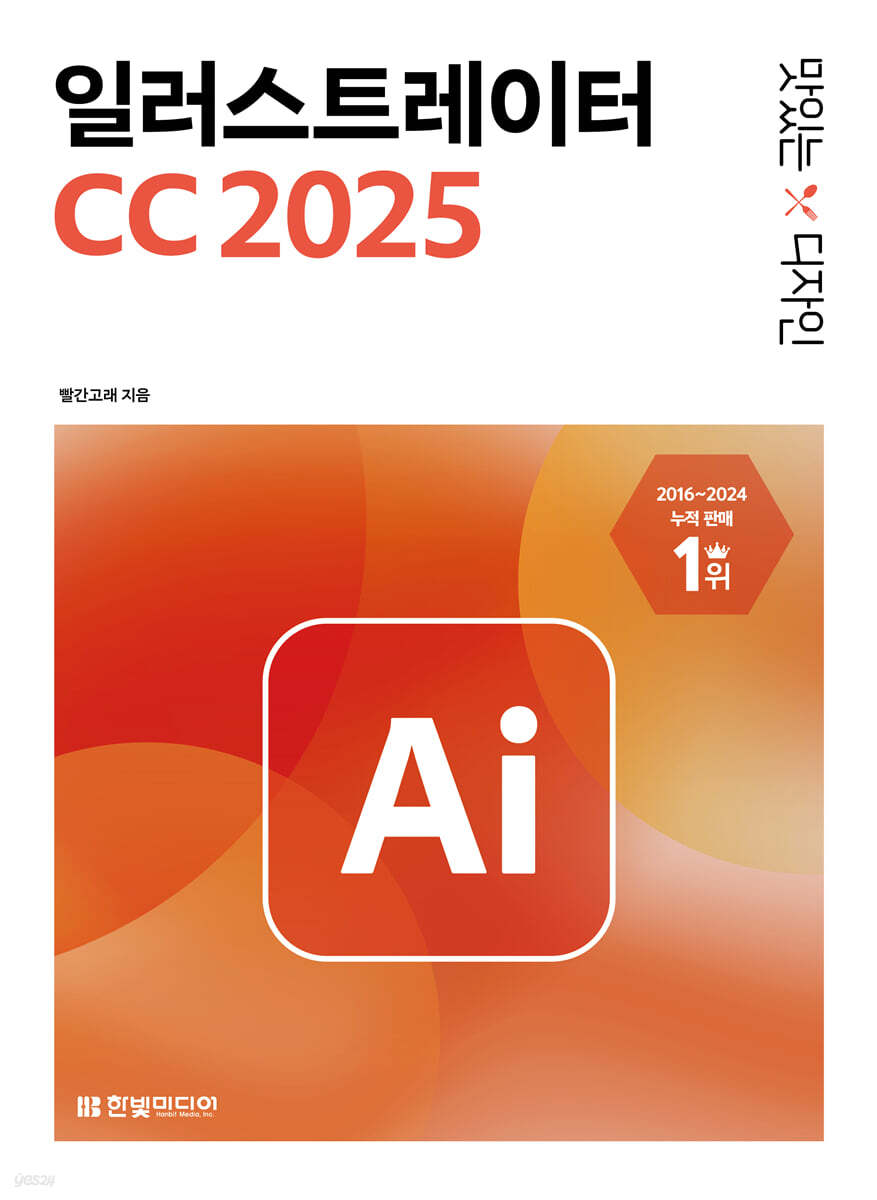
Delicious Design Illustrator CC 2025
 |
Description
Book Introduction
From the basics that cover core features to the practical use cases that are plentiful,
The perfect recipe for learning Illustrator properly!
You can learn everything from the basics of Illustrator, which is essential for graphic design, to how to use it.
It thoroughly explains Illustrator's basic and core functions, allowing you to build a solid foundation from the basics. It also includes various practical examples, allowing you to effectively learn how to utilize key functions.
It is fully compatible with the latest version, CC 2025, and the three-step learning method of [Simple Practice] - [Practice at a Glance] - [Practical Application], which allows you to completely master the basic functions and usage, helps anyone learn Illustrator properly and use it right away.
The 6-week online study group hosted by the official Delicious Design Study cafe provides a useful curriculum and Q&A sessions, making learning Illustrator even easier.
The perfect recipe for learning Illustrator properly!
You can learn everything from the basics of Illustrator, which is essential for graphic design, to how to use it.
It thoroughly explains Illustrator's basic and core functions, allowing you to build a solid foundation from the basics. It also includes various practical examples, allowing you to effectively learn how to utilize key functions.
It is fully compatible with the latest version, CC 2025, and the three-step learning method of [Simple Practice] - [Practice at a Glance] - [Practical Application], which allows you to completely master the basic functions and usage, helps anyone learn Illustrator properly and use it right away.
The 6-week online study group hosted by the official Delicious Design Study cafe provides a useful curriculum and Q&A sessions, making learning Illustrator even easier.
- You can preview some of the book's contents.
Preview
index
preface
Learning deliciously
3-Step Learning Structure & Example Completion Gallery
Download example & completed files
Delicious Design Help Page
Using the Delicious Design Study Official Cafe
What's New in Photoshop CC 2025
New Features in Illustrator CC 2025
Delicious design, a sneak peek
PART 01.
Illustrator: A Solid Foundation [Basic Edition]
CHAPTER 01: Uncovering Illustrator CC 2025
LESSON 01.
Welcome, Illustrator: What is Illustrator and What is it Used for?
Where is Illustrator used?
LESSON 02.
What does Illustrator look like?: A Close Look at the Illustrator Launch Screen
Illustrator CC 2025 home screen
Illustrator CC 2025 default screen
[Simple Practice] Changing the Color of the Work Screen
[Simple Practice] Manipulating the Panel
[Simple Practice] Creating and Registering a Work Screen
LESSON 03.
Tick tock, tick tock, mastering the drawing tools: Understanding the various tools in Illustrator CC 2025
[Simple Practice] Handling the Toolbar
Explore tool names and features
[Simple Practice] Creating and Using Your Own Toolbar
LESSON 04.
How to Use Illustrator to Save Every Second: Setting Up Illustrator Shortcuts
[Simple Practice] Setting Your Own Shortcut Keys
CHAPTER 02.
Illustrator Preview
LESSON 01.
Illustrator, You Need to Know This!: Understanding Essential Knowledge Before Starting Illustrator
RGB mode and CMYK mode
[Simple Tutorial] Setting RGB and CMYK Modes in Illustrator
Difference between bitmap and vector
The concept of layers
LESSON 02.
Taking Your First Steps with Illustrator: Opening, Closing, and Saving Files
[Simple Tutorial] Creating a New Artboard
[Simple Practice] Saving as an Illustrator File
[Simple Practice] Opening and Closing Files
[Simple Practice] Saving in Various File Formats
[Simple Tutorial] Sharing Cloud Documents
[Simple Practice] Zooming in, out, moving, and rotating an artboard
LESSON 03.
Artboards, in my hands! : Manipulating artboards freely
[Simple Tutorial] Creating Multiple Artboards in One File
LESSON 04.
Illustrator Basics: Digging into Paths: Drawing Lines and Surfaces with Paths
What is a pass?
[Simple Practice] Drawing a Straight Line
[Simple Practice] Drawing Curves
[Simple Practice] Drawing a Surface
[Simple Practice] Selecting and Moving Objects
[Simple Practice] Adding and Deleting Fixed Points
[Simple Practice] Turning a Straight Line into a Curve
[Simple Practice] Changing the Path Thickness and Creating a Dotted Line
CHAPTER 03.
Just knowing this will help you design.
LESSON 01.
Selecting a Path: Learn the Basics of Using Selection Tools
Learn about tools for selecting objects
[Practice at a Glance] Moving and Duplicate with the Selection Tool
[Practice at a Glance] Moving Horizontally/Vertically and Duplicating with the Selection Tool
[Practice at a Glance] Selecting Multiple Objects Together with the Selection Tool
[Practice at a Glance] Resizing with Bounding Boxes
[Practice at a Glance] Adjusting the Angle and Realigning the Bounding Box
[Practice at a Glance] Selecting and Modifying Part of an Object with the Direct Selection Tool
[Practice at a Glance] Selecting with the Auto Select Tool
[Practice at a Glance] Selecting with the Lasso Tool
LESSON 02.
Drawing Characters with Lines and Surfaces: Manipulating Paths Freely with the Pen Tool
Learn about the Pen tool and related tools
[Simple Practice] Creating a New File and Loading a Sketch File
[Practice at a Glance] Drawing Lines with the Pen Tool ①
[Practice at a Glance] Drawing Lines with the Pen Tool ②
[Practice at a Glance] Drawing Lines with the Pen Tool ③
LESSON 03.
Erasing Paths: Cut and edit paths with the Eraser, Scissors, and Knife tools.
Learn about the tool to erase passes
Learn about the [Anchors] panel that clears paths.
[Practice at a Glance] Erasing Paths with the Eraser Tool
[Practice at a Glance] Cutting a Path with the Scissors Tool
[Practice at a Glance] Cutting Paths with the Knife Tool
[Practice at a Glance] [Anchors] Breaking and Connecting Passes with the Panel
LESSON 04.
Drawing Shapes: Drawing Various Animal Character Faces with Shape Tools
Learn about shape tools to draw shapes
Draw shapes with precise numbers
Correct the drawn shape to an exact value
Learn about the Shaper tool for drawing shapes.
[Practice at a Glance] Drawing a Rabbit Character with the Rectangle and Circle Tools
[Practice at a Glance] Drawing a Chick Character with Polygon and Circle Tools
[Practice at a Glance] Drawing a Cat Character with the Shaper Tool
LESSON 05.
Manage passes as groups: Group multiple passes together for efficient editing.
[Simple Practice] Grouping and Ungrouping Multiple Passes
[Simple Practice] Learn the Group Selection Tool
[Practice at a Glance] Moving and Copying in Groups
LESSON 06.
Aligning Multiple Paths: Aligning Paths Precisely with the [Align] Panel
Learn about the [Align] panel
[Simple Practice] Adjusting the Spacing of Objects
[Practice at a Glance] Aligning Horizontally and Vertically
[Practice at a Glance] Aligning with Equal Spacing
[Practice at a Glance] Sorting by Artboard
LESSON 07.
Merging and Splitting Paths: Creating Icons with Shape Builder Tools and the Pathfinder Panel
Learn about shape construction tools
Getting to Know the [Pathfinder] Panel
[Practice at a Glance] Merge and Divide with Shape Composition Tools
[Practice at a Glance] Merging and Splitting Paths with the [Pathfinder] Panel
[Practice at a Glance] Dividing a Surface Based on a Line
[Practice at a Glance] Merging Lines into Surfaces with Outline Stroke
LESSON 08.
Rotate and Flip Paths: Create Versatile Patterns with the Rotate and Reflection Tools
Learn about the Rotate and Reflect tools
Rotate and flip with exact numbers
[Practice at a Glance] Modifying Petals and Leaves with the Rotate Tool
[Practice at a Glance] Creating a Heart with the Reflection Tool
LESSON 09.
Drawing by Repeating a Path: Expressing Symmetry and Repeated Shapes with the Repeat Function
Learn about repetition types
Examining the [Repeat Options] panel
[Practice at a Glance] Creating a Clock with Radial Repeat
[Practice at a Glance] Making a Vase by Repeating Flipping
LESSON 10.
Modifying the size and skew of a path: Modifying the shape of a path with the scale and skew tools.
Learn about the Scale, Skew, and Reshape tools.
Correct the shape of the pass with precise numbers
[Practice at a Glance] Precisely Resize with the Resize Tool
[Practice at a Glance] Precisely Adjusting Tilt with the Tilt Tool
[Practice at a Glance] Creating Curves with the Shape Change Tool
LESSON 11.
All the ways to apply color in Illustrator: Applying color with the Color Mixer panel, Swatch panel, [Color Picker], and [Recolor Artwork].
Applying Colors with the Color Mixer Panel
Applying Color with the Swatch Panel
Applying a Pattern with the Swatch Panel
Learn about [Color Picker]
[Recolor] Learn more
[Simple Tutorial] Applying Colors with the Color Mixer Panel
[Simple Tutorial] Applying and Registering Colors with the Swatch Panel
[Practice at a Glance] Applying Colors with the [Color Picker] Dialog Box
[Practice at a Glance] Color Correction with [Recolor]
Online Course on Changing Colors Using AI
[Practice at a Glance] Applying Patterns with the Swatch Panel
LESSON 12.
Create vibrant colors by applying gradients: [Gradient] panel, mixing multiple colors with the gradient tool
[Gradient] Learn about the panel
Learn about the Gradient Tool
Learn about free-form gradients
[Simple Tutorial] Applying a Linear Gradient with the [Gradient] Panel
[Simple Tutorial] Applying a Circular Gradient with the [Gradient] Panel
[Simple Tutorial] Editing Gradients with the Gradient Tool
[Simple Tutorial] Applying a Subtle Gradient with Freeform Gradient
LESSON 13.
Isolate passes for easy editing: Manage passes individually using isolation mode.
Learn about isolation mode
[Practice at a Glance] Editing Passes in Isolation Mode
LESSON 14.
Guides to help you work accurately: Set up rulers, guides, and grids to work accurately.
Learn about Ruler
Learn more about the guide
Learn about the grid
[Simple Practice] Setting up rulers, guides, and grids to work accurately
CHAPTER 04.
Upgrade your skills with intermediate techniques
LESSON 01.
Show only the parts you want | Hide unnecessary parts and reveal specific parts with a clipping mask
Applying a clipping mask
Editing a Clipping Mask
LESSON 02.
Expressing a Vanishing Effect | Expressing a Path's Gradual Disappearance with a Transparent Mask
Applying a transparent mask
Editing a transparent mask
LESSON 03.
Drawing 3D Boxes | Easily Draw 3D Illustrations with the Perspective Grid Tool
Drawing a box using the perspective grid tool
LESSON 04.
Convert a Photo to a Drawing | Convert a Bitmap Image to a Vector Image Using Image Trace
Convert bitmap images to vector images
Change layer order with Arrange shortcut keys
LESSON 05.
Creating an Overlapping Effect | Blending or Adjusting Transparency with the [Transparency] Panel
Compositing with Blending Mode
Make the surface transparent by adjusting the transparency
LESSON 06.
Drawing Natural Lines | Drawing Scribbles by Dragging with the Pencil Tool
Draw and edit lines with the pencil tool
Writing with a pencil tool
LESSON 07.
Create a brush-like feel by dragging with the brush tool. Create a hand-drawn feel.
Drawing lines with the brush tool
Applying a brush to a regular path
Drawing a surface with the water drop brush tool
Making complex passes simple
LESSON 08.
Design a label with your own flower-shaped brush | Create, register, and use your own brushes.
Registering and using flower patterns as brushes
Change the shape of the brush's start and end points
Create, register, and use a brush with a calligraphy feel
LESSON 09.
Create an event page by entering text | Enter and edit text in various ways.
Enter text
Change font size and color
Enter text vertically
Enter text that flows through the pass
Editing text with the text manipulation tool
Designing by turning text into paths with Create Outlines
LESSON 10.
Create a schedule | Easily apply colors with the Live Paint Bucket and create tables with the Table tool.
Applying color with the Live Paint Bucket
Creating a scheduler with the table tool
Repeat the same task with the action function
Select and print only the artboards you want
LESSON 11.
Working with Generative AI: Create drawings, text, mockups, and colors with Adobe Generative AI.
[Simple Tutorial] Generating Vectors from Text
[Simple Practice] Rewriting Text in Image Format
[Simple Practice] Creating a Natural Mockup
[Simple Tutorial] Filling Shapes with Vector Graphics (Gen Shape Fill)
PART 02.
Illustrator You Can Use Right Now [Usage Guide]
CHAPTER 01.
Creating design sources that are widely used in practice
LESSON 01.
Aligning objects exactly to a curve | Placing objects precisely on a path with the Object on Path tool
Select an object and paste it onto a path
Edit and add kimbap objects
LESSON 02.
Stylishly distort and transform the shape of an illustration | Transform objects with the distortion function
Make a fluttering Taegeukgi with Make with Warp
Creating a wave pattern with Make with Mesh
Freely distort with Make with Top Object
LESSON 03.
Transform your illustrations into interesting shapes by distorting them | Stretch and twist them with the Distortion tool
Lock layers with shortcut keys
Distorting a character's shape with the distortion tool
Draw inside the range and draw
Draw Behind to set the order of layers and draw
LESSON 04.
Create a presentation cover with a stylish pattern | Apply and edit patterns with the Swatches panel.
Applying a pattern
Modify the color of the pattern
Modify the size and orientation of the pattern
Create your own pattern
Save as JPEG file
LESSON 05.
Modifying a Cat Character's Movement | Easily Modify Objects with the Puppet Warp Tool
Modifying movement with the Puppet Warp tool
LESSON 06.
Decorate an event page with a leaf-fluttering effect | Create and edit symbols with the Symbol Sprayer tool.
Applying symbols
Delete symbol
Modify the position of the symbol
Resize the symbol
Adjust the angle of the symbol
Modify the color of the symbol
Using symbols as clip art
Modify the shape of the symbol
LESSON 07.
Expressing a Fantastic Digital Feel | Using the Blend Tool to Create the Effect of Connecting Surfaces and Lines
Creating a step-by-step effect with the Blend tool
Creating a color continuation effect with the blend tool
Creating a color palette with the blend tool
LESSON 08.
Create accurate graphs that display numbers at a glance | Enter data and easily draw graphs with graphing tools.
Drawing a basic bar graph
Drawing a bar graph with a legend
Modifying data in a graph
Modify the graph type
Applying Design to a Bar Graph
CHAPTER 02.
Typography that brings letters to life
LESSON 01.
Create a Vintage Textured Stamp Typography | Design Text Using Textures and Clipping Masks
Applying texture to text with a clipping mask
LESSON 02.
Expressing a calligraphic feel as if hand-written with a brush | Freely adjust line thickness using the width tool
Expressing the feel of calligraphy with brush pen tools
LESSON 03.
Create dynamic typography | Distort letters with Make with Top Object and apply color in various ways.
Distorting text into a convex shape with Make with Top Object
[Color Guide] Applying colors that match the panel
Applying Color with Adobe Color
LESSON 04.
Create Vibrant Typography | Distort Letters with Make with Warp
Create vibrant typography with Make with Warp
CHAPTER 03.
Create magical effects with various effects
LESSON 01.
Drawing illustrations that look like they were drawn with a marker pen | Applying a marker-like effect using the Scribble effect
Applying the Scribble effect to an object
Modifying the applied Scribble effect
Processing objects with effects applied as passes
Round the corners of text with the Round Corners effect.
Create rough outlines with the Roughen effect
LESSON 02.
Shape Warping with the Pucker & Bloat Effect |
Create sparkling lights with the Pucker & Bloat effect
Create a Four-Leaf Clover with the Pucker & Bloat Effect
Create Flowers and a Lion's Mane with the Pucker & Bloat Effect
Distorting an image with the Free Transform tool
LESSON 03.
Designing Labels with ZigZag Lines | Transforming Smooth Shape Outlines with the ZigZag Effect
Transforming circular outlines and straight lines with the Zig Zag effect
Creating smoke shapes with the Twist effect
LESSON 04.
Create 3D Text Titles with a 3D Sense | Create 3D Shapes with 3D Effects
Turn text into 3D volumetric titles
LESSON 05.
Create a 3D title that looks like a balloon | Create 3D shapes using the [3D and Materials] panel.
Creating 3D titles with a sense of volume
CHAPTER 04.
A practical design project
LESSON 01.
Designing a Leaflet with Interestingly Shaped Text Boxes | Designing a Two-Column Leaflet with Text Boxes
Designing a leaflet with paragraphs
LESSON 02.
Easily Create Menus with Character Styles | Specify and Use Character Styles
Creating a menu using text styles
LESSON 03.
Create SNS News Cards with Photos | Edit Photos in Illustrator and Use the [Libraries] Panel and Packaging
Link to upload photo files
Crop a bitmap image in Illustrator
Preview your cuts with Trim View
View in presentation mode in Illustrator
Managing design elements with the [Libraries] panel
Managing files with packaging
LESSON 04.
Design with Free Templates | Download Templates from Adobe Stock
[Simple Practice] Downloading Templates Provided by Adobe
[Simple Practice] Selecting Objects in Bulk When There Are Multiple Artboards
Illustrator practical shortcut keys
Search
Learning deliciously
3-Step Learning Structure & Example Completion Gallery
Download example & completed files
Delicious Design Help Page
Using the Delicious Design Study Official Cafe
What's New in Photoshop CC 2025
New Features in Illustrator CC 2025
Delicious design, a sneak peek
PART 01.
Illustrator: A Solid Foundation [Basic Edition]
CHAPTER 01: Uncovering Illustrator CC 2025
LESSON 01.
Welcome, Illustrator: What is Illustrator and What is it Used for?
Where is Illustrator used?
LESSON 02.
What does Illustrator look like?: A Close Look at the Illustrator Launch Screen
Illustrator CC 2025 home screen
Illustrator CC 2025 default screen
[Simple Practice] Changing the Color of the Work Screen
[Simple Practice] Manipulating the Panel
[Simple Practice] Creating and Registering a Work Screen
LESSON 03.
Tick tock, tick tock, mastering the drawing tools: Understanding the various tools in Illustrator CC 2025
[Simple Practice] Handling the Toolbar
Explore tool names and features
[Simple Practice] Creating and Using Your Own Toolbar
LESSON 04.
How to Use Illustrator to Save Every Second: Setting Up Illustrator Shortcuts
[Simple Practice] Setting Your Own Shortcut Keys
CHAPTER 02.
Illustrator Preview
LESSON 01.
Illustrator, You Need to Know This!: Understanding Essential Knowledge Before Starting Illustrator
RGB mode and CMYK mode
[Simple Tutorial] Setting RGB and CMYK Modes in Illustrator
Difference between bitmap and vector
The concept of layers
LESSON 02.
Taking Your First Steps with Illustrator: Opening, Closing, and Saving Files
[Simple Tutorial] Creating a New Artboard
[Simple Practice] Saving as an Illustrator File
[Simple Practice] Opening and Closing Files
[Simple Practice] Saving in Various File Formats
[Simple Tutorial] Sharing Cloud Documents
[Simple Practice] Zooming in, out, moving, and rotating an artboard
LESSON 03.
Artboards, in my hands! : Manipulating artboards freely
[Simple Tutorial] Creating Multiple Artboards in One File
LESSON 04.
Illustrator Basics: Digging into Paths: Drawing Lines and Surfaces with Paths
What is a pass?
[Simple Practice] Drawing a Straight Line
[Simple Practice] Drawing Curves
[Simple Practice] Drawing a Surface
[Simple Practice] Selecting and Moving Objects
[Simple Practice] Adding and Deleting Fixed Points
[Simple Practice] Turning a Straight Line into a Curve
[Simple Practice] Changing the Path Thickness and Creating a Dotted Line
CHAPTER 03.
Just knowing this will help you design.
LESSON 01.
Selecting a Path: Learn the Basics of Using Selection Tools
Learn about tools for selecting objects
[Practice at a Glance] Moving and Duplicate with the Selection Tool
[Practice at a Glance] Moving Horizontally/Vertically and Duplicating with the Selection Tool
[Practice at a Glance] Selecting Multiple Objects Together with the Selection Tool
[Practice at a Glance] Resizing with Bounding Boxes
[Practice at a Glance] Adjusting the Angle and Realigning the Bounding Box
[Practice at a Glance] Selecting and Modifying Part of an Object with the Direct Selection Tool
[Practice at a Glance] Selecting with the Auto Select Tool
[Practice at a Glance] Selecting with the Lasso Tool
LESSON 02.
Drawing Characters with Lines and Surfaces: Manipulating Paths Freely with the Pen Tool
Learn about the Pen tool and related tools
[Simple Practice] Creating a New File and Loading a Sketch File
[Practice at a Glance] Drawing Lines with the Pen Tool ①
[Practice at a Glance] Drawing Lines with the Pen Tool ②
[Practice at a Glance] Drawing Lines with the Pen Tool ③
LESSON 03.
Erasing Paths: Cut and edit paths with the Eraser, Scissors, and Knife tools.
Learn about the tool to erase passes
Learn about the [Anchors] panel that clears paths.
[Practice at a Glance] Erasing Paths with the Eraser Tool
[Practice at a Glance] Cutting a Path with the Scissors Tool
[Practice at a Glance] Cutting Paths with the Knife Tool
[Practice at a Glance] [Anchors] Breaking and Connecting Passes with the Panel
LESSON 04.
Drawing Shapes: Drawing Various Animal Character Faces with Shape Tools
Learn about shape tools to draw shapes
Draw shapes with precise numbers
Correct the drawn shape to an exact value
Learn about the Shaper tool for drawing shapes.
[Practice at a Glance] Drawing a Rabbit Character with the Rectangle and Circle Tools
[Practice at a Glance] Drawing a Chick Character with Polygon and Circle Tools
[Practice at a Glance] Drawing a Cat Character with the Shaper Tool
LESSON 05.
Manage passes as groups: Group multiple passes together for efficient editing.
[Simple Practice] Grouping and Ungrouping Multiple Passes
[Simple Practice] Learn the Group Selection Tool
[Practice at a Glance] Moving and Copying in Groups
LESSON 06.
Aligning Multiple Paths: Aligning Paths Precisely with the [Align] Panel
Learn about the [Align] panel
[Simple Practice] Adjusting the Spacing of Objects
[Practice at a Glance] Aligning Horizontally and Vertically
[Practice at a Glance] Aligning with Equal Spacing
[Practice at a Glance] Sorting by Artboard
LESSON 07.
Merging and Splitting Paths: Creating Icons with Shape Builder Tools and the Pathfinder Panel
Learn about shape construction tools
Getting to Know the [Pathfinder] Panel
[Practice at a Glance] Merge and Divide with Shape Composition Tools
[Practice at a Glance] Merging and Splitting Paths with the [Pathfinder] Panel
[Practice at a Glance] Dividing a Surface Based on a Line
[Practice at a Glance] Merging Lines into Surfaces with Outline Stroke
LESSON 08.
Rotate and Flip Paths: Create Versatile Patterns with the Rotate and Reflection Tools
Learn about the Rotate and Reflect tools
Rotate and flip with exact numbers
[Practice at a Glance] Modifying Petals and Leaves with the Rotate Tool
[Practice at a Glance] Creating a Heart with the Reflection Tool
LESSON 09.
Drawing by Repeating a Path: Expressing Symmetry and Repeated Shapes with the Repeat Function
Learn about repetition types
Examining the [Repeat Options] panel
[Practice at a Glance] Creating a Clock with Radial Repeat
[Practice at a Glance] Making a Vase by Repeating Flipping
LESSON 10.
Modifying the size and skew of a path: Modifying the shape of a path with the scale and skew tools.
Learn about the Scale, Skew, and Reshape tools.
Correct the shape of the pass with precise numbers
[Practice at a Glance] Precisely Resize with the Resize Tool
[Practice at a Glance] Precisely Adjusting Tilt with the Tilt Tool
[Practice at a Glance] Creating Curves with the Shape Change Tool
LESSON 11.
All the ways to apply color in Illustrator: Applying color with the Color Mixer panel, Swatch panel, [Color Picker], and [Recolor Artwork].
Applying Colors with the Color Mixer Panel
Applying Color with the Swatch Panel
Applying a Pattern with the Swatch Panel
Learn about [Color Picker]
[Recolor] Learn more
[Simple Tutorial] Applying Colors with the Color Mixer Panel
[Simple Tutorial] Applying and Registering Colors with the Swatch Panel
[Practice at a Glance] Applying Colors with the [Color Picker] Dialog Box
[Practice at a Glance] Color Correction with [Recolor]
Online Course on Changing Colors Using AI
[Practice at a Glance] Applying Patterns with the Swatch Panel
LESSON 12.
Create vibrant colors by applying gradients: [Gradient] panel, mixing multiple colors with the gradient tool
[Gradient] Learn about the panel
Learn about the Gradient Tool
Learn about free-form gradients
[Simple Tutorial] Applying a Linear Gradient with the [Gradient] Panel
[Simple Tutorial] Applying a Circular Gradient with the [Gradient] Panel
[Simple Tutorial] Editing Gradients with the Gradient Tool
[Simple Tutorial] Applying a Subtle Gradient with Freeform Gradient
LESSON 13.
Isolate passes for easy editing: Manage passes individually using isolation mode.
Learn about isolation mode
[Practice at a Glance] Editing Passes in Isolation Mode
LESSON 14.
Guides to help you work accurately: Set up rulers, guides, and grids to work accurately.
Learn about Ruler
Learn more about the guide
Learn about the grid
[Simple Practice] Setting up rulers, guides, and grids to work accurately
CHAPTER 04.
Upgrade your skills with intermediate techniques
LESSON 01.
Show only the parts you want | Hide unnecessary parts and reveal specific parts with a clipping mask
Applying a clipping mask
Editing a Clipping Mask
LESSON 02.
Expressing a Vanishing Effect | Expressing a Path's Gradual Disappearance with a Transparent Mask
Applying a transparent mask
Editing a transparent mask
LESSON 03.
Drawing 3D Boxes | Easily Draw 3D Illustrations with the Perspective Grid Tool
Drawing a box using the perspective grid tool
LESSON 04.
Convert a Photo to a Drawing | Convert a Bitmap Image to a Vector Image Using Image Trace
Convert bitmap images to vector images
Change layer order with Arrange shortcut keys
LESSON 05.
Creating an Overlapping Effect | Blending or Adjusting Transparency with the [Transparency] Panel
Compositing with Blending Mode
Make the surface transparent by adjusting the transparency
LESSON 06.
Drawing Natural Lines | Drawing Scribbles by Dragging with the Pencil Tool
Draw and edit lines with the pencil tool
Writing with a pencil tool
LESSON 07.
Create a brush-like feel by dragging with the brush tool. Create a hand-drawn feel.
Drawing lines with the brush tool
Applying a brush to a regular path
Drawing a surface with the water drop brush tool
Making complex passes simple
LESSON 08.
Design a label with your own flower-shaped brush | Create, register, and use your own brushes.
Registering and using flower patterns as brushes
Change the shape of the brush's start and end points
Create, register, and use a brush with a calligraphy feel
LESSON 09.
Create an event page by entering text | Enter and edit text in various ways.
Enter text
Change font size and color
Enter text vertically
Enter text that flows through the pass
Editing text with the text manipulation tool
Designing by turning text into paths with Create Outlines
LESSON 10.
Create a schedule | Easily apply colors with the Live Paint Bucket and create tables with the Table tool.
Applying color with the Live Paint Bucket
Creating a scheduler with the table tool
Repeat the same task with the action function
Select and print only the artboards you want
LESSON 11.
Working with Generative AI: Create drawings, text, mockups, and colors with Adobe Generative AI.
[Simple Tutorial] Generating Vectors from Text
[Simple Practice] Rewriting Text in Image Format
[Simple Practice] Creating a Natural Mockup
[Simple Tutorial] Filling Shapes with Vector Graphics (Gen Shape Fill)
PART 02.
Illustrator You Can Use Right Now [Usage Guide]
CHAPTER 01.
Creating design sources that are widely used in practice
LESSON 01.
Aligning objects exactly to a curve | Placing objects precisely on a path with the Object on Path tool
Select an object and paste it onto a path
Edit and add kimbap objects
LESSON 02.
Stylishly distort and transform the shape of an illustration | Transform objects with the distortion function
Make a fluttering Taegeukgi with Make with Warp
Creating a wave pattern with Make with Mesh
Freely distort with Make with Top Object
LESSON 03.
Transform your illustrations into interesting shapes by distorting them | Stretch and twist them with the Distortion tool
Lock layers with shortcut keys
Distorting a character's shape with the distortion tool
Draw inside the range and draw
Draw Behind to set the order of layers and draw
LESSON 04.
Create a presentation cover with a stylish pattern | Apply and edit patterns with the Swatches panel.
Applying a pattern
Modify the color of the pattern
Modify the size and orientation of the pattern
Create your own pattern
Save as JPEG file
LESSON 05.
Modifying a Cat Character's Movement | Easily Modify Objects with the Puppet Warp Tool
Modifying movement with the Puppet Warp tool
LESSON 06.
Decorate an event page with a leaf-fluttering effect | Create and edit symbols with the Symbol Sprayer tool.
Applying symbols
Delete symbol
Modify the position of the symbol
Resize the symbol
Adjust the angle of the symbol
Modify the color of the symbol
Using symbols as clip art
Modify the shape of the symbol
LESSON 07.
Expressing a Fantastic Digital Feel | Using the Blend Tool to Create the Effect of Connecting Surfaces and Lines
Creating a step-by-step effect with the Blend tool
Creating a color continuation effect with the blend tool
Creating a color palette with the blend tool
LESSON 08.
Create accurate graphs that display numbers at a glance | Enter data and easily draw graphs with graphing tools.
Drawing a basic bar graph
Drawing a bar graph with a legend
Modifying data in a graph
Modify the graph type
Applying Design to a Bar Graph
CHAPTER 02.
Typography that brings letters to life
LESSON 01.
Create a Vintage Textured Stamp Typography | Design Text Using Textures and Clipping Masks
Applying texture to text with a clipping mask
LESSON 02.
Expressing a calligraphic feel as if hand-written with a brush | Freely adjust line thickness using the width tool
Expressing the feel of calligraphy with brush pen tools
LESSON 03.
Create dynamic typography | Distort letters with Make with Top Object and apply color in various ways.
Distorting text into a convex shape with Make with Top Object
[Color Guide] Applying colors that match the panel
Applying Color with Adobe Color
LESSON 04.
Create Vibrant Typography | Distort Letters with Make with Warp
Create vibrant typography with Make with Warp
CHAPTER 03.
Create magical effects with various effects
LESSON 01.
Drawing illustrations that look like they were drawn with a marker pen | Applying a marker-like effect using the Scribble effect
Applying the Scribble effect to an object
Modifying the applied Scribble effect
Processing objects with effects applied as passes
Round the corners of text with the Round Corners effect.
Create rough outlines with the Roughen effect
LESSON 02.
Shape Warping with the Pucker & Bloat Effect |
Create sparkling lights with the Pucker & Bloat effect
Create a Four-Leaf Clover with the Pucker & Bloat Effect
Create Flowers and a Lion's Mane with the Pucker & Bloat Effect
Distorting an image with the Free Transform tool
LESSON 03.
Designing Labels with ZigZag Lines | Transforming Smooth Shape Outlines with the ZigZag Effect
Transforming circular outlines and straight lines with the Zig Zag effect
Creating smoke shapes with the Twist effect
LESSON 04.
Create 3D Text Titles with a 3D Sense | Create 3D Shapes with 3D Effects
Turn text into 3D volumetric titles
LESSON 05.
Create a 3D title that looks like a balloon | Create 3D shapes using the [3D and Materials] panel.
Creating 3D titles with a sense of volume
CHAPTER 04.
A practical design project
LESSON 01.
Designing a Leaflet with Interestingly Shaped Text Boxes | Designing a Two-Column Leaflet with Text Boxes
Designing a leaflet with paragraphs
LESSON 02.
Easily Create Menus with Character Styles | Specify and Use Character Styles
Creating a menu using text styles
LESSON 03.
Create SNS News Cards with Photos | Edit Photos in Illustrator and Use the [Libraries] Panel and Packaging
Link to upload photo files
Crop a bitmap image in Illustrator
Preview your cuts with Trim View
View in presentation mode in Illustrator
Managing design elements with the [Libraries] panel
Managing files with packaging
LESSON 04.
Design with Free Templates | Download Templates from Adobe Stock
[Simple Practice] Downloading Templates Provided by Adobe
[Simple Practice] Selecting Objects in Bulk When There Are Multiple Artboards
Illustrator practical shortcut keys
Search
Detailed image

Publisher's Review
#1 in graphics for 9 consecutive years!
A series trusted and watched by 740,000 readers
* Kyobo Book Centre, Aladdin, Yes24, Interpark_#1 in IT/Computer/Graphics (based on statistics from 2016 to 2024)
1.
Master Illustrator from basics to advanced use with a wealth of practical examples!
The 'Delicious Design' series, which provides the most perfect design recipes, has been verified by 740,000 readers.
In particular, we help you learn and use Illustrator's basic functions that you must know to properly do graphic design, as well as practical applications that will develop your practical design sense.
[PART 01.
In [Illustrator Basics for a Solid Foundation], only the basic and core functions are selected so that you can learn without any burden, and [PART 02.
In [Illustrator Utilization Guide: Use It Right Now], you can upgrade your design sense by practicing various practical application examples.
2.
Fully compatible with the latest version of Illustrator CC 2025!
This book is fully compatible with Illustrator CC 2025, the latest version.
You can quickly and easily learn the new features of CC 2025 that will help you use Illustrator more efficiently, and you can also practice examples using the new features.
Discover a variety of new features in CC 2025, including the ability to precisely attach objects to paths using the Object on Path tool, create natural mockups, and create and edit graphics online.
Additionally, we provide version-specific usage tips for users of lower versions to help you learn easily even if you don't have the CC 2025 version.
3.
Learn in 3 steps, the most perfect learning method!
From [Simple Practice] that even beginners can easily understand, to [Practice at a Glance] that you can understand just by looking at it, to [Practical Application] that you can use right away, you can properly learn Illustrator with the most perfect 3-step learning structure.
In [Simple Practice], you will learn the basic knowledge, screen composition, panels and tools that you must know, and learn the basic operations and settings required before practicing examples.
In [Practice at a Glance], you will learn the core functions of the program through functional examples.
You can see the usage and utilization process of the main functions at a glance and check the results right away, so you can understand the functions thoroughly.
In [Practical Application], you will learn practical skills by combining multiple functions to create a complete example.
4.
Practical examples you can use right now!
If you just learn the basics and core functions of Illustrator, you can easily do most design work.
Rather than the boring, encyclopedic method of memorizing all the functions, we help you learn effectively by structuring practical examples that allow you to properly learn the functions and apply them in real-life situations.
5.
A 6-week online study group with the official cafe, Delicious Design Study Group!
The 'Delicious Design Study Group' helps you learn Photoshop, Illustrator, Premiere Pro, and After Effects quickly and easily.
The official Delicious Design Study cafe (https://cafe.naver.com/matdistudy) provides guidance on the learning volume and missions according to the 6-week curriculum, and even provides rewards upon completion of the study.
Additionally, if you have any questions, you can use the [Q&A Bulletin Board] to ask them, and our learning mentors will respond quickly and kindly.
If you're feeling overwhelmed by learning on your own, want to learn Illustrator properly, or want to quickly check out new Adobe features, check out the official Delicious Design Study cafe!
* These are actual reviews from people who studied using the official Delicious Design Study cafe!
"If I had been alone, I would have given up after three days, but thanks to the study group, I was able to get rid of the beginner's label and a book!" _Iromi
“I highly recommend it to anyone who is studying for the first time.
“There is nothing lacking, from the basics to practical application.” _Park Hae-in
What kind of readers is this book for?
ㆍ Aspiring designers or new designers just entering the field
ㆍ Designers with 1-3 years of experience who want to quickly discover and learn the new features of Illustrator CC 2025
ㆍGeneral public who wish to use illustrator for work or hobbies
ㆍ Beginners who have used Illustrator a few times but want to improve their skills due to weak fundamentals.
A series trusted and watched by 740,000 readers
* Kyobo Book Centre, Aladdin, Yes24, Interpark_#1 in IT/Computer/Graphics (based on statistics from 2016 to 2024)
1.
Master Illustrator from basics to advanced use with a wealth of practical examples!
The 'Delicious Design' series, which provides the most perfect design recipes, has been verified by 740,000 readers.
In particular, we help you learn and use Illustrator's basic functions that you must know to properly do graphic design, as well as practical applications that will develop your practical design sense.
[PART 01.
In [Illustrator Basics for a Solid Foundation], only the basic and core functions are selected so that you can learn without any burden, and [PART 02.
In [Illustrator Utilization Guide: Use It Right Now], you can upgrade your design sense by practicing various practical application examples.
2.
Fully compatible with the latest version of Illustrator CC 2025!
This book is fully compatible with Illustrator CC 2025, the latest version.
You can quickly and easily learn the new features of CC 2025 that will help you use Illustrator more efficiently, and you can also practice examples using the new features.
Discover a variety of new features in CC 2025, including the ability to precisely attach objects to paths using the Object on Path tool, create natural mockups, and create and edit graphics online.
Additionally, we provide version-specific usage tips for users of lower versions to help you learn easily even if you don't have the CC 2025 version.
3.
Learn in 3 steps, the most perfect learning method!
From [Simple Practice] that even beginners can easily understand, to [Practice at a Glance] that you can understand just by looking at it, to [Practical Application] that you can use right away, you can properly learn Illustrator with the most perfect 3-step learning structure.
In [Simple Practice], you will learn the basic knowledge, screen composition, panels and tools that you must know, and learn the basic operations and settings required before practicing examples.
In [Practice at a Glance], you will learn the core functions of the program through functional examples.
You can see the usage and utilization process of the main functions at a glance and check the results right away, so you can understand the functions thoroughly.
In [Practical Application], you will learn practical skills by combining multiple functions to create a complete example.
4.
Practical examples you can use right now!
If you just learn the basics and core functions of Illustrator, you can easily do most design work.
Rather than the boring, encyclopedic method of memorizing all the functions, we help you learn effectively by structuring practical examples that allow you to properly learn the functions and apply them in real-life situations.
5.
A 6-week online study group with the official cafe, Delicious Design Study Group!
The 'Delicious Design Study Group' helps you learn Photoshop, Illustrator, Premiere Pro, and After Effects quickly and easily.
The official Delicious Design Study cafe (https://cafe.naver.com/matdistudy) provides guidance on the learning volume and missions according to the 6-week curriculum, and even provides rewards upon completion of the study.
Additionally, if you have any questions, you can use the [Q&A Bulletin Board] to ask them, and our learning mentors will respond quickly and kindly.
If you're feeling overwhelmed by learning on your own, want to learn Illustrator properly, or want to quickly check out new Adobe features, check out the official Delicious Design Study cafe!
* These are actual reviews from people who studied using the official Delicious Design Study cafe!
"If I had been alone, I would have given up after three days, but thanks to the study group, I was able to get rid of the beginner's label and a book!" _Iromi
“I highly recommend it to anyone who is studying for the first time.
“There is nothing lacking, from the basics to practical application.” _Park Hae-in
What kind of readers is this book for?
ㆍ Aspiring designers or new designers just entering the field
ㆍ Designers with 1-3 years of experience who want to quickly discover and learn the new features of Illustrator CC 2025
ㆍGeneral public who wish to use illustrator for work or hobbies
ㆍ Beginners who have used Illustrator a few times but want to improve their skills due to weak fundamentals.
GOODS SPECIFICS
- Date of issue: March 31, 2025
- Page count, weight, size: 516 pages | 188*257*21mm
- ISBN13: 9791169213592
- ISBN10: 1169213596
You may also like
카테고리
korean


korean

![GQ KOREA Mark (Monthly): December [2025]](http://librairie.coreenne.fr/cdn/shop/files/8ef265dbbfbf186523ed75ba7319009d.jpg?v=1765340328&width=3840)


