

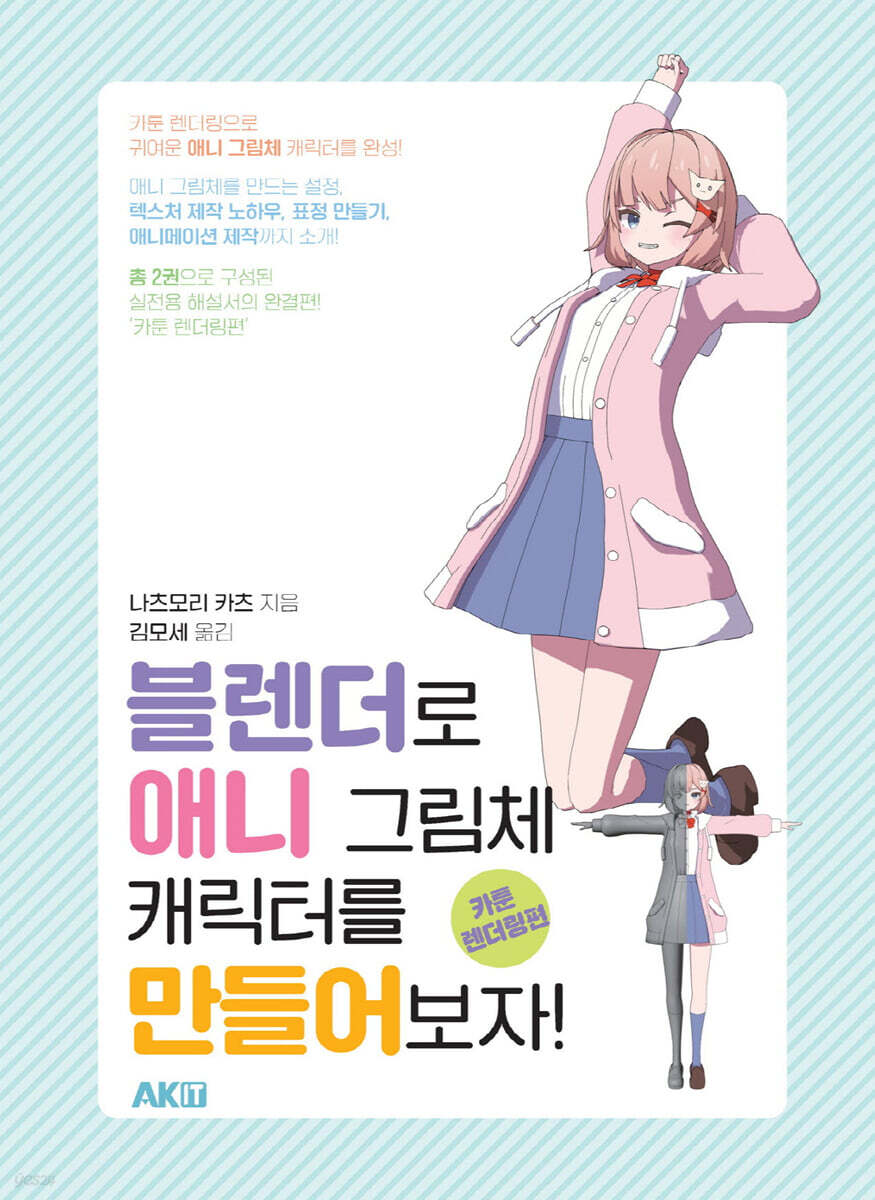
Let's Create Anime-Style Characters with Blender! : Cartoon Rendering Edition
 |
Description
Book Introduction
Let's model cute anime-style characters with Blender! This step-by-step guide covers everything from basic operations to cute character creation tips, and even covers anime-style 3D CG and virtual character creation! The second of a two-volume practical guide, "Cartoon Rendering," is here!
- You can preview some of the book's contents.
Preview
index
The composition of the first part, 'Modeling'
What you'll learn in the second part, "Cartoon Rendering"
Chapter 1: Let's create an anime-style cat character.
1 Material and Shader Editor
-1-1 Material
-1-2 About the Shader Editor
-1-3 Shader Editor Basic Operations
2 Cartoon renderings
-2-1 Cartoon rendering
-2-2 Cartoon Rendering Basic Configuration
-2-3 Light settings
-2-4 Camera and outline settings
-2-5 rendering
-2-6 Chapter 1 Summary
Chapter 2 Let's try rigging
1 What is rigging?
-1-1 Rigging is creating a controller
-1-2 Amateur and Bon
2 Rigging Practice
-2-1 Basic Operation
-2-2 About Pose Mode
-2-3 Parents
-2-4 Let's try skinning
-2-5 Let's try skinning in edit mode
3 Making an Amateur
-3-1 Making an Amateur
-3-2 Inserting the pattern into the body
-3-3 Inserting the arm bone
-3-4 Put the pattern on the legs
-3-5 Put a pattern on the head
-3-6 Alignment of the main rotation axis
-3-7 Creating a hair pattern
-3-8 Skirt basic drawing
-3-9 Making a string pattern
4 Creating IK
-4-1 IK and FK
-4-2 Hand IK
-4-3 IK
5 Create auxiliary bones, RootUpper, and duplicate the bones to the opposite side
-5-1 Amateur Finisher
-5-2 Make this left and right symmetrical
6 Creating an IK/FK Switch
-6-1 Setting the switch with the driver
-6-2 Layer Utilization
7 Skinning
-7-1 Parenting of Objects and Bones─
-7-2 Tofu and upper body skinning
-7-3 Hand Skinning
-7-4 Lower body skinning
-7-5 Skinning/mesh fixes
-7-6 Whole tofu and hair skinning
-7-7 Skirt Skinning
-7-8 shirt skinning
-7-9 Parka Skinning
-7-10 Button, shoe, ribbon skinning and mesh modification
-7-11 Rigging/Skinning Summary
Chapter 3 Let's try UV development
1 UV deployment
-1-1 UV deployment
-1-2 Regarding UV editing in the workspace
2 Mesh Fix
3. Human body seed settings and various modifications
-3-1 Seem setting
-3-2 Mesh and skinning fixes
4 Human body UV deployment
-4-1 UV map manipulation
-4-2 Correction of distortion and vertex of UV map
5 Hair Seem Settings and UV Deployment
-5-1 Setting the seed of the outer hair
-5-2 Inner hair seed setting
-5-3 Gathering the UV map of the hair into the frame & setting the lines
6. Set the seam of the costume and modify the mesh.
-6-1 UV map of the shirt
-6-2 UV map of the parka
-6-3 UV map of skirt and shoes
-6-4 Gathering UV map into frame
-6-5 Check and edit UV maps of all objects
7 UV Grid and Texture Paint
-7-1 Texture Paint Basics
Chapter 4: Combining Materials and Textures
1. Material settings
-1-1 Roughly set the material
-1-2 Set materials for each object
2 Detailed material settings
-2-1 Making various materials
-2-2 Detailed material settings for the parka
3 Normal Warriors
-3-1 Regarding normal, why do normal warriors?
-3-2 Normal Warrior
4 Drawing textures
-4-1 Blending mode of combination colors
-4-2 Drawing the texture of the pupil
-4-3 Drawing face texture
-4-4 Drawing hair texture
-4-5 Drawing shadow textures
-4-6 Applying gradient to hair
5 Brush Up
-5-1 Eyebrow penetration
-5-2 Outliner cleanup and various adjustments
-5-3 Lighting and World Settings
-5-4 Inner face setting
-5-5 Other modifications
Chapter 5: Let's Make Expressions
1 Preparation 400
-1-1 Precautions when using shape keys
-1-2 Actual Preparation
2 shape keys
-2-1 Creating a shape key
-2-2 Blink
-2-3 Make a smile
-2-4 Creating other eye shape keys
-2-5 Creating an eyebrow shape key
-2-6 Creating a shape key for the mouth
-2-7 Creating shape keys to enrich facial expressions
Chapter 6 Let's Make an Animation
1. Create a simple cat animation
-1-1 Overview
-1-2 Creating a simple animation
-1-3 Adjusting movement using the graph editor
-1-4 Add more life to the character's movements
-1-5 Looping in non-linear animation
2 Preparing to perform animation
-2-1 How to proceed with animation
-2-2 White of eye adjustment
-2-3 Registering poses in the pose library
-2-4 Create a more comfortable league using custom shapes
3 Practice! Creating Animation!
-3-1 Basic walking animation
-3-2 Preparation
-3-3 Creating a walking animation 1 (contact)
-3-4 Creating Walking Animation 2 (Down, Passing, Up)
-3-5 Creating a walking animation 3 (from standing to walking))
-3-6 Creating a walking animation 4 (creating the shaking part)
-3-7 Creating a walking animation 5 (Animation loop)
-3-8 Creating a walking animation 6 (camera placement)
-3-9 Creating a walking animation 7 (Animation of shape keys)
-3-10 Creating a walking animation 8 (background)
-3-11 Summary
Chapter 7 Let's finish with rendering
1 About properties used in rendering
-1-1 Output properties
-1-2 Render Properties
2 Cat Animation Finish
-2-1 Rendering Settings
-2-2 rendering
3 Character Animation Finish
-3-1 Use the composite node to create a more colorful finish
-3-2 Outputting a video
4 Enhanced animation/cartoon rendering
-4-1 Create animations comfortably using a grease pencil
-4-2 Scene and Video Sequencer
5 Standard Add-ons
-5-1 What is an add-on?
-5-2 Activate and install add-ons
-5-3 Precautions when using add-ons
-5-4 Recommended add-ons installed by default
What you'll learn in the second part, "Cartoon Rendering"
Chapter 1: Let's create an anime-style cat character.
1 Material and Shader Editor
-1-1 Material
-1-2 About the Shader Editor
-1-3 Shader Editor Basic Operations
2 Cartoon renderings
-2-1 Cartoon rendering
-2-2 Cartoon Rendering Basic Configuration
-2-3 Light settings
-2-4 Camera and outline settings
-2-5 rendering
-2-6 Chapter 1 Summary
Chapter 2 Let's try rigging
1 What is rigging?
-1-1 Rigging is creating a controller
-1-2 Amateur and Bon
2 Rigging Practice
-2-1 Basic Operation
-2-2 About Pose Mode
-2-3 Parents
-2-4 Let's try skinning
-2-5 Let's try skinning in edit mode
3 Making an Amateur
-3-1 Making an Amateur
-3-2 Inserting the pattern into the body
-3-3 Inserting the arm bone
-3-4 Put the pattern on the legs
-3-5 Put a pattern on the head
-3-6 Alignment of the main rotation axis
-3-7 Creating a hair pattern
-3-8 Skirt basic drawing
-3-9 Making a string pattern
4 Creating IK
-4-1 IK and FK
-4-2 Hand IK
-4-3 IK
5 Create auxiliary bones, RootUpper, and duplicate the bones to the opposite side
-5-1 Amateur Finisher
-5-2 Make this left and right symmetrical
6 Creating an IK/FK Switch
-6-1 Setting the switch with the driver
-6-2 Layer Utilization
7 Skinning
-7-1 Parenting of Objects and Bones─
-7-2 Tofu and upper body skinning
-7-3 Hand Skinning
-7-4 Lower body skinning
-7-5 Skinning/mesh fixes
-7-6 Whole tofu and hair skinning
-7-7 Skirt Skinning
-7-8 shirt skinning
-7-9 Parka Skinning
-7-10 Button, shoe, ribbon skinning and mesh modification
-7-11 Rigging/Skinning Summary
Chapter 3 Let's try UV development
1 UV deployment
-1-1 UV deployment
-1-2 Regarding UV editing in the workspace
2 Mesh Fix
3. Human body seed settings and various modifications
-3-1 Seem setting
-3-2 Mesh and skinning fixes
4 Human body UV deployment
-4-1 UV map manipulation
-4-2 Correction of distortion and vertex of UV map
5 Hair Seem Settings and UV Deployment
-5-1 Setting the seed of the outer hair
-5-2 Inner hair seed setting
-5-3 Gathering the UV map of the hair into the frame & setting the lines
6. Set the seam of the costume and modify the mesh.
-6-1 UV map of the shirt
-6-2 UV map of the parka
-6-3 UV map of skirt and shoes
-6-4 Gathering UV map into frame
-6-5 Check and edit UV maps of all objects
7 UV Grid and Texture Paint
-7-1 Texture Paint Basics
Chapter 4: Combining Materials and Textures
1. Material settings
-1-1 Roughly set the material
-1-2 Set materials for each object
2 Detailed material settings
-2-1 Making various materials
-2-2 Detailed material settings for the parka
3 Normal Warriors
-3-1 Regarding normal, why do normal warriors?
-3-2 Normal Warrior
4 Drawing textures
-4-1 Blending mode of combination colors
-4-2 Drawing the texture of the pupil
-4-3 Drawing face texture
-4-4 Drawing hair texture
-4-5 Drawing shadow textures
-4-6 Applying gradient to hair
5 Brush Up
-5-1 Eyebrow penetration
-5-2 Outliner cleanup and various adjustments
-5-3 Lighting and World Settings
-5-4 Inner face setting
-5-5 Other modifications
Chapter 5: Let's Make Expressions
1 Preparation 400
-1-1 Precautions when using shape keys
-1-2 Actual Preparation
2 shape keys
-2-1 Creating a shape key
-2-2 Blink
-2-3 Make a smile
-2-4 Creating other eye shape keys
-2-5 Creating an eyebrow shape key
-2-6 Creating a shape key for the mouth
-2-7 Creating shape keys to enrich facial expressions
Chapter 6 Let's Make an Animation
1. Create a simple cat animation
-1-1 Overview
-1-2 Creating a simple animation
-1-3 Adjusting movement using the graph editor
-1-4 Add more life to the character's movements
-1-5 Looping in non-linear animation
2 Preparing to perform animation
-2-1 How to proceed with animation
-2-2 White of eye adjustment
-2-3 Registering poses in the pose library
-2-4 Create a more comfortable league using custom shapes
3 Practice! Creating Animation!
-3-1 Basic walking animation
-3-2 Preparation
-3-3 Creating a walking animation 1 (contact)
-3-4 Creating Walking Animation 2 (Down, Passing, Up)
-3-5 Creating a walking animation 3 (from standing to walking))
-3-6 Creating a walking animation 4 (creating the shaking part)
-3-7 Creating a walking animation 5 (Animation loop)
-3-8 Creating a walking animation 6 (camera placement)
-3-9 Creating a walking animation 7 (Animation of shape keys)
-3-10 Creating a walking animation 8 (background)
-3-11 Summary
Chapter 7 Let's finish with rendering
1 About properties used in rendering
-1-1 Output properties
-1-2 Render Properties
2 Cat Animation Finish
-2-1 Rendering Settings
-2-2 rendering
3 Character Animation Finish
-3-1 Use the composite node to create a more colorful finish
-3-2 Outputting a video
4 Enhanced animation/cartoon rendering
-4-1 Create animations comfortably using a grease pencil
-4-2 Scene and Video Sequencer
5 Standard Add-ons
-5-1 What is an add-on?
-5-2 Activate and install add-ons
-5-3 Precautions when using add-ons
-5-4 Recommended add-ons installed by default
Detailed image

Publisher's Review
Recently, 'cartoon rendering', which expresses 3D CG in a hand-drawn animation style, is attracting attention.
It is a method of creating 3D CG animation that feels like hand-drawn animation by intentionally reducing the amount of shape information of the model by adding outlines to the model or reducing the number of cuts when animating.
There are increasing ways to create models and animations in Blender, similar to hand-drawn animation, and the demand for cartoon rendering will continue to grow in the future.
This two-volume series is designed for those who are interested in modeling characters using Blender and creating 3D CG animations.
This book is the second volume in the series and explains based on the characters modeled in Volume 1.
It covers 'rigging' and 'skinning' to move characters, 'UV development' to develop 3D into 2D, 'material' creation method and mesh assignment to turn models into anime drawings, 'shape keys' to create facial expressions, and 'animation' production method.
And finally, we will explain the steps step by step until rendering.
It is a method of creating 3D CG animation that feels like hand-drawn animation by intentionally reducing the amount of shape information of the model by adding outlines to the model or reducing the number of cuts when animating.
There are increasing ways to create models and animations in Blender, similar to hand-drawn animation, and the demand for cartoon rendering will continue to grow in the future.
This two-volume series is designed for those who are interested in modeling characters using Blender and creating 3D CG animations.
This book is the second volume in the series and explains based on the characters modeled in Volume 1.
It covers 'rigging' and 'skinning' to move characters, 'UV development' to develop 3D into 2D, 'material' creation method and mesh assignment to turn models into anime drawings, 'shape keys' to create facial expressions, and 'animation' production method.
And finally, we will explain the steps step by step until rendering.
GOODS SPECIFICS
- Date of issue: October 10, 2024
- Page count, weight, size: 632 pages | 1,632g | 188*257*32mm
- ISBN13: 9791127481285
- ISBN10: 1127481282
You may also like
카테고리
korean


korean

![GQ KOREA Mark (Monthly): December [2025]](http://librairie.coreenne.fr/cdn/shop/files/8ef265dbbfbf186523ed75ba7319009d.jpg?v=1765340328&width=3840)


