

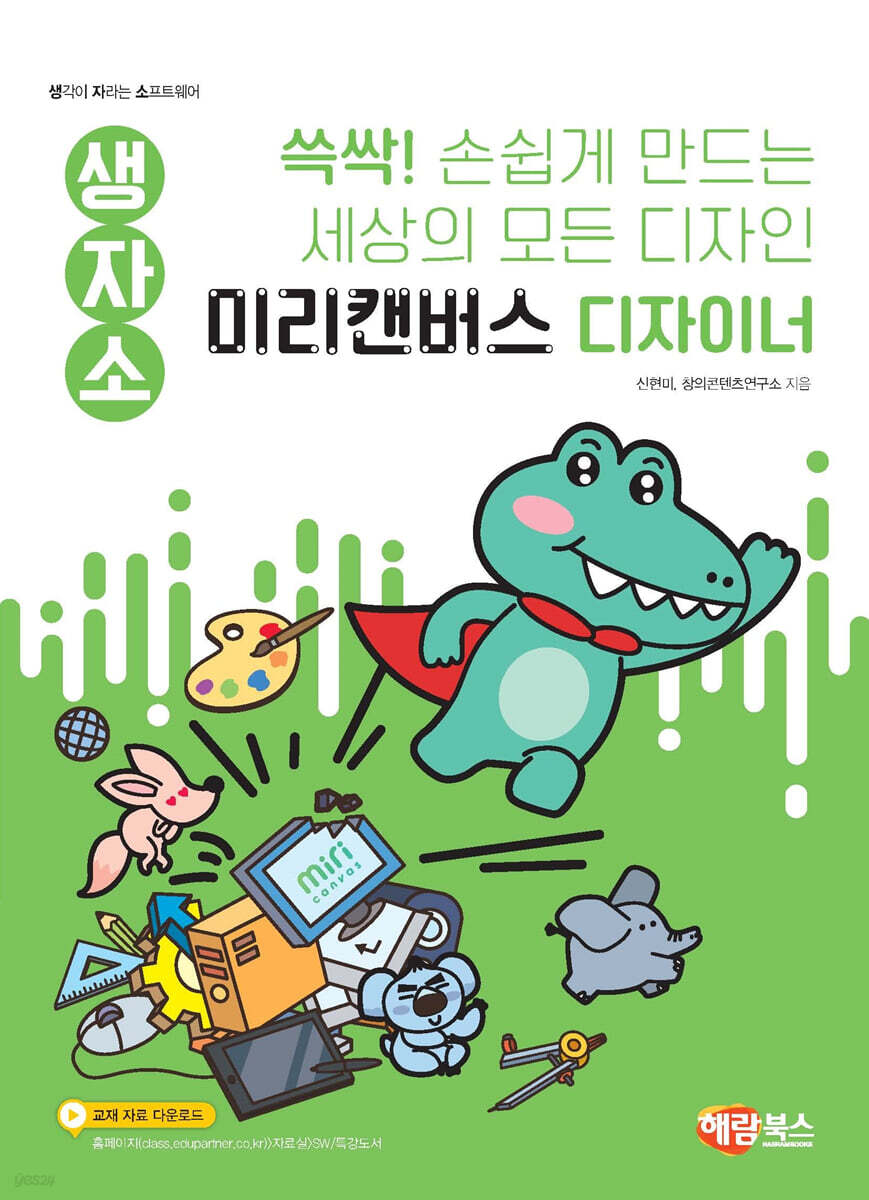
All the designs in the world, made easy with the Miricanvas Designer.
 |
Description
Book Introduction
Easily create any design in the world!
Unfold your designer dreams on Miricanvas!
'Miricanvas' is a web-based graphic tool that can be used for design work such as PPT, posters, video editing, and thumbnails.
The easy-to-use environment and various design elements provided free of charge allow students to freely unleash their imaginations.
Plus, there are no copyright concerns and it can be used on PCs, mobile devices, and tablets, so you can design anytime, anywhere.
With 'MiriCanvas', you can create presentations, YouTube thumbnails, card news, posters, and more using templates, design elements, and sound effects.
"Make Every Design in the World Easily with Miricanvas Designer" is a textbook that teaches you the various functions of Miricanvas to create your own designs. You can also create templates and edit videos.
You can also learn various features of PowerPoint, such as creating your own theme using templates created with Preliminary Canvas and organizing them into PowerPoint show files.
Additionally, you can create your own unique design activities, such as recording your voice or drawing pictures with AI by entering commands through a program called 'Audacity'.
This curriculum was designed to foster individual student creativity as they progress through the course.
Unfold your designer dreams on Miricanvas!
'Miricanvas' is a web-based graphic tool that can be used for design work such as PPT, posters, video editing, and thumbnails.
The easy-to-use environment and various design elements provided free of charge allow students to freely unleash their imaginations.
Plus, there are no copyright concerns and it can be used on PCs, mobile devices, and tablets, so you can design anytime, anywhere.
With 'MiriCanvas', you can create presentations, YouTube thumbnails, card news, posters, and more using templates, design elements, and sound effects.
"Make Every Design in the World Easily with Miricanvas Designer" is a textbook that teaches you the various functions of Miricanvas to create your own designs. You can also create templates and edit videos.
You can also learn various features of PowerPoint, such as creating your own theme using templates created with Preliminary Canvas and organizing them into PowerPoint show files.
Additionally, you can create your own unique design activities, such as recording your voice or drawing pictures with AI by entering commands through a program called 'Audacity'.
This curriculum was designed to foster individual student creativity as they progress through the course.
index
Chapter 01 Entering Pre-Canvas
◆ You can check the screen configuration of the workspace, which is the design workspace.
◆ You can create a folder to manage design files.
◆ You can apply the templates provided by Miricanvas.
◆ You can save the completed design file and store it in a folder.
Boom Boom! Thinking Big
Chapter 02 Creating a Halloween Wallpaper
◆ You can add the desired background image to the page in [Background].
◆ You can adjust the size and position of the inserted background image.
◆ You can specify background properties such as background color, opacity, and filter effects.
◆ You can decorate the background using various design elements of [Element].
Boom Boom! Thinking Big
Chapter 03 Creating facial expression emoticons
◆ You can upload external images.
◆ You can crop and use only the necessary parts of the image.
◆ You can duplicate and use design elements.
◆ You can add a text box and enter content.
Boom Boom! Thinking Big
Chapter 04 Designing Text
◆ You can design text by specifying text properties.
◆ You can decorate your text using design elements.
◆ You can group multiple objects into one object.
◆ You can save the completed text design by removing the background color.
Boom Boom! Thinking Big
Chapter 05 Creating a Message Card
◆ You can search for messages to enter in message cards on the Internet.
◆ You can add a text box and enter a message.
◆ You can decorate your message card using various design elements.
◆ You can create a background for your message card by inserting a background image.
Boom Boom! Thinking Big
Chapter 06: Creating a Message Card Envelope
◆ You can insert external images into slides.
◆ You can use shapes to create a development diagram of an envelope that will contain a message card.
◆ You can fill a shape with a pattern using object properties.
◆ You can make a card envelope by printing out the development diagram of the completed card envelope.
Boom Boom! Thinking Big
Chapter 07 Creating a Title Template
◆ You can create a template background using various elements.
◆ You can create a title input field by adding a text box.
◆ You can group multiple elements into one object.
◆ You can lock elements so that they cannot be selected or moved.
Boom Boom! Thinking Big
Chapter 08 Creating a Table of Contents Template
◆ You can create a template background using various elements.
◆ You can use the alignment function to specify the starting position of text boxes and elements.
◆ You can use the alignment function to align text boxes and elements with equal spacing.
◆ You can enter the table of contents title and contents using the font in the text box.
Boom Boom! Thinking Big
Chapter 09 Creating a Content Template
◆ You can adjust the opacity of the shape so that the template background is visible.
◆ You can align the position of text using the alignment function.
◆ You can design a new style template by duplicating the page.
◆ You can create a two-level content input space using lines.
Boom Boom! Thinking Big
Chapter 10 Creating Unique Elements
◆ You can add shapes and specify outline properties.
◆ You can design new elements using shapes, elements, and text boxes.
◆ You can group multiple elements into one object.
◆ You can design various elements by adding pages.
Boom Boom! Thinking Big
Chapter 11: Designing Your Own Logo
◆ You can write phrases and images that express your characteristics and yourself.
◆ You can create images that express yourself using shapes and elements.
◆ You can add a text box and apply a curve effect to the text.
◆ You can group multiple elements into one object.
Boom Boom! Thinking Big
Chapter 12: Creating a Winter Theme PPT
◆ You can save the template design you worked on in Miricanvas as a PPT file.
◆ You can apply the template you worked on in Pre-Canvas to the slide master.
◆ You can save the completed template as a PowerPoint theme.
◆ You can create a new presentation by loading a saved theme.
Boom Boom! Thinking Big
Chapter 13 Editing Cat Videos
◆ You can divide the playback section of the video.
◆ You can remove unnecessary background sounds from videos.
◆ You can adjust the opacity of the video.
◆ You can decorate your video by adding design elements.
Boom Boom! Thinking Big
Chapter 14: Decorating Your Videos with Subtitles
◆ You can upload videos to Preview Canvas.
◆ You can add subtitles to the video.
◆ You can adjust the size of the subtitles and decorate them using elements.
◆ You can split the video into sections and set subtitles for each section.
Boom Boom! Thinking Big
Chapter 15 Shorts Video Introducing Me!
◆ You can create a shorts page.
◆ You can use the video provided by Miricanvas as a background.
◆ You can split the video to create multiple scenes.
◆ You can apply scene transition effects by adding different elements and text to each section.
Boom Boom! Thinking Big
Chapter 16 Eagle Eagle! Living Letters!
◆ You can apply animation effects to text and elements.
◆ You can split pages and delete unnecessary pages.
◆ You can duplicate pages to create a repeating animation effect.
◆ You can save the completed page as a GIF, a moving file.
Boom Boom! Thinking Big
Chapter 17 Creating a Promotional Video
◆ You can add a video and set it as the background.
◆ You can apply animation effects to design elements.
◆ You can add background music to the video.
◆ You can apply sound effects whenever the page changes.
Boom Boom! Thinking Big
Chapter 18 Collecting Your Favorite Videos
◆ You can copy the address of a YouTube video and paste it into Notepad.
◆ You can add YouTube videos to PowerPoint.
◆ You can link a video address to a text box using a hyperlink.
◆ You can save the completed slides as a PowerPonit show file and watch the YouTube video at any time.
Boom Boom! Thinking Big
Chapter 19 The Three Little Pigs Poster
◆ You can check various templates and record the content of the poster you want to create.
◆ You can create a design that suits the theme by adding various design elements.
◆ You can design titles using various styles in the text.
◆ You can enter various sound effect texts.
Boom Boom! Thinking Big
Chapter 20: Fairy Tales Drawn with AI
◆ You can write down the scene you want to draw.
◆ You can input the scene you want to draw as text so that AI can draw it.
◆ You can complete the story by entering text into the AI-drawn picture.
◆ You can apply animation effects to text.
Boom Boom! Thinking Big
Chapter 21 Creating Animation
◆ You can add characters to the page and apply animation effects in [Element].
◆ You can duplicate the page and change the necessary parts.
◆ You can add text and apply various animation effects.
◆ You can adjust the page playback time.
Boom Boom! Thinking Big
Chapter 22 A Fairy Tale Made with My Voice
◆ You can download the Audacity program.
◆ You can draw and explain a scene from a fairy tale you want to create.
◆ You can record a scene from a fairy tale using the Audacity program.
◆ You can create a scene from a fairy tale using a recorded file.
Boom Boom! Thinking Big
Chapter 23: Drawing a 4-panel cartoon of a restaurant tour
◆ You can create and draw your own 4-panel comic story.
◆ You can design the title of a 4-panel comic.
◆ You can complete a 4-panel comic using design elements and text.
◆ You can upload recorded dialogue files and apply them to 4-panel comics.
Boom Boom! Thinking Big
Chapter 24 Moving Fire Safety Poster
◆ You can use PowerPoint's animation features.
◆ You can apply multiple animation effects to one object.
◆ You can set the order in which the animations will run.
◆ You can save it as a PowerPoint show file.
Boom Boom! Thinking Big
◆ You can check the screen configuration of the workspace, which is the design workspace.
◆ You can create a folder to manage design files.
◆ You can apply the templates provided by Miricanvas.
◆ You can save the completed design file and store it in a folder.
Boom Boom! Thinking Big
Chapter 02 Creating a Halloween Wallpaper
◆ You can add the desired background image to the page in [Background].
◆ You can adjust the size and position of the inserted background image.
◆ You can specify background properties such as background color, opacity, and filter effects.
◆ You can decorate the background using various design elements of [Element].
Boom Boom! Thinking Big
Chapter 03 Creating facial expression emoticons
◆ You can upload external images.
◆ You can crop and use only the necessary parts of the image.
◆ You can duplicate and use design elements.
◆ You can add a text box and enter content.
Boom Boom! Thinking Big
Chapter 04 Designing Text
◆ You can design text by specifying text properties.
◆ You can decorate your text using design elements.
◆ You can group multiple objects into one object.
◆ You can save the completed text design by removing the background color.
Boom Boom! Thinking Big
Chapter 05 Creating a Message Card
◆ You can search for messages to enter in message cards on the Internet.
◆ You can add a text box and enter a message.
◆ You can decorate your message card using various design elements.
◆ You can create a background for your message card by inserting a background image.
Boom Boom! Thinking Big
Chapter 06: Creating a Message Card Envelope
◆ You can insert external images into slides.
◆ You can use shapes to create a development diagram of an envelope that will contain a message card.
◆ You can fill a shape with a pattern using object properties.
◆ You can make a card envelope by printing out the development diagram of the completed card envelope.
Boom Boom! Thinking Big
Chapter 07 Creating a Title Template
◆ You can create a template background using various elements.
◆ You can create a title input field by adding a text box.
◆ You can group multiple elements into one object.
◆ You can lock elements so that they cannot be selected or moved.
Boom Boom! Thinking Big
Chapter 08 Creating a Table of Contents Template
◆ You can create a template background using various elements.
◆ You can use the alignment function to specify the starting position of text boxes and elements.
◆ You can use the alignment function to align text boxes and elements with equal spacing.
◆ You can enter the table of contents title and contents using the font in the text box.
Boom Boom! Thinking Big
Chapter 09 Creating a Content Template
◆ You can adjust the opacity of the shape so that the template background is visible.
◆ You can align the position of text using the alignment function.
◆ You can design a new style template by duplicating the page.
◆ You can create a two-level content input space using lines.
Boom Boom! Thinking Big
Chapter 10 Creating Unique Elements
◆ You can add shapes and specify outline properties.
◆ You can design new elements using shapes, elements, and text boxes.
◆ You can group multiple elements into one object.
◆ You can design various elements by adding pages.
Boom Boom! Thinking Big
Chapter 11: Designing Your Own Logo
◆ You can write phrases and images that express your characteristics and yourself.
◆ You can create images that express yourself using shapes and elements.
◆ You can add a text box and apply a curve effect to the text.
◆ You can group multiple elements into one object.
Boom Boom! Thinking Big
Chapter 12: Creating a Winter Theme PPT
◆ You can save the template design you worked on in Miricanvas as a PPT file.
◆ You can apply the template you worked on in Pre-Canvas to the slide master.
◆ You can save the completed template as a PowerPoint theme.
◆ You can create a new presentation by loading a saved theme.
Boom Boom! Thinking Big
Chapter 13 Editing Cat Videos
◆ You can divide the playback section of the video.
◆ You can remove unnecessary background sounds from videos.
◆ You can adjust the opacity of the video.
◆ You can decorate your video by adding design elements.
Boom Boom! Thinking Big
Chapter 14: Decorating Your Videos with Subtitles
◆ You can upload videos to Preview Canvas.
◆ You can add subtitles to the video.
◆ You can adjust the size of the subtitles and decorate them using elements.
◆ You can split the video into sections and set subtitles for each section.
Boom Boom! Thinking Big
Chapter 15 Shorts Video Introducing Me!
◆ You can create a shorts page.
◆ You can use the video provided by Miricanvas as a background.
◆ You can split the video to create multiple scenes.
◆ You can apply scene transition effects by adding different elements and text to each section.
Boom Boom! Thinking Big
Chapter 16 Eagle Eagle! Living Letters!
◆ You can apply animation effects to text and elements.
◆ You can split pages and delete unnecessary pages.
◆ You can duplicate pages to create a repeating animation effect.
◆ You can save the completed page as a GIF, a moving file.
Boom Boom! Thinking Big
Chapter 17 Creating a Promotional Video
◆ You can add a video and set it as the background.
◆ You can apply animation effects to design elements.
◆ You can add background music to the video.
◆ You can apply sound effects whenever the page changes.
Boom Boom! Thinking Big
Chapter 18 Collecting Your Favorite Videos
◆ You can copy the address of a YouTube video and paste it into Notepad.
◆ You can add YouTube videos to PowerPoint.
◆ You can link a video address to a text box using a hyperlink.
◆ You can save the completed slides as a PowerPonit show file and watch the YouTube video at any time.
Boom Boom! Thinking Big
Chapter 19 The Three Little Pigs Poster
◆ You can check various templates and record the content of the poster you want to create.
◆ You can create a design that suits the theme by adding various design elements.
◆ You can design titles using various styles in the text.
◆ You can enter various sound effect texts.
Boom Boom! Thinking Big
Chapter 20: Fairy Tales Drawn with AI
◆ You can write down the scene you want to draw.
◆ You can input the scene you want to draw as text so that AI can draw it.
◆ You can complete the story by entering text into the AI-drawn picture.
◆ You can apply animation effects to text.
Boom Boom! Thinking Big
Chapter 21 Creating Animation
◆ You can add characters to the page and apply animation effects in [Element].
◆ You can duplicate the page and change the necessary parts.
◆ You can add text and apply various animation effects.
◆ You can adjust the page playback time.
Boom Boom! Thinking Big
Chapter 22 A Fairy Tale Made with My Voice
◆ You can download the Audacity program.
◆ You can draw and explain a scene from a fairy tale you want to create.
◆ You can record a scene from a fairy tale using the Audacity program.
◆ You can create a scene from a fairy tale using a recorded file.
Boom Boom! Thinking Big
Chapter 23: Drawing a 4-panel cartoon of a restaurant tour
◆ You can create and draw your own 4-panel comic story.
◆ You can design the title of a 4-panel comic.
◆ You can complete a 4-panel comic using design elements and text.
◆ You can upload recorded dialogue files and apply them to 4-panel comics.
Boom Boom! Thinking Big
Chapter 24 Moving Fire Safety Poster
◆ You can use PowerPoint's animation features.
◆ You can apply multiple animation effects to one object.
◆ You can set the order in which the animations will run.
◆ You can save it as a PowerPoint show file.
Boom Boom! Thinking Big
GOODS SPECIFICS
- Date of issue: December 15, 2023
- Page count, weight, size: 204 pages | 210*285*20mm
- ISBN13: 9791165711900
- ISBN10: 1165711907
You may also like
카테고리
korean


korean

![GQ KOREA Mark (Monthly): December [2025]](http://librairie.coreenne.fr/cdn/shop/files/8ef265dbbfbf186523ed75ba7319009d.jpg?v=1765340328&width=3840)


