

101 Computer Tips for Successful Workers
 |
Description
Book Introduction
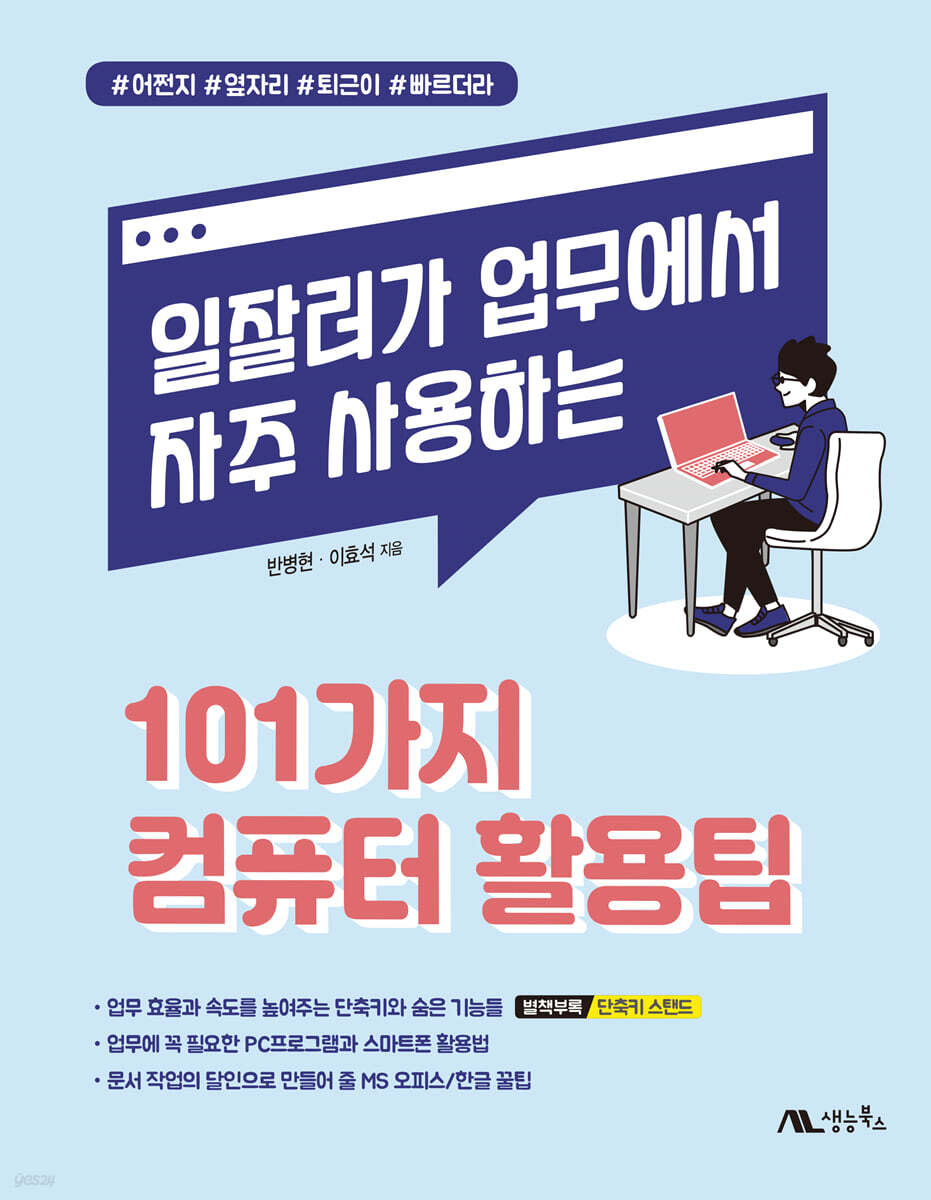
Computer skills for all office workers who want to work quickly and efficiently.
Many office workers spend most of their time working on computers.
There are essential or efficient computer usage methods for performing work, but many people struggle to perform their work or waste time because they do not know how to do so.
To help the majority of office workers use their computers more efficiently, we've included tips frequently used in work, including shortcuts, basic Windows functions, useful programs, how to install Windows, how to set up a computer, how to troubleshoot computer problems, and how to use smartphones.
With 101 different tips included, even if you think you know a lot about computers, you'll find plenty of interesting and useful features in this book.
This book will help you improve your work efficiency, and if you keep a copy in your office, it will be of great help to your coworkers.
Book homepage: https://needleworm.github.io/101
Many office workers spend most of their time working on computers.
There are essential or efficient computer usage methods for performing work, but many people struggle to perform their work or waste time because they do not know how to do so.
To help the majority of office workers use their computers more efficiently, we've included tips frequently used in work, including shortcuts, basic Windows functions, useful programs, how to install Windows, how to set up a computer, how to troubleshoot computer problems, and how to use smartphones.
With 101 different tips included, even if you think you know a lot about computers, you'll find plenty of interesting and useful features in this book.
This book will help you improve your work efficiency, and if you keep a copy in your office, it will be of great help to your coworkers.
Book homepage: https://needleworm.github.io/101
- You can preview some of the book's contents.
Preview
index
Chapter 1: Shortcut Keys to Increase Work Efficiency
001 Capture the full screen as quickly as possible without installing any program.
002 Easily capture only the desired area without installing a program - Partial screen capture
003 Arranging multiple work windows for a better view - Split Screen
004 Zoom in/out screen size with the mouse wheel - Zoom in/out screen
005 The all-rounder Tab key that helps you input quickly, making full use of it - moving multiple spaces at once
006 Quickly open a new tab in your web browser - Open a new tab
007 Quickly move between tabs in the web browser - Tab Move
008 Quickly open or close a new window in your web browser - Open/Close New Window
009 Using the web browser without leaving a record - Secret Mode
010 Re-paste previously copied data - Advanced Clipboard
Chapter 2: A collection of shortcut keys to speed up your work
011 View all task windows at a glance - Task View
012 View all task windows at a glance (laptop only) - Task View
013 Hide all task windows at once - Minimize all windows
014 Quickly switch between program windows and desktops - Switch between program windows and virtual desktops
015 Quickly launch programs pinned to the taskbar - Launch taskbar programs
016 Switching tabs in a web browser in an instant - Switch to the nth tab
017 Instantly lock your computer to prevent others from using it - Log out
018 Easily change folder/file names without right-clicking - Rename files and folders
019 Launch frequently used programs with shortcut keys - Program shortcut keys
Chapter 3: Useful Windows Basics to Know
020 Hide important folders or files - Hide Folders/Files
021 Preview file contents in Explorer - Preview Pane
022 Installing a new font - Installing fonts
023 Typing without a keyboard when the keyboard is not working - On-screen keyboard
024 Log in to Windows in various ways for security and convenience - Login Settings
025 Make calls and send text messages from your computer - Your mobile phone
026 Making the Most of Task Manager 1 - Process Management
027 Making the Most of Task Manager 2 - Managing Startup Programs
028 Automatically shut down the computer at a scheduled time - Scheduled system shutdown
029 Creating a Wi-Fi Router with a Laptop Connected to a Wired LAN - Creating a Wi-Fi Hotspot with a Laptop
030 Adjust power supply to improve computer performance or extend the life of your laptop - Power Settings
031 Capture including mouse cursor - Step Record/Monitor screen capture
Chapter 4: If you want to become a document work expert, MS Office/Hangeul tips
032 How to fix a PPT file that won't save due to font issues - Change the font
033 How to fix strange fonts in Word files - Changing fonts
034 Save Office documents to avoid font issues when opening them on another PC - Save with fonts embedded
035 Save document files with significantly reduced file sizes - Reduce document file sizes
036 Automatically Generating PPT Designs with AI - Design Ideas
037 View the current screen, next screen, and script simultaneously during a PPT presentation - Presenter View Mode
038 Easily erase image backgrounds in PowerPoint - Remove Background
039 Recovering a damaged or deleted Hangul file - Hangul HWP temporary file
040 Using various functions when printing documents - Print options
041 Redo the last action in Excel with just a shortcut key - Repeat the last action
042 Using Office Programs for Free 1 - LibreOffice
043 Using Office Programs for Free 2 - Polaris Office
044 Create word processor documents for free without installing any programs - Google Docs
045 Create spreadsheets for free without installing any programs - Google Spreadsheets
046 Create presentation documents for free without installing any programs - Google Slides
Chapter 5 Useful Programs to Add Flavor to Your Work
047 Mosaicing Photos Without Installing Programs - Paint
048 Save your own files and use them anywhere - Dropbox, Google Drive, OneDrive
049 Remotely access and control another computer - TeamViewer
050 Quickly Optimize Your Computer When It's Slow - GoClean
051 Using a notepad program that sticks to your computer desktop - Sticky Notes
052 Using a screen saver - Screen saver
053 When you find an image you like on the Internet, find related information - Google Image Search
054 Utilizing additional features to enhance the usability of the Chrome browser - Chrome extensions
Chapter 6: Installing Windows Like a Tech Team
055 Entering BIOS/UEFI Settings Screen - Entering BIOS/UEFI
056 Setting a boot password in BIOS/UEFI - Setting BIOS/UEFI password
057 Troubleshooting When You Forgot Your CMOS Password - Resetting the CMOS
058 Take a screenshot of the BIOS/UEFI screen - BIOS/UEFI screen capture
059 Delete all information from storage devices such as USB and hard disks - Format the disk
060 Formatting Windows to its original state - Resetting your PC
061 Creating a Bootable Disk for Windows Installation - Windows USB Bootable Disk
062 Selecting a boot disk for Windows installation - Boot options
063 Changing the boot priority for Windows installation - BIOS/UEFI boot order
064 Installing Windows - Installing Windows
065 The easiest way to install the latest Windows device drivers - 3DP Chip
Chapter 7: Computer Setup: Easy Once You Know It - Try It Yourself
066 Check your PC specifications at a glance - System Information
067 Setting an IP address for Internet use - Setting a static IP
068 Understanding the Difference Between 32-bit and 64-bit Windows - System Types
069 Adding a USB-Connected Printer - Connecting a Local Printer
070 Adding a Network-Connected Printer - Connecting a Network Printer
071 Backing Up Windows System Files - Creating a Windows Restore Point
072 Reverting a Broken Windows System to a Previous State - Windows System Restore
073 Temporarily suspending Windows' built-in security features - Disable Windows Defender and Virus & Threat Protection
074 Split and merge hard disk partitions without formatting - Partitioning a hard disk
Chapter 8 How to Use Your Smartphone Well
075 Signing electronic documents with your smartphone - Electronic Signature
076 Printing documents from your smartphone without a PC - Document Printing
077 Scanning Documents with Your Smartphone Without a Scanner - Microsoft Lense
078 Send and receive faxes with your smartphone without a fax machine - Mobile Fax
079 Easily manage business cards by simply taking a photo - Remember
080 Manage your schedule with your smartphone without a diary - Google Calendar
081 Turning Frequently Visited Sites into Smartphone Apps - Progressive Web App
082 Create shortcuts to frequently used chat rooms - KakaoTalk
083 Send and receive high-quality photos without loss of quality on KakaoTalk - KakaoTalk
084 Remotely locate and control your lost smartphone - Find My Phone
085 Read received text messages aloud - Google Assistant Voice Match
086 Watch videos on your smartphone on your TV - Smartphone Mirroring
087 Troubleshooting Slow Smartphone Usage - Device Care
088 Troubleshooting frequent app crashes - Android System WebView
Chapter 9: How to Troubleshoot Computer Problems That Interfere with Your Work
089 Icons and text on PC screen are too small - Adjust scale and layout
090 Image file prints poor quality - DPI
091 My mouse cursor suddenly disappeared - Mouse Settings
092 My computer freezes frequently - How to fix it when your computer crashes
When I print a document 093, some of the content is cut off - Document Settings and Printer Settings
094 Windows is blocking the program you want to use - Microsoft Defender
095 Only 4GB of RAM is recognized - Main memory capacity recognition
096 USB memory or hard disk capacity is low - Auxiliary storage capacity display
097 Keyboard and mouse not working - USB device not recognized
098 I'm using multiple monitors, but only one screen is displayed - Unlock the monitor port
099 No sound on my computer - Sound settings
100 Added hard drive is not visible in my computer - Hard drive settings
101 My monitor screen is yellow - Monitor/Graphics Card Settings
001 Capture the full screen as quickly as possible without installing any program.
002 Easily capture only the desired area without installing a program - Partial screen capture
003 Arranging multiple work windows for a better view - Split Screen
004 Zoom in/out screen size with the mouse wheel - Zoom in/out screen
005 The all-rounder Tab key that helps you input quickly, making full use of it - moving multiple spaces at once
006 Quickly open a new tab in your web browser - Open a new tab
007 Quickly move between tabs in the web browser - Tab Move
008 Quickly open or close a new window in your web browser - Open/Close New Window
009 Using the web browser without leaving a record - Secret Mode
010 Re-paste previously copied data - Advanced Clipboard
Chapter 2: A collection of shortcut keys to speed up your work
011 View all task windows at a glance - Task View
012 View all task windows at a glance (laptop only) - Task View
013 Hide all task windows at once - Minimize all windows
014 Quickly switch between program windows and desktops - Switch between program windows and virtual desktops
015 Quickly launch programs pinned to the taskbar - Launch taskbar programs
016 Switching tabs in a web browser in an instant - Switch to the nth tab
017 Instantly lock your computer to prevent others from using it - Log out
018 Easily change folder/file names without right-clicking - Rename files and folders
019 Launch frequently used programs with shortcut keys - Program shortcut keys
Chapter 3: Useful Windows Basics to Know
020 Hide important folders or files - Hide Folders/Files
021 Preview file contents in Explorer - Preview Pane
022 Installing a new font - Installing fonts
023 Typing without a keyboard when the keyboard is not working - On-screen keyboard
024 Log in to Windows in various ways for security and convenience - Login Settings
025 Make calls and send text messages from your computer - Your mobile phone
026 Making the Most of Task Manager 1 - Process Management
027 Making the Most of Task Manager 2 - Managing Startup Programs
028 Automatically shut down the computer at a scheduled time - Scheduled system shutdown
029 Creating a Wi-Fi Router with a Laptop Connected to a Wired LAN - Creating a Wi-Fi Hotspot with a Laptop
030 Adjust power supply to improve computer performance or extend the life of your laptop - Power Settings
031 Capture including mouse cursor - Step Record/Monitor screen capture
Chapter 4: If you want to become a document work expert, MS Office/Hangeul tips
032 How to fix a PPT file that won't save due to font issues - Change the font
033 How to fix strange fonts in Word files - Changing fonts
034 Save Office documents to avoid font issues when opening them on another PC - Save with fonts embedded
035 Save document files with significantly reduced file sizes - Reduce document file sizes
036 Automatically Generating PPT Designs with AI - Design Ideas
037 View the current screen, next screen, and script simultaneously during a PPT presentation - Presenter View Mode
038 Easily erase image backgrounds in PowerPoint - Remove Background
039 Recovering a damaged or deleted Hangul file - Hangul HWP temporary file
040 Using various functions when printing documents - Print options
041 Redo the last action in Excel with just a shortcut key - Repeat the last action
042 Using Office Programs for Free 1 - LibreOffice
043 Using Office Programs for Free 2 - Polaris Office
044 Create word processor documents for free without installing any programs - Google Docs
045 Create spreadsheets for free without installing any programs - Google Spreadsheets
046 Create presentation documents for free without installing any programs - Google Slides
Chapter 5 Useful Programs to Add Flavor to Your Work
047 Mosaicing Photos Without Installing Programs - Paint
048 Save your own files and use them anywhere - Dropbox, Google Drive, OneDrive
049 Remotely access and control another computer - TeamViewer
050 Quickly Optimize Your Computer When It's Slow - GoClean
051 Using a notepad program that sticks to your computer desktop - Sticky Notes
052 Using a screen saver - Screen saver
053 When you find an image you like on the Internet, find related information - Google Image Search
054 Utilizing additional features to enhance the usability of the Chrome browser - Chrome extensions
Chapter 6: Installing Windows Like a Tech Team
055 Entering BIOS/UEFI Settings Screen - Entering BIOS/UEFI
056 Setting a boot password in BIOS/UEFI - Setting BIOS/UEFI password
057 Troubleshooting When You Forgot Your CMOS Password - Resetting the CMOS
058 Take a screenshot of the BIOS/UEFI screen - BIOS/UEFI screen capture
059 Delete all information from storage devices such as USB and hard disks - Format the disk
060 Formatting Windows to its original state - Resetting your PC
061 Creating a Bootable Disk for Windows Installation - Windows USB Bootable Disk
062 Selecting a boot disk for Windows installation - Boot options
063 Changing the boot priority for Windows installation - BIOS/UEFI boot order
064 Installing Windows - Installing Windows
065 The easiest way to install the latest Windows device drivers - 3DP Chip
Chapter 7: Computer Setup: Easy Once You Know It - Try It Yourself
066 Check your PC specifications at a glance - System Information
067 Setting an IP address for Internet use - Setting a static IP
068 Understanding the Difference Between 32-bit and 64-bit Windows - System Types
069 Adding a USB-Connected Printer - Connecting a Local Printer
070 Adding a Network-Connected Printer - Connecting a Network Printer
071 Backing Up Windows System Files - Creating a Windows Restore Point
072 Reverting a Broken Windows System to a Previous State - Windows System Restore
073 Temporarily suspending Windows' built-in security features - Disable Windows Defender and Virus & Threat Protection
074 Split and merge hard disk partitions without formatting - Partitioning a hard disk
Chapter 8 How to Use Your Smartphone Well
075 Signing electronic documents with your smartphone - Electronic Signature
076 Printing documents from your smartphone without a PC - Document Printing
077 Scanning Documents with Your Smartphone Without a Scanner - Microsoft Lense
078 Send and receive faxes with your smartphone without a fax machine - Mobile Fax
079 Easily manage business cards by simply taking a photo - Remember
080 Manage your schedule with your smartphone without a diary - Google Calendar
081 Turning Frequently Visited Sites into Smartphone Apps - Progressive Web App
082 Create shortcuts to frequently used chat rooms - KakaoTalk
083 Send and receive high-quality photos without loss of quality on KakaoTalk - KakaoTalk
084 Remotely locate and control your lost smartphone - Find My Phone
085 Read received text messages aloud - Google Assistant Voice Match
086 Watch videos on your smartphone on your TV - Smartphone Mirroring
087 Troubleshooting Slow Smartphone Usage - Device Care
088 Troubleshooting frequent app crashes - Android System WebView
Chapter 9: How to Troubleshoot Computer Problems That Interfere with Your Work
089 Icons and text on PC screen are too small - Adjust scale and layout
090 Image file prints poor quality - DPI
091 My mouse cursor suddenly disappeared - Mouse Settings
092 My computer freezes frequently - How to fix it when your computer crashes
When I print a document 093, some of the content is cut off - Document Settings and Printer Settings
094 Windows is blocking the program you want to use - Microsoft Defender
095 Only 4GB of RAM is recognized - Main memory capacity recognition
096 USB memory or hard disk capacity is low - Auxiliary storage capacity display
097 Keyboard and mouse not working - USB device not recognized
098 I'm using multiple monitors, but only one screen is displayed - Unlock the monitor port
099 No sound on my computer - Sound settings
100 Added hard drive is not visible in my computer - Hard drive settings
101 My monitor screen is yellow - Monitor/Graphics Card Settings
Detailed image

GOODS SPECIFICS
- Date of issue: January 2, 2023
- Page count, weight, size: 338 pages | 190*240*30mm
- ISBN13: 9788970504940
- ISBN10: 897050494X
You may also like
카테고리
korean


korean

![GQ KOREA Mark (Monthly): December [2025]](http://librairie.coreenne.fr/cdn/shop/files/8ef265dbbfbf186523ed75ba7319009d.jpg?v=1765340328&width=3840)


