

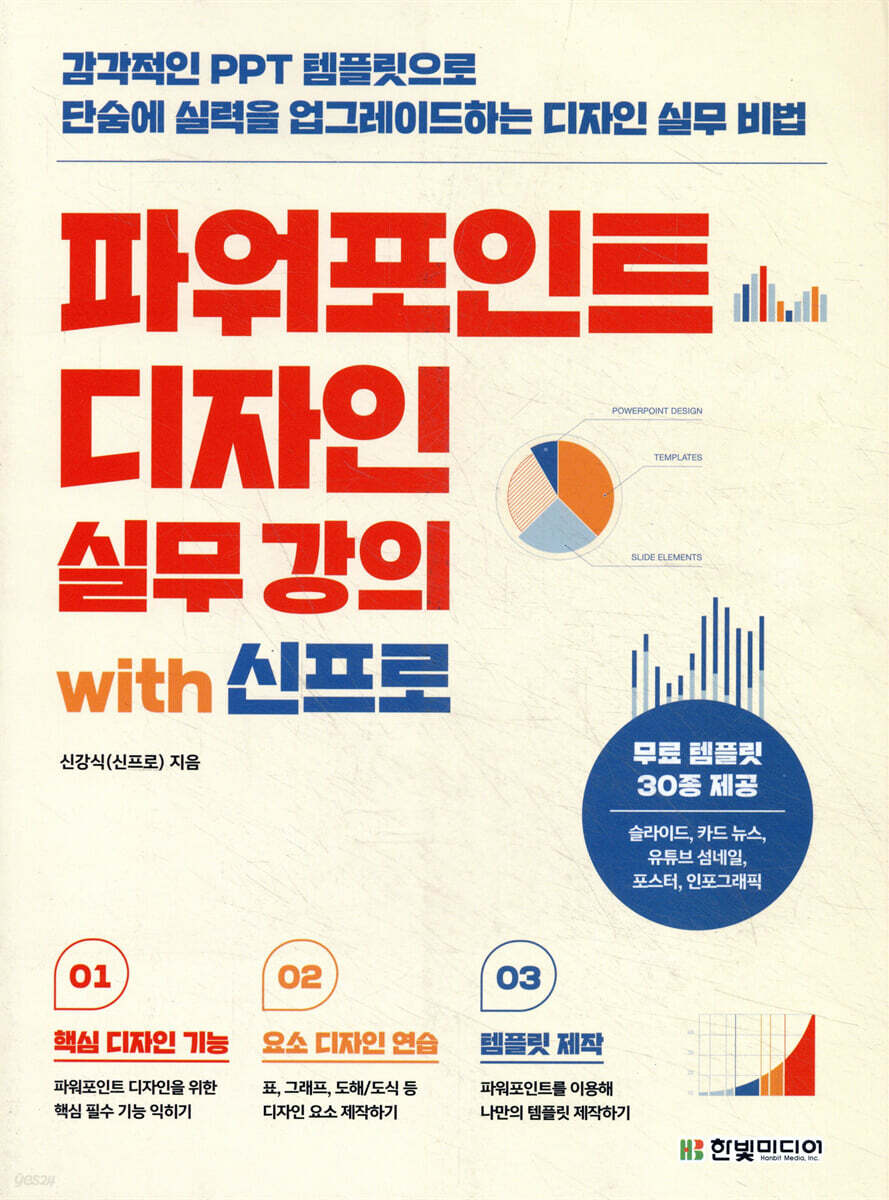
PowerPoint Design Practical Course with Shin Pro
 |
Description
Book Introduction
From PowerPoint beginners to office workers who need design work right away.
Create your own PowerPoint templates, card news, infographics, and portfolios!
By utilizing the powerful graphic creation/editing features of PowerPoint, a presentation program, you can create a variety of image content, including sensational PPT templates, infographics, card news, and YouTube thumbnails.
Creating this content doesn't require any special skills.
With just a basic understanding of PowerPoint's essential design features and the know-how to create elements, you can create your own designs! From beginners who are new to PowerPoint and struggling with design, to college students who know the basics but lack design skills, to working professionals who need to create image content immediately, project-based examples offer hands-on experience in a variety of practical graphic design tasks.
Additionally, take advantage of the Shortcut Stand, a collection of 30 free presentation templates and useful PowerPoint shortcuts! Learn from expert PowerPoint instructors and follow along with inspiring and engaging examples and templates to make PowerPoint much easier.
Create your own PowerPoint templates, card news, infographics, and portfolios!
By utilizing the powerful graphic creation/editing features of PowerPoint, a presentation program, you can create a variety of image content, including sensational PPT templates, infographics, card news, and YouTube thumbnails.
Creating this content doesn't require any special skills.
With just a basic understanding of PowerPoint's essential design features and the know-how to create elements, you can create your own designs! From beginners who are new to PowerPoint and struggling with design, to college students who know the basics but lack design skills, to working professionals who need to create image content immediately, project-based examples offer hands-on experience in a variety of practical graphic design tasks.
Additionally, take advantage of the Shortcut Stand, a collection of 30 free presentation templates and useful PowerPoint shortcuts! Learn from expert PowerPoint instructors and follow along with inspiring and engaging examples and templates to make PowerPoint much easier.
- You can preview some of the book's contents.
Preview
index
CHAPTER 01: Knowing This Is All You Need to Know: Preparing for PowerPoint Design
LESSON 01: 7 Steps to Preparing for PowerPoint Design
How to easily organize the flow of your document
7-Step Preparation Process for Creating a PowerPoint Presentation
LESSON 02: Understanding PowerPoint Document Formats and Templates
Get inspiration from reference sites
Understanding template structure and slide-by-slide components
LESSON 03 Launching PowerPoint and Preparing Your Design
Data loss insurance, save
Setting up your work environment
Set slide size, grid lines, rulers, and guides to suit your needs
Decide on the font and color to use
CHAPTER 02 PowerPoint Design: Concluding with Key Points
LESSON 01 Five Ways to Highlight Text
Highlight with color
Emphasize by size
Emphasize with bold
Emphasize with a picture
Emphasize with shapes
LESSON 02 Essential Skills for Effective Text Utilization
Adjusting character spacing
Divide evenly
Adjust line spacing
Align text position
LESSON 03: Using Versatile Shapes
Transforming shapes by editing points
Transform by merging shapes
Highlight text with merge function and point editing
Create effects with shape merging and other features
Using the transparency effect of shapes
Use it like a filter effect
LESSON 04: Using Lines for Connection, Structure, Emphasis, and Design Elements
Draw a line and edit it
Knowing the uses of good
LESSON 05: Using Natural Gradients
Using gradients
Uses of gradients
LESSON 06: Completing the Slide Design and Organizing the Layout
Follow the reference design layout
Aligning objects
Sort objects by front/back order
LESSON 07: Using Images to Empower Your Message
Find the right image
Crop the image to the desired shape
Image compression feature to reduce file size
CHAPTER 03 Element Design Practice for Improving Expressiveness
LESSON 01: Excellent table design for summarizing and organizing
Insert a table and edit its borders
Design tables in a variety of styles
LESSON 02: Graph Design That Delivers Content
Understanding the basic functions of graphs
Design charts in a variety of styles
LESSON 03: Designing diagrams/graphics to effectively convey flow and order
Understanding the basic functions for diagrammatic representation
Expressing diagrams using the drawing function
CHAPTER 04 Various Designs Available in PowerPoint
PROJECT 01 Designing a PowerPoint Slide Template
Planning a PowerPoint Template Design for Office Workers
[Template Design] Template composed of shapes and text
STEP 01 Creating a Title Page
STEP 02 Creating a Table of Contents and Headings
STEP 03 Creating the Body Page
STEP 04 Creating an Ending Page
[Template Design] Templates using images
STEP 01 Creating a Background Design Source
STEP 02 Creating a Title Page
STEP 03 Creating a Table of Contents Page
STEP 04 Creating the Body Page
STEP 05 Creating an Ending Page
PROJECT 02 Designing Card News
Card News Design
[Template Design] Card News Design
STEP 01 Set the slide size and place images
STEP 02 Setting up the text area and entering text
STEP 03 Creating the Card News Body
PROJECT 03 Designing My Profile
What is profile design?
[Template Design] Profile Design
STEP 01 Place your profile image
STEP 02 Placing Profile Text
PROJECT 04 Designing a Portfolio that Appeals to Your Achievements
A unique and clear portfolio
[Template Design] Portfolio Design
STEP 01 Designing the Title Page
STEP 02 Inserting and arranging your design portfolio
PROJECT 05 Designing a promotional poster
Poster design
[Template Design] Poster Design for Event Promotion
STEP 01 Designing a Poster Background
STEP 02 Designing a Poster with Shapes
PROJECT 06: Creating a brand-representing SNS cover and thumbnail image
Facebook page cover photo
[Template Design] Facebook Page Cover Design
STEP 01 Change the slide size and insert an image
STEP 02 Applying filter effects to shapes
STEP 03 Enter text
[Template Design] Creating YouTube Thumbnails
STEP 01 Designing a Thumbnail Background
STEP 02 Placing Thumbnail Design Elements
STEP 03 Inserting Thumbnail Text
PROJECT 07 Infographics that quickly convey information
Infographic
[Template Design] Infographic Design
STEP 01 Prepare the layout and color plan
STEP 02 Creating a cup image using shapes
STEP 03 Expressing the method of making a beverage
STEP 04 Decorating the Infographic Background
STEP 05 Enter text and insert images
PROJECT 08: Creating Name Cards: Essential Items for Event Management
Name card design
[Template Design] Name Card Design
STEP 01 Set the size and create a title area
STEP 02 Decorate the design and enter text
CHAPTER 05 Improving Your PowerPoint Skills
LESSON 01 Exporting PowerPoint Documents in Various Ways
Exporting to prevent content modification
Export as a video with automatic screen transitions
LESSON 02 Understanding Essential Features for Presentations
Hide slides to control presentation timing
Rehearsal to prevent mistakes
Improve your PowerPoint skills
LESSON 01: 7 Steps to Preparing for PowerPoint Design
How to easily organize the flow of your document
7-Step Preparation Process for Creating a PowerPoint Presentation
LESSON 02: Understanding PowerPoint Document Formats and Templates
Get inspiration from reference sites
Understanding template structure and slide-by-slide components
LESSON 03 Launching PowerPoint and Preparing Your Design
Data loss insurance, save
Setting up your work environment
Set slide size, grid lines, rulers, and guides to suit your needs
Decide on the font and color to use
CHAPTER 02 PowerPoint Design: Concluding with Key Points
LESSON 01 Five Ways to Highlight Text
Highlight with color
Emphasize by size
Emphasize with bold
Emphasize with a picture
Emphasize with shapes
LESSON 02 Essential Skills for Effective Text Utilization
Adjusting character spacing
Divide evenly
Adjust line spacing
Align text position
LESSON 03: Using Versatile Shapes
Transforming shapes by editing points
Transform by merging shapes
Highlight text with merge function and point editing
Create effects with shape merging and other features
Using the transparency effect of shapes
Use it like a filter effect
LESSON 04: Using Lines for Connection, Structure, Emphasis, and Design Elements
Draw a line and edit it
Knowing the uses of good
LESSON 05: Using Natural Gradients
Using gradients
Uses of gradients
LESSON 06: Completing the Slide Design and Organizing the Layout
Follow the reference design layout
Aligning objects
Sort objects by front/back order
LESSON 07: Using Images to Empower Your Message
Find the right image
Crop the image to the desired shape
Image compression feature to reduce file size
CHAPTER 03 Element Design Practice for Improving Expressiveness
LESSON 01: Excellent table design for summarizing and organizing
Insert a table and edit its borders
Design tables in a variety of styles
LESSON 02: Graph Design That Delivers Content
Understanding the basic functions of graphs
Design charts in a variety of styles
LESSON 03: Designing diagrams/graphics to effectively convey flow and order
Understanding the basic functions for diagrammatic representation
Expressing diagrams using the drawing function
CHAPTER 04 Various Designs Available in PowerPoint
PROJECT 01 Designing a PowerPoint Slide Template
Planning a PowerPoint Template Design for Office Workers
[Template Design] Template composed of shapes and text
STEP 01 Creating a Title Page
STEP 02 Creating a Table of Contents and Headings
STEP 03 Creating the Body Page
STEP 04 Creating an Ending Page
[Template Design] Templates using images
STEP 01 Creating a Background Design Source
STEP 02 Creating a Title Page
STEP 03 Creating a Table of Contents Page
STEP 04 Creating the Body Page
STEP 05 Creating an Ending Page
PROJECT 02 Designing Card News
Card News Design
[Template Design] Card News Design
STEP 01 Set the slide size and place images
STEP 02 Setting up the text area and entering text
STEP 03 Creating the Card News Body
PROJECT 03 Designing My Profile
What is profile design?
[Template Design] Profile Design
STEP 01 Place your profile image
STEP 02 Placing Profile Text
PROJECT 04 Designing a Portfolio that Appeals to Your Achievements
A unique and clear portfolio
[Template Design] Portfolio Design
STEP 01 Designing the Title Page
STEP 02 Inserting and arranging your design portfolio
PROJECT 05 Designing a promotional poster
Poster design
[Template Design] Poster Design for Event Promotion
STEP 01 Designing a Poster Background
STEP 02 Designing a Poster with Shapes
PROJECT 06: Creating a brand-representing SNS cover and thumbnail image
Facebook page cover photo
[Template Design] Facebook Page Cover Design
STEP 01 Change the slide size and insert an image
STEP 02 Applying filter effects to shapes
STEP 03 Enter text
[Template Design] Creating YouTube Thumbnails
STEP 01 Designing a Thumbnail Background
STEP 02 Placing Thumbnail Design Elements
STEP 03 Inserting Thumbnail Text
PROJECT 07 Infographics that quickly convey information
Infographic
[Template Design] Infographic Design
STEP 01 Prepare the layout and color plan
STEP 02 Creating a cup image using shapes
STEP 03 Expressing the method of making a beverage
STEP 04 Decorating the Infographic Background
STEP 05 Enter text and insert images
PROJECT 08: Creating Name Cards: Essential Items for Event Management
Name card design
[Template Design] Name Card Design
STEP 01 Set the size and create a title area
STEP 02 Decorate the design and enter text
CHAPTER 05 Improving Your PowerPoint Skills
LESSON 01 Exporting PowerPoint Documents in Various Ways
Exporting to prevent content modification
Export as a video with automatic screen transitions
LESSON 02 Understanding Essential Features for Presentations
Hide slides to control presentation timing
Rehearsal to prevent mistakes
Improve your PowerPoint skills
Detailed image

Publisher's Review
What kind of readers is this book for?
· I am a complete beginner in PowerPoint who is worried because PowerPoint is difficult and I don't have basic design skills.
· Office workers who want to stand out from the crowd with their cool PowerPoint slide designs.
· Content professionals who need to create card news and infographics using PowerPoint
· College students who want to stand out from the crowd by submitting a presentation assignment.
Features of this book
To learn the basic essential functions of PowerPoint and the know-how of design experts.
Three reasons why you should watch "PowerPoint Design Practical Course with Shin Pro"!
① Learn everything from basic PowerPoint functions to design know-how with friendly explanations from experts!
PowerPoint has a variety of features, but if you know how to create the essential features and design elements, you can learn them quickly and easily.
Learn essential design theories and core features you need to know when working with PowerPoint, with helpful explanations from the author, a PowerPoint design expert. You can also learn by following along with example files in [Easy and Quick Example Follow-Up].
Check out [Tips] for additional information on areas where you may encounter difficulties or useful information on using functions during practice, and learn about expert know-how, such as basic concepts and design functions required when working with PowerPoint, in [New Pro Special Lecture].
② Learn how to create your own PPT template and various practical graphic content through project-based examples!
From stylish presentation PPT templates to infographics, card news, event posters, and YouTube thumbnails, you don't necessarily need professional graphics programs or advanced skills to create a variety of graphic content.
This practical application project example covers the creation of essential design elements and various template examples, making it suitable for everyone from PowerPoint beginners to working professionals who need to immediately apply it in their work.
It's even better because you can learn about a designer's practical process and things to keep in mind when working, rather than simply following examples.
③Use 30 free templates created by experts and essential shortcut key stands!
We offer 30 free presentation templates created by the author, a PowerPoint expert, and a shortcut key stand to increase your work speed and efficiency.
Free templates can be used for urgent presentations that need immediate attention, or you can analyze them yourself as design reference examples and customize them to fit your own materials.
The shortcut stand provided as an insert at the end of the book can be folded and placed under the monitor and used repeatedly. This will greatly help you use PowerPoint and increase your work speed.
· I am a complete beginner in PowerPoint who is worried because PowerPoint is difficult and I don't have basic design skills.
· Office workers who want to stand out from the crowd with their cool PowerPoint slide designs.
· Content professionals who need to create card news and infographics using PowerPoint
· College students who want to stand out from the crowd by submitting a presentation assignment.
Features of this book
To learn the basic essential functions of PowerPoint and the know-how of design experts.
Three reasons why you should watch "PowerPoint Design Practical Course with Shin Pro"!
① Learn everything from basic PowerPoint functions to design know-how with friendly explanations from experts!
PowerPoint has a variety of features, but if you know how to create the essential features and design elements, you can learn them quickly and easily.
Learn essential design theories and core features you need to know when working with PowerPoint, with helpful explanations from the author, a PowerPoint design expert. You can also learn by following along with example files in [Easy and Quick Example Follow-Up].
Check out [Tips] for additional information on areas where you may encounter difficulties or useful information on using functions during practice, and learn about expert know-how, such as basic concepts and design functions required when working with PowerPoint, in [New Pro Special Lecture].
② Learn how to create your own PPT template and various practical graphic content through project-based examples!
From stylish presentation PPT templates to infographics, card news, event posters, and YouTube thumbnails, you don't necessarily need professional graphics programs or advanced skills to create a variety of graphic content.
This practical application project example covers the creation of essential design elements and various template examples, making it suitable for everyone from PowerPoint beginners to working professionals who need to immediately apply it in their work.
It's even better because you can learn about a designer's practical process and things to keep in mind when working, rather than simply following examples.
③Use 30 free templates created by experts and essential shortcut key stands!
We offer 30 free presentation templates created by the author, a PowerPoint expert, and a shortcut key stand to increase your work speed and efficiency.
Free templates can be used for urgent presentations that need immediate attention, or you can analyze them yourself as design reference examples and customize them to fit your own materials.
The shortcut stand provided as an insert at the end of the book can be folded and placed under the monitor and used repeatedly. This will greatly help you use PowerPoint and increase your work speed.
GOODS SPECIFICS
- Date of issue: January 5, 2022
- Page count, weight, size: 284 pages | 188*257*20mm
- ISBN13: 9791162245088
- ISBN10: 1162245085
You may also like
카테고리
korean


korean

![GQ KOREA Mark (Monthly): December [2025]](http://librairie.coreenne.fr/cdn/shop/files/8ef265dbbfbf186523ed75ba7319009d.jpg?v=1765340328&width=3840)


