

Google Workspace
 |
Description
Book Introduction
From Google Workspace for profit and non-profit use to advanced setup!
You can get started right away even if you're not an IT expert.
The perfect space for smart work, Google Workspace!
Experience the future of work, created by Google Workspace.
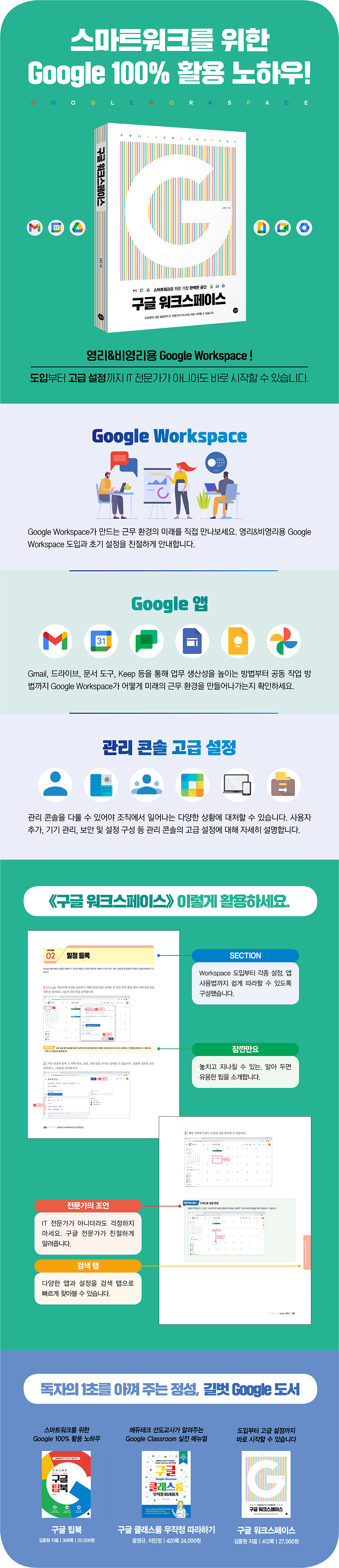
"Google Workspace" provides a friendly guide to introducing and initially setting up Google Workspace for both commercial and non-commercial use, as well as the management console.
Google Workspace is Google's cloud service and a smart work service that improves organizational productivity and collaboration.
If you're considering the optimal smart work tool for your organization, I highly recommend Google Workspace, which offers immediate productivity gains and high-level collaboration.
You can get started right away even if you're not an IT expert.
The perfect space for smart work, Google Workspace!
Experience the future of work, created by Google Workspace.
"Google Workspace" provides a friendly guide to introducing and initially setting up Google Workspace for both commercial and non-commercial use, as well as the management console.
Google Workspace is Google's cloud service and a smart work service that improves organizational productivity and collaboration.
If you're considering the optimal smart work tool for your organization, I highly recommend Google Workspace, which offers immediate productivity gains and high-level collaboration.
- You can preview some of the book's contents.
Preview
index
preface
Structure of this book
PART 1.
Google Workspaces
Chapter 1.
Google Workspaces
SECTION 1.
Cloud-based smart work
SECTION 2.
Introduction to various apps
-Communication
-cooperation
-Management and Security
Comparing Personal and Workspace Accounts
SECTION 3.
Why we recommend Google Workspace
- Secure document management
-Improved productivity
-Cultural change in the organization
- Low cost and easy management
SECTION 4.
Benefits of Google Workspaces
-Separation of construction
-Integration within the organization
-Securing capacity
-Organizational management
-Various additional features
SECTION 5.
Different versions of Google Workspaces
-profit
-education
-Non-profit
Chapter 2.
Getting started with Google Workspaces
SECTION 1 Signing up for Google Workspaces
SECTION 2.
Gmail activation settings
[Expert Advice] When Domain Ownership Is Unverified
SECTION 3.
Payment Settings
SECTION 4.
Google Workspaces for Nonprofits ① Sign up for TechSoup
SECTION 5.
Sign up for Google Workspaces for Nonprofits ②
SECTION 6.
Activate Google Workspaces for Nonprofits ③
[Expert Advice] How to Upgrade Your Google Workspace Version
Chapter 3.
Management Console
SECTION 1.
Introduction to the Management Console
[Expert Advice] Google Workspace Status Dashboard
SECTION 2.
User registration
- Individual registration
- Bulk registration
[Expert Advice] Items that can be selected and entered from a CSV file during bulk registration
- How to apply when bulk registration is not possible
[Expert Advice] Result messages that can be found in the log file
SECTION 3.
User's first login
SECTION 4.
Separating Accounts in Chrome
SECTION 5.
How to easily mention other users
[Expert Advice] Group Sharing
SECTION 7.
family
- Add an organizational unit
-Set different permissions for specific organizational units
[Expert Advice] Comparing Groups and Organizational Units
SECTION 8.
User Management
-Secondary email address (email address alias)
-Data restoration
SECTION 9.
Register buildings and resources
SECTION 10.
Assign administrator roles
[Expert Advice] Apps in the Management Console Accessible by Administrator Role
PART 2.
Google Drive
Chapter 1.
Using Google Drive
SECTION 1.
Explore Google Drive
SECTION 2.
Upload folder
SECTION 3.
share
-Share with users and groups
[Expert Advice] Sharing Details with Users and Groups
-Share link
[Expert Advice] Making Copies
-Change sharing settings
[Expert Advice] Searching for Separate Items
SECTION 4.
shared drive
[Expert Advice] Shared Drive Limits
SECTION 5.
Priority
[Expert Advice] Change Your Google Drive Start Page to "Priority"
SECTION 6.
Google Drive for Desktop
-Installation and setup
- Access files in Windows File Explorer
[Expert Advice] Copying Large Files to Google Drive
-Offline access
-Version control
[Expert Advice] Manually Adding Versions
- Enable real-time editing status sharing of MS Office files
Chapter 2.
Google Drive Settings
SECTION 1.
Explore Google Drive Settings
SECTION 2.
Setting up sharing outside your organization
SECTION 3.
Setting up a shared drive
SECTION 4.
Manage shared drives
SECTION 5.
Transfer of ownership
[Expert Advice] Moving Files Between My Drive and Shared Drives
PART 3.
Google Docs tools
Chapter 1.
Using Google Docs
SECTION 1.
Types of Google Docs Tools
SECTION 2.
Features of Google Docs ① Auto-save
[Expert Advice] Documents with the same name in one folder
SECTION 3.
Google Docs Features ② Real-time collaboration
SECTION 4.
Google Docs Tool Features ③ Version History
[Expert Advice] Displaying Cell Modification History
SECTION 5.
Google Docs Tool Feature ④Activity Dashboard
[Expert Advice] Admin Settings for the Activity Dashboard
SECTION 6.
Google Docs Tool Features ⑤ Templates
[Expert Advice] Adding Categories and Submission Settings
Chapter 2.
Google Docs
SECTION 1.
Explore Google Docs
SECTION 2.
Add fonts
SECTION 3.
Voice input
SECTION 4.
Document Overview
Chapter 3.
Google Spreadsheets
SECTION 1.
Explore Google Sheets
SECTION 2.
Pivot Table
SECTION 3.
Using Google Spreadsheet Functions
[Expert Advice] Useful Functions in Google Sheets
-ARRAYFORMULA function
[Expert Advice] Applying the ARRAYFORMULA function to the last row
SECTION 4.
formatting process
[Expert Advice] Various Stylization Samples
Chapter 4.
Google Forms
SECTION 1.
Explore Google Forms
-Question options
-Question type
SECTION 2.
Create a questionnaire
[Expert Advice] Receiving Survey Responses from Users Outside Your Organization
SECTION 3.
Check responses in Google Sheets
Chapter 5.
Compatibility with other offices
SECTION 1.
Compatible with other MS Office
-Use MS Office documents in Google Docs
-Convert MS Office documents to Google Docs
-Save Google Docs as MS Office documents
SECTION 2.
Hancom Office documents and Hohan
PART 4.
Various apps in Google Workspaces
Chapter 1.
Gmail
SECTION 1.
Explore Gmail
[Expert Advice] Moving Chat, Chat Room, and Video Call Panels
SECTION 2.
Grouping emails
SECTION 3.
Create a label
SECTION 4.
Create a filter
SECTION 5.
Archiving
[Expert Advice] What Does Archiving Mean?
SECTION 6.
Collaborate in chat rooms
SECTION 7.
Create a to-do list
Chapter 2.
Google Meet
SECTION 1.
Explore Google Meet
SECTION 2.
Start a video conference
[Expert Advice] Changing the Background
SECTION 3.
Screen sharing
[Expert Advice] Changing the Layout
Chapter 3.
Google Calendar
SECTION 1.
Explore Google Calendar
SECTION 2.
Register your schedule
[Expert Advice] Change Your Schedule with Drag
SECTION 3.
Share your schedule with a new calendar
SECTION 4.
User Resource Reservation
SECTION 5.
View schedule by resource
Chapter 4.
Google Photos
SECTION 1.
Upload to Google Photos
-Upload from computer
[Expert Advice] Uploading Using Drag
-Upload from your smartphone ①Switch accounts and upload
-Upload from your smartphone ②Upload from your work profile
[Expert Advice] How to Take Photos on Your Smartphone and Computer
SECTION 2.
Share photos and videos
SECTION 3.
Collect multiple user photos
[Expert Advice] Disabling Shared Albums
SECTION 4.
Search in Google Photos
Chapter 5.
Google Sites
SECTION 1.
Create a website
SECTION 2.
Publishing a website
[Expert Advice] How to Republish After Editing Your Site
Chapter 6.
Google Keep
SECTION 1.
Taking notes in Google Keep
[Expert Advice] Recording Voice and Typing in Google Keep on Your Smartphone
SECTION 2.
Categorizing notes
[Expert Advice] Google Keep Chrome Extension
PART 5.
Management Console Advanced Management
Chapter 1.
Management Console Advanced Settings
SECTION 1.
Account Settings
-Set the organization logo
-Delete organizational account
SECTION 2.
security
-Password Management
[Expert Advice] Password Monitoring
-2-step authentication
SECTION 3.
domain
-Add domain
- Add domain alias
[Expert Advice] Comparing Adding a Domain and Adding a Domain Alias
- Allowed domains
SECTION 4.
report
-View report
- Audit log filtering
-Receive notifications of gratitude reports
[Expert Advice] Receive reporting rule alerts by email
-Email log search
SECTION 5.
Data transfer
- Transferring email from another Workspaces account
[Expert Advice] Environments Where Data Migration Services Are Available
- Transferring emails from a personal Gmail account
SECTION 6.
backup
-Search for help
-Contact Google Support by phone
[Expert Advice] Finding Help for Non-Administrator Users
Chapter 2.
Device Management
SECTION 1.
Mobile Device Management
SECTION 2.
Mobile Management Settings
-Set up your work profile manager
-Customize your work profile
[Expert Advice] Adding a Google Workspace Account When You're Not Using Your Work Profile
-Apple Certificate Manager settings
-iOS device user settings
SECTION 3.
App Management
- Deploying business apps on Android devices
- Deploying web apps on Android devices
-Set to install only allowed apps
- App management on iOS devices
Search
Structure of this book
PART 1.
Google Workspaces
Chapter 1.
Google Workspaces
SECTION 1.
Cloud-based smart work
SECTION 2.
Introduction to various apps
-Communication
-cooperation
-Management and Security
Comparing Personal and Workspace Accounts
SECTION 3.
Why we recommend Google Workspace
- Secure document management
-Improved productivity
-Cultural change in the organization
- Low cost and easy management
SECTION 4.
Benefits of Google Workspaces
-Separation of construction
-Integration within the organization
-Securing capacity
-Organizational management
-Various additional features
SECTION 5.
Different versions of Google Workspaces
-profit
-education
-Non-profit
Chapter 2.
Getting started with Google Workspaces
SECTION 1 Signing up for Google Workspaces
SECTION 2.
Gmail activation settings
[Expert Advice] When Domain Ownership Is Unverified
SECTION 3.
Payment Settings
SECTION 4.
Google Workspaces for Nonprofits ① Sign up for TechSoup
SECTION 5.
Sign up for Google Workspaces for Nonprofits ②
SECTION 6.
Activate Google Workspaces for Nonprofits ③
[Expert Advice] How to Upgrade Your Google Workspace Version
Chapter 3.
Management Console
SECTION 1.
Introduction to the Management Console
[Expert Advice] Google Workspace Status Dashboard
SECTION 2.
User registration
- Individual registration
- Bulk registration
[Expert Advice] Items that can be selected and entered from a CSV file during bulk registration
- How to apply when bulk registration is not possible
[Expert Advice] Result messages that can be found in the log file
SECTION 3.
User's first login
SECTION 4.
Separating Accounts in Chrome
SECTION 5.
How to easily mention other users
[Expert Advice] Group Sharing
SECTION 7.
family
- Add an organizational unit
-Set different permissions for specific organizational units
[Expert Advice] Comparing Groups and Organizational Units
SECTION 8.
User Management
-Secondary email address (email address alias)
-Data restoration
SECTION 9.
Register buildings and resources
SECTION 10.
Assign administrator roles
[Expert Advice] Apps in the Management Console Accessible by Administrator Role
PART 2.
Google Drive
Chapter 1.
Using Google Drive
SECTION 1.
Explore Google Drive
SECTION 2.
Upload folder
SECTION 3.
share
-Share with users and groups
[Expert Advice] Sharing Details with Users and Groups
-Share link
[Expert Advice] Making Copies
-Change sharing settings
[Expert Advice] Searching for Separate Items
SECTION 4.
shared drive
[Expert Advice] Shared Drive Limits
SECTION 5.
Priority
[Expert Advice] Change Your Google Drive Start Page to "Priority"
SECTION 6.
Google Drive for Desktop
-Installation and setup
- Access files in Windows File Explorer
[Expert Advice] Copying Large Files to Google Drive
-Offline access
-Version control
[Expert Advice] Manually Adding Versions
- Enable real-time editing status sharing of MS Office files
Chapter 2.
Google Drive Settings
SECTION 1.
Explore Google Drive Settings
SECTION 2.
Setting up sharing outside your organization
SECTION 3.
Setting up a shared drive
SECTION 4.
Manage shared drives
SECTION 5.
Transfer of ownership
[Expert Advice] Moving Files Between My Drive and Shared Drives
PART 3.
Google Docs tools
Chapter 1.
Using Google Docs
SECTION 1.
Types of Google Docs Tools
SECTION 2.
Features of Google Docs ① Auto-save
[Expert Advice] Documents with the same name in one folder
SECTION 3.
Google Docs Features ② Real-time collaboration
SECTION 4.
Google Docs Tool Features ③ Version History
[Expert Advice] Displaying Cell Modification History
SECTION 5.
Google Docs Tool Feature ④Activity Dashboard
[Expert Advice] Admin Settings for the Activity Dashboard
SECTION 6.
Google Docs Tool Features ⑤ Templates
[Expert Advice] Adding Categories and Submission Settings
Chapter 2.
Google Docs
SECTION 1.
Explore Google Docs
SECTION 2.
Add fonts
SECTION 3.
Voice input
SECTION 4.
Document Overview
Chapter 3.
Google Spreadsheets
SECTION 1.
Explore Google Sheets
SECTION 2.
Pivot Table
SECTION 3.
Using Google Spreadsheet Functions
[Expert Advice] Useful Functions in Google Sheets
-ARRAYFORMULA function
[Expert Advice] Applying the ARRAYFORMULA function to the last row
SECTION 4.
formatting process
[Expert Advice] Various Stylization Samples
Chapter 4.
Google Forms
SECTION 1.
Explore Google Forms
-Question options
-Question type
SECTION 2.
Create a questionnaire
[Expert Advice] Receiving Survey Responses from Users Outside Your Organization
SECTION 3.
Check responses in Google Sheets
Chapter 5.
Compatibility with other offices
SECTION 1.
Compatible with other MS Office
-Use MS Office documents in Google Docs
-Convert MS Office documents to Google Docs
-Save Google Docs as MS Office documents
SECTION 2.
Hancom Office documents and Hohan
PART 4.
Various apps in Google Workspaces
Chapter 1.
Gmail
SECTION 1.
Explore Gmail
[Expert Advice] Moving Chat, Chat Room, and Video Call Panels
SECTION 2.
Grouping emails
SECTION 3.
Create a label
SECTION 4.
Create a filter
SECTION 5.
Archiving
[Expert Advice] What Does Archiving Mean?
SECTION 6.
Collaborate in chat rooms
SECTION 7.
Create a to-do list
Chapter 2.
Google Meet
SECTION 1.
Explore Google Meet
SECTION 2.
Start a video conference
[Expert Advice] Changing the Background
SECTION 3.
Screen sharing
[Expert Advice] Changing the Layout
Chapter 3.
Google Calendar
SECTION 1.
Explore Google Calendar
SECTION 2.
Register your schedule
[Expert Advice] Change Your Schedule with Drag
SECTION 3.
Share your schedule with a new calendar
SECTION 4.
User Resource Reservation
SECTION 5.
View schedule by resource
Chapter 4.
Google Photos
SECTION 1.
Upload to Google Photos
-Upload from computer
[Expert Advice] Uploading Using Drag
-Upload from your smartphone ①Switch accounts and upload
-Upload from your smartphone ②Upload from your work profile
[Expert Advice] How to Take Photos on Your Smartphone and Computer
SECTION 2.
Share photos and videos
SECTION 3.
Collect multiple user photos
[Expert Advice] Disabling Shared Albums
SECTION 4.
Search in Google Photos
Chapter 5.
Google Sites
SECTION 1.
Create a website
SECTION 2.
Publishing a website
[Expert Advice] How to Republish After Editing Your Site
Chapter 6.
Google Keep
SECTION 1.
Taking notes in Google Keep
[Expert Advice] Recording Voice and Typing in Google Keep on Your Smartphone
SECTION 2.
Categorizing notes
[Expert Advice] Google Keep Chrome Extension
PART 5.
Management Console Advanced Management
Chapter 1.
Management Console Advanced Settings
SECTION 1.
Account Settings
-Set the organization logo
-Delete organizational account
SECTION 2.
security
-Password Management
[Expert Advice] Password Monitoring
-2-step authentication
SECTION 3.
domain
-Add domain
- Add domain alias
[Expert Advice] Comparing Adding a Domain and Adding a Domain Alias
- Allowed domains
SECTION 4.
report
-View report
- Audit log filtering
-Receive notifications of gratitude reports
[Expert Advice] Receive reporting rule alerts by email
-Email log search
SECTION 5.
Data transfer
- Transferring email from another Workspaces account
[Expert Advice] Environments Where Data Migration Services Are Available
- Transferring emails from a personal Gmail account
SECTION 6.
backup
-Search for help
-Contact Google Support by phone
[Expert Advice] Finding Help for Non-Administrator Users
Chapter 2.
Device Management
SECTION 1.
Mobile Device Management
SECTION 2.
Mobile Management Settings
-Set up your work profile manager
-Customize your work profile
[Expert Advice] Adding a Google Workspace Account When You're Not Using Your Work Profile
-Apple Certificate Manager settings
-iOS device user settings
SECTION 3.
App Management
- Deploying business apps on Android devices
- Deploying web apps on Android devices
-Set to install only allowed apps
- App management on iOS devices
Search
Detailed image
GOODS SPECIFICS
- Publication date: July 30, 2021
- Page count, weight, size: 412 pages | 188*257*17mm
- ISBN13: 9791165216139
- ISBN10: 1165216132
You may also like
카테고리
korean


korean

![GQ KOREA Mark (Monthly): December [2025]](http://librairie.coreenne.fr/cdn/shop/files/8ef265dbbfbf186523ed75ba7319009d.jpg?v=1765340328&width=3840)


