

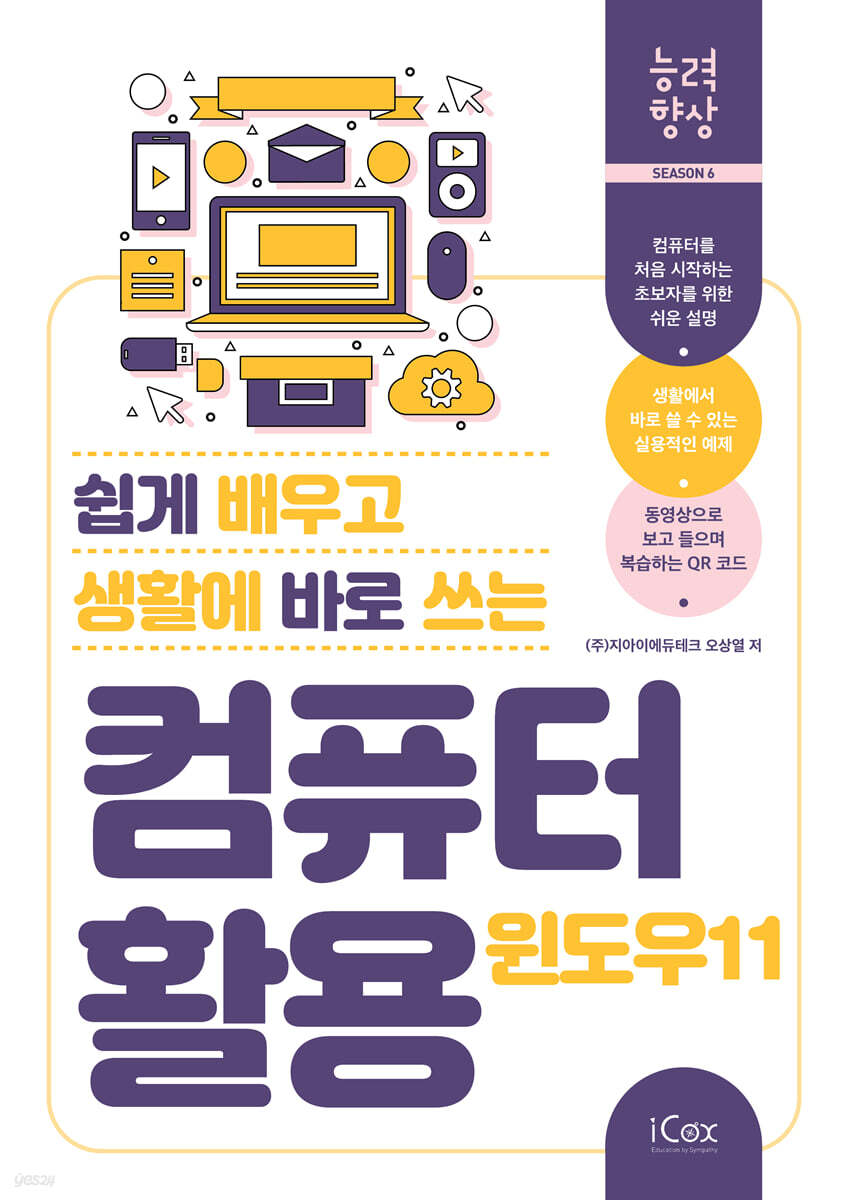
Easy-to-learn and easy-to-use computer for everyday life (Windows 11)
 |
Description
Book Introduction
A series that improves skills by making them easy to learn and apply in daily life (Season 6)
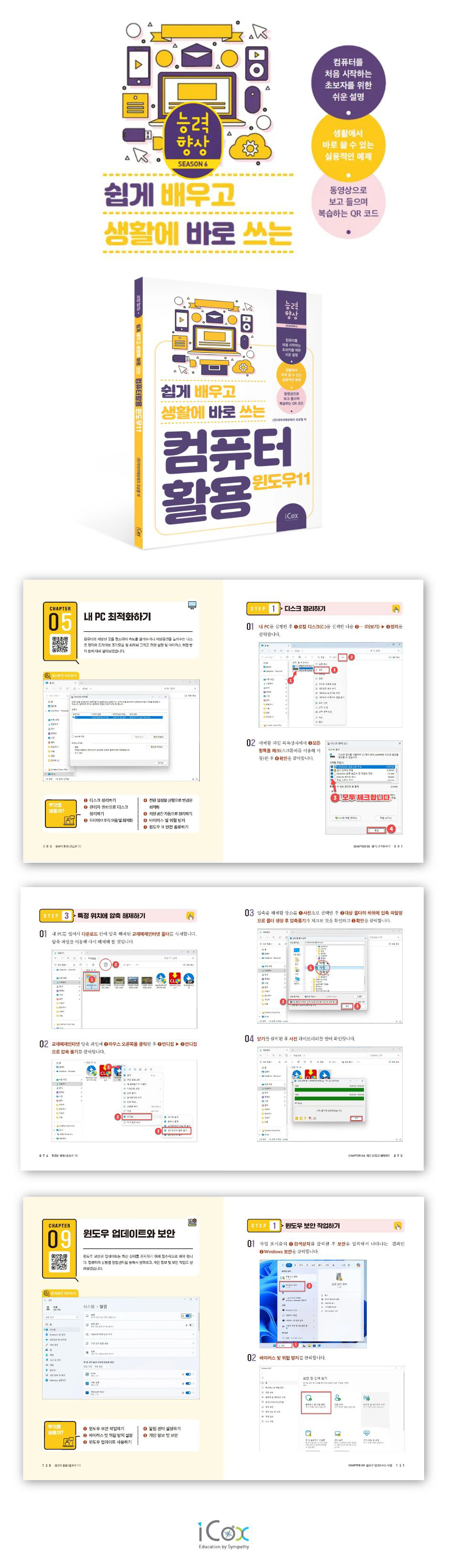
The Skills Improvement Series was created for people who are not very good at using computers and for seniors who are new to computers.
It is explained in detail and easy to understand, focusing on practical examples that can be applied directly to real life, and the numbered and explanatory text attached to the photo images make it easy to follow the instructions.
The text and corresponding images were also enlarged to ensure that even the elderly with poor eyesight can view them without difficulty.
Additionally, you can also watch the lectures as videos by inserting QR codes in each chapter, making it great for practicing on your own with just one book.
The Skills Improvement Series was created for people who are not very good at using computers and for seniors who are new to computers.
It is explained in detail and easy to understand, focusing on practical examples that can be applied directly to real life, and the numbered and explanatory text attached to the photo images make it easy to follow the instructions.
The text and corresponding images were also enlarged to ensure that even the elderly with poor eyesight can view them without difficulty.
Additionally, you can also watch the lectures as videos by inserting QR codes in each chapter, making it great for practicing on your own with just one book.
- You can preview some of the book's contents.
Preview
index
Chapter 01 Finding Files Quickly
__STEP01 Quickly find apps
__STEP02 Examining the File Explorer screen layout
__STEP03 Remove from favorites
__STEP04 Pin to Favorites
__STEP05 Change the icon view method
__STEP06 Add frequently visited folders to favorites
__STEP07 Hide folder
__STEP08 Show hidden items
Chapter 02 Managing Files/Folders
__STEP01 Creating a folder
__STEP02 Managing related folders (moving folders)
__STEP03 Saving web (internet) photos
__STEP04 View file format
__STEP05 Moving folders using the Explorer tab
Chapter 03 Listen, watch, and have fun
__STEP01 Watch with the Movies & TV app
__STEP02 Using the media player
__STEP03 Using the playlist
__STEP04 Installing ClipDown
__STEP05 Downloading YouTube videos
Chapter 04 Compressing and Decompressing Files
__STEP01 Download and install Bandizip
__STEP02 Unzip the compressed file
__STEP03 Unzip to a specific location
__STEP04 Compress by type
Chapter 05 Optimizing My PC
__STEP01 Disk Cleanup
__STEP02 Clean up the disk with administrator privileges
__STEP03 Drive defragmentation and optimization
__STEP04 Optimization with power settings changed to balanced
__STEP05 Automatically organize storage space
__STEP06 Virus and Threat Protection
__STEP07 Completely shut down Windows 11
Chapter 06 Managing with PC Manager
__STEP01 Installing the PC Manager app
__STEP02 Using the PC Manager App
__STEP03 Protect with PC Manager
__STEP04 Managing storage with PC Manager
__STEP05 Managing Apps with PC Manager
Chapter 07 Using USB Memory
__STEP01 Connecting a USB memory stick
__STEP02 Formatting the USB memory
__STEP03 Sending files to a USB memory stick
__STEP04 Importing files to my PC
__STEP05 Remove the USB memory from your PC
Chapter 08 Using the Edge Browser
__STEP01 Setting up the Edge browser page
__STEP02 Connecting a quick link
__STEP03 Using the Home Button
__STEP04 Connecting Copilot to a New Tab
__STEP05 Adding and changing the start page
__STEP06 Reset personal information
Chapter 09 Windows Update and Security
__STEP01 Working with Windows Security
__STEP02 Virus and Threat Protection Settings
__STEP03 Using Windows Update
__STEP04 Setting up the Notification Center
__STEP05 Personal Information and Security
Chapter 10: Using Other Windows Features
__STEP01 Improved clipboard function
__STEP02 Extracting text from photos
__STEP03 Setting the mouse size and color
__STEP04 Setting the mouse double-click speed
__STEP01 Quickly find apps
__STEP02 Examining the File Explorer screen layout
__STEP03 Remove from favorites
__STEP04 Pin to Favorites
__STEP05 Change the icon view method
__STEP06 Add frequently visited folders to favorites
__STEP07 Hide folder
__STEP08 Show hidden items
Chapter 02 Managing Files/Folders
__STEP01 Creating a folder
__STEP02 Managing related folders (moving folders)
__STEP03 Saving web (internet) photos
__STEP04 View file format
__STEP05 Moving folders using the Explorer tab
Chapter 03 Listen, watch, and have fun
__STEP01 Watch with the Movies & TV app
__STEP02 Using the media player
__STEP03 Using the playlist
__STEP04 Installing ClipDown
__STEP05 Downloading YouTube videos
Chapter 04 Compressing and Decompressing Files
__STEP01 Download and install Bandizip
__STEP02 Unzip the compressed file
__STEP03 Unzip to a specific location
__STEP04 Compress by type
Chapter 05 Optimizing My PC
__STEP01 Disk Cleanup
__STEP02 Clean up the disk with administrator privileges
__STEP03 Drive defragmentation and optimization
__STEP04 Optimization with power settings changed to balanced
__STEP05 Automatically organize storage space
__STEP06 Virus and Threat Protection
__STEP07 Completely shut down Windows 11
Chapter 06 Managing with PC Manager
__STEP01 Installing the PC Manager app
__STEP02 Using the PC Manager App
__STEP03 Protect with PC Manager
__STEP04 Managing storage with PC Manager
__STEP05 Managing Apps with PC Manager
Chapter 07 Using USB Memory
__STEP01 Connecting a USB memory stick
__STEP02 Formatting the USB memory
__STEP03 Sending files to a USB memory stick
__STEP04 Importing files to my PC
__STEP05 Remove the USB memory from your PC
Chapter 08 Using the Edge Browser
__STEP01 Setting up the Edge browser page
__STEP02 Connecting a quick link
__STEP03 Using the Home Button
__STEP04 Connecting Copilot to a New Tab
__STEP05 Adding and changing the start page
__STEP06 Reset personal information
Chapter 09 Windows Update and Security
__STEP01 Working with Windows Security
__STEP02 Virus and Threat Protection Settings
__STEP03 Using Windows Update
__STEP04 Setting up the Notification Center
__STEP05 Personal Information and Security
Chapter 10: Using Other Windows Features
__STEP01 Improved clipboard function
__STEP02 Extracting text from photos
__STEP03 Setting the mouse size and color
__STEP04 Setting the mouse double-click speed
Detailed image
GOODS SPECIFICS
- Date of issue: August 10, 2025
- Page count, weight, size: 156 pages | 210*297*20mm
- ISBN13: 9791164262717
- ISBN10: 1164262718
You may also like
카테고리
korean


korean

![GQ KOREA Mark (Monthly): December [2025]](http://librairie.coreenne.fr/cdn/shop/files/8ef265dbbfbf186523ed75ba7319009d.jpg?v=1765340328&width=3840)


