

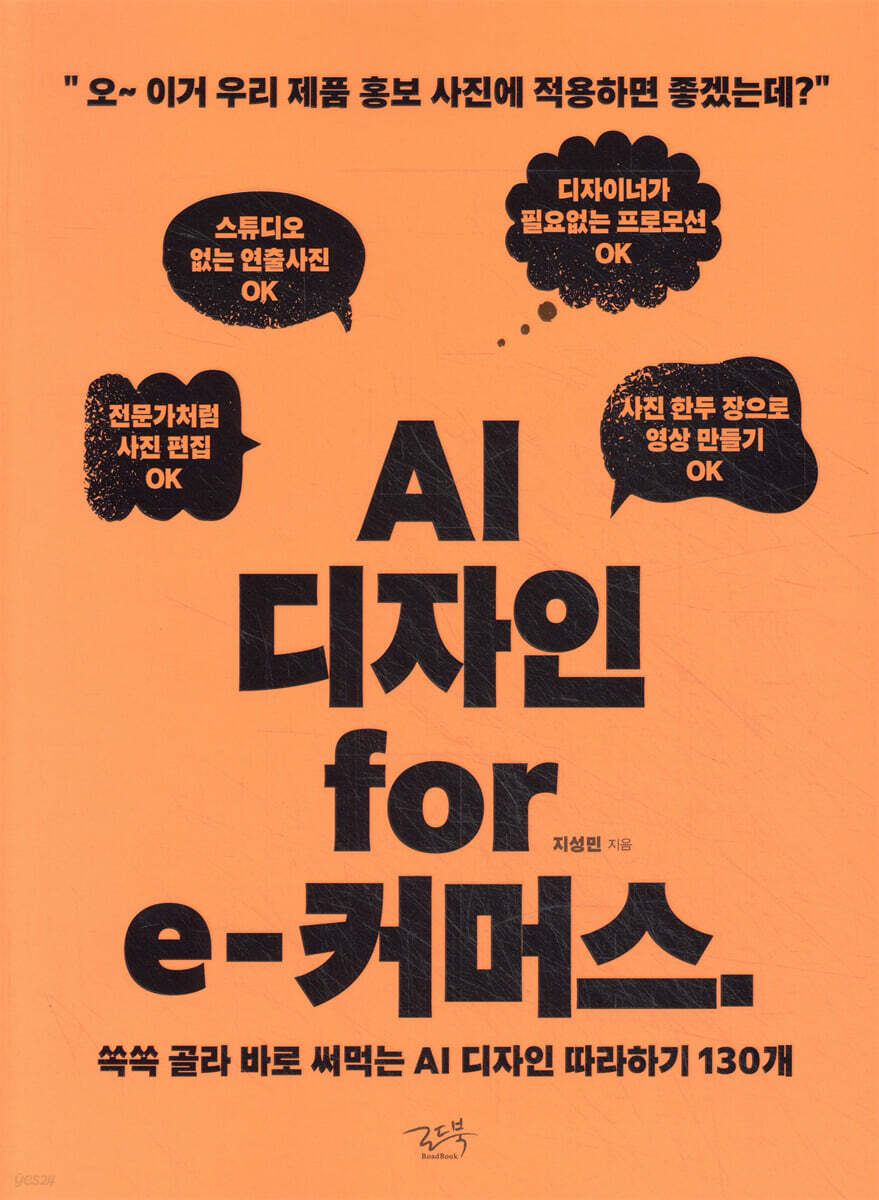
AI Design for E-Commerce
 |
Description
Book Introduction
AI design is not yet a magic wand that will produce gold in a flash.
With so many AI tools out there, it can be overwhelming to decide which one to use.
The author compared and analyzed numerous tools and selected just eight tools.
We divided the essential examples for e-commerce into categories and functions, created 130 examples, and prepared design recipes.
The process is so simple and easy that even a one-person shopping mall owner who doesn't know anything about design can follow it.
If you're a designer, this book will dramatically reduce the time you spend on Photoshop retouching.
This is a real AI design recipe book that you can follow along with.
With so many AI tools out there, it can be overwhelming to decide which one to use.
The author compared and analyzed numerous tools and selected just eight tools.
We divided the essential examples for e-commerce into categories and functions, created 130 examples, and prepared design recipes.
The process is so simple and easy that even a one-person shopping mall owner who doesn't know anything about design can follow it.
If you're a designer, this book will dramatically reduce the time you spend on Photoshop retouching.
This is a real AI design recipe book that you can follow along with.
- You can preview some of the book's contents.
Preview
index
prolog
Recommendation
Features and learning methods of this book
Chapter 1: AI that turns low-quality images into high-quality images that are twice as high.
Warming Up_Introducing Remini AI
Getting started
1-1 Improving low-quality images
1-2 Improving Blurry Images
1-3 Improving Mosaic Images
In conclusion
Chapter 2 AI that converts low-quality images into high-quality images with a factor of 4.
Warming Up_Hitpaw FotorPea Introduction
Getting started
2-1 Improving Noise in Images
2-2 Improving Blurry Text
2-3 Improving the blurry texture
In conclusion
AI that erases unnecessary parts of images in Chapter 3
Warming Up_Introducing Adobe Firefly
Getting started
3-1 Remove unnecessary elements
3-2 Removing Unnecessary Background
3-3 Leave only the background
In conclusion
AI that changes or adds elements to images in Chapter 4
Warming Up_Using Adobe Firefly, Part 2
4-1 Adding decorative elements around the product
4-2 Adding missing elements to the product
4-3 Changing elements within an image
In conclusion
AI that fills in blank spaces in Chapter 5 images
Warming Up_Using Adobe Firefly, Part 3
5-1 Filling a simple background
5-2 Filling complex backgrounds
5-3 Filling the background with a sense of perspective
Extending the shape of the 5-4 element, the first
Extending the shape of the 5-5 element, second
In conclusion
Chapter 6: AI that creates images from text, basics
Warming Up_Using Adobe Firefly, Part 4
6-1 Creating Useful Images in the Cosmetics Industry
6-2 Creating Useful Images for the Pet Industry
6-3 Creating Useful Images in the Health Food Industry
6-4 Creating Useful Images for Kitchenware
6-5 Creating useful images for family and health
6-6 Creating Useful Images for the Sports Equipment Industry
In conclusion
Chapter 7: AI that creates images from text, application
Warming Up_Using Adobe Firefly, Part 5
7-1 Creating a Gorgeous Style Image
7-2 Applying natural lighting
7-3 Creating Natural Portrait Images
7-4 Creating a Silhouette Image
In conclusion
AI that produces studio-style photos with just 8 product photos
Introducing Warming Up_Flair AI
8-1 Example to understand basic production principles
In conclusion
Chapter 9 AI that creates studio-like photos using only cosmetics photos
Warming Up_Flair AI Utilization, First
9-1 Creating a simple and clean presentation
9-2 Creating a creamy texture
9-3 Create two lipstick looks
9-4 Creating a scene that becomes one with nature
Tilting the 9-5 product
9-6 Creating a floating composition
In conclusion
AI that produces studio-style photos of 10 fashion/accessory products
Warming Up_Flair AI Utilization, Second
10-1 How to make jewelry look luxurious
10-2 Wrapping the bag with cloth
10-3 Position two shoes facing each other
10-4 Put your sandals on the beach
Trying on 10-5 earrings on a model
Trying on a model wearing a 10-6 hat
In conclusion
Chapter 11: AI that creates studio-like photos of food
Warming Up_Flair AI Utilization, Third
11-1 Arrange the olives around the pickled olive jar
11-2 Decorating the Ice Cream
11-3 Place the bread on a plate and decorate the surrounding area.
11-4 Creating a Transparent Teacup
11-5 Applying the desired background
In conclusion
Chapter 12 AI that creates studio-like photos of electronic products
Warming Up_Flair AI Utilization, Fourth
12-1 Creating a Steam Effect in a Humidifier
12-2 Harmony of Concrete and Laptop
12-3 Harmony of sharp stones and smartphones
12-4 How to Make a Dreamy Smartwatch
12-5 Handheld Fan Production
In conclusion
Chapter 13: AI that creates studio-like photos using only interior/prop photos
Warming Up_Flair AI Utilization, Fifth
13-1 Harmonious display of plaster statues and props
13-2 Creating a Pendant Light
13-3 Creating a Round Table
13-4 Creating a living room
13-5 Chair production
In conclusion
Chapter 14: AI that creates scenes like outdoor shooting
Warming Up_Flair AI Utilization, Sixth
14-1 Outdoor-Style Tumbler
14-2 Try pitching a tent on the beach
14-3 Creating a Car Image
14-4 Creating a Model Image
14-5 Trying on glasses on a model
In conclusion
Chapter 15: AI that creates images of clothes worn by a fitting model using only clothing images, Basic Edition
Warming Up_Flair AI Utilization, Seventh
15-1 Creating a Virtual Fitting Model for Clothes 1
15-2 Creating a Virtual Fitting Model for Clothes 2
In conclusion
Chapter 16: AI that creates images of clothing worn by a fitting model using only clothing images, application version
Warming Up_Flair AI Utilization, Eighth
16-1 Creating a Blouse Fitting Model
16-2 Creating a Leather Jacket Fitting Model
16-3 Creating a Knit Cardigan Fitting Model
Creating a 16-4 pleated skirt fitting model
16-5 Creating a Suit Fitting Model
Creating a 16-6 Shirt Fitting Model
In conclusion
Chapter 17: Flair AI, Additional Tips
Warming Up_Flair AI Utilization, Ninth
17-1 Tips for creating a luxurious look
17-2 Displaying Products with Lettering
17-3 Creating a Transparent Product
17-4 Using the Search Function
17-5 Using Prompts
In conclusion
Chapter 18: AI that Changes a Model's Face, Basics
Warming Up_Introducing Deepswapper
18-1 Follow along with an example
18-2 Application
In conclusion
Chapter 19: AI that Changes the Face of a Model, Application Edition
Warming Up_Using Deepswapper, Part 2
19-1 When the angles of the faces are similar
19-2 If your eyes are closed
19-3 If you wear glasses
19-4 If you have a beard
19-5 If face change is not implemented
In conclusion
AI that creates videos with just 20 images
Warming Up_Introducing Runway ML
20-1 Basics of Creating a 10-Second Video with Two Images
In conclusion
Create a variety of videos with two images from Chapter 21
Warming Up_Runway ML Utilization, First
21-1 Creating a video of a woman wearing denim top and bottom
Create a video that rotates the front of the 21-2 model 90 degrees to the side.
21-3 Create a video of a male model leaning against a wall
Creating a 21-4 female model's camera zoom-out video
Implementing dynamic movements of the 21-5 skateboard model
Create a video that highlights the entire body, starting with the upper body of a 21-6 kid model.
In conclusion
Create a video from a single 22-image image
Warming Up
Third use of Runway ML
22-1 Woman wearing padding
22-2 Implementation of full body movement
22-3 Sitting posture model
22-4 Ecobag Movement
22-5 Close-up of a tote bag
Car passing behind model 22-6
22-7 Close-up and low angle, hair movement
In conclusion
Chapter 23: Using a Single Image and Prompts, Camera Movement
Warming Up_Runway ML Utilization, Part 4
23-1 Directing a camera zoom-in
23-2 Directing Camera Rotation
23-3 Drone Filming Movement
23-4 Directing the camera zoom out
23-5 Creating static camera movements
23-6 Creating dynamic camera movements
In conclusion
24 images and prompts for model movement
Warming Up_Runway ML Utilization, Part 5
24-1 Head-nodding production
24-2 Raising the head
24-3 Bowing the head
24-4 Hair Touching
How to pose in a 24-5 V pose
24-6 Performing a Jumping Movement
Creating 24-7 running movements
In conclusion
Chapter 25: AI that changes the color of products
Warming Up_Vmake Introduction
Getting started
25-1 Changing the color of the training suit
25-2 Changing the color of the pants
25-3 Changing the color of the fur hat
25-4 Changing the color of socks
25-5 Changing the color of the chair
25-6 Change the color of the earphone case
In conclusion
Chapter 26: AI that creates advertising banners
Warming Up_Using Vmake, Second
26-1 Creating an Advertisement for Knit Products
26-2 Creating a Knee Socks Product Advertisement
26-3 Creating a Headphone Ad
26-4 Creating a Bag Advertisement
In conclusion
Chapter 27: AI that automatically applies logo mockups to products
Warming Up_Introducing Adobe Illustrator
27-1 Apply to hat
27-2 Apply to sneakers
27-3 Application to cosmetics
Apply to 27-4 T-shirt
In conclusion
Chapter 28 AI that adds various textures to text
Warming Up_Using Adobe Firefly, Part 6
28-1 Applying a neon effect
28-2 Applying Balloon Texture
28-3 Applying a Metal Texture
28-4 Applying ice texture
Applying the 28-5 fire effect
28-6 Applying yarn texture
28-7 Applying bread texture
In conclusion
AI that adds various textures to the 29-chapter logo
Warming Up_Using Adobe Firefly, Part 7
29-1 Applying Liquid Texture
29-2 Applying candy texture
29-3 Applying Balloon Texture
In conclusion
How to cancel your subscription to Chapter 30
30-1 Cancel Remini Subscription
30-2 Hitpaw FotorPea Cancel Subscription
30-3 Cancel your Adobe subscription
Cancel 30-4 Flair AI Subscription
Cancel 30-5 Runway ML Subscription
30-6 Cancel Vmake Subscription
In conclusion
Epilogue
Recommendation
Features and learning methods of this book
Chapter 1: AI that turns low-quality images into high-quality images that are twice as high.
Warming Up_Introducing Remini AI
Getting started
1-1 Improving low-quality images
1-2 Improving Blurry Images
1-3 Improving Mosaic Images
In conclusion
Chapter 2 AI that converts low-quality images into high-quality images with a factor of 4.
Warming Up_Hitpaw FotorPea Introduction
Getting started
2-1 Improving Noise in Images
2-2 Improving Blurry Text
2-3 Improving the blurry texture
In conclusion
AI that erases unnecessary parts of images in Chapter 3
Warming Up_Introducing Adobe Firefly
Getting started
3-1 Remove unnecessary elements
3-2 Removing Unnecessary Background
3-3 Leave only the background
In conclusion
AI that changes or adds elements to images in Chapter 4
Warming Up_Using Adobe Firefly, Part 2
4-1 Adding decorative elements around the product
4-2 Adding missing elements to the product
4-3 Changing elements within an image
In conclusion
AI that fills in blank spaces in Chapter 5 images
Warming Up_Using Adobe Firefly, Part 3
5-1 Filling a simple background
5-2 Filling complex backgrounds
5-3 Filling the background with a sense of perspective
Extending the shape of the 5-4 element, the first
Extending the shape of the 5-5 element, second
In conclusion
Chapter 6: AI that creates images from text, basics
Warming Up_Using Adobe Firefly, Part 4
6-1 Creating Useful Images in the Cosmetics Industry
6-2 Creating Useful Images for the Pet Industry
6-3 Creating Useful Images in the Health Food Industry
6-4 Creating Useful Images for Kitchenware
6-5 Creating useful images for family and health
6-6 Creating Useful Images for the Sports Equipment Industry
In conclusion
Chapter 7: AI that creates images from text, application
Warming Up_Using Adobe Firefly, Part 5
7-1 Creating a Gorgeous Style Image
7-2 Applying natural lighting
7-3 Creating Natural Portrait Images
7-4 Creating a Silhouette Image
In conclusion
AI that produces studio-style photos with just 8 product photos
Introducing Warming Up_Flair AI
8-1 Example to understand basic production principles
In conclusion
Chapter 9 AI that creates studio-like photos using only cosmetics photos
Warming Up_Flair AI Utilization, First
9-1 Creating a simple and clean presentation
9-2 Creating a creamy texture
9-3 Create two lipstick looks
9-4 Creating a scene that becomes one with nature
Tilting the 9-5 product
9-6 Creating a floating composition
In conclusion
AI that produces studio-style photos of 10 fashion/accessory products
Warming Up_Flair AI Utilization, Second
10-1 How to make jewelry look luxurious
10-2 Wrapping the bag with cloth
10-3 Position two shoes facing each other
10-4 Put your sandals on the beach
Trying on 10-5 earrings on a model
Trying on a model wearing a 10-6 hat
In conclusion
Chapter 11: AI that creates studio-like photos of food
Warming Up_Flair AI Utilization, Third
11-1 Arrange the olives around the pickled olive jar
11-2 Decorating the Ice Cream
11-3 Place the bread on a plate and decorate the surrounding area.
11-4 Creating a Transparent Teacup
11-5 Applying the desired background
In conclusion
Chapter 12 AI that creates studio-like photos of electronic products
Warming Up_Flair AI Utilization, Fourth
12-1 Creating a Steam Effect in a Humidifier
12-2 Harmony of Concrete and Laptop
12-3 Harmony of sharp stones and smartphones
12-4 How to Make a Dreamy Smartwatch
12-5 Handheld Fan Production
In conclusion
Chapter 13: AI that creates studio-like photos using only interior/prop photos
Warming Up_Flair AI Utilization, Fifth
13-1 Harmonious display of plaster statues and props
13-2 Creating a Pendant Light
13-3 Creating a Round Table
13-4 Creating a living room
13-5 Chair production
In conclusion
Chapter 14: AI that creates scenes like outdoor shooting
Warming Up_Flair AI Utilization, Sixth
14-1 Outdoor-Style Tumbler
14-2 Try pitching a tent on the beach
14-3 Creating a Car Image
14-4 Creating a Model Image
14-5 Trying on glasses on a model
In conclusion
Chapter 15: AI that creates images of clothes worn by a fitting model using only clothing images, Basic Edition
Warming Up_Flair AI Utilization, Seventh
15-1 Creating a Virtual Fitting Model for Clothes 1
15-2 Creating a Virtual Fitting Model for Clothes 2
In conclusion
Chapter 16: AI that creates images of clothing worn by a fitting model using only clothing images, application version
Warming Up_Flair AI Utilization, Eighth
16-1 Creating a Blouse Fitting Model
16-2 Creating a Leather Jacket Fitting Model
16-3 Creating a Knit Cardigan Fitting Model
Creating a 16-4 pleated skirt fitting model
16-5 Creating a Suit Fitting Model
Creating a 16-6 Shirt Fitting Model
In conclusion
Chapter 17: Flair AI, Additional Tips
Warming Up_Flair AI Utilization, Ninth
17-1 Tips for creating a luxurious look
17-2 Displaying Products with Lettering
17-3 Creating a Transparent Product
17-4 Using the Search Function
17-5 Using Prompts
In conclusion
Chapter 18: AI that Changes a Model's Face, Basics
Warming Up_Introducing Deepswapper
18-1 Follow along with an example
18-2 Application
In conclusion
Chapter 19: AI that Changes the Face of a Model, Application Edition
Warming Up_Using Deepswapper, Part 2
19-1 When the angles of the faces are similar
19-2 If your eyes are closed
19-3 If you wear glasses
19-4 If you have a beard
19-5 If face change is not implemented
In conclusion
AI that creates videos with just 20 images
Warming Up_Introducing Runway ML
20-1 Basics of Creating a 10-Second Video with Two Images
In conclusion
Create a variety of videos with two images from Chapter 21
Warming Up_Runway ML Utilization, First
21-1 Creating a video of a woman wearing denim top and bottom
Create a video that rotates the front of the 21-2 model 90 degrees to the side.
21-3 Create a video of a male model leaning against a wall
Creating a 21-4 female model's camera zoom-out video
Implementing dynamic movements of the 21-5 skateboard model
Create a video that highlights the entire body, starting with the upper body of a 21-6 kid model.
In conclusion
Create a video from a single 22-image image
Warming Up
Third use of Runway ML
22-1 Woman wearing padding
22-2 Implementation of full body movement
22-3 Sitting posture model
22-4 Ecobag Movement
22-5 Close-up of a tote bag
Car passing behind model 22-6
22-7 Close-up and low angle, hair movement
In conclusion
Chapter 23: Using a Single Image and Prompts, Camera Movement
Warming Up_Runway ML Utilization, Part 4
23-1 Directing a camera zoom-in
23-2 Directing Camera Rotation
23-3 Drone Filming Movement
23-4 Directing the camera zoom out
23-5 Creating static camera movements
23-6 Creating dynamic camera movements
In conclusion
24 images and prompts for model movement
Warming Up_Runway ML Utilization, Part 5
24-1 Head-nodding production
24-2 Raising the head
24-3 Bowing the head
24-4 Hair Touching
How to pose in a 24-5 V pose
24-6 Performing a Jumping Movement
Creating 24-7 running movements
In conclusion
Chapter 25: AI that changes the color of products
Warming Up_Vmake Introduction
Getting started
25-1 Changing the color of the training suit
25-2 Changing the color of the pants
25-3 Changing the color of the fur hat
25-4 Changing the color of socks
25-5 Changing the color of the chair
25-6 Change the color of the earphone case
In conclusion
Chapter 26: AI that creates advertising banners
Warming Up_Using Vmake, Second
26-1 Creating an Advertisement for Knit Products
26-2 Creating a Knee Socks Product Advertisement
26-3 Creating a Headphone Ad
26-4 Creating a Bag Advertisement
In conclusion
Chapter 27: AI that automatically applies logo mockups to products
Warming Up_Introducing Adobe Illustrator
27-1 Apply to hat
27-2 Apply to sneakers
27-3 Application to cosmetics
Apply to 27-4 T-shirt
In conclusion
Chapter 28 AI that adds various textures to text
Warming Up_Using Adobe Firefly, Part 6
28-1 Applying a neon effect
28-2 Applying Balloon Texture
28-3 Applying a Metal Texture
28-4 Applying ice texture
Applying the 28-5 fire effect
28-6 Applying yarn texture
28-7 Applying bread texture
In conclusion
AI that adds various textures to the 29-chapter logo
Warming Up_Using Adobe Firefly, Part 7
29-1 Applying Liquid Texture
29-2 Applying candy texture
29-3 Applying Balloon Texture
In conclusion
How to cancel your subscription to Chapter 30
30-1 Cancel Remini Subscription
30-2 Hitpaw FotorPea Cancel Subscription
30-3 Cancel your Adobe subscription
Cancel 30-4 Flair AI Subscription
Cancel 30-5 Runway ML Subscription
30-6 Cancel Vmake Subscription
In conclusion
Epilogue
Detailed image

Publisher's Review
They tell us to design with AI, but does it actually work well in practice?
130 AI tools and design recipes carefully selected by working designers.
You can just pick them out, learn them, and use them right away!
〈〈〈〈Super-simple user manual for this book〉〉〉〉
The book is composed entirely of examples from Chapter 1 onwards.
1.
First, flip through the bookshelf to find the design example you need right now.
2.
Then, learn the AI tools and examples on the page, and create a design that suits you.
There are only eight tools covered in this book!
Remini, HitpawFotorPea, Adobe FireFly, Flair AI, Deepswapper, RunwayML, Vmake, Adobe Illustrator
Using eight tools, we've created a total of 130 example recipes, divided into areas and functions essential for design in the e-commerce field.
1.
Convert low-quality images to high-quality images
2.
Delete unnecessary images
3.
Add or replace elements in an image
4.
Fill in the blank space in the image
5.
How to create images by simply writing text
6.
How to make cosmetics photos look like studio shots
7.
How to make fashion/home photography look like a studio shoot
8.
How to make food photos look like studio shots
9.
How to make electronic product photos look like studio shots
10.
How to make interior/prop photos look like studio shots
11.
Directing it like an outdoor shoot
12.
Create an image of a fitting model wearing the clothing using only images of the clothing.
13.
Changing the face of a model whose contract has expired
14.
Create short-form videos with just images
15.
Change the color of the product
16.
Create an advertising banner
17.
Working on a logo mockup
18.
Adding different textures to your writing
19.
Adding different textures to your logo
130 AI tools and design recipes carefully selected by working designers.
You can just pick them out, learn them, and use them right away!
〈〈〈〈Super-simple user manual for this book〉〉〉〉
The book is composed entirely of examples from Chapter 1 onwards.
1.
First, flip through the bookshelf to find the design example you need right now.
2.
Then, learn the AI tools and examples on the page, and create a design that suits you.
There are only eight tools covered in this book!
Remini, HitpawFotorPea, Adobe FireFly, Flair AI, Deepswapper, RunwayML, Vmake, Adobe Illustrator
Using eight tools, we've created a total of 130 example recipes, divided into areas and functions essential for design in the e-commerce field.
1.
Convert low-quality images to high-quality images
2.
Delete unnecessary images
3.
Add or replace elements in an image
4.
Fill in the blank space in the image
5.
How to create images by simply writing text
6.
How to make cosmetics photos look like studio shots
7.
How to make fashion/home photography look like a studio shoot
8.
How to make food photos look like studio shots
9.
How to make electronic product photos look like studio shots
10.
How to make interior/prop photos look like studio shots
11.
Directing it like an outdoor shoot
12.
Create an image of a fitting model wearing the clothing using only images of the clothing.
13.
Changing the face of a model whose contract has expired
14.
Create short-form videos with just images
15.
Change the color of the product
16.
Create an advertising banner
17.
Working on a logo mockup
18.
Adding different textures to your writing
19.
Adding different textures to your logo
GOODS SPECIFICS
- Date of issue: April 16, 2025
- Page count, weight, size: 448 pages | 916g | 188*257*19mm
- ISBN13: 9791193229330
- ISBN10: 1193229332
You may also like
카테고리
korean


korean

![GQ KOREA Mark (Monthly): December [2025]](http://librairie.coreenne.fr/cdn/shop/files/8ef265dbbfbf186523ed75ba7319009d.jpg?v=1765340328&width=3840)


