

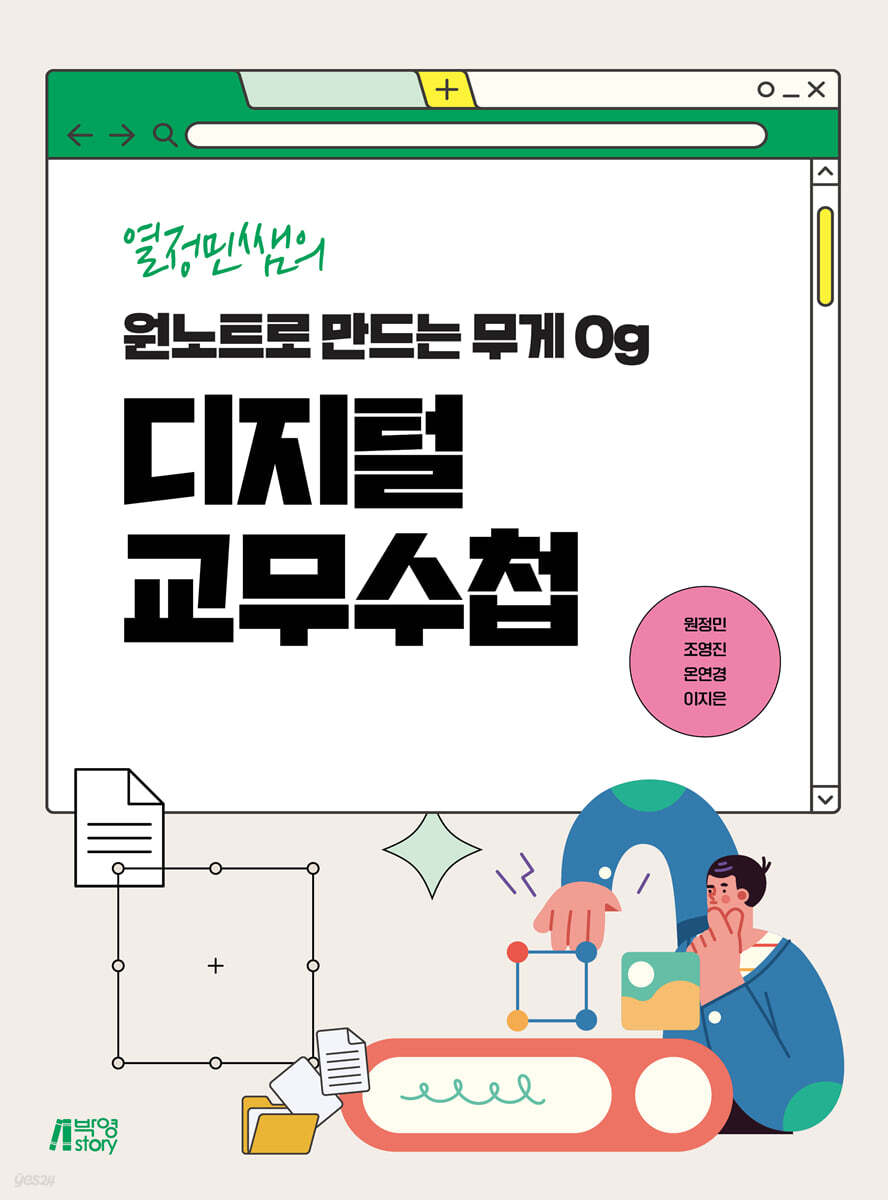
A 0g digital notebook made with Teacher Yeoljeongmin's OneNote
 |
Description
Book Introduction
When you log in with the same ID when using OneNote, you can create a 0g digital notebook that is linked across school computers, home computers, Android and iOS smart devices.
In addition, you can set a password to protect your personal information, and you can also upload and edit Excel and Hangul files, making it very convenient for work management.
You can jot down notes whenever a lesson idea comes to you, either handwritten or text, and because it's digital, you can search the accumulated materials at any time.
In addition, you can set a password to protect your personal information, and you can also upload and edit Excel and Hangul files, making it very convenient for work management.
You can jot down notes whenever a lesson idea comes to you, either handwritten or text, and because it's digital, you can search the accumulated materials at any time.
index
Chapter 01 Getting Started with OneNote · 1
1-1
What if I use OneNote at school? 3
1-1-1 Why a Digital School Notebook? ★ 3
Among the 1-1-2 digital notebooks, why OneNote? ★ 4
1-2
Getting Started with OneNote 5
Compare OneNote versions ★★ 5
1-2-2 OneNote Download ★★ 7
1-2-3 OneNote Account and Electronic Notebook ★★ 12
1-2-4 OneNote Manual Sync ★ 17
1-2-5 OneNote Update ★ 22
1-3
Try OneNote 24
1-3-1 Screen Configuration and Basic Functions ★★★ 24
1-3-2 Add, Delete, and Manage Sections ★★ 42
1-3-3 Deleting and Renaming Electronic Notebooks ★ 47
1-4
Create an emotional OneNote by changing the font ★★★ 50
Chapter 02: Creating a Digital School Notebook by Following the Patterns · 57
2-1
Creating a Student List 59
2-1-1 Personal Information Register ★★ 59
Using the 2-1-2 Checkbox ★★★ 63
2-2
Creating a Smart Checklist ★★★ 69
2-3
Creating a Counseling Journal ★★ 88
2-4
Organizing Work ★★ 98
2-5
Organizing Performance Evaluations ★ 105
Chapter 03: Adding Wings to Your Notebook with Additional Features · 109
3-1
Preparing for Class with OneNote 111
3-1-1 Creating a Class Log ★★★ 111
3-1-2 Organizing Class Materials ★ 119
3-1-3 Nice input ★ 128
3-2
Making a Beautiful and Convenient School Notebook 131
3-2-1 Creating an Integrated School Notebook Template ★★ 131
3-2-2 Copy and use the template ★ 138
Chapter 04: Creating a Smart Calendar with Onetastic · 141
4-1
Empowering Class & Work Management 143
Creating a Smart Main Page Using 4-1-1 One-Tastic ★★★ 143
Create a Smart Calendar Using the 4-1-2 Monthly Calendar ★★ 147
4-2
Creating an Attendance List Using One-Tastic ★★ 152
Chapter 05: Making the Most of Your Digital Notebook · 155
5-1
Share OneNote 157
5-1-1 Learn about OneNote's sharing features ★ 157
5-1-2 Using the OneNote Sharing Feature ★ 159
5-2
OneNote Tips Collection 162
5-2-1 Using the Formula Input Function ★ 162
5-2-2 Recovering Your Electronic Notebook ★★ 163
5-2-3 Switching and Backing Up Electronic Notebook Accounts ★ 165
Appendix 171
Appendix 1: A Real-Life Example of a Digital Notebook Created with OneNote 173
Appendix 2 Shortcut Keys 179
1-1
What if I use OneNote at school? 3
1-1-1 Why a Digital School Notebook? ★ 3
Among the 1-1-2 digital notebooks, why OneNote? ★ 4
1-2
Getting Started with OneNote 5
Compare OneNote versions ★★ 5
1-2-2 OneNote Download ★★ 7
1-2-3 OneNote Account and Electronic Notebook ★★ 12
1-2-4 OneNote Manual Sync ★ 17
1-2-5 OneNote Update ★ 22
1-3
Try OneNote 24
1-3-1 Screen Configuration and Basic Functions ★★★ 24
1-3-2 Add, Delete, and Manage Sections ★★ 42
1-3-3 Deleting and Renaming Electronic Notebooks ★ 47
1-4
Create an emotional OneNote by changing the font ★★★ 50
Chapter 02: Creating a Digital School Notebook by Following the Patterns · 57
2-1
Creating a Student List 59
2-1-1 Personal Information Register ★★ 59
Using the 2-1-2 Checkbox ★★★ 63
2-2
Creating a Smart Checklist ★★★ 69
2-3
Creating a Counseling Journal ★★ 88
2-4
Organizing Work ★★ 98
2-5
Organizing Performance Evaluations ★ 105
Chapter 03: Adding Wings to Your Notebook with Additional Features · 109
3-1
Preparing for Class with OneNote 111
3-1-1 Creating a Class Log ★★★ 111
3-1-2 Organizing Class Materials ★ 119
3-1-3 Nice input ★ 128
3-2
Making a Beautiful and Convenient School Notebook 131
3-2-1 Creating an Integrated School Notebook Template ★★ 131
3-2-2 Copy and use the template ★ 138
Chapter 04: Creating a Smart Calendar with Onetastic · 141
4-1
Empowering Class & Work Management 143
Creating a Smart Main Page Using 4-1-1 One-Tastic ★★★ 143
Create a Smart Calendar Using the 4-1-2 Monthly Calendar ★★ 147
4-2
Creating an Attendance List Using One-Tastic ★★ 152
Chapter 05: Making the Most of Your Digital Notebook · 155
5-1
Share OneNote 157
5-1-1 Learn about OneNote's sharing features ★ 157
5-1-2 Using the OneNote Sharing Feature ★ 159
5-2
OneNote Tips Collection 162
5-2-1 Using the Formula Input Function ★ 162
5-2-2 Recovering Your Electronic Notebook ★★ 163
5-2-3 Switching and Backing Up Electronic Notebook Accounts ★ 165
Appendix 171
Appendix 1: A Real-Life Example of a Digital Notebook Created with OneNote 173
Appendix 2 Shortcut Keys 179
Publisher's Review
Once you try it, you can't go back.
The teaching profession relies on meticulous records to manage dozens, or even hundreds, of students and manage their work.
Because if you miss even one of them, it can cause problems for your students or create holes in your work.
This was back in the days when we used paper notebooks.
Whenever something came to mind that I needed to write down in my notebook on my way to and from work, I would write it down in the notepad on my smartphone.
Because I can't go to work carrying a heavy paper notebook.
The next day, if I remembered, I would go to work and transfer it to my paper notebook, and if I forgot, I would just forget it.
I was thinking about how to solve this problem because it was a hassle to copy and paste like this every time, and I thought it would be convenient to have a digital notebook on my smartphone.
I studied app development diligently and created the first digital school notebook app (Android: Class Log). I received positive feedback from teachers and many requests for feature upgrades.
The most common request was that it could be linked to computers as well as smartphones.
I thought a smartphone notebook would be sufficient, but many teachers thought differently.
However, in order to create a digital notebook that connects smartphones and computers, there were too many things to study, such as databases and servers.
So I decided to look into ways to leverage existing note-taking apps.
--
The program I came across was Microsoft OneNote.
When you use OneNote, you can create a 0g digital notebook that syncs across your school computer, home computer, Android, and iOS smart devices by logging in with the same ID.
In addition, you can set a password to protect your personal information, and you can also upload and edit Excel and Hangul files, making it very convenient for managing your work.
You can jot down notes whenever lesson ideas come to you, whether handwritten or text, and because it's digital, you can search your accumulated materials at any time.
In other words, it perfectly fulfills the functions required as a digital school notebook.
Haven't you ever spent a lot of time trying to find notes in a paper notebook? Or have you ever rushed to a sudden meeting only to find you forgot your paper notebook and had trouble finding relevant information? I still vividly remember feeling sorry for my fellow teachers.
And isn't it cumbersome and heavy to carry a paper notebook to every class and meeting? Aren't you reluctant to leave work with a paper notebook filled with sensitive information on your desk in the classroom or lab? Using a digital notebook not only eliminates these inconveniences but also offers numerous advantages.
Many teachers have experienced an improvement in their quality of life by digitizing their school notebooks.
Now it's your turn, teacher!
Sincerely, Won Jeong-min, the lead author
The teaching profession relies on meticulous records to manage dozens, or even hundreds, of students and manage their work.
Because if you miss even one of them, it can cause problems for your students or create holes in your work.
This was back in the days when we used paper notebooks.
Whenever something came to mind that I needed to write down in my notebook on my way to and from work, I would write it down in the notepad on my smartphone.
Because I can't go to work carrying a heavy paper notebook.
The next day, if I remembered, I would go to work and transfer it to my paper notebook, and if I forgot, I would just forget it.
I was thinking about how to solve this problem because it was a hassle to copy and paste like this every time, and I thought it would be convenient to have a digital notebook on my smartphone.
I studied app development diligently and created the first digital school notebook app (Android: Class Log). I received positive feedback from teachers and many requests for feature upgrades.
The most common request was that it could be linked to computers as well as smartphones.
I thought a smartphone notebook would be sufficient, but many teachers thought differently.
However, in order to create a digital notebook that connects smartphones and computers, there were too many things to study, such as databases and servers.
So I decided to look into ways to leverage existing note-taking apps.
--
The program I came across was Microsoft OneNote.
When you use OneNote, you can create a 0g digital notebook that syncs across your school computer, home computer, Android, and iOS smart devices by logging in with the same ID.
In addition, you can set a password to protect your personal information, and you can also upload and edit Excel and Hangul files, making it very convenient for managing your work.
You can jot down notes whenever lesson ideas come to you, whether handwritten or text, and because it's digital, you can search your accumulated materials at any time.
In other words, it perfectly fulfills the functions required as a digital school notebook.
Haven't you ever spent a lot of time trying to find notes in a paper notebook? Or have you ever rushed to a sudden meeting only to find you forgot your paper notebook and had trouble finding relevant information? I still vividly remember feeling sorry for my fellow teachers.
And isn't it cumbersome and heavy to carry a paper notebook to every class and meeting? Aren't you reluctant to leave work with a paper notebook filled with sensitive information on your desk in the classroom or lab? Using a digital notebook not only eliminates these inconveniences but also offers numerous advantages.
Many teachers have experienced an improvement in their quality of life by digitizing their school notebooks.
Now it's your turn, teacher!
Sincerely, Won Jeong-min, the lead author
GOODS SPECIFICS
- Date of issue: September 29, 2023
- Page count, weight, size: 192 pages | 188*257*20mm
- ISBN13: 9791165193881
- ISBN10: 1165193884
You may also like
카테고리
korean


korean

![GQ KOREA Mark (Monthly): December [2025]](http://librairie.coreenne.fr/cdn/shop/files/8ef265dbbfbf186523ed75ba7319009d.jpg?v=1765340328&width=3840)


