

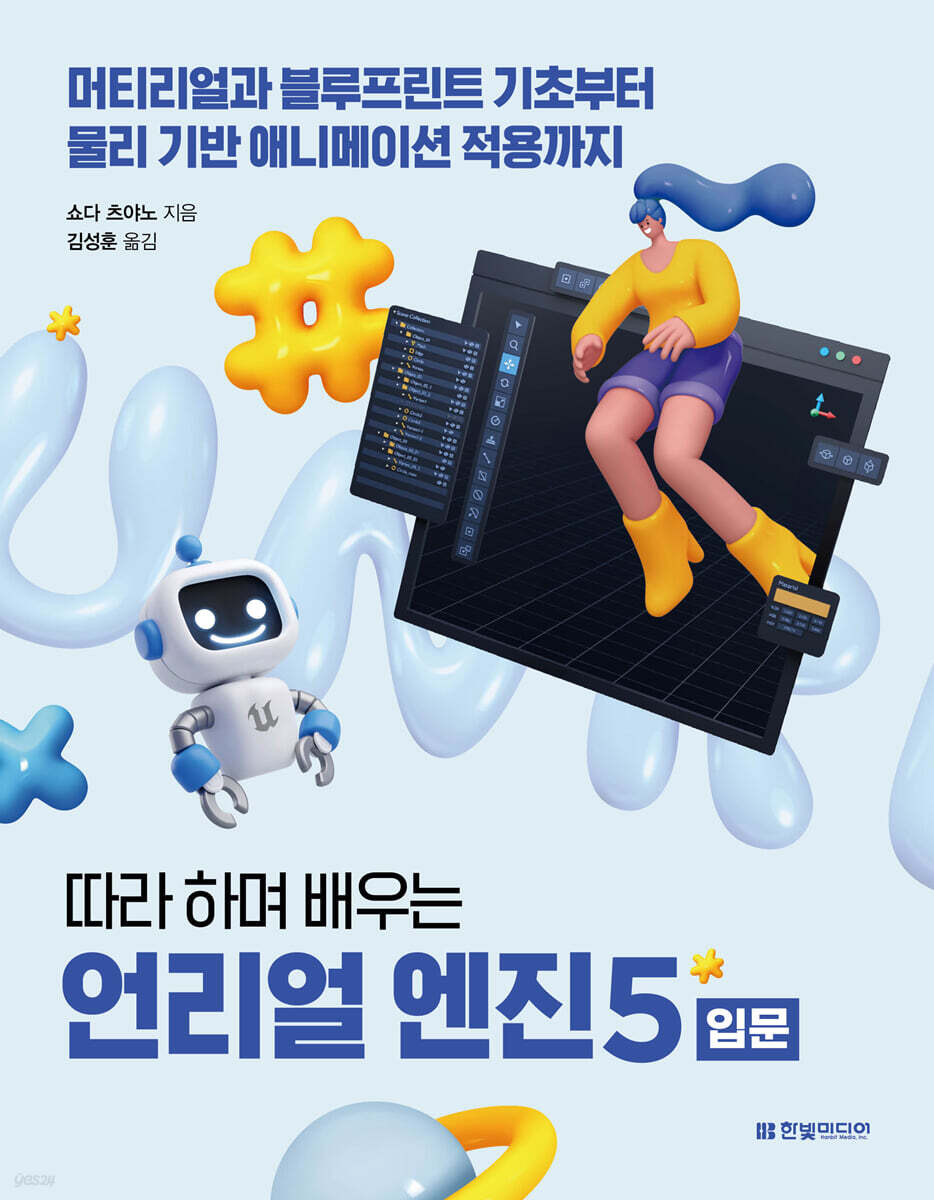
Unreal Engine 5 Introduction: Learn by Following
 |
Description
Book Introduction
Unreal Engine is complex? Anyone can become a game developer by mastering its core features!
Unreal Engine is a 3D game engine that is capable of very high-level expressions, but it is also difficult to use skillfully.
How can I easily learn Unreal Engine? This book provides helpful explanations and step-by-step exercises for those new to Unreal Engine or 3D game development, as well as those who want to experience the new features of Unreal Engine 5.
In particular, we focus on concepts essential for game development and the basic functions of Unreal Engine so that beginners can easily understand them and not give up during learning.
Anyone can complete a simple 3D game by following the hands-on instructions and detailed screen captures.
Then learn some more complex features and create bigger and more awesome games!
Unreal Engine is a 3D game engine that is capable of very high-level expressions, but it is also difficult to use skillfully.
How can I easily learn Unreal Engine? This book provides helpful explanations and step-by-step exercises for those new to Unreal Engine or 3D game development, as well as those who want to experience the new features of Unreal Engine 5.
In particular, we focus on concepts essential for game development and the basic functions of Unreal Engine so that beginners can easily understand them and not give up during learning.
Anyone can complete a simple 3D game by following the hands-on instructions and detailed screen captures.
Then learn some more complex features and create bigger and more awesome games!
- You can preview some of the book's contents.
Preview
index
[CHAPTER 1: Introduction to Unreal Engine]
1.1 Into the world of Unreal Engine
_What is Unreal Engine?
_Unreal Engine vs.
Unity?
_What is Unreal Engine?
_At first, the 'skill of letting go' is important.
_Register an account
_Installing Unreal Engine
_Run the launcher
_Epic Games Launcher
_Unreal Engine Workflow
_Library
_Engine Installation
_Run Unreal Editor
_Project Browser
1.2 Using the Unreal Editor
_Unreal Editor and Levels
_Basic configuration
_Viewport and Toolbar
_Viewport Options
_Perspective
_Including lighting
_mark
_Transform Tool
_Coordinate system of the transform tool
_Snap feature in viewport
_Move the camera
_Keyboard Operation
_Toolbar
_Settings
_You must know how to manipulate the viewport
[CHAPTER 2: LEVELS AND ACTORS]
2.1 Creating an Actor
_Elements that make up a level
_Placing Cubes
_Handling Actors
_Detail panel
_Add a shape
_Static mesh
_Using static meshes
_Editing static meshes
_Setting up the material
_Other shape actors
_Using the plane
_Adding another shape actor
_Let's use basic materials
Components that make up level 2.2
_Light
_Types of lights
_Directional Light
_Sky Light
_Point Light
_Spotlight
_camera
_paly
_How Player Start Works
_Change to camera viewpoint
_Sky
_Fog
2.3 Quixel Bridge and Marketplace
_Using ready-made models
_Using Quixel Bridge
_Import 3D assets
_Using 3D assets
_Using the Marketplace
_Free content from Epic Games
Open the _StackOBot project
_Game Packaging
_Setting the base map
[CHAPTER 3 MATERIALS]
3.1 Material Basics
_What is a material?
_Creating a material
_Material Editor
_Nodes, Graphs, Blueprints
_node
_Handling graphs
_Show colors
_Constant○Vector node
_Setting red
_Create a red material
_Using Materials
_Material settings
3.2 Setting up materials
Using _Metallic
_Setting up Metallic
_Metallic material is set!
_Roughness and Reflection
_Using Roughness
_Metallic+Roughness=?
_Using Emissive Color
_Adjusting the brightness of the emissive color
_Adjusting transparency with opacity
3.3 Gradient
_Gradient effect cycle
Using _TextureCoordinate
_Apply a different color
Using _DiamondGradient
Using _RadialGradientExponential
3.4 Materials and Textures
_Using textures
_Creating a material using a texture
_TextureSample properties
_Setting scale by UV coordinates
_Creating a perforated material
_Creating surface curvature
Using _BumpOffset
[CHAPTER 4: VISUAL EFFECTS AND LANDSCAPES]
4.1 Understanding the Niagara System
_Niagara and particle systems
_Creating a Niagara System
_Niagara System Editor
_MyNiagra and Fountain
_Emitter Settings
_Preparing materials for particles
_Using Materials in Niagara
_Change particle size
_Disable gravity
_Adjust the speed
_Adjust the emission range
_Save Emitter
Using the _MyFountain emitter
4.2 Using the Niagara System Freely
_Using multiple emitters
_Using the Curves Panel
_Editing Curves
_Niagara module
_Creating a new module
_Module's node
_Module parameters
Creating a handle to adjust _SpriteSize
Using the _MyModule1 module
_Using the Niagara System
_You need to learn blueprints first
4.3 Creating a Landscape
_What is landscape?
_Creating materials for landscapes
_Creating a new landscape
_Sculpting tools
_Paint Mode
_Paint layer mechanism
_Editing Materials
Using _LandscapeLayerBlend
_Setting up layers
_Setting layer information
_Using Layers in the Paint Tool
[CHAPTER 5 ANIMATION]
5.1 Moving with the sequencer
_Unreal Engine's animation features
_Create a level
_Add an actor
_Setting up the material
_Setting up the sequencer
_Understanding Sequencers
_Adding an actor to a track
_Editing position values with curves
Editing the curve of _X
_Adjust playback range
_Sequencer added to level
_Rotate the actor
5.2 Applying the Sequencer
_Material Animation
_Editing the Material Parameters Collection
_Using parameters in materials
Using _MyMaterialCollection1
Connecting _CollectionParameter
_Manipulating parameters with a sequencer
_Editing the curve of a parameter
_Check material animation
_Camera viewpoint animation
_Adding a Camera to the Sequencer
_Camera cut
_What is the identity of the suspicious sphere reflected in the scene?
_Game Mode and World Settings
_Creating a game mode
_Change game mode in world settings
5.3 Characters and Animation
_Characters and Animation
_Create a new level
_Creating a character
_Setting up animations for characters
_Creating animations with Sequencer
_Adding animation to a track
_Running animations with the level sequencer
5.4 Animation using Blueprints
_What is an Animation Blueprint?
_Creating a Blueprint
_Blueprint Editor
_Event Graph and AnimGraph
_Setting up animation for the final animation pose
_Moving a Skeletar Mesh with Blueprints
_Switch between 2 animations
_Using Blend Pose
_Pose blending using Boolean types
_Setting up a blend pose
_Add a variable
_Check with Preview
_Using State Machines
_Open State Machine
_Create a state
_Setting transition rules
_Creating a transition from Walk to Idle
_Check the animation display
_The rest is up to the blueprint!
[CHAPTER 6 BLUEPRINT]
6.1 Let's use Blueprints!
_What is a Blueprint?
_Preparing for a new level
_Preparing the camera
_Preparing the Spear
_Creating a Level Blueprint
_Blueprint Editor
_Programs and Events
_Display message on startup
_Running the Blueprint
_Organize with comments
_Collapse completed nodes
_Debug and Breakpoints
6.2 Manipulating Actors
_Frame display and tick events
Using the _tick event
_Moving the actor
_How to eliminate differences according to environment?
_Multiplying by Delta Seconds
_Using the mouse
_Adding a Player Controller
_Click to process
Make it move while pressing the _ button
_Using variables
_Creating branch processing
_Moving the camera with the keyboard
6.3 HUD and Widgets
_UI and Widgets
_Placing text on the canvas panel
_Displaying widgets with level blueprints
_Change the text in a text widget
_Manipulating the variable message
6.4 Handling Triggers
_Handling Spheres
_Using triggers
_Storing widgets in variables
Create an _OnActorBeginOverlap event
_Creating various processing with triggers
[CHAPTER 7: Full-scale Game Development]
7.1 Using Template Projects
_Let's start with a template project!
_Sample level
_Using characters in new levels
_Setting up the indicator material
_Planting grass and trees
_Foliage Tool
_Paint tool
_Drawing foliage
_Creating a character
_Preparing the camera actor
_Specify a starting point
_Projects in the Marketplace
_Using Windwalker Echo
_Create a new level
7.2 Moving Actors with the Physics Engine
_What is a physics engine?
_Placing a Sphere Actor
_Setting up the physics engine
_Collision
_How to move with a physics engine?
_Move by pushing the spear
Applying force with _Add Force
7.3 Conflicts with triggers
_Handling collisions
_Clear actors on collision
_To erase an entity, simply delete the collision.
_Overlap
_Creating an overlap event
_Place multiple spheres and cones like in a game
7.4 Organizing the game like a game
_Functionalizing the program
Open the _Sphere Hit function
_Creating an overlap event as a function
Rolling a spear with a _function
_Display as HUD
_Implementing game termination
Using the _Is Finished? Macro
_Writing a display with HUD
_Creating a content binding
_Display HUD on screen
_Show elapsed time
_End the game when hitting a sphere
_Game over when touching a cone
_Let's challenge ourselves to improve the game!
1.1 Into the world of Unreal Engine
_What is Unreal Engine?
_Unreal Engine vs.
Unity?
_What is Unreal Engine?
_At first, the 'skill of letting go' is important.
_Register an account
_Installing Unreal Engine
_Run the launcher
_Epic Games Launcher
_Unreal Engine Workflow
_Library
_Engine Installation
_Run Unreal Editor
_Project Browser
1.2 Using the Unreal Editor
_Unreal Editor and Levels
_Basic configuration
_Viewport and Toolbar
_Viewport Options
_Perspective
_Including lighting
_mark
_Transform Tool
_Coordinate system of the transform tool
_Snap feature in viewport
_Move the camera
_Keyboard Operation
_Toolbar
_Settings
_You must know how to manipulate the viewport
[CHAPTER 2: LEVELS AND ACTORS]
2.1 Creating an Actor
_Elements that make up a level
_Placing Cubes
_Handling Actors
_Detail panel
_Add a shape
_Static mesh
_Using static meshes
_Editing static meshes
_Setting up the material
_Other shape actors
_Using the plane
_Adding another shape actor
_Let's use basic materials
Components that make up level 2.2
_Light
_Types of lights
_Directional Light
_Sky Light
_Point Light
_Spotlight
_camera
_paly
_How Player Start Works
_Change to camera viewpoint
_Sky
_Fog
2.3 Quixel Bridge and Marketplace
_Using ready-made models
_Using Quixel Bridge
_Import 3D assets
_Using 3D assets
_Using the Marketplace
_Free content from Epic Games
Open the _StackOBot project
_Game Packaging
_Setting the base map
[CHAPTER 3 MATERIALS]
3.1 Material Basics
_What is a material?
_Creating a material
_Material Editor
_Nodes, Graphs, Blueprints
_node
_Handling graphs
_Show colors
_Constant○Vector node
_Setting red
_Create a red material
_Using Materials
_Material settings
3.2 Setting up materials
Using _Metallic
_Setting up Metallic
_Metallic material is set!
_Roughness and Reflection
_Using Roughness
_Metallic+Roughness=?
_Using Emissive Color
_Adjusting the brightness of the emissive color
_Adjusting transparency with opacity
3.3 Gradient
_Gradient effect cycle
Using _TextureCoordinate
_Apply a different color
Using _DiamondGradient
Using _RadialGradientExponential
3.4 Materials and Textures
_Using textures
_Creating a material using a texture
_TextureSample properties
_Setting scale by UV coordinates
_Creating a perforated material
_Creating surface curvature
Using _BumpOffset
[CHAPTER 4: VISUAL EFFECTS AND LANDSCAPES]
4.1 Understanding the Niagara System
_Niagara and particle systems
_Creating a Niagara System
_Niagara System Editor
_MyNiagra and Fountain
_Emitter Settings
_Preparing materials for particles
_Using Materials in Niagara
_Change particle size
_Disable gravity
_Adjust the speed
_Adjust the emission range
_Save Emitter
Using the _MyFountain emitter
4.2 Using the Niagara System Freely
_Using multiple emitters
_Using the Curves Panel
_Editing Curves
_Niagara module
_Creating a new module
_Module's node
_Module parameters
Creating a handle to adjust _SpriteSize
Using the _MyModule1 module
_Using the Niagara System
_You need to learn blueprints first
4.3 Creating a Landscape
_What is landscape?
_Creating materials for landscapes
_Creating a new landscape
_Sculpting tools
_Paint Mode
_Paint layer mechanism
_Editing Materials
Using _LandscapeLayerBlend
_Setting up layers
_Setting layer information
_Using Layers in the Paint Tool
[CHAPTER 5 ANIMATION]
5.1 Moving with the sequencer
_Unreal Engine's animation features
_Create a level
_Add an actor
_Setting up the material
_Setting up the sequencer
_Understanding Sequencers
_Adding an actor to a track
_Editing position values with curves
Editing the curve of _X
_Adjust playback range
_Sequencer added to level
_Rotate the actor
5.2 Applying the Sequencer
_Material Animation
_Editing the Material Parameters Collection
_Using parameters in materials
Using _MyMaterialCollection1
Connecting _CollectionParameter
_Manipulating parameters with a sequencer
_Editing the curve of a parameter
_Check material animation
_Camera viewpoint animation
_Adding a Camera to the Sequencer
_Camera cut
_What is the identity of the suspicious sphere reflected in the scene?
_Game Mode and World Settings
_Creating a game mode
_Change game mode in world settings
5.3 Characters and Animation
_Characters and Animation
_Create a new level
_Creating a character
_Setting up animations for characters
_Creating animations with Sequencer
_Adding animation to a track
_Running animations with the level sequencer
5.4 Animation using Blueprints
_What is an Animation Blueprint?
_Creating a Blueprint
_Blueprint Editor
_Event Graph and AnimGraph
_Setting up animation for the final animation pose
_Moving a Skeletar Mesh with Blueprints
_Switch between 2 animations
_Using Blend Pose
_Pose blending using Boolean types
_Setting up a blend pose
_Add a variable
_Check with Preview
_Using State Machines
_Open State Machine
_Create a state
_Setting transition rules
_Creating a transition from Walk to Idle
_Check the animation display
_The rest is up to the blueprint!
[CHAPTER 6 BLUEPRINT]
6.1 Let's use Blueprints!
_What is a Blueprint?
_Preparing for a new level
_Preparing the camera
_Preparing the Spear
_Creating a Level Blueprint
_Blueprint Editor
_Programs and Events
_Display message on startup
_Running the Blueprint
_Organize with comments
_Collapse completed nodes
_Debug and Breakpoints
6.2 Manipulating Actors
_Frame display and tick events
Using the _tick event
_Moving the actor
_How to eliminate differences according to environment?
_Multiplying by Delta Seconds
_Using the mouse
_Adding a Player Controller
_Click to process
Make it move while pressing the _ button
_Using variables
_Creating branch processing
_Moving the camera with the keyboard
6.3 HUD and Widgets
_UI and Widgets
_Placing text on the canvas panel
_Displaying widgets with level blueprints
_Change the text in a text widget
_Manipulating the variable message
6.4 Handling Triggers
_Handling Spheres
_Using triggers
_Storing widgets in variables
Create an _OnActorBeginOverlap event
_Creating various processing with triggers
[CHAPTER 7: Full-scale Game Development]
7.1 Using Template Projects
_Let's start with a template project!
_Sample level
_Using characters in new levels
_Setting up the indicator material
_Planting grass and trees
_Foliage Tool
_Paint tool
_Drawing foliage
_Creating a character
_Preparing the camera actor
_Specify a starting point
_Projects in the Marketplace
_Using Windwalker Echo
_Create a new level
7.2 Moving Actors with the Physics Engine
_What is a physics engine?
_Placing a Sphere Actor
_Setting up the physics engine
_Collision
_How to move with a physics engine?
_Move by pushing the spear
Applying force with _Add Force
7.3 Conflicts with triggers
_Handling collisions
_Clear actors on collision
_To erase an entity, simply delete the collision.
_Overlap
_Creating an overlap event
_Place multiple spheres and cones like in a game
7.4 Organizing the game like a game
_Functionalizing the program
Open the _Sphere Hit function
_Creating an overlap event as a function
Rolling a spear with a _function
_Display as HUD
_Implementing game termination
Using the _Is Finished? Macro
_Writing a display with HUD
_Creating a content binding
_Display HUD on screen
_Show elapsed time
_End the game when hitting a sphere
_Game over when touching a cone
_Let's challenge ourselves to improve the game!
Detailed image

Publisher's Review
An introduction to Unreal Engine 5 that focuses on the minimum features required for game development.
Have you ever wanted to take on game development but hesitated due to lack of programming experience? Feeling overwhelmed by Unreal Engine 5's vast features? By following this book and learning its core features and the game development process step-by-step, anyone can easily create a game.
It covers everything from program installation to easy-to-follow instructions for even complete beginners, and gradually expands the scope of application for each function, making it easy to understand how it works.
Take on the challenge of creating more complex games by adding your own ideas to the core features of Unreal Engine 5 that you learned in this book!
〈〈Recommended for these people〉〉
· People who want to develop games but have no development experience
· Those who are using other 3D programs and are interested in Unreal Engine
· If you are using Unreal Engine but are not familiar with the latest features in version 5.
〈〈Contents Covered in the Book〉〉
· Introduction to Unreal Engine
· Levels and actors
· Material
Visual effects and landscapes
· animated movie
Blueprint
· Full-scale game development
Have you ever wanted to take on game development but hesitated due to lack of programming experience? Feeling overwhelmed by Unreal Engine 5's vast features? By following this book and learning its core features and the game development process step-by-step, anyone can easily create a game.
It covers everything from program installation to easy-to-follow instructions for even complete beginners, and gradually expands the scope of application for each function, making it easy to understand how it works.
Take on the challenge of creating more complex games by adding your own ideas to the core features of Unreal Engine 5 that you learned in this book!
〈〈Recommended for these people〉〉
· People who want to develop games but have no development experience
· Those who are using other 3D programs and are interested in Unreal Engine
· If you are using Unreal Engine but are not familiar with the latest features in version 5.
〈〈Contents Covered in the Book〉〉
· Introduction to Unreal Engine
· Levels and actors
· Material
Visual effects and landscapes
· animated movie
Blueprint
· Full-scale game development
GOODS SPECIFICS
- Date of issue: January 25, 2024
- Page count, weight, size: 576 pages | 183*235*35mm
- ISBN13: 9791169211918
- ISBN10: 1169211917
You may also like
카테고리
korean


korean

![GQ KOREA Mark (Monthly): December [2025]](http://librairie.coreenne.fr/cdn/shop/files/8ef265dbbfbf186523ed75ba7319009d.jpg?v=1765340328&width=3840)


