

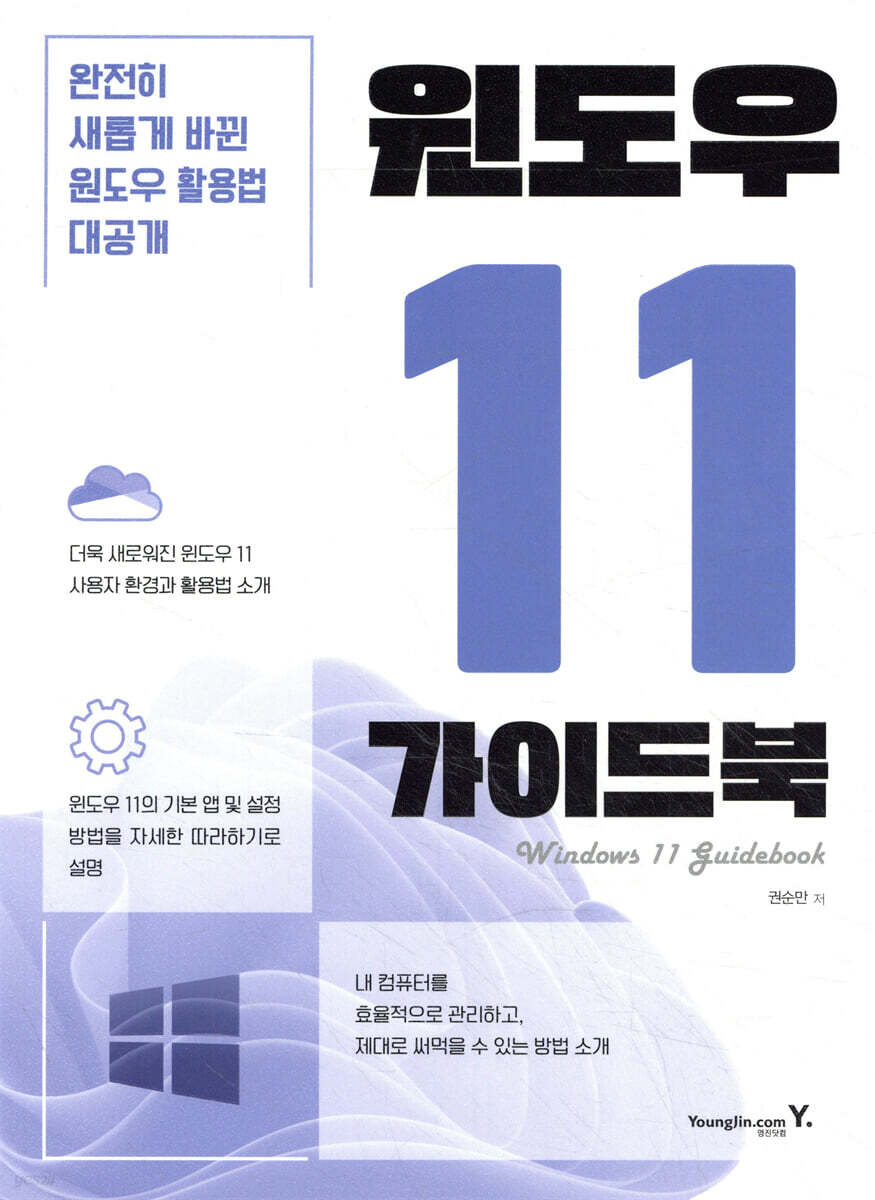
Windows 11 Guidebook
 |
Description
Book Introduction
“Completely new! Even more convenient,
“Windows Usage Guide Revealed!”
Windows 11 Guidebook
One of the biggest changes in the newly released Windows 11 is the change in the location of the Start menu.
Additionally, a separate 'widget' is provided so that users can receive the information they want in real time, and the chat app allows for quick chats with people registered in contacts or even video conferences.
In addition, it provides features that help you quickly organize open apps, various sorting methods, and a more convenient file explorer for managing files and folders. Armed with the Microsoft Edge browser that aims for web standards and powerful security features, Windows 11 can be said to be the latest operating system with maximized user convenience.
The 'Windows 11 Guidebook' provides a very easy introduction to how to properly utilize these Windows 11 features.
It covers everything from how to install Windows 11, how to create and manage a Microsoft account, how to use basic apps, and everything about Windows 11 settings.
It also introduces Microsoft Edge, the default browser, and powerful security features.
“Windows Usage Guide Revealed!”
Windows 11 Guidebook
One of the biggest changes in the newly released Windows 11 is the change in the location of the Start menu.
Additionally, a separate 'widget' is provided so that users can receive the information they want in real time, and the chat app allows for quick chats with people registered in contacts or even video conferences.
In addition, it provides features that help you quickly organize open apps, various sorting methods, and a more convenient file explorer for managing files and folders. Armed with the Microsoft Edge browser that aims for web standards and powerful security features, Windows 11 can be said to be the latest operating system with maximized user convenience.
The 'Windows 11 Guidebook' provides a very easy introduction to how to properly utilize these Windows 11 features.
It covers everything from how to install Windows 11, how to create and manage a Microsoft account, how to use basic apps, and everything about Windows 11 settings.
It also introduces Microsoft Edge, the default browser, and powerful security features.
- You can preview some of the book's contents.
Preview
index
PART 01 Installing Windows 11
LESSON 01 Checking Windows 11 Installation Preparations
Session 01 Minimum System Requirements for Windows 11 Installation
Session 02 Windows 11 Feature-Specific Requirements
Session 03 Windows 11 Features Discontinued and Removed
Session 04 Windows 11 upgrade paths
Session 05: Using the Windows 11 Pre-Installation Check Tool
LESSON 02 Installing Windows 11
Session 01 Installing an Upgrade on Windows 10
Session 02 Creating Windows 11 Installation Media
Session 03 Installing Windows 11 from Scratch
PART 02: A Look at the New Windows 11 Interface
LESSON 01: Getting to Know the New Windows 11 Interface
Session 01: A Look at the Changed Interface
session 02 Setting the display night mode
Session 03 Setting up HDR video streaming
Session 04 Setting the display scale and layout
session 05 Changing the background screen
session 06 Creating and managing themes
Download and set up session 07 theme
session 08 Setting desktop icons
Session 09: Understanding the Taskbar Menu
LESSON 02 Windows 11 Start Button
Session 01: A Look at the Windows 11 Start Screen
Session 02 Pinning apps to Windows 11 Start
Session 03 Customizing the Windows 11 Start Menu
SPECIAL Windows 11 Shortcut Keys
Setting up the SPECIAL Windows Participation Program
PART 03: A Look at Windows 11's Default Programs
LESSON 01 Search Function
Session 01 Using the Search Function
Session 02 Setting up search and harmful information blocking
session 03 Search history in the cloud
session 04 Clear search history
Session 05 Setting advanced indexing options
session 06 Reset indexing
LESSON 02 New Desktop
session 01 Creating a new desktop
Session 02 Using the New Desktop
LESSON 03 Widgets
Session 01: Looking at the Widget Screen
Session 02 Configuring and Using Widgets
Session 03 Widget News Interests and Management
LESSON 04 Chat App
Session 01 Using the Chat App
Using session 02 meetings
LESSON 05 File Explorer
Session 01: Exploring File Explorer Configuration
session 02 Using File Explorer's search
session 03 Setting up previews in File Explorer
session 04 Managing frequently used folders as favorites
session 05 Setting up the trash can
LESSON 06 Microsoft Store
Session 01 Setting up Microsoft Store offline
Session 02 Managing the Microsoft Store Library
SPECIAL File Explorer Shortcuts
PART 04: Understanding Windows 11 Settings
LESSON 01 SYSTEM
Session 01 Setting the highest priority for email notifications
session 02 Setting up focused support for specific time zones
session 03 Setting up battery saving mode
Session 04 Checking and Managing Battery Usage Apps
session 05 Battery Status Diagnostic Report
Session 06 Checking the repository status
Session 07 Using Storage Sense
Session 08 Deleting recommended files from the repository
Session 09 Optimizing Drives
Session 10 Enable clipboard search history and use synchronization
session 11 display settings
LESSON 02 Bluetooth & Devices
Add session 0 1 device
Session 02 Connecting to a Smartphone
session 03 Setting USB battery saving mode
Session 04 Printers and Scanners
Session 05 Setting up the camera
Session 06 Setting up the mouse
session 07 Setting up the touchpad
session 08 Touch settings
Session 09 Setting up the pen and Windows Ink
Setting up session 10 to run automatically
LESSON 03 Networks and the Internet
Session 01 Setting up a mobile hotspot
Session 02 Setting up airplane mode
session 03 Limiting data usage
Session 04 Setting up VPN
Session 05 Advanced Network Settings
LESSON 04 Personal Settings
Session 01 Adding Fonts Using the Microsoft Store
Session 02 Adding fonts through free font sites
session 03 Setting the lock screen
Session 04 Setting up the touch keyboard
Setting up session 05 start
LESSON 05 Setting up the app
Session 01 Setting up the default app
Session 02 Setting the startup program
Session 03 Setting up offline maps
Session 04 Installing Optional Features
LESSON 06 TIME AND LANGUAGE
Session 01 Changing the Windows 11 Language
session 02 Adding another time zone
LESSON 07 Setting up the game
session 01 Xbox Game Bar
Session 02 Setting up high-performance game graphics
Setting up session 03 capture
Session 04 Setting the game mode
SPECIAL Game Bar Shortcuts
LESSON 08 Accessibility
Session 01 Setting up visual accessibility features
Session 02 Setting up hearing accessibility features
Session 03 Setting up interaction features
LESSON 09 PRIVACY AND SECURITY
session 01 Find my device
Session 02 Managing app location permissions
LESSON 10: Windows Update
session 01 update pause
session 02 update restart time setting
PART 05 Managing Windows 11 Users
LESSON 01 Managing Users
Session 01: Understanding User Account Types
Session 02 Adding a local user account
Session 03 Adding a Microsoft User Account
session 04 Change user account to administrator account
session 05 Deleting a user account
session 06 Changing the user login photo
LESSON 02 Managing User Passwords
session 01 Setting and changing user account passwords
Session 02 Setting a login PIN password
Session 03 Setting a login photo password
Session 04 Setting up facial recognition (Windows Hello)
session 05 Setting up dynamic locking
Session 06 Setting up Family Protection Mode
PART 06 Getting to Know Microsoft Edge
LESSON 01 Introducing Microsoft Edge
Session 01 Introduction to Microsoft Edge Versions
Session 02 Microsoft Edge Screen Configuration
Session 03 Microsoft Edge's Settings Menu
LESSON 02: Understanding Microsoft Edge Features
Session 01 Setting up your profile
session 02 Retrieving data from other browsers
Session 03 Adding a site pin
Session 04 Searching Company Intranet Data
session 05 Adjusting privacy settings
session 06 Managing Favorites
session 07 Setting up extensions
session 08 Using website ad blocking extensions
Session 09 Immersive Reading Features
Using the session 10 collection feature
session 11 translation function
Set the download location for session 12
Session 13 Web Capture Feature
session 14 Microsoft Edge settings command
Session 15 Playing Microsoft Edge Games
Using the session 16 InPrivate feature
PART 07 Microsoft Accounts and Services
LESSON 01 Using Microsoft Accounts and Services
Session 01: Enabling Microsoft Accounts Without a Password
LESSON 02 Using the Mail Service
Session 01 Setting up mail in the Mail app (for users who log in to Windows with a Microsoft account)
Session 02 Setting up mail in the Mail app (for users logged in to Windows with a general local account)
Session 03 Setting up multiple email accounts in the Mail app
Session 04: Understanding the Mail App Menu
Session 05 Setting up the Mail App
session 06 Setting up automatic reply to emails when you are away
Session 07 Setting up an email signature
LESSON 03 Using the Schedule Service
Session 01: Learn about the schedule app screen layout
Session 02 Create a schedule
Session 03 Creating a recurring schedule
Session 04 Adding Overseas Shared Days
LESSON 04 Using the Contacts App
Session 01: Understanding the screen layout of the Contacts app
session 02 Syncing contacts
Session 03 Creating a Contact
LESSON 05 Using the Microsoft To-do App
Session 01: Understanding the Microsoft To-Do App Screen Configuration
Session 02 Adding Today's To-do
Session 03 Managing Today's To-do List
LESSON 06: Using Cloud Storage with OneDrive
Session 01 Syncing OneDrive (Microsoft Account Users)
Session 02 Syncing OneDrive (Local Account Users)
Session 03 Sharing OneDrive Files
Session 04 Using OneDrive Personal Vault
Session 05 Disconnecting OneDrive
LESSON 07 Chatting and Video Meetings
session 01 Teams Chat
Session 02 Teams Video Call
Session 03 Creating a Teams Meeting
PART 08 Windows 11 Security Features
LESSON 01 System Restore and Recovery
Session 01 Creating a PC Restore Point
session 02 Restoring your PC
session 03 Resetting the PC
Session 04 Creating a System Recovery Drive
session 05 Using advanced troubleshooting tools
LESSON 02 Encrypting Data
Session 01 Encrypting the hard disk
Session 02 Decrypting the hard disk
Session 03 Encrypting/Decrypting Removable Storage Devices
LESSON 03 Staying Up-to-Date with Security
Session 01 Setting the security status
Session 02 Protecting against antivirus and malware
Session 03 Setting up ransomware protection
Session 04 Setting up Windows Firewall
PART 09: Discover Useful Apps
LESSON 01 PowerToys
session 01 wake from sleep mode
session 02 Color Picker
Session 03 FancyZones
session 04 File Explorer Add-ons
session 05 image size change
session 06 Keyboard Manager
session 07 Mouse focus function
session 08 PowerRename feature
Session 09 PowerToys Run feature
LESSON 02 Screen Zoom-in Function - Zoomit
session 01 Zoom function
session 02 Drawing on the screen
Session 03 Setting a break time
LESSON 03 Screen Capture Function - PickPick
Session 01 Using the Screen Capture Function
Session 02 Graphic Tools
LESSON 01 Checking Windows 11 Installation Preparations
Session 01 Minimum System Requirements for Windows 11 Installation
Session 02 Windows 11 Feature-Specific Requirements
Session 03 Windows 11 Features Discontinued and Removed
Session 04 Windows 11 upgrade paths
Session 05: Using the Windows 11 Pre-Installation Check Tool
LESSON 02 Installing Windows 11
Session 01 Installing an Upgrade on Windows 10
Session 02 Creating Windows 11 Installation Media
Session 03 Installing Windows 11 from Scratch
PART 02: A Look at the New Windows 11 Interface
LESSON 01: Getting to Know the New Windows 11 Interface
Session 01: A Look at the Changed Interface
session 02 Setting the display night mode
Session 03 Setting up HDR video streaming
Session 04 Setting the display scale and layout
session 05 Changing the background screen
session 06 Creating and managing themes
Download and set up session 07 theme
session 08 Setting desktop icons
Session 09: Understanding the Taskbar Menu
LESSON 02 Windows 11 Start Button
Session 01: A Look at the Windows 11 Start Screen
Session 02 Pinning apps to Windows 11 Start
Session 03 Customizing the Windows 11 Start Menu
SPECIAL Windows 11 Shortcut Keys
Setting up the SPECIAL Windows Participation Program
PART 03: A Look at Windows 11's Default Programs
LESSON 01 Search Function
Session 01 Using the Search Function
Session 02 Setting up search and harmful information blocking
session 03 Search history in the cloud
session 04 Clear search history
Session 05 Setting advanced indexing options
session 06 Reset indexing
LESSON 02 New Desktop
session 01 Creating a new desktop
Session 02 Using the New Desktop
LESSON 03 Widgets
Session 01: Looking at the Widget Screen
Session 02 Configuring and Using Widgets
Session 03 Widget News Interests and Management
LESSON 04 Chat App
Session 01 Using the Chat App
Using session 02 meetings
LESSON 05 File Explorer
Session 01: Exploring File Explorer Configuration
session 02 Using File Explorer's search
session 03 Setting up previews in File Explorer
session 04 Managing frequently used folders as favorites
session 05 Setting up the trash can
LESSON 06 Microsoft Store
Session 01 Setting up Microsoft Store offline
Session 02 Managing the Microsoft Store Library
SPECIAL File Explorer Shortcuts
PART 04: Understanding Windows 11 Settings
LESSON 01 SYSTEM
Session 01 Setting the highest priority for email notifications
session 02 Setting up focused support for specific time zones
session 03 Setting up battery saving mode
Session 04 Checking and Managing Battery Usage Apps
session 05 Battery Status Diagnostic Report
Session 06 Checking the repository status
Session 07 Using Storage Sense
Session 08 Deleting recommended files from the repository
Session 09 Optimizing Drives
Session 10 Enable clipboard search history and use synchronization
session 11 display settings
LESSON 02 Bluetooth & Devices
Add session 0 1 device
Session 02 Connecting to a Smartphone
session 03 Setting USB battery saving mode
Session 04 Printers and Scanners
Session 05 Setting up the camera
Session 06 Setting up the mouse
session 07 Setting up the touchpad
session 08 Touch settings
Session 09 Setting up the pen and Windows Ink
Setting up session 10 to run automatically
LESSON 03 Networks and the Internet
Session 01 Setting up a mobile hotspot
Session 02 Setting up airplane mode
session 03 Limiting data usage
Session 04 Setting up VPN
Session 05 Advanced Network Settings
LESSON 04 Personal Settings
Session 01 Adding Fonts Using the Microsoft Store
Session 02 Adding fonts through free font sites
session 03 Setting the lock screen
Session 04 Setting up the touch keyboard
Setting up session 05 start
LESSON 05 Setting up the app
Session 01 Setting up the default app
Session 02 Setting the startup program
Session 03 Setting up offline maps
Session 04 Installing Optional Features
LESSON 06 TIME AND LANGUAGE
Session 01 Changing the Windows 11 Language
session 02 Adding another time zone
LESSON 07 Setting up the game
session 01 Xbox Game Bar
Session 02 Setting up high-performance game graphics
Setting up session 03 capture
Session 04 Setting the game mode
SPECIAL Game Bar Shortcuts
LESSON 08 Accessibility
Session 01 Setting up visual accessibility features
Session 02 Setting up hearing accessibility features
Session 03 Setting up interaction features
LESSON 09 PRIVACY AND SECURITY
session 01 Find my device
Session 02 Managing app location permissions
LESSON 10: Windows Update
session 01 update pause
session 02 update restart time setting
PART 05 Managing Windows 11 Users
LESSON 01 Managing Users
Session 01: Understanding User Account Types
Session 02 Adding a local user account
Session 03 Adding a Microsoft User Account
session 04 Change user account to administrator account
session 05 Deleting a user account
session 06 Changing the user login photo
LESSON 02 Managing User Passwords
session 01 Setting and changing user account passwords
Session 02 Setting a login PIN password
Session 03 Setting a login photo password
Session 04 Setting up facial recognition (Windows Hello)
session 05 Setting up dynamic locking
Session 06 Setting up Family Protection Mode
PART 06 Getting to Know Microsoft Edge
LESSON 01 Introducing Microsoft Edge
Session 01 Introduction to Microsoft Edge Versions
Session 02 Microsoft Edge Screen Configuration
Session 03 Microsoft Edge's Settings Menu
LESSON 02: Understanding Microsoft Edge Features
Session 01 Setting up your profile
session 02 Retrieving data from other browsers
Session 03 Adding a site pin
Session 04 Searching Company Intranet Data
session 05 Adjusting privacy settings
session 06 Managing Favorites
session 07 Setting up extensions
session 08 Using website ad blocking extensions
Session 09 Immersive Reading Features
Using the session 10 collection feature
session 11 translation function
Set the download location for session 12
Session 13 Web Capture Feature
session 14 Microsoft Edge settings command
Session 15 Playing Microsoft Edge Games
Using the session 16 InPrivate feature
PART 07 Microsoft Accounts and Services
LESSON 01 Using Microsoft Accounts and Services
Session 01: Enabling Microsoft Accounts Without a Password
LESSON 02 Using the Mail Service
Session 01 Setting up mail in the Mail app (for users who log in to Windows with a Microsoft account)
Session 02 Setting up mail in the Mail app (for users logged in to Windows with a general local account)
Session 03 Setting up multiple email accounts in the Mail app
Session 04: Understanding the Mail App Menu
Session 05 Setting up the Mail App
session 06 Setting up automatic reply to emails when you are away
Session 07 Setting up an email signature
LESSON 03 Using the Schedule Service
Session 01: Learn about the schedule app screen layout
Session 02 Create a schedule
Session 03 Creating a recurring schedule
Session 04 Adding Overseas Shared Days
LESSON 04 Using the Contacts App
Session 01: Understanding the screen layout of the Contacts app
session 02 Syncing contacts
Session 03 Creating a Contact
LESSON 05 Using the Microsoft To-do App
Session 01: Understanding the Microsoft To-Do App Screen Configuration
Session 02 Adding Today's To-do
Session 03 Managing Today's To-do List
LESSON 06: Using Cloud Storage with OneDrive
Session 01 Syncing OneDrive (Microsoft Account Users)
Session 02 Syncing OneDrive (Local Account Users)
Session 03 Sharing OneDrive Files
Session 04 Using OneDrive Personal Vault
Session 05 Disconnecting OneDrive
LESSON 07 Chatting and Video Meetings
session 01 Teams Chat
Session 02 Teams Video Call
Session 03 Creating a Teams Meeting
PART 08 Windows 11 Security Features
LESSON 01 System Restore and Recovery
Session 01 Creating a PC Restore Point
session 02 Restoring your PC
session 03 Resetting the PC
Session 04 Creating a System Recovery Drive
session 05 Using advanced troubleshooting tools
LESSON 02 Encrypting Data
Session 01 Encrypting the hard disk
Session 02 Decrypting the hard disk
Session 03 Encrypting/Decrypting Removable Storage Devices
LESSON 03 Staying Up-to-Date with Security
Session 01 Setting the security status
Session 02 Protecting against antivirus and malware
Session 03 Setting up ransomware protection
Session 04 Setting up Windows Firewall
PART 09: Discover Useful Apps
LESSON 01 PowerToys
session 01 wake from sleep mode
session 02 Color Picker
Session 03 FancyZones
session 04 File Explorer Add-ons
session 05 image size change
session 06 Keyboard Manager
session 07 Mouse focus function
session 08 PowerRename feature
Session 09 PowerToys Run feature
LESSON 02 Screen Zoom-in Function - Zoomit
session 01 Zoom function
session 02 Drawing on the screen
Session 03 Setting a break time
LESSON 03 Screen Capture Function - PickPick
Session 01 Using the Screen Capture Function
Session 02 Graphic Tools
Detailed image
.jpg)
Publisher's Review
Key Contents
PART 01 Installing Windows 11
Windows 11 can only be installed successfully if your hardware meets the prerequisites. In Part 01, we'll explore the PC environment requirements you should check before installing Windows 11. We'll also cover how to install Windows 11 from scratch on a new PC and how to install Windows 11 on an existing Windows environment.
If you follow along slowly, anyone can easily install the new Windows 11 on their computer.
PART 02: A Look at the New Windows 11 Interface
In PART 02, we will take a look at the newly changed default screen layout of Windows 11.
We will divide it into two lessons and first look at the changed screen layout of Windows 11. Then, we will look at the personalized settings such as background, color, sound, and mouse cursor. We will also look at the changes to the Start menu and how to use and set them accordingly.
PART 03: A Look at Windows 11's Default Programs
In PART 03, we will learn about the programs that are included by default when installing Windows 11.
We'll show you how to use the new desktop feature that lets you use multiple desktops, how to easily retrieve and display information with widgets, how to use the File Explorer to manage files and folders in a new way, and how to quickly and easily chat with friends and hold video meetings through the chat app.
PART 04: Understanding Windows 11 Settings
To fully utilize Windows 11, you need to understand its system settings and environment. In Part 04, we'll explore Windows 11 settings, categorized into "System, Bluetooth, Devices, Network, Internet, Personalization, Apps, Accounts, Time, Language, Games, Accessibility, Privacy & Security, and Windows Update."
PART 05 Managing Windows 11 Users
If multiple users use one PC, you can create user accounts so that each user can log in and use the PC separately.
Although administrator privileges can be granted when creating a user account if necessary, it is recommended that you create only local user accounts whenever possible.
Additionally, it's highly recommended that you use a password when creating an account. We'll cover this in Part 05.
PART 06 Getting to Know Microsoft Edge
Previously, the traditional Internet Explorer 11 and Microsoft Edge coexisted, but in Windows 11, Internet Explorer 11 can no longer be run directly, and Microsoft Edge has become the default Internet browser in Windows 11.
Learn how to use Microsoft Edge, which has been enhanced with new features to make it even more convenient.
PART 07 Microsoft Accounts and Services
Anyone can use free or paid services provided by Microsoft with a Microsoft account.
A prime example is using a Microsoft account to access Microsoft's cloud service, OneDrive, allowing you to work across multiple devices in real time, rather than being limited to a single device. Part 07 introduces how to use your Microsoft account and various services.
PART 08 Windows 11 Security Features
Windows 11 provides various security features to prevent your PC from being damaged by viruses or malware, making it unusable or causing data loss.
Additionally, the maintenance tool allows you to restore your PC to a previous state to troubleshoot problems.
PART 09: Discover Useful Apps
In PART 09, we introduce several apps that can be installed and used separately from the apps provided by default to make using Windows 11 more convenient.
PART 01 Installing Windows 11
Windows 11 can only be installed successfully if your hardware meets the prerequisites. In Part 01, we'll explore the PC environment requirements you should check before installing Windows 11. We'll also cover how to install Windows 11 from scratch on a new PC and how to install Windows 11 on an existing Windows environment.
If you follow along slowly, anyone can easily install the new Windows 11 on their computer.
PART 02: A Look at the New Windows 11 Interface
In PART 02, we will take a look at the newly changed default screen layout of Windows 11.
We will divide it into two lessons and first look at the changed screen layout of Windows 11. Then, we will look at the personalized settings such as background, color, sound, and mouse cursor. We will also look at the changes to the Start menu and how to use and set them accordingly.
PART 03: A Look at Windows 11's Default Programs
In PART 03, we will learn about the programs that are included by default when installing Windows 11.
We'll show you how to use the new desktop feature that lets you use multiple desktops, how to easily retrieve and display information with widgets, how to use the File Explorer to manage files and folders in a new way, and how to quickly and easily chat with friends and hold video meetings through the chat app.
PART 04: Understanding Windows 11 Settings
To fully utilize Windows 11, you need to understand its system settings and environment. In Part 04, we'll explore Windows 11 settings, categorized into "System, Bluetooth, Devices, Network, Internet, Personalization, Apps, Accounts, Time, Language, Games, Accessibility, Privacy & Security, and Windows Update."
PART 05 Managing Windows 11 Users
If multiple users use one PC, you can create user accounts so that each user can log in and use the PC separately.
Although administrator privileges can be granted when creating a user account if necessary, it is recommended that you create only local user accounts whenever possible.
Additionally, it's highly recommended that you use a password when creating an account. We'll cover this in Part 05.
PART 06 Getting to Know Microsoft Edge
Previously, the traditional Internet Explorer 11 and Microsoft Edge coexisted, but in Windows 11, Internet Explorer 11 can no longer be run directly, and Microsoft Edge has become the default Internet browser in Windows 11.
Learn how to use Microsoft Edge, which has been enhanced with new features to make it even more convenient.
PART 07 Microsoft Accounts and Services
Anyone can use free or paid services provided by Microsoft with a Microsoft account.
A prime example is using a Microsoft account to access Microsoft's cloud service, OneDrive, allowing you to work across multiple devices in real time, rather than being limited to a single device. Part 07 introduces how to use your Microsoft account and various services.
PART 08 Windows 11 Security Features
Windows 11 provides various security features to prevent your PC from being damaged by viruses or malware, making it unusable or causing data loss.
Additionally, the maintenance tool allows you to restore your PC to a previous state to troubleshoot problems.
PART 09: Discover Useful Apps
In PART 09, we introduce several apps that can be installed and used separately from the apps provided by default to make using Windows 11 more convenient.
GOODS SPECIFICS
- Publication date: March 25, 2022
- Page count, weight, size: 432 pages | 922g | 188*257*20mm
- ISBN13: 9788931466034
- ISBN10: 893146603X
You may also like
카테고리
korean


korean

![GQ KOREA Mark (Monthly): December [2025]](http://librairie.coreenne.fr/cdn/shop/files/8ef265dbbfbf186523ed75ba7319009d.jpg?v=1765340328&width=3840)


