

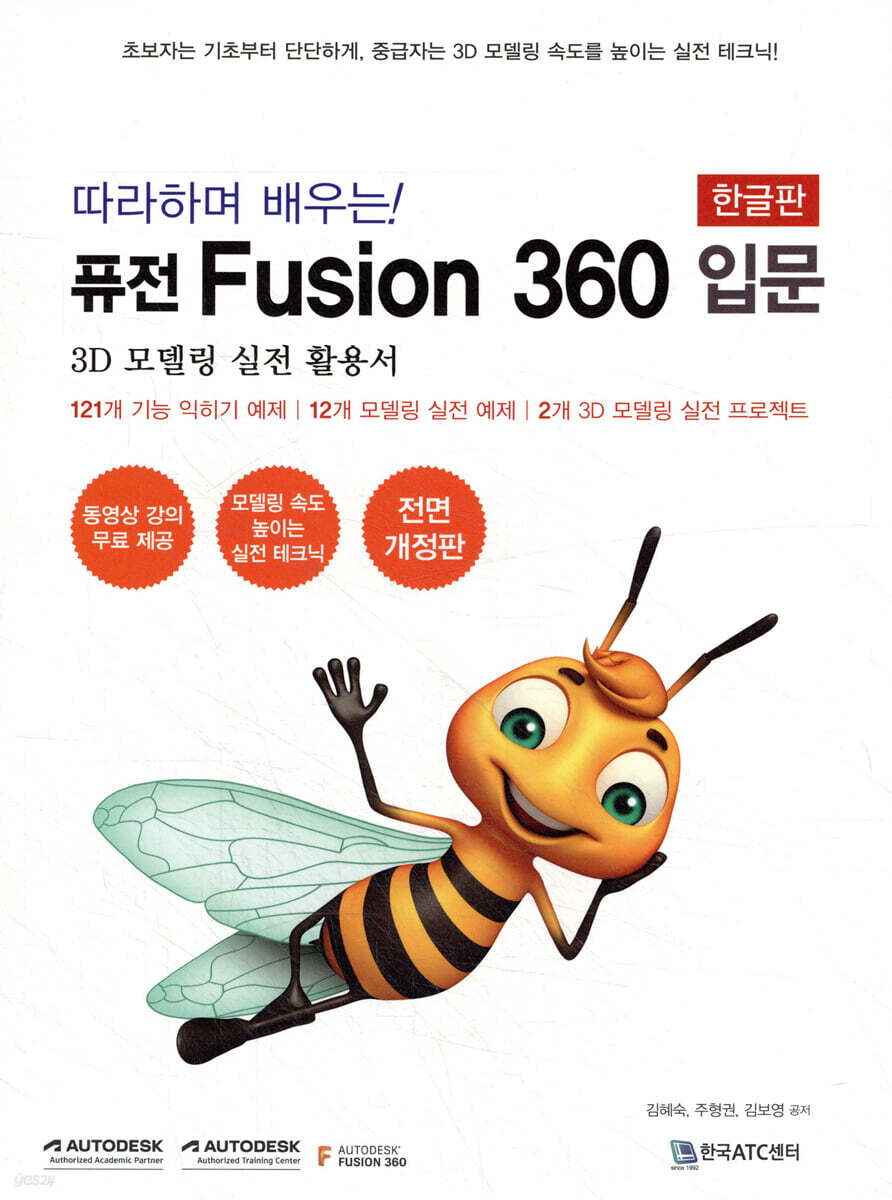
Learn by following! Introduction to Fusion 360
 |
Description
Book Introduction
Fusion 360, completely revised in Korean!
"Fusion 360 Korean Introduction Guide" that anyone can easily follow and learn!
Fusion 360 previously did not support the Korean language, so there was an inconvenience of having to install a separate Korean patch. However, there is now no longer a need to install a separate Korean patch.
The Korean version of Fusion 360, which many practitioners and educators have been waiting for, has been released, and this book has been completely revised to match the Korean version.
Of course, all functions and commands are organized in an easy-to-understand Korean (English) format so that they can be used in the English version as well.
This book is designed to be easy to understand for beginners who are new to Fusion 360.
We provide detailed explanations so that even readers who are new to Fusion 360 can create 3D modeling themselves.
The command descriptions are detailed down to the smallest details, and at the end, a follow-up example is created to help you learn the basic commands.
Additionally, after learning the basic commands, you will hone your skills through practical modeling projects.
For the practical project, you can watch the video by scanning the QR code.
This video is very effective for learning how to use practical modeling, as the author kindly explains the entire process of creating examples and projects.
Anyone can do 3D modeling by following the various examples and practical projects presented in the book, so let's get started with the Korean version of Fusion 360 now!
"Fusion 360 Korean Introduction Guide" that anyone can easily follow and learn!
Fusion 360 previously did not support the Korean language, so there was an inconvenience of having to install a separate Korean patch. However, there is now no longer a need to install a separate Korean patch.
The Korean version of Fusion 360, which many practitioners and educators have been waiting for, has been released, and this book has been completely revised to match the Korean version.
Of course, all functions and commands are organized in an easy-to-understand Korean (English) format so that they can be used in the English version as well.
This book is designed to be easy to understand for beginners who are new to Fusion 360.
We provide detailed explanations so that even readers who are new to Fusion 360 can create 3D modeling themselves.
The command descriptions are detailed down to the smallest details, and at the end, a follow-up example is created to help you learn the basic commands.
Additionally, after learning the basic commands, you will hone your skills through practical modeling projects.
For the practical project, you can watch the video by scanning the QR code.
This video is very effective for learning how to use practical modeling, as the author kindly explains the entire process of creating examples and projects.
Anyone can do 3D modeling by following the various examples and practical projects presented in the book, so let's get started with the Korean version of Fusion 360 now!
index
Part 01 Fusion 360 Overview
Section 01 Introduction to the Fusion 360 Program
1-1 Fusion 360 Key Features
1) Easy-to-understand user interface
2) Various modeling workspaces
3) Work order history management function
4) Collaboration features
5) Rendering function
6) Assembly and animation functions
7) Drawing function
8) Interpretation function
9) CAM function
1-2 Fusion 360 System Requirements
1-3 Download and Install
1-4 User Registration and Activation
1) Personal hobby certification
2) For students/educators
1-5 Offline Mode
Section 02 Fusion 360 Interface
2-1 Application Bar
2-1-1 File Menu
2-2 Account and Help (Profile and help)
2-2-1 Account (Profile)
2-2-2 Help
2-3 Toolbar
[Functional Skills] Finding Hidden Workspaces
2-4 ViewCube
2-5 Browser
[Feature Learning] Saving User Views
2-6 Quick Menu (Marking Menu)
2-7 Timeline
2-8 Preferences
2-8-1 General
2-8-2 Unit and Value Display
[Feature Learning] Editing and Resetting Environment Settings
Section 03 Design Exploration and Screen Settings
3-1 Navigation Bar
3-2 Display Settings
3-2-1 Visual Style
3-2-2 Environment
3-2-3 Effects
3-2-4 Object Visibility
3-2-5 Camera
3-2-6 Ground Plane Offset
3-3 Grid and Snap
3-4 SELECT
3-5 Viewport
3-6 How to use the wheel mouse
Section 04 Cloud-based File Management
4-1 Data Panel
4-2 Opening the Cloud Server
4-3 Creating and Sharing Projects
4-4 Uploading, Saving, and Exporting Files
Part 02 Sketch Tools
Section 01 Sketch Creation Command
1-1 Sketch
1-2 Create Sketch
Line 1-3
[Functional Skills] Drawing a polygon and entering its dimensions
1-4 Rectangle
[Skills] Drawing a Two-Point Rectangle and a Center Rectangle
1-5 circles
[Skills] Drawing a center point, diameter circle, two-point circle, and two-tangent circle
Arc 1-6
[Skills] Drawing 3-point arcs, center-point arcs, and tangent arcs
1-7 Polygon
[Skills] Drawing circumscribed, inscribed, and corner polygons
1-8 Ellipse
[Functional Skills] Drawing an ellipse by specifying the center point, major axis, and minor axis.
Slots 1-9
[Learning the Skills] Drawing Center-to-Center Slots, Center Point Slots, and 3-Point Arc Slots
1-10 Spline
[Feature Learning] Drawing a spline by clicking on vertices
1-11 points
[Skill Learning] Drawing a Point Horizontal to the Origin
1-12 characters (Text)
[Learning Skills] Writing and Editing Text
Section 02 Sketch Edit Commands
2-1 Fillet
[Functional Skills] Rounding sharp corners by giving them a radius value
2-2 Trim
[Functional Skills] Removing Unnecessary Lines from Intersecting Lines
2-3 Extend
[Functional Skills] Extending a line to a given point
2-4 Break
[Functional Skills] Splitting a Line into Two
2-5 Sketch Scale
[Feature Learning] Reduce sketch size by 0.5x
2-6 Offset
[Feature Learning] Create a sketch at a specified distance
2-7 Mirror
[Functional Skills] Symmetrical Sketching Around the Vertical Axis
2-8 Circular Pattern
[Functional Skills] Copying a ø15 circular array centered on the origin
2-9 Rectangular Pattern
[Functional Skills] Copying horizontally and vertically at a fixed distance
2-10 Project/Include
[Functional Skills] Projecting sketches and modeling shapes onto a projection surface
Section 03 Sketch Dimensioning
3-1 Sketch Dimensions
1) Linear dimensions
2) Alignment dimensions
3) Angular dimensions
4) Radius and diameter dimensions
[Functional Skills] Creating Linear, Angle, Radius, Diameter, and Reference Dimensions
Section 04 Sketch Palette
4-1 Option
4-2 Constraints
[Feature Learning] Applying Sketch Constraints
Practical Example 01: Practicing Basic Sketching Shapes 01
Practical Example 02: Practicing Basic Sketching Shapes 02
Practical Example 03: Practicing Basic Sketching Shapes 03
Part 03 Design
Section 01 Create
1-1 New Component
1-2 Create Sketch
1-3 Create Form
1-4 Derivatives
1-5 Extrude
[Functional Skills] Creating a Protruding Object 1
[Functional Skills] Creating a Protruding Object 2
1-6 Revolve
[Feature Learning] Creating a Rotation Object
1-7 Sweep
[Functional Learning] Creating a Sweep Object 1
[Functional Skills] Creating a Sweep Object 2
1-8 Loft
[Functional Skills] Creating a Loft Object
1-9 Ribs
[Functional Skills] Creating a Rib Object
1-10 Web
[Functional Learning] Creating a Network Object
1-11 Embossing
[Skill Mastery] Engraving Characters
1-12 Hole
[Skill Learning] Making a Hole
1-13 Threads
[Functional Skills] Creating a Thread
1-14 Box
[Learning Skills] Creating a Box
1-15 Cylinder
[Skill Learning] Making a Cylinder
1-16 Sphere
[Learning Skills] Creating a Sphere
1-17 Torus
[Skill Learning] Creating a Torus
1-18 Coil
[Learning Skills] Making a Coil
1-19 Pipe
[Learning Skills] Making a Pipe
1-20 Pattern
1) Rectangular Pattern
[Skill Training] Creating a Rectangular Pattern
2) Circular Pattern
[Skill Learning] Creating a Circular Pattern
3) Pattern on Path
[Feature Learning] Creating a Path Pattern
1-21 Mirror
[Functional Skills] Mirror Copy
1-22 Thicken
[Functional Skills] Adding thickness to a surface
1-23 Boundary Fill
[Feature Learning] Creating a Boundary Fill
Create Base Feature 1-24
1-25 Create 3D PCB
1-26 Derive PCB from Sketch
Section 02 Modification
2-1 Push and Pull
[Learning the function] Press and pull
2-2 Fillet
1) Fillet
[Skill Mastery] Filleting
2) Rule Fillet
[Functional Skills] Rule Filleting
3) Full Round Fillet
[Functional Skills] 3-sided chamfering
2-3Chamfer
[Functional Skills] Chamfering
2-4 Shell
[Functional Skills] Shell (Creating Thickness Inside)
2-5 Draft
1) Fixed Plane
[Functional Skills] Tilt (tilt a surface in one direction, two directions, or symmetry)
2) Parting Line
[Functional Skills] Slope (Slope by Dividing the Surface)
2-6 Scale
[Functional Skills] Scaling (Reducing the Shape of a Cup)
2-7 Combine
[Functional Skills] Combination (Combining Cookware Shapes)
2-8 Offset Face
[Functional Skills] Offset Surfaces
Replace Face 2-9
[Functional Skills] Replacing Faces
2-10 Split Face
[Functional Skills] Splitting a Surface
2-11 Split Body
[Functional Skills] Splitting Shapes
2-12 Silhouette
[Feature Learning] Outline Segmentation
2-13 Move/Copy
[Functional Skills] Moving and Copying
2-14 Align
[Functional Skills] Aligning Two Blocks Side by Side
2-15 Delete
[Functional Training] Deleting the Main Body
2-16 Physical Material
[Feature Learning] Assigning Physical Materials to Shapes
2-17 Appearance
[Feature Learning] Coloring a Gift Box
2-18 Manage Materials
2-19 Change Parameters
[Functional Skills] Creating a Pen Holder Using Parameters
2-20 Compute All
Section 03 CONSTRUCT
3-1 Plane
1) Offset Plane
[Feature Mastery] Creating an Offset Plane
2) Plane at Angle
[Functional Skills] Creating a Slanted Plane
3) Tangent Plane
[Functional Skills] Creating a Tangent Plane
4) Midplane
[Functional Skills] Creating an Intermediate Plane
5) Plane Through Two Edges
[Functional Skills] Creating a Plane Passing Through Two Corners
6) Plane Through Three Points
[Functional Skills] Creating a Plane Passing Through Three Points
7) Plane Tangent to Face at Point
[Functional Skills] Creating a Plane Tangent to a Surface at an Arbitrary Point
8) Plane Along Path
[Feature Learning] Creating a Plane Following a Path
3-2 Axis
1) Axis Through Cylinder/Cone/Torus
[Functional Skills] Creating an Axis Passing Through a Cylinder/Cone/Torus
2) Axis Perpendicular at Point
[Functional Skills] Creating a Right Axis from a Point
3) Axis Through Two Planes
[Functional Skills] Creating an Axis Passing Through Two Planes
4) Axis Through Two Points
[Functional Skills] Creating an Axis Passing Through Two Points
5) Axis Through Edge
[Feature Learning] Creating an Axis Passing a Corner
6) Axis Perpendicular to Face at Point
[Functional Skills] Creating an axis perpendicular to a surface at a point location
3-3 points
1) Point at Vertex
[Functional Skills] Creating a Point at a Vertex
2) Point Through Two Edges
[Functional Skills] Creating a Passage Point between Two Corners
3) Point Through Three Planes
[Functional Skills] Creating a Passage Point on Three Planes
4) Point at Center of Circle/Sphere/Torus
[Functional Skills] Creating the Center of a Circle/Sphere/Torus
5) Point at Edge and Plane
[Functional Skills] Creating Points on Corners and Planes
6) Point Along Path
[Functional Skills] Creating Points on a Path
Section 04 Inspection
4-1 Measurement
[Functional Skills] Measuring Radius and Distance
4-2 Interference
[Functional Skills] Interference Checking
4-3 Curvature Comb Analysis
[Functional Skills] Analyzing Curvature
4-4 Zebra Analysis
[Skill Training] Analyzing Zebra (Continuity of Surface)
4-5 Draft Analysis
[Functional Skills] Analyzing Drafts (Slopes)
4-6 Curvature Map Analysis
[Feature Learning] Analyzing Curvature Maps
4-7 ISO Curve Analysis
[Functional Skills] Analyzing Curvature Curves
4-8 Accessibility Analysis
[Functional Skills] Checking Processability
4-9 Minimum Radius Analysis
[Functional Skills] Analyzing Minimum Radius
4-10 Section Analysis
[Skill Mastery] Analyzing a Cross Section
4-11 Center of Mass
[Feature Mastery] Displaying Model Center
4-12 Component Color Cycling Toggle
Section 05 INSERT
5-1 Insert Derive
5-2 Decal
[Functional Skills] Decal (Image Pasting)
5-3 Canvas
[Feature Learning] Attaching an Image to a Canvas
5-4 Insert SVG
[Feature Learning] Importing SVG Files
5-5 Insert DXF
[Feature Learning] Importing DXF Files
5-6 Insert McMaster-Carr Component
[Functional Skills] Importing McMaster-Carr Parts
5-7 Insert Mesh
[Feature Learning] Importing Mesh Files
5-8 Insert a manufacturer part
5-9 Insert Trace Parts Supplier Components
Section 06 3D Printing
6-1 Preparing for 3D Printing
[Feature Learning] Creating a 3D PRINT File
6-2 3D Printer Printing
[Feature Learning] 3D Printer Printing
Practical Example 04 Block Toy Modeling
Practical Example 05: Basketball Modeling
Practical Example 06 Golf Ball Modeling
Practical Example 07 Mug Modeling
Practical Example 08 Champagne Glass Modeling
Practical Example 09 Mirror Modeling
Practical Example 10: Chair Modeling
Practical Example 11: Modeling a Snowman
Part 04 T-SPLINE
Section 01 Create
1-1 Box
[Functional Skills] Creating a Box
1-2 Plane
[Learning Skills] Creating a Plane
1-3 Cylinder
[Skill Learning] Making a Cylinder
1-4 Sphere
[Learning Skills] Creating a Sphere
1-5 Torus
[Skill Learning] Creating a Torus
1-6 Quadball
[Skill Learning] Making a Quad Ball
1-7 Pipe
1) Sections tab
2) End Types tab
3) Segments tab
Faces 1-8
1-9 Extrude
[Feature Learning] Extruding Objects
1-10 Revolve
[Skill Learning] Creating a Rotating Body
1-11 Sweep
[Feature Learning] Creating a Sweep
1-12 Loft
Section 02 Edit Form
Practical Example 12: Bobsleigh Modeling
Part 05 Getting Started with RENDER
Section 01 RENDER Interface
Section 02 Setup
2-1 Appearance Settings
[Feature Learning] Applying Textures - Mapping
2-2 Downloading and Editing Materials
[Feature Learning] Downloading and Editing Materials
Editing colors 2-3
[Feature Learning] Editing Colors
2-4 Advanced Settings and Editing
2-4-1 Sample Slot
2-4-2 Parameters
[Functional Learning] Adjusting Parameters
2-4-3 Relief Pattern (Bump)
[Feature Learning] Creating a 3D Effect on the Surface of a Material with Relief Pattern (Bump)
2-4-4 Cutout
[Feature Learning] Creating Various Shapes in Images with Cutout
2-4-5 Advanced Highlight Controls
[Feature Mastery] Applying Advanced Highlight Controls Effects
2-5 Copy My Appearance
Section 03 Scene Setting
3-1 Settings
[Functional Training] Setting Up the Environment
3-2 Environment Library
[Functional Learning] Environment
Section 04 Texture Map Controls
[Feature Learning] Texture Map Controls - 3D Texture
[Feature Learning] Texture Map Controls - 2D Texture
Section 05 In-Canvas Render
5-1 In-Canvas Render Settings
5-2 Image Capture
[Feature Mastery] Image Capture
Section 06 Render
6-1 RENDERING GALLERY
Appendix Materials List
Part 06 Practical 3D Modeling Project
Practical Project 01: Light Bulb & Lamp Modeling
Practical Project 02 Food Robot Modeling
Section 01 Introduction to the Fusion 360 Program
1-1 Fusion 360 Key Features
1) Easy-to-understand user interface
2) Various modeling workspaces
3) Work order history management function
4) Collaboration features
5) Rendering function
6) Assembly and animation functions
7) Drawing function
8) Interpretation function
9) CAM function
1-2 Fusion 360 System Requirements
1-3 Download and Install
1-4 User Registration and Activation
1) Personal hobby certification
2) For students/educators
1-5 Offline Mode
Section 02 Fusion 360 Interface
2-1 Application Bar
2-1-1 File Menu
2-2 Account and Help (Profile and help)
2-2-1 Account (Profile)
2-2-2 Help
2-3 Toolbar
[Functional Skills] Finding Hidden Workspaces
2-4 ViewCube
2-5 Browser
[Feature Learning] Saving User Views
2-6 Quick Menu (Marking Menu)
2-7 Timeline
2-8 Preferences
2-8-1 General
2-8-2 Unit and Value Display
[Feature Learning] Editing and Resetting Environment Settings
Section 03 Design Exploration and Screen Settings
3-1 Navigation Bar
3-2 Display Settings
3-2-1 Visual Style
3-2-2 Environment
3-2-3 Effects
3-2-4 Object Visibility
3-2-5 Camera
3-2-6 Ground Plane Offset
3-3 Grid and Snap
3-4 SELECT
3-5 Viewport
3-6 How to use the wheel mouse
Section 04 Cloud-based File Management
4-1 Data Panel
4-2 Opening the Cloud Server
4-3 Creating and Sharing Projects
4-4 Uploading, Saving, and Exporting Files
Part 02 Sketch Tools
Section 01 Sketch Creation Command
1-1 Sketch
1-2 Create Sketch
Line 1-3
[Functional Skills] Drawing a polygon and entering its dimensions
1-4 Rectangle
[Skills] Drawing a Two-Point Rectangle and a Center Rectangle
1-5 circles
[Skills] Drawing a center point, diameter circle, two-point circle, and two-tangent circle
Arc 1-6
[Skills] Drawing 3-point arcs, center-point arcs, and tangent arcs
1-7 Polygon
[Skills] Drawing circumscribed, inscribed, and corner polygons
1-8 Ellipse
[Functional Skills] Drawing an ellipse by specifying the center point, major axis, and minor axis.
Slots 1-9
[Learning the Skills] Drawing Center-to-Center Slots, Center Point Slots, and 3-Point Arc Slots
1-10 Spline
[Feature Learning] Drawing a spline by clicking on vertices
1-11 points
[Skill Learning] Drawing a Point Horizontal to the Origin
1-12 characters (Text)
[Learning Skills] Writing and Editing Text
Section 02 Sketch Edit Commands
2-1 Fillet
[Functional Skills] Rounding sharp corners by giving them a radius value
2-2 Trim
[Functional Skills] Removing Unnecessary Lines from Intersecting Lines
2-3 Extend
[Functional Skills] Extending a line to a given point
2-4 Break
[Functional Skills] Splitting a Line into Two
2-5 Sketch Scale
[Feature Learning] Reduce sketch size by 0.5x
2-6 Offset
[Feature Learning] Create a sketch at a specified distance
2-7 Mirror
[Functional Skills] Symmetrical Sketching Around the Vertical Axis
2-8 Circular Pattern
[Functional Skills] Copying a ø15 circular array centered on the origin
2-9 Rectangular Pattern
[Functional Skills] Copying horizontally and vertically at a fixed distance
2-10 Project/Include
[Functional Skills] Projecting sketches and modeling shapes onto a projection surface
Section 03 Sketch Dimensioning
3-1 Sketch Dimensions
1) Linear dimensions
2) Alignment dimensions
3) Angular dimensions
4) Radius and diameter dimensions
[Functional Skills] Creating Linear, Angle, Radius, Diameter, and Reference Dimensions
Section 04 Sketch Palette
4-1 Option
4-2 Constraints
[Feature Learning] Applying Sketch Constraints
Practical Example 01: Practicing Basic Sketching Shapes 01
Practical Example 02: Practicing Basic Sketching Shapes 02
Practical Example 03: Practicing Basic Sketching Shapes 03
Part 03 Design
Section 01 Create
1-1 New Component
1-2 Create Sketch
1-3 Create Form
1-4 Derivatives
1-5 Extrude
[Functional Skills] Creating a Protruding Object 1
[Functional Skills] Creating a Protruding Object 2
1-6 Revolve
[Feature Learning] Creating a Rotation Object
1-7 Sweep
[Functional Learning] Creating a Sweep Object 1
[Functional Skills] Creating a Sweep Object 2
1-8 Loft
[Functional Skills] Creating a Loft Object
1-9 Ribs
[Functional Skills] Creating a Rib Object
1-10 Web
[Functional Learning] Creating a Network Object
1-11 Embossing
[Skill Mastery] Engraving Characters
1-12 Hole
[Skill Learning] Making a Hole
1-13 Threads
[Functional Skills] Creating a Thread
1-14 Box
[Learning Skills] Creating a Box
1-15 Cylinder
[Skill Learning] Making a Cylinder
1-16 Sphere
[Learning Skills] Creating a Sphere
1-17 Torus
[Skill Learning] Creating a Torus
1-18 Coil
[Learning Skills] Making a Coil
1-19 Pipe
[Learning Skills] Making a Pipe
1-20 Pattern
1) Rectangular Pattern
[Skill Training] Creating a Rectangular Pattern
2) Circular Pattern
[Skill Learning] Creating a Circular Pattern
3) Pattern on Path
[Feature Learning] Creating a Path Pattern
1-21 Mirror
[Functional Skills] Mirror Copy
1-22 Thicken
[Functional Skills] Adding thickness to a surface
1-23 Boundary Fill
[Feature Learning] Creating a Boundary Fill
Create Base Feature 1-24
1-25 Create 3D PCB
1-26 Derive PCB from Sketch
Section 02 Modification
2-1 Push and Pull
[Learning the function] Press and pull
2-2 Fillet
1) Fillet
[Skill Mastery] Filleting
2) Rule Fillet
[Functional Skills] Rule Filleting
3) Full Round Fillet
[Functional Skills] 3-sided chamfering
2-3Chamfer
[Functional Skills] Chamfering
2-4 Shell
[Functional Skills] Shell (Creating Thickness Inside)
2-5 Draft
1) Fixed Plane
[Functional Skills] Tilt (tilt a surface in one direction, two directions, or symmetry)
2) Parting Line
[Functional Skills] Slope (Slope by Dividing the Surface)
2-6 Scale
[Functional Skills] Scaling (Reducing the Shape of a Cup)
2-7 Combine
[Functional Skills] Combination (Combining Cookware Shapes)
2-8 Offset Face
[Functional Skills] Offset Surfaces
Replace Face 2-9
[Functional Skills] Replacing Faces
2-10 Split Face
[Functional Skills] Splitting a Surface
2-11 Split Body
[Functional Skills] Splitting Shapes
2-12 Silhouette
[Feature Learning] Outline Segmentation
2-13 Move/Copy
[Functional Skills] Moving and Copying
2-14 Align
[Functional Skills] Aligning Two Blocks Side by Side
2-15 Delete
[Functional Training] Deleting the Main Body
2-16 Physical Material
[Feature Learning] Assigning Physical Materials to Shapes
2-17 Appearance
[Feature Learning] Coloring a Gift Box
2-18 Manage Materials
2-19 Change Parameters
[Functional Skills] Creating a Pen Holder Using Parameters
2-20 Compute All
Section 03 CONSTRUCT
3-1 Plane
1) Offset Plane
[Feature Mastery] Creating an Offset Plane
2) Plane at Angle
[Functional Skills] Creating a Slanted Plane
3) Tangent Plane
[Functional Skills] Creating a Tangent Plane
4) Midplane
[Functional Skills] Creating an Intermediate Plane
5) Plane Through Two Edges
[Functional Skills] Creating a Plane Passing Through Two Corners
6) Plane Through Three Points
[Functional Skills] Creating a Plane Passing Through Three Points
7) Plane Tangent to Face at Point
[Functional Skills] Creating a Plane Tangent to a Surface at an Arbitrary Point
8) Plane Along Path
[Feature Learning] Creating a Plane Following a Path
3-2 Axis
1) Axis Through Cylinder/Cone/Torus
[Functional Skills] Creating an Axis Passing Through a Cylinder/Cone/Torus
2) Axis Perpendicular at Point
[Functional Skills] Creating a Right Axis from a Point
3) Axis Through Two Planes
[Functional Skills] Creating an Axis Passing Through Two Planes
4) Axis Through Two Points
[Functional Skills] Creating an Axis Passing Through Two Points
5) Axis Through Edge
[Feature Learning] Creating an Axis Passing a Corner
6) Axis Perpendicular to Face at Point
[Functional Skills] Creating an axis perpendicular to a surface at a point location
3-3 points
1) Point at Vertex
[Functional Skills] Creating a Point at a Vertex
2) Point Through Two Edges
[Functional Skills] Creating a Passage Point between Two Corners
3) Point Through Three Planes
[Functional Skills] Creating a Passage Point on Three Planes
4) Point at Center of Circle/Sphere/Torus
[Functional Skills] Creating the Center of a Circle/Sphere/Torus
5) Point at Edge and Plane
[Functional Skills] Creating Points on Corners and Planes
6) Point Along Path
[Functional Skills] Creating Points on a Path
Section 04 Inspection
4-1 Measurement
[Functional Skills] Measuring Radius and Distance
4-2 Interference
[Functional Skills] Interference Checking
4-3 Curvature Comb Analysis
[Functional Skills] Analyzing Curvature
4-4 Zebra Analysis
[Skill Training] Analyzing Zebra (Continuity of Surface)
4-5 Draft Analysis
[Functional Skills] Analyzing Drafts (Slopes)
4-6 Curvature Map Analysis
[Feature Learning] Analyzing Curvature Maps
4-7 ISO Curve Analysis
[Functional Skills] Analyzing Curvature Curves
4-8 Accessibility Analysis
[Functional Skills] Checking Processability
4-9 Minimum Radius Analysis
[Functional Skills] Analyzing Minimum Radius
4-10 Section Analysis
[Skill Mastery] Analyzing a Cross Section
4-11 Center of Mass
[Feature Mastery] Displaying Model Center
4-12 Component Color Cycling Toggle
Section 05 INSERT
5-1 Insert Derive
5-2 Decal
[Functional Skills] Decal (Image Pasting)
5-3 Canvas
[Feature Learning] Attaching an Image to a Canvas
5-4 Insert SVG
[Feature Learning] Importing SVG Files
5-5 Insert DXF
[Feature Learning] Importing DXF Files
5-6 Insert McMaster-Carr Component
[Functional Skills] Importing McMaster-Carr Parts
5-7 Insert Mesh
[Feature Learning] Importing Mesh Files
5-8 Insert a manufacturer part
5-9 Insert Trace Parts Supplier Components
Section 06 3D Printing
6-1 Preparing for 3D Printing
[Feature Learning] Creating a 3D PRINT File
6-2 3D Printer Printing
[Feature Learning] 3D Printer Printing
Practical Example 04 Block Toy Modeling
Practical Example 05: Basketball Modeling
Practical Example 06 Golf Ball Modeling
Practical Example 07 Mug Modeling
Practical Example 08 Champagne Glass Modeling
Practical Example 09 Mirror Modeling
Practical Example 10: Chair Modeling
Practical Example 11: Modeling a Snowman
Part 04 T-SPLINE
Section 01 Create
1-1 Box
[Functional Skills] Creating a Box
1-2 Plane
[Learning Skills] Creating a Plane
1-3 Cylinder
[Skill Learning] Making a Cylinder
1-4 Sphere
[Learning Skills] Creating a Sphere
1-5 Torus
[Skill Learning] Creating a Torus
1-6 Quadball
[Skill Learning] Making a Quad Ball
1-7 Pipe
1) Sections tab
2) End Types tab
3) Segments tab
Faces 1-8
1-9 Extrude
[Feature Learning] Extruding Objects
1-10 Revolve
[Skill Learning] Creating a Rotating Body
1-11 Sweep
[Feature Learning] Creating a Sweep
1-12 Loft
Section 02 Edit Form
Practical Example 12: Bobsleigh Modeling
Part 05 Getting Started with RENDER
Section 01 RENDER Interface
Section 02 Setup
2-1 Appearance Settings
[Feature Learning] Applying Textures - Mapping
2-2 Downloading and Editing Materials
[Feature Learning] Downloading and Editing Materials
Editing colors 2-3
[Feature Learning] Editing Colors
2-4 Advanced Settings and Editing
2-4-1 Sample Slot
2-4-2 Parameters
[Functional Learning] Adjusting Parameters
2-4-3 Relief Pattern (Bump)
[Feature Learning] Creating a 3D Effect on the Surface of a Material with Relief Pattern (Bump)
2-4-4 Cutout
[Feature Learning] Creating Various Shapes in Images with Cutout
2-4-5 Advanced Highlight Controls
[Feature Mastery] Applying Advanced Highlight Controls Effects
2-5 Copy My Appearance
Section 03 Scene Setting
3-1 Settings
[Functional Training] Setting Up the Environment
3-2 Environment Library
[Functional Learning] Environment
Section 04 Texture Map Controls
[Feature Learning] Texture Map Controls - 3D Texture
[Feature Learning] Texture Map Controls - 2D Texture
Section 05 In-Canvas Render
5-1 In-Canvas Render Settings
5-2 Image Capture
[Feature Mastery] Image Capture
Section 06 Render
6-1 RENDERING GALLERY
Appendix Materials List
Part 06 Practical 3D Modeling Project
Practical Project 01: Light Bulb & Lamp Modeling
Practical Project 02 Food Robot Modeling
Detailed image

Publisher's Review
"Learn by Following! Fusion 360 Introduction Korean Edition" is a practical guide to 3D modeling production.
What this book contains
- The contents of the book have been completely revised to match the Korean version of Fusion 360.
- All functions and commands are explained in both Korean and English formats so that they can be used in both the Korean and English versions.
- The command is explained in detail down to the smallest details so that it can be used in any practical situation.
- Basic commands are explained with follow-up examples so that even beginners can learn them.
- At the end of each unit, follow along and create a review practical example using various commands.
- Create and follow practical modeling projects that can be applied directly to practice.
- We provide free video lectures where you can learn the author's practical modeling know-how.
Features of this book
The 3-step process is designed to help you learn Fusion 360 command functions and create practical projects to learn practical functions.
- Step 1: Learn basic commands naturally by following the 121 function learning examples.
- Step 2: After completing the unit, create 12 review examples.
- Step 3: Learn practical techniques by creating two practical projects.
QR code video included
The author personally explains the entire process of creating review examples and practical projects through video! The author personally explains the entire process of creating review examples and practical projects included in this book, step by step, through video.
So, you can learn Fusion 360 features and create real-world projects more easily by opening the book.
It is more effective because you can scan the QR code next to the example with your smartphone to watch the example and project creation video directly on YouTube.
What this book contains
- The contents of the book have been completely revised to match the Korean version of Fusion 360.
- All functions and commands are explained in both Korean and English formats so that they can be used in both the Korean and English versions.
- The command is explained in detail down to the smallest details so that it can be used in any practical situation.
- Basic commands are explained with follow-up examples so that even beginners can learn them.
- At the end of each unit, follow along and create a review practical example using various commands.
- Create and follow practical modeling projects that can be applied directly to practice.
- We provide free video lectures where you can learn the author's practical modeling know-how.
Features of this book
The 3-step process is designed to help you learn Fusion 360 command functions and create practical projects to learn practical functions.
- Step 1: Learn basic commands naturally by following the 121 function learning examples.
- Step 2: After completing the unit, create 12 review examples.
- Step 3: Learn practical techniques by creating two practical projects.
QR code video included
The author personally explains the entire process of creating review examples and practical projects through video! The author personally explains the entire process of creating review examples and practical projects included in this book, step by step, through video.
So, you can learn Fusion 360 features and create real-world projects more easily by opening the book.
It is more effective because you can scan the QR code next to the example with your smartphone to watch the example and project creation video directly on YouTube.
GOODS SPECIFICS
- Publication date: November 30, 2021
- Page count, weight, size: 524 pages | 190*257*21mm
- ISBN13: 9791197013720
- ISBN10: 1197013725
You may also like
카테고리
korean


korean

![GQ KOREA Mark (Monthly): December [2025]](http://librairie.coreenne.fr/cdn/shop/files/8ef265dbbfbf186523ed75ba7319009d.jpg?v=1765340328&width=3840)


