

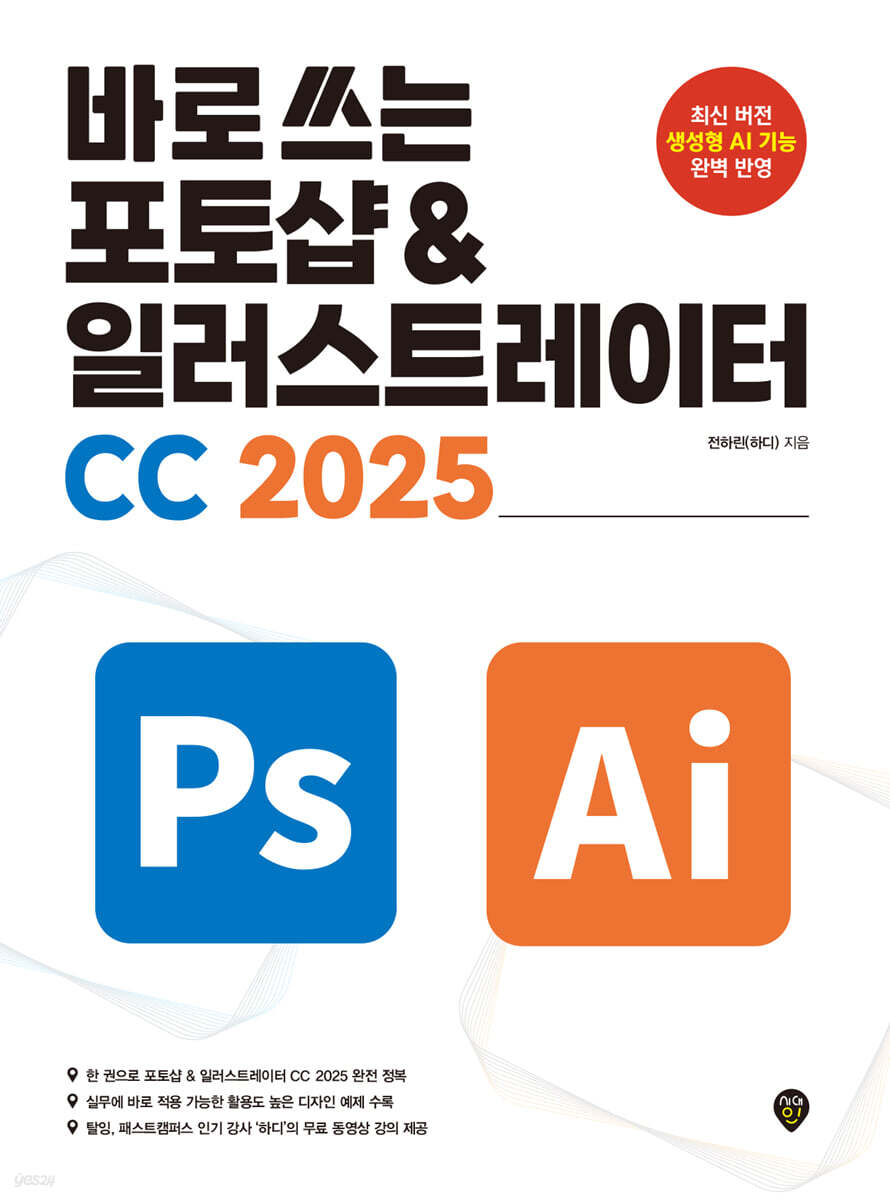
Photoshop & Illustrator CC 2025 Ready to Use
 |
Description
Book Introduction
Master Photoshop & Illustrator CC 2025 with "real-world features" carefully selected by working designers.
Quickly learn core and new features through practical examples, and maximize design efficiency with generative AI capabilities!
"Photoshop & Illustrator CC 2025 for Beginners" is an introductory graphic design book based on Photoshop & Illustrator CC 2025.
Rather than just explaining the theory, it explains the core functions and practical examples so that you can learn the functions of Photoshop and Illustrator by following them.
We also fully reflect the new features of the recently updated CC 2025 version, revealing how to maximize design efficiency with generative AI.
Scan the QR code included in the book to watch free video lectures by the author, a leading expert in the field of de-ing design/video and a representative instructor at Fast Campus.
Quickly learn core and new features through practical examples, and maximize design efficiency with generative AI capabilities!
"Photoshop & Illustrator CC 2025 for Beginners" is an introductory graphic design book based on Photoshop & Illustrator CC 2025.
Rather than just explaining the theory, it explains the core functions and practical examples so that you can learn the functions of Photoshop and Illustrator by following them.
We also fully reflect the new features of the recently updated CC 2025 version, revealing how to maximize design efficiency with generative AI.
Scan the QR code included in the book to watch free video lectures by the author, a leading expert in the field of de-ing design/video and a representative instructor at Fast Campus.
- You can preview some of the book's contents.
Preview
index
Intro || Nice to meet you! Photoshop & Illustrator
01_A Quick Look at Photoshop & Illustrator
_What kind of programs are Photoshop and Illustrator?
_Which of these two programs should I choose?
_Difference between bitmap and vector
_Difference between web and print
Installing Photoshop and Illustrator and Setting the Language
02_A sneak peek at what's new in Photoshop CC 2025
_Distraction Removal
_Generate Background
_Generate Similar & Enhance Detail
03_A sneak peek at what's new in Illustrator CC 2025
_Objects on Path
_Enhanced Image Trace
_Generative Shape Fill
Part 01 || Mastering Photoshop
Chapter 01 | Getting Started with Photoshop
01_What does Photoshop look like?
_A look at the Photoshop UI
_Toolbox at a glance
_Setting up the work area
_Save your own workspace
02_Creating a New Document and Understanding File Formats
_Set up a new document based on your work purpose
_Learn about formats that can be imported into Photoshop
03_The Basics of Work: Mastering Layers
_What is a layer?
_Explore the elements and features of the Layers panel
_Learn how to manage layers and some great tips
_Learn about layer types
_Learn about rasterization
04_Learning the Basic Transformations in Photoshop
_Select and move with the Move Tool
_Transform the entire image file
05_Easily zoom in/out/scroll the canvas
_How to zoom in/out on the canvas
_How to quickly scroll the canvas
06_Save
_Learn about file saving methods and the characteristics of each file format
Chapter 02 | Mastering Photoshop's Basic Functions
01_Various ways to select an area
_Marquee Tool for selecting simple shapes
_Lasso Tool and Selection Brush Tool for free-form selection
_Polygonal Lasso Tool for selecting complex shapes
02_Everything about using brushes
_Everything in the Brush Settings panel
_Register and delete your own brushes
_How to make an image into a brush
03_Mastering the Pen and Shape Tools
_Drawing straight lines and smooth curves
Editing with the _Path Selection Tool and Direct Selection Tool
_Drawing rectangles, ellipses, and polygons
Chapter 03 | How to Cut Out Images
01_When the image has a clear outline
_Object Selection Tool selected by AI
_Quick Selection Tool to select chunks at once
_Magic Wand Tool to select only similar colors
02_When the image has unclear outlines
_Cleanly cut out the outline with the Pen Tool and Path
03_When the image contains animal fur or hair
_Select and Mask to select and cut out delicate parts
Chapter 04 | Retouching Images Like a Pro
01_How to neatly remove unnecessary parts
_Easily remove blemishes with the Spot Healing Brush Tool
_Removing complex blemishes with the Healing Brush Tool
_Cleanly erase without a trace with the Clone Stamp Tool
02_Freely transform and distort images
_Body Shaping and Sculpting with Liquify
Distorting images and text with _Warp
Chapter 05 | Mastering Color Correction and Filters
01_Learn about the menu for adjusting brightness
_Easy brightness adjustment with Brightness/Contrast
Using _Levels to adjust brightness to extremes
_Naturally correcting colors with Curves
02_Learn about the menu for adjusting color and saturation
Adjusting color and saturation using _Hue/Saturation
_Adjusting colors with Color Balance
_Change colors naturally with Selective Color
_Correcting the overall tone evenly with a gradient map
03_Neural Filters Using Artificial Intelligence
_How to use Neural Filters
04_Blur and sharpening effects to adjust image quality
_Check out the Blur menu, which contains a collection of basic blur effects.
_Sharpening Blurry Images
05_Learn about filters that distort images in various ways
_Compositing onto a curved surface with Displace
_Mosaic: Creating a Square Mosaic
Chapter 06 | Various Image Composition Methods
01_The Basics of Compositing: Placing Images and Text
_Compositing images using Layer Mask
_Compositing an image onto a shape using a clipping mask
02_Naturally synthesize and finely correct
_Naturally compositing with Blend Mode
_Adjustment Layer for precise and precise correction
03_Adding dimension to a plain image
_Create shadows to add depth
_Using gradients to create a sense of three-dimensionality
Chapter 07 | Image Correction with Generative AI
01_Changing an image with Generative Fill
_Create and style part of an image
02_Expanding the background with Generative Expand
_Create a background after expanding the image
Part 02 || Mastering Illustrator
Chapter 08 | Getting Started with Illustrator
01_What does an illustrator look like?
_A look at the Illustrator UI
_Toolbox at a glance
02_Mastering the Basic Concepts of Illustrator
_Set up a new document based on your work purpose
_Conquering the Artboard
_Learning about paths and layers
_Learn about formats that can be opened in Illustrator
03_Mastering Basic Shapes, Selection Tools, and Pen Tools
_Transforming basic shapes with the Selection Tool
_Conquering the Pen Tool
_Explore the pass editing tool
04_Learn how to set and manage colors
_Several ways to set the color of the paint and strokes
_Learn about gradient types
_How to manage color palette swatches
05_Save
_A look at how to save files and the characteristics of each file format
Chapter 09 | Learning Basic Shapes and Brushes
01_Creating characters by combining shapes
Creating a character with _Pathfinder
_Creating character features with the Shape Builder Tool
_Intuitively separate shapes to create detailed elements
_Creating a background
02_Create and register a flower-shaped pattern
_Register a pattern
_Edit and manage patterns
03_Draw a doodle-like picture using a brush
_Learn the difference between the Paintbrush Tool and the Bolb Brush Tool
Chapter 10 | Utilizing Various Effects
01_Creating six icons with simple designs
_Creating star and flower icons
_Creating a book and gear icon
_Creating heart and megaphone icons
02_Converting raster images to vector shapes
Image Trace, which automatically tracks images
_Change color themes at once with Recolor and AI
03_Conquering Blend, a Shape Mixing Game
Using the _Blend menu and tools
_Creating 3D Text
04_Designing a colorful, casual feel
_Making it look like it was drawn with crayons
Distorting text with _Envelop Distort
05_Creating Various 3D Graphic Artwork
_Comparing two types of 3D capabilities
_Isometric Design with Extrude
_Creating Product Mockups with Revolve
Create bouncy typography with _Inflate
06_Creating 2.5D Graphic Artwork
_Creating typography that intersects images with Interwine
_Adjusting the perspective of building graphics with the Perspective Grid
Chapter 11 | Creating and Modifying Images with Generative AI
01_Creating Various Vector Images with Generate Vectors
Creating a vector image with a background using _Scene
_Create a vector image without a background using Subject
Creating clean icon images with _Icon
02_Generate and modify patterns with Generate Patterns
_Creating and modifying patterns
03_Upgrading Sketch with Gen Shape Fill
How to upgrade a rough sketch
Appendix || Content Design Completed with Photoshop & Illustrator
01_Creating trendy SNS content
_Setting the size of SNS content in Photoshop
Creating Point Graphics in Illustrator
_Correcting and saving images in Photoshop
02_Creating a Sensational Poster
_Setting the size of a poster for printing in Illustrator
_Correcting the main image of a poster in Photoshop
_Editing typography in Illustrator
_How to set up a file for printing
03_Mastering Photoshop & Illustrator Shortcuts
_List of essential Photoshop shortcuts
_Illustrator Essential Shortcut Key List
_How to easily memorize shortcuts
01_A Quick Look at Photoshop & Illustrator
_What kind of programs are Photoshop and Illustrator?
_Which of these two programs should I choose?
_Difference between bitmap and vector
_Difference between web and print
Installing Photoshop and Illustrator and Setting the Language
02_A sneak peek at what's new in Photoshop CC 2025
_Distraction Removal
_Generate Background
_Generate Similar & Enhance Detail
03_A sneak peek at what's new in Illustrator CC 2025
_Objects on Path
_Enhanced Image Trace
_Generative Shape Fill
Part 01 || Mastering Photoshop
Chapter 01 | Getting Started with Photoshop
01_What does Photoshop look like?
_A look at the Photoshop UI
_Toolbox at a glance
_Setting up the work area
_Save your own workspace
02_Creating a New Document and Understanding File Formats
_Set up a new document based on your work purpose
_Learn about formats that can be imported into Photoshop
03_The Basics of Work: Mastering Layers
_What is a layer?
_Explore the elements and features of the Layers panel
_Learn how to manage layers and some great tips
_Learn about layer types
_Learn about rasterization
04_Learning the Basic Transformations in Photoshop
_Select and move with the Move Tool
_Transform the entire image file
05_Easily zoom in/out/scroll the canvas
_How to zoom in/out on the canvas
_How to quickly scroll the canvas
06_Save
_Learn about file saving methods and the characteristics of each file format
Chapter 02 | Mastering Photoshop's Basic Functions
01_Various ways to select an area
_Marquee Tool for selecting simple shapes
_Lasso Tool and Selection Brush Tool for free-form selection
_Polygonal Lasso Tool for selecting complex shapes
02_Everything about using brushes
_Everything in the Brush Settings panel
_Register and delete your own brushes
_How to make an image into a brush
03_Mastering the Pen and Shape Tools
_Drawing straight lines and smooth curves
Editing with the _Path Selection Tool and Direct Selection Tool
_Drawing rectangles, ellipses, and polygons
Chapter 03 | How to Cut Out Images
01_When the image has a clear outline
_Object Selection Tool selected by AI
_Quick Selection Tool to select chunks at once
_Magic Wand Tool to select only similar colors
02_When the image has unclear outlines
_Cleanly cut out the outline with the Pen Tool and Path
03_When the image contains animal fur or hair
_Select and Mask to select and cut out delicate parts
Chapter 04 | Retouching Images Like a Pro
01_How to neatly remove unnecessary parts
_Easily remove blemishes with the Spot Healing Brush Tool
_Removing complex blemishes with the Healing Brush Tool
_Cleanly erase without a trace with the Clone Stamp Tool
02_Freely transform and distort images
_Body Shaping and Sculpting with Liquify
Distorting images and text with _Warp
Chapter 05 | Mastering Color Correction and Filters
01_Learn about the menu for adjusting brightness
_Easy brightness adjustment with Brightness/Contrast
Using _Levels to adjust brightness to extremes
_Naturally correcting colors with Curves
02_Learn about the menu for adjusting color and saturation
Adjusting color and saturation using _Hue/Saturation
_Adjusting colors with Color Balance
_Change colors naturally with Selective Color
_Correcting the overall tone evenly with a gradient map
03_Neural Filters Using Artificial Intelligence
_How to use Neural Filters
04_Blur and sharpening effects to adjust image quality
_Check out the Blur menu, which contains a collection of basic blur effects.
_Sharpening Blurry Images
05_Learn about filters that distort images in various ways
_Compositing onto a curved surface with Displace
_Mosaic: Creating a Square Mosaic
Chapter 06 | Various Image Composition Methods
01_The Basics of Compositing: Placing Images and Text
_Compositing images using Layer Mask
_Compositing an image onto a shape using a clipping mask
02_Naturally synthesize and finely correct
_Naturally compositing with Blend Mode
_Adjustment Layer for precise and precise correction
03_Adding dimension to a plain image
_Create shadows to add depth
_Using gradients to create a sense of three-dimensionality
Chapter 07 | Image Correction with Generative AI
01_Changing an image with Generative Fill
_Create and style part of an image
02_Expanding the background with Generative Expand
_Create a background after expanding the image
Part 02 || Mastering Illustrator
Chapter 08 | Getting Started with Illustrator
01_What does an illustrator look like?
_A look at the Illustrator UI
_Toolbox at a glance
02_Mastering the Basic Concepts of Illustrator
_Set up a new document based on your work purpose
_Conquering the Artboard
_Learning about paths and layers
_Learn about formats that can be opened in Illustrator
03_Mastering Basic Shapes, Selection Tools, and Pen Tools
_Transforming basic shapes with the Selection Tool
_Conquering the Pen Tool
_Explore the pass editing tool
04_Learn how to set and manage colors
_Several ways to set the color of the paint and strokes
_Learn about gradient types
_How to manage color palette swatches
05_Save
_A look at how to save files and the characteristics of each file format
Chapter 09 | Learning Basic Shapes and Brushes
01_Creating characters by combining shapes
Creating a character with _Pathfinder
_Creating character features with the Shape Builder Tool
_Intuitively separate shapes to create detailed elements
_Creating a background
02_Create and register a flower-shaped pattern
_Register a pattern
_Edit and manage patterns
03_Draw a doodle-like picture using a brush
_Learn the difference between the Paintbrush Tool and the Bolb Brush Tool
Chapter 10 | Utilizing Various Effects
01_Creating six icons with simple designs
_Creating star and flower icons
_Creating a book and gear icon
_Creating heart and megaphone icons
02_Converting raster images to vector shapes
Image Trace, which automatically tracks images
_Change color themes at once with Recolor and AI
03_Conquering Blend, a Shape Mixing Game
Using the _Blend menu and tools
_Creating 3D Text
04_Designing a colorful, casual feel
_Making it look like it was drawn with crayons
Distorting text with _Envelop Distort
05_Creating Various 3D Graphic Artwork
_Comparing two types of 3D capabilities
_Isometric Design with Extrude
_Creating Product Mockups with Revolve
Create bouncy typography with _Inflate
06_Creating 2.5D Graphic Artwork
_Creating typography that intersects images with Interwine
_Adjusting the perspective of building graphics with the Perspective Grid
Chapter 11 | Creating and Modifying Images with Generative AI
01_Creating Various Vector Images with Generate Vectors
Creating a vector image with a background using _Scene
_Create a vector image without a background using Subject
Creating clean icon images with _Icon
02_Generate and modify patterns with Generate Patterns
_Creating and modifying patterns
03_Upgrading Sketch with Gen Shape Fill
How to upgrade a rough sketch
Appendix || Content Design Completed with Photoshop & Illustrator
01_Creating trendy SNS content
_Setting the size of SNS content in Photoshop
Creating Point Graphics in Illustrator
_Correcting and saving images in Photoshop
02_Creating a Sensational Poster
_Setting the size of a poster for printing in Illustrator
_Correcting the main image of a poster in Photoshop
_Editing typography in Illustrator
_How to set up a file for printing
03_Mastering Photoshop & Illustrator Shortcuts
_List of essential Photoshop shortcuts
_Illustrator Essential Shortcut Key List
_How to easily memorize shortcuts
Detailed image

Publisher's Review
If you are still putting off learning Photoshop and Illustrator as if it were homework,
Quickly master two design tools with our example-based learning approach.
Photoshop and Illustrator are essential design tools for graphic design work, and the recent addition of AI features has made them even more convenient.
If you're new to Photoshop and Illustrator, their interfaces might seem difficult and complex. However, since they have a set of frequently used functions, you can fully utilize them in your work by learning just a few of them.
This book is an introductory guide to graphics that covers the key features of Photoshop and Illustrator CC 2025 and how to utilize generative AI.
The author, who is currently working as a designer and has been teaching online and offline for 11 years at various educational platforms and companies, has organized the book so that you can naturally acquire 'real-world skills' by following examples.
In [Intro], we will look at the basic knowledge of graphics required for work and the new features of the CC 2025 version, and in [Part 01] and [Part 02], we will master the basic and essential functions of the two programs.
Furthermore, in [Appendix], you will learn how to utilize the two programs for different tasks through practical design examples, and learn shortcuts that can efficiently reduce work time.
We provide a study guide divided into 20 lessons, each lasting 1 hour per day, so you can plan your progress without any burden even in your busy daily life. By scanning the QR code included in the textbook, you can learn more about the content related to the examples through a video lecture directly from the author.
Quickly master two design tools with our example-based learning approach.
Photoshop and Illustrator are essential design tools for graphic design work, and the recent addition of AI features has made them even more convenient.
If you're new to Photoshop and Illustrator, their interfaces might seem difficult and complex. However, since they have a set of frequently used functions, you can fully utilize them in your work by learning just a few of them.
This book is an introductory guide to graphics that covers the key features of Photoshop and Illustrator CC 2025 and how to utilize generative AI.
The author, who is currently working as a designer and has been teaching online and offline for 11 years at various educational platforms and companies, has organized the book so that you can naturally acquire 'real-world skills' by following examples.
In [Intro], we will look at the basic knowledge of graphics required for work and the new features of the CC 2025 version, and in [Part 01] and [Part 02], we will master the basic and essential functions of the two programs.
Furthermore, in [Appendix], you will learn how to utilize the two programs for different tasks through practical design examples, and learn shortcuts that can efficiently reduce work time.
We provide a study guide divided into 20 lessons, each lasting 1 hour per day, so you can plan your progress without any burden even in your busy daily life. By scanning the QR code included in the textbook, you can learn more about the content related to the examples through a video lecture directly from the author.
GOODS SPECIFICS
- Date of issue: May 2, 2025
- Page count, weight, size: 480 pages | 190*260*30mm
- ISBN13: 9791138391863
You may also like
카테고리
korean


korean

![GQ KOREA Mark (Monthly): December [2025]](http://librairie.coreenne.fr/cdn/shop/files/8ef265dbbfbf186523ed75ba7319009d.jpg?v=1765340328&width=3840)


