

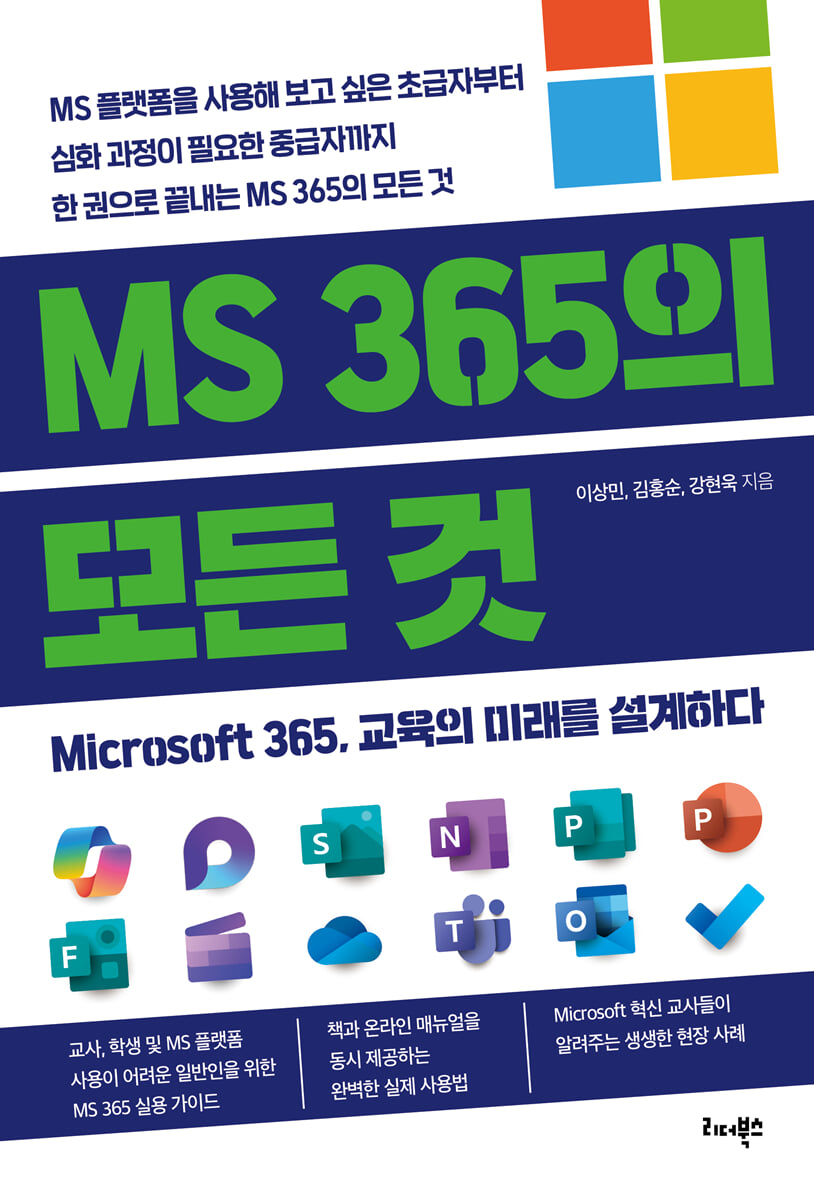
Everything about MS 365
 |
Description
Book Introduction
A practical guide to the entire Microsoft 365 Education suite!
This book covers the various tools of MS 365, including OneDrive, Outlook & To Do, OneNote, Teams, Loop, PowerPoint, Forms, Sway, Whiteboard, Clipchamp, Copilot, and Minecraft!
Complete practical usage instructions provided in both book and online manual!
"Everything About MS 365" contains everything about MS 365 in one volume, from beginners who want to try out the MS platform to intermediate users who need an in-depth course.
The authors, who have been Microsoft innovation educators for a long time and have applied and taught Microsoft 365 in numerous educational settings, present specific ways to use various Microsoft 365 tools, including OneDrive, Outlook & To do, OneNote, Teams, Loop, PowerPoint, Forms, Sway, Whiteboard, Clipchamp, Copilot, and Minecraft, along with vivid real-life examples, to improve classes, streamline school operations, and encourage student participation.
Each chapter provides insights into how teachers can effectively use technology to collaborate, assess, create, and innovate in the classroom.
Another great thing about this book is that it offers complete practical instructions in both the book and online manuals.
If you want to learn about the MS 365 service, you can access it through the website https://microsofta3.com/, which was created by the authors themselves, and then read the online manual briefly or try it out. This will make it easier to understand the content as you read the book because you will be able to see the overall context.
If you would like to actually practice the contents of the book while reading it, you can access it by scanning the attached QR code.
This book is a practical guide to MS 365 for teachers, students, and the general public who have difficulty using the MS platform. It also contributes to teachers becoming co-designers of educational innovation beyond skillful use of digital tools for future education.
This book covers the various tools of MS 365, including OneDrive, Outlook & To Do, OneNote, Teams, Loop, PowerPoint, Forms, Sway, Whiteboard, Clipchamp, Copilot, and Minecraft!
Complete practical usage instructions provided in both book and online manual!
"Everything About MS 365" contains everything about MS 365 in one volume, from beginners who want to try out the MS platform to intermediate users who need an in-depth course.
The authors, who have been Microsoft innovation educators for a long time and have applied and taught Microsoft 365 in numerous educational settings, present specific ways to use various Microsoft 365 tools, including OneDrive, Outlook & To do, OneNote, Teams, Loop, PowerPoint, Forms, Sway, Whiteboard, Clipchamp, Copilot, and Minecraft, along with vivid real-life examples, to improve classes, streamline school operations, and encourage student participation.
Each chapter provides insights into how teachers can effectively use technology to collaborate, assess, create, and innovate in the classroom.
Another great thing about this book is that it offers complete practical instructions in both the book and online manuals.
If you want to learn about the MS 365 service, you can access it through the website https://microsofta3.com/, which was created by the authors themselves, and then read the online manual briefly or try it out. This will make it easier to understand the content as you read the book because you will be able to see the overall context.
If you would like to actually practice the contents of the book while reading it, you can access it by scanning the attached QR code.
This book is a practical guide to MS 365 for teachers, students, and the general public who have difficulty using the MS platform. It also contributes to teachers becoming co-designers of educational innovation beyond skillful use of digital tools for future education.
- You can preview some of the book's contents.
Preview
index
Chapter 1: Things You Can Do at School with MS 365
Lesson 01 Benefits of MS 365
Lesson 02 MS 365 Licenses Used in Schools
Lesson 03: Introduction to MS 365 Service Products
OneDrive/Installing and using the latest version of Microsoft Office programs/Web Office/Teams/Copilot Chat/Minecraft Education/Intune/Power Platform/Learning Accelerator (MS 365 integrated app version)/Introducing other apps
Chapter 2: OneDrive, the Cloud for Effectively Managing School Data
Lesson 01: The Need for OneDrive
Lesson 02: What You Can Do with OneDrive and How to Use It
Lesson 03: How to Use OneDrive at School
OneDrive as a cloud storage solution, freeing up computer space, file explorer, a base for MS 365 collaboration, creating a simple staff room with folder sharing, and data collection.
Chapter 3: Perfect Schedule Management and Email Service, Outlook & To Do
Lesson 01 Advantages of Outlook & To Do
Lesson 02: Outlook Version Overview
Lesson 03 Outlook's Key Features
Outlook mail features/Outlook calendar features/Outlook To-do features/Features as an MS 365 app hub
Lesson 04 Outlook Web Version and Outlook Mobile App Version and To Do
Lesson 05 How to Use Outlook and To-Do Features at School
Chapter 4: A Complete Digital Platform for School Materials: OneNote (+Lens)
Lesson 01: Why We Recommend OneNote
Lesson 02: What You Can Do with OneNote
Lesson 03 How to Use OneNote
Lesson 04 How to Use OneNote in School
Academic notebook/official document file/counseling log/meeting minutes/attendance book and class progress chart/class materials storage/paper material scan storage
Chapter 5: A Digital School Completed with Teams: Classes, Communication, and Collaboration
Lesson 01 Teams is an essential platform for digital education environments.
Lesson 02 What You Can Do with Teams
Lesson 03: Teams' Appearance and Each Function
The most convenient file sharing and collaboration/High-quality video conferencing (meeting function)/The most convenient class notebook, Class Notebook/Effective and efficient assignment distribution and feedback/Use of learning acceleration tools/Reflect/Insights to understand students' emotions/Other features
Chapter 6: Creating a Class Homepage Together, Loop
Lesson 01 The Need for Loops
Lesson 02 Creating a Class Homepage with Loop
Lesson 03 How to Use Loop
Lesson 04: How to Create a Class Homepage Using Loop
Text-based website introduction/schedule/academic schedule notification/one person, one role/final remarks/performance evaluation notification/class suggestions/photo album and attendance form
Chapter 7: Copilot, a Generative AI that Assists with Schoolwork and Classes
Lesson 01 Copilot is a useful tool that reduces the burden on teachers.
Lesson 02 Copilot's Universal Functions
Lesson 03 Types of Copilot and Basic Installation Methods
Lesson 04 Understanding the Copilot Interface
Lesson 05: How to Connect and Use Copilot with the Edge Browser
Lesson 06: How to Access and Use Copilot Designer
Lesson 07 How to Use Copilot in Schools
Using Copilot+Edge like AIDT/Analyzing URL web data with Copilot+Edge and organizing it simply into a PPT/Making your own AI and utilizing Copilot/Studying foreign languages using Copilot/Using Copilot+Edge in conjunction with NICE/Organizing meeting content with Copilot and voice dictation
Chapter 8: PowerPoint Presentation: Improving Class Accessibility for Multicultural Students
Lesson 01 Things You Can Do with PowerPoint
Lesson 02 How to Use PowerPoint
Lesson 03: How to Use PowerPoint to Engage Multicultural Students in Class
Create personalized student captions/Translate slides with Teams/Customize multicultural worksheets/3D models for intuitive understanding/Morphing: Presentations with flow and connection
Chapter 9: Formative Assessment and School Surveys with Forms
Lesson 01 What You Can Do with Forms
Lesson 02 How to Use Forms
Lesson 03 How to Use Forms in School
Basic research tools/survey tools/formative assessment tools for quick feedback/assignment submissions
Chapter 10: Creating Card News and Web Presentations in Sway
Lesson 01: What You Can Do with Sway
Lesson 02 How to Use Sway
Lesson 03: How to Use Sway in School
Creating Simple Class Content/Card News with Sway/Responsive Guides with Sway
Chapter 11: Smart Ways to Use Whiteboards in Schools
Lesson 01 Things You Can Do with a Whiteboard
Lesson 02 How to Use the Whiteboard
Lesson 03 How to Use Whiteboards in School
Real-time collaboration/idea visualization/various templates available/digital whiteboard where all writing is digitized/whiteboard linked to documents/YouTube data collection
Chapter 12 Using Clipchamp in Schools
Lesson 01 What You Can Do with Clipchamp
Lesson 02 How to Use Clipchamp
Lesson 03 How to Use Clipchamp in School
Create student assignments using easy video editing / Edit educational videos using AI voice recognition / Easy-to-use interface for anyone / Cloud-based data management and video sharing / Enrich video creation with text-to-speech support / Intro video creation class
Chapter 13 Minecraft, Microsoft's Global Metaverse Education Platform
Lesson 01 Introduction to Minecraft
Lesson 02: The Educational Value of Minecraft
Lesson 03: Representative lessons you can do with Minecraft
Lesson 04: Basic Installation and Setup of Minecraft Education
Lesson 05: 3 Basic Settings Before Introducing Minecraft Education to Your Classroom
Lesson 06: How to Teach with Minecraft Education
Spatial design and architectural creative education/classes utilizing educational libraries/programming and coding education/collaborative project classes and problem-solving convergence classes
Chapter 14: Microsoft Innovation Teacher MIEE System
Lesson 01 Introduction to the MIEE Program
Lesson 02 MIEE's Support Process
Lesson 03: How MIEE Works in Korea
Lesson 01 Benefits of MS 365
Lesson 02 MS 365 Licenses Used in Schools
Lesson 03: Introduction to MS 365 Service Products
OneDrive/Installing and using the latest version of Microsoft Office programs/Web Office/Teams/Copilot Chat/Minecraft Education/Intune/Power Platform/Learning Accelerator (MS 365 integrated app version)/Introducing other apps
Chapter 2: OneDrive, the Cloud for Effectively Managing School Data
Lesson 01: The Need for OneDrive
Lesson 02: What You Can Do with OneDrive and How to Use It
Lesson 03: How to Use OneDrive at School
OneDrive as a cloud storage solution, freeing up computer space, file explorer, a base for MS 365 collaboration, creating a simple staff room with folder sharing, and data collection.
Chapter 3: Perfect Schedule Management and Email Service, Outlook & To Do
Lesson 01 Advantages of Outlook & To Do
Lesson 02: Outlook Version Overview
Lesson 03 Outlook's Key Features
Outlook mail features/Outlook calendar features/Outlook To-do features/Features as an MS 365 app hub
Lesson 04 Outlook Web Version and Outlook Mobile App Version and To Do
Lesson 05 How to Use Outlook and To-Do Features at School
Chapter 4: A Complete Digital Platform for School Materials: OneNote (+Lens)
Lesson 01: Why We Recommend OneNote
Lesson 02: What You Can Do with OneNote
Lesson 03 How to Use OneNote
Lesson 04 How to Use OneNote in School
Academic notebook/official document file/counseling log/meeting minutes/attendance book and class progress chart/class materials storage/paper material scan storage
Chapter 5: A Digital School Completed with Teams: Classes, Communication, and Collaboration
Lesson 01 Teams is an essential platform for digital education environments.
Lesson 02 What You Can Do with Teams
Lesson 03: Teams' Appearance and Each Function
The most convenient file sharing and collaboration/High-quality video conferencing (meeting function)/The most convenient class notebook, Class Notebook/Effective and efficient assignment distribution and feedback/Use of learning acceleration tools/Reflect/Insights to understand students' emotions/Other features
Chapter 6: Creating a Class Homepage Together, Loop
Lesson 01 The Need for Loops
Lesson 02 Creating a Class Homepage with Loop
Lesson 03 How to Use Loop
Lesson 04: How to Create a Class Homepage Using Loop
Text-based website introduction/schedule/academic schedule notification/one person, one role/final remarks/performance evaluation notification/class suggestions/photo album and attendance form
Chapter 7: Copilot, a Generative AI that Assists with Schoolwork and Classes
Lesson 01 Copilot is a useful tool that reduces the burden on teachers.
Lesson 02 Copilot's Universal Functions
Lesson 03 Types of Copilot and Basic Installation Methods
Lesson 04 Understanding the Copilot Interface
Lesson 05: How to Connect and Use Copilot with the Edge Browser
Lesson 06: How to Access and Use Copilot Designer
Lesson 07 How to Use Copilot in Schools
Using Copilot+Edge like AIDT/Analyzing URL web data with Copilot+Edge and organizing it simply into a PPT/Making your own AI and utilizing Copilot/Studying foreign languages using Copilot/Using Copilot+Edge in conjunction with NICE/Organizing meeting content with Copilot and voice dictation
Chapter 8: PowerPoint Presentation: Improving Class Accessibility for Multicultural Students
Lesson 01 Things You Can Do with PowerPoint
Lesson 02 How to Use PowerPoint
Lesson 03: How to Use PowerPoint to Engage Multicultural Students in Class
Create personalized student captions/Translate slides with Teams/Customize multicultural worksheets/3D models for intuitive understanding/Morphing: Presentations with flow and connection
Chapter 9: Formative Assessment and School Surveys with Forms
Lesson 01 What You Can Do with Forms
Lesson 02 How to Use Forms
Lesson 03 How to Use Forms in School
Basic research tools/survey tools/formative assessment tools for quick feedback/assignment submissions
Chapter 10: Creating Card News and Web Presentations in Sway
Lesson 01: What You Can Do with Sway
Lesson 02 How to Use Sway
Lesson 03: How to Use Sway in School
Creating Simple Class Content/Card News with Sway/Responsive Guides with Sway
Chapter 11: Smart Ways to Use Whiteboards in Schools
Lesson 01 Things You Can Do with a Whiteboard
Lesson 02 How to Use the Whiteboard
Lesson 03 How to Use Whiteboards in School
Real-time collaboration/idea visualization/various templates available/digital whiteboard where all writing is digitized/whiteboard linked to documents/YouTube data collection
Chapter 12 Using Clipchamp in Schools
Lesson 01 What You Can Do with Clipchamp
Lesson 02 How to Use Clipchamp
Lesson 03 How to Use Clipchamp in School
Create student assignments using easy video editing / Edit educational videos using AI voice recognition / Easy-to-use interface for anyone / Cloud-based data management and video sharing / Enrich video creation with text-to-speech support / Intro video creation class
Chapter 13 Minecraft, Microsoft's Global Metaverse Education Platform
Lesson 01 Introduction to Minecraft
Lesson 02: The Educational Value of Minecraft
Lesson 03: Representative lessons you can do with Minecraft
Lesson 04: Basic Installation and Setup of Minecraft Education
Lesson 05: 3 Basic Settings Before Introducing Minecraft Education to Your Classroom
Lesson 06: How to Teach with Minecraft Education
Spatial design and architectural creative education/classes utilizing educational libraries/programming and coding education/collaborative project classes and problem-solving convergence classes
Chapter 14: Microsoft Innovation Teacher MIEE System
Lesson 01 Introduction to the MIEE Program
Lesson 02 MIEE's Support Process
Lesson 03: How MIEE Works in Korea
Into the book
Schools need digital tools for effective teaching and smooth work processes.
Tools are required in various areas, such as creating course materials, submitting and collecting assignments, creating work-related documents, and conducting surveys. MS 365 is a tool that faithfully reflects these requirements.
First of all, since it is a service provided by Microsoft, there is no need to worry about it suddenly being discontinued or disappearing.
Additionally, we provide cloud-based MS Office programs, which are essential for schools, to efficiently support educational activities.
This reduces class preparation time, allows for systematic material management and learning feedback, and enables effective operation in various class environments.
In addition, teachers can perform various tasks, such as classroom management, communication with parents, and document creation, more systematically and efficiently.
MS 365 not only provides the services of the MS Office suite mentioned above, but also provides services necessary for surveys, web material creation, team collaboration, special room reservations, app creation and data analysis, and video production, so it can be used for most tasks and classes required at school.
Additionally, the availability of Copilot also enables the use of secure generative AI services.
In this way, MS 365 is a key tool for creating a smart educational environment that encompasses not only teachers' educational activities but also administrative tasks.
--- pp.23-24
School is a place where one teacher must perform a variety of tasks with completely different characteristics simultaneously.
From handling administrative systems like Edufine and NEIS to managing classes and classes, writing counseling minutes, leading clubs, and holding various committee meetings, the work continues day after day, year-round.
Teachers are always busy because their jobs are completely different from each other except that they deal with students.
Moreover, there is a lack of connectivity between tasks, and it is not easy to manage data systematically.
Even though we use messengers and cloud services, we still often rely on paper documents.
In this scattered and complex work environment, I wondered, “How great would it be if I could easily find and organize all my data within a single platform?” and that’s how I came across Microsoft OneNote.
--- p.83
Microsoft Teams is the most efficient and complete platform for teaching, communication, and collaboration, offering a wealth of useful features.
In particular, with the strengthening of AI functions, learning acceleration tools such as 'Reading Progress', 'Search Progress', and 'Presenter Progress' that have been incorporated into Teams can improve students' individual learning abilities, and 'Reflect' can be used to understand emotional states and even enable personalized management of each student.
Additionally, the 'Insights' feature allows teachers to monitor students' learning engagement and achievement in real time, enabling them to make more accurate educational decisions.
Microsoft Teams is also very convenient for work.
For teachers with numerous tasks, we offer an all-in-one solution that includes data management, grade management, team project management, and even a high-quality video conferencing system.
This allows teachers and students to easily communicate, share assignments, and even provide personalized feedback anytime, anywhere.
You can also share materials with school members or external members and conduct meetings anytime, anywhere.
--- pp.103-104
Schools are complex spaces where class preparation, student guidance, assessment, and various administrative tasks are carried out simultaneously every day.
Because these tasks differ in nature and document format, teachers find it difficult to systematically manage data and efficiently process work.
In particular, tasks such as writing administrative documents, organizing meeting minutes, and checking official documents significantly increase the amount of work outside of class, reducing the time available to focus on class.
In these situations, Microsoft Copilot is a useful tool that can help reduce the burden on teachers.
It helps you organize repetitive and time-consuming administrative tasks more easily and provides practical support across all educational activities, including lesson design, learning material development, and personalized student feedback.
With Copilot's help, teachers can focus more on their core role of teaching and learning. Furthermore, by saving instructors' time, they can secure more time for research, which in turn can lead to improved classroom quality.
In this way, Microsoft Copilot can act as a powerful educational solution that goes beyond a simple technology tool, supporting the complex work environment of schools and allowing students to focus on the essence of education.
--- pp.143-144
Our country's schools are increasingly becoming multicultural educational spaces where students from various cultures come together.
There are various cases, such as students who lived abroad as children, or students who had to adapt to Korean schools after living abroad due to their parents' nationality or job characteristics.
Some students speak Korean relatively fluently and actively participate in class, but others are in the early stages of learning Korean and often struggle to overcome the language barrier, making class participation difficult.
There are many cases where students do not fully understand the content the teacher is conveying due to language barriers, or they become discouraged from interacting with friends or engaging in discussions, resulting in low participation in class.
This is also a problem that can lead to learning alienation in the classroom.
In this way, supporting class participation for multicultural students goes beyond simple 'consideration' and can be said to be a matter of 'inclusiveness and equity' that school education should pursue.
As a teacher, I've been thinking about how I can create a learning environment where these students can fully understand their lessons, communicate with their peers, and grow together. The app and platform I discovered is Microsoft PowerPoint.
PowerPoint offers a variety of possibilities to increase classroom accessibility for multicultural students.
--- pp.169-170
Microsoft Forms can help you:
1) New semester personal statement: At the start of the new semester, you can provide students with a Forms link to write and submit a personal statement via Forms.
2) School Satisfaction Survey: Forms can be used as surveys to improve school operations, such as parent satisfaction surveys, flexible semester (year) system satisfaction surveys, and after-school school operation evaluations.
3) Submit Assignments: The file submission feature allows students to easily submit their assignments.
4) Simple formative assessment during class: You can use Forms as a formative assessment tool to immediately check what was learned during class.
Forms supports a variety of question formats, including multiple-choice and subjective questions, and automatic scoring allows you to check results immediately.
--- p.188
Microsoft Sway lets you:
1) Create simple lesson content: Easily create intuitive and visual lesson materials by combining images and text.
2) Card News: When students create materials for a presentation, they can convey the content by visualizing it in card format.
3) Responsive guidance: School-related guidance, class information, and notices are produced in webpage format so that they can be easily viewed on PCs, smartphones, tablets, etc.
With these simple features, you can create simple, decorative presentations for school with just one tool: Sway.
--- p.202
Microsoft Whiteboard is more than just a digital whiteboard; it's a smart educational platform that encompasses lesson design, collaboration, idea organization, assessment, consultation, and project planning.
Real-time collaboration, a variety of templates, document linking, and instructor and learner feedback features are powerful tools that can assist teachers in their teaching and encourage student engagement.
In particular, it is naturally connected to the problem-solving-centered class structure, which is very helpful in realizing 21st century competency-centered classes.
A whiteboard is an essential tool in schools, capable of capturing and organizing every moment of a class.
--- p.226
Microsoft Clipchamp is more than just a simple video editing program. It's a smart video production platform that makes it easy to implement various educational activities, such as creating teaching materials, submitting student assignments, promoting classes, and organizing training materials.
An easy-to-use interface, automatic caption generation, templates, cloud-based storage and sharing, and text-to-speech capabilities empower both teachers and students to create and share digital content.
In particular, it is naturally linked to creative expression, media literacy, and student-centered project classes, greatly contributing to creating a classroom environment that fosters core 21st-century competencies.
Tools are required in various areas, such as creating course materials, submitting and collecting assignments, creating work-related documents, and conducting surveys. MS 365 is a tool that faithfully reflects these requirements.
First of all, since it is a service provided by Microsoft, there is no need to worry about it suddenly being discontinued or disappearing.
Additionally, we provide cloud-based MS Office programs, which are essential for schools, to efficiently support educational activities.
This reduces class preparation time, allows for systematic material management and learning feedback, and enables effective operation in various class environments.
In addition, teachers can perform various tasks, such as classroom management, communication with parents, and document creation, more systematically and efficiently.
MS 365 not only provides the services of the MS Office suite mentioned above, but also provides services necessary for surveys, web material creation, team collaboration, special room reservations, app creation and data analysis, and video production, so it can be used for most tasks and classes required at school.
Additionally, the availability of Copilot also enables the use of secure generative AI services.
In this way, MS 365 is a key tool for creating a smart educational environment that encompasses not only teachers' educational activities but also administrative tasks.
--- pp.23-24
School is a place where one teacher must perform a variety of tasks with completely different characteristics simultaneously.
From handling administrative systems like Edufine and NEIS to managing classes and classes, writing counseling minutes, leading clubs, and holding various committee meetings, the work continues day after day, year-round.
Teachers are always busy because their jobs are completely different from each other except that they deal with students.
Moreover, there is a lack of connectivity between tasks, and it is not easy to manage data systematically.
Even though we use messengers and cloud services, we still often rely on paper documents.
In this scattered and complex work environment, I wondered, “How great would it be if I could easily find and organize all my data within a single platform?” and that’s how I came across Microsoft OneNote.
--- p.83
Microsoft Teams is the most efficient and complete platform for teaching, communication, and collaboration, offering a wealth of useful features.
In particular, with the strengthening of AI functions, learning acceleration tools such as 'Reading Progress', 'Search Progress', and 'Presenter Progress' that have been incorporated into Teams can improve students' individual learning abilities, and 'Reflect' can be used to understand emotional states and even enable personalized management of each student.
Additionally, the 'Insights' feature allows teachers to monitor students' learning engagement and achievement in real time, enabling them to make more accurate educational decisions.
Microsoft Teams is also very convenient for work.
For teachers with numerous tasks, we offer an all-in-one solution that includes data management, grade management, team project management, and even a high-quality video conferencing system.
This allows teachers and students to easily communicate, share assignments, and even provide personalized feedback anytime, anywhere.
You can also share materials with school members or external members and conduct meetings anytime, anywhere.
--- pp.103-104
Schools are complex spaces where class preparation, student guidance, assessment, and various administrative tasks are carried out simultaneously every day.
Because these tasks differ in nature and document format, teachers find it difficult to systematically manage data and efficiently process work.
In particular, tasks such as writing administrative documents, organizing meeting minutes, and checking official documents significantly increase the amount of work outside of class, reducing the time available to focus on class.
In these situations, Microsoft Copilot is a useful tool that can help reduce the burden on teachers.
It helps you organize repetitive and time-consuming administrative tasks more easily and provides practical support across all educational activities, including lesson design, learning material development, and personalized student feedback.
With Copilot's help, teachers can focus more on their core role of teaching and learning. Furthermore, by saving instructors' time, they can secure more time for research, which in turn can lead to improved classroom quality.
In this way, Microsoft Copilot can act as a powerful educational solution that goes beyond a simple technology tool, supporting the complex work environment of schools and allowing students to focus on the essence of education.
--- pp.143-144
Our country's schools are increasingly becoming multicultural educational spaces where students from various cultures come together.
There are various cases, such as students who lived abroad as children, or students who had to adapt to Korean schools after living abroad due to their parents' nationality or job characteristics.
Some students speak Korean relatively fluently and actively participate in class, but others are in the early stages of learning Korean and often struggle to overcome the language barrier, making class participation difficult.
There are many cases where students do not fully understand the content the teacher is conveying due to language barriers, or they become discouraged from interacting with friends or engaging in discussions, resulting in low participation in class.
This is also a problem that can lead to learning alienation in the classroom.
In this way, supporting class participation for multicultural students goes beyond simple 'consideration' and can be said to be a matter of 'inclusiveness and equity' that school education should pursue.
As a teacher, I've been thinking about how I can create a learning environment where these students can fully understand their lessons, communicate with their peers, and grow together. The app and platform I discovered is Microsoft PowerPoint.
PowerPoint offers a variety of possibilities to increase classroom accessibility for multicultural students.
--- pp.169-170
Microsoft Forms can help you:
1) New semester personal statement: At the start of the new semester, you can provide students with a Forms link to write and submit a personal statement via Forms.
2) School Satisfaction Survey: Forms can be used as surveys to improve school operations, such as parent satisfaction surveys, flexible semester (year) system satisfaction surveys, and after-school school operation evaluations.
3) Submit Assignments: The file submission feature allows students to easily submit their assignments.
4) Simple formative assessment during class: You can use Forms as a formative assessment tool to immediately check what was learned during class.
Forms supports a variety of question formats, including multiple-choice and subjective questions, and automatic scoring allows you to check results immediately.
--- p.188
Microsoft Sway lets you:
1) Create simple lesson content: Easily create intuitive and visual lesson materials by combining images and text.
2) Card News: When students create materials for a presentation, they can convey the content by visualizing it in card format.
3) Responsive guidance: School-related guidance, class information, and notices are produced in webpage format so that they can be easily viewed on PCs, smartphones, tablets, etc.
With these simple features, you can create simple, decorative presentations for school with just one tool: Sway.
--- p.202
Microsoft Whiteboard is more than just a digital whiteboard; it's a smart educational platform that encompasses lesson design, collaboration, idea organization, assessment, consultation, and project planning.
Real-time collaboration, a variety of templates, document linking, and instructor and learner feedback features are powerful tools that can assist teachers in their teaching and encourage student engagement.
In particular, it is naturally connected to the problem-solving-centered class structure, which is very helpful in realizing 21st century competency-centered classes.
A whiteboard is an essential tool in schools, capable of capturing and organizing every moment of a class.
--- p.226
Microsoft Clipchamp is more than just a simple video editing program. It's a smart video production platform that makes it easy to implement various educational activities, such as creating teaching materials, submitting student assignments, promoting classes, and organizing training materials.
An easy-to-use interface, automatic caption generation, templates, cloud-based storage and sharing, and text-to-speech capabilities empower both teachers and students to create and share digital content.
In particular, it is naturally linked to creative expression, media literacy, and student-centered project classes, greatly contributing to creating a classroom environment that fosters core 21st-century competencies.
--- p.243
Publisher's Review
Microsoft 365's ecosystem is more powerful than any other edtech service!
Within a single platform, you can easily, quickly, and efficiently manage various administrative tasks, lesson design and research, class management, and consultation notes!
In the past, Microsoft services were limited to Windows, Word, Excel, and PowerPoint, but the evolution to Microsoft 365 has brought about innovative changes in the field of education.
An environment has been created where teachers can work quickly and efficiently, create teaching materials effectively, and communicate smoothly with students.
This book, "All About MS 365," was written by authors who have long served as Microsoft Innovation Educators and have applied and taught Microsoft 365 in numerous educational settings. It systematically explains the entire MS 365 education product line and helps teachers, students, and the general public who have difficulty using the MS platform to skillfully utilize digital tools.
This book, written by, for, and about teachers, is powerful because it stems from the practical concerns of teachers in the educational field. It also contributes to the transformation of all teachers contemplating digital transformation in education into co-designers of educational innovation.
Features of this book
1) This is the only book in Korea that systematically explains the entire MS 365 education product line and suggests how to use it.
This book, which combines Microsoft's educational philosophy of promoting equity, inclusion, and accessibility in learning through technology, with practical skills and the fun of learning, is the first book in Korea to comprehensively introduce and utilize MS 365 service products.
2) This is a practical guidebook for MS 365 that can be used immediately in educational settings, from beginners who want to try out the MS platform to intermediate users who need in-depth training.
The MS 365 ecosystem is more powerful than any other edtech service, encompassing the functionality and connectivity to address everything a school needs—from administrative tasks, lesson design and research, classroom management, and even writing counseling notes—all within a single platform.
To shorten the time it takes to fully understand this amazing capability, this book provides teachers new to MS 365 with easy-to-understand, case-based explanations that can be applied directly to education, while providing more in-depth and specialized methods of utilization for teachers already familiar with the tool.
3) It effectively connects the Windows operating system, cloud and AI-based platforms such as Teams, OneDrive, and Copilot, and explains the specific procedures for practically applying the Microsoft A3 licenses provided by each provincial office of education to classes, evaluations, and administration, step by step.
4) It provides concrete examples of how various tools in Microsoft 365, such as OneDrive, Outlook & To do, OneNote, Teams, Loop, PowerPoint, Forms, Sway, Whiteboard, Clipchamp, Copilot, and Minecraft, can improve classes, streamline school operations, and encourage student participation.
This book presents smart ways to utilize OneDrive, a cloud that effectively manages school data, Outlook & To do, a perfect schedule management and email service, OneNote (+Lens), a complete digital platform for school materials, a digital school that completes classes, communication, and collaboration with Teams, Loop, a class homepage that is created together, Copilot, a generative AI that helps with school work and classes, PowerPoint that increases class accessibility for multicultural students, Forms, useful for formative assessments and school surveys, Sway for creating card news and web presentations, Whiteboard, which allows for real-time collaboration, idea visualization, and various templates, and Minecraft, Microsoft's global metaverse education platform, in schools.
5) Each chapter provides insights into how teachers can effectively use technology to collaborate, assess, create, and innovate in the classroom.
In particular, it contains specific content necessary for implementing learner-centered class design and collaborative learning environment.
6) Another advantage of this book is that it provides complete practical instructions in both the book and online manuals.
If you want to learn about the MS 365 service, you can access it through the website https://microsofta3.com/, which was created by the authors themselves, and then read the online manual briefly or try it out. This will make it easier to understand the content as you read the book because you will be able to see the overall context.
If you would like to actually practice the contents of the book while reading it, you can access it by scanning the attached QR code.
Within a single platform, you can easily, quickly, and efficiently manage various administrative tasks, lesson design and research, class management, and consultation notes!
In the past, Microsoft services were limited to Windows, Word, Excel, and PowerPoint, but the evolution to Microsoft 365 has brought about innovative changes in the field of education.
An environment has been created where teachers can work quickly and efficiently, create teaching materials effectively, and communicate smoothly with students.
This book, "All About MS 365," was written by authors who have long served as Microsoft Innovation Educators and have applied and taught Microsoft 365 in numerous educational settings. It systematically explains the entire MS 365 education product line and helps teachers, students, and the general public who have difficulty using the MS platform to skillfully utilize digital tools.
This book, written by, for, and about teachers, is powerful because it stems from the practical concerns of teachers in the educational field. It also contributes to the transformation of all teachers contemplating digital transformation in education into co-designers of educational innovation.
Features of this book
1) This is the only book in Korea that systematically explains the entire MS 365 education product line and suggests how to use it.
This book, which combines Microsoft's educational philosophy of promoting equity, inclusion, and accessibility in learning through technology, with practical skills and the fun of learning, is the first book in Korea to comprehensively introduce and utilize MS 365 service products.
2) This is a practical guidebook for MS 365 that can be used immediately in educational settings, from beginners who want to try out the MS platform to intermediate users who need in-depth training.
The MS 365 ecosystem is more powerful than any other edtech service, encompassing the functionality and connectivity to address everything a school needs—from administrative tasks, lesson design and research, classroom management, and even writing counseling notes—all within a single platform.
To shorten the time it takes to fully understand this amazing capability, this book provides teachers new to MS 365 with easy-to-understand, case-based explanations that can be applied directly to education, while providing more in-depth and specialized methods of utilization for teachers already familiar with the tool.
3) It effectively connects the Windows operating system, cloud and AI-based platforms such as Teams, OneDrive, and Copilot, and explains the specific procedures for practically applying the Microsoft A3 licenses provided by each provincial office of education to classes, evaluations, and administration, step by step.
4) It provides concrete examples of how various tools in Microsoft 365, such as OneDrive, Outlook & To do, OneNote, Teams, Loop, PowerPoint, Forms, Sway, Whiteboard, Clipchamp, Copilot, and Minecraft, can improve classes, streamline school operations, and encourage student participation.
This book presents smart ways to utilize OneDrive, a cloud that effectively manages school data, Outlook & To do, a perfect schedule management and email service, OneNote (+Lens), a complete digital platform for school materials, a digital school that completes classes, communication, and collaboration with Teams, Loop, a class homepage that is created together, Copilot, a generative AI that helps with school work and classes, PowerPoint that increases class accessibility for multicultural students, Forms, useful for formative assessments and school surveys, Sway for creating card news and web presentations, Whiteboard, which allows for real-time collaboration, idea visualization, and various templates, and Minecraft, Microsoft's global metaverse education platform, in schools.
5) Each chapter provides insights into how teachers can effectively use technology to collaborate, assess, create, and innovate in the classroom.
In particular, it contains specific content necessary for implementing learner-centered class design and collaborative learning environment.
6) Another advantage of this book is that it provides complete practical instructions in both the book and online manuals.
If you want to learn about the MS 365 service, you can access it through the website https://microsofta3.com/, which was created by the authors themselves, and then read the online manual briefly or try it out. This will make it easier to understand the content as you read the book because you will be able to see the overall context.
If you would like to actually practice the contents of the book while reading it, you can access it by scanning the attached QR code.
GOODS SPECIFICS
- Date of issue: July 17, 2025
- Page count, weight, size: 280 pages | 152*224*20mm
- ISBN13: 9791193555088
- ISBN10: 1193555086
You may also like
카테고리
korean


korean

![GQ KOREA Mark (Monthly): December [2025]](http://librairie.coreenne.fr/cdn/shop/files/8ef265dbbfbf186523ed75ba7319009d.jpg?v=1765340328&width=3840)


